Skip to content
University
Videos
Topics
Updates
Search the videos
Topics
Contact groups
All 16 moments in Digital Samba University that depend on this.
Organise contacts into groups
Contacts · 2:02
0:01
Introduction
In this video, you'll sort your contacts into two groups, Team and Clients, and then invite a whole group to a call in one go.
Read
0:18
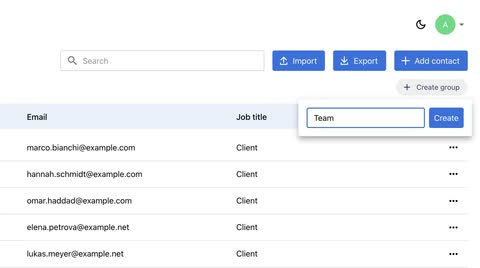
Create a group
Click Create group, type Team, and click Create.
Read
0:23
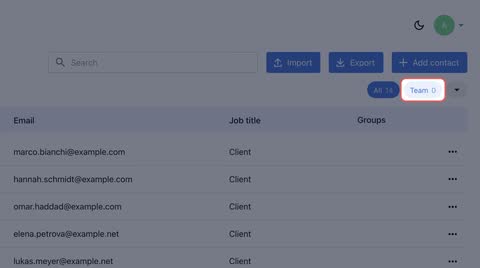
Create a group
The group now shows above the list, with nobody in it yet.
Read
0:33
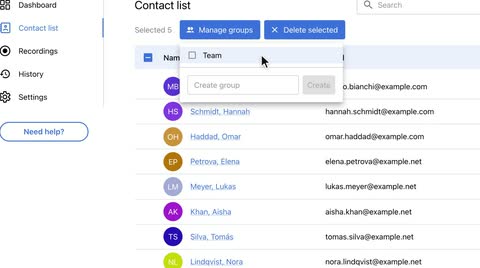
Manage groups
Click Manage groups and tick Team.
Read
0:36
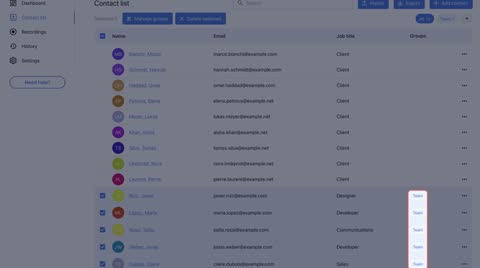
Manage groups
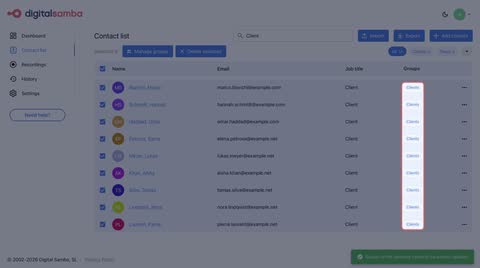
Then click outside the menu to save: each colleague now has a Team label.
Read
0:48
Manage groups
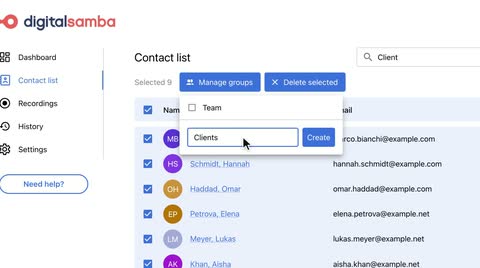
Tick the box at the top, open Manage groups, type Clients, and click Create.
Read
0:54
Manage groups
The new group is ticked already, so closing the menu adds all nine.
Read
1:00
Filter by group
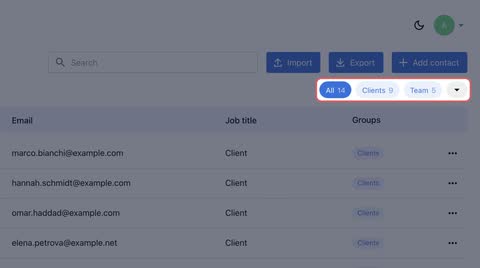
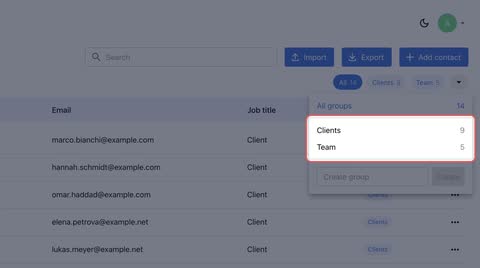
Clear the search: each group now shows how many people it has.
Read
1:05
Filter by group
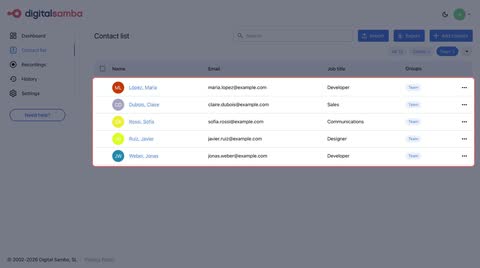
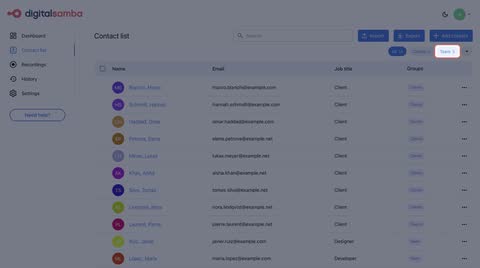
Click Team to see only your colleagues, and All to see everyone again.
Read
1:16
Add a group to a call
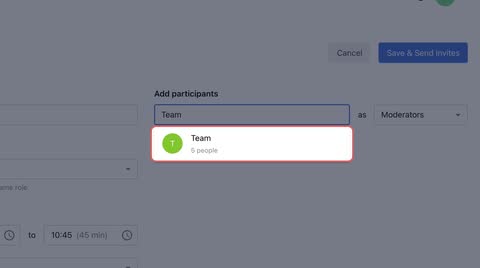
Type Team in Add participants: the group is suggested, with five people.
Read
1:21
Add a group to a call
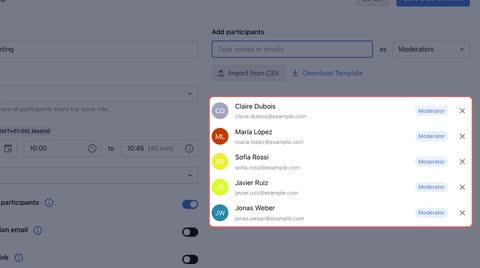
Pick it, and all five are added at once.
Read
1:24
Add a group to a call
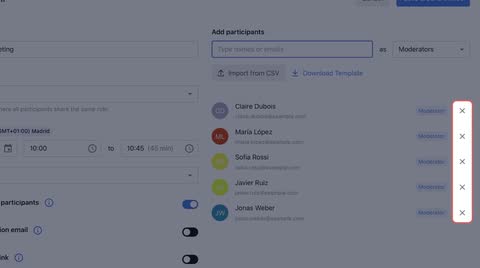
They're listed one by one, so you can still remove anyone who can't come.
Read
1:29
Good to know
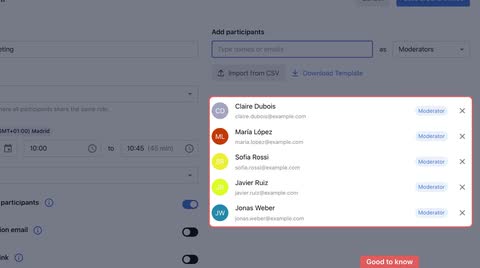
Good to know: the people are copied into the call, so later changes to the group don't reach calls you've already scheduled.
Read
1:37
Good to know
A contact can be in more than one group.
Read
1:40
Good to know
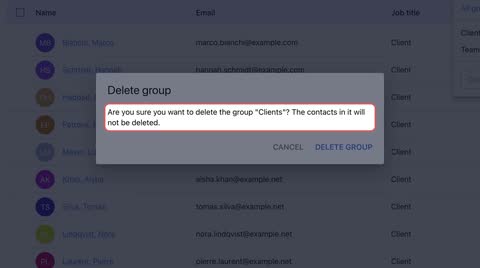
And deleting a group, from its menu here, keeps every contact that was in it.
Read
1:46
Recap
So: create a group, fill it with Manage groups, filter by group, and type its name in Add participants.
Read
All topics