Skip to content
University
Videos
Topics
Updates
Search the videos
Topics
Transcription settings
All 14 moments in Digital Samba University that depend on this.
Start here: Digital Samba in 90 seconds
1:36
0:51
History
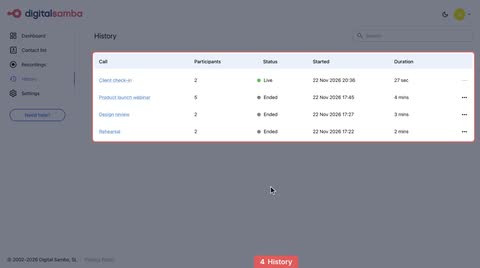
After the call, History lists every session.
Read
0:55
History
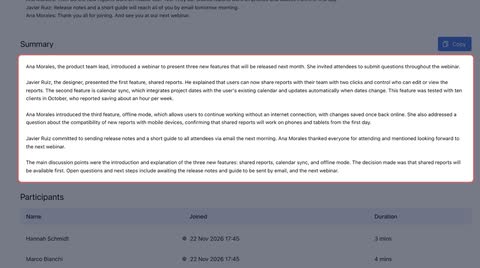
With transcription on, a session's page holds what was said, line by line, and an AI summary written automatically from it.
Read
Turn on recording and transcription
After the call · 2:44
0:01
Introduction
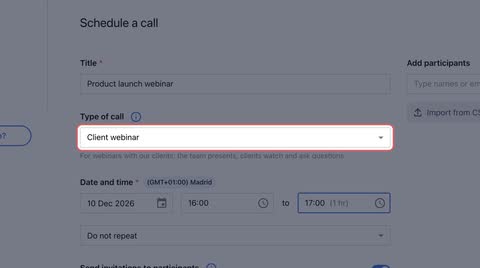
In this video, you'll turn on recording and transcription in a type of call, before you schedule a meeting, a class or a webinar with it.
Read
0:54
Recordings
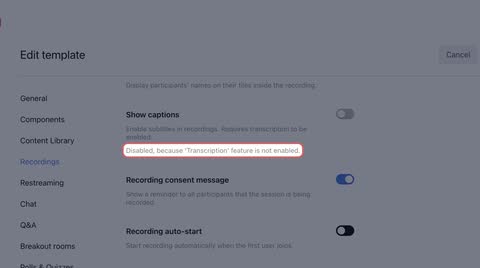
Further down, Show captions is greyed out: it needs transcription.
Read
1:25
Transcription
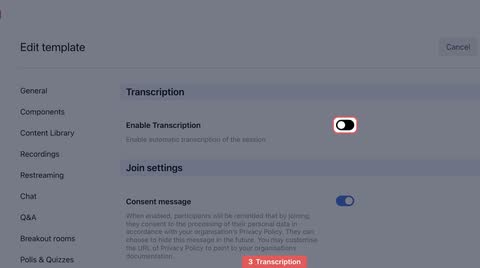
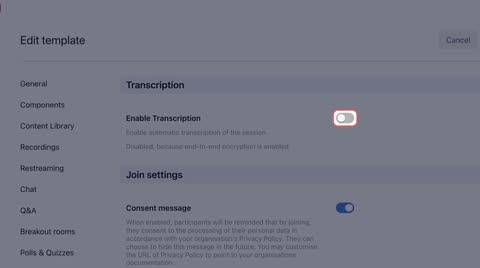
Transcription is off from the start: turn on Enable Transcription.
Read
1:30
Transcription
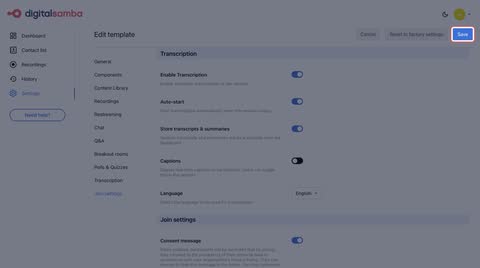
More settings appear.
Read
1:31
Transcription
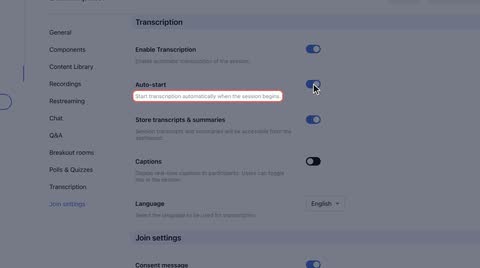
Ana turns on Auto-start: the page says transcription then starts when the session begins.
Read
1:38
Transcription
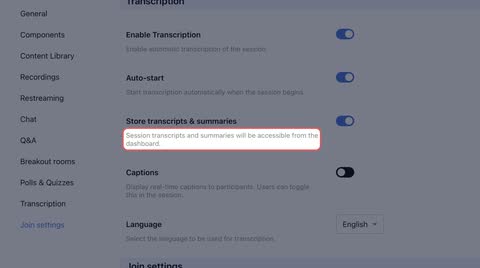
Store transcripts & summaries is already on: the page says they will be accessible from the dashboard.
Read
1:44
Transcription
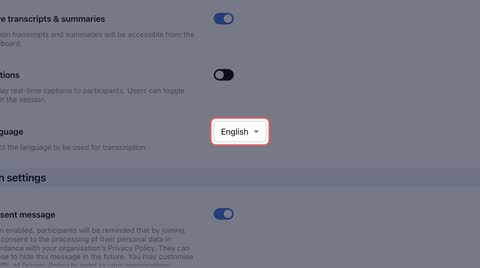
Under Language, choose the language for transcription: Ana's webinar is in English.
Read
2:13
Good to know
They are copied into a call when you schedule it, so a change reaches only calls you schedule afterwards.
Read
2:20
Good to know
And with end-to-end encryption turned on under General, Transcription is greyed out.
Read
2:26
Recap
So: Settings, Templates, your type of call; turn on what you need under Recordings and Transcription, and click Save.
Read
Session history, transcripts and AI summaries
After the call · 2:26
1:53
Good to know
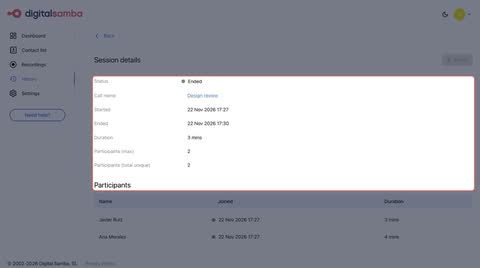
Good to know: a session without transcription has no transcript and no summary, like this design review.
Read
2:00
Good to know
To turn it on, see Turn on recording and transcription.
Read
All topics