Skip to content
University
Videos
Most watched
Topics
Updates
Search the videos
Topics
Recurring calls
All 28 moments in Digital Samba University that depend on this.
Set up a recurring call
Scheduling calls · 2:42
0:01
Introduction
In this video, you'll make a call — a meeting, a class or a webinar — repeat on its own, then change or delete one date without touching the rest.
Read
0:17
Repeat
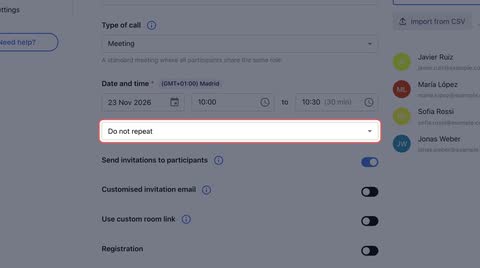
On the Schedule a call form, under the date and time, there's a menu that says Do not repeat.
Read
0:24
Repeat
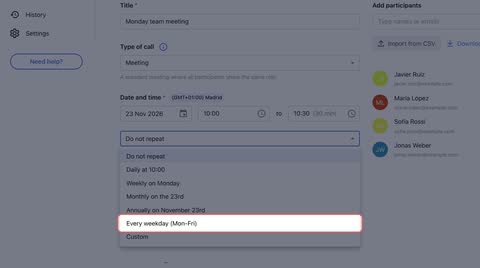
Its choices follow the date you picked: Daily, Weekly, Monthly, Annually, or Every weekday.
Read
0:32
Repeat
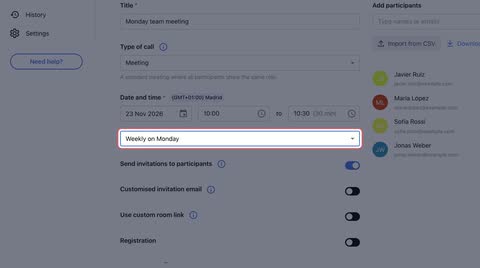
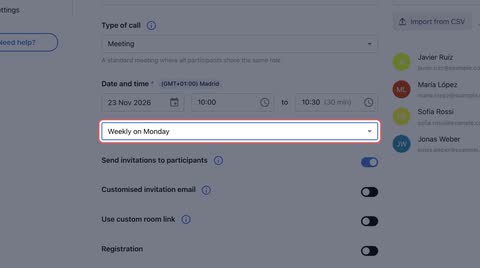
Choose Weekly on Monday.
Read
0:35
Custom recurrence
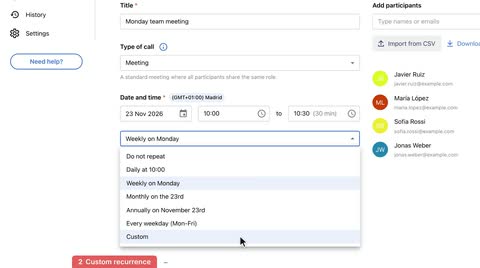
For any other rhythm, choose Custom.
Read
0:38
Custom recurrence
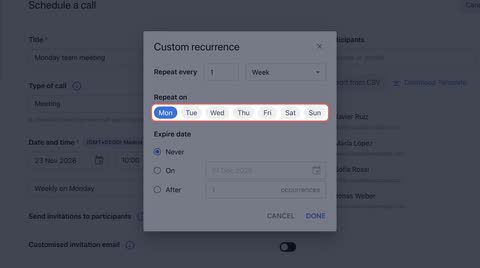
Repeat every takes a number, and Day, Week, Month or Year; for weeks, you pick the days.
Read
0:45
Custom recurrence
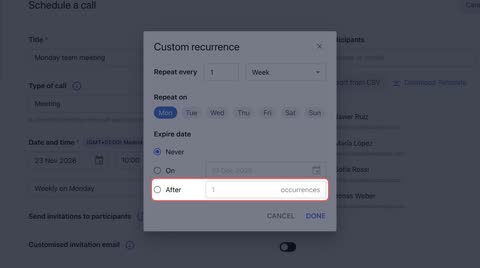
Under Expire date: Never, On a date, or After a number of occurrences.
Read
0:51
Custom recurrence
The team needs none of that, so Cancel keeps Weekly on Monday.
Read
0:57
Save the series
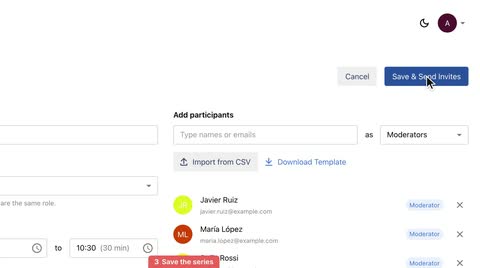
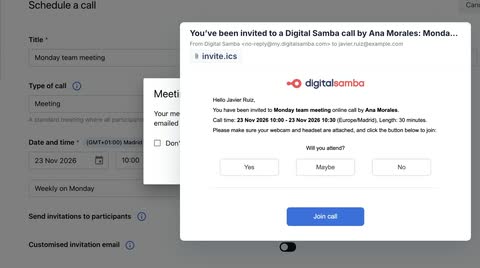
Now click Save and Send Invites.
Read
1:00
Save the series
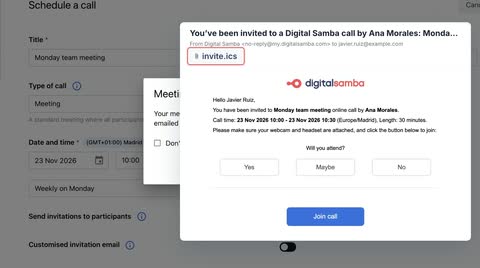
Each person gets one invitation for the whole series.
Read
1:04
Save the series
It names the first Monday, and its calendar file repeats the meeting every week.
Read
1:10
Save the series
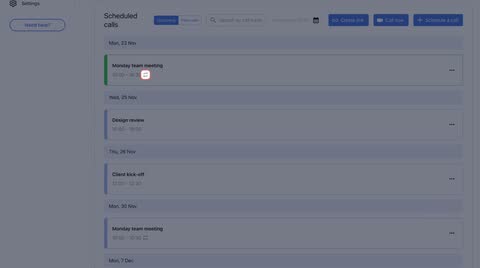
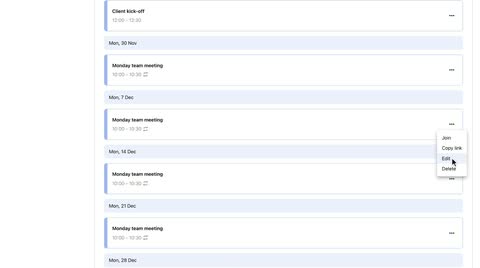
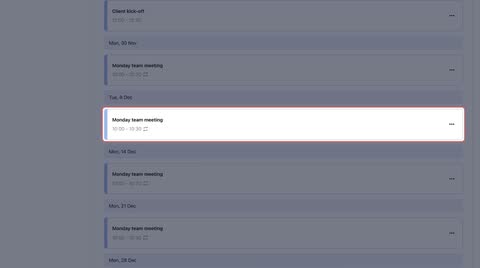
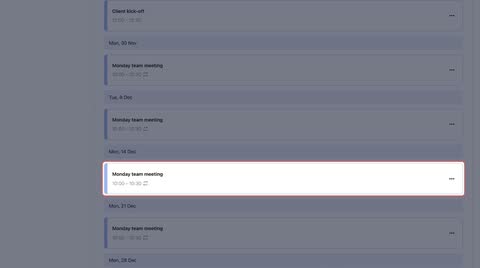
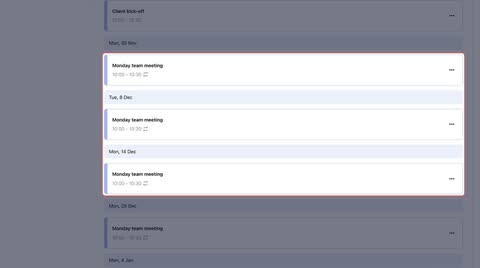
Your dashboard lists every Monday, each with a small repeat mark.
Read
1:16
This call only
One Monday, the team needs Tuesday instead.
Read
1:20
This call only
Open that Monday's menu on your dashboard, and click Edit.
Read
1:24
This call only
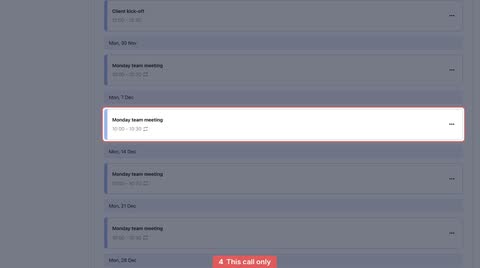
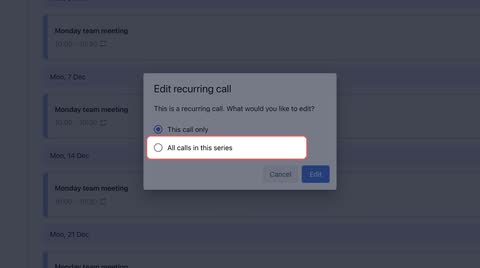
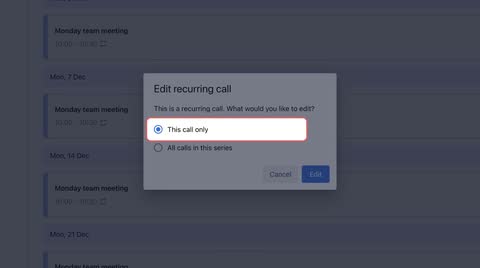
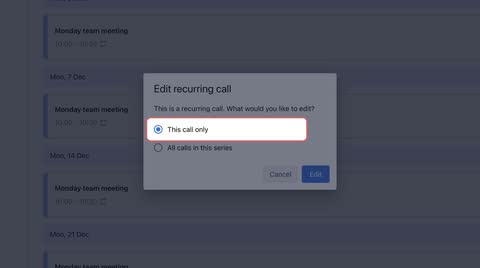
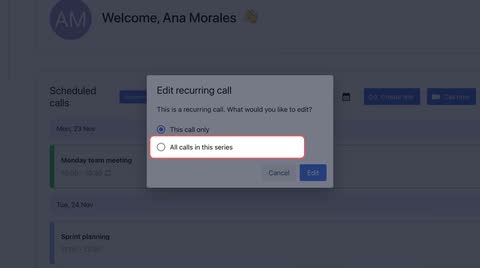
You're asked: This call only, or All calls in this series.
Read
1:29
This call only
Keep This call only.
Read
1:32
This call only
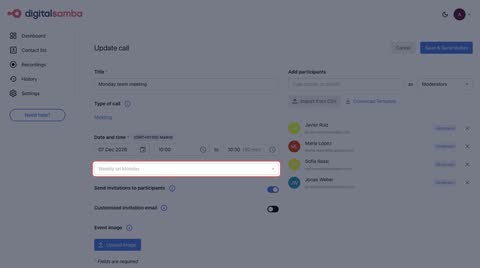
Repeat is greyed out, and there's no room link or registration here: those belong to the series.
Read
1:38
This call only
Pick Tuesday, and save.
Read
1:41
This call only
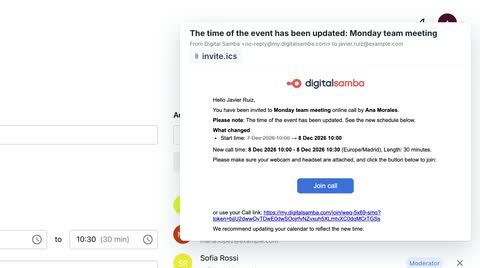
Everyone gets an update for that one date, with the same join link as before.
Read
1:46
This call only
Every other Monday stays as it was.
Read
1:50
Delete one date
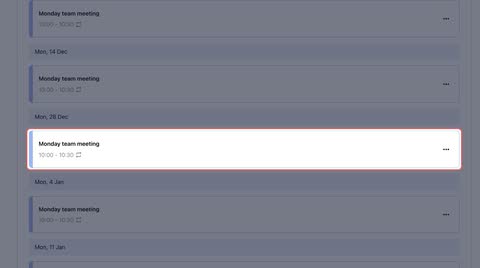
Another Monday, the meeting is off.
Read
1:53
Delete one date
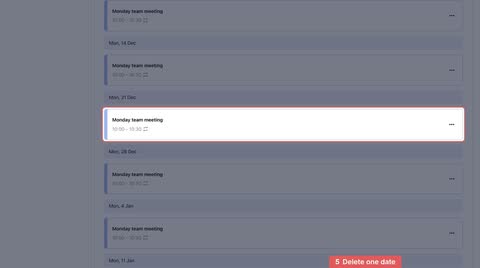
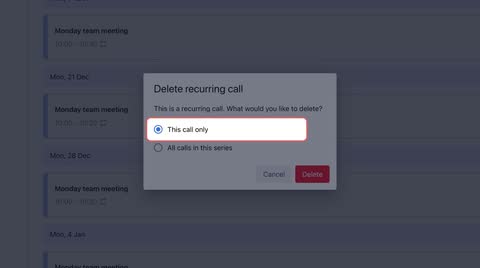
Open its menu, click Delete, keep This call only, and click Delete again.
Read
1:59
Delete one date
Everyone invited gets an email that this call is cancelled, and the other Mondays stay.
Read
2:06
Delete one date
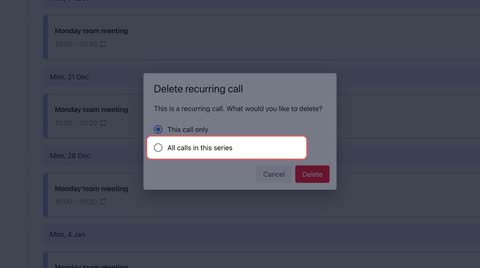
All calls in this series would delete the whole series, the Tuesday included.
Read
2:12
Good to know
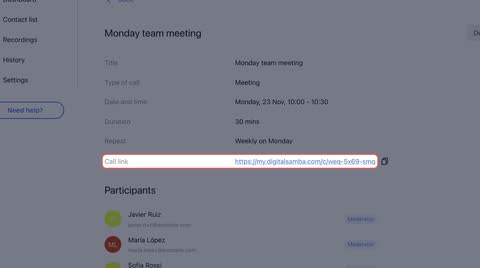
Good to know: every call in a series has the same call link.
Read
2:18
Good to know
And a call you changed on its own keeps its changes when you later edit the whole series.
Read
2:24
Recap
So: choose a repeat when you schedule, use Custom for anything else, and This call only to change or delete one date.
Read
Edit, reschedule or cancel a call
Scheduling calls · 2:27
2:01
Good to know
And for a recurring call, you choose between this call only and all calls in the series: see Set up a recurring call.
Read
All topics