University

Organise contacts into groups

In this video, you'll sort your contacts into two groups, Team and Clients, and then invite a whole group to a call in one go.

Updated Version 1

1Create a group0:11

Our example is Ana's contact list: her five colleagues and nine clients.
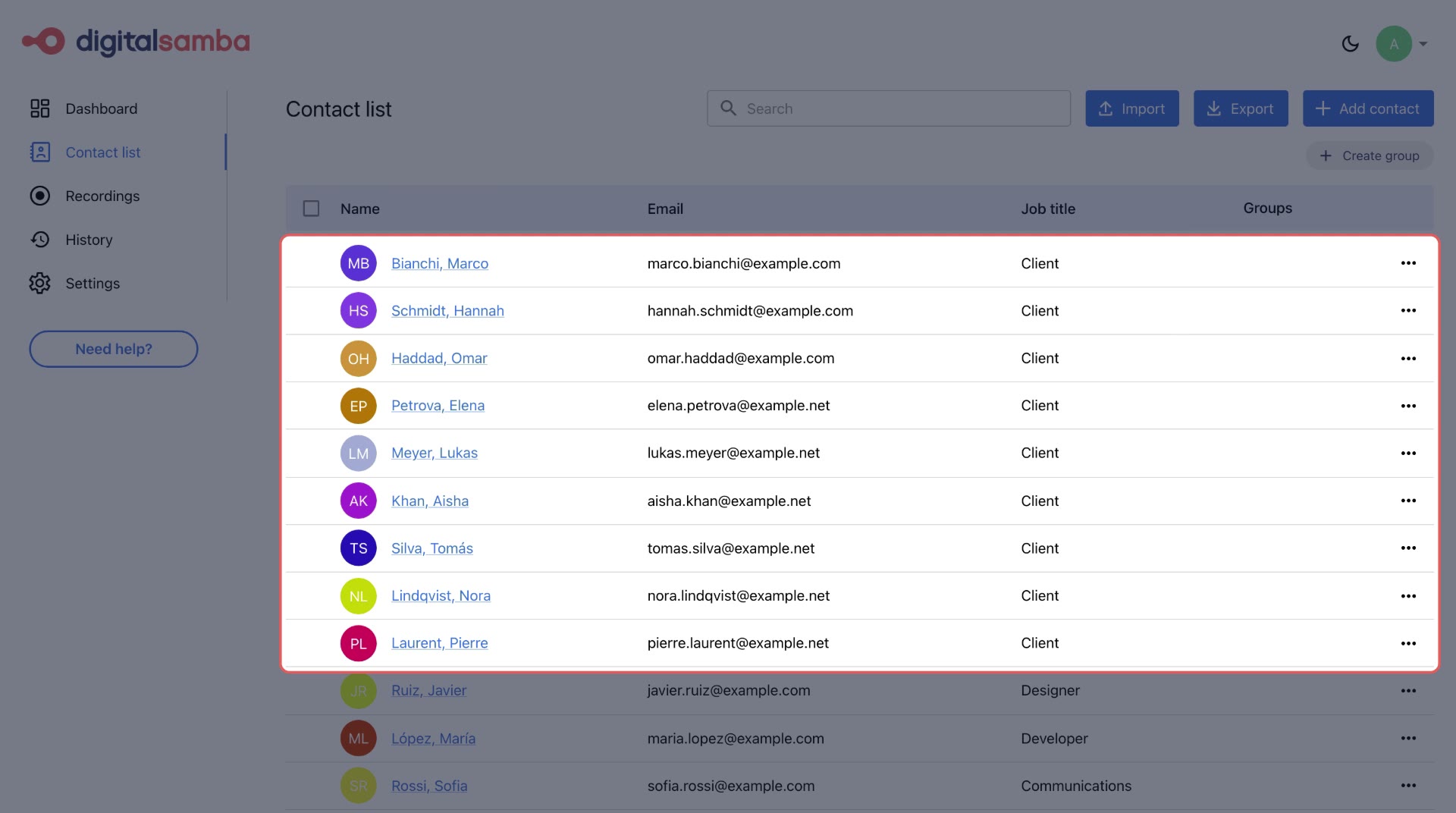
Screenshot from the film at 0:17: Our example is Ana's contact list: her five colleagues and nine clients.
Watch this step · 0:13

Click Create group, type Team, and click Create.
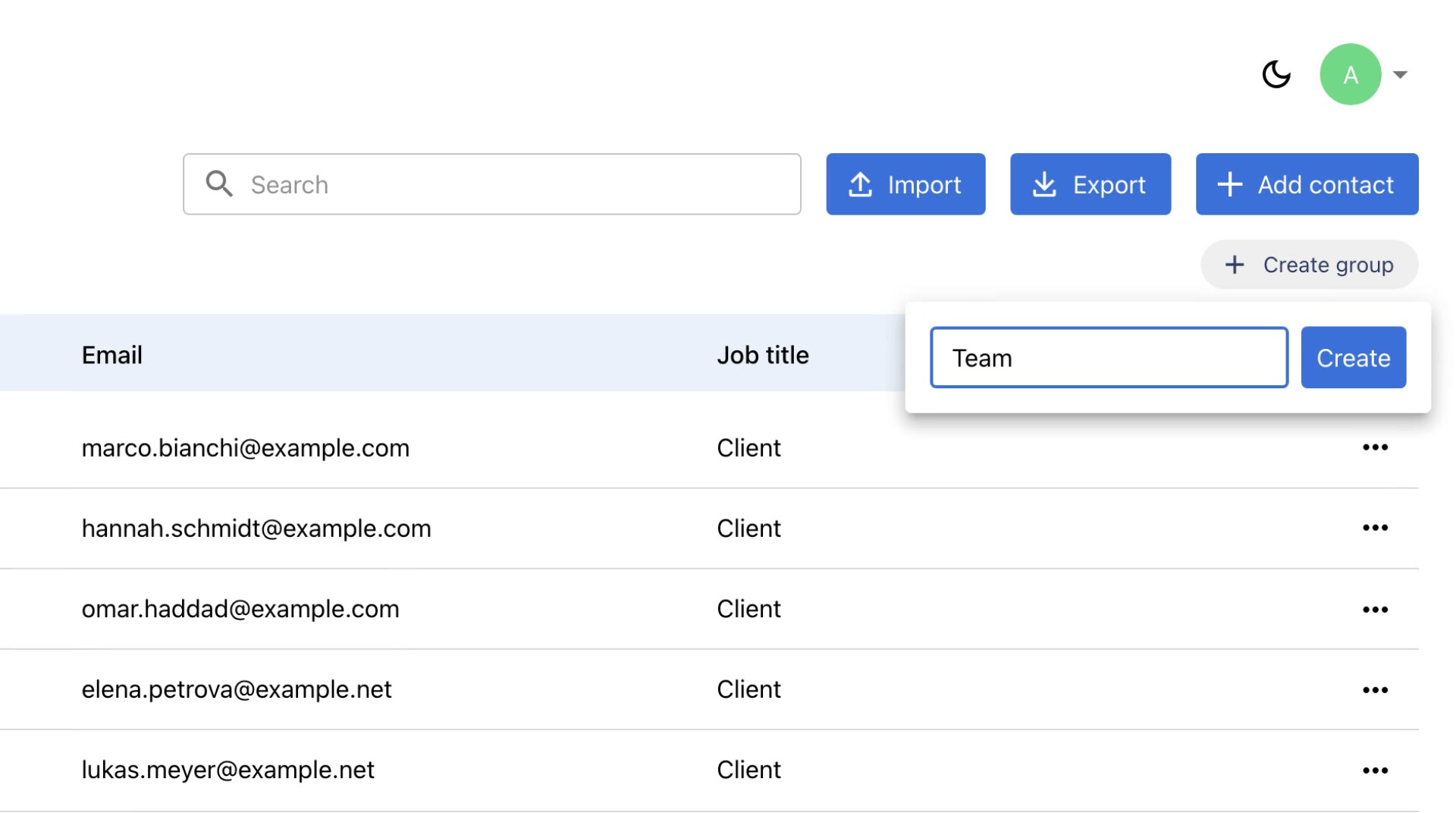
Screenshot from the film at 0:21: Click Create group, type Team, and click Create.
Watch this step · 0:18

The group now shows above the list, with nobody in it yet.
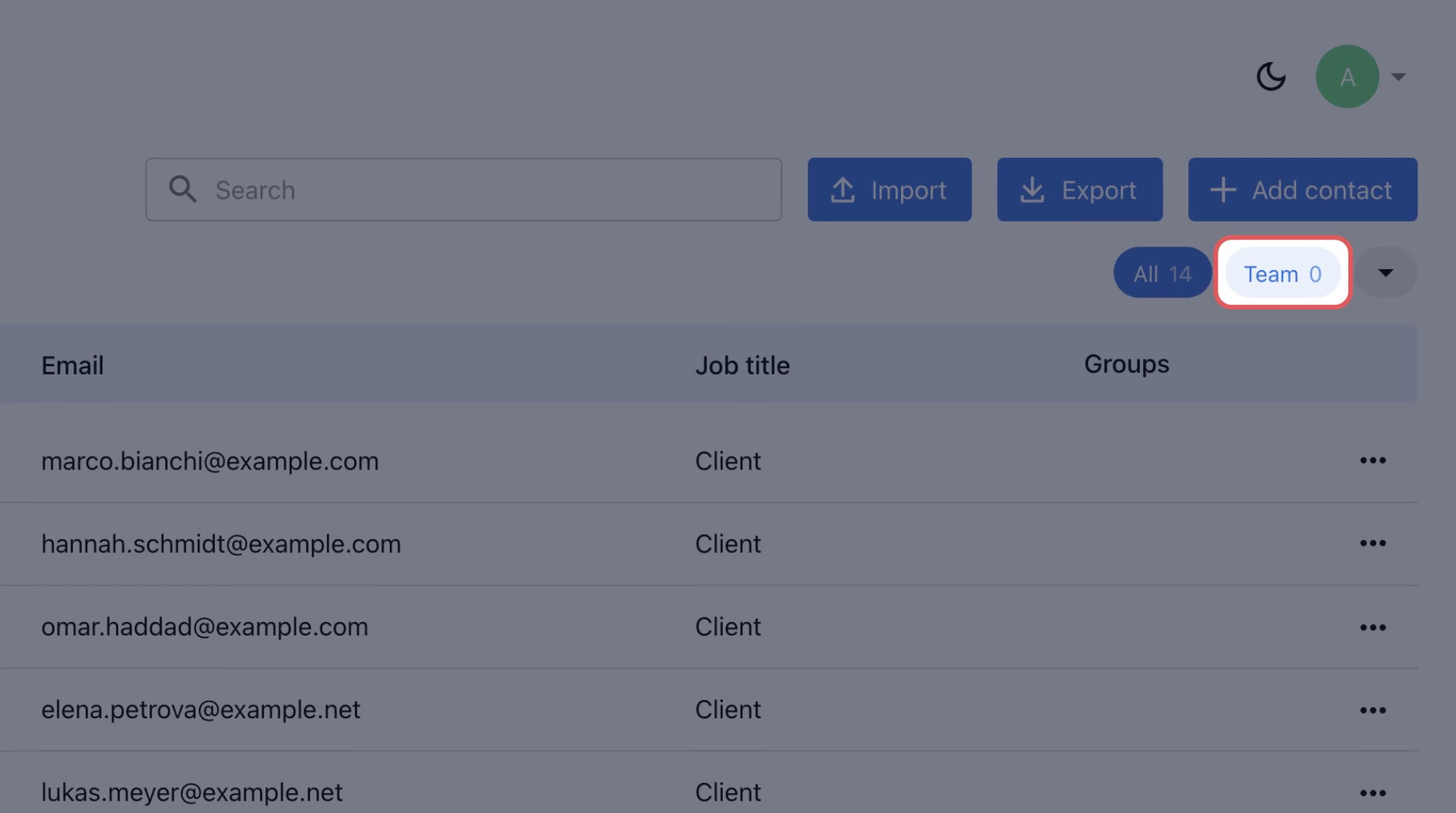
Screenshot from the film at 0:24: The group now shows above the list, with nobody in it yet.
Watch this step · 0:23

2Manage groups0:27

Tick your colleagues: the box shows when you point at a row.
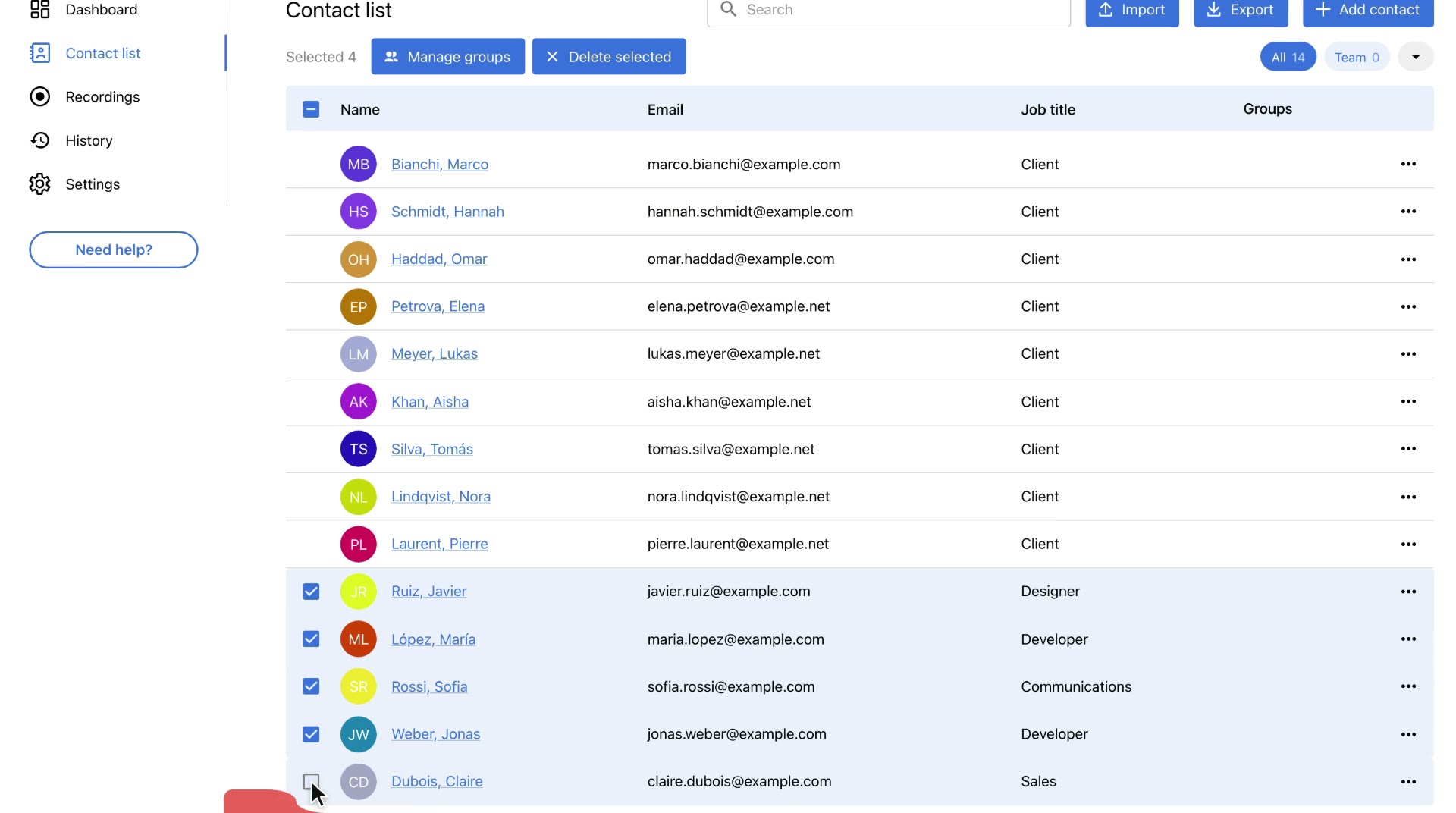
Screenshot from the film at 0:31: Tick your colleagues: the box shows when you point at a row.
Watch this step · 0:28

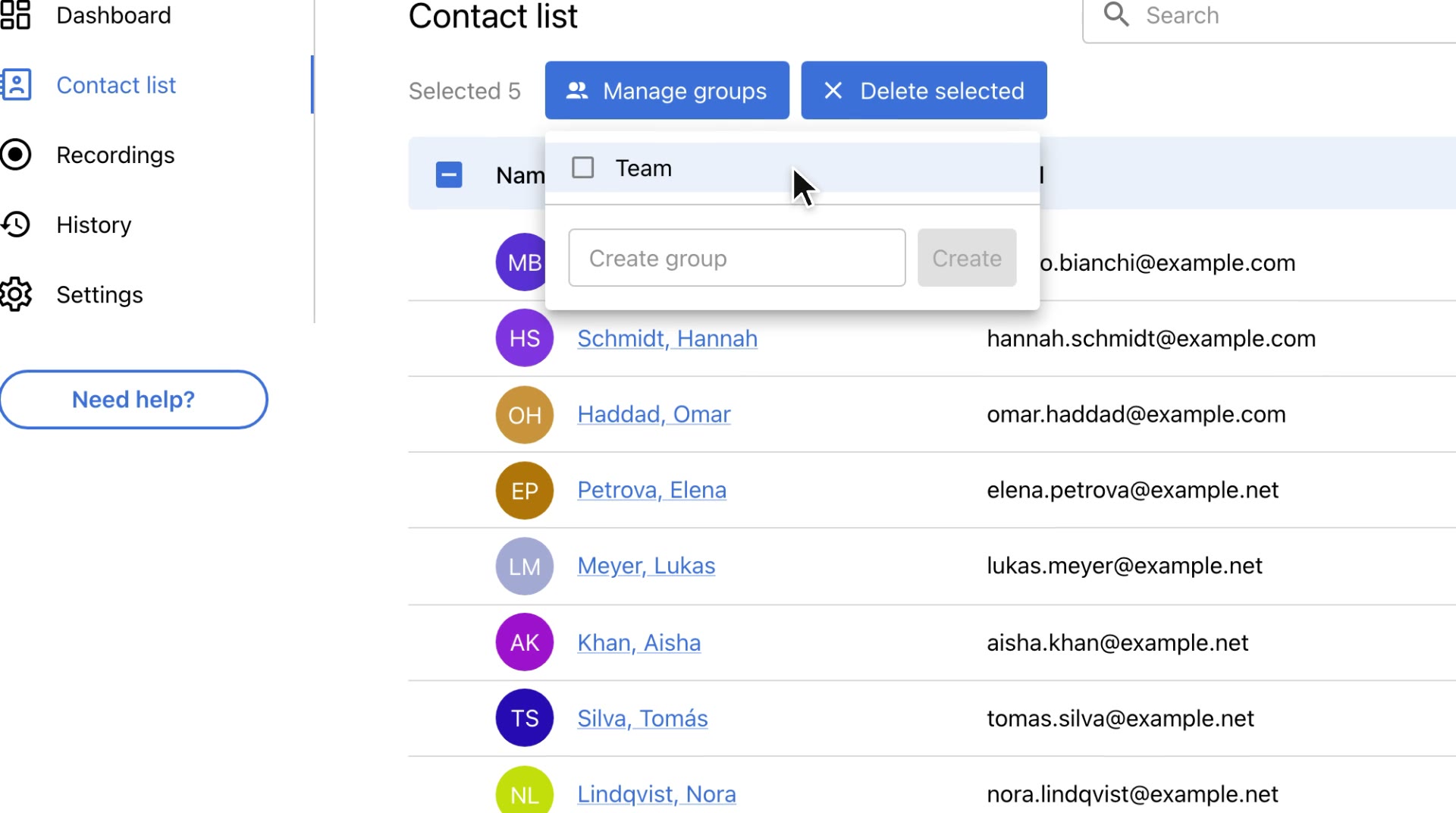
Click Manage groups and tick Team.

Screenshot from the film at 0:34: Click Manage groups and tick Team.
Watch this step · 0:33

Then click outside the menu to save: each colleague now has a Team label.
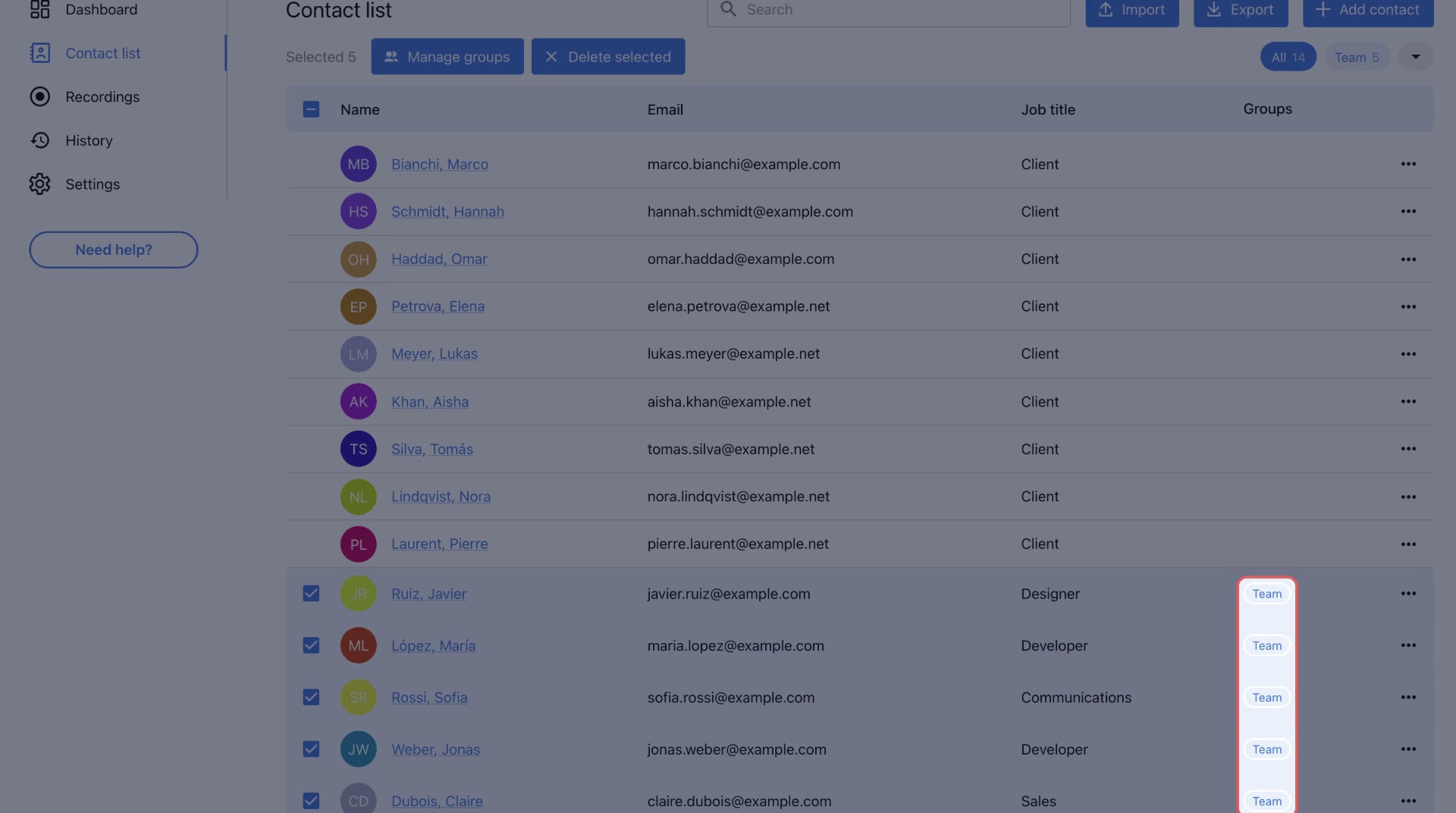
Screenshot from the film at 0:39: Then click outside the menu to save: each colleague now has a Team label.
Watch this step · 0:36

For the clients, search for Client and press Enter: the search also looks at job titles.
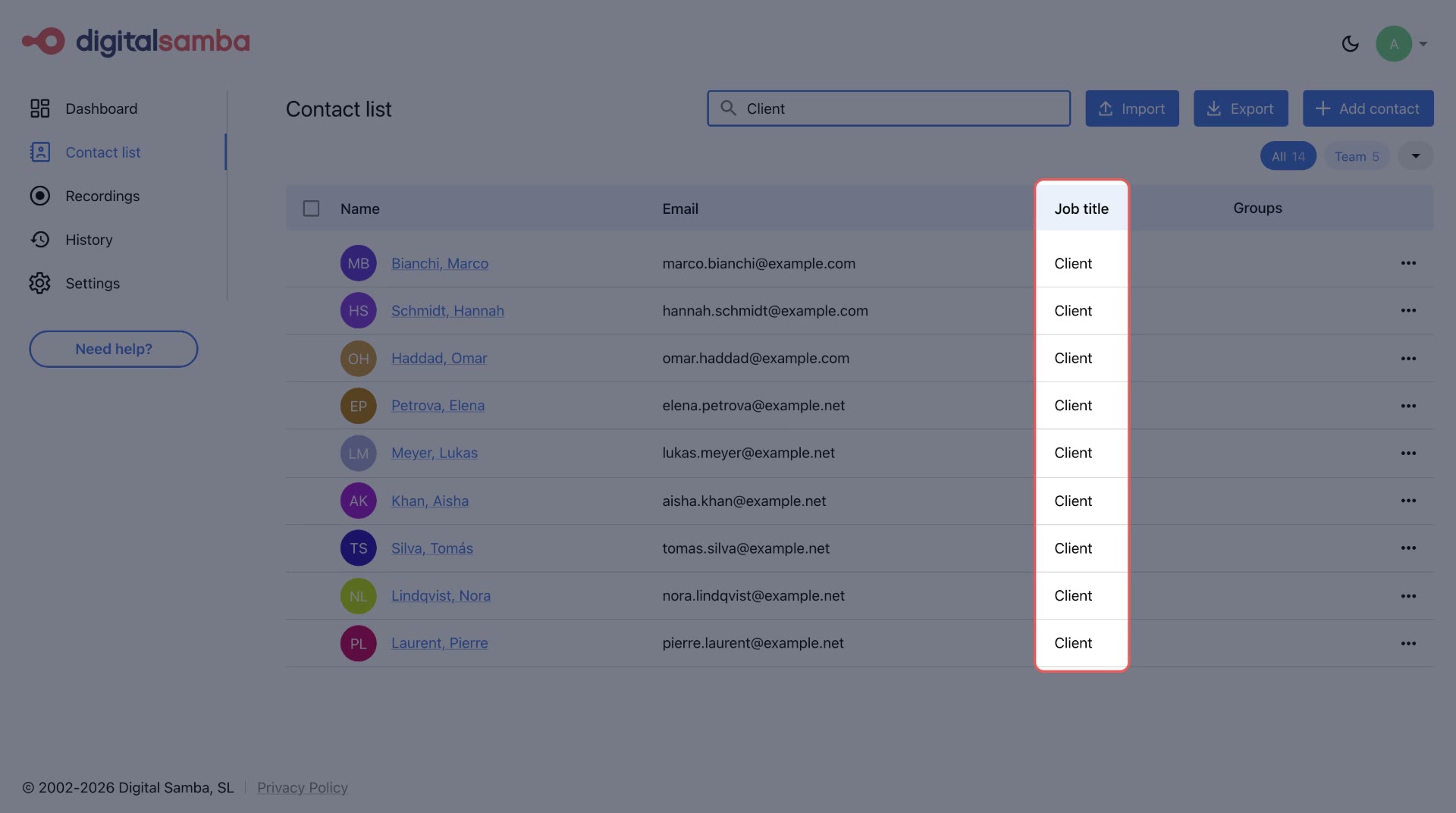
Screenshot from the film at 0:47: For the clients, search for Client and press Enter: the search also looks at job titles.
Watch this step · 0:41

Tick the box at the top, open Manage groups, type Clients, and click Create.
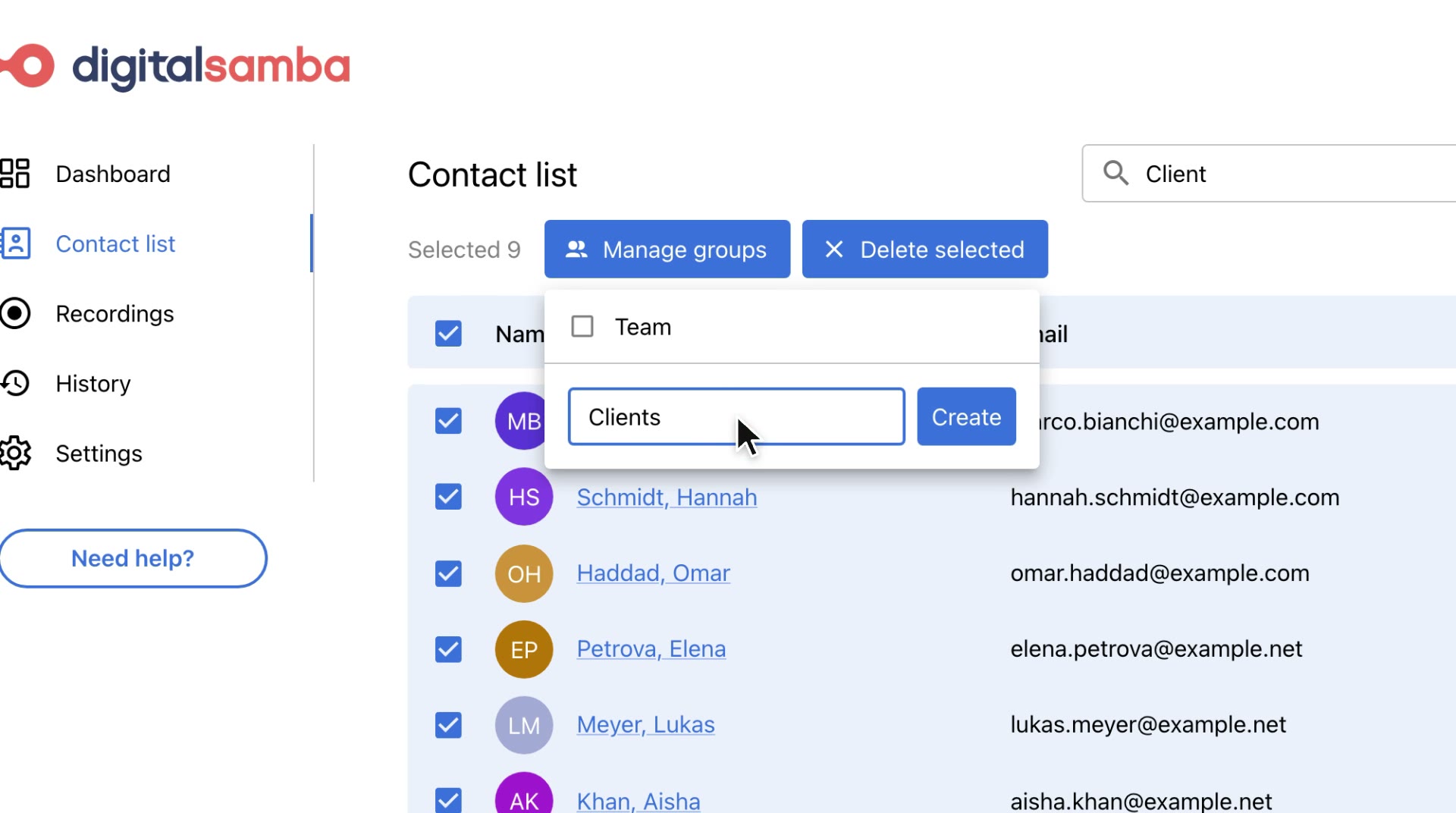
Screenshot from the film at 0:52: Tick the box at the top, open Manage groups, type Clients, and click Create.
Watch this step · 0:48

The new group is ticked already, so closing the menu adds all nine.
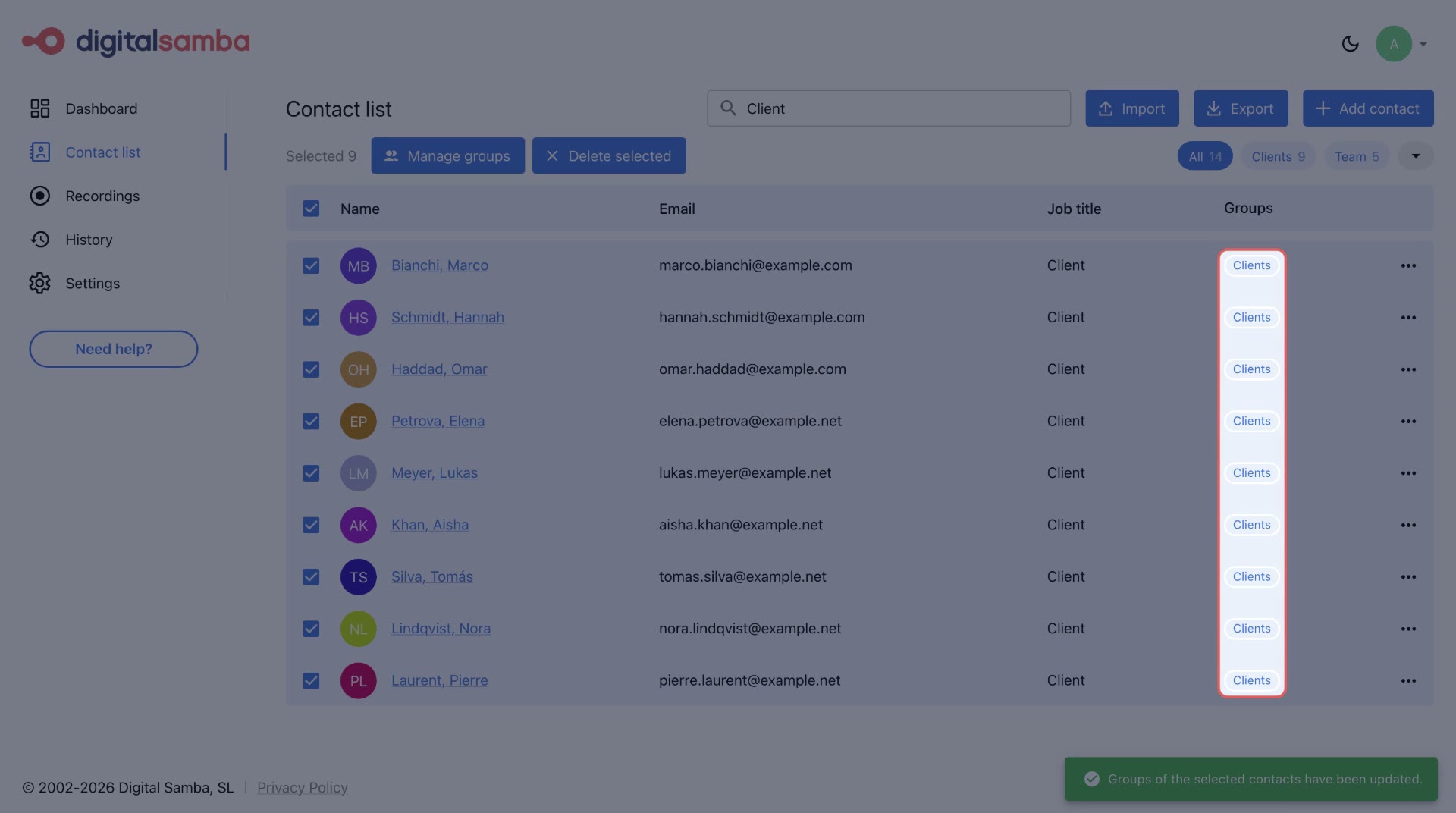
Screenshot from the film at 0:58: The new group is ticked already, so closing the menu adds all nine.
Watch this step · 0:54

3Filter by group0:59

Clear the search: each group now shows how many people it has.
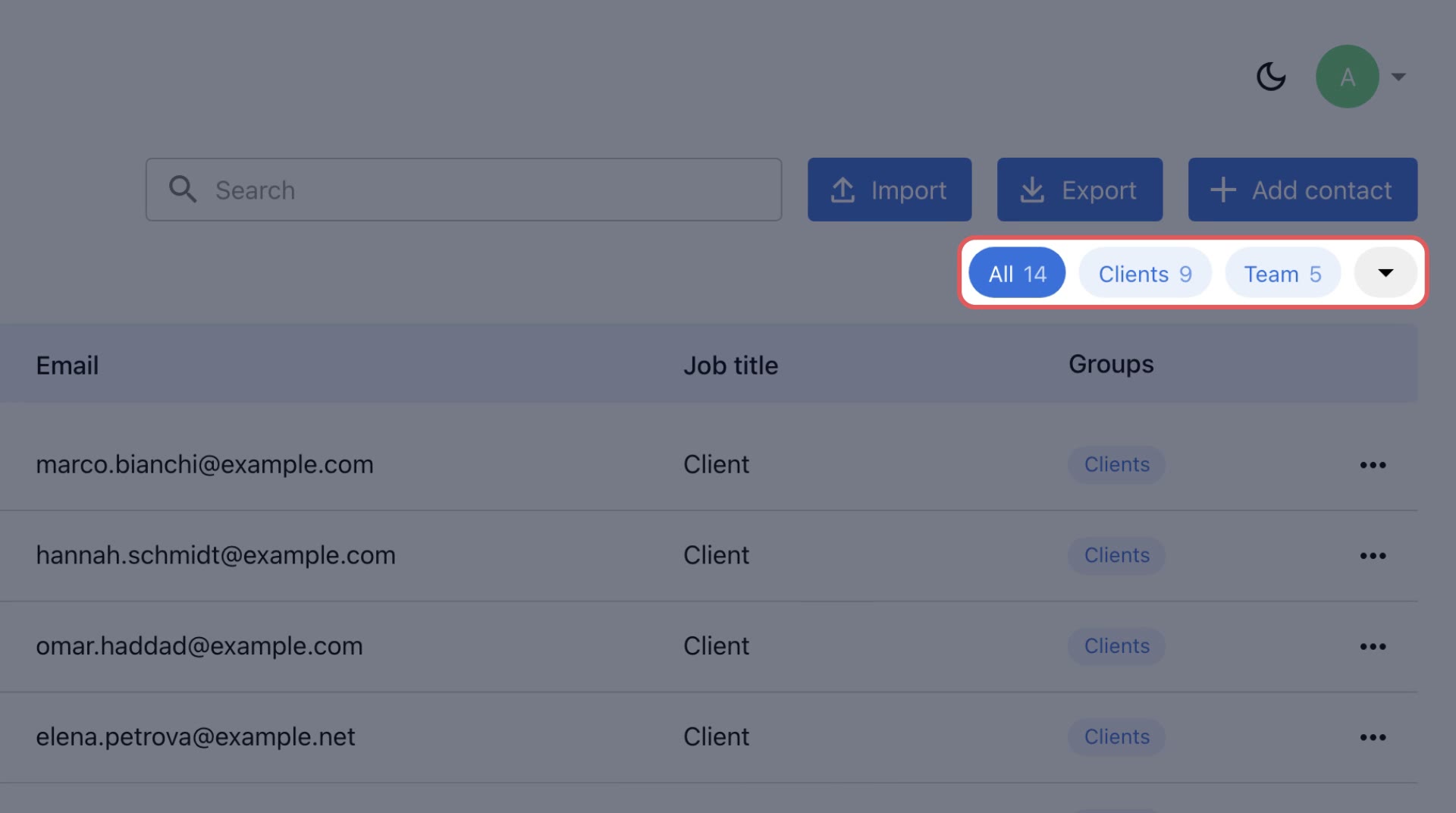
Screenshot from the film at 1:03: Clear the search: each group now shows how many people it has.
Watch this step · 1:00

Click Team to see only your colleagues, and All to see everyone again.
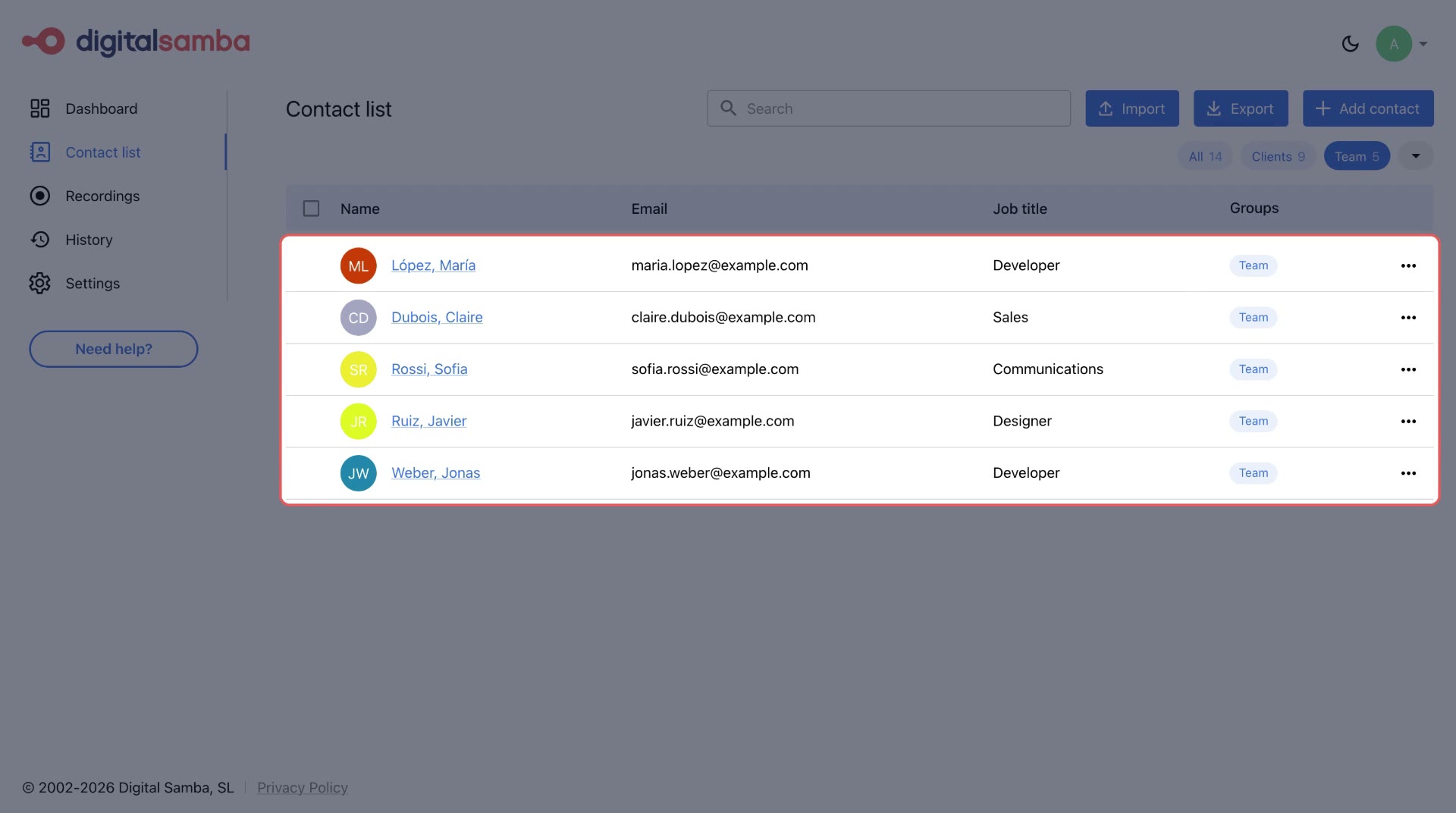
Screenshot from the film at 1:07: Click Team to see only your colleagues, and All to see everyone again.
Watch this step · 1:05

4Add a group to a call1:10

Now the payoff: the Schedule a call form, for the Monday team meeting.
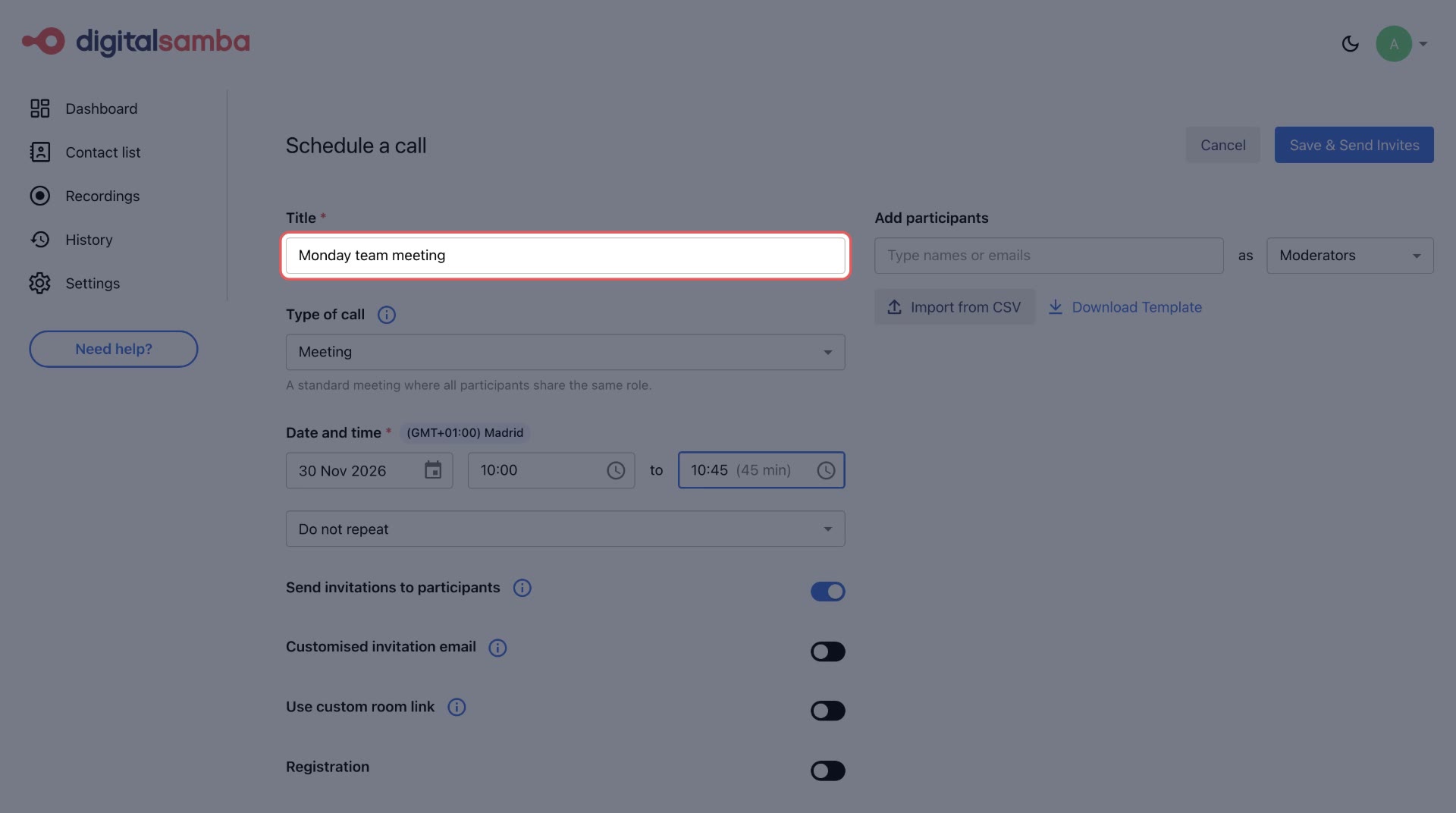
Screenshot from the film at 1:14: Now the payoff: the Schedule a call form, for the Monday team meeting.
Watch this step · 1:11

Type Team in Add participants: the group is suggested, with five people.
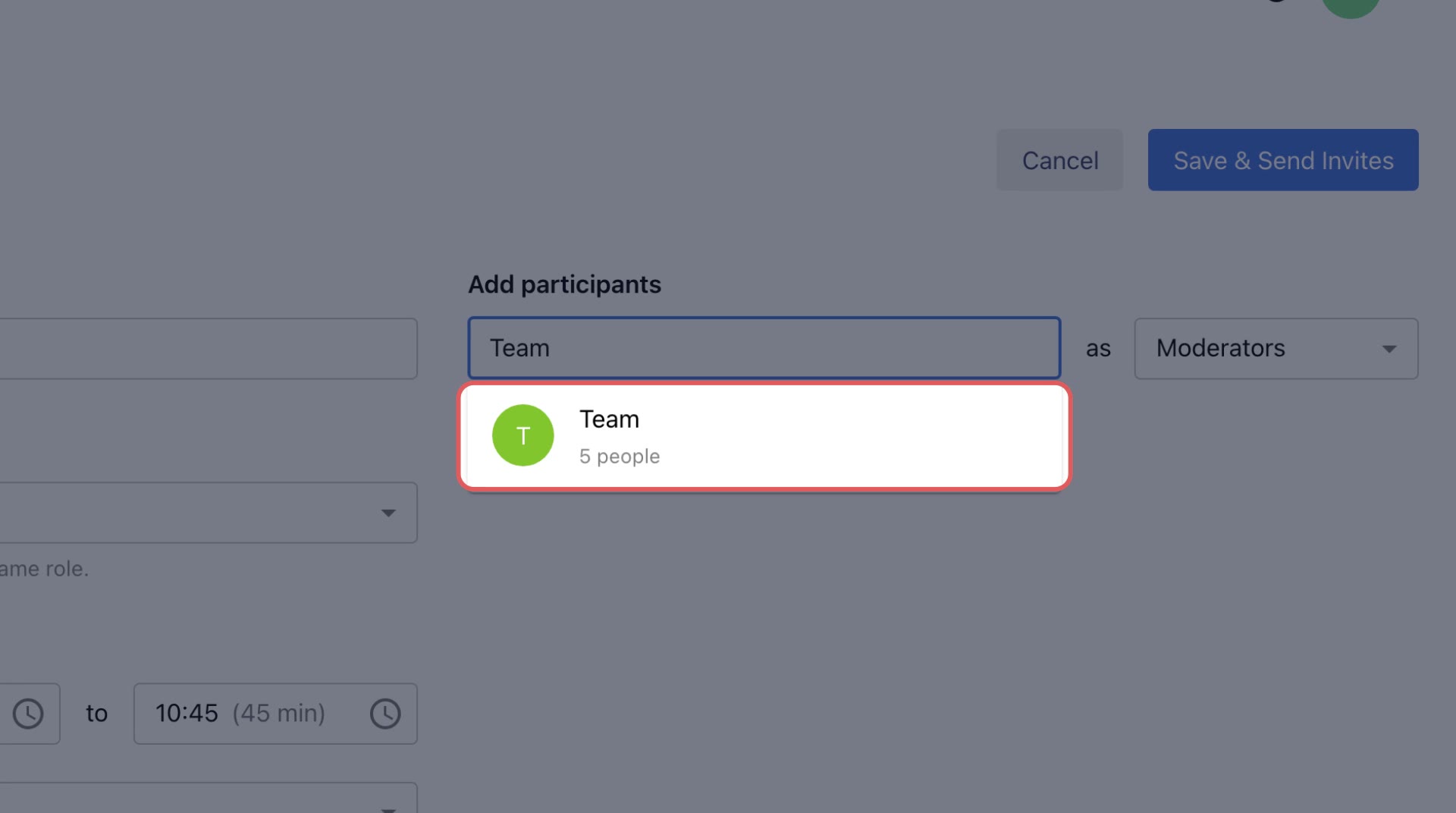
Screenshot from the film at 1:19: Type Team in Add participants: the group is suggested, with five people.
Watch this step · 1:16

Pick it, and all five are added at once.
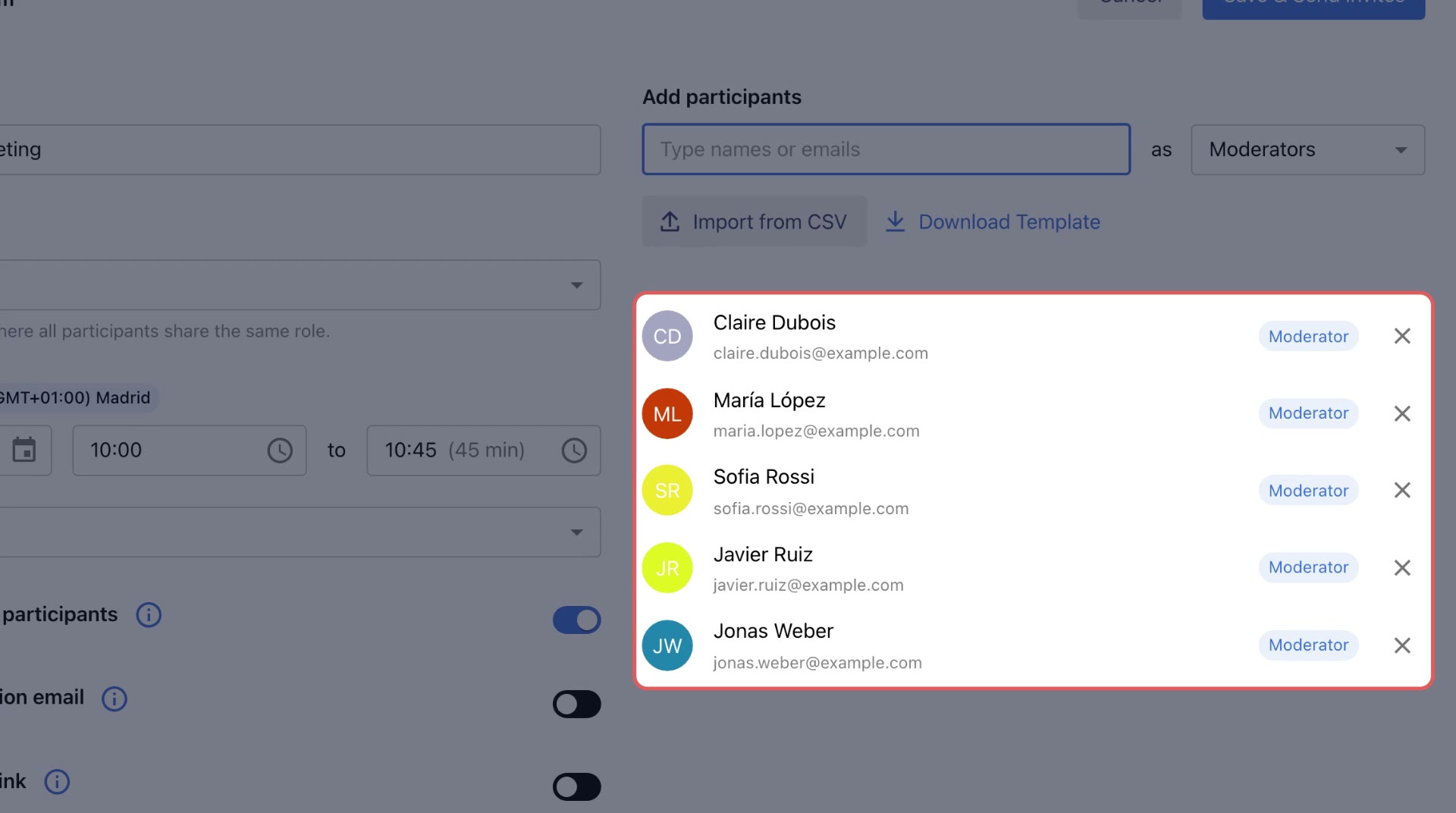
Screenshot from the film at 1:23: Pick it, and all five are added at once.
Watch this step · 1:21

They're listed one by one, so you can still remove anyone who can't come.
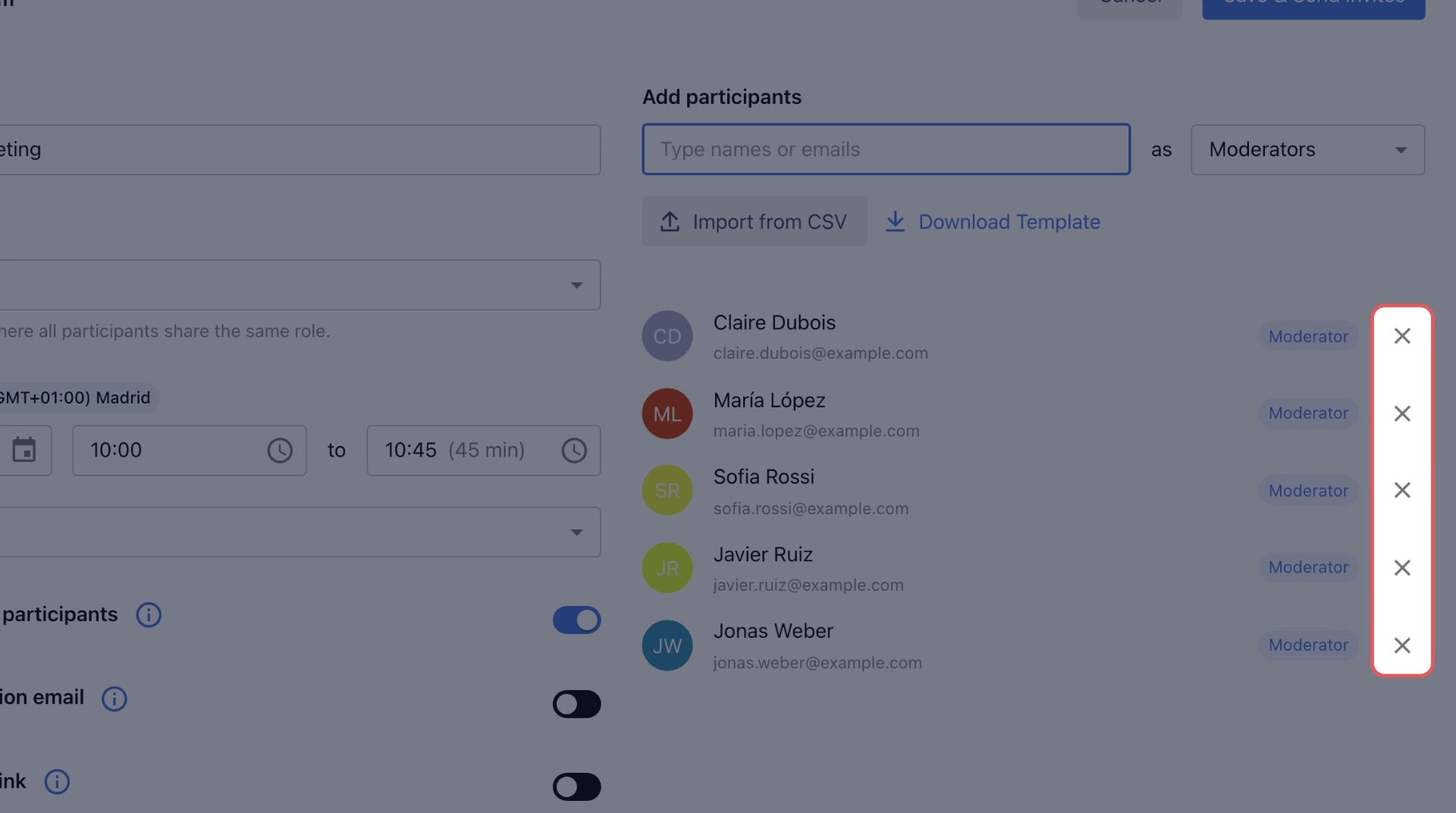
Screenshot from the film at 1:27: They're listed one by one, so you can still remove anyone who can't come.
Watch this step · 1:24

Good to know1:29

The people are copied into the call, so later changes to the group don't reach calls you've already scheduled.
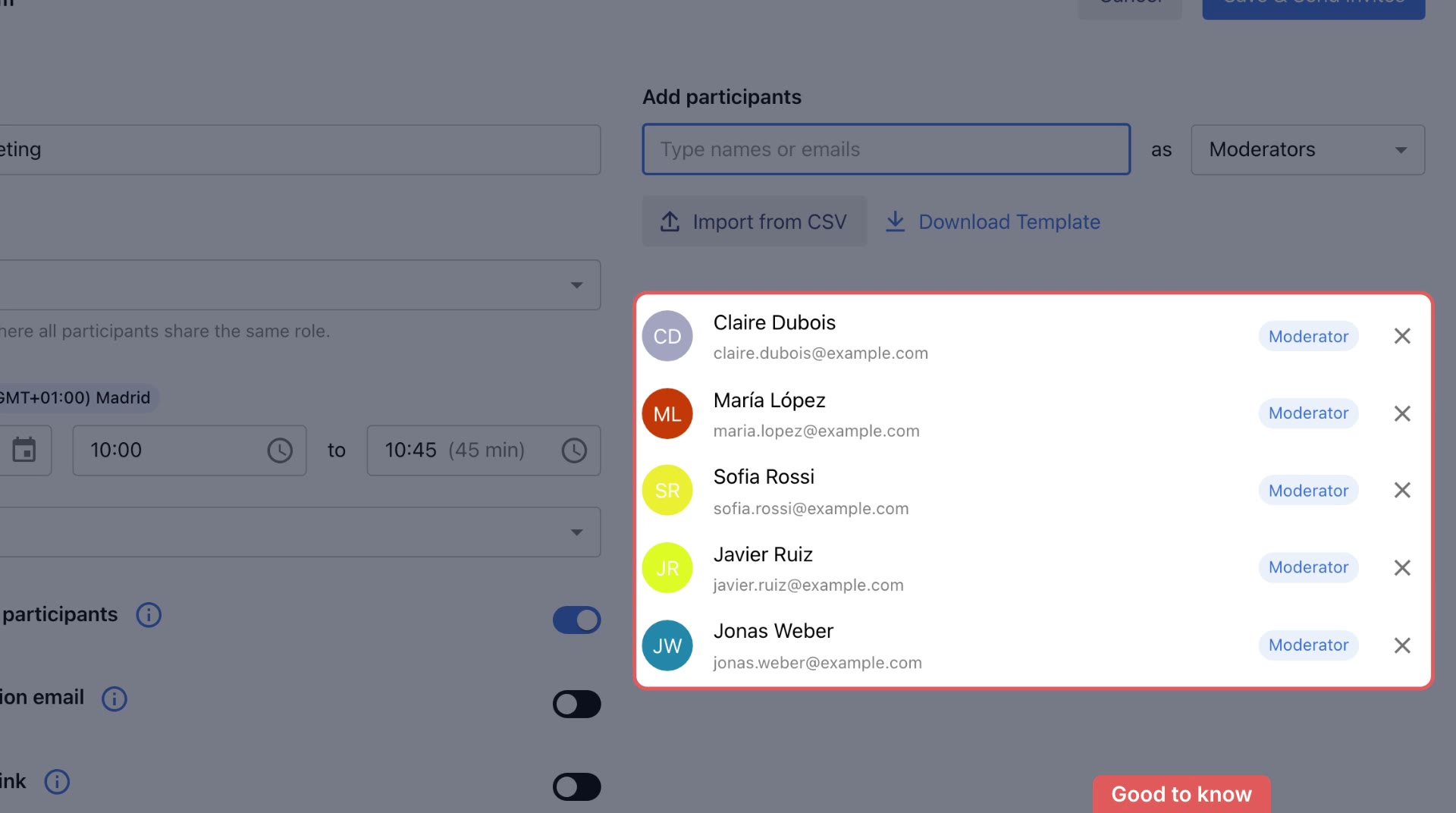
Screenshot from the film at 1:32: Good to know: the people are copied into the call, so later changes to the group don't reach calls you've already scheduled.
Watch this step · 1:29

A contact can be in more than one group.
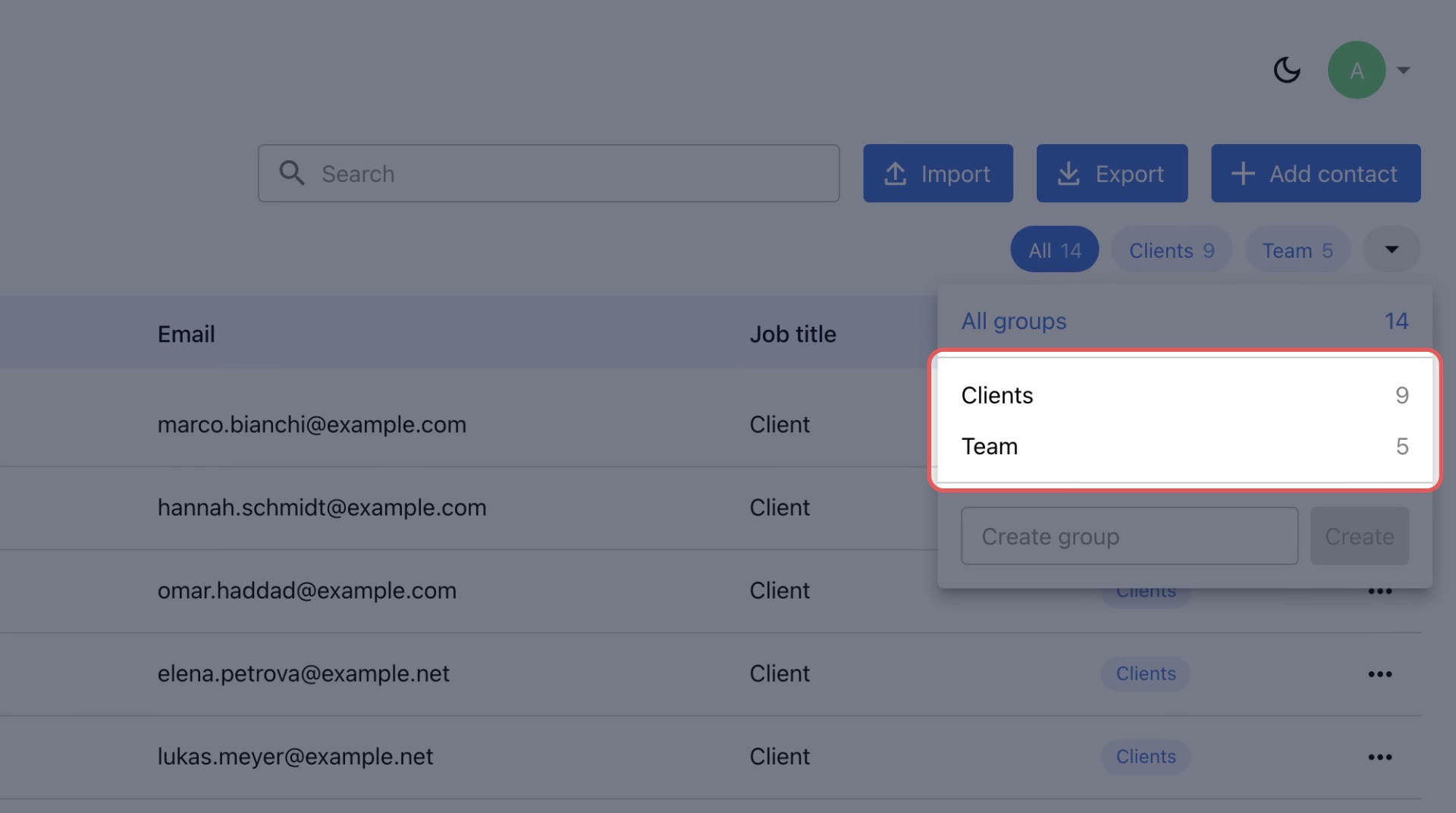
Screenshot from the film at 1:38: A contact can be in more than one group.
Watch this step · 1:37

And deleting a group, from its menu here, keeps every contact that was in it.
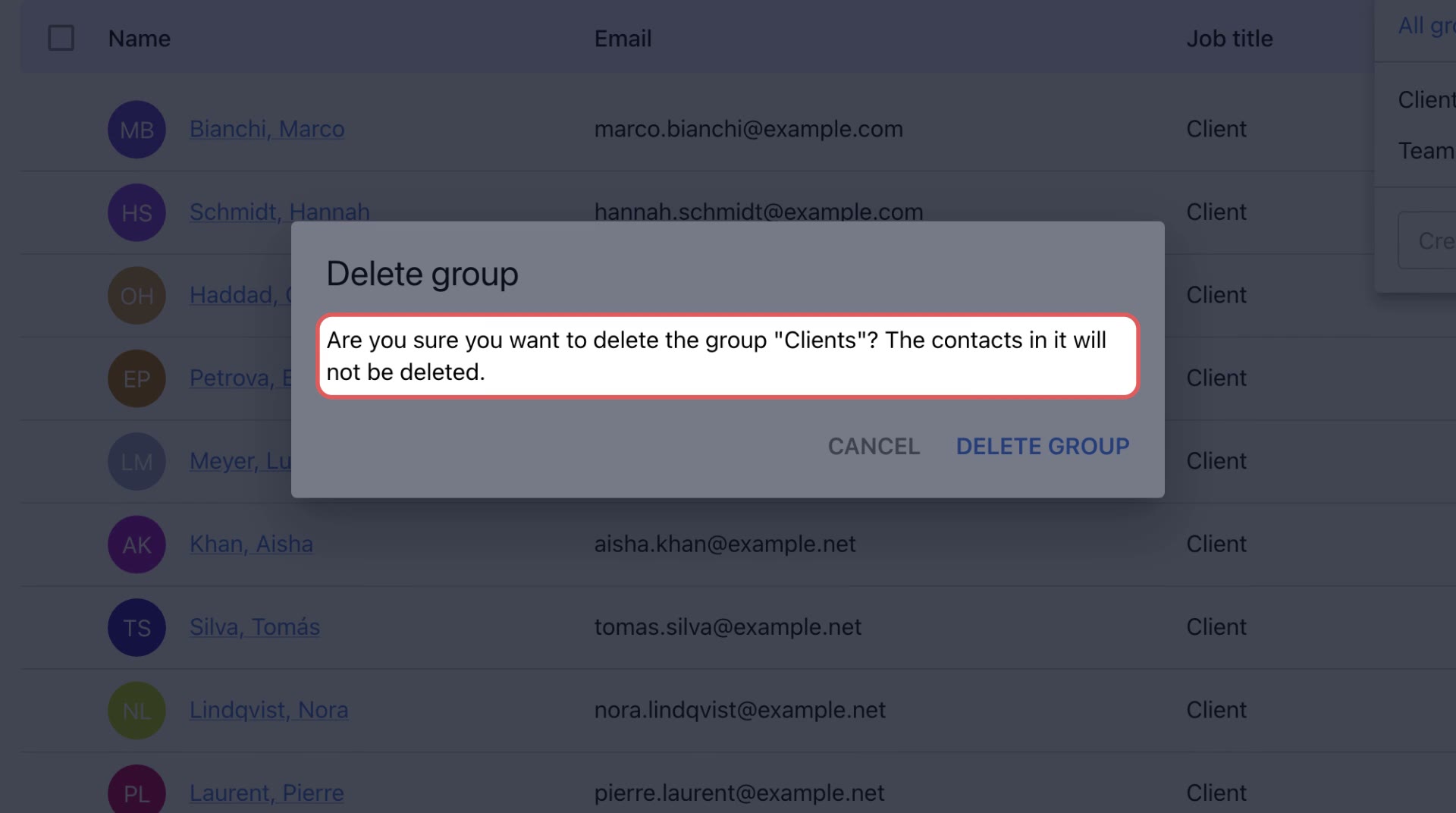
Screenshot from the film at 1:44: And deleting a group, from its menu here, keeps every contact that was in it.
Watch this step · 1:40

Recap1:46

So: create a group, fill it with Manage groups, filter by group, and type its name in Add participants.
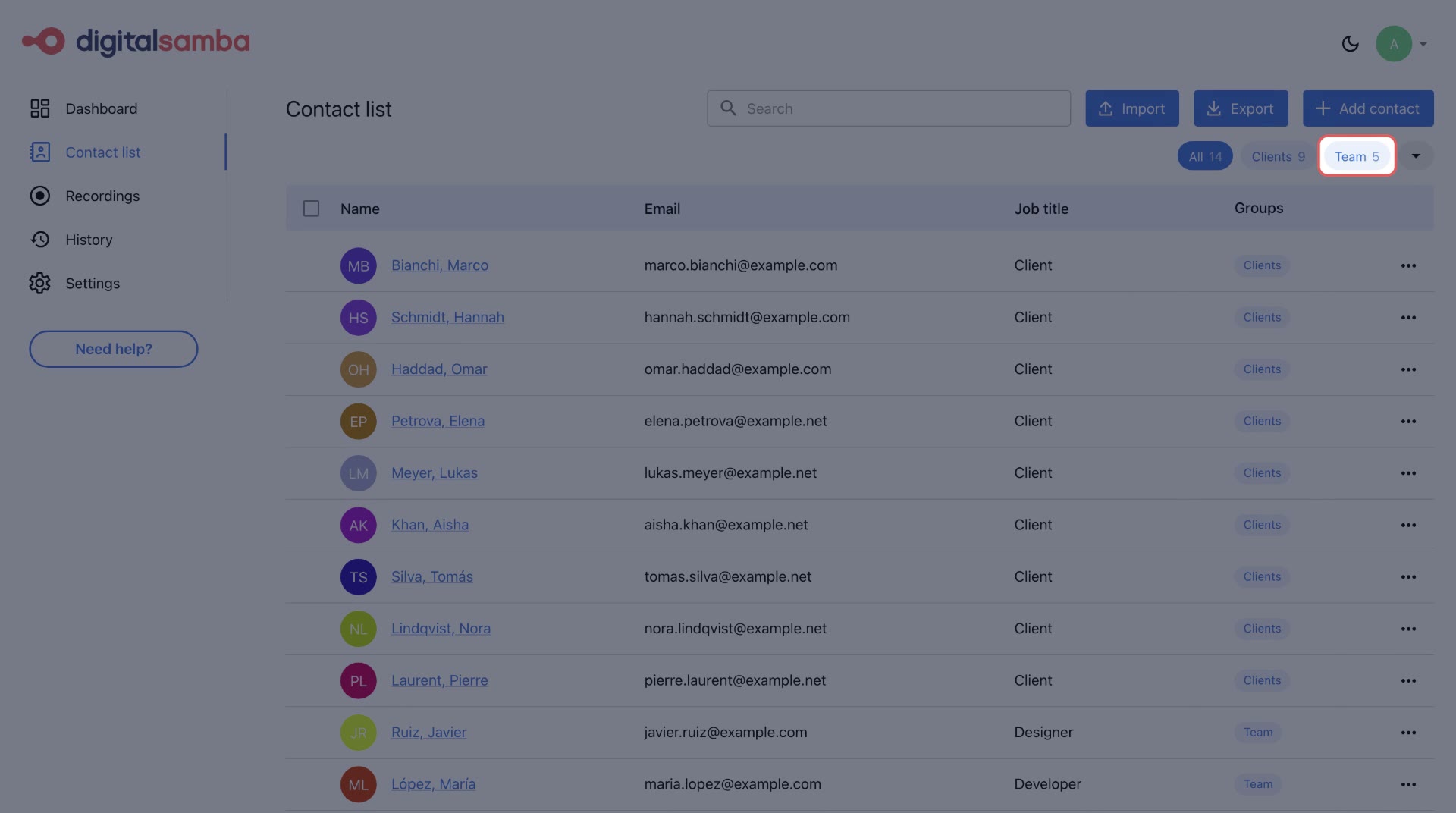
Screenshot from the film at 1:51: So: create a group, fill it with Manage groups, filter by group, and type its name in Add participants.
Watch this step · 1:46

In this video

Next

Related

Updated

The film, the article, the captions and the search results all come from one source, so they change together.

  1. Version 1 ·
    First version.

All updates