Skip to content
University
Videos
Most watched
Topics
Updates
Search the videos
Topics
Adding participants
All 29 moments in Digital Samba University that depend on this.
Start here: Digital Samba in 90 seconds
1:36
0:27
Schedule a call
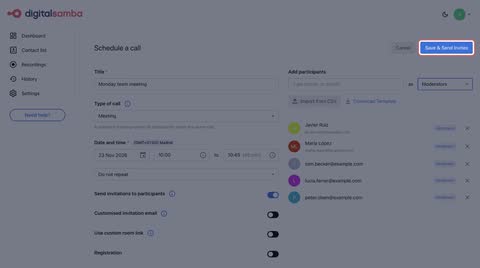
For the team's Monday meeting, she schedules a call: a title, a date and time, and the people to invite.
Read
Your dashboard at a glance
Getting started · 2:12
1:13
Start a call
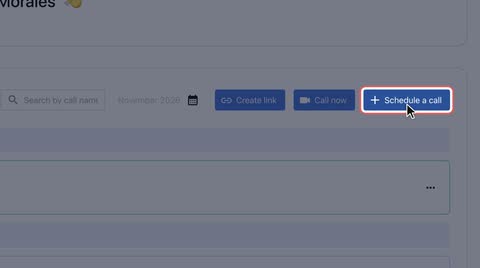
Schedule a call sets a date and invites people.
Read
1:21
Menus
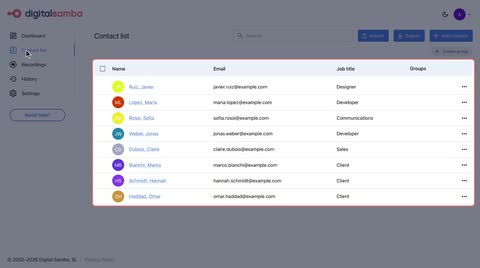
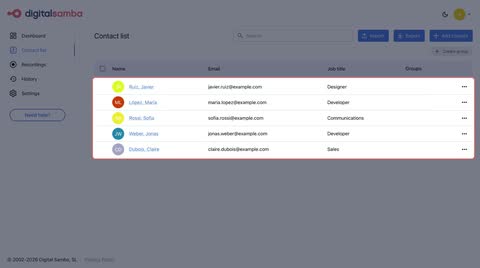
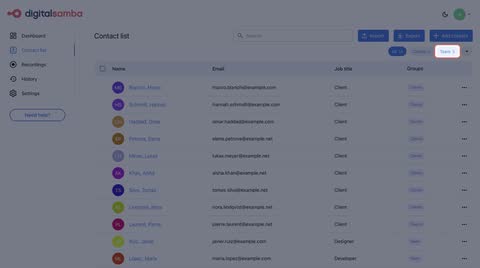
On the left, Contact list holds the people you invite.
Read
Schedule a call and invite people
Scheduling calls · 2:40
1:00
Add participants
Now add the people you're inviting.
Read
1:03
Add participants
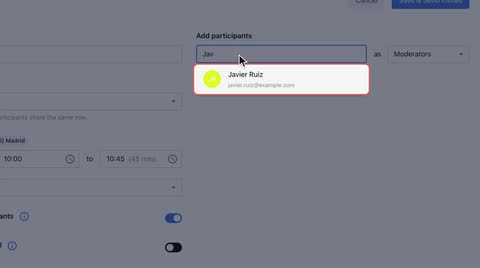
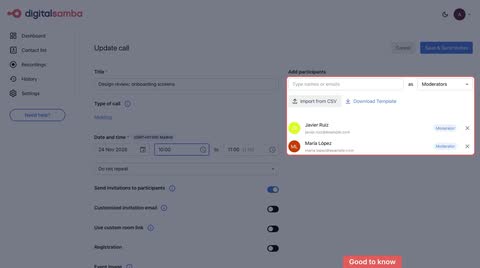
Start typing a name or an email address, and people from your contact list appear.
Read
1:11
Add participants
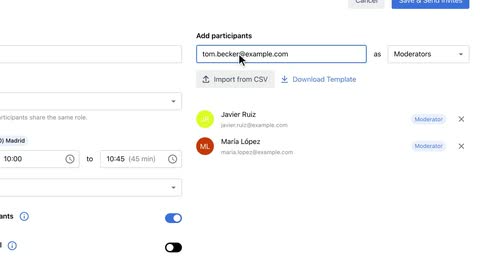
For someone new, type their address and press Enter.
Read
1:14
Add participants
You can also paste a whole list of addresses at once.
Read
1:18
Add participants
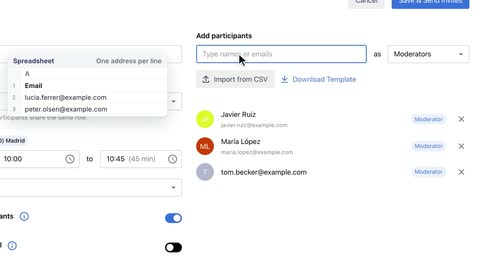
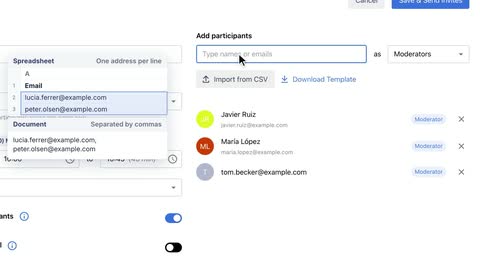
Copy plain addresses from a spreadsheet or a document: one per line, or separated by commas.
Read
1:25
Add participants
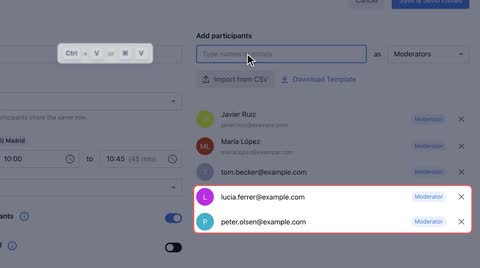
Then click in the field and paste.
Read
1:28
Add participants
Every address on the list is added.
Read
1:38
Add participants
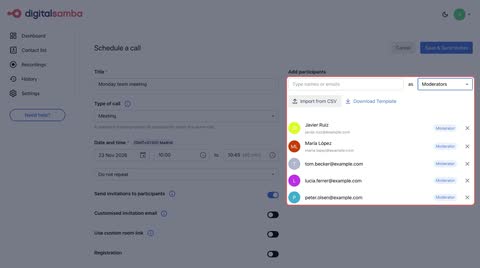
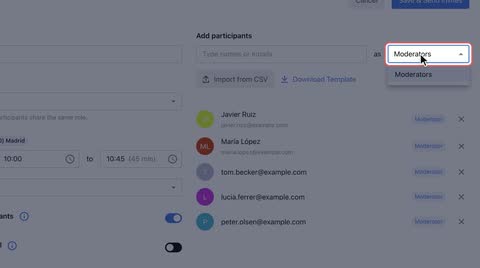
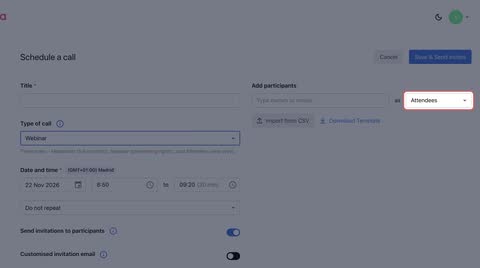
For webinars and classes, you choose each person's role here.
Read
2:25
Recap
So: a title, a type of call, a time and your participants — and the invitations are on their way.
Read
Invitations and RSVPs: what your participants receive
Scheduling calls · 3:07
2:13
What changed
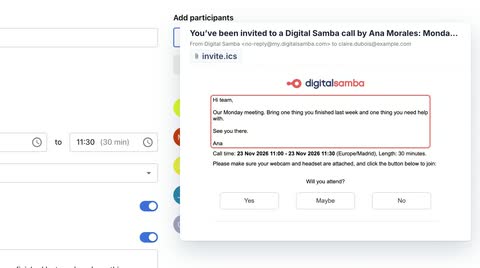
Add someone later, and only that person gets an invitation.
Read
2:19
What changed
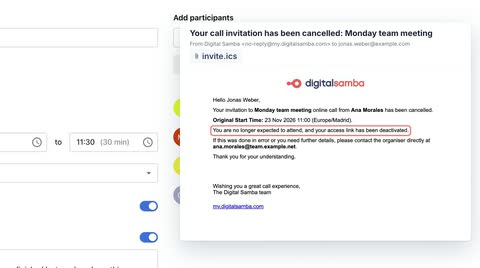
Remove someone, and they are told their invitation has been cancelled: their link stops working.
Read
Edit, reschedule or cancel a call
Scheduling calls · 2:27
1:44
Good to know
Good to know: adding or removing people tells only those people.
Read
Give your call a custom room link
Scheduling calls · 1:52
0:12
Use custom room link
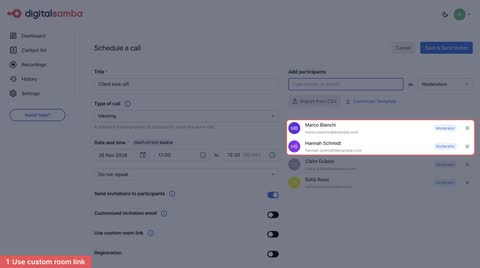
Our example is the Client kick-off with Marco and Hannah.
Read
Set up a webinar with registration
Webinars and registration · 3:05
0:25
Type of call
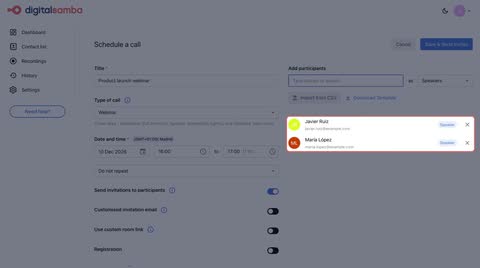
Javier and María will present, so next to Add participants, choose Speakers, then add them by name.
Read
Add, import and export contacts
Contacts · 2:07
0:15
Contact list
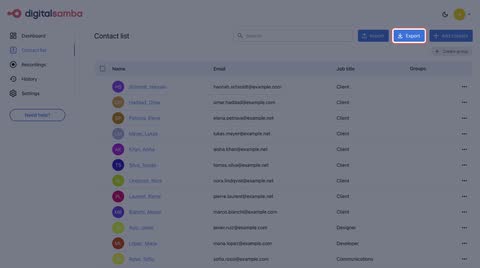
Ana's colleagues are already here: everyone you invite to a call is added to your contacts.
Read
1:48
Recap
So: the people you invite are already in Contact list; Add contact adds one more, Import brings in a spreadsheet, and Export takes your list out again.
Read
Organise contacts into groups
Contacts · 2:02
0:01
Introduction
In this video, you'll sort your contacts into two groups, Team and Clients, and then invite a whole group to a call in one go.
Read
1:16
Add a group to a call
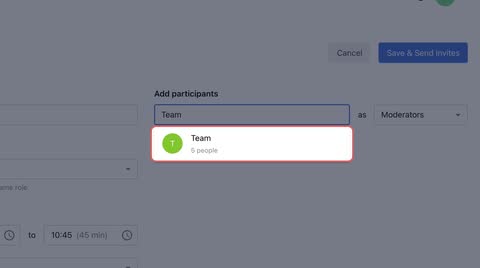
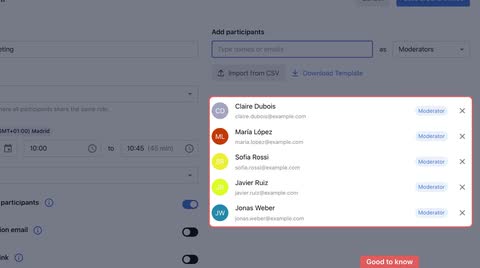
Type Team in Add participants: the group is suggested, with five people.
Read
1:21
Add a group to a call
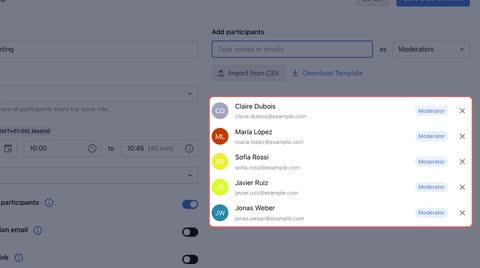
Pick it, and all five are added at once.
Read
1:24
Add a group to a call
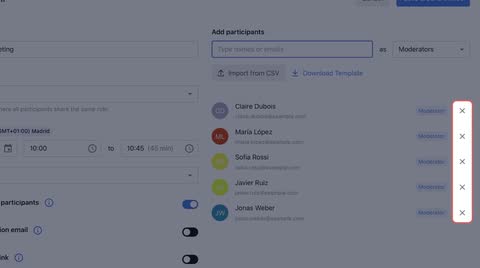
They're listed one by one, so you can still remove anyone who can't come.
Read
1:29
Good to know
Good to know: the people are copied into the call, so later changes to the group don't reach calls you've already scheduled.
Read
1:46
Recap
So: create a group, fill it with Manage groups, filter by group, and type its name in Add participants.
Read
Types of call: Meeting, Webinar and Classroom
Customise your calls · 2:42
0:58
Templates
People you add to a webinar are added as Attendees, unless you pick another role.
Read
Roles and permissions: create a custom role
Customise your calls · 2:59
0:01
Introduction
In this video, you'll create your own role for a call — a meeting, a class or a webinar — choose what it may do, and invite someone in that role.
Read
2:06
Invite as Co-host
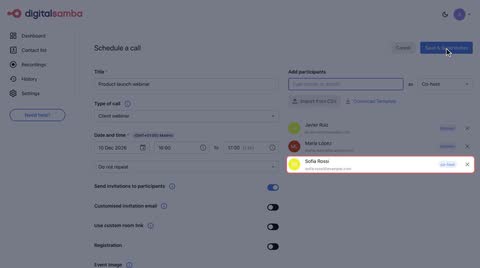
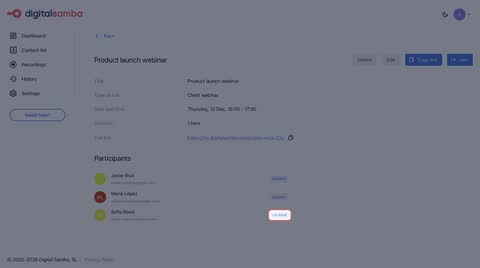
Javier and María are speakers; for Sofia, choose Co-host next to Add participants, then add her.
Read
2:44
Recap
So: create the role and choose its permissions, add it to a type of call, and invite people in that role.
Read
All topics