Skip to content
University
Videos
Topics
Updates
Search the videos
Topics
Contacts
All 19 moments in Digital Samba University that depend on this.
Start here: Digital Samba in 90 seconds
1:36
0:27
Schedule a call
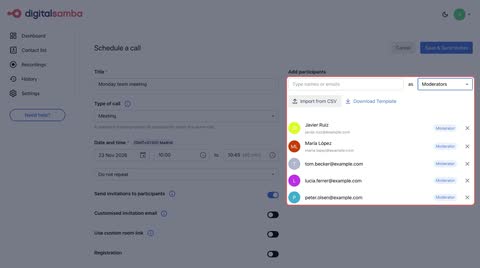
For the team's Monday meeting, she schedules a call: a title, a date and time, and the people to invite.
Read
Your dashboard at a glance
Getting started · 2:12
1:21
Menus
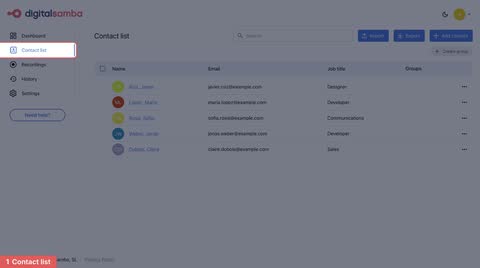
On the left, Contact list holds the people you invite.
Read
Schedule a call and invite people
Scheduling calls · 2:40
1:03
Add participants
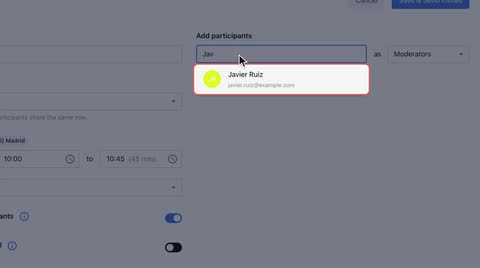
Start typing a name or an email address, and people from your contact list appear.
Read
Add, import and export contacts
Contacts · 2:07
0:01
Introduction
In this video, you'll add contacts one at a time, import a whole list from a spreadsheet, and export your list again.
Read
0:11
Contact list
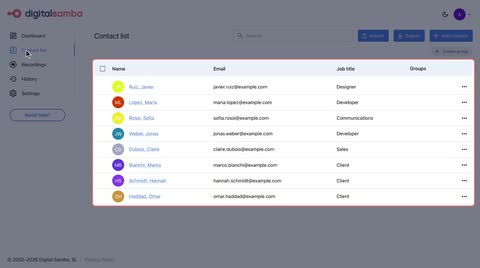
Open Contact list in the side menu.
Read
0:15
Contact list
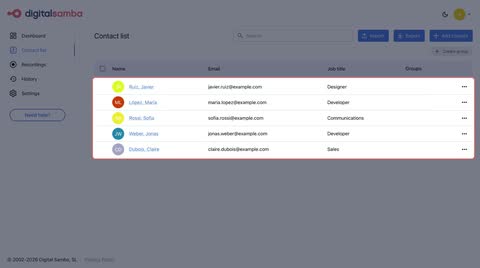
Ana's colleagues are already here: everyone you invite to a call is added to your contacts.
Read
0:21
Contact list
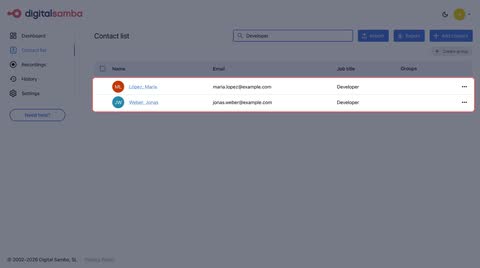
To find someone, type a name, an email address or a job title into Search, and press Enter.
Read
0:28
Add contact
Her clients aren't here yet.
Read
0:30
Add contact
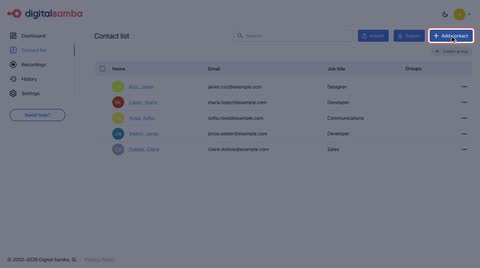
Marco Bianchi comes first: click Add contact.
Read
0:37
Add contact
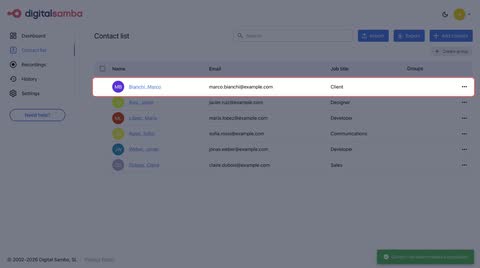
Ana adds his name and job title, and clicks Save: Marco is on the list.
Read
1:36
Good to know
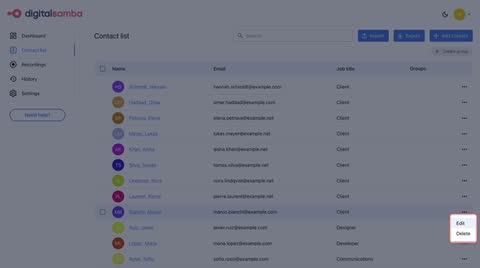
Good to know: the three dots at the end of a row let you edit or delete a contact.
Read
1:42
Good to know
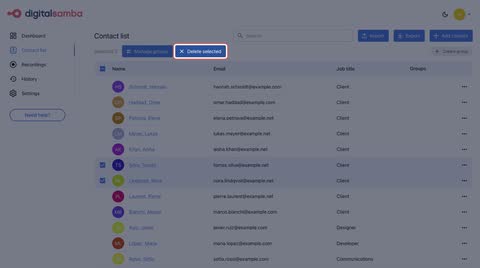
To delete several at once, tick them, and click Delete selected.
Read
1:48
Recap
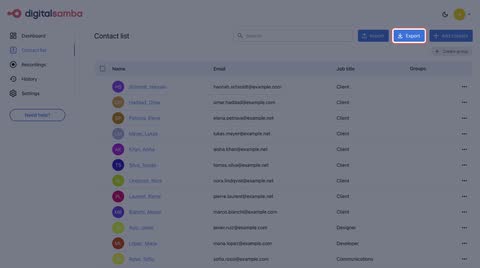
So: the people you invite are already in Contact list; Add contact adds one more, Import brings in a spreadsheet, and Export takes your list out again.
Read
Organise contacts into groups
Contacts · 2:02
0:01
Introduction
In this video, you'll sort your contacts into two groups, Team and Clients, and then invite a whole group to a call in one go.
Read
0:13
Create a group
Our example is Ana's contact list: her five colleagues and nine clients.
Read
0:28
Manage groups
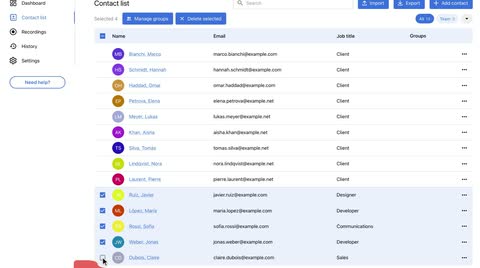
Tick your colleagues: the box shows when you point at a row.
Read
0:41
Manage groups
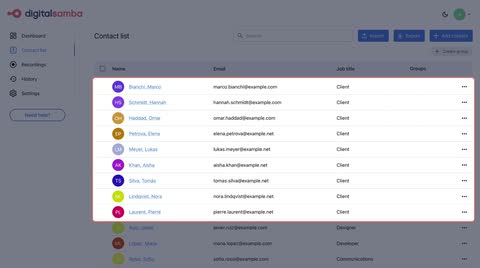
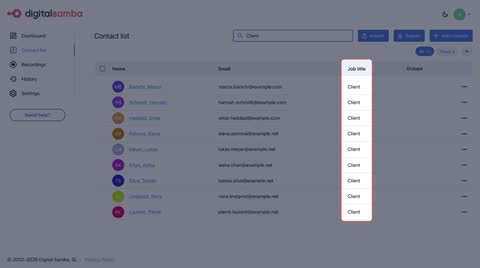
For the clients, search for Client and press Enter: the search also looks at job titles.
Read
1:00
Filter by group
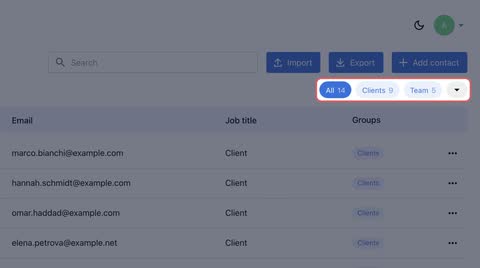
Clear the search: each group now shows how many people it has.
Read
1:05
Filter by group
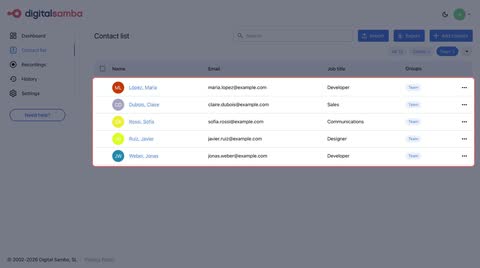
Click Team to see only your colleagues, and All to see everyone again.
Read
All topics