University

Your dashboard at a glance

In this video, you'll tour your Digital Samba dashboard: your calls, how to start one, and where everything else is.

Updated Version 1

1Scheduled calls0:09

Your dashboard greets you by name and lists your scheduled calls: here, a normal week for Ana's team.
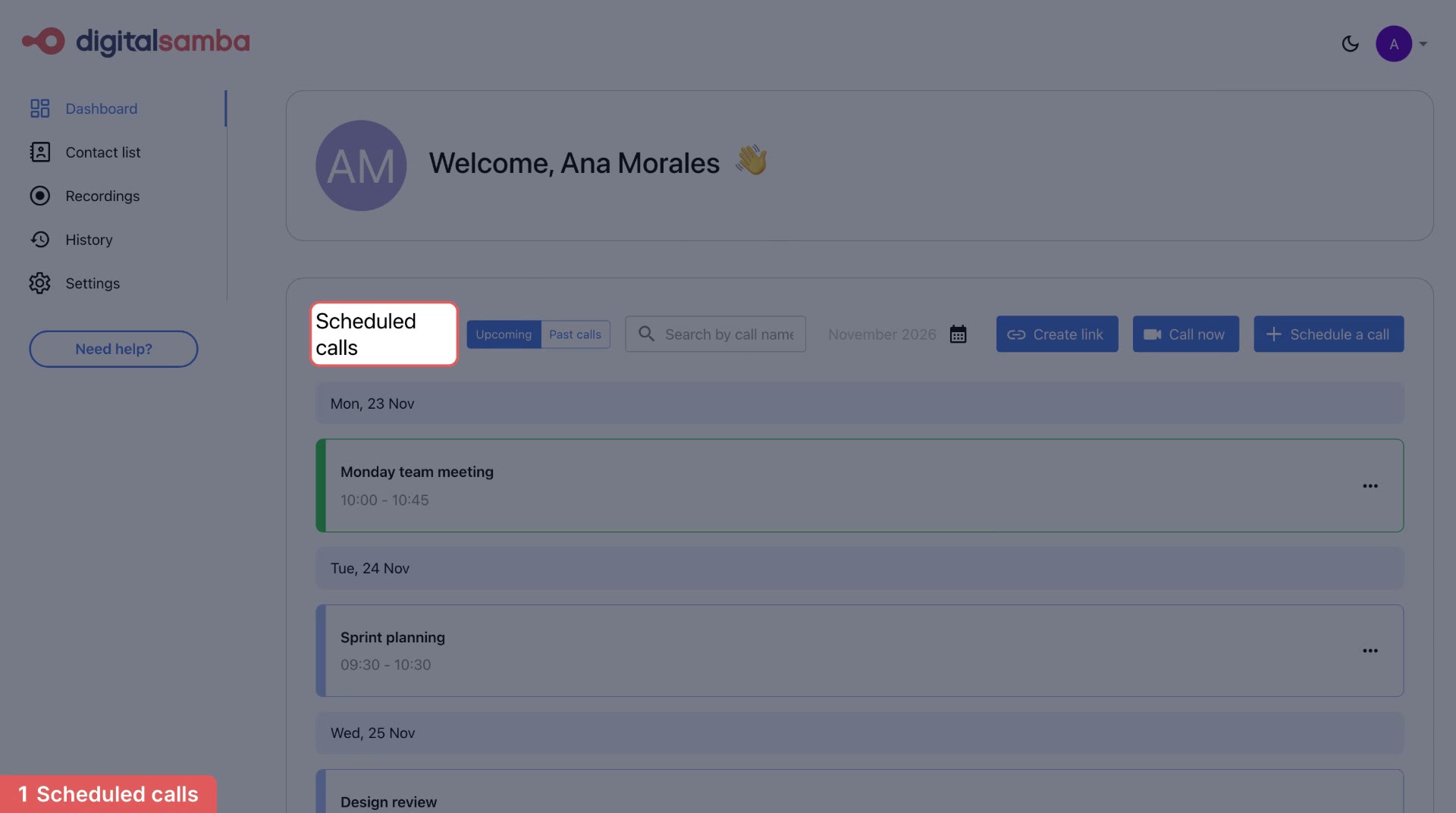
Screenshot from the film at 0:14: Your dashboard greets you by name and lists your scheduled calls: here, a normal week for Ana's team.
Watch this step · 0:11

Each call, whether a meeting, a class or a webinar, sits under its day, with the next one marked in green.
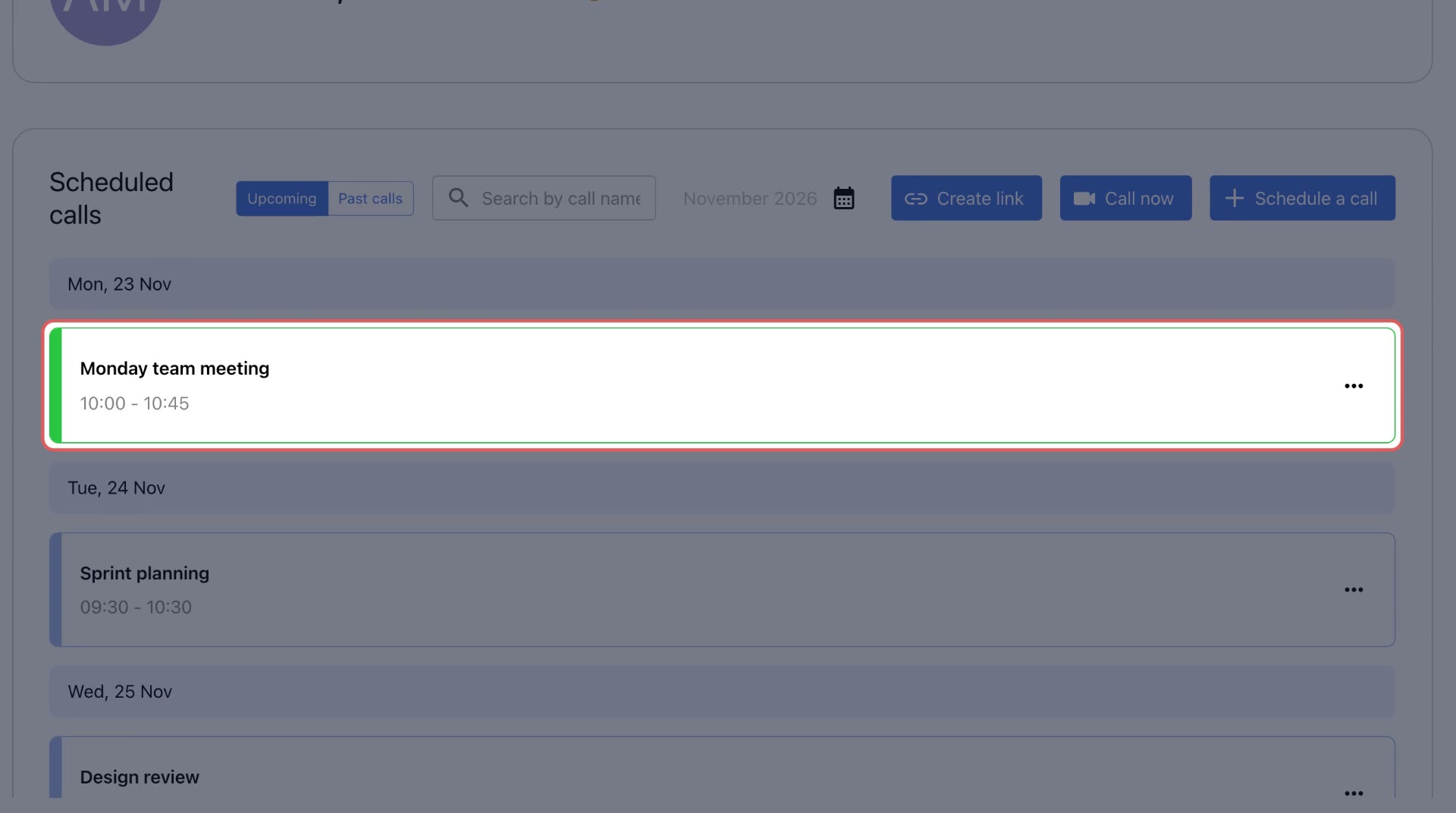
Screenshot from the film at 0:24: Each call, whether a meeting, a class or a webinar, sits under its day, with the next one marked in green.
Watch this step · 0:18

Upcoming shows what's ahead. Past calls shows what's over.
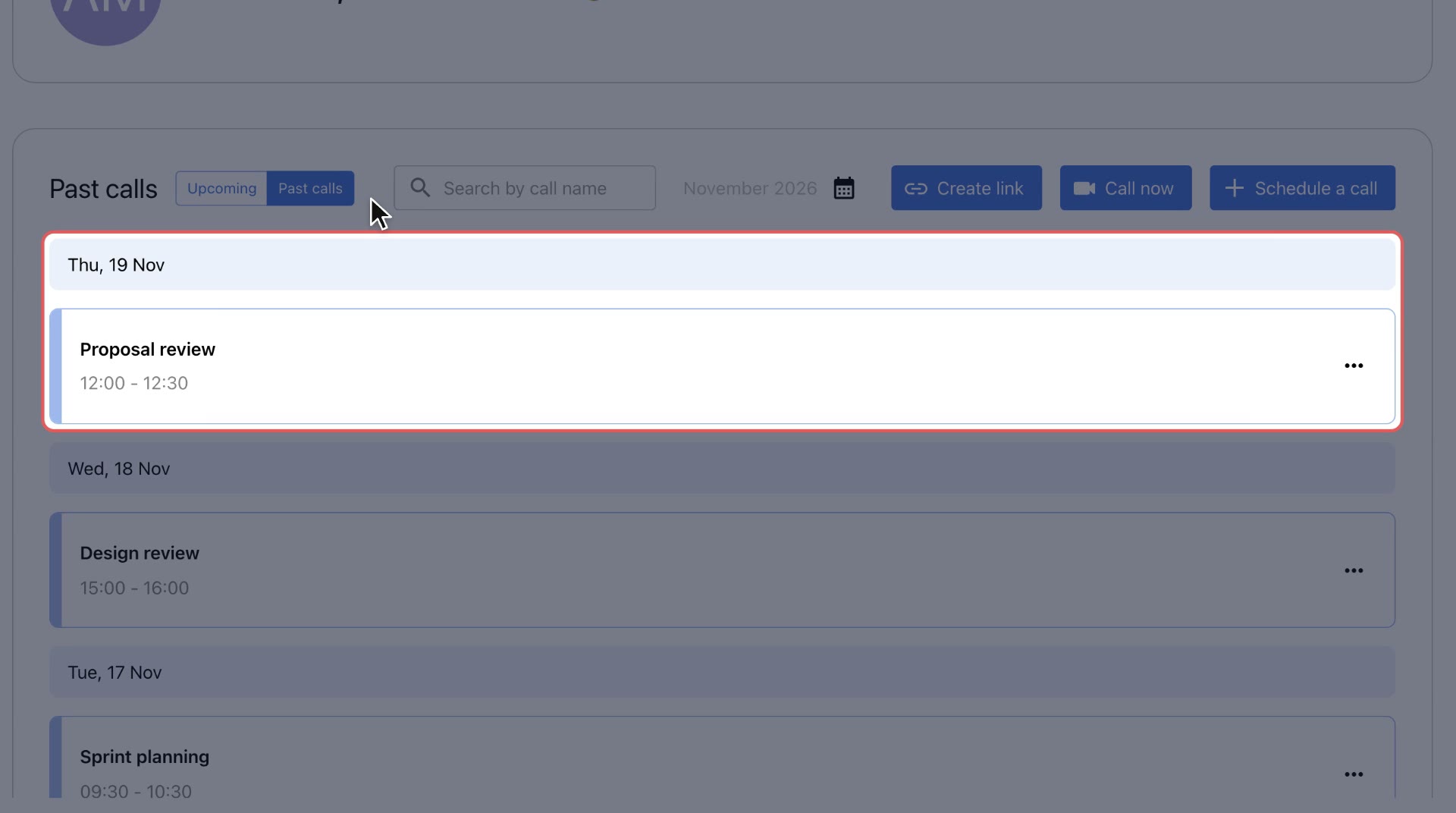
Screenshot from the film at 0:30: Past calls shows what's over.
Watch this step · 0:26

2Search by call name0:31

To find a call, type part of its name in Search by call name.
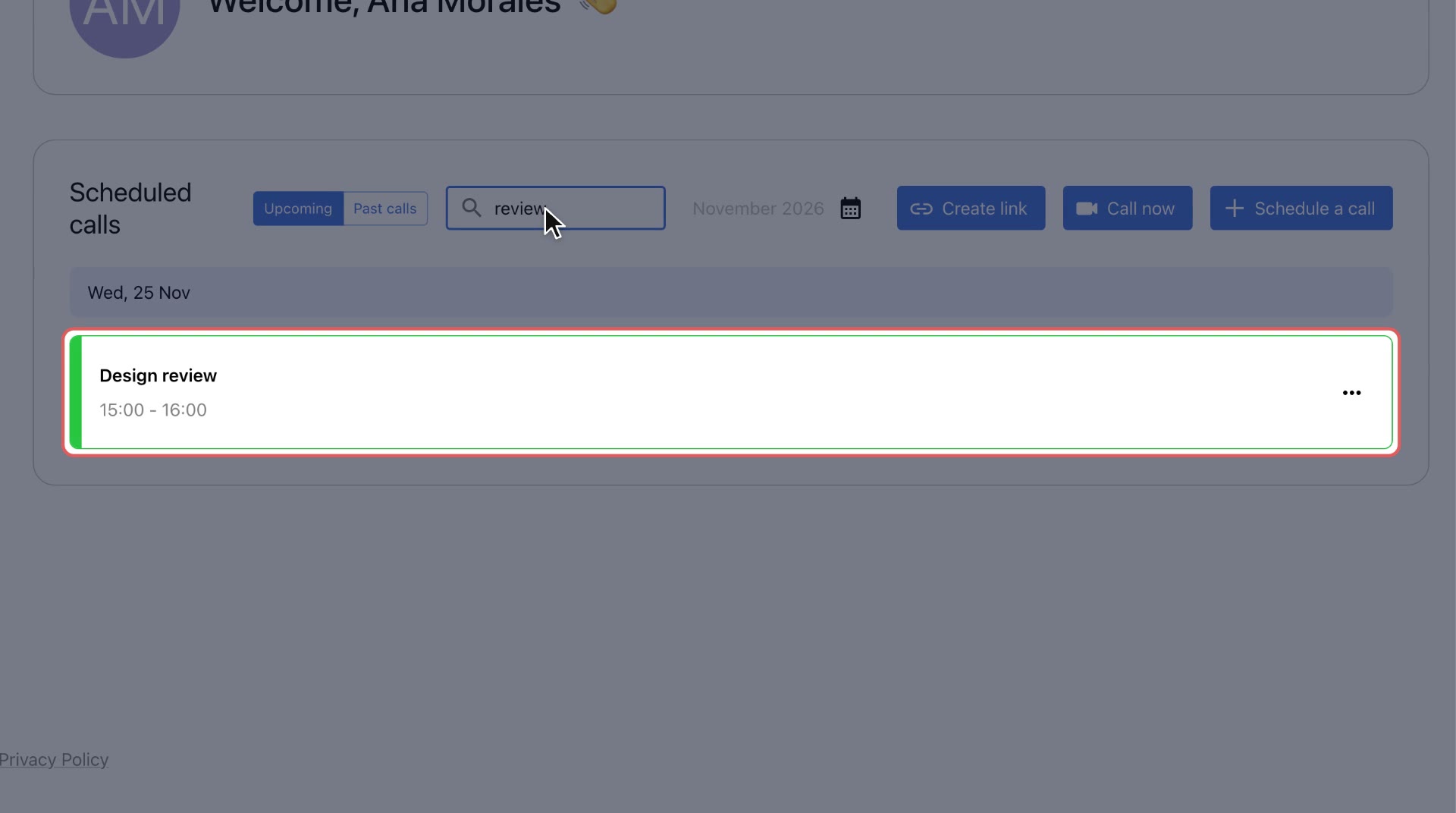
Screenshot from the film at 0:38: To find a call, type part of its name in Search by call name.
Watch this step · 0:32

Or click the calendar and pick a date: the list starts from that day.
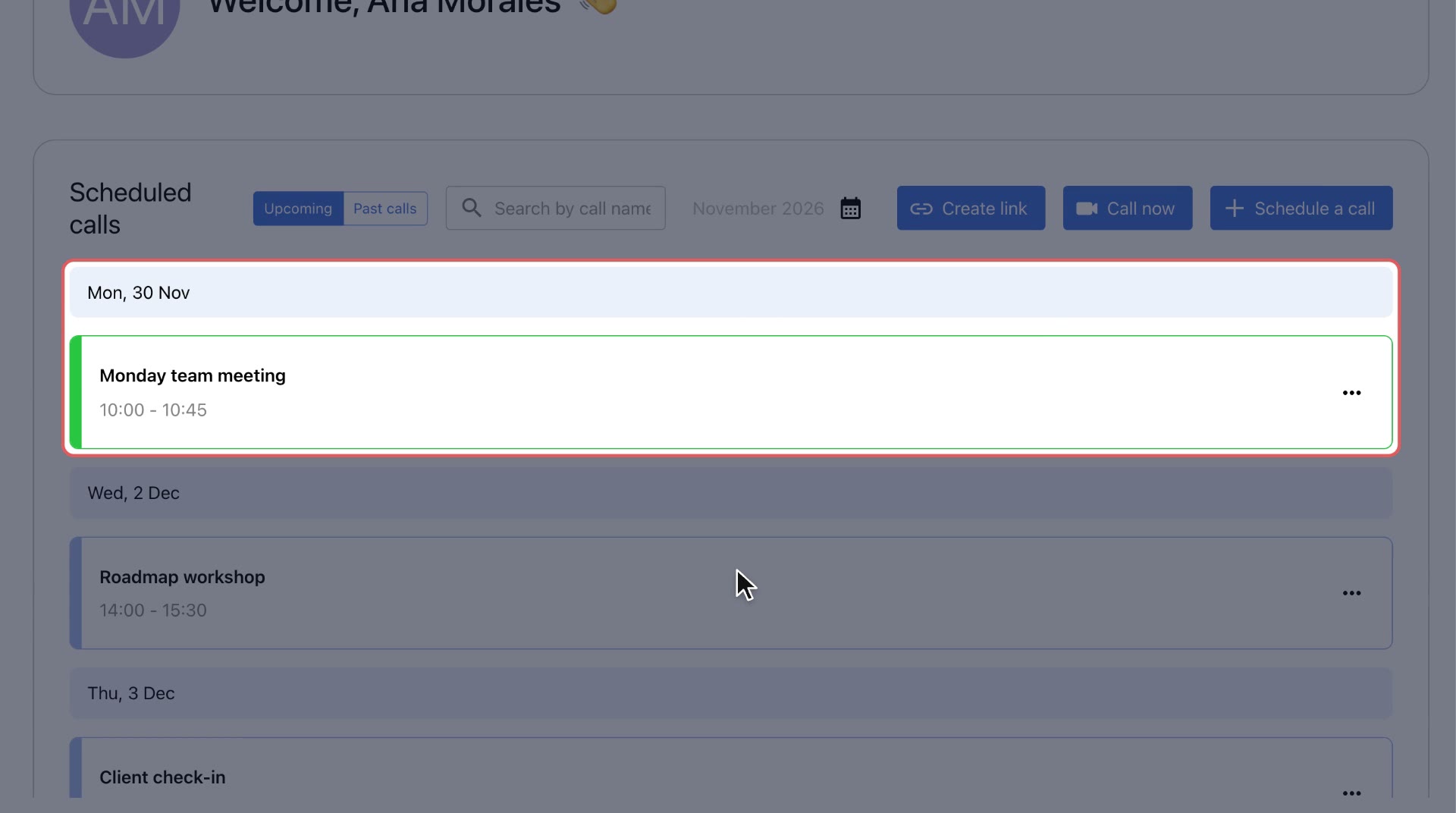
Screenshot from the film at 0:42: Or click the calendar and pick a date: the list starts from that day.
Watch this step · 0:39

Click Upcoming to get the whole list back.
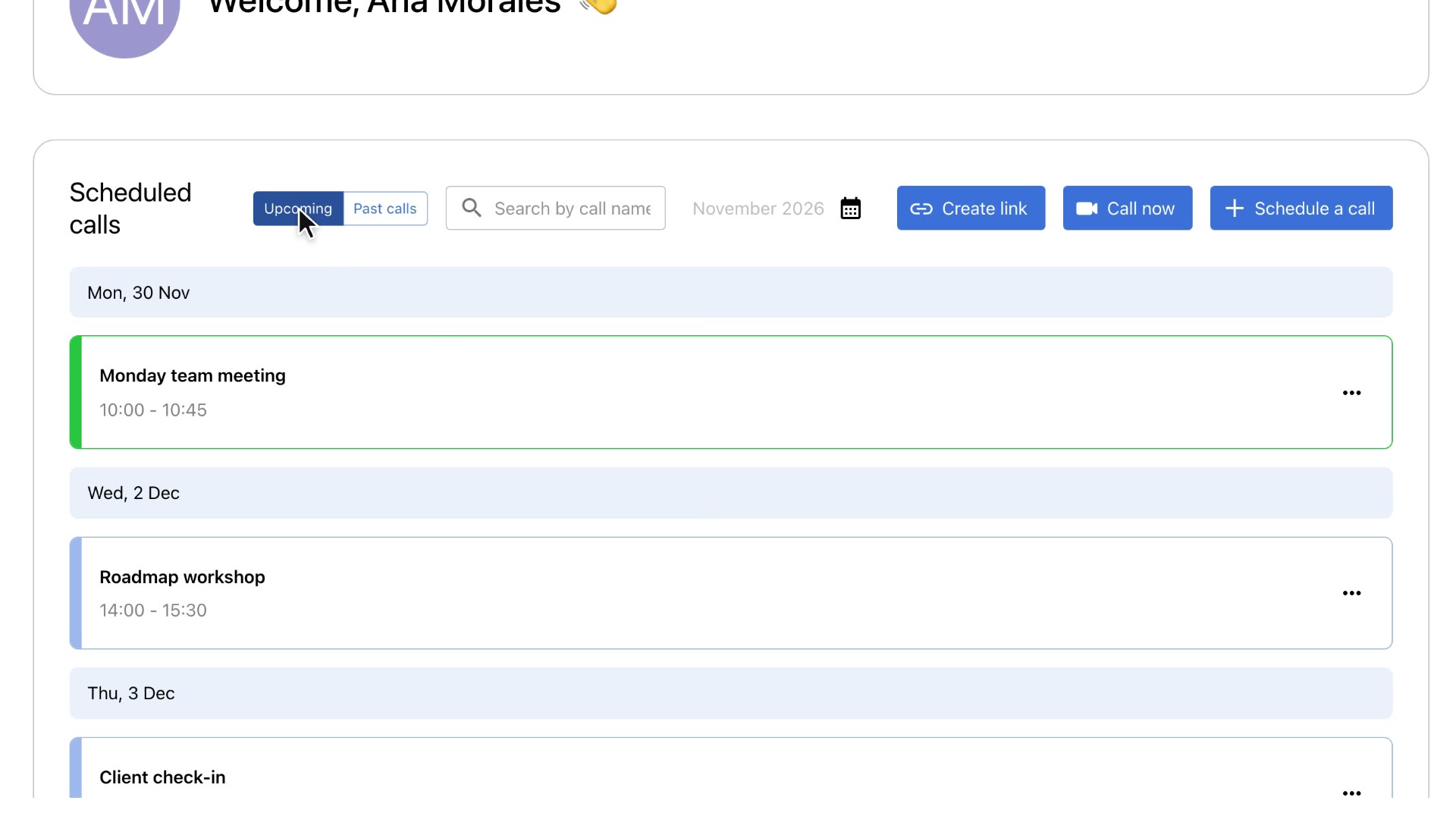
Screenshot from the film at 0:45: Click Upcoming to get the whole list back.
Watch this step · 0:44

3Call cards0:48

Point at a call's name, and a panel shows who's invited, with a Join button.
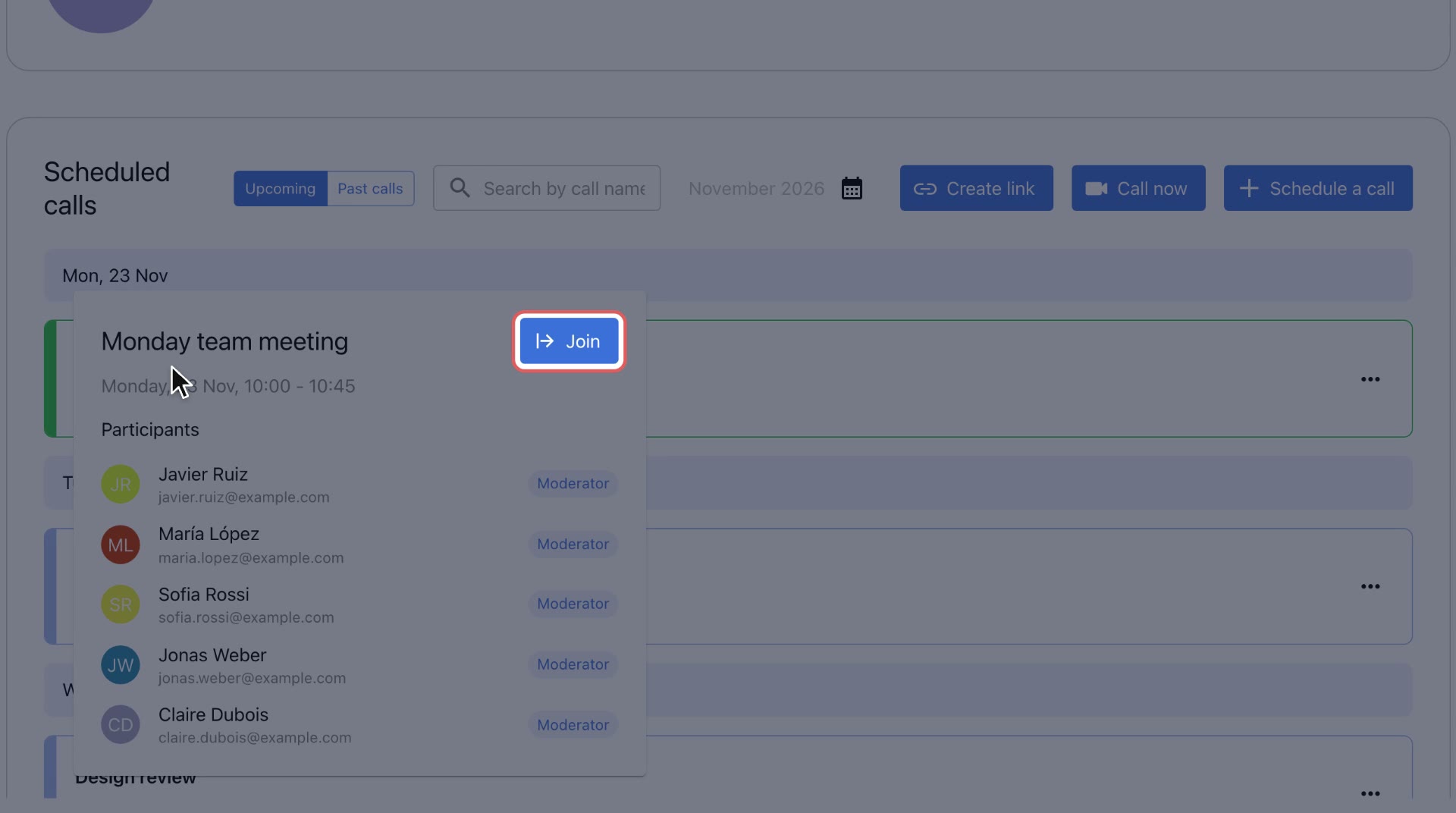
Screenshot from the film at 0:53: Point at a call's name, and a panel shows who's invited, with a Join button.
Watch this step · 0:49

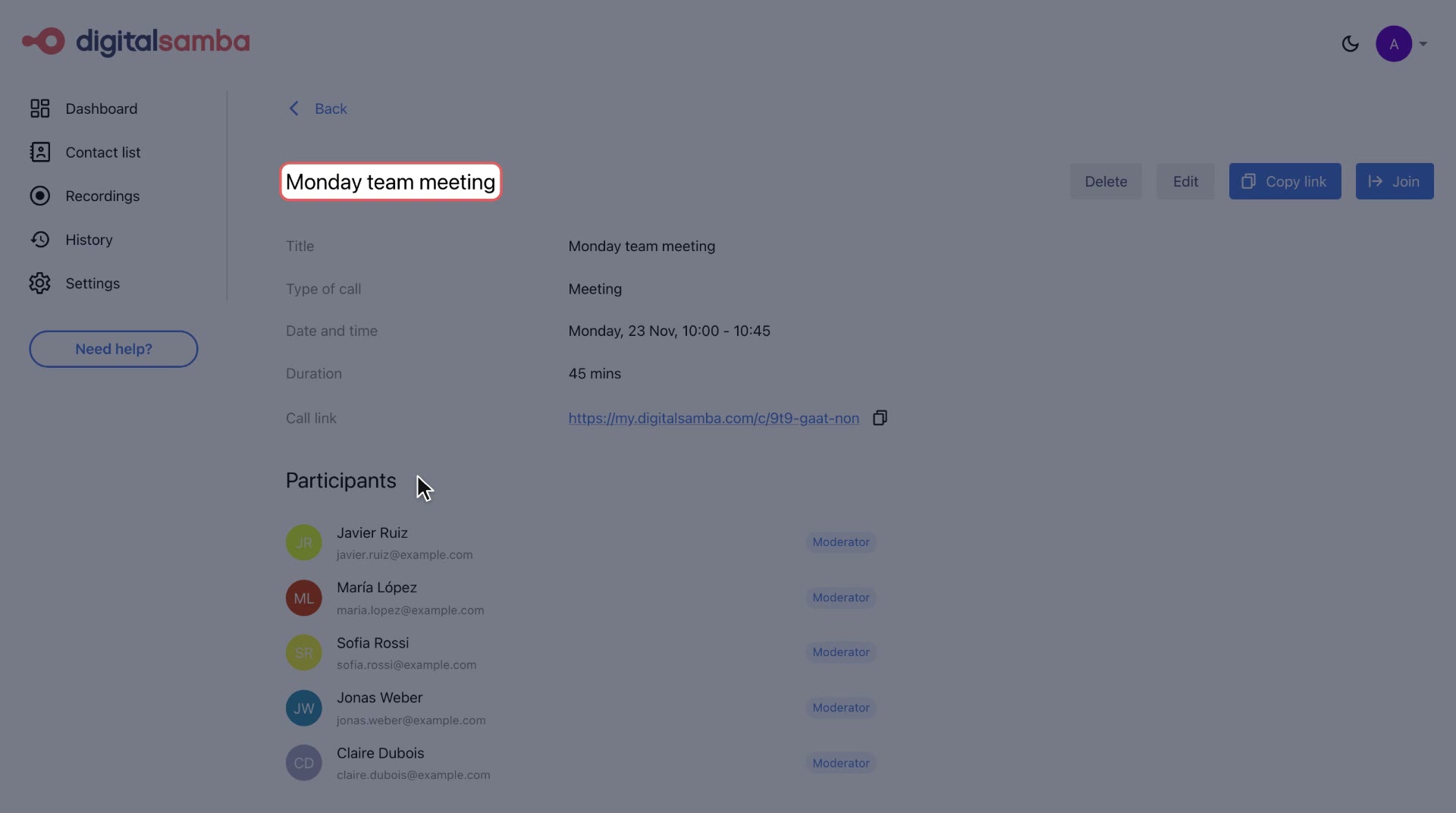
Click the call to open its page.

Screenshot from the film at 0:56: Click the call to open its page.
Watch this step · 0:55

The three dots give you Join, Copy link, Edit and Delete.
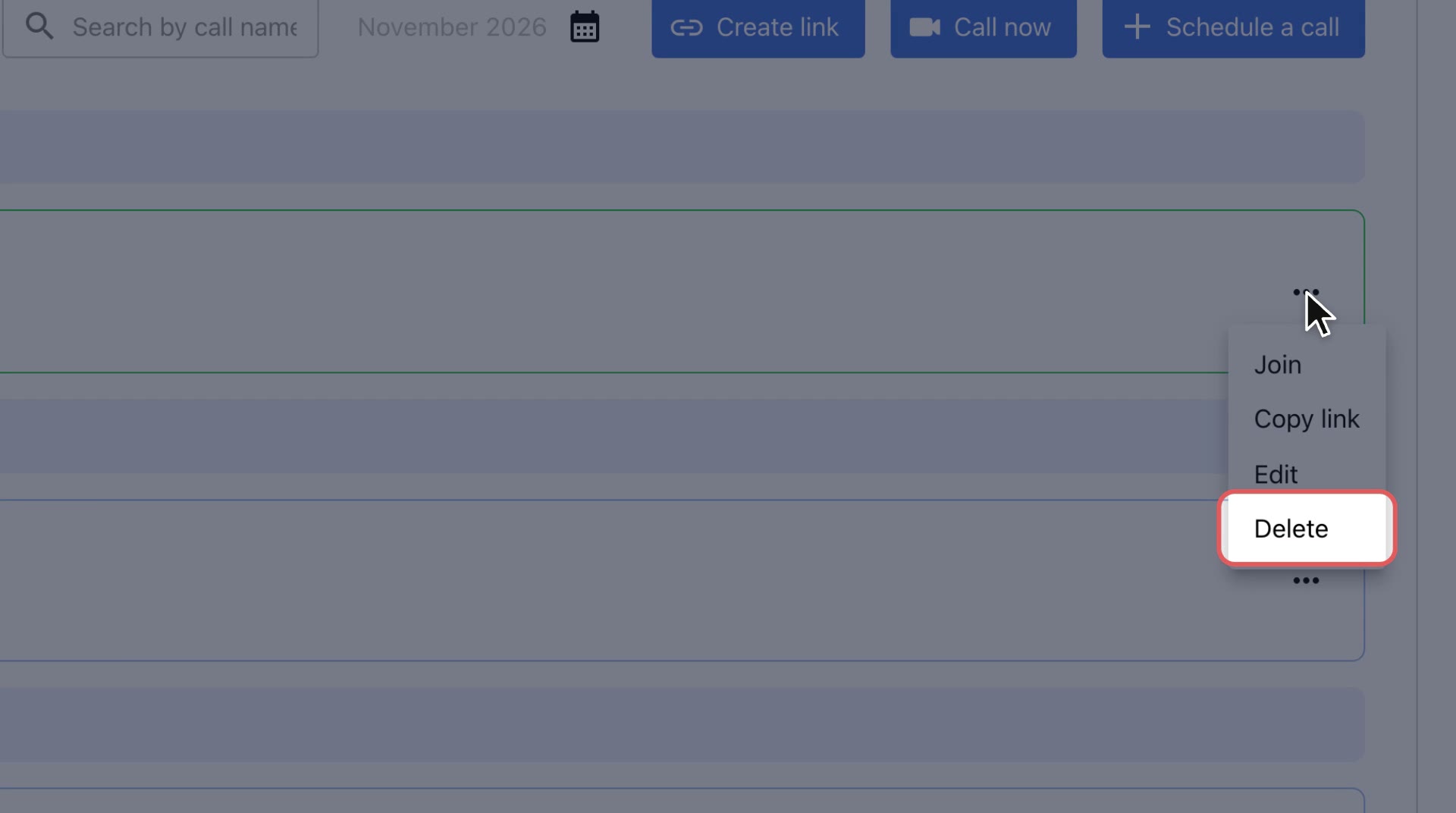
Screenshot from the film at 1:02: The three dots give you Join, Copy link, Edit and Delete.
Watch this step · 0:58

4Start a call1:03

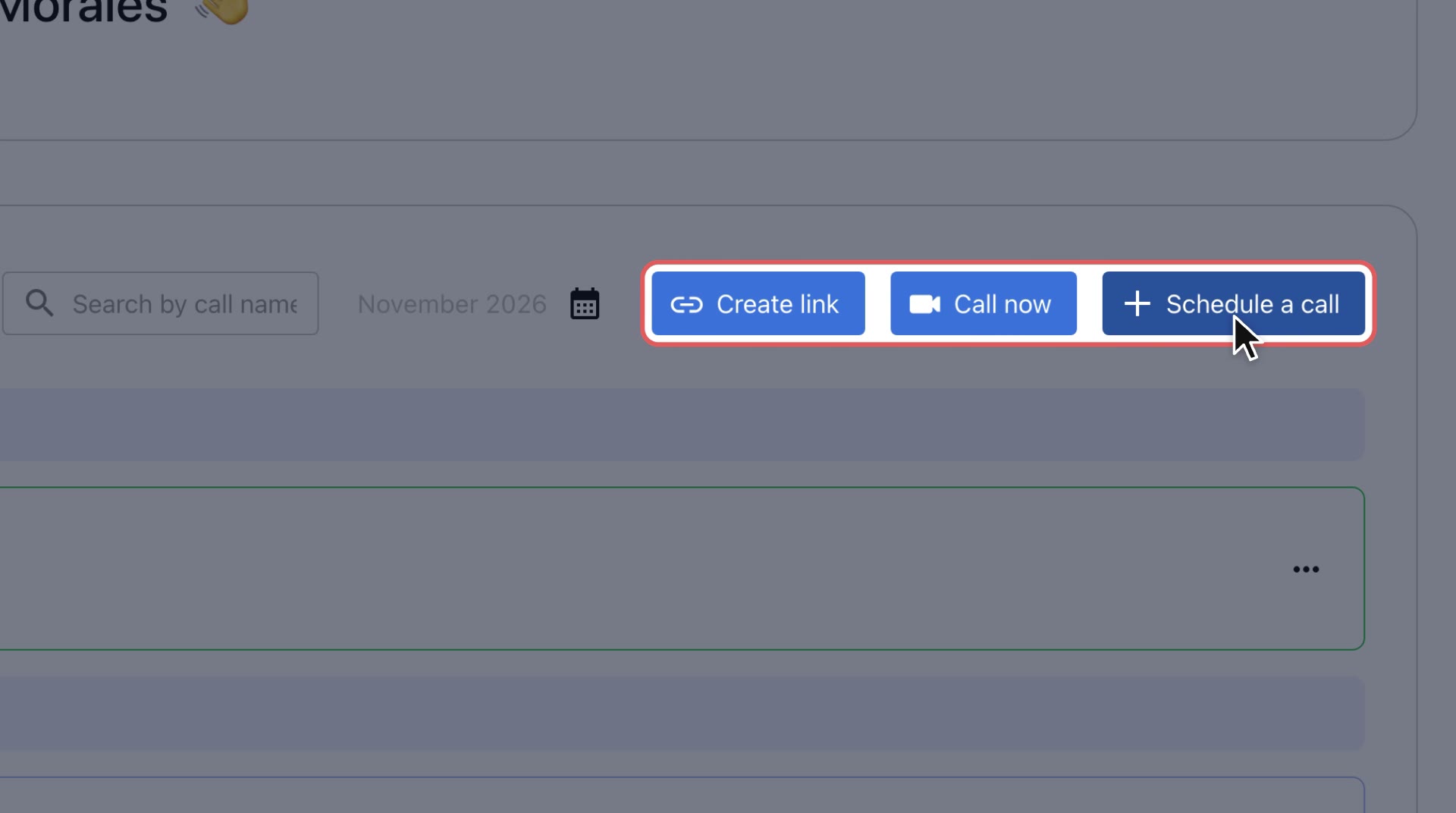
Three buttons start a call.
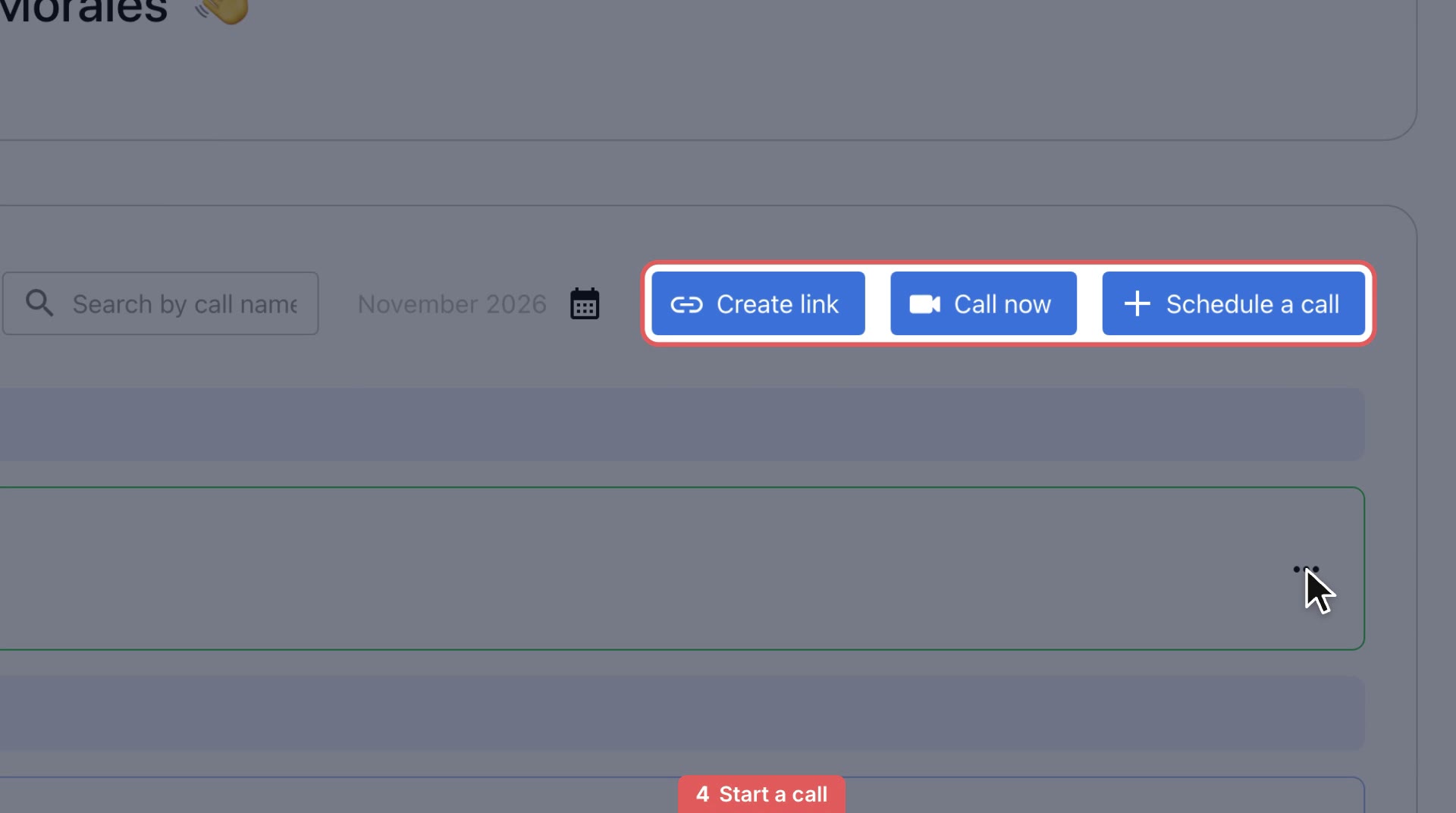
Screenshot from the film at 1:06: Three buttons start a call.
Watch this step · 1:05

Create link makes a link you can send to anyone.
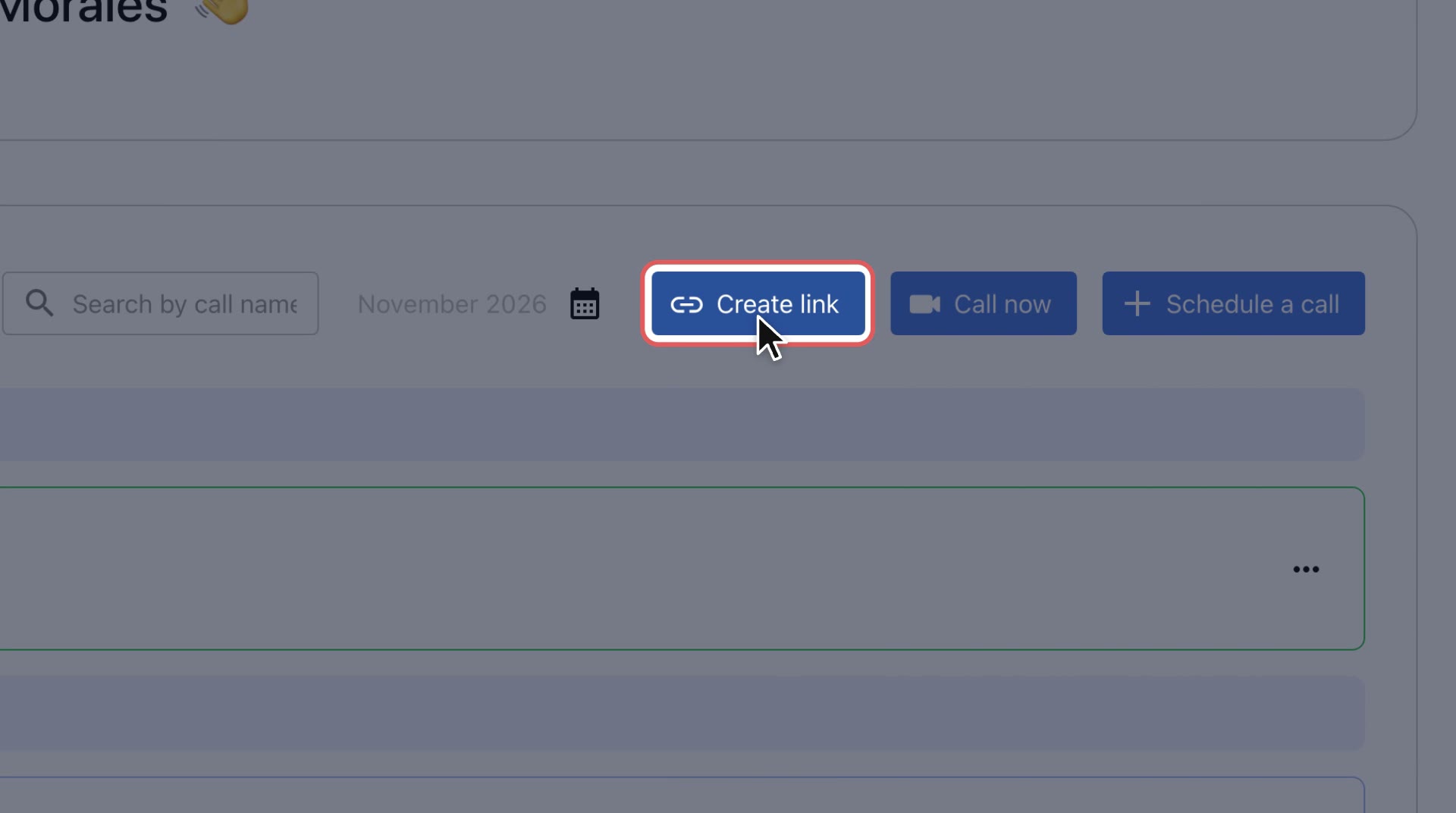
Screenshot from the film at 1:08: Create link makes a link you can send to anyone.
Watch this step · 1:07

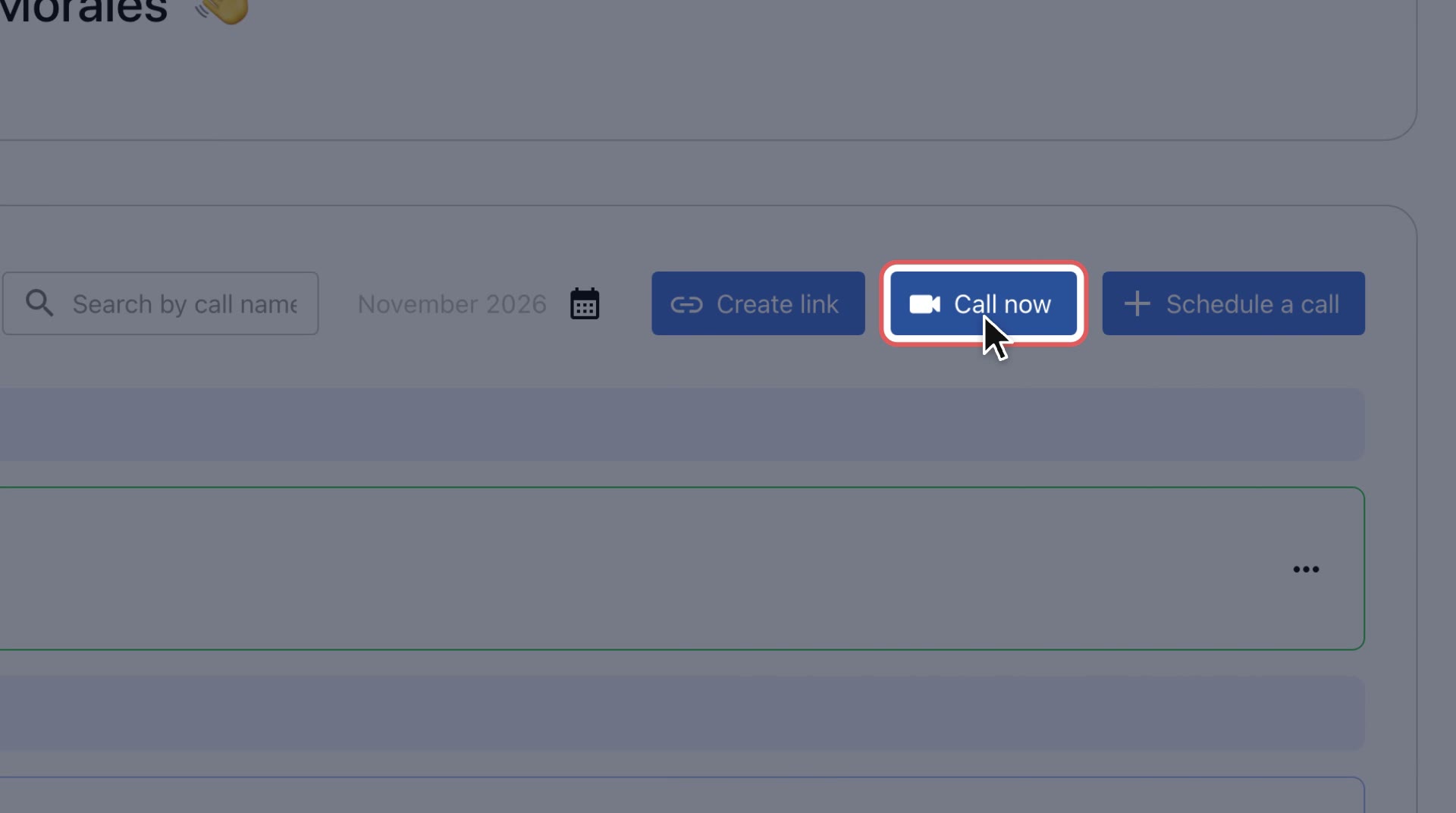
Call now opens a call straight away.

Screenshot from the film at 1:11: Call now opens a call straight away.
Watch this step · 1:10

Schedule a call sets a date and invites people.
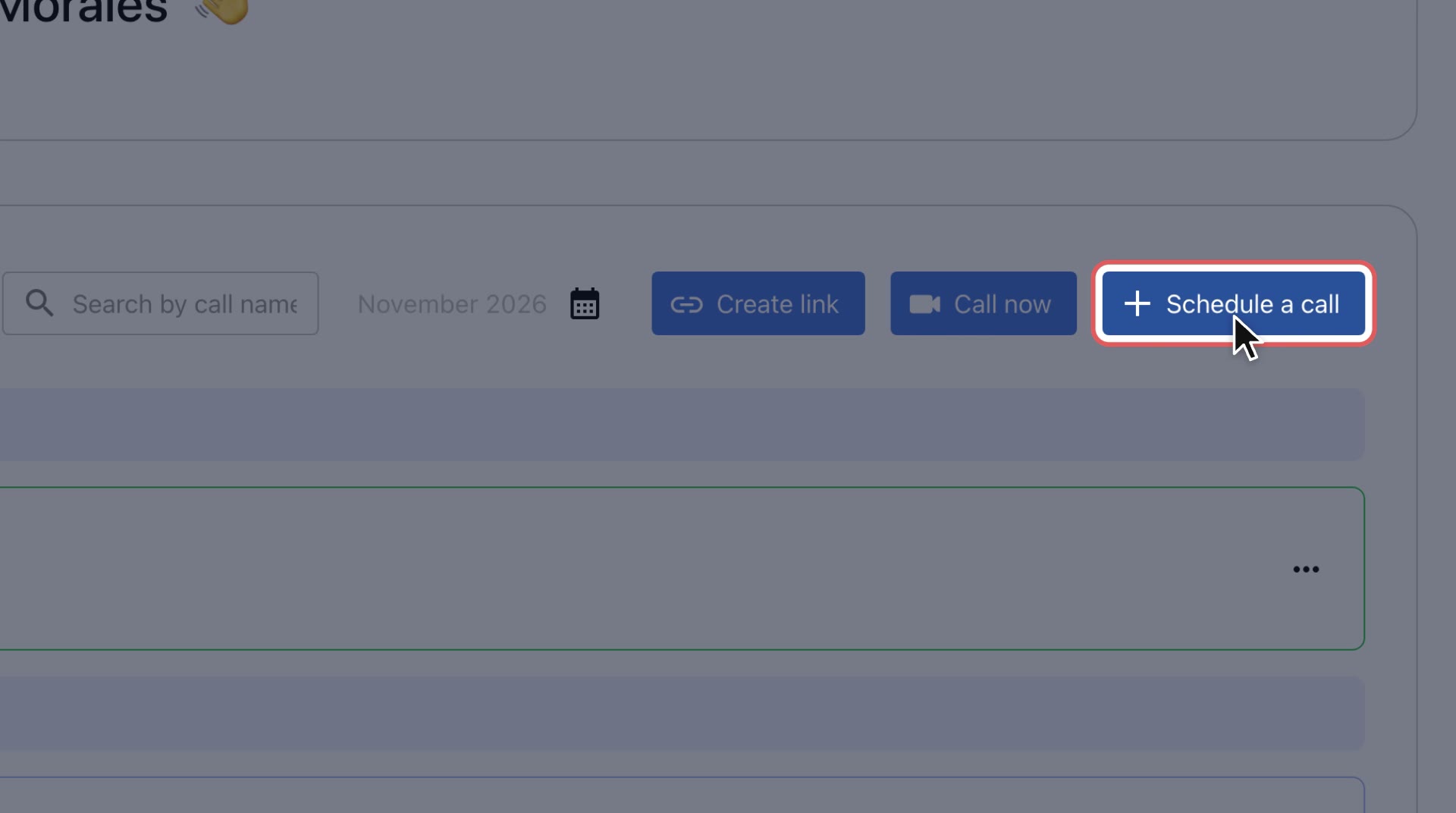
Screenshot from the film at 1:14: Schedule a call sets a date and invites people.
Watch this step · 1:13

Each has its own video.

Screenshot from the film at 1:17: Each has its own video.
Watch this step · 1:17

5Menus1:19

On the left, Contact list holds the people you invite.
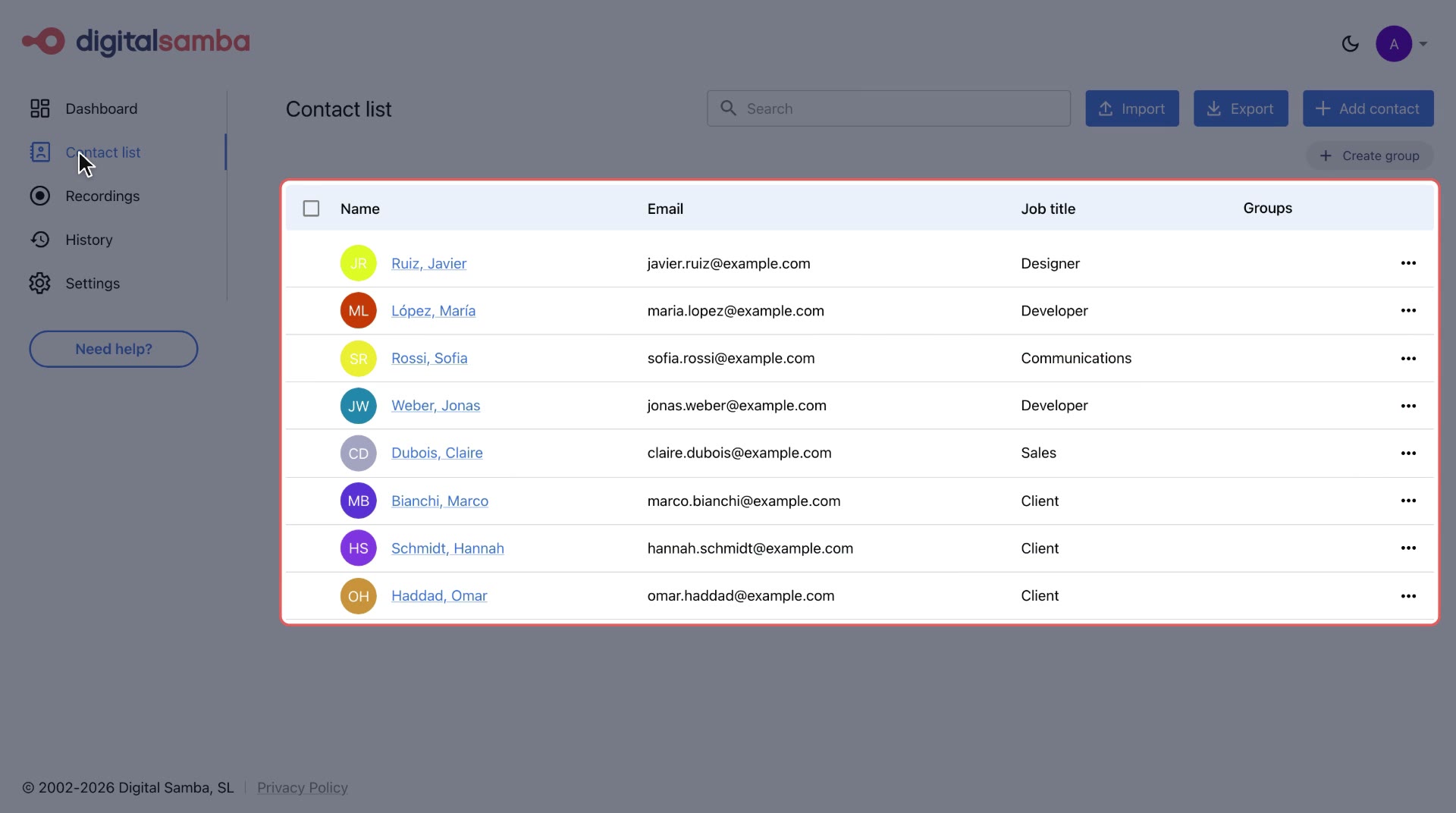
Screenshot from the film at 1:23: On the left, Contact list holds the people you invite.
Watch this step · 1:21

Recordings and History are for your recordings and past sessions.
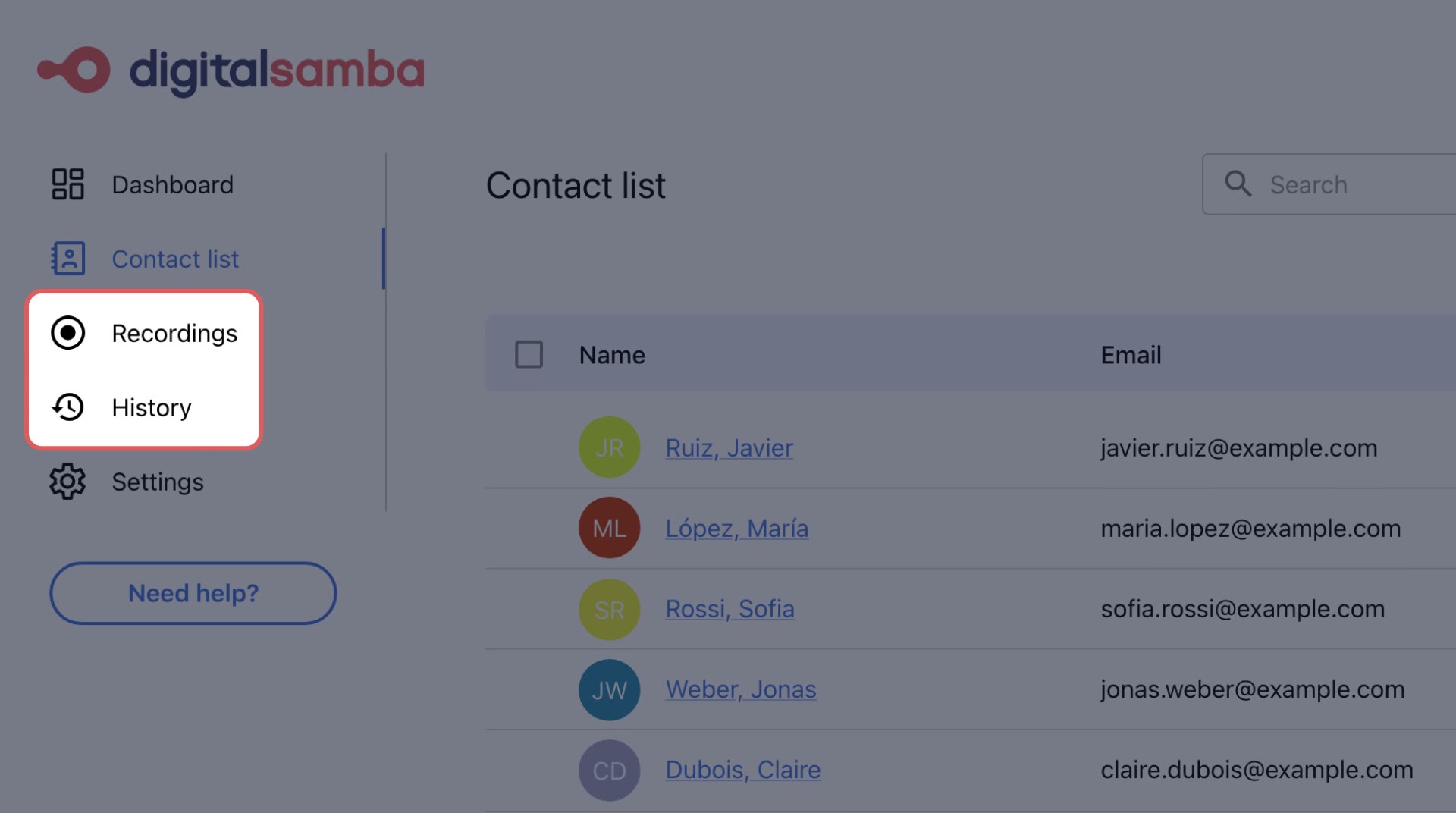
Screenshot from the film at 1:28: Recordings and History are for your recordings and past sessions.
Watch this step · 1:25

Settings holds your roles and templates.
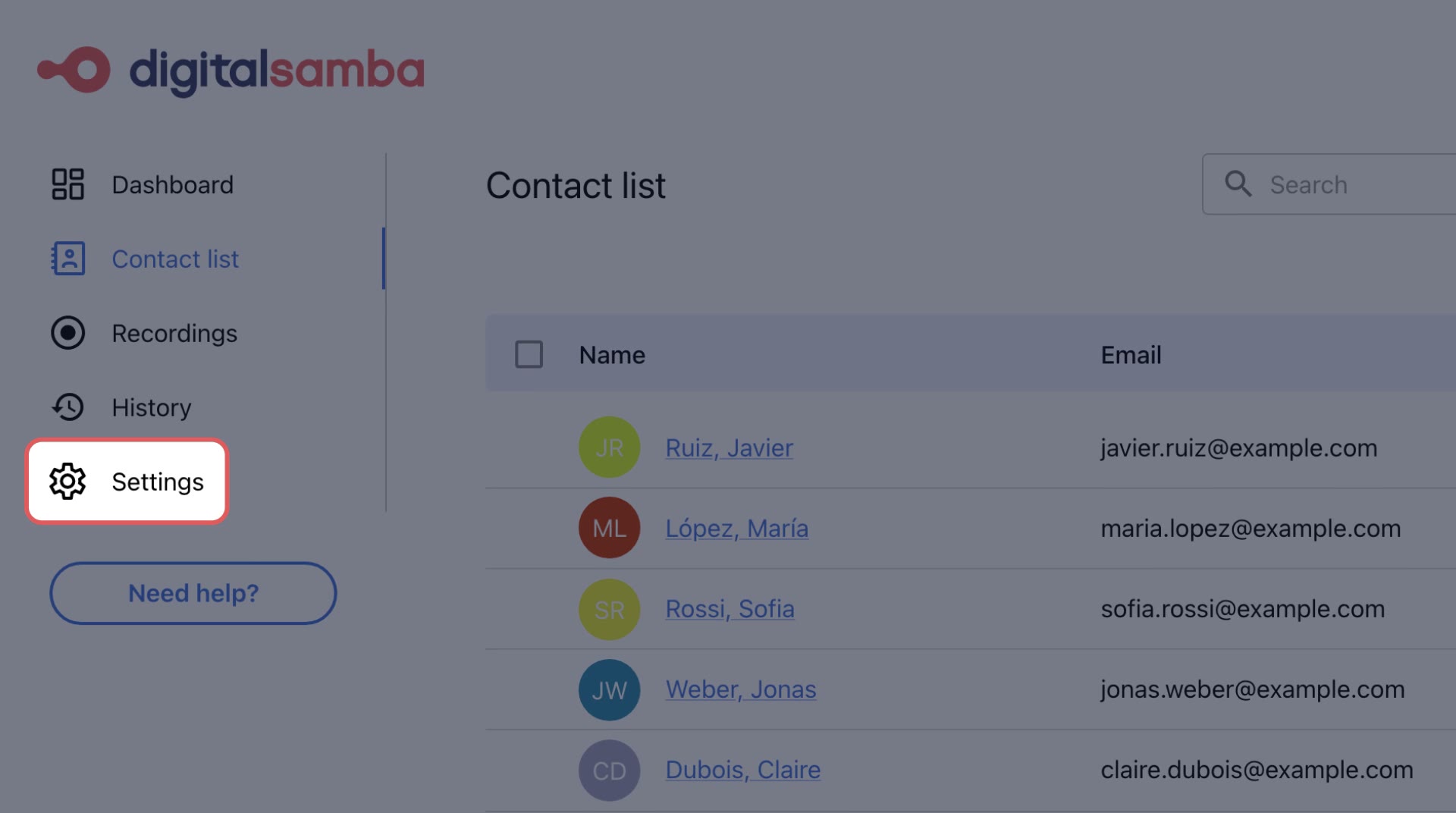
Screenshot from the film at 1:30: Settings holds your roles and templates.
Watch this step · 1:29

The Need help button opens the support page.
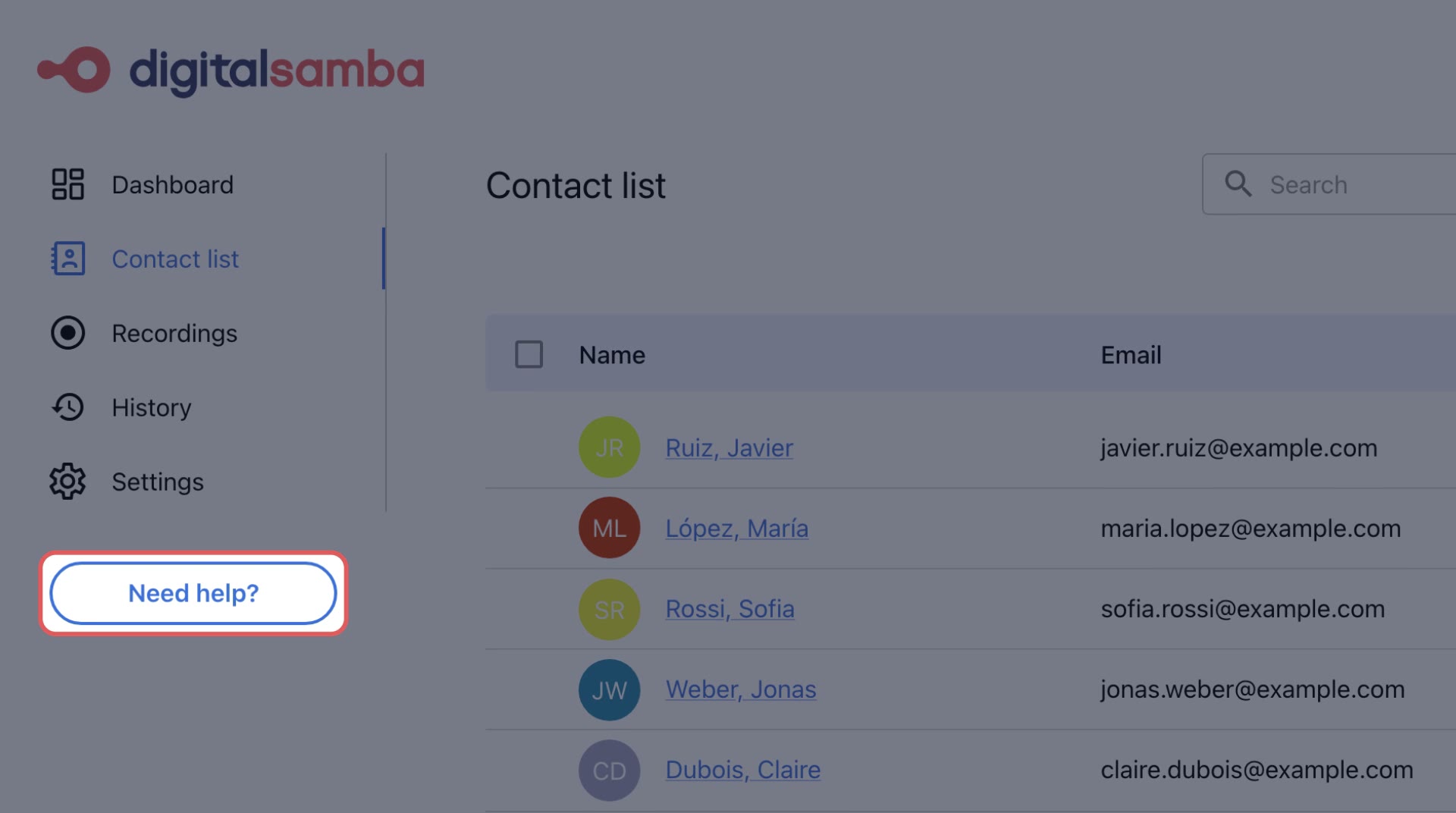
Screenshot from the film at 1:33: The Need help button opens the support page.
Watch this step · 1:32

Top right, the moon switches to dark mode.
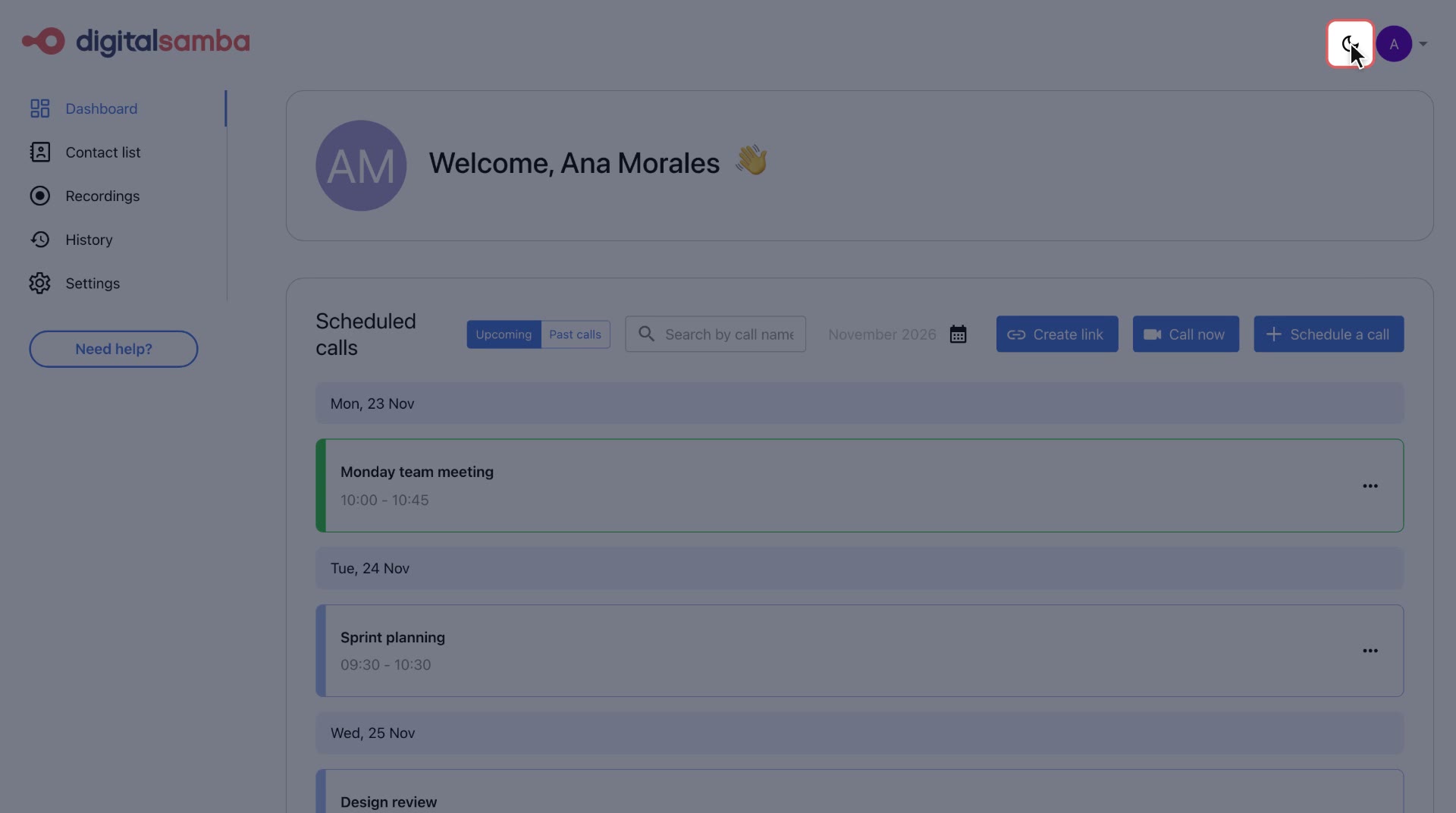
Screenshot from the film at 1:38: Top right, the moon switches to dark mode.
Watch this step · 1:36

And your avatar opens your account menu, with Manage your profile and Log out.
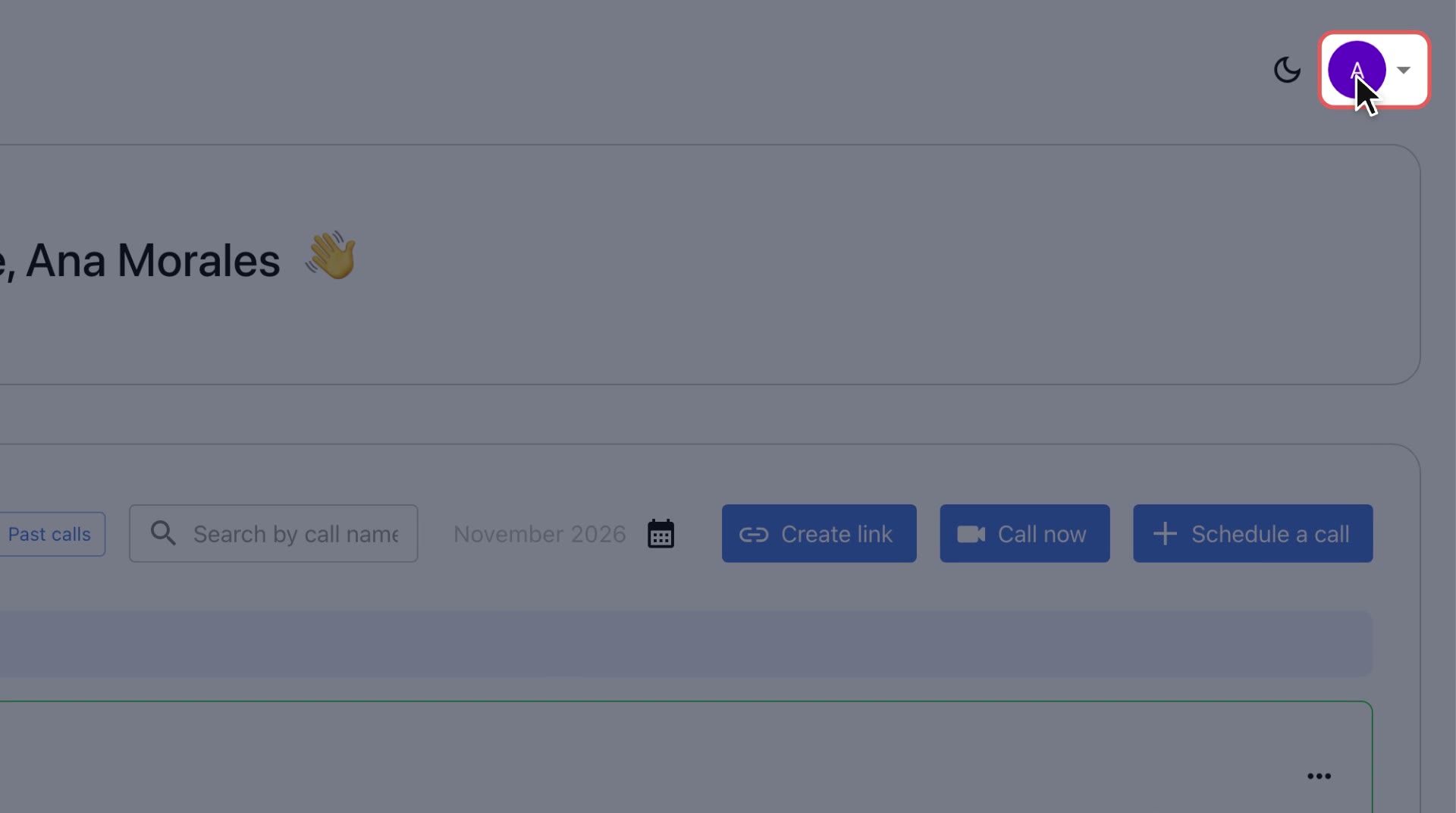
Screenshot from the film at 1:42: And your avatar opens your account menu, with Manage your profile and Log out.
Watch this step · 1:41

Good to know1:47

Times on your dashboard follow the time zone in your profile.
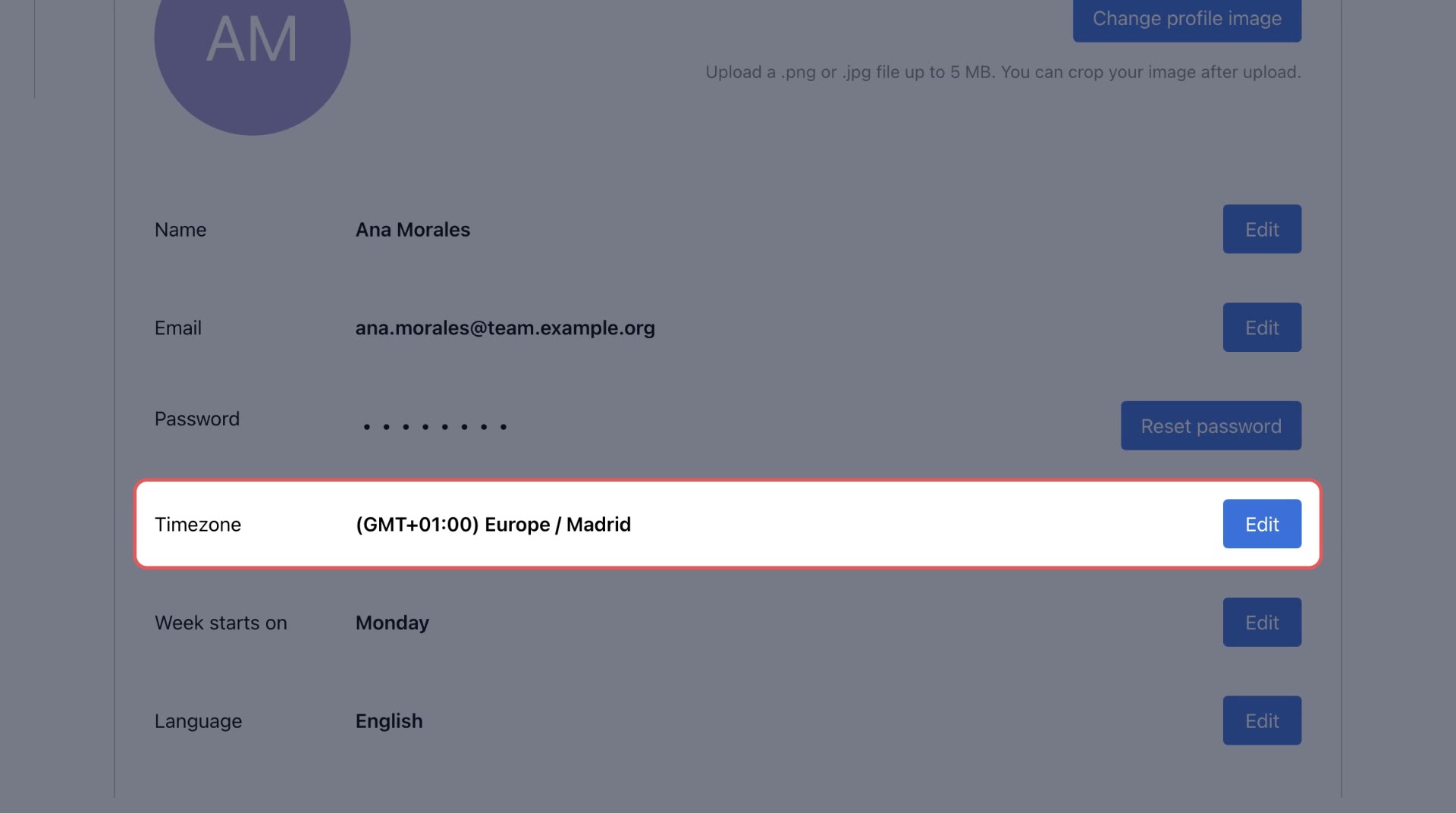
Screenshot from the film at 1:52: Good to know: times on your dashboard follow the time zone in your profile.
Watch this step · 1:48

You can change it under Manage your profile.

Recap1:57

So: your calls by day, a search to find one, three buttons to start one, and a menu for the rest.
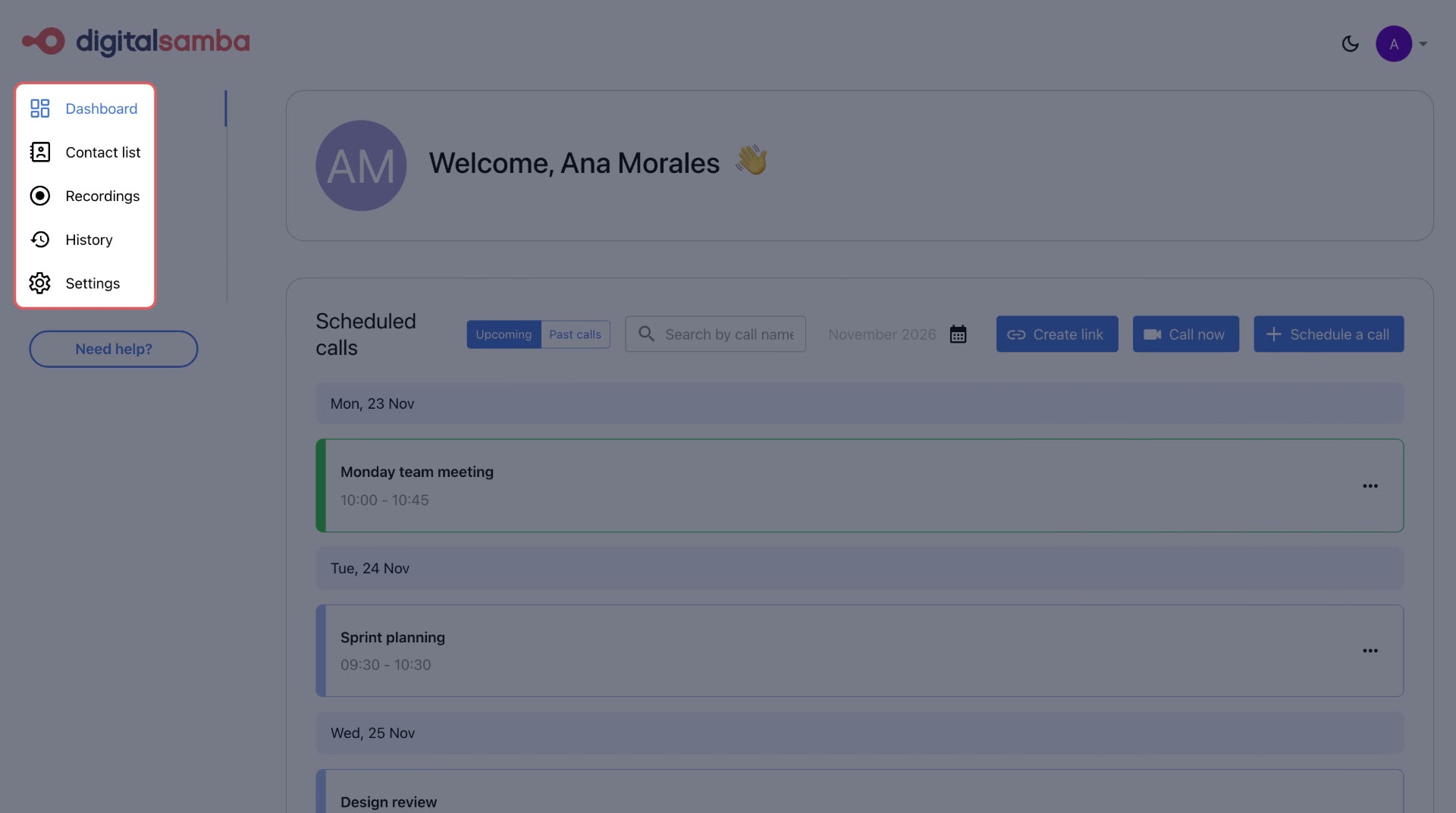
Screenshot from the film at 2:04: So: your calls by day, a search to find one, three buttons to start one, and a menu for the rest.
Watch this step · 1:57

In this video

Next

Related

Updated

The film, the article, the captions and the search results all come from one source, so they change together.

  1. Version 1 ·
    First version.

All updates