1Contact list0:10
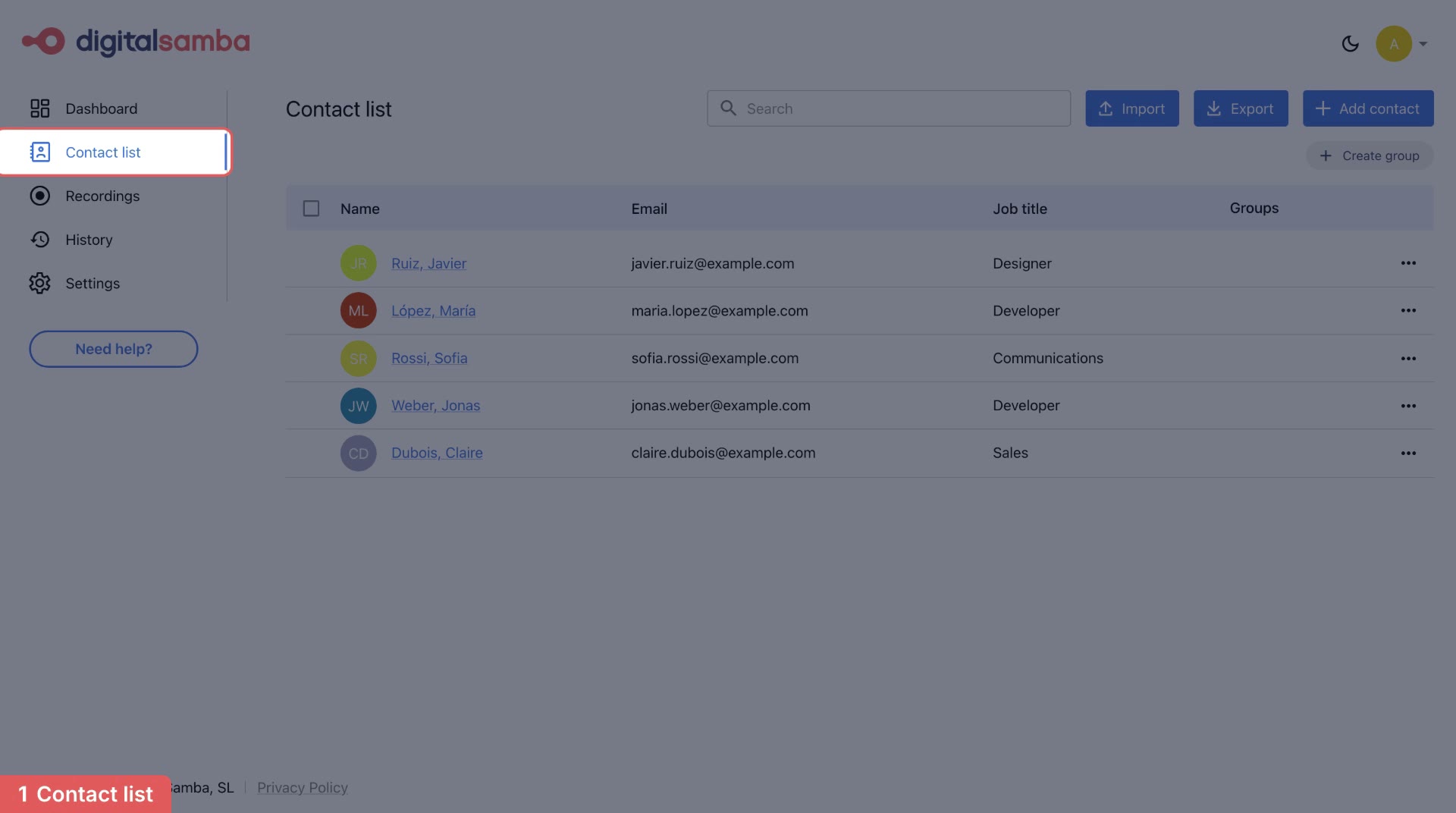
Open Contact list in the side menu.
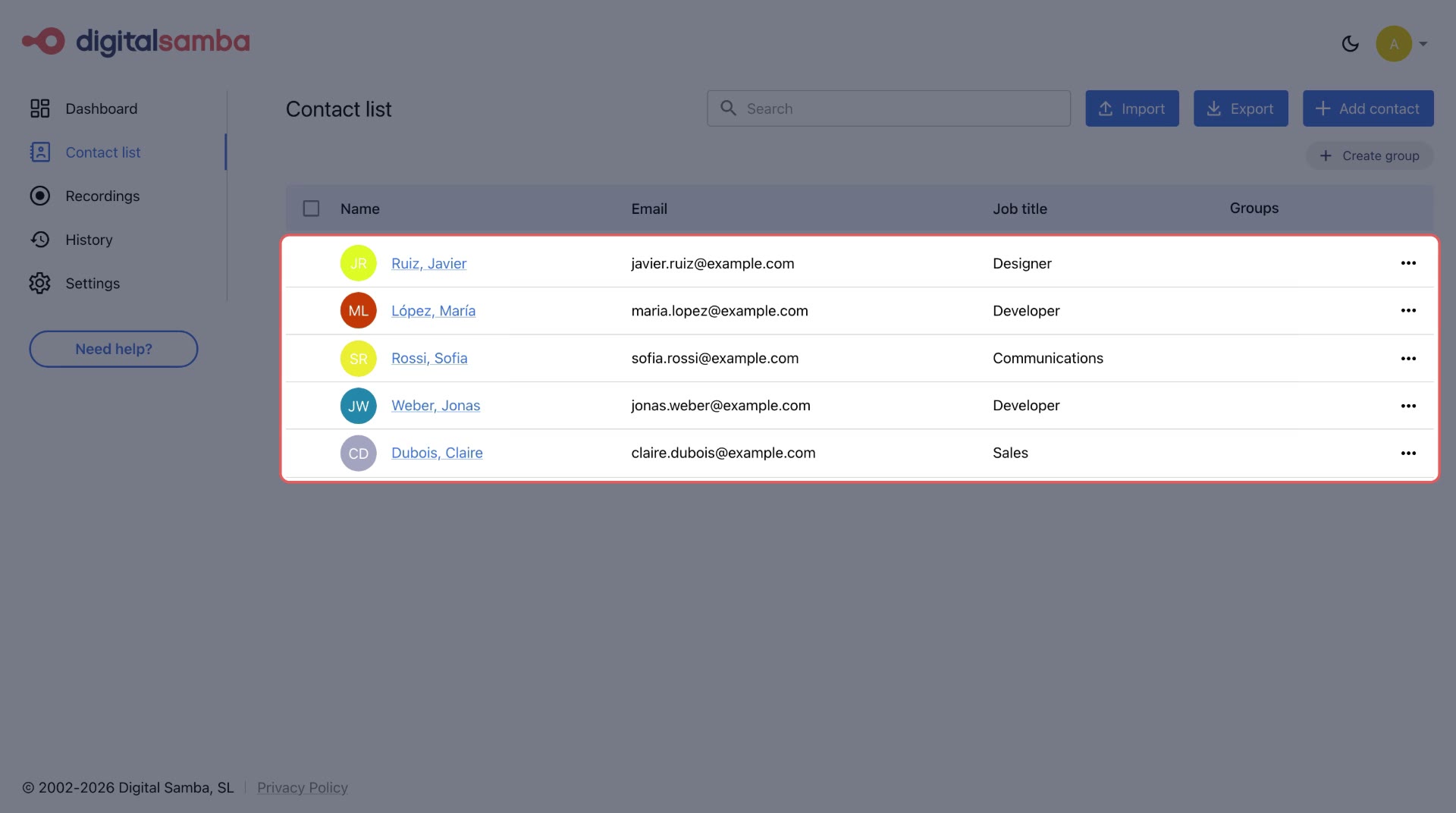
Ana's colleagues are already here: everyone you invite to a call is added to your contacts.
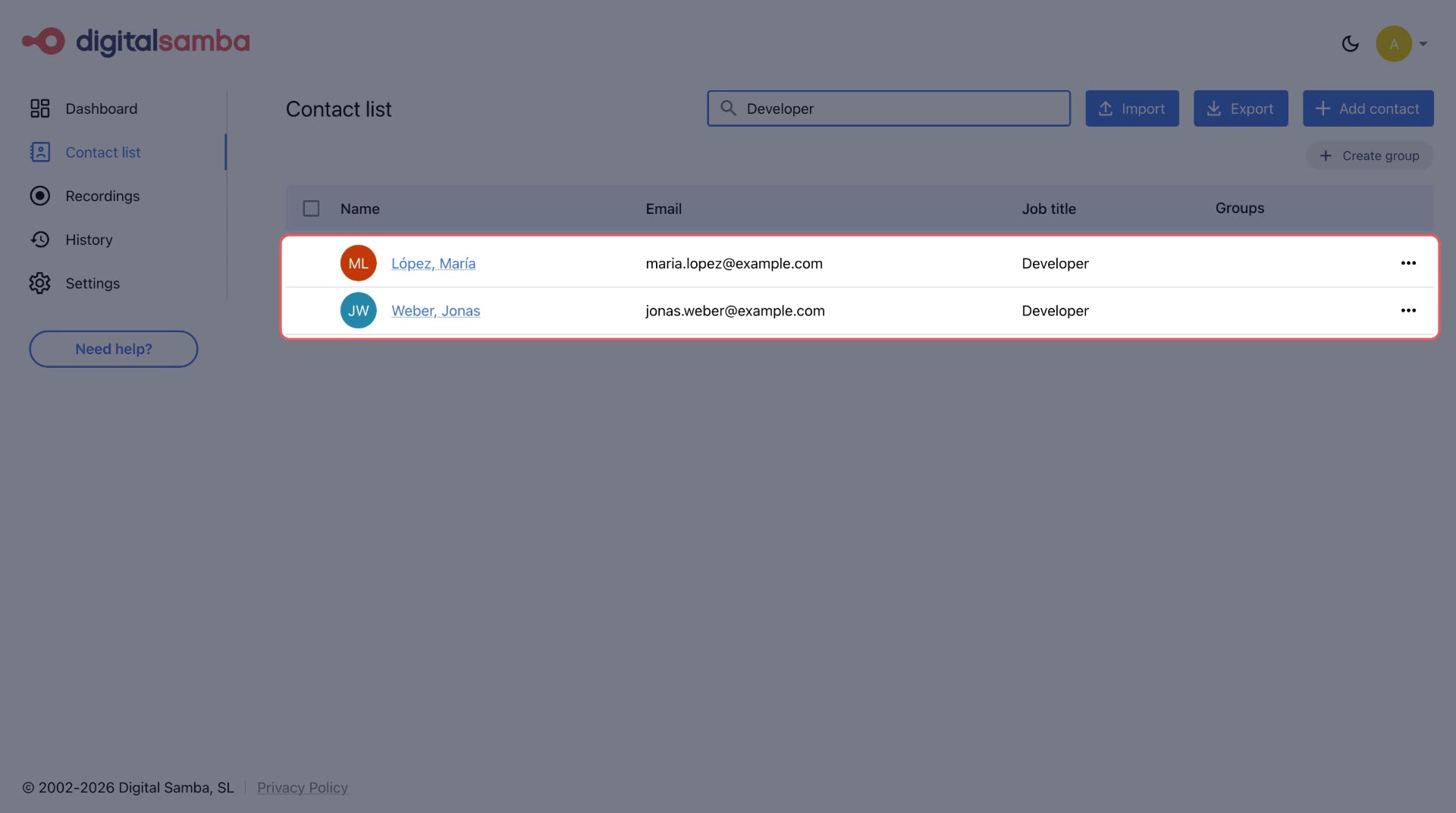
To find someone, type a name, an email address or a job title into Search, and press Enter.
2Add contact0:27
Her clients aren't here yet.
Marco Bianchi comes first: click Add contact.
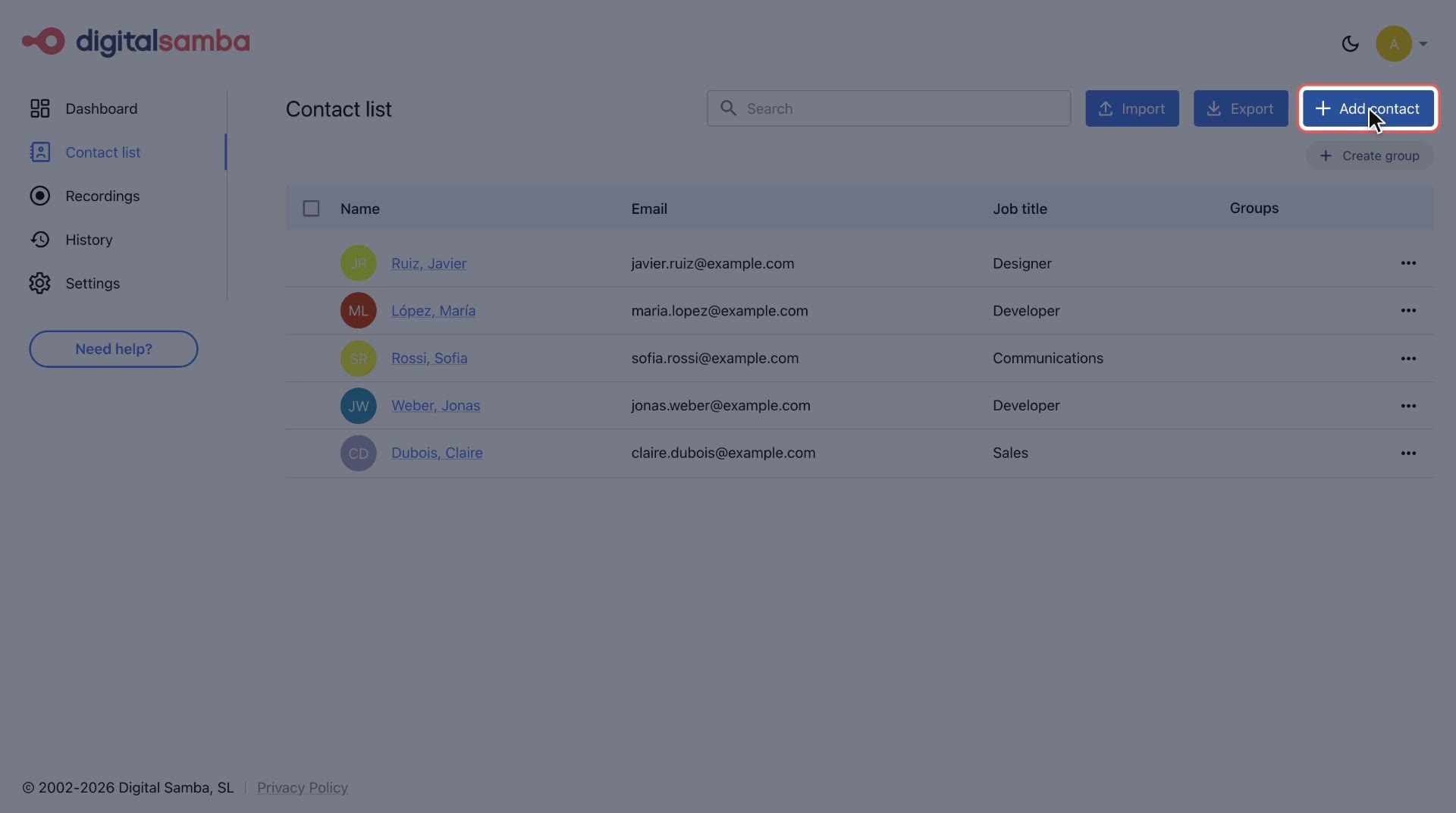
Only Email is required.
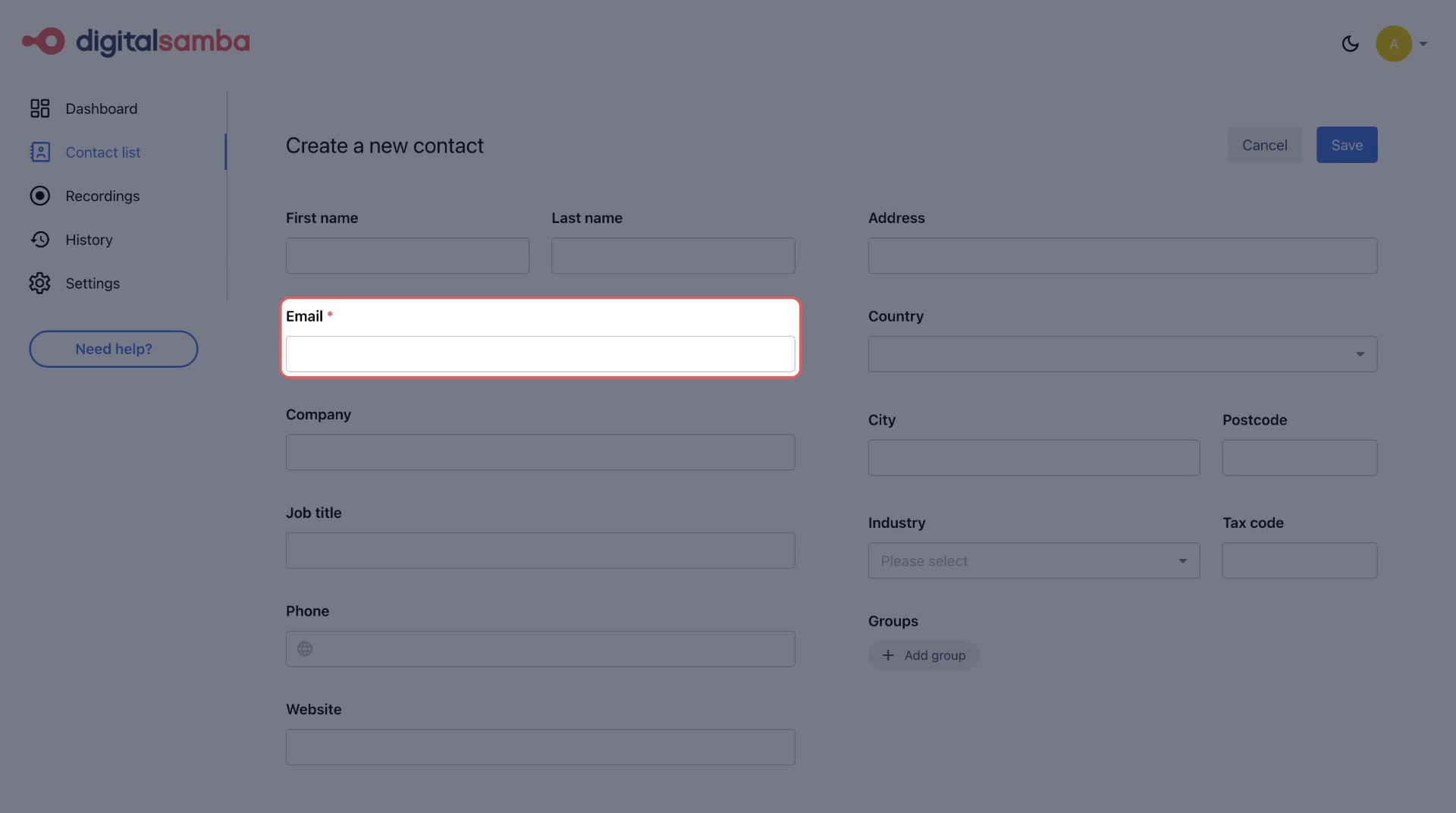
Ana adds his name and job title, and clicks Save: Marco is on the list.
3Import0:42
The other clients are in a spreadsheet.
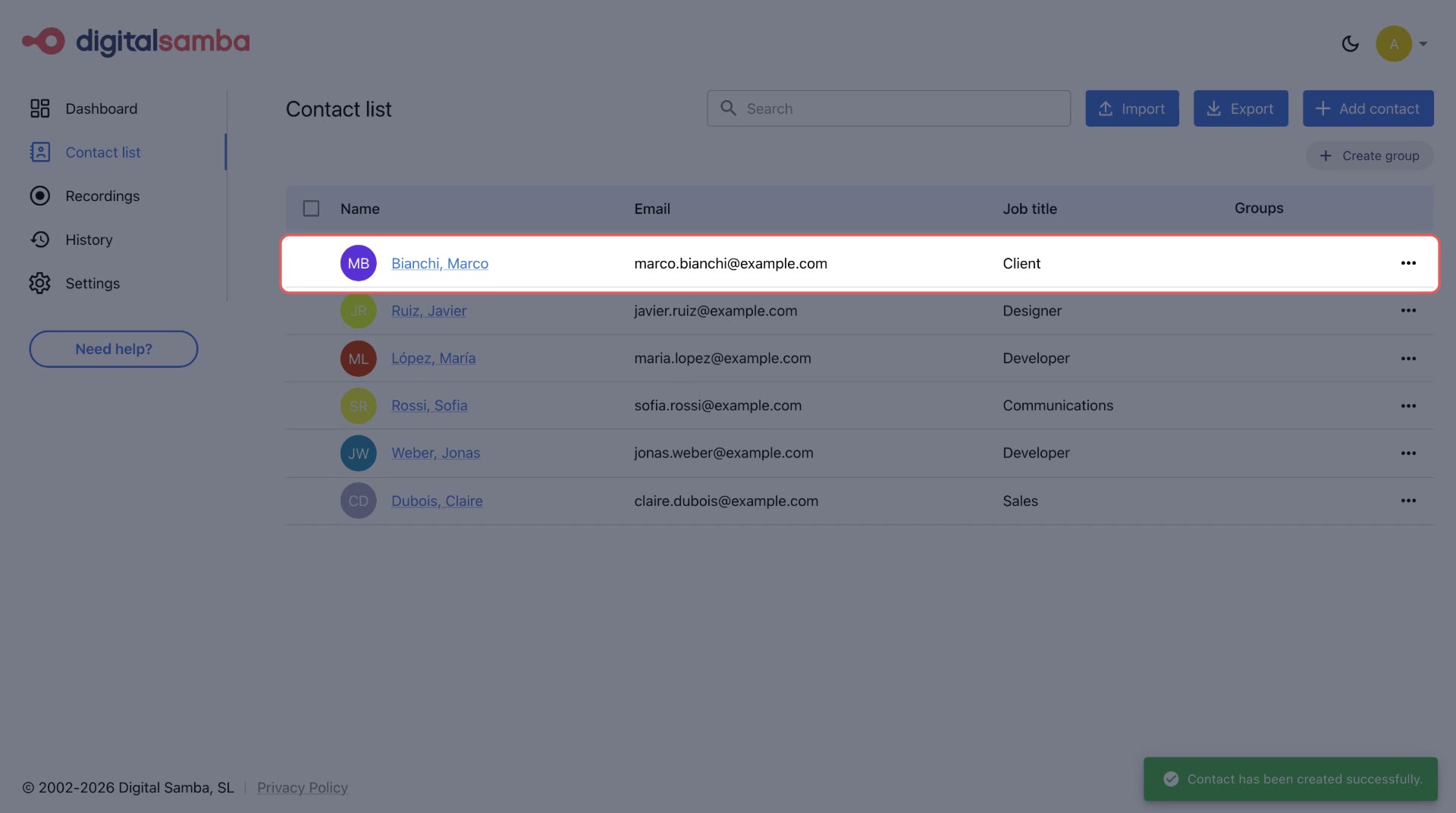
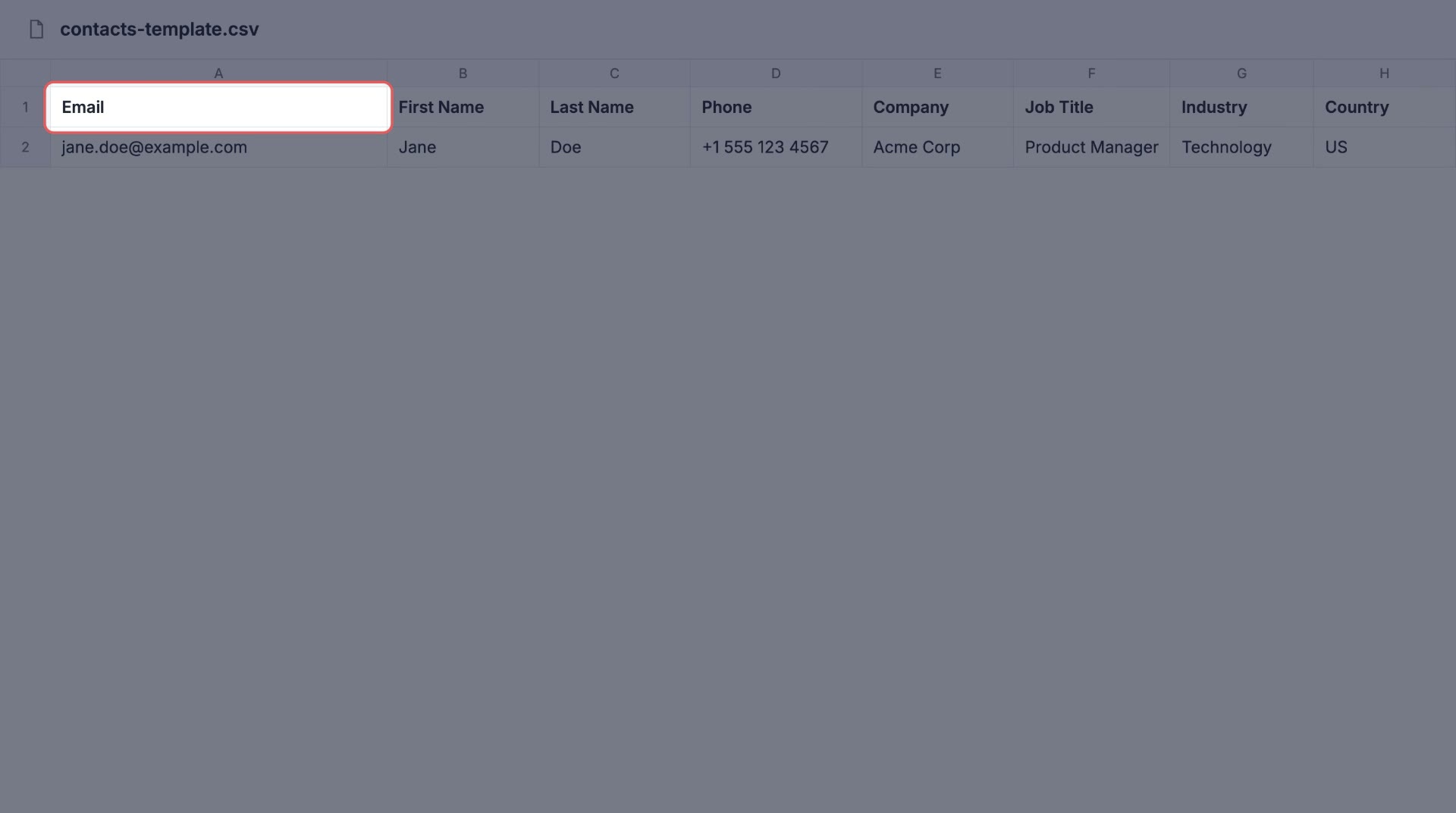
Click Import, then Download Template.
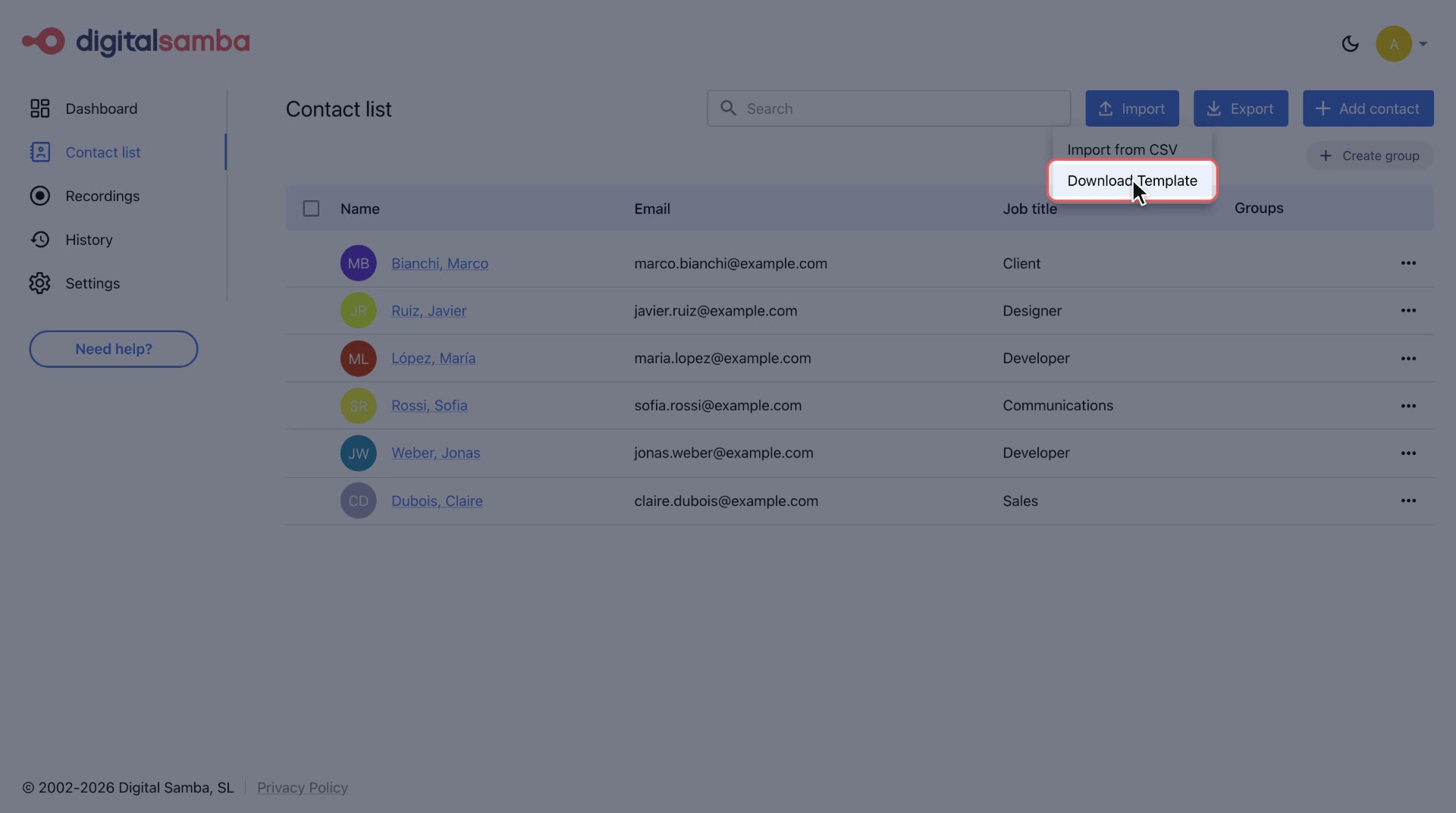
You get a CSV file with a column for each detail; only Email must be filled in.
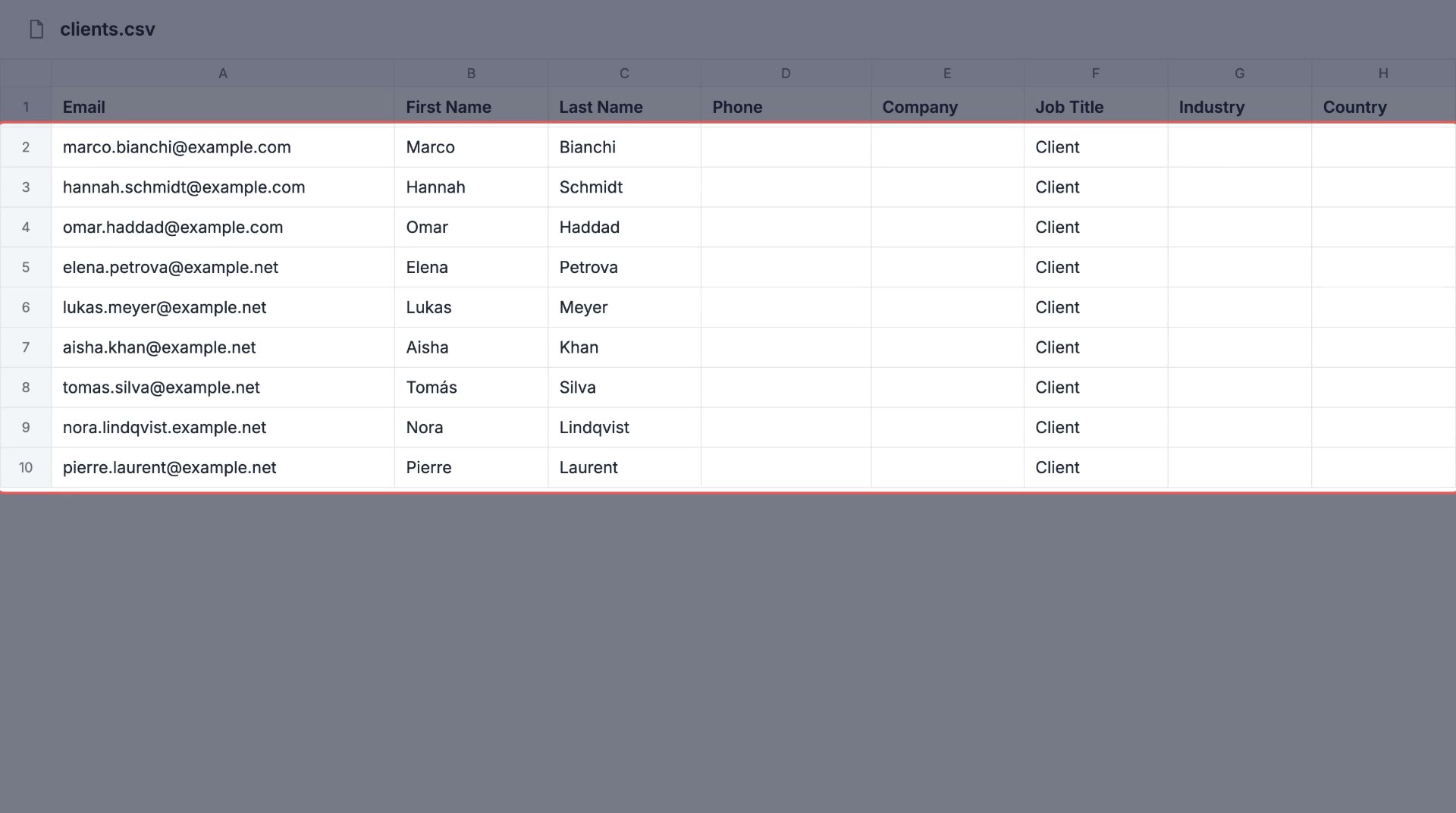
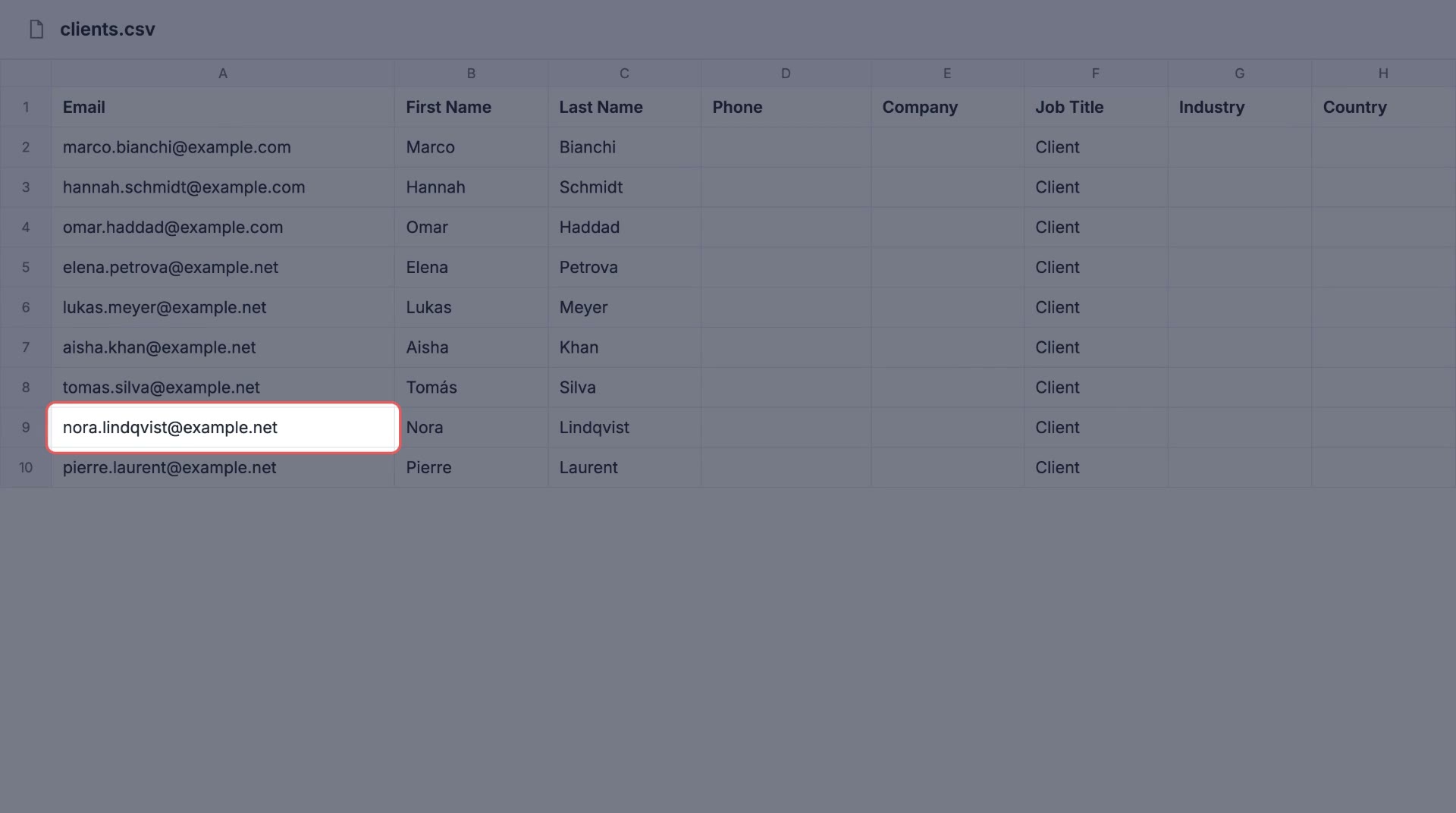
Ana puts one client on each row and saves the file as CSV.
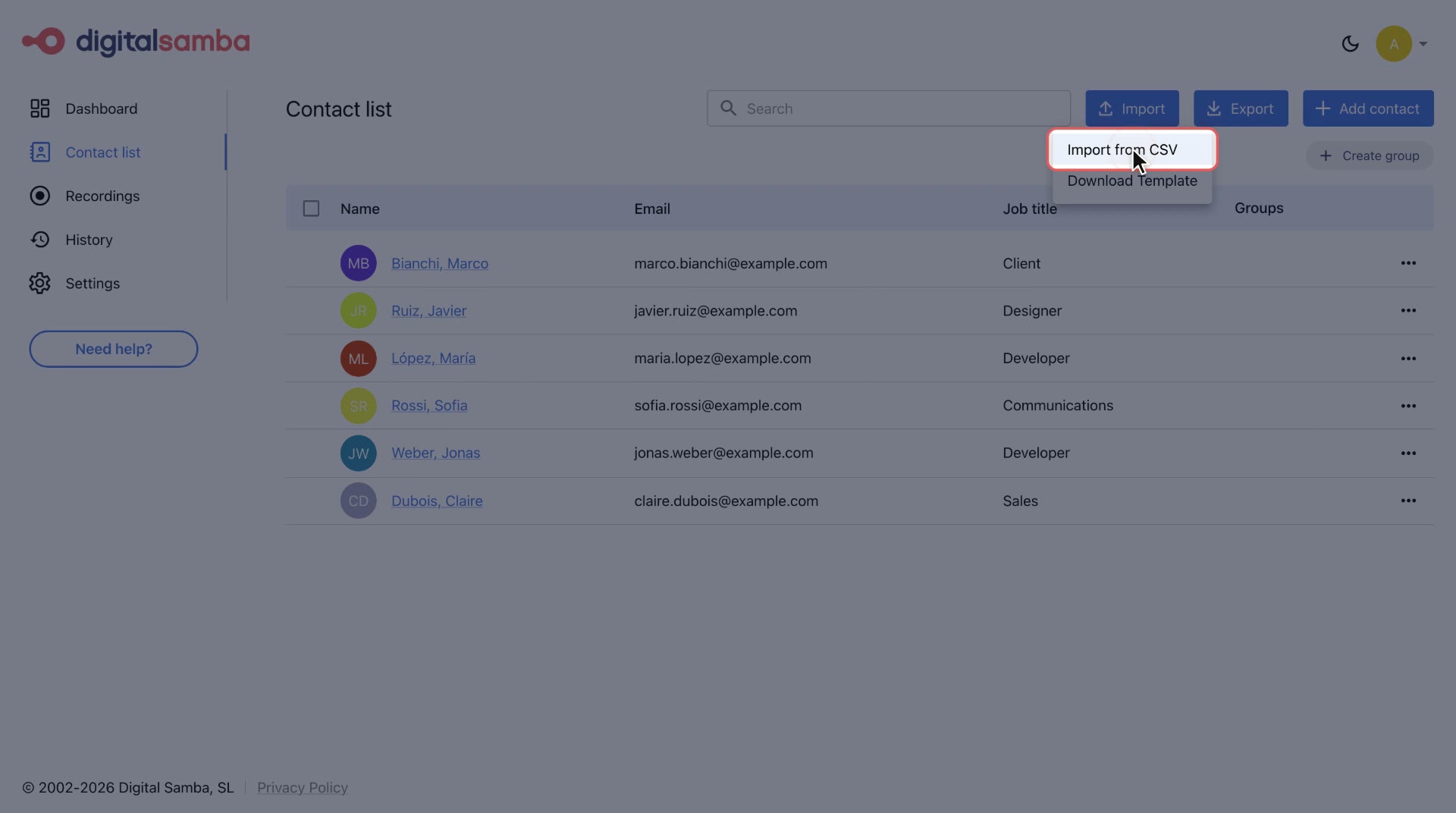
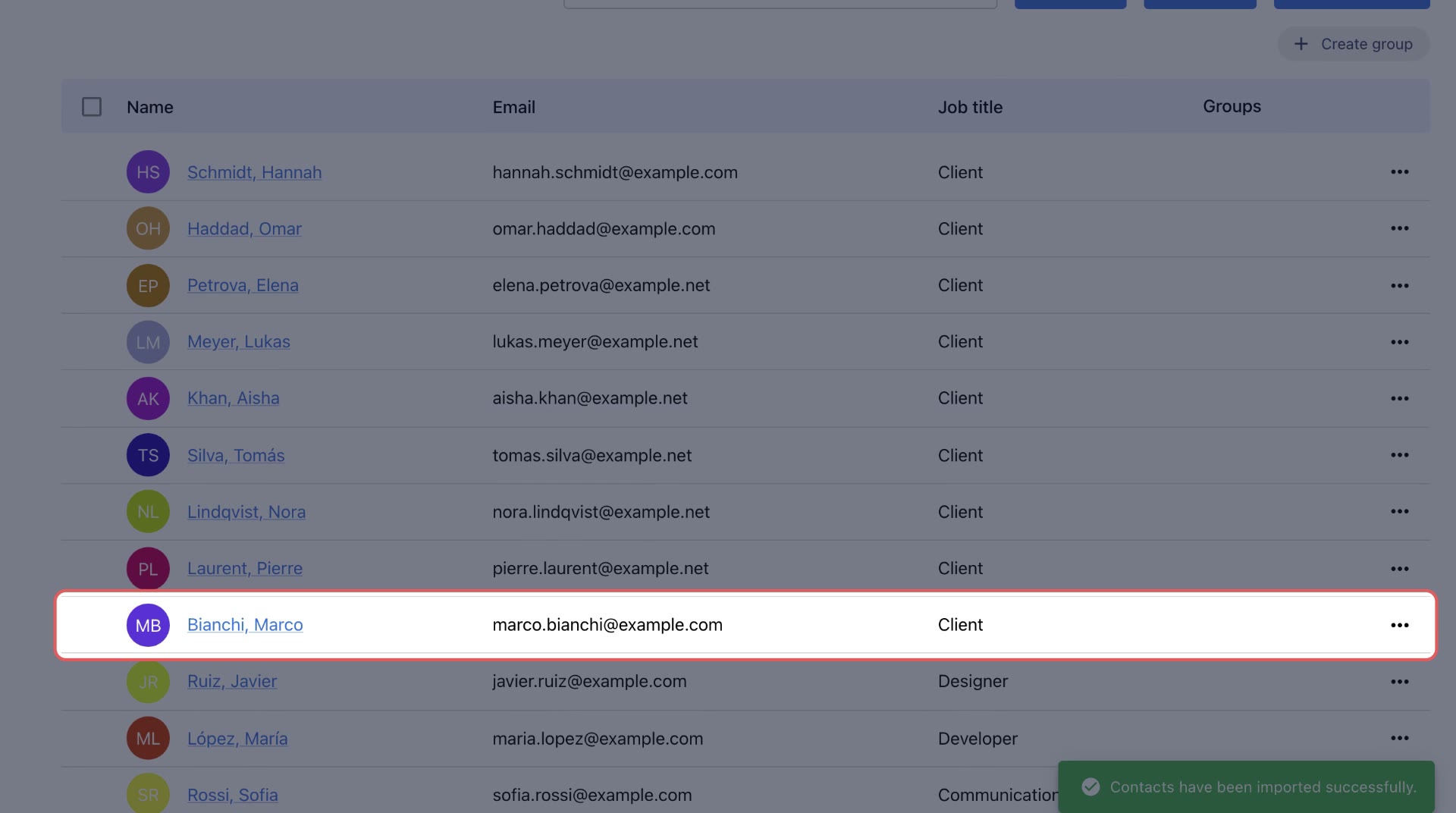
Then click Import, choose Import from CSV, and pick the file.
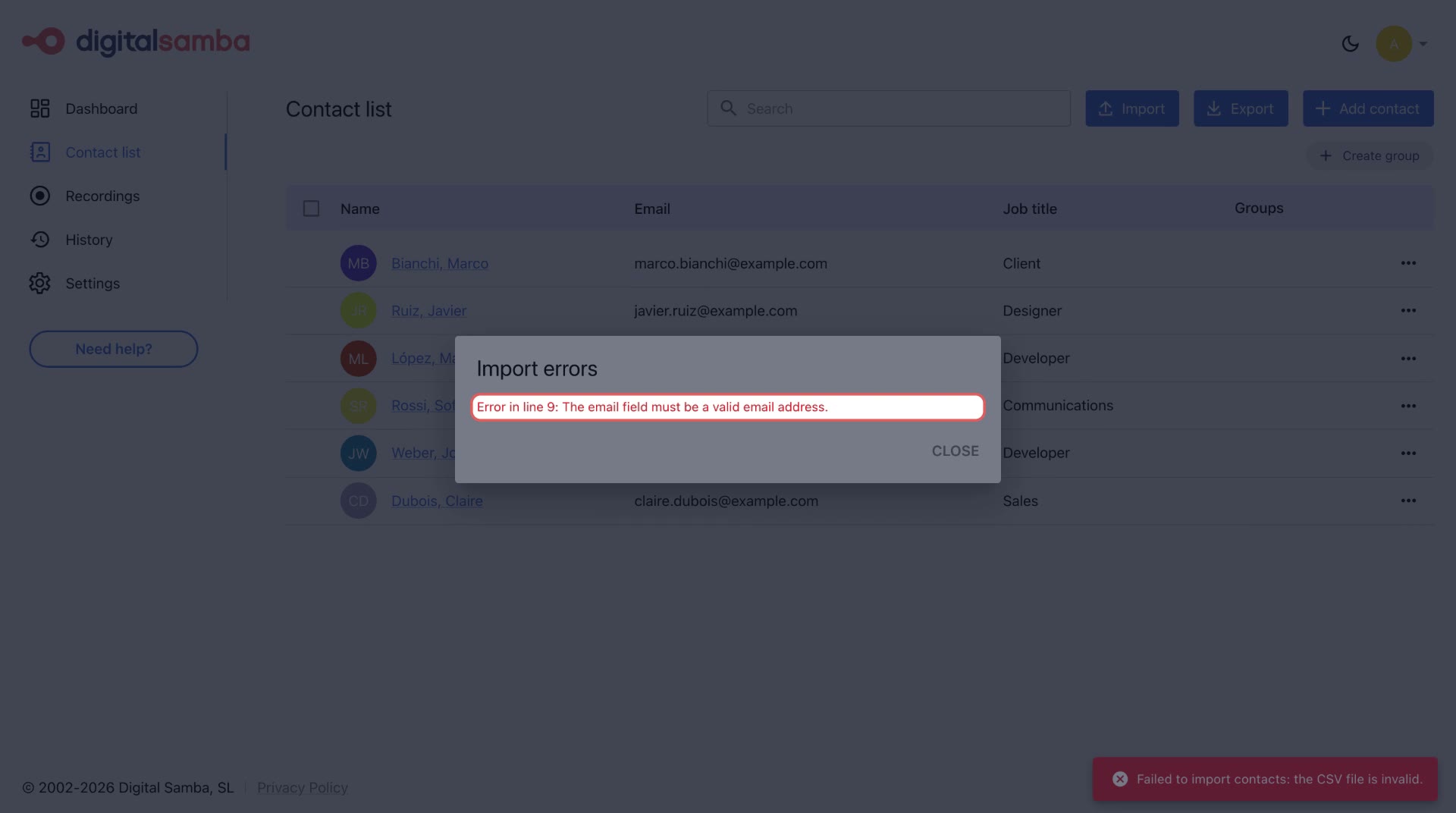
One address has a mistake, so nothing is imported: the message says which line to fix.
Ana corrects line nine and imports the file again.
All the clients are in, and Marco, who was already a contact, isn't added twice.
4Export1:21
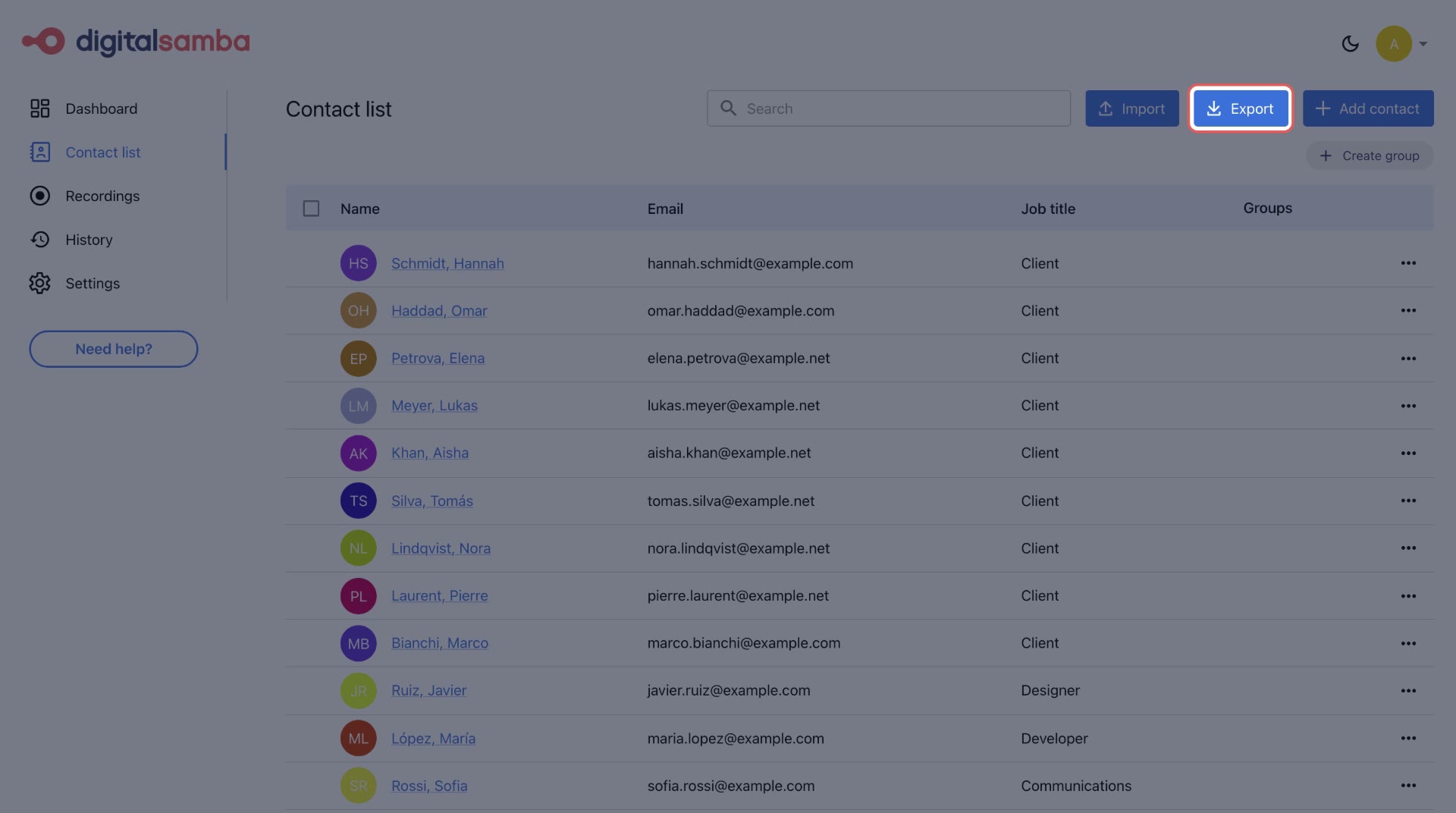
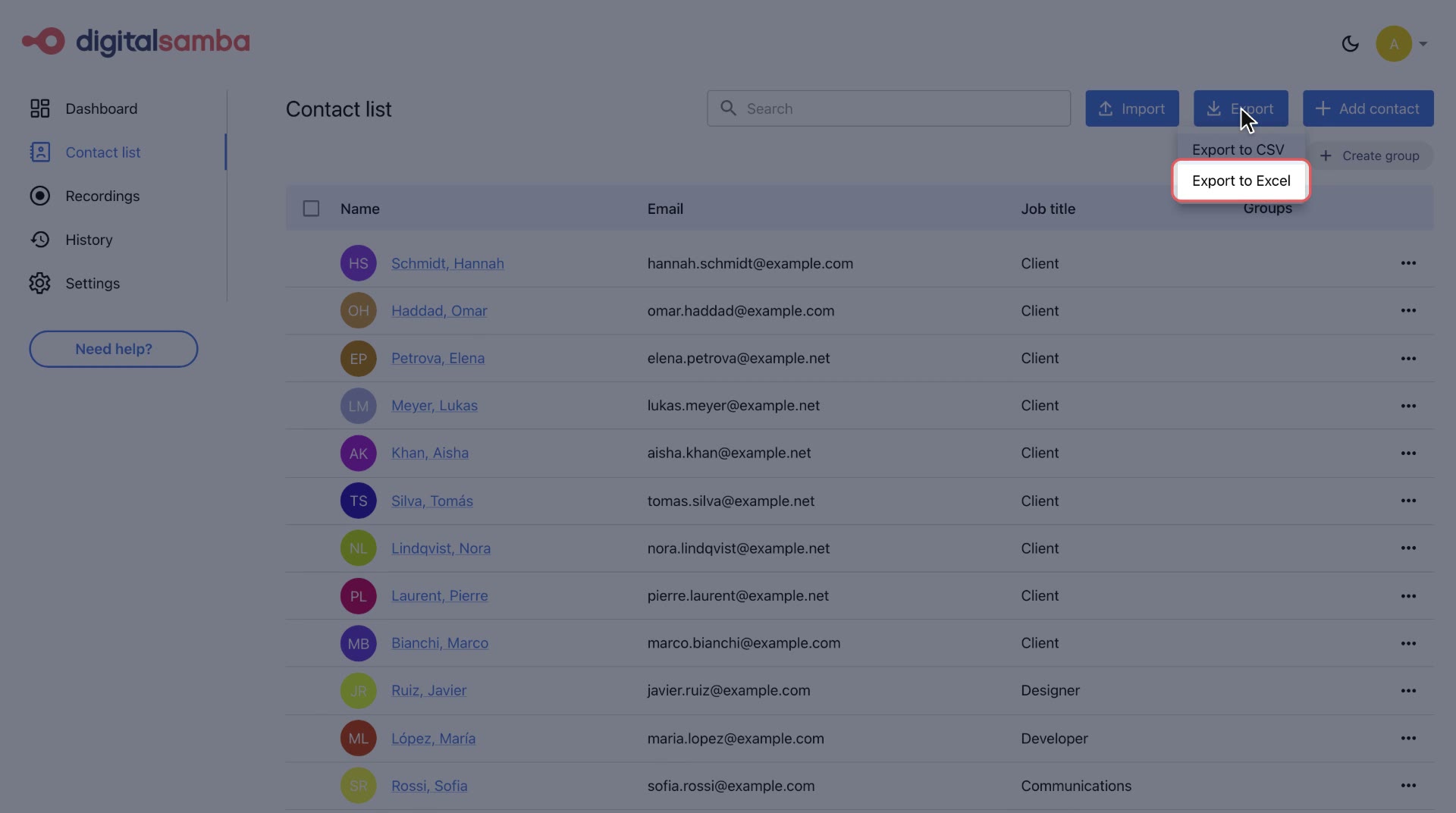
To take your list somewhere else, click Export, and choose CSV or Excel.
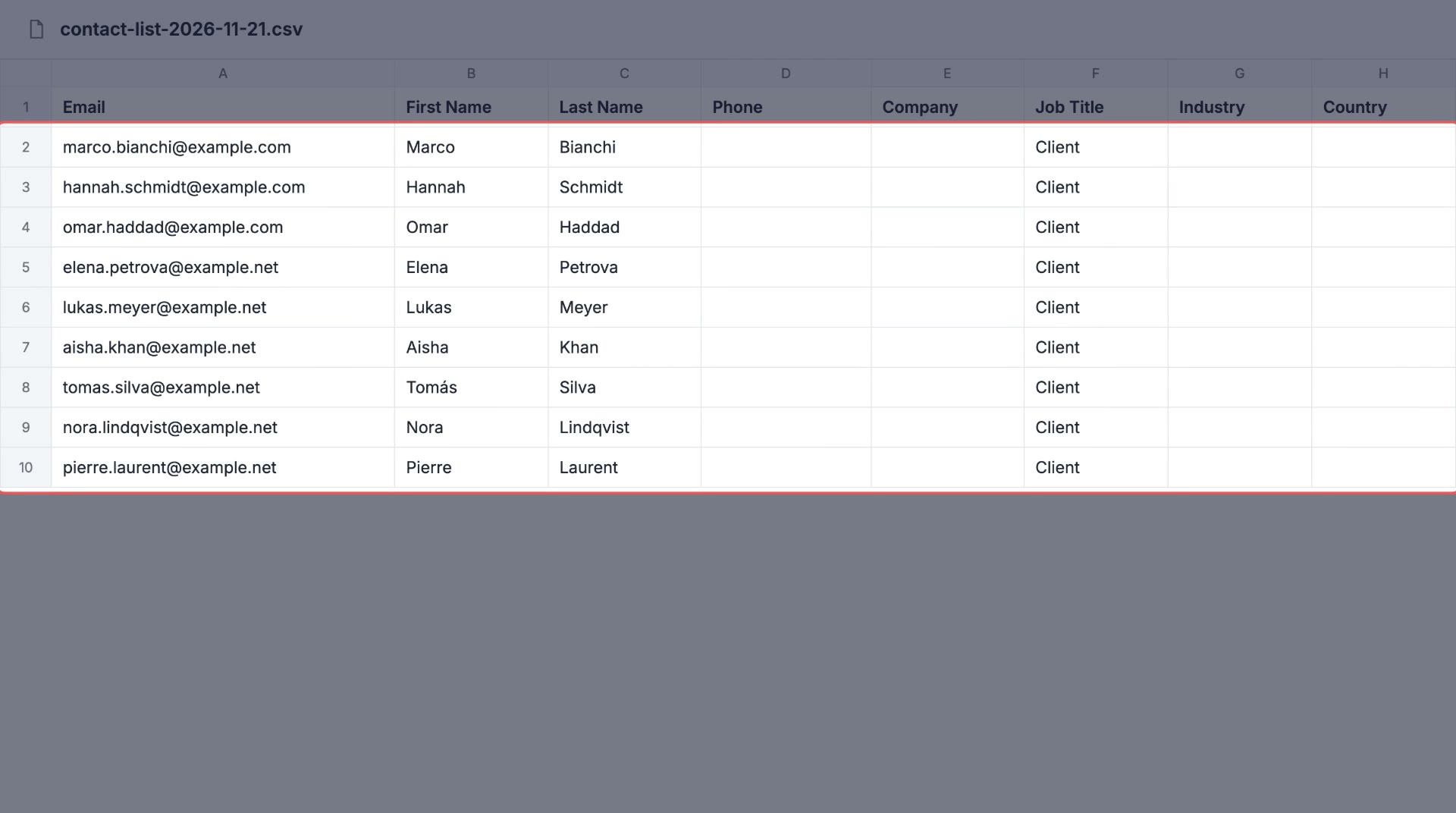
The file holds what the list shows: Ana searches for Client, and her export has just the nine clients.
Good to know1:35
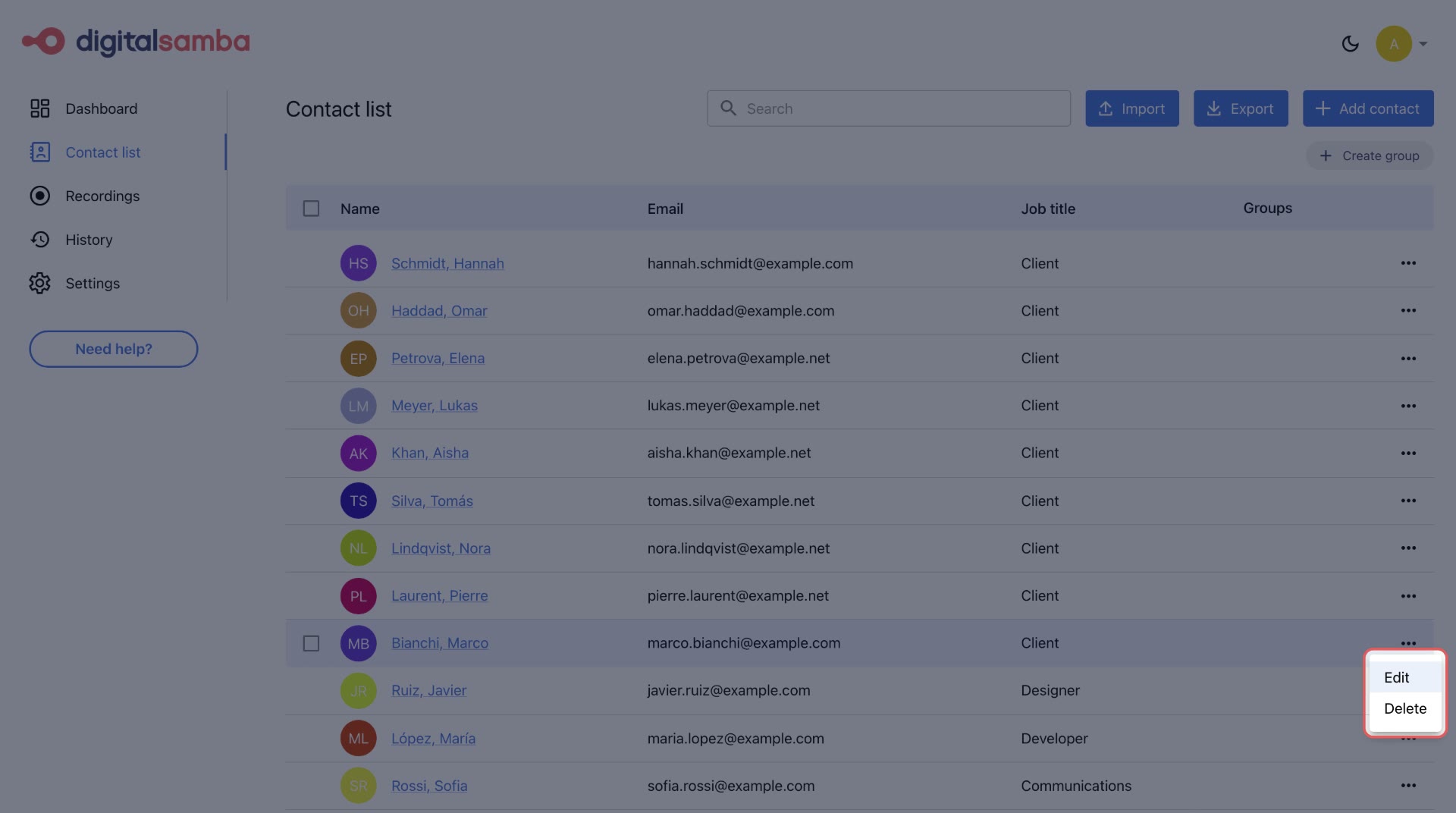
The three dots at the end of a row let you edit or delete a contact.
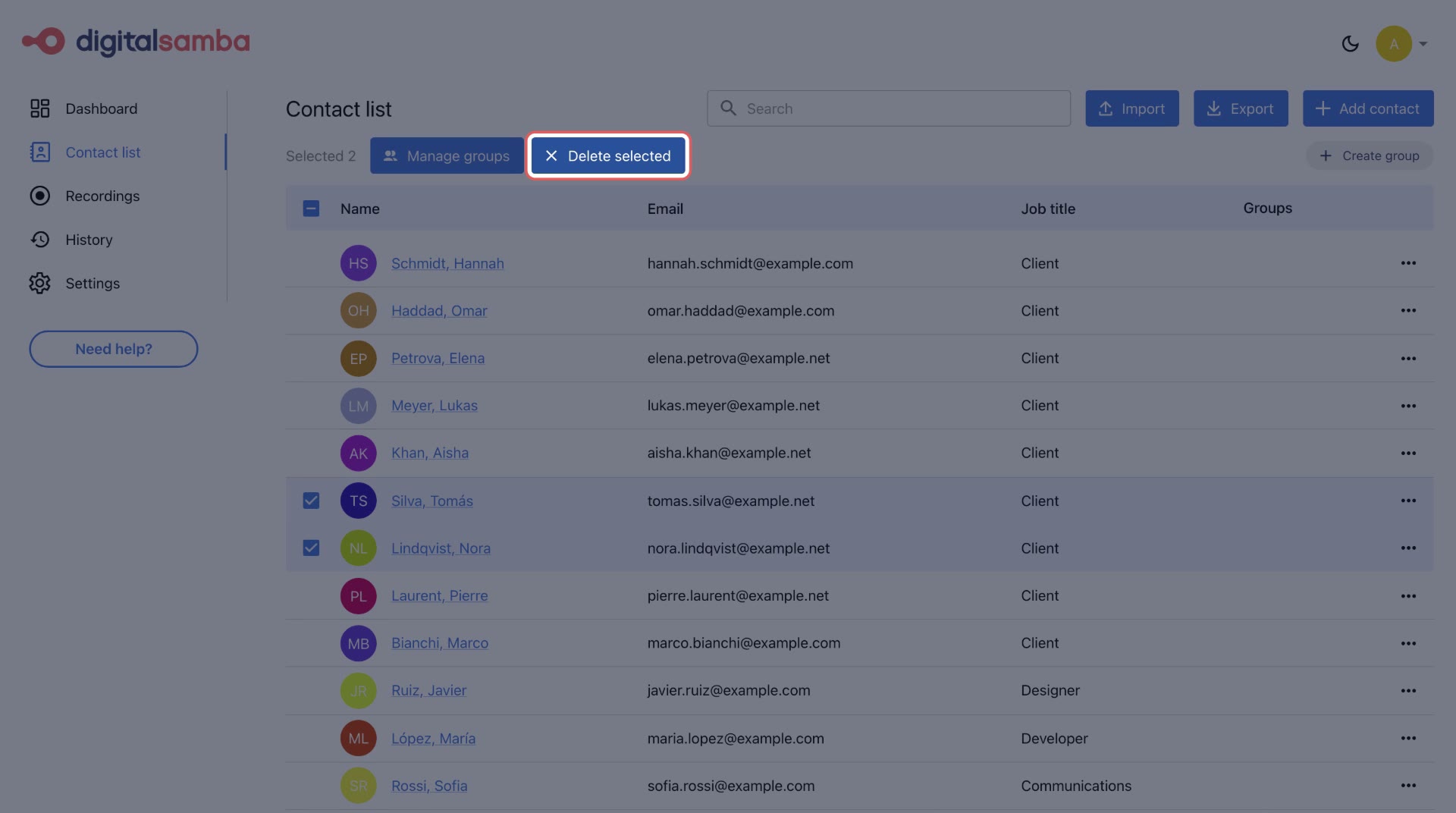
To delete several at once, tick them, and click Delete selected.
Recap1:47
So: the people you invite are already in Contact list; Add contact adds one more, Import brings in a spreadsheet, and Export takes your list out again.