Skip to content
University
Videos
Topics
Updates
Search the videos
Topics
Recordings
All 14 moments in Digital Samba University that depend on this.
Your dashboard at a glance
Getting started · 2:12
1:25
Menus
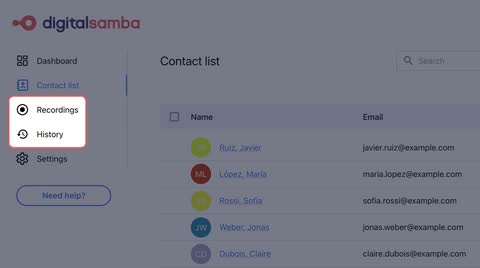
Recordings and History are for your recordings and past sessions.
Read
Turn on recording and transcription
After the call · 2:44
0:33
Recordings
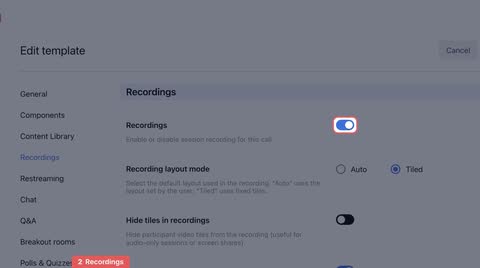
Recordings is on from the start.
Read
Find, share and download recordings
After the call · 2:32
0:01
Introduction
In this video, you'll find the recording of a meeting, a class or a webinar, share it with a link that expires, download it, and rename or delete it.
Read
0:14
The email
Our example: Ana's Product launch webinar has been recorded.
Read
0:18
The email
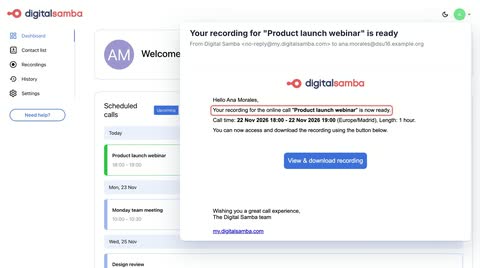
When a recording is ready, you get an email: your recording for Product launch webinar is ready.
Read
0:24
The email
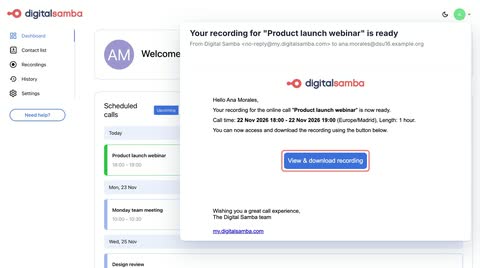
Its button, View & download recording, opens Recordings on your dashboard.
Read
0:30
Recordings
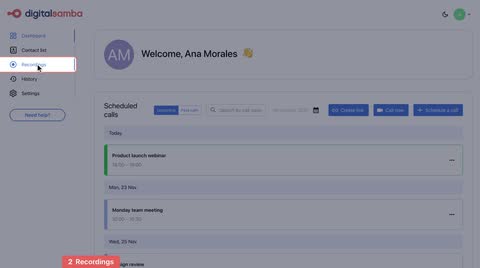
You'll also find Recordings in the side menu.
Read
0:33
Recordings
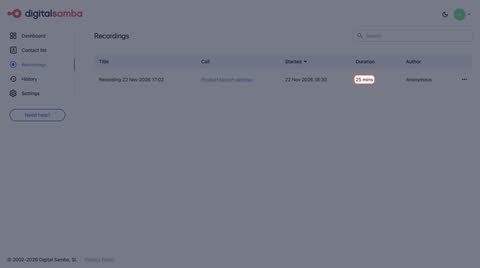
Each row shows the recording's title, the call it belongs to, and how long it is.
Read
0:39
Recordings
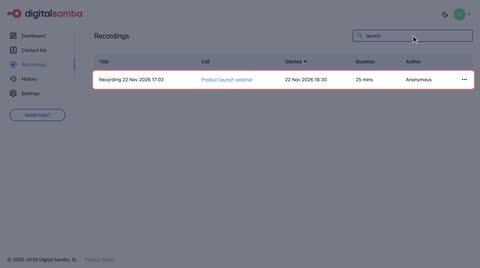
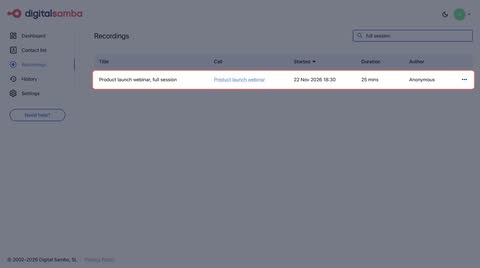
To find one, type part of its title or the call's name into Search, and press Enter.
Read
0:46
Copy link
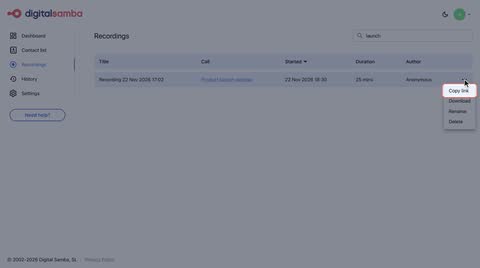
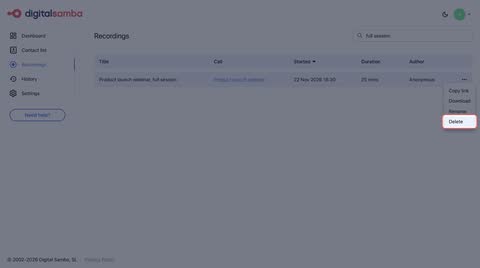
To share a recording, click the three dots at the end of its row, then Copy link.
Read
1:26
Rename and delete
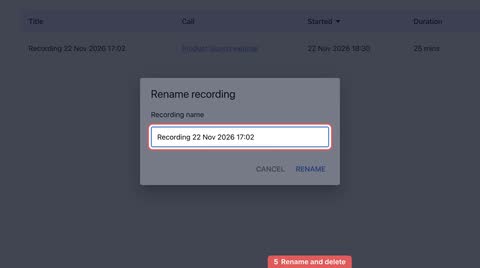
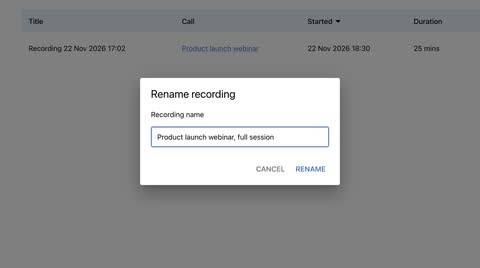
Rename gives a recording a name you'll recognise.
Read
1:30
Rename and delete
Ana types Product launch webinar, full session, and clicks Rename.
Read
1:35
Rename and delete
A message says your recording has been updated successfully, and Search now finds it by its new name.
Read
2:13
Recap
So: open Recordings from the email or the side menu, find the recording, then use its three dots to copy a link, download, rename or delete it.
Read
All topics