University

Find, share and download recordings

In this video, you'll find the recording of a meeting, a class or a webinar, share it with a link that expires, download it, and rename or delete it.

Updated Version 1

1The email0:12

Our example: Ana's Product launch webinar has been recorded.

When a recording is ready, you get an email: your recording for Product launch webinar is ready.
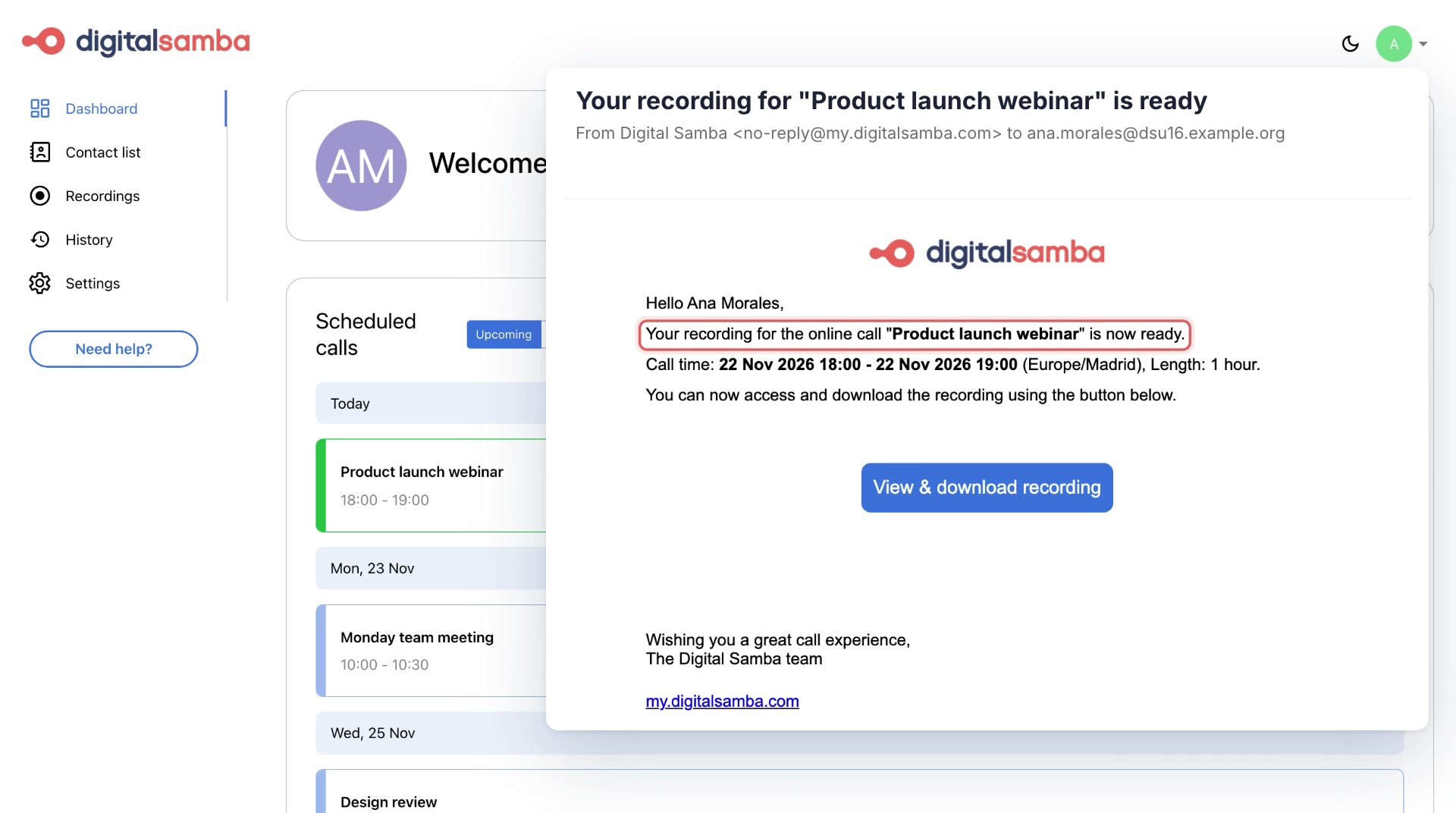
Screenshot from the film at 0:21: When a recording is ready, you get an email: your recording for Product launch webinar is ready.
Watch this step · 0:18

Its button, View & download recording, opens Recordings on your dashboard.
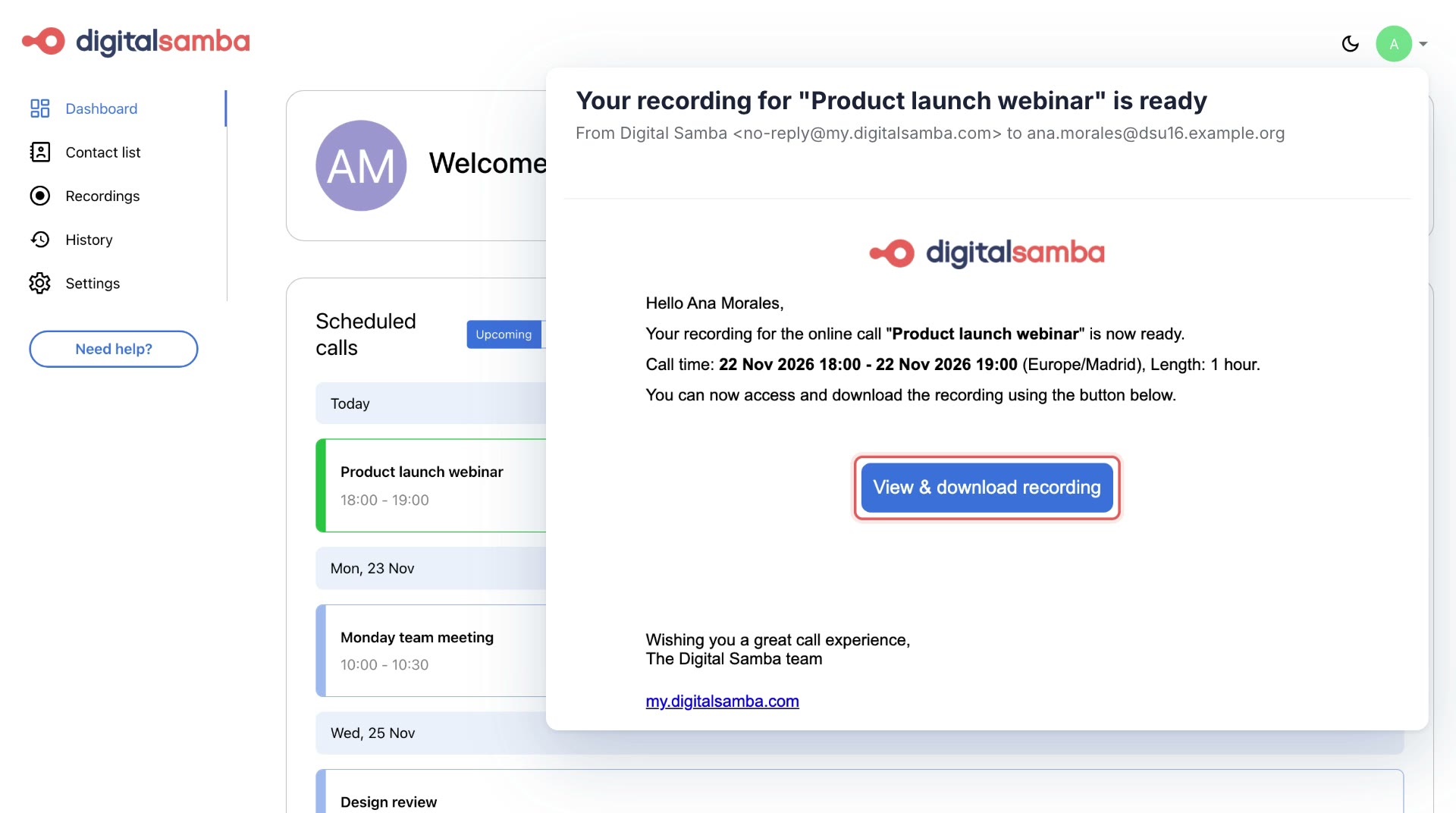
Screenshot from the film at 0:25: Its button, View & download recording, opens Recordings on your dashboard.
Watch this step · 0:24

2Recordings0:29

You'll also find Recordings in the side menu.
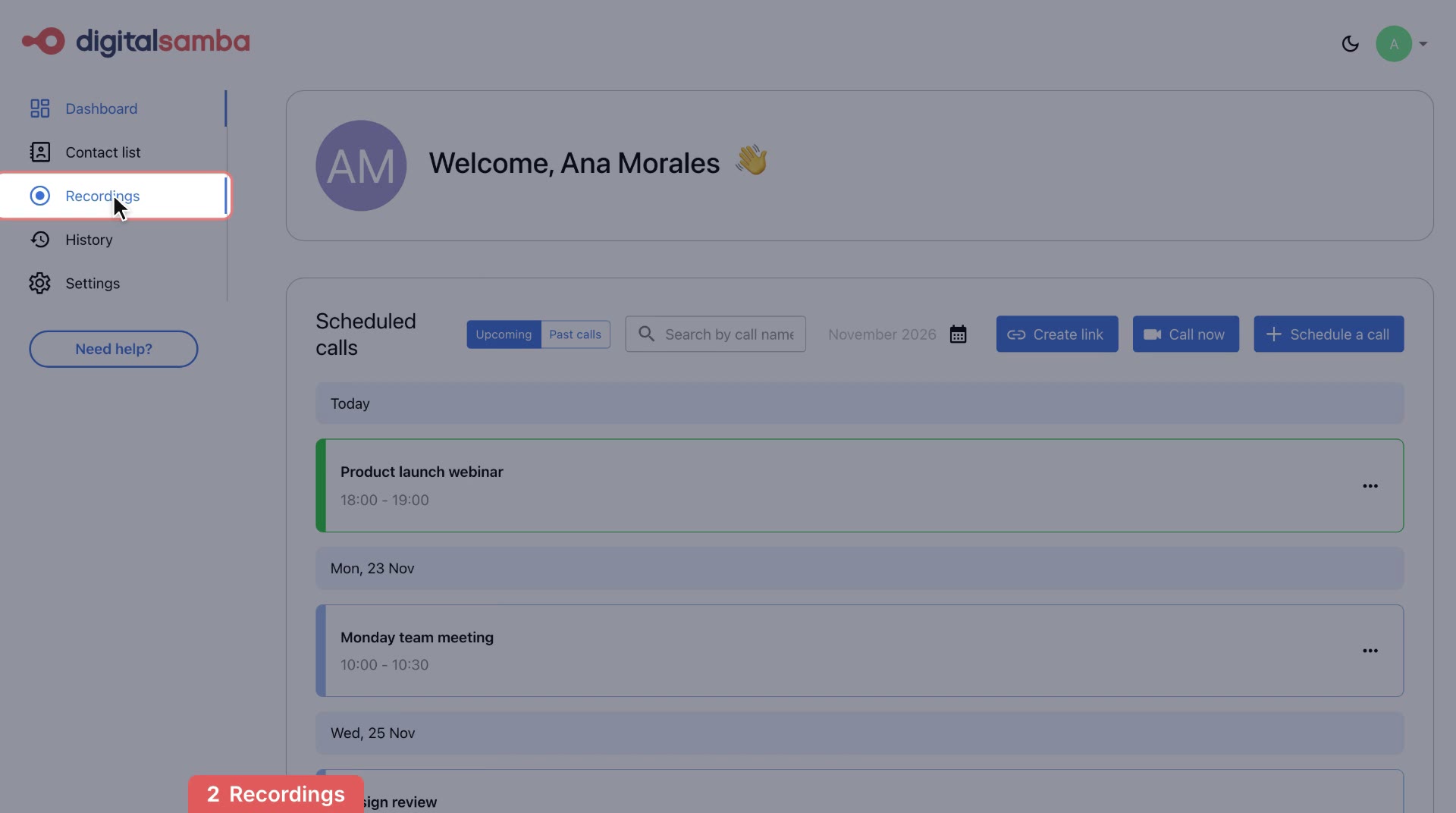
Screenshot from the film at 0:32: You'll also find Recordings in the side menu.
Watch this step · 0:30

Each row shows the recording's title, the call it belongs to, and how long it is.
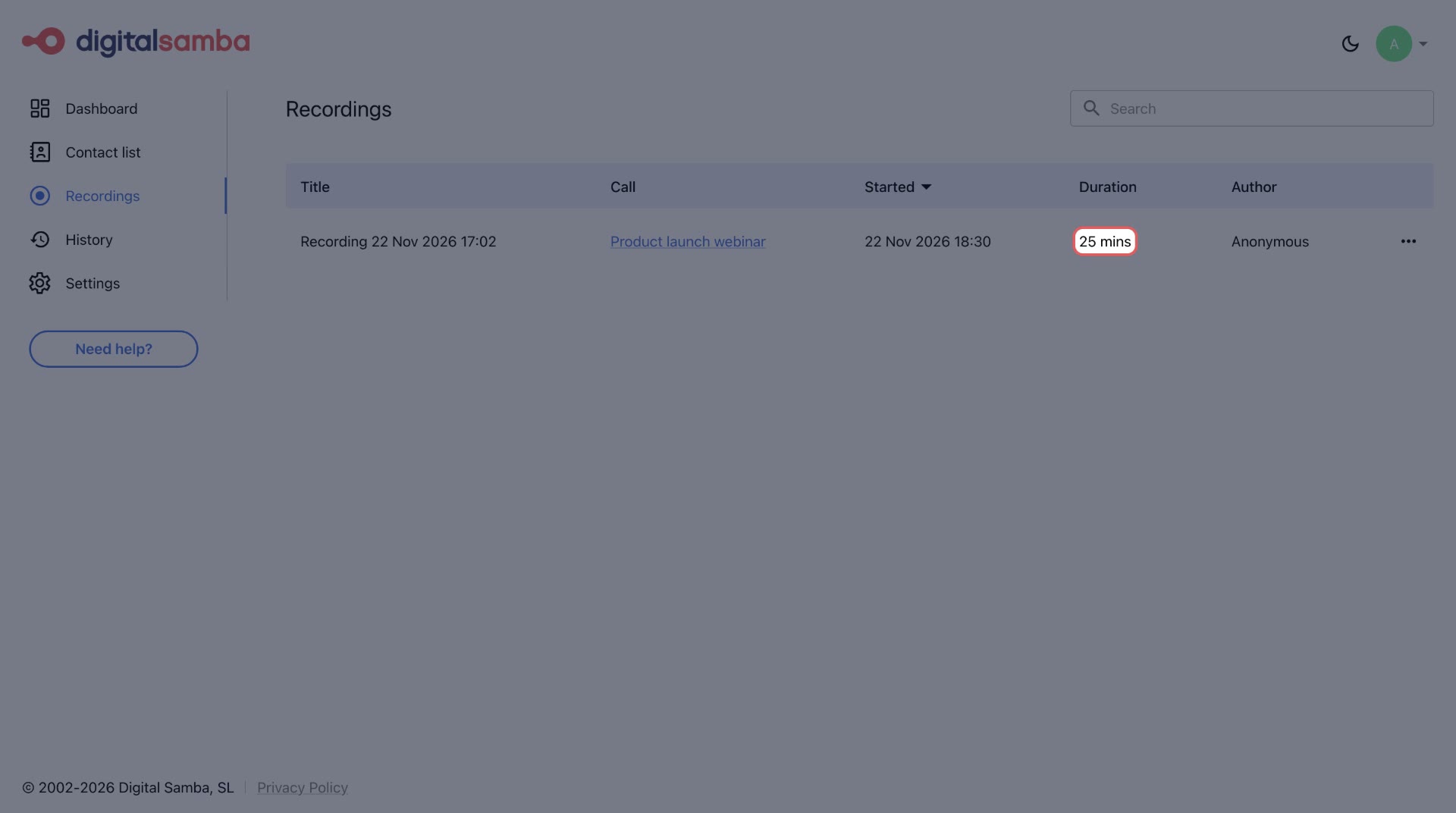
Screenshot from the film at 0:38: Each row shows the recording's title, the call it belongs to, and how long it is.
Watch this step · 0:33

To find one, type part of its title or the call's name into Search, and press Enter.
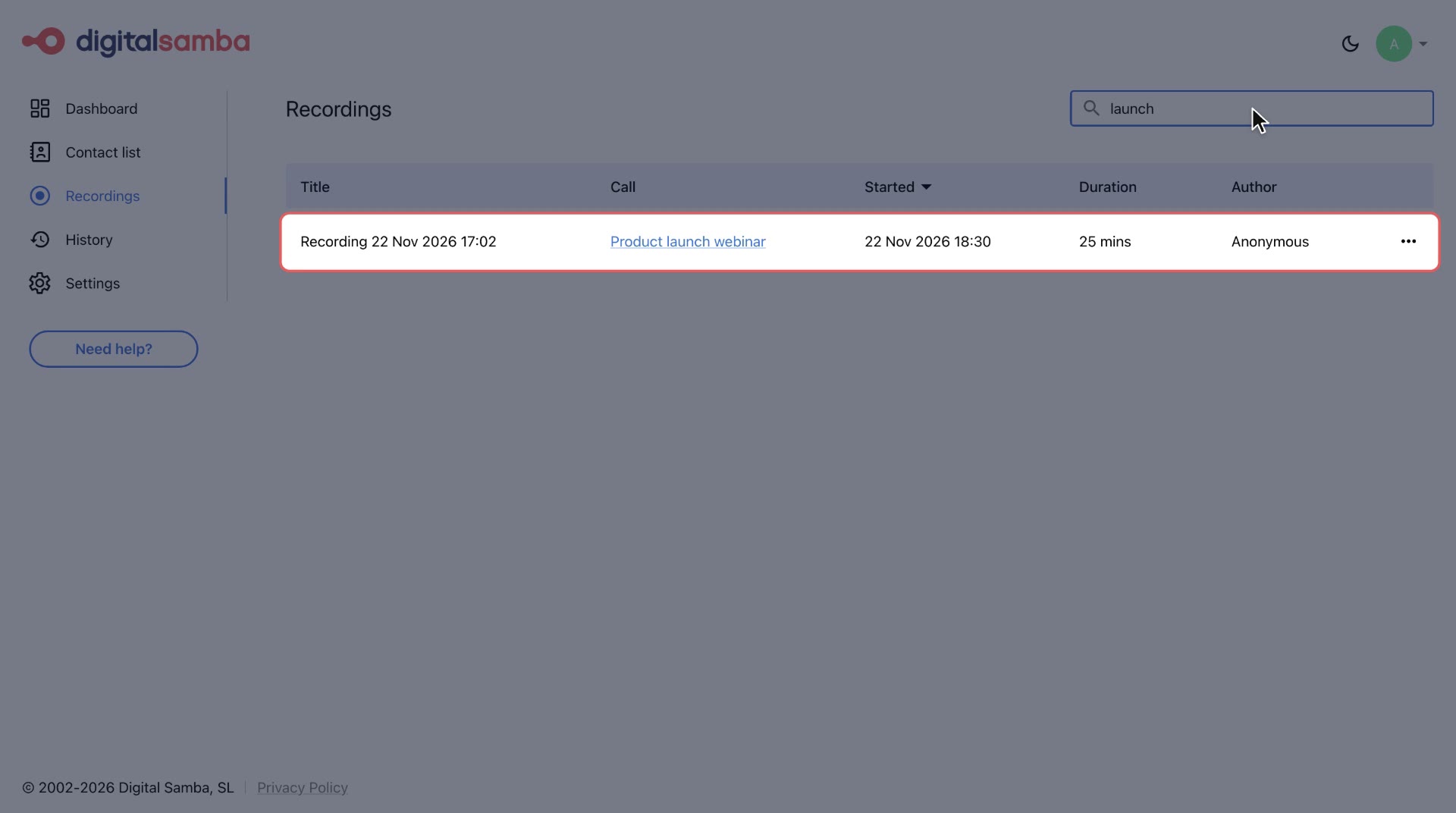
Screenshot from the film at 0:44: To find one, type part of its title or the call's name into Search, and press Enter.
Watch this step · 0:39

3Copy link0:45

To share a recording, click the three dots at the end of its row, then Copy link.
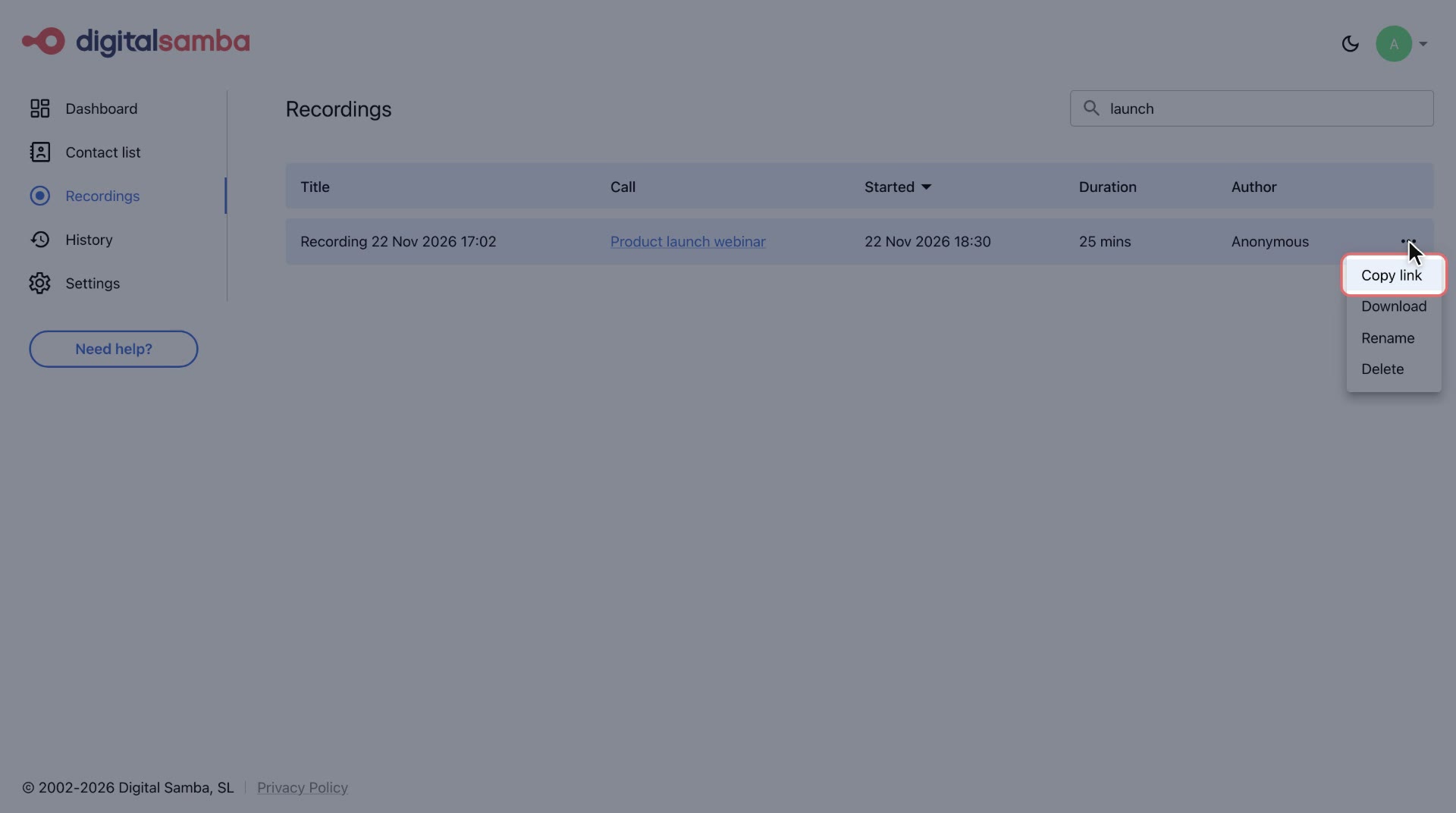
Screenshot from the film at 0:50: To share a recording, click the three dots at the end of its row, then Copy link.
Watch this step · 0:46

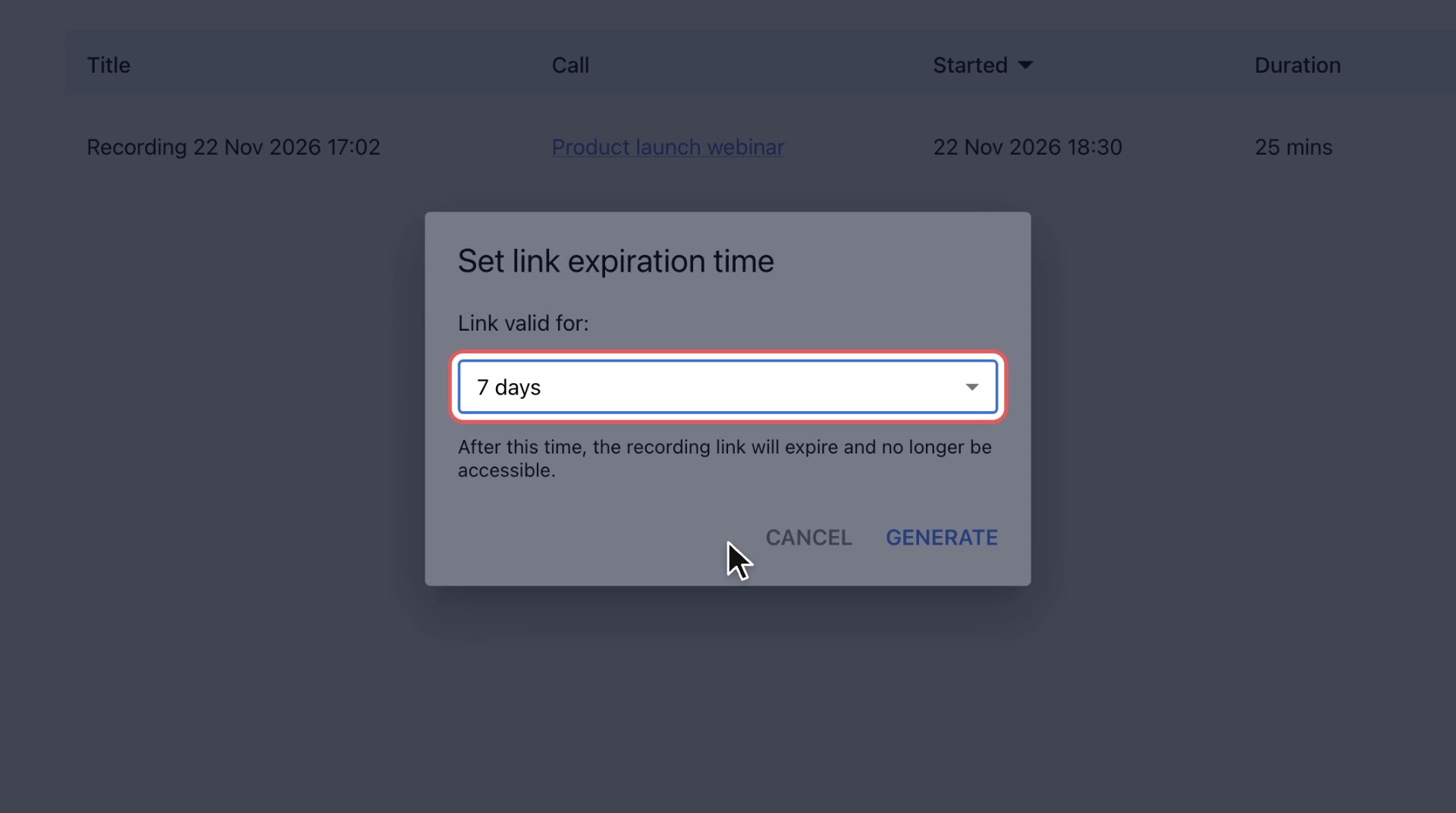
Choose how long the link is valid for: 24 hours, 3 days or 7 days.
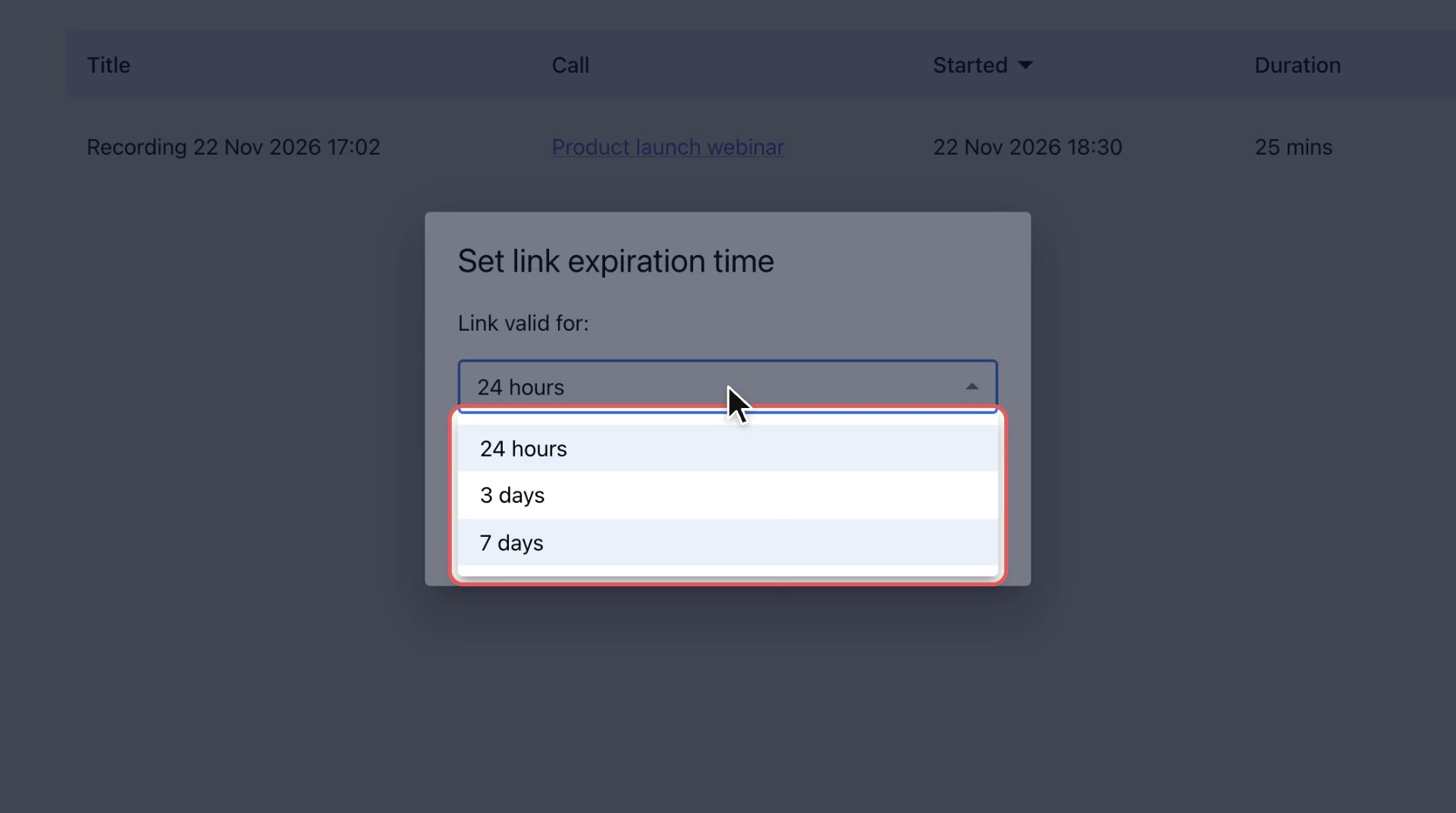
Screenshot from the film at 0:54: Choose how long the link is valid for: 24 hours, 3 days or 7 days.
Watch this step · 0:51

Ana picks 7 days.

Screenshot from the film at 0:59: Ana picks 7 days.
Watch this step · 0:57

After this time, the dialog says, the link will expire and no longer be accessible.
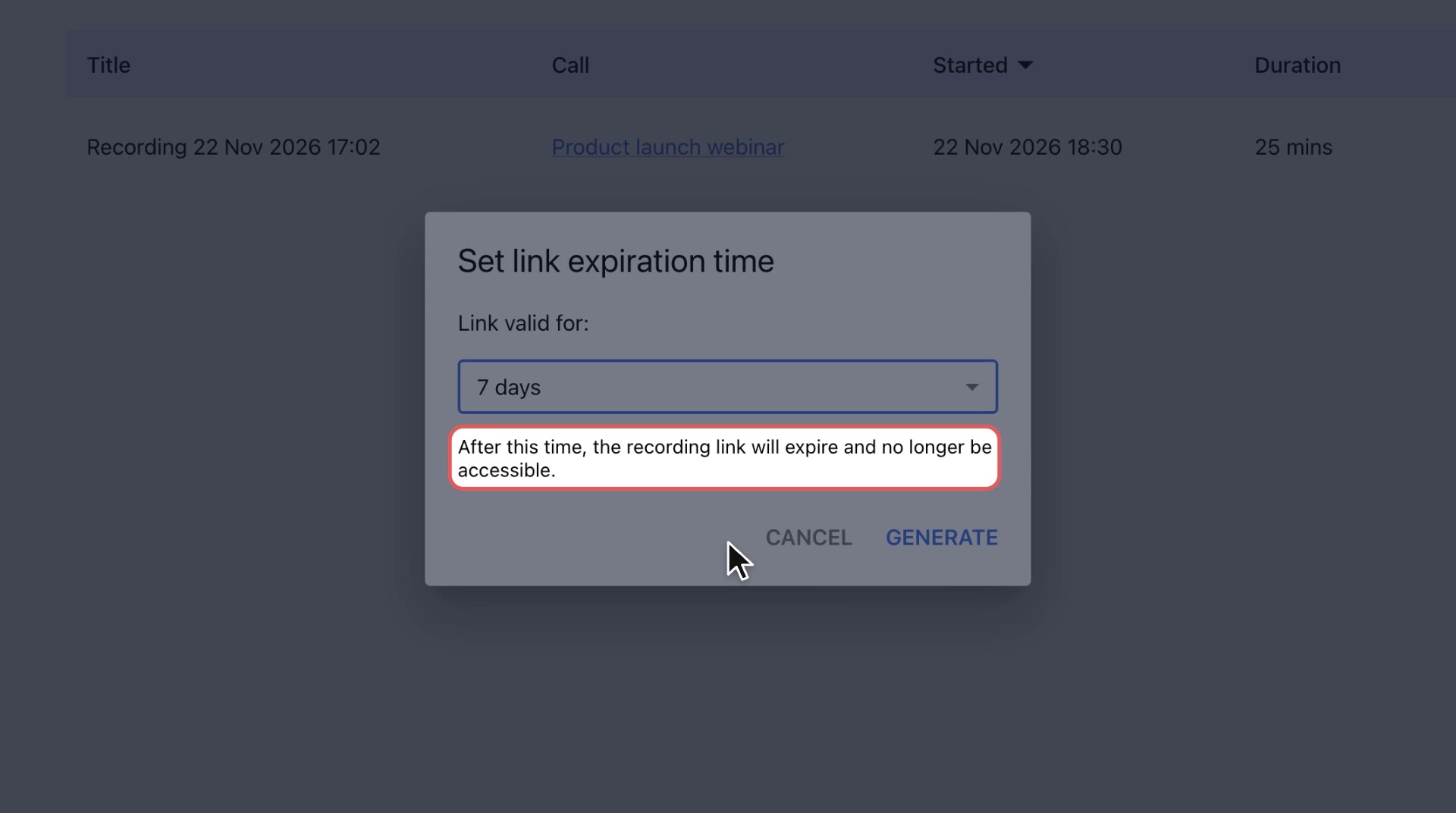
Screenshot from the film at 1:01: After this time, the dialog says, the link will expire and no longer be accessible.
Watch this step · 0:59

Click Generate, then Copy: the link is on your clipboard, ready to paste into an email or a chat.
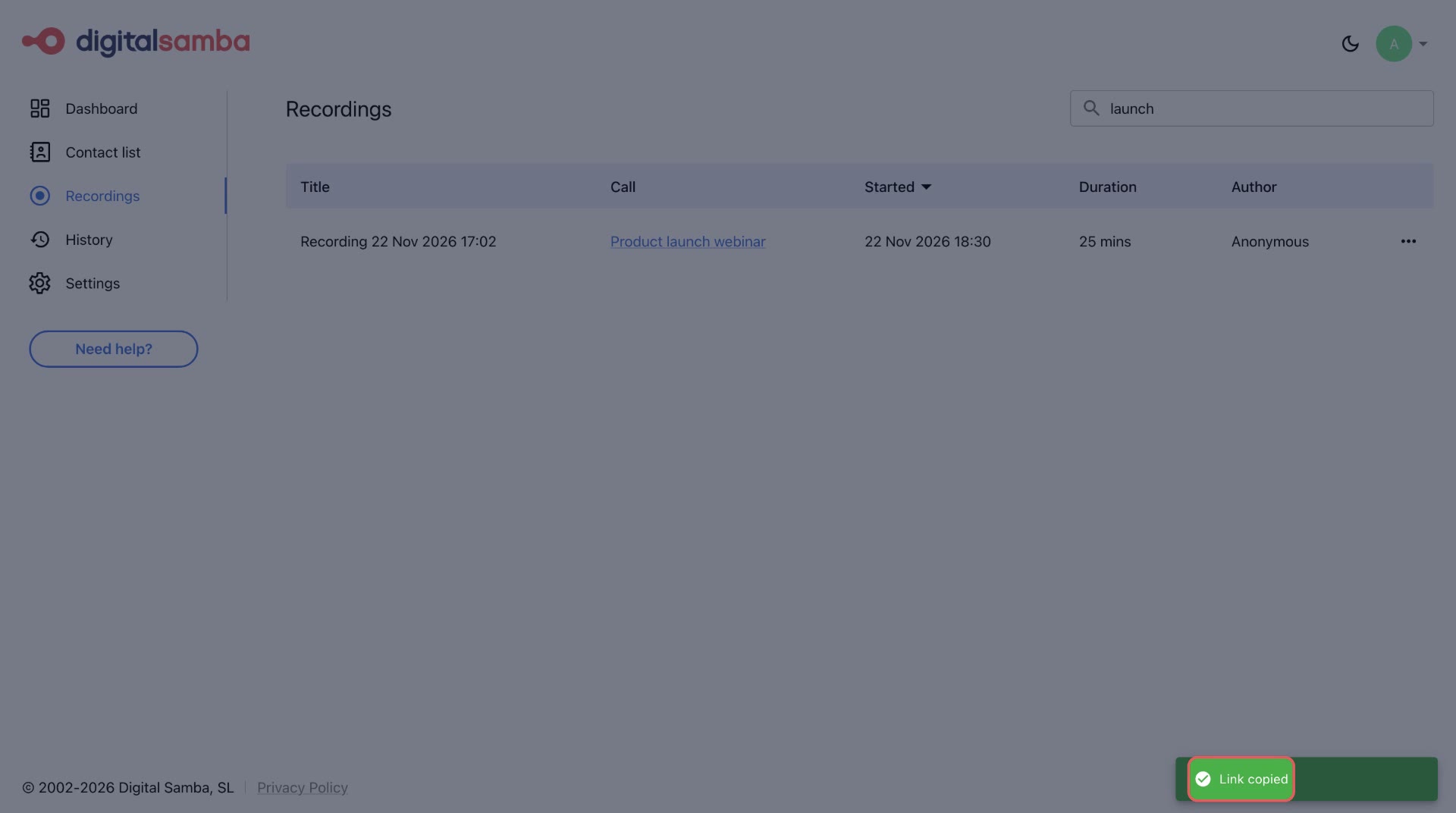
Screenshot from the film at 1:09: Click Generate, then Copy: the link is on your clipboard, ready to paste into an email or a chat.
Watch this step · 1:05

Whoever opens it sees the video itself in their browser, without signing in.

4Download1:18

In the same menu, Download saves the recording to your computer as an MP4 video file.
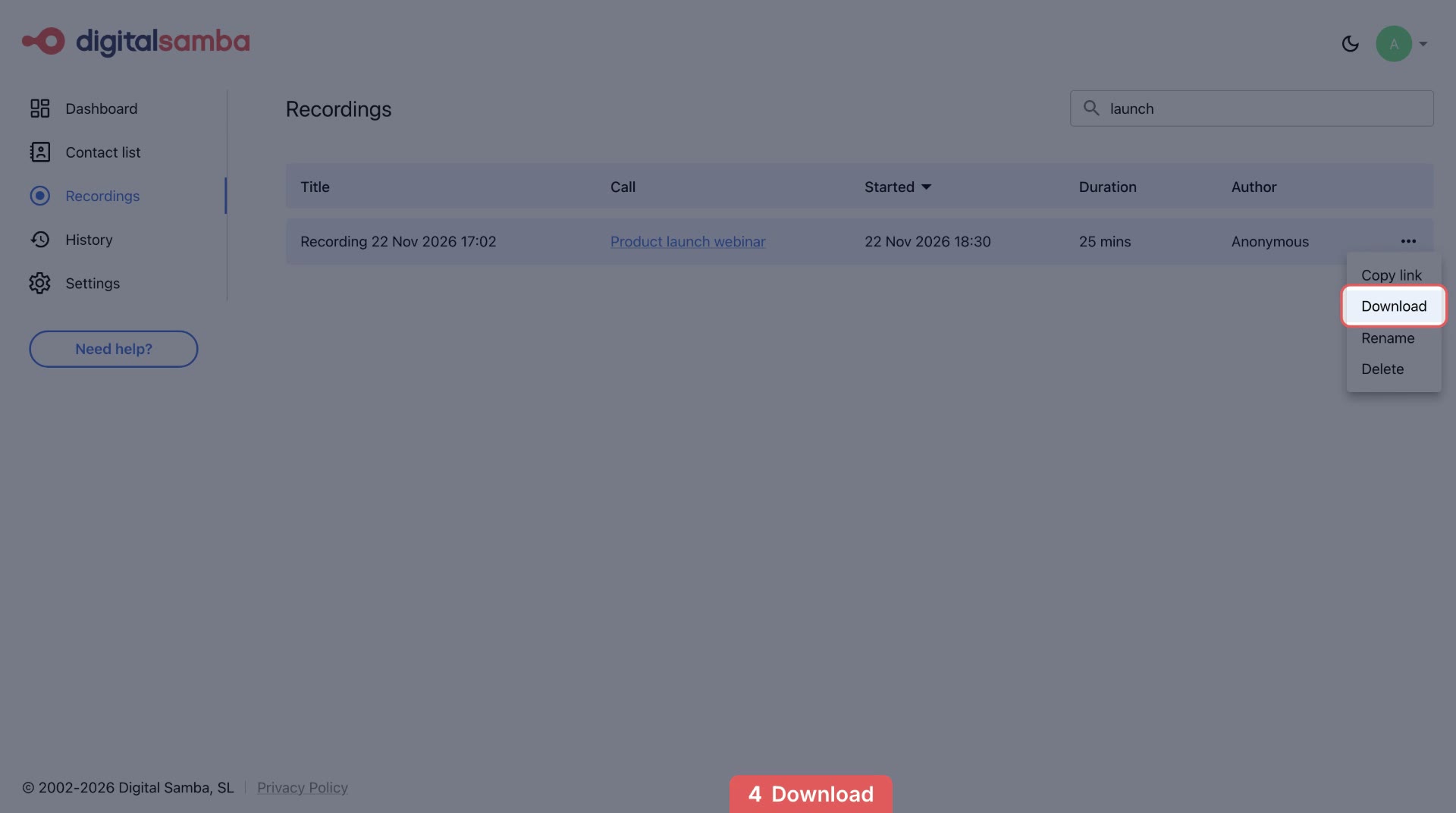
Screenshot from the film at 1:21: In the same menu, Download saves the recording to your computer as an MP4 video file.
Watch this step · 1:19

5Rename and delete1:25

Rename gives a recording a name you'll recognise.
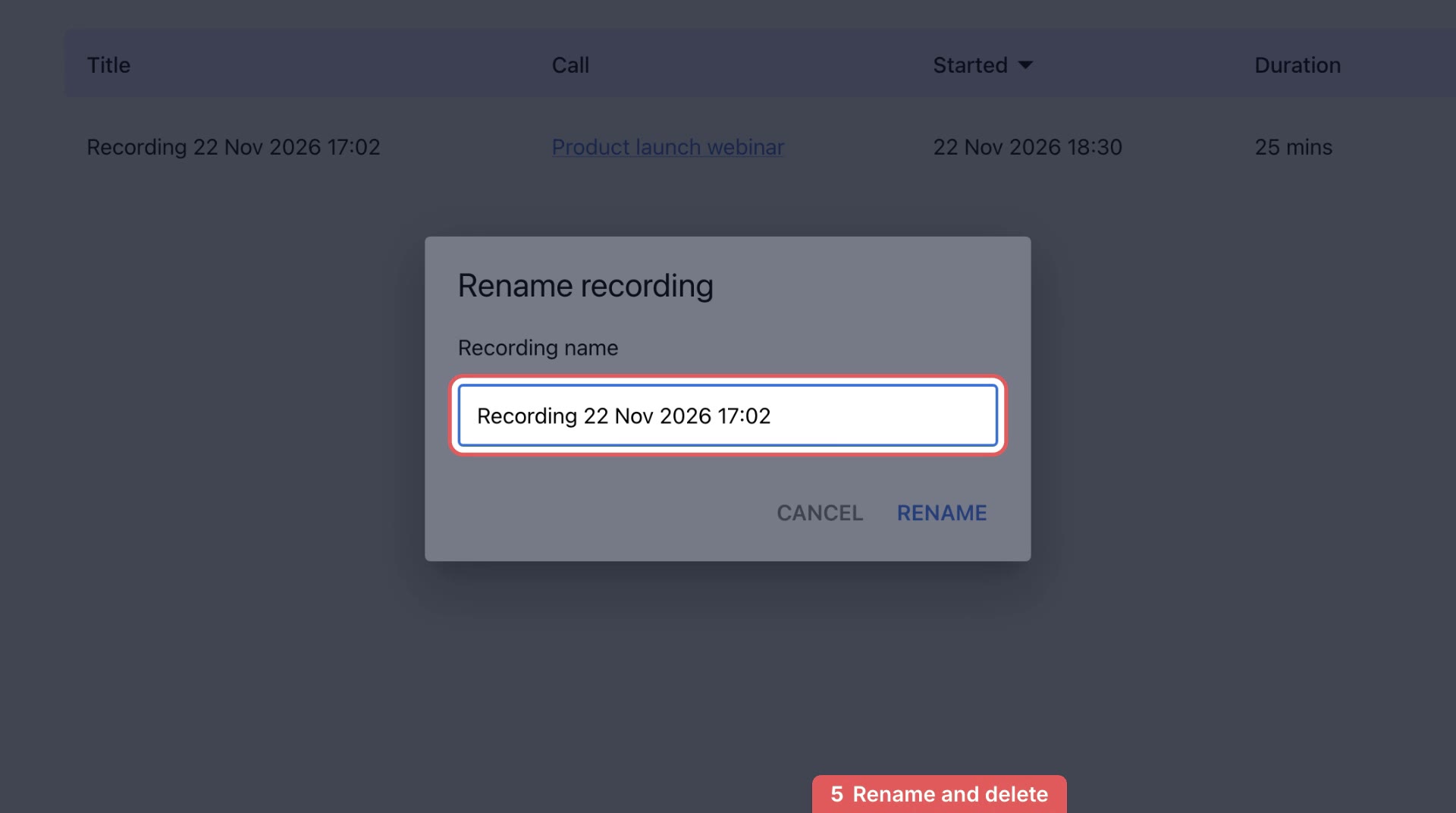
Screenshot from the film at 1:28: Rename gives a recording a name you'll recognise.
Watch this step · 1:26

Ana types Product launch webinar, full session, and clicks Rename.
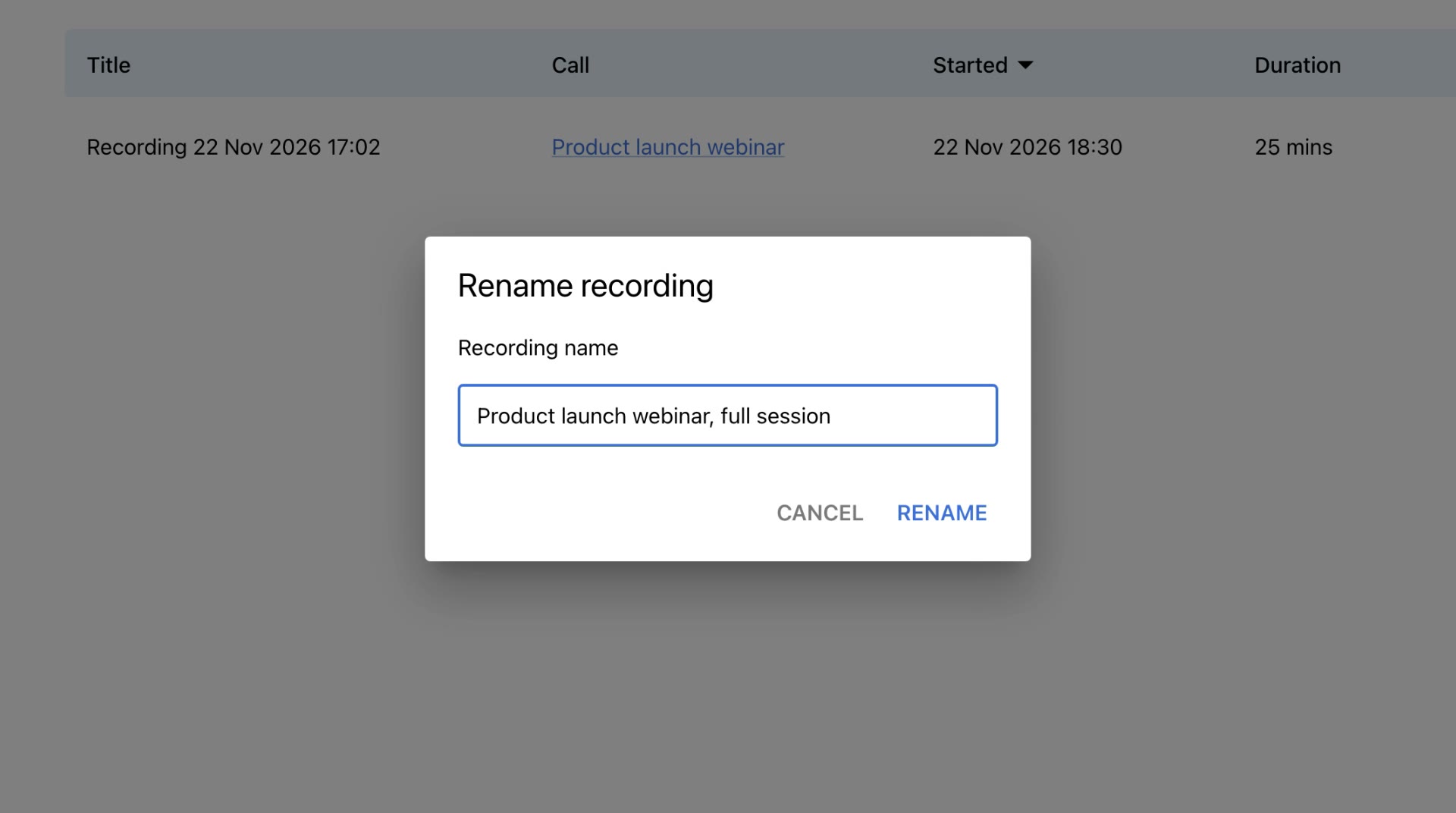
Screenshot from the film at 1:32: Ana types Product launch webinar, full session, and clicks Rename.
Watch this step · 1:30

A message says your recording has been updated successfully, and Search now finds it by its new name.
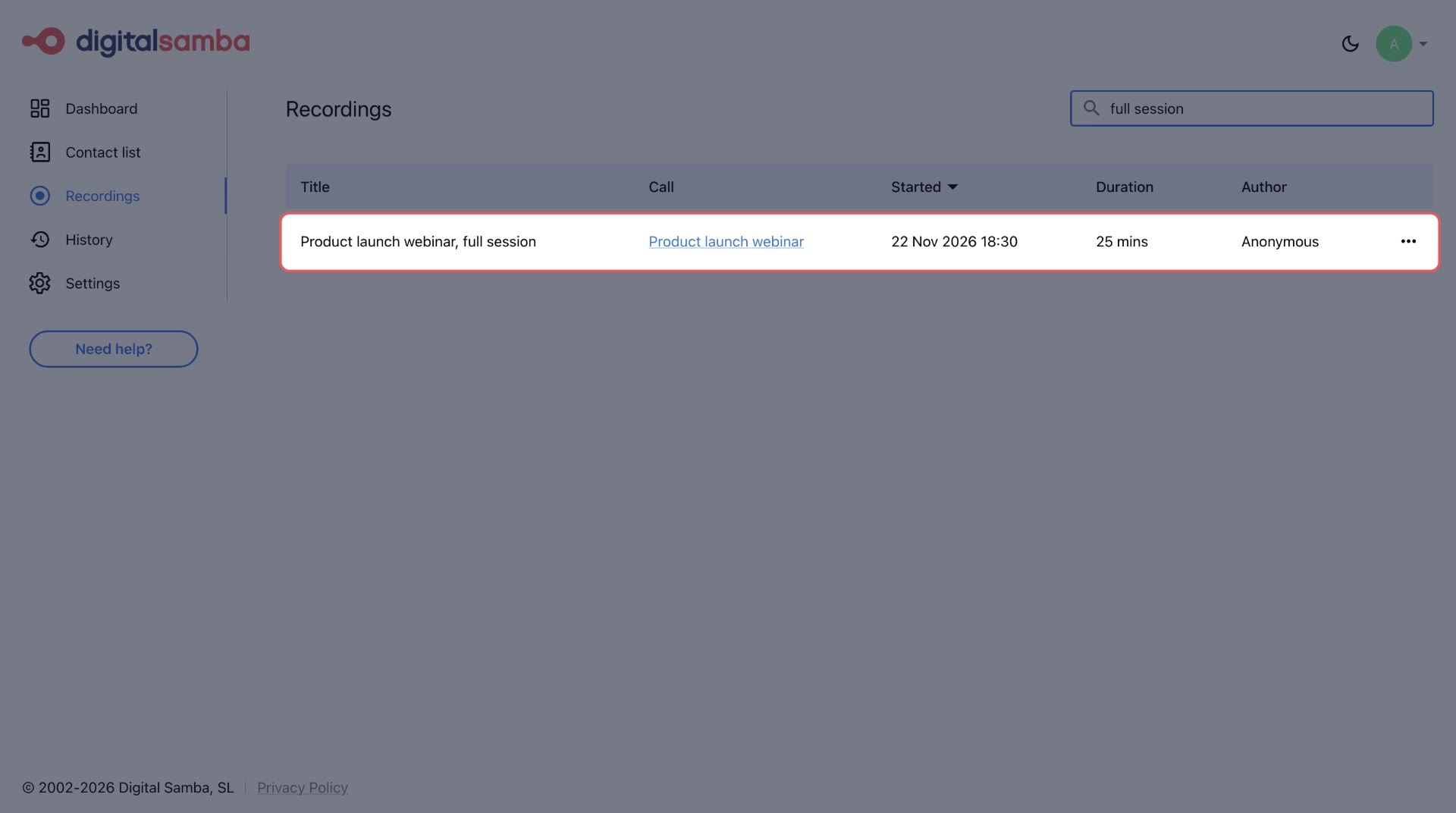
Screenshot from the film at 1:41: A message says your recording has been updated successfully, and Search now finds it by its new name.
Watch this step · 1:35

Delete asks first, because it can't be undone.
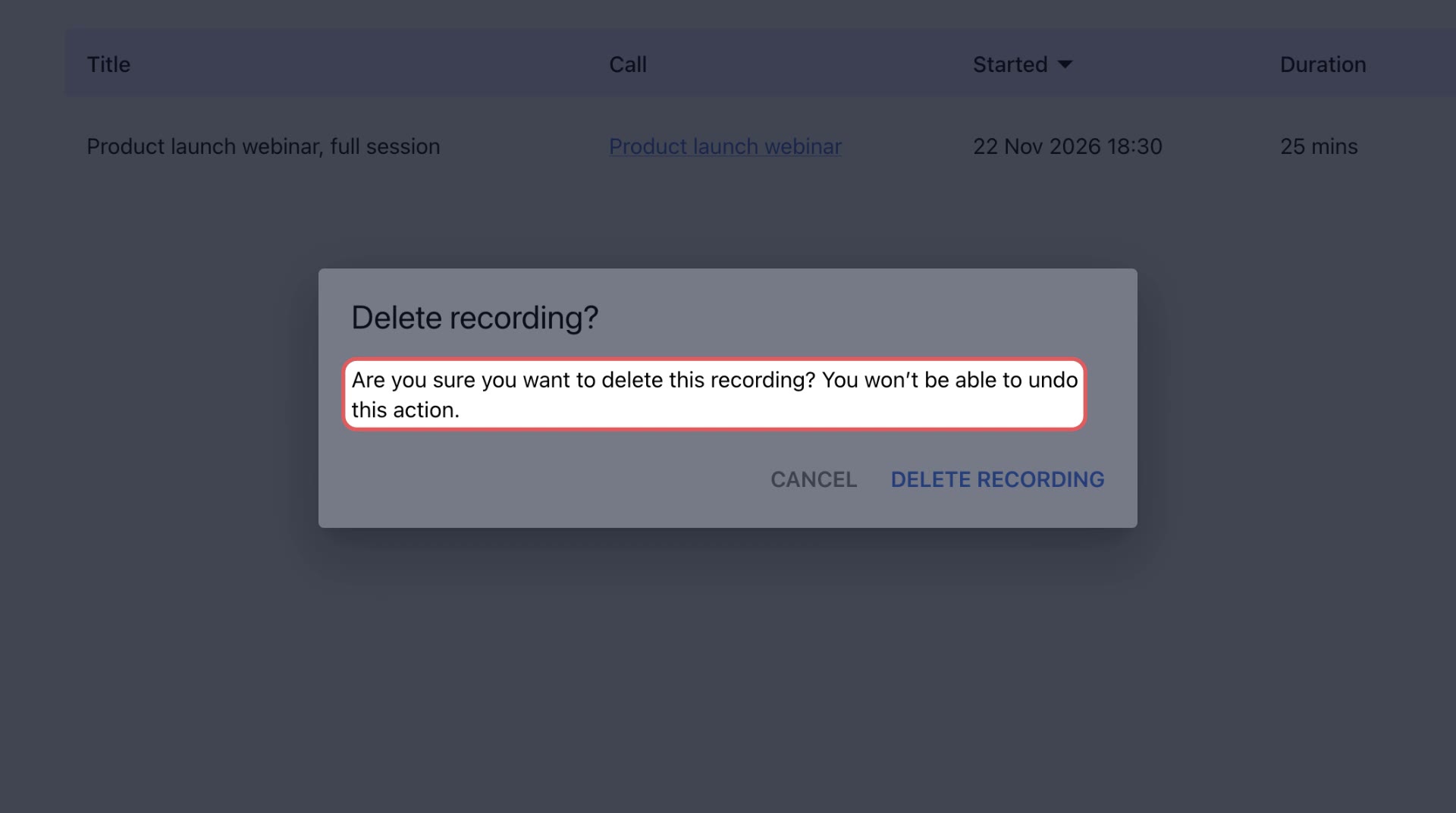
Screenshot from the film at 1:45: Delete asks first, because it can't be undone.
Watch this step · 1:42

Ana keeps her recording, so she clicks Cancel.
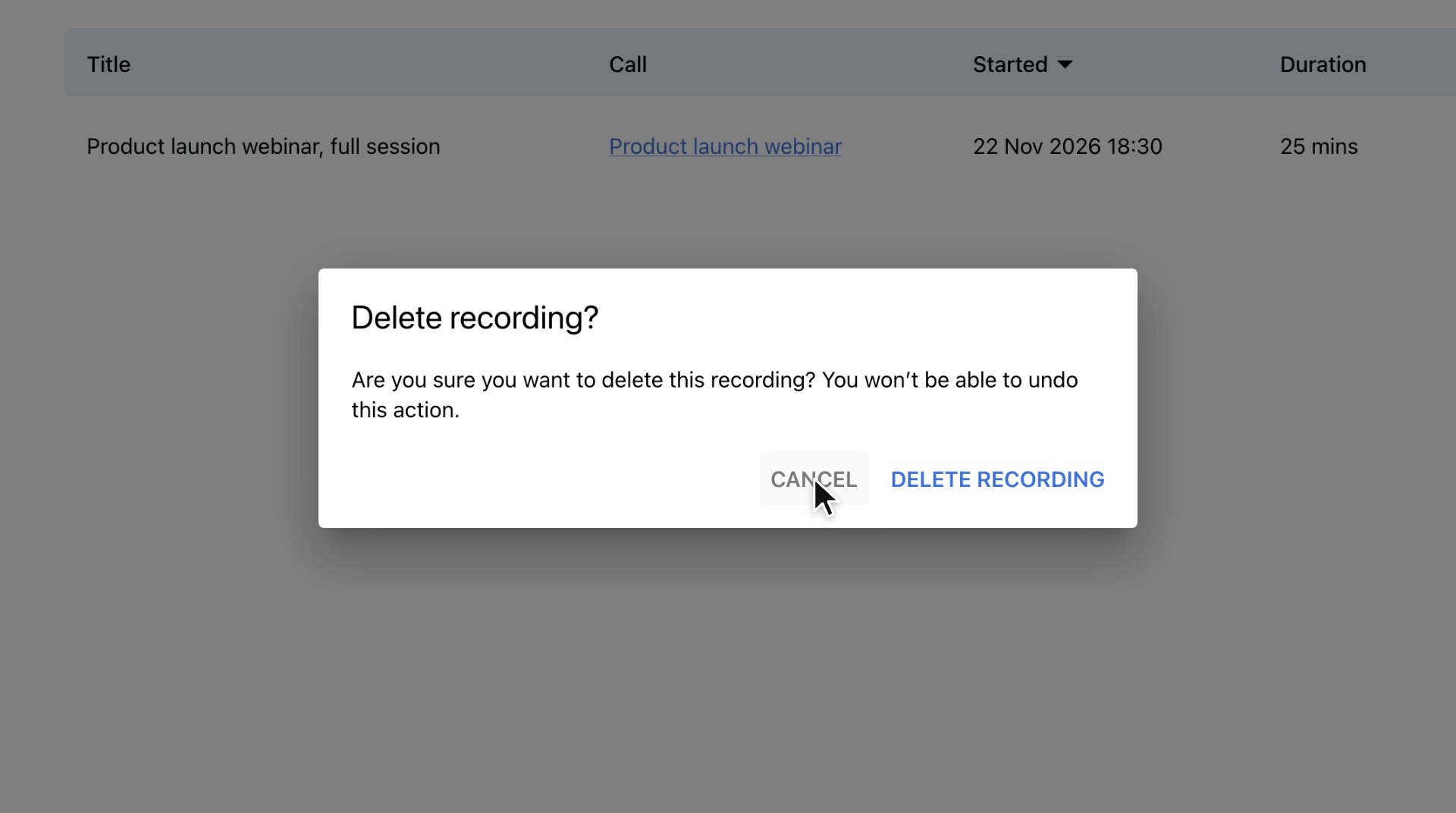
Screenshot from the film at 1:48: Ana keeps her recording, so she clicks Cancel.
Watch this step · 1:46

Good to know1:49

Once a recording is deleted, the links you shared no longer open it.
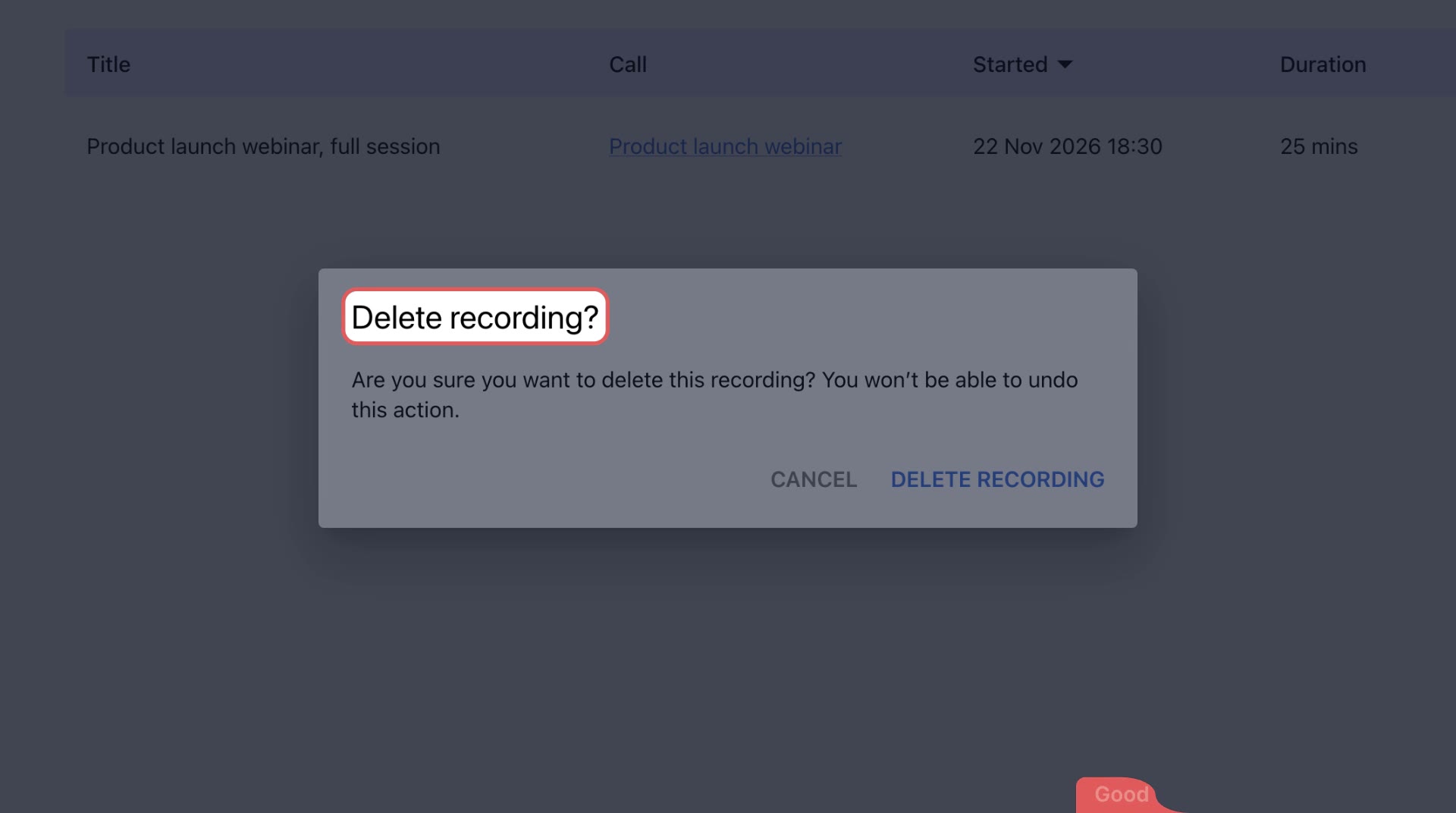
Screenshot from the film at 1:53: Good to know: once a recording is deleted, the links you shared no longer open it.
Watch this step · 1:50

Each link you generate has its own expiry time, so to share for longer, generate a new link.
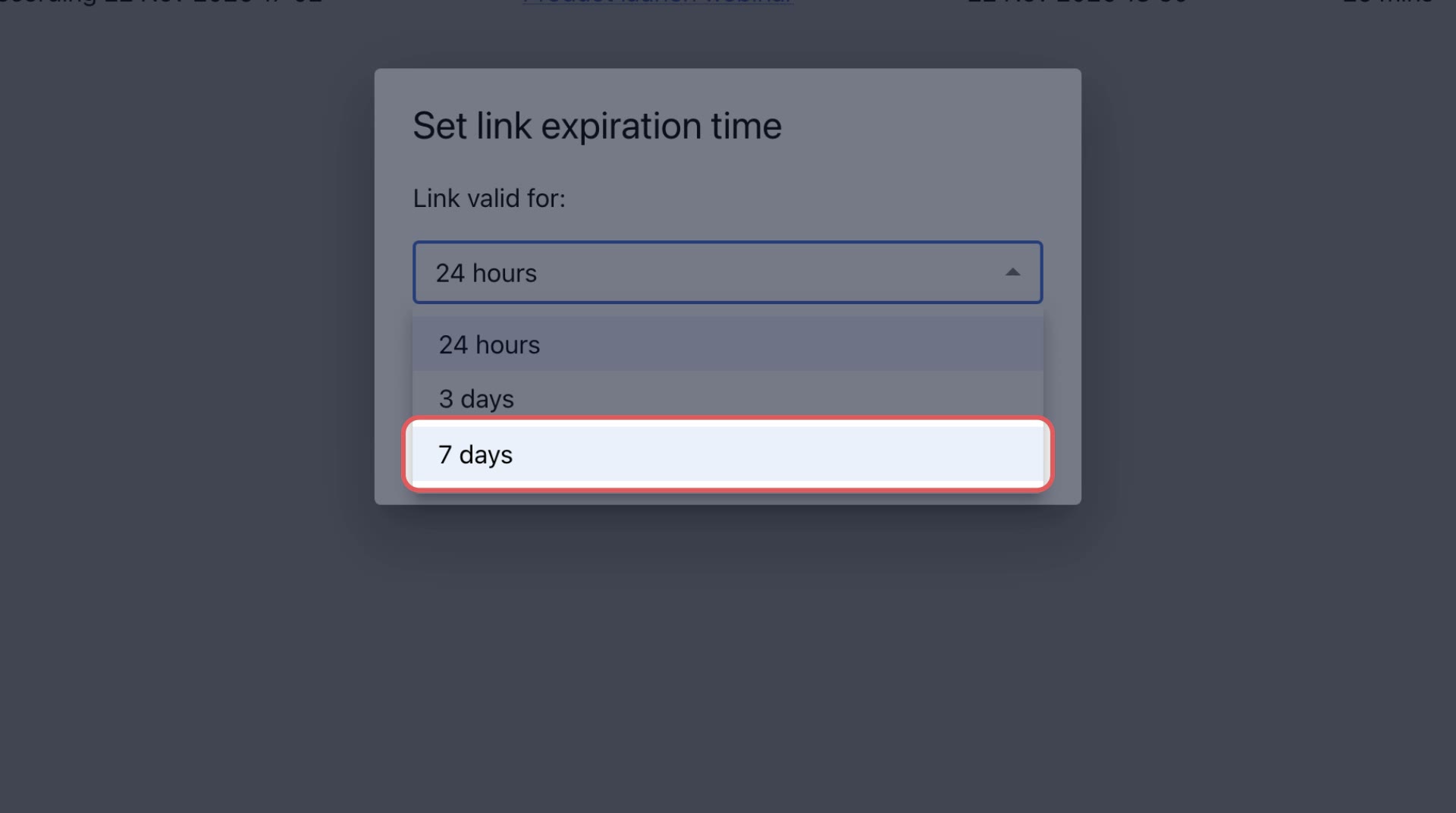
Screenshot from the film at 2:01: Each link you generate has its own expiry time, so to share for longer, generate a new link.
Watch this step · 1:56

And Ana's recording started by itself, because her type of call starts recording when the first person joins: see Turn on recording and transcription.
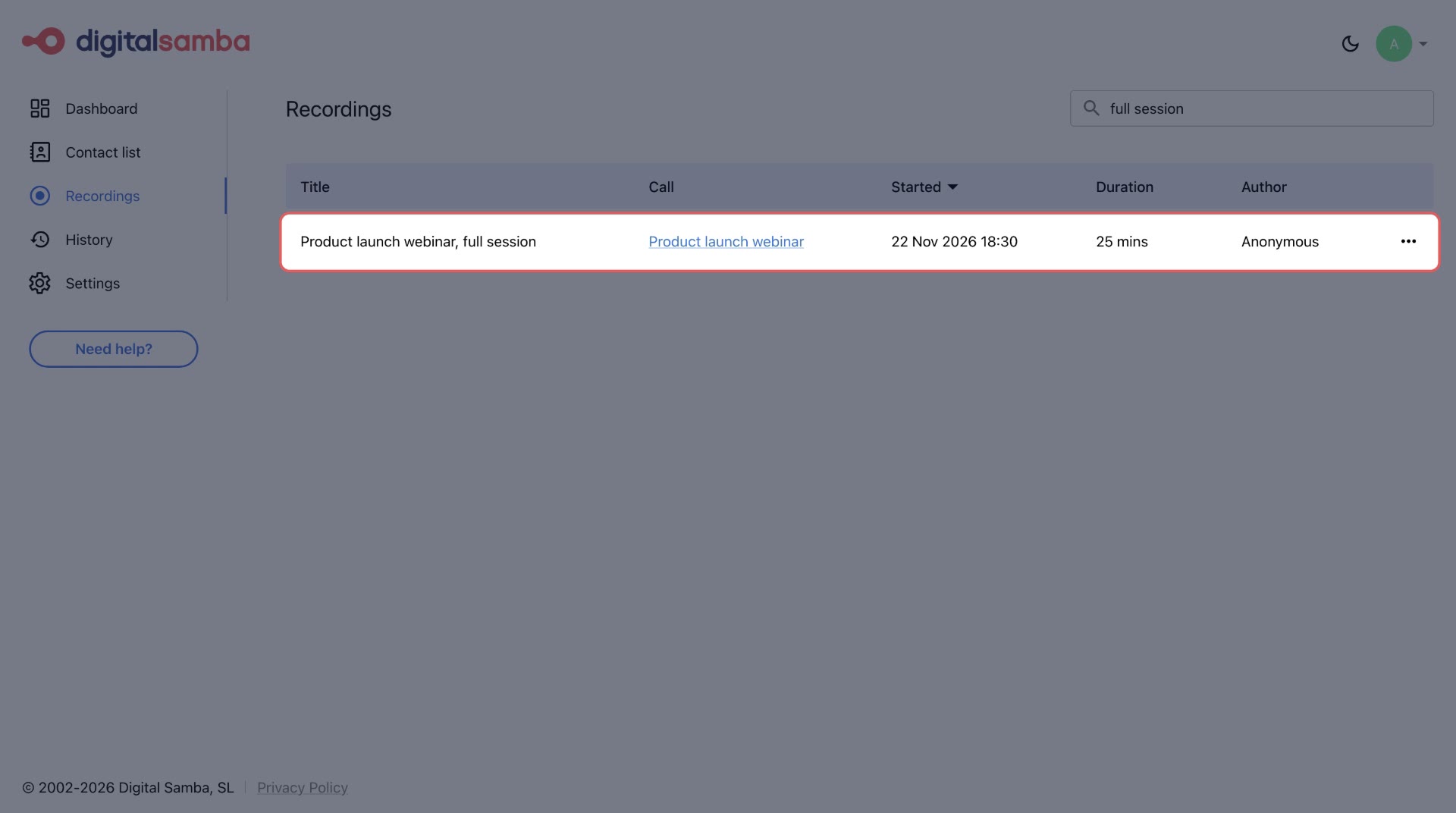
Screenshot from the film at 2:04: And Ana's recording started by itself, because her type of call starts recording when the first person joins: see Turn on recording and transcription.
Watch this step · 2:03

Recap2:12

So: open Recordings from the email or the side menu, find the recording, then use its three dots to copy a link, download, rename or delete it.
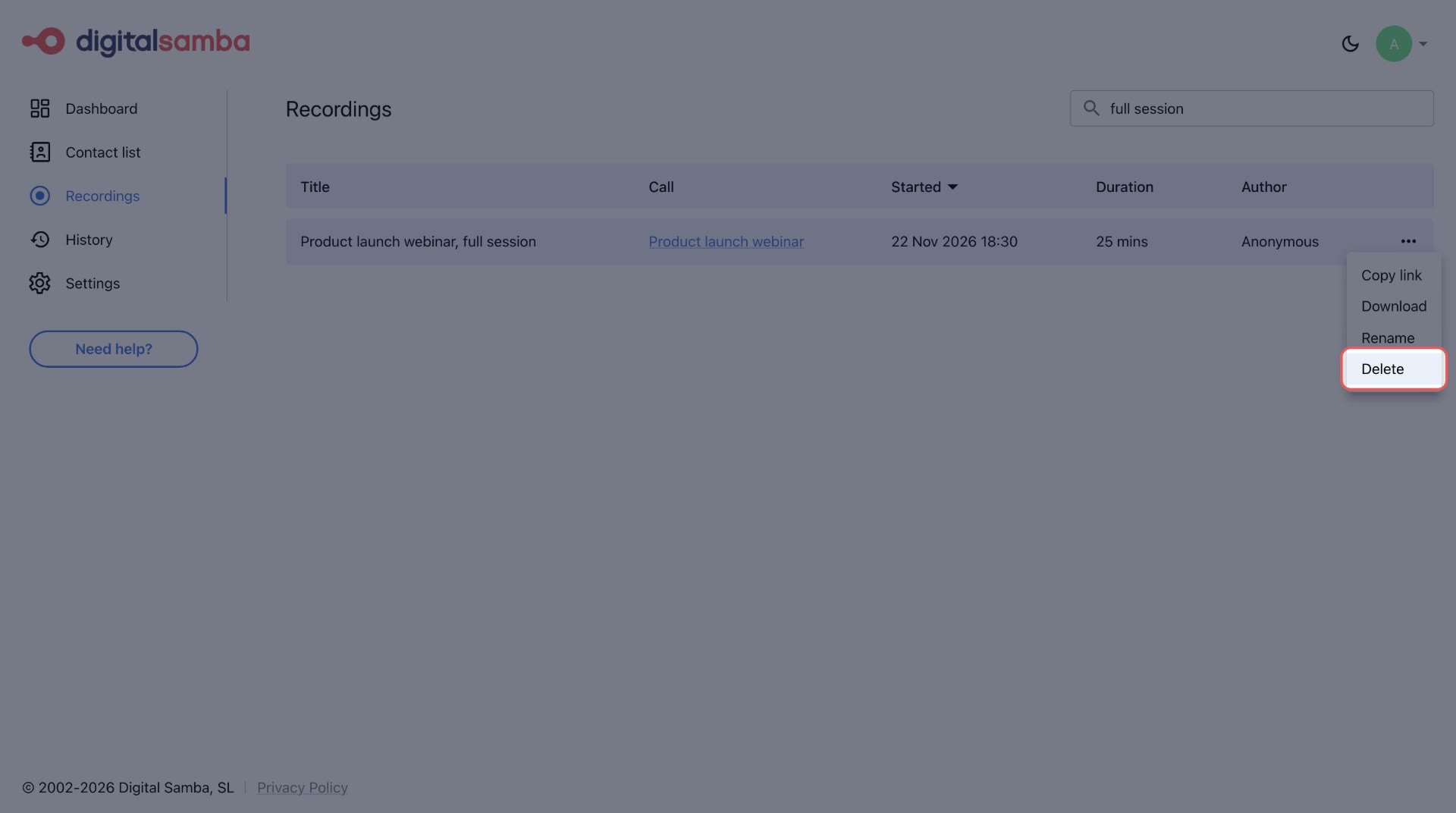

Screenshot from the film at 2:23: So: open Recordings from the email or the side menu, find the recording, then use its three dots to copy a link, download, rename or delete it.
Watch this step · 2:13

In this video

Next

Related

Updated

The film, the article, the captions and the search results all come from one source, so they change together.

  1. Version 1 ·
    First version.

All updates