1History0:11
Our example: Ana's team has held the Product launch webinar for their clients.
Click History in the side menu.
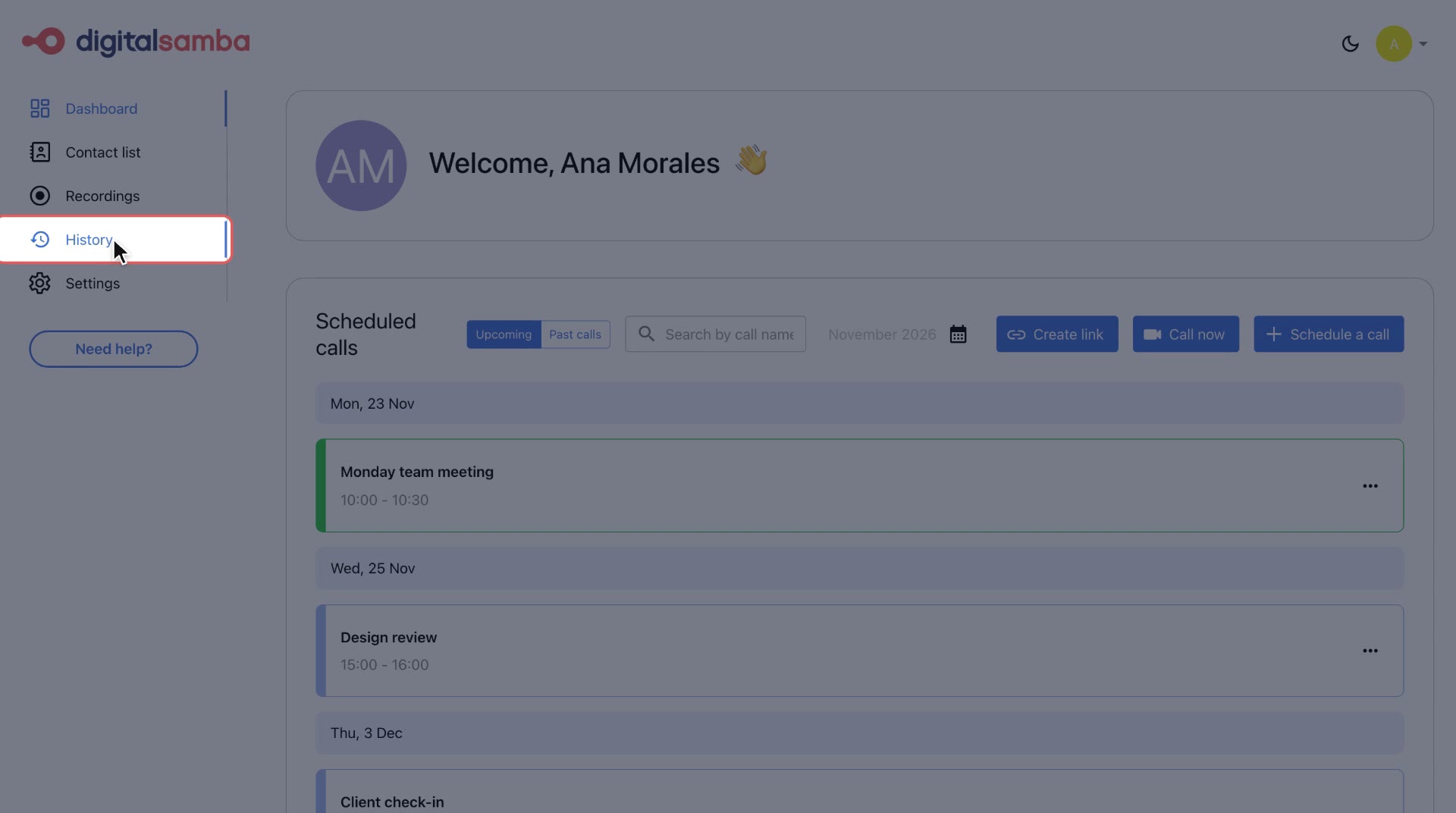
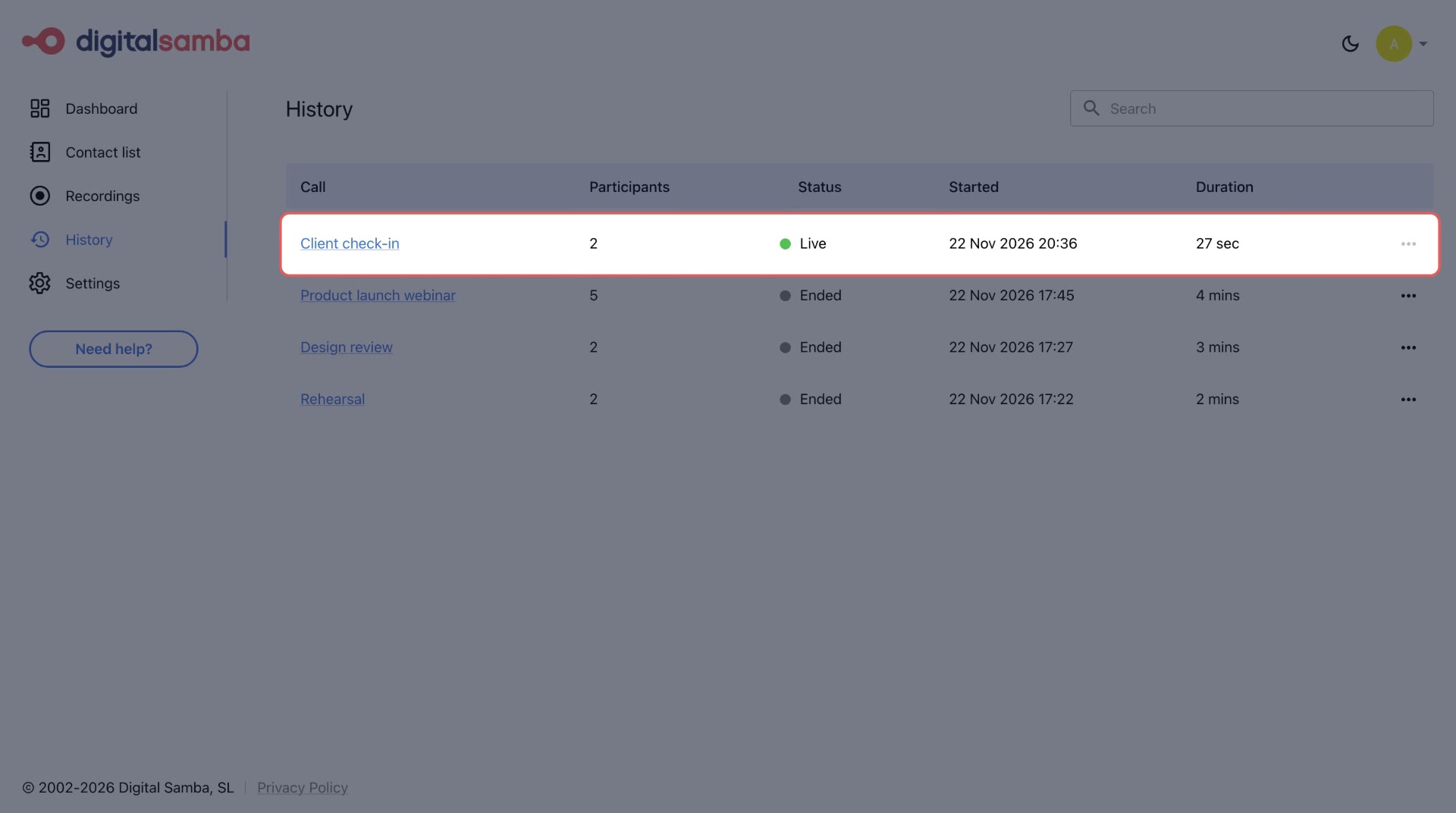
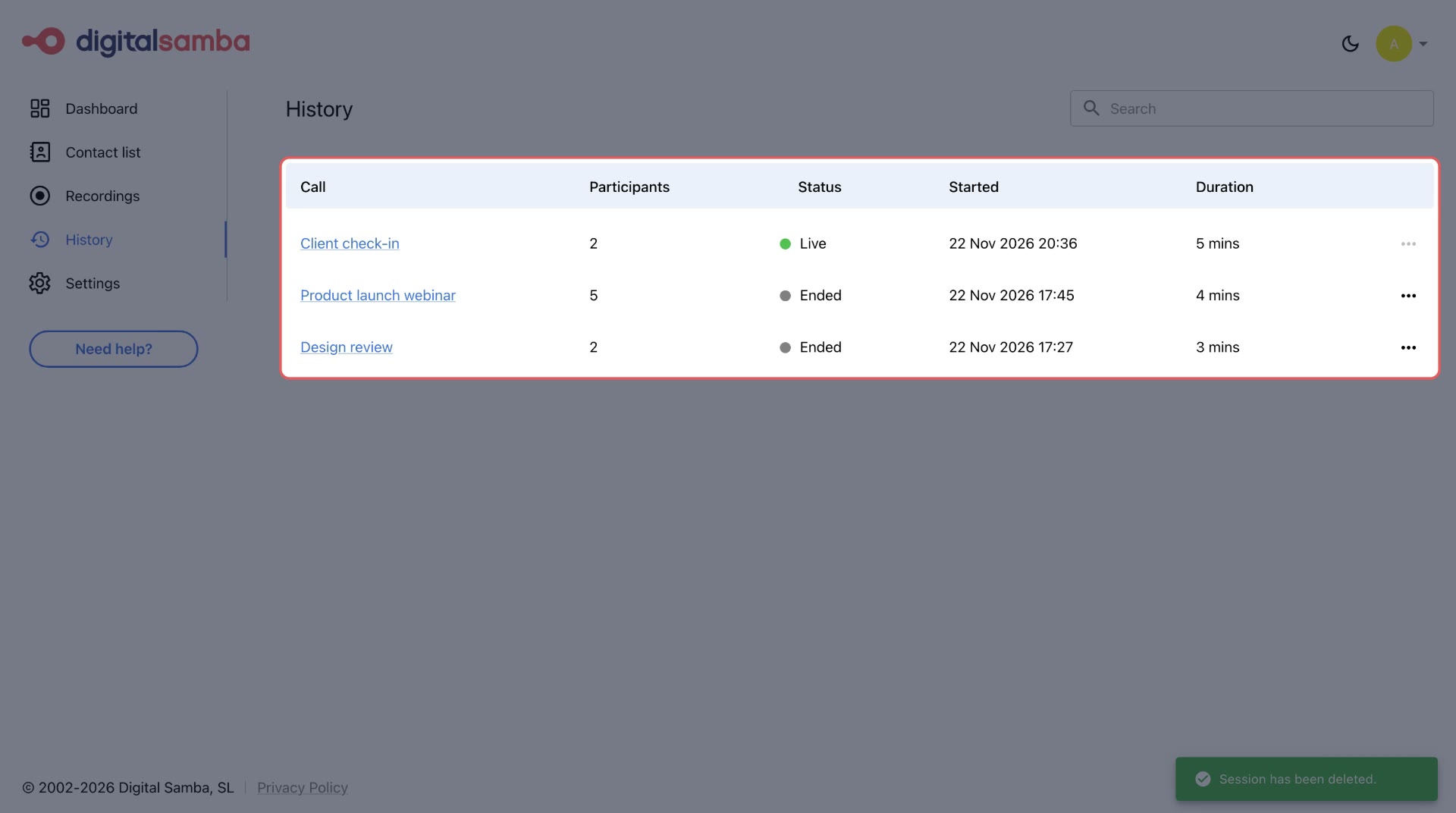
Every session of your calls is listed here, newest first: the call, how many people took part, its status, when it started and how long it lasted.
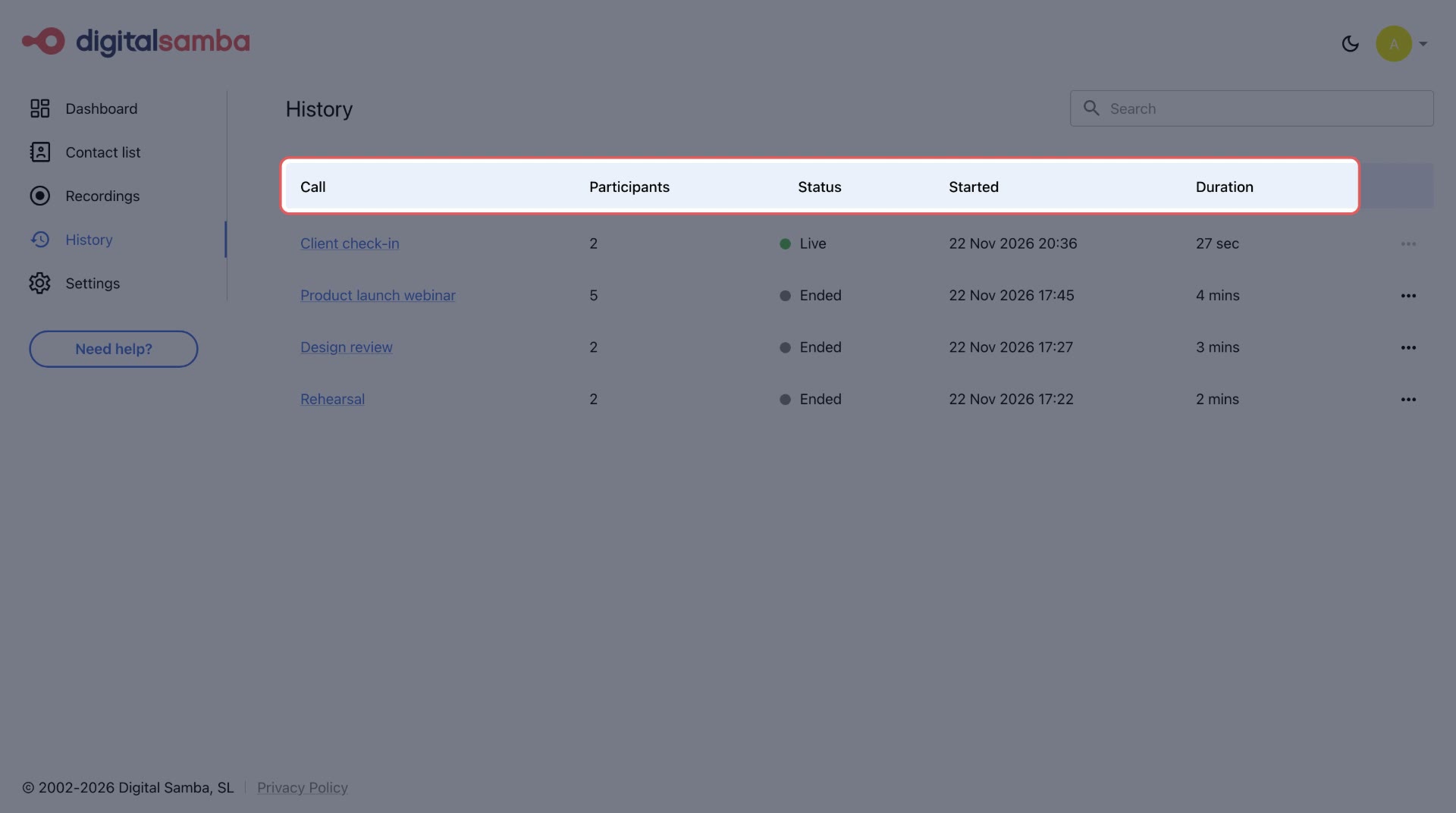
A session that is still going on shows Live, like this client check-in.
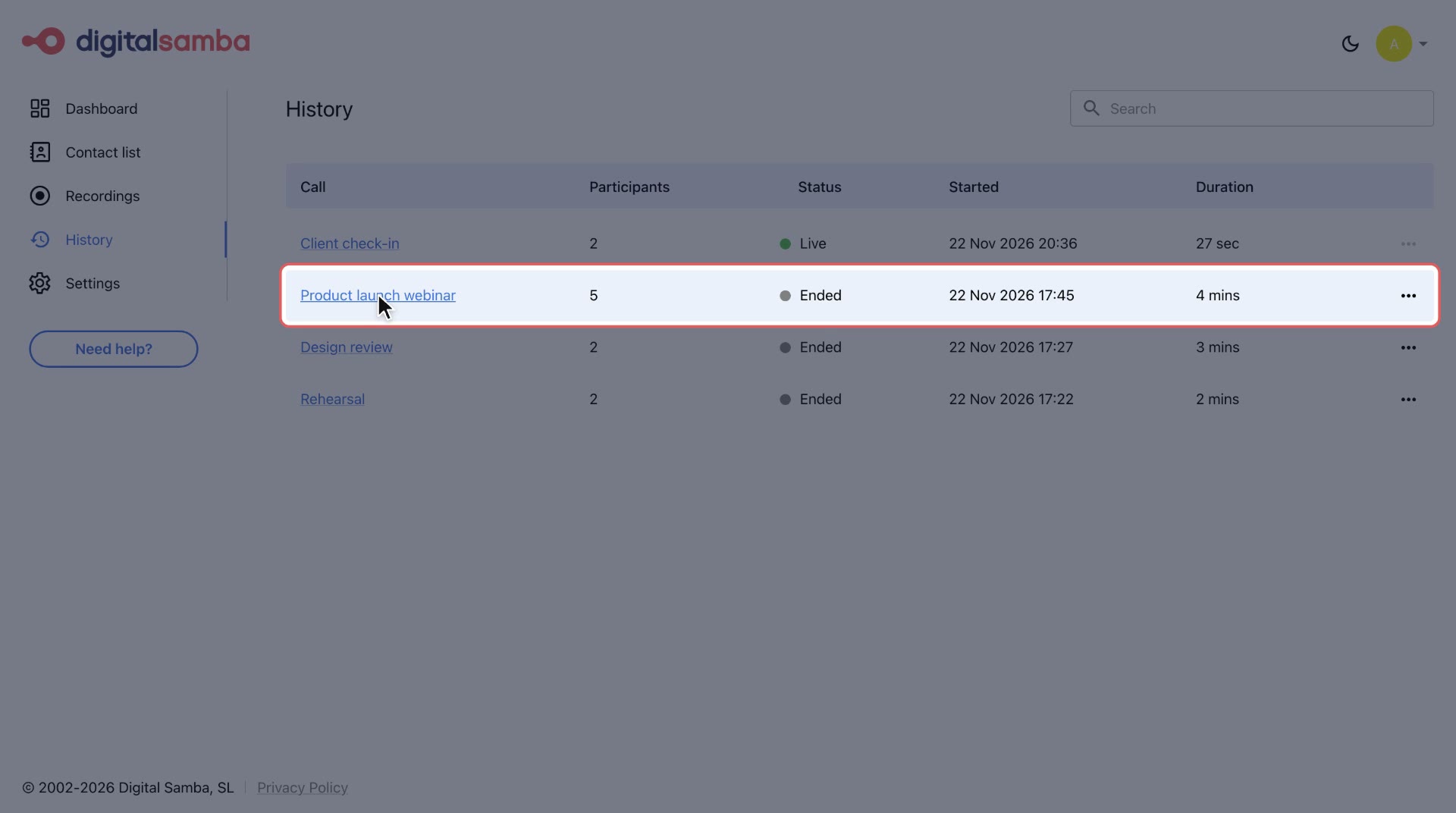
Click the Product launch webinar.
2Session details0:38
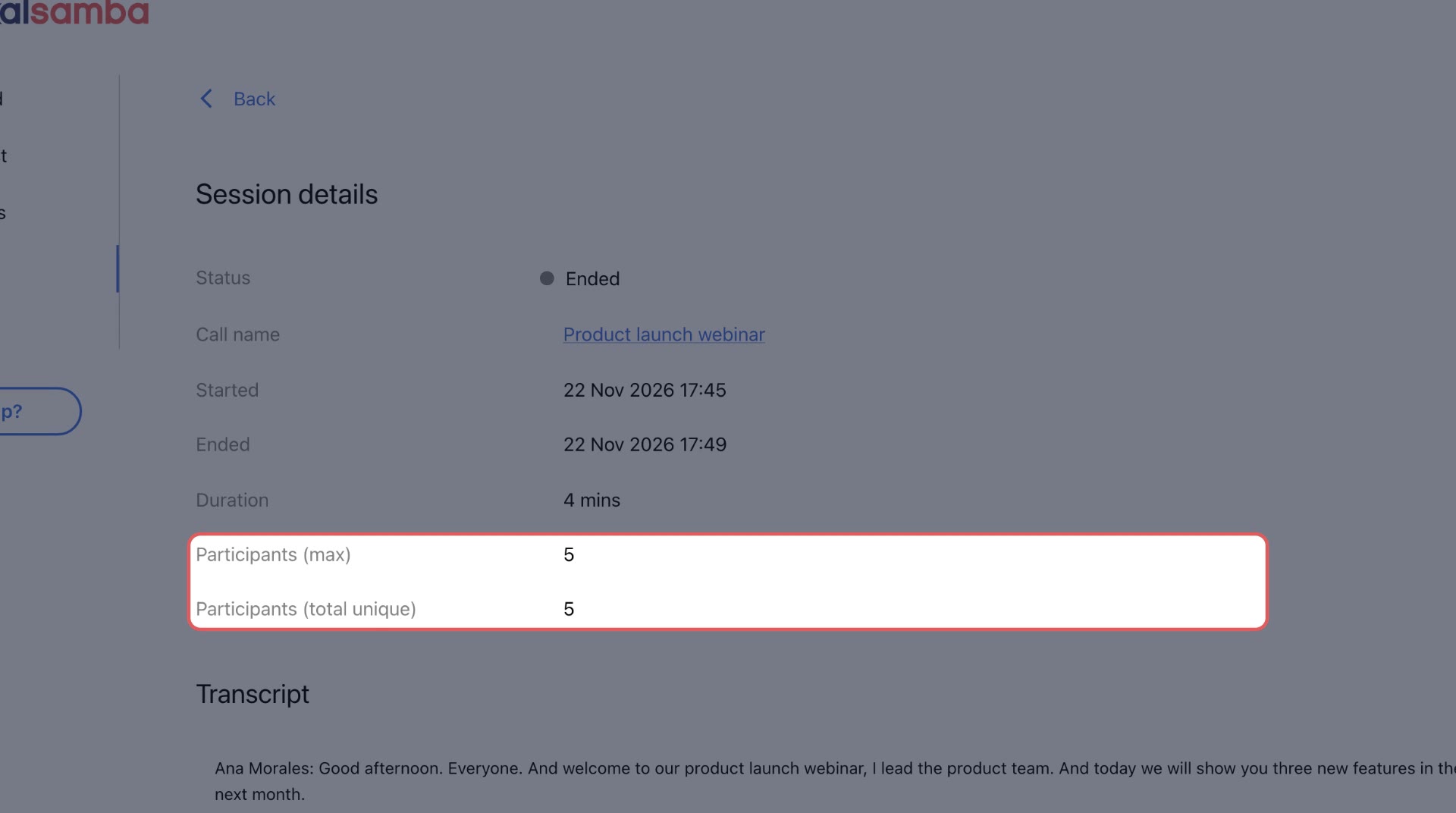
Session details shows when the session started and ended, how long it lasted, the most people in it at once, and how many different people joined.
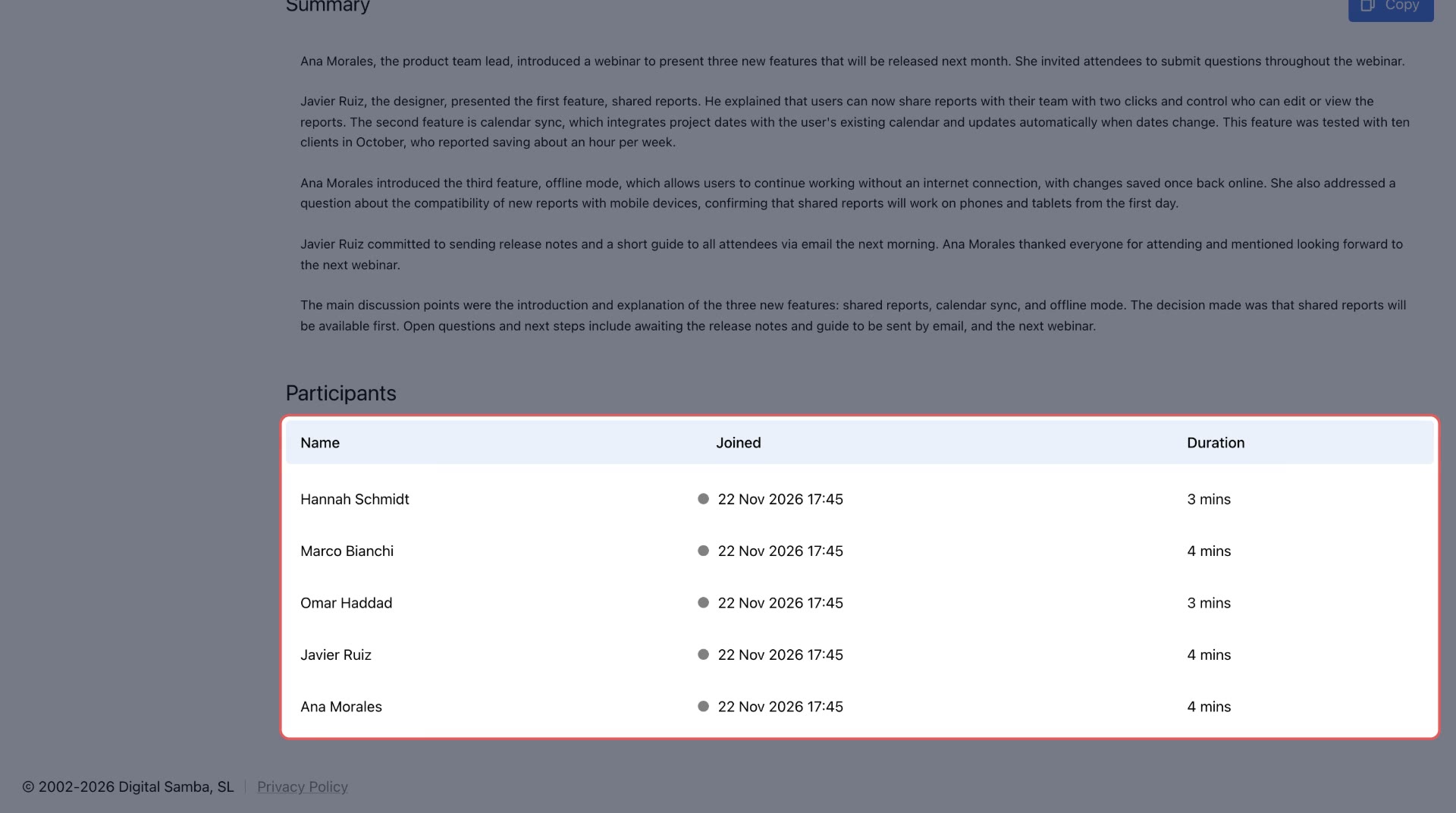
At the bottom, Participants lists everyone by name, when they joined, and how long they stayed.
3Transcript0:55
Further up is the transcript: what was said, line by line, with the name of the person speaking.
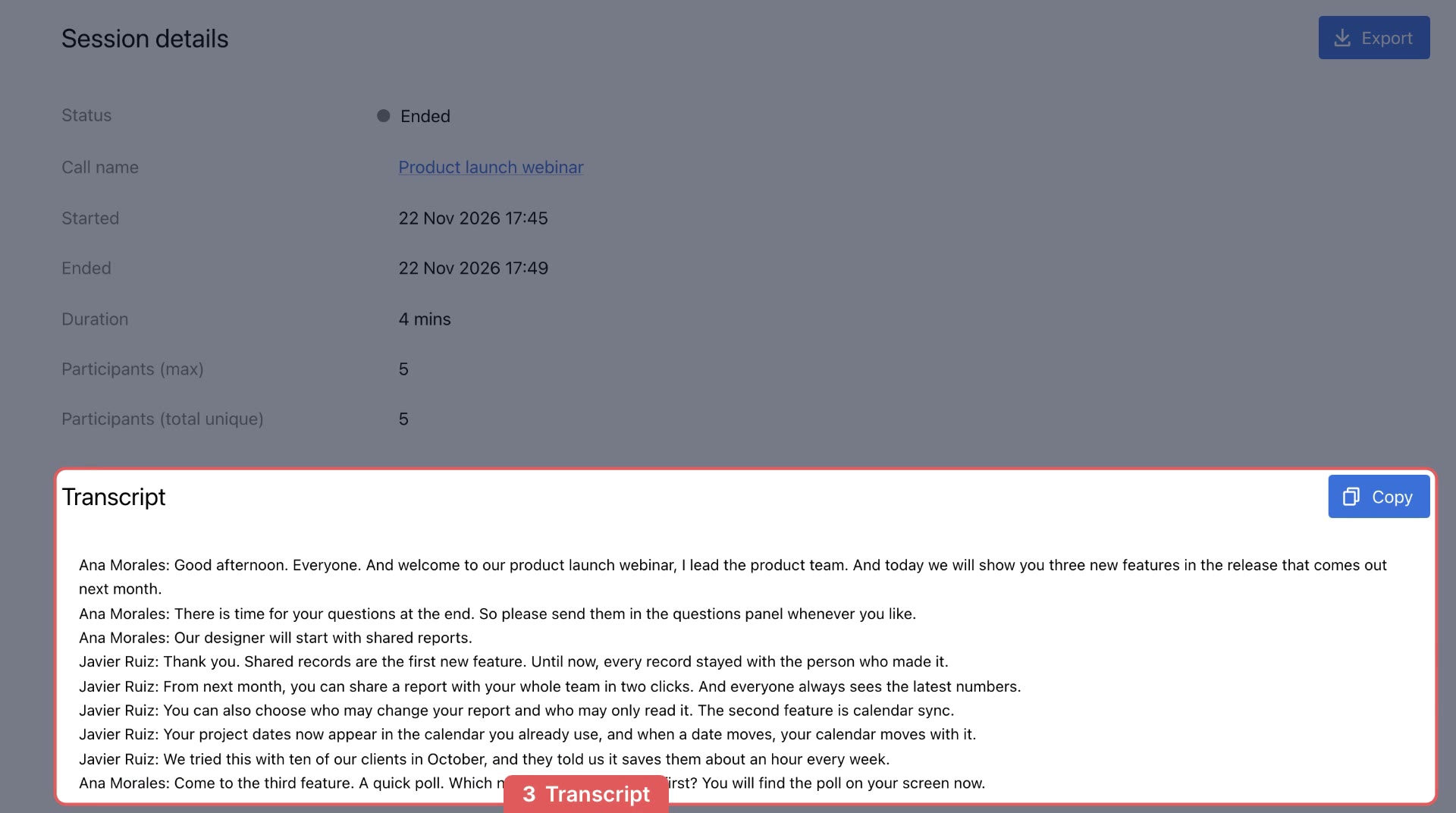
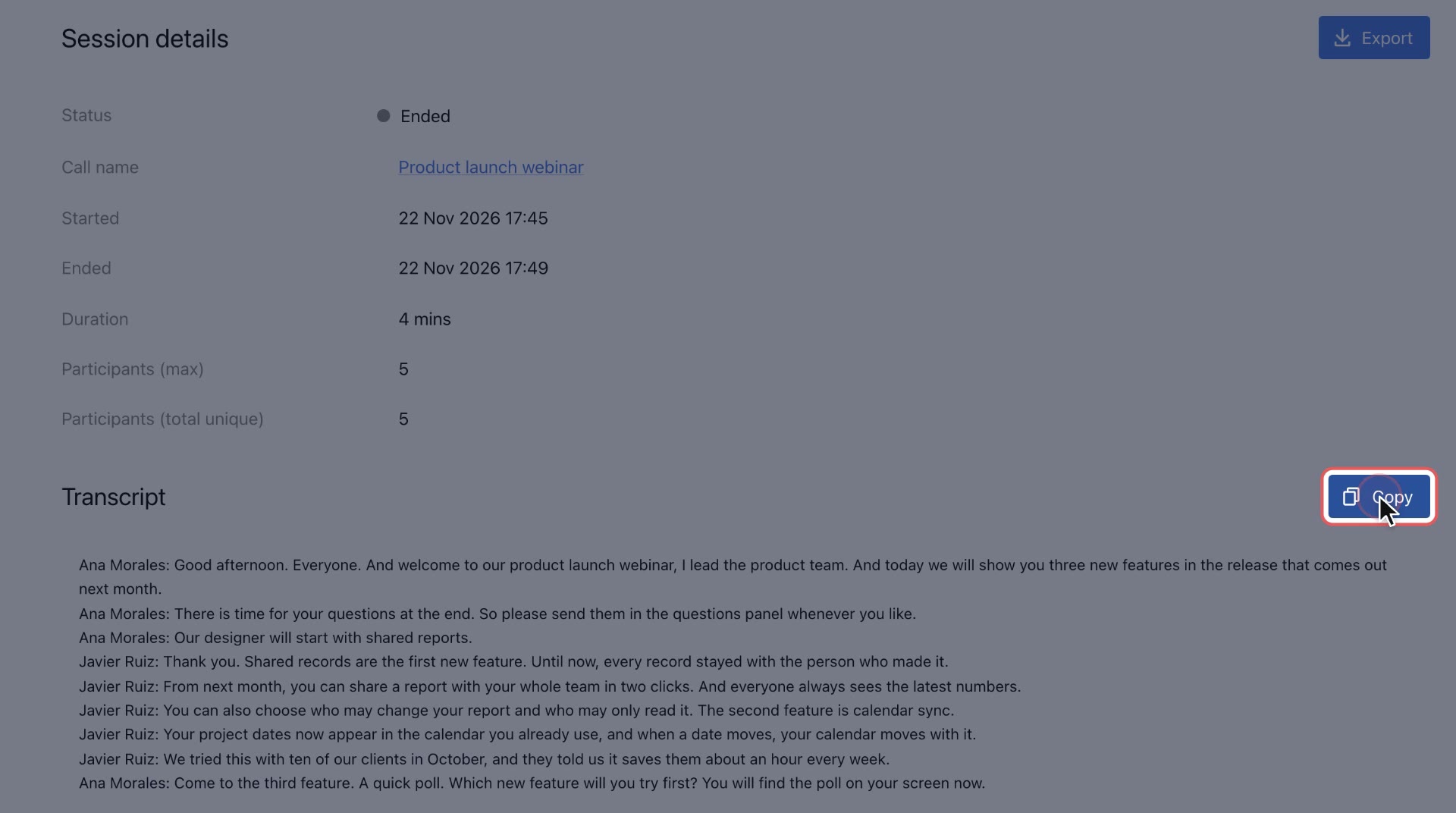
Click Copy to put the whole transcript on your clipboard.
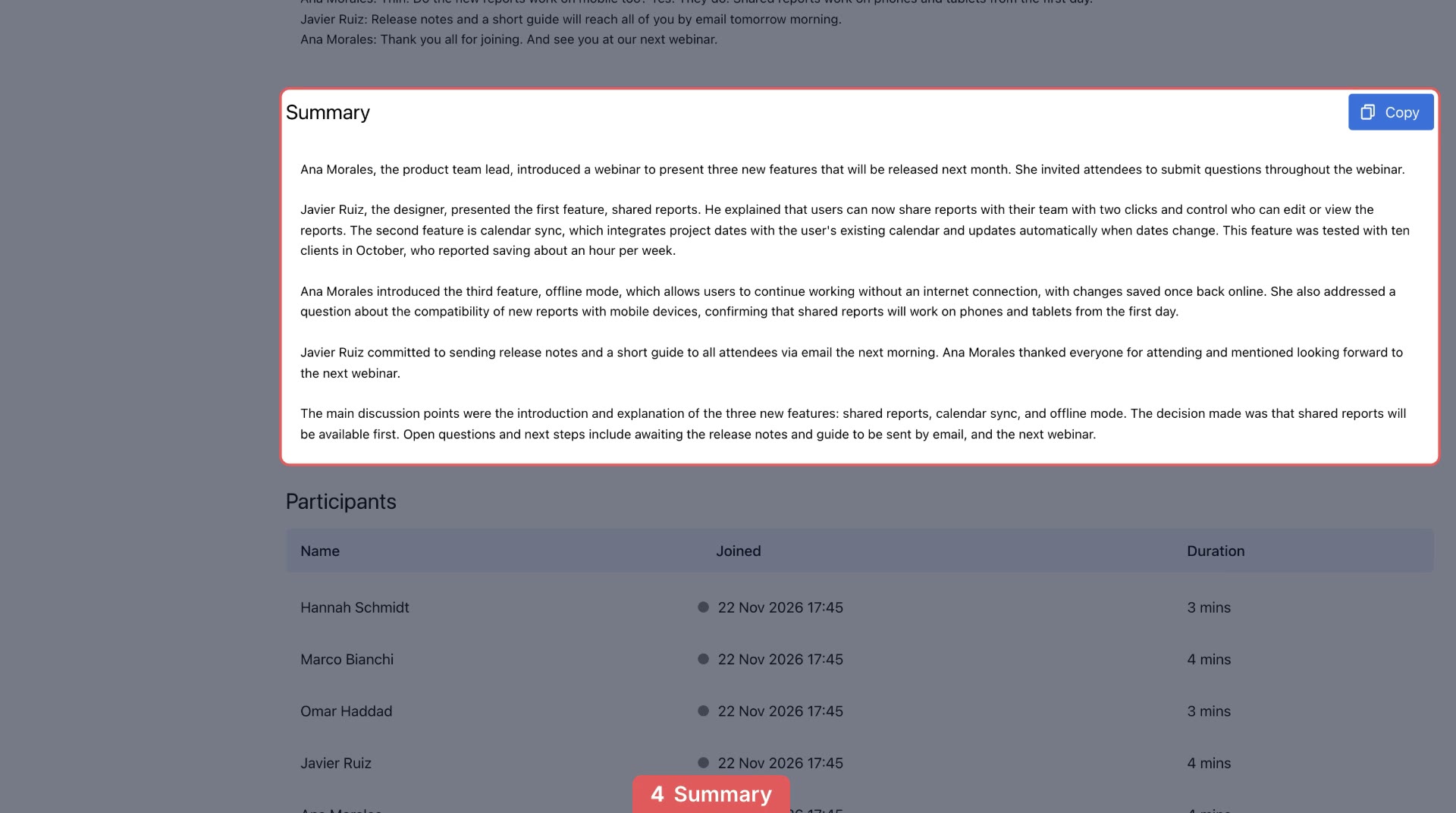
4Summary1:06
Under it is the summary, written automatically from the transcript: who presented what, and what happens next.
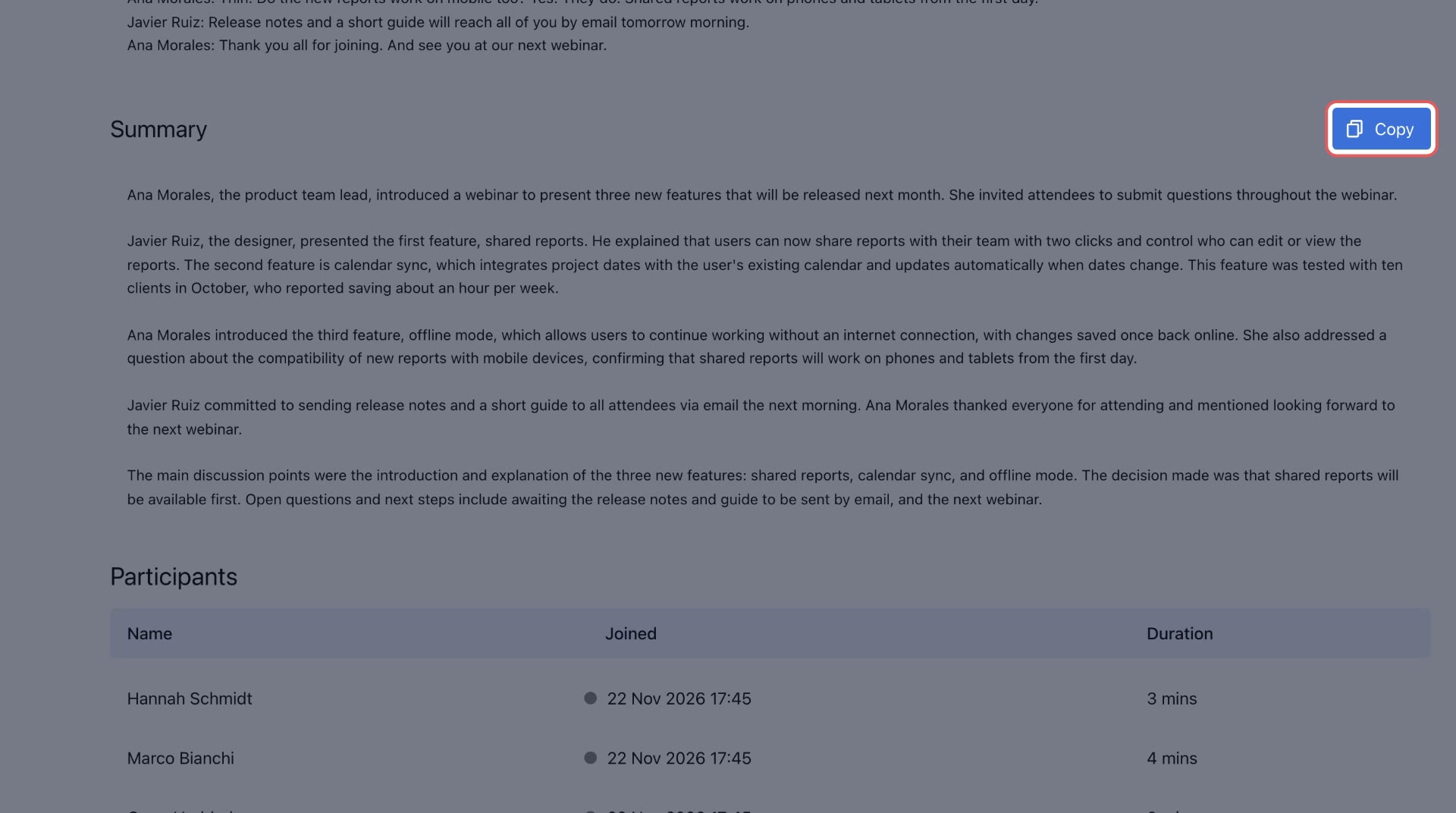
It has its own Copy button.
5Export1:17
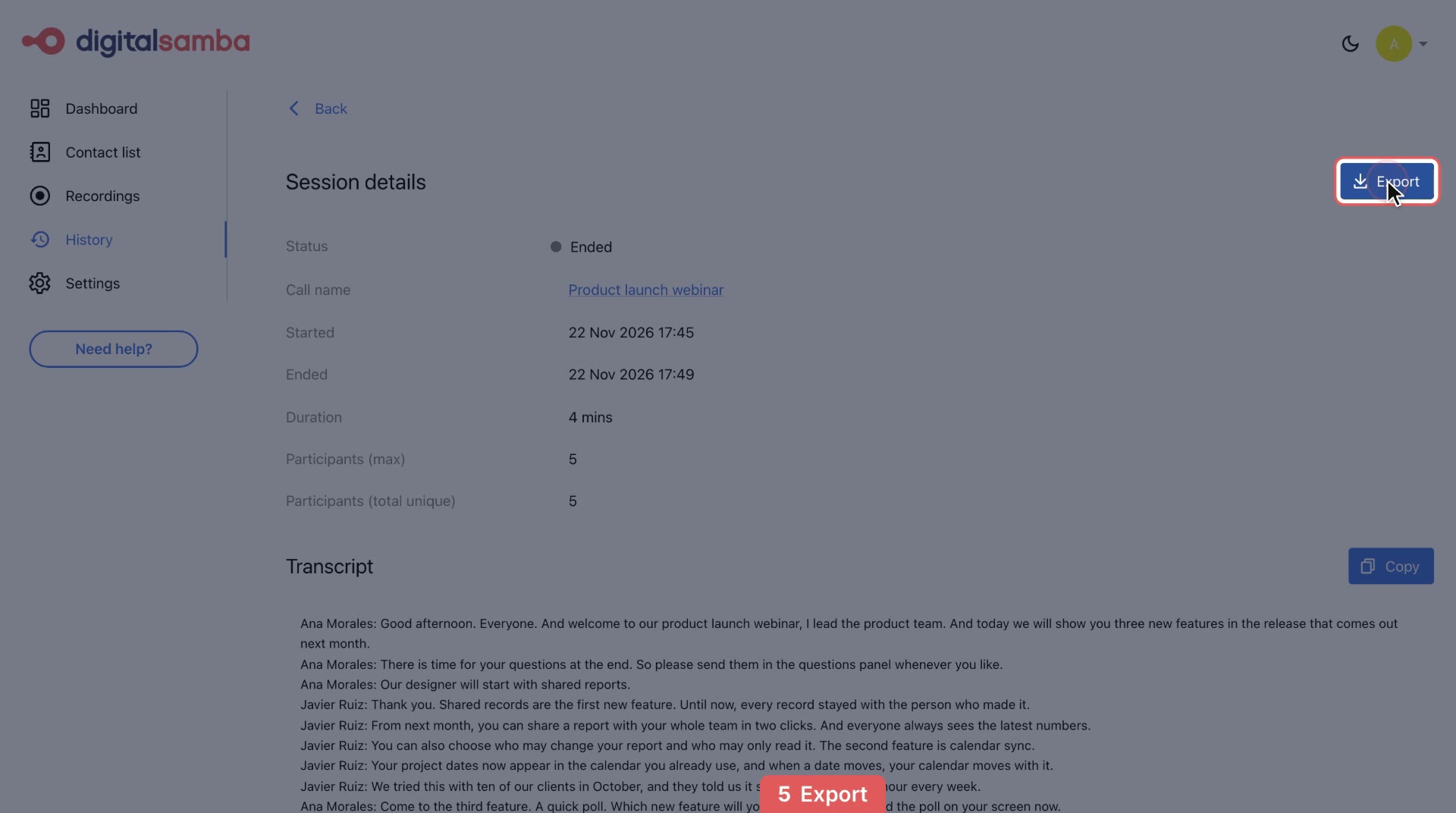
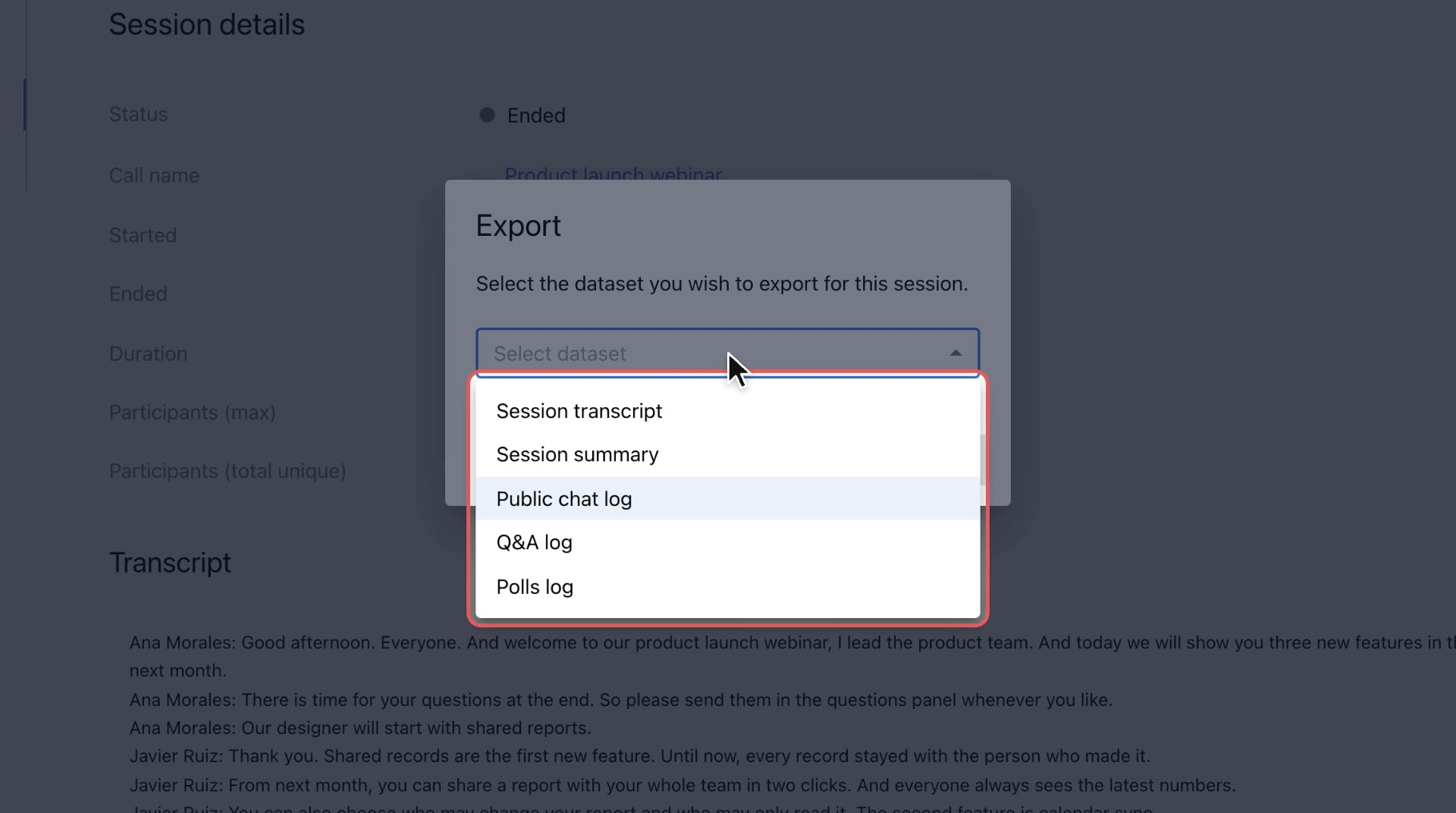
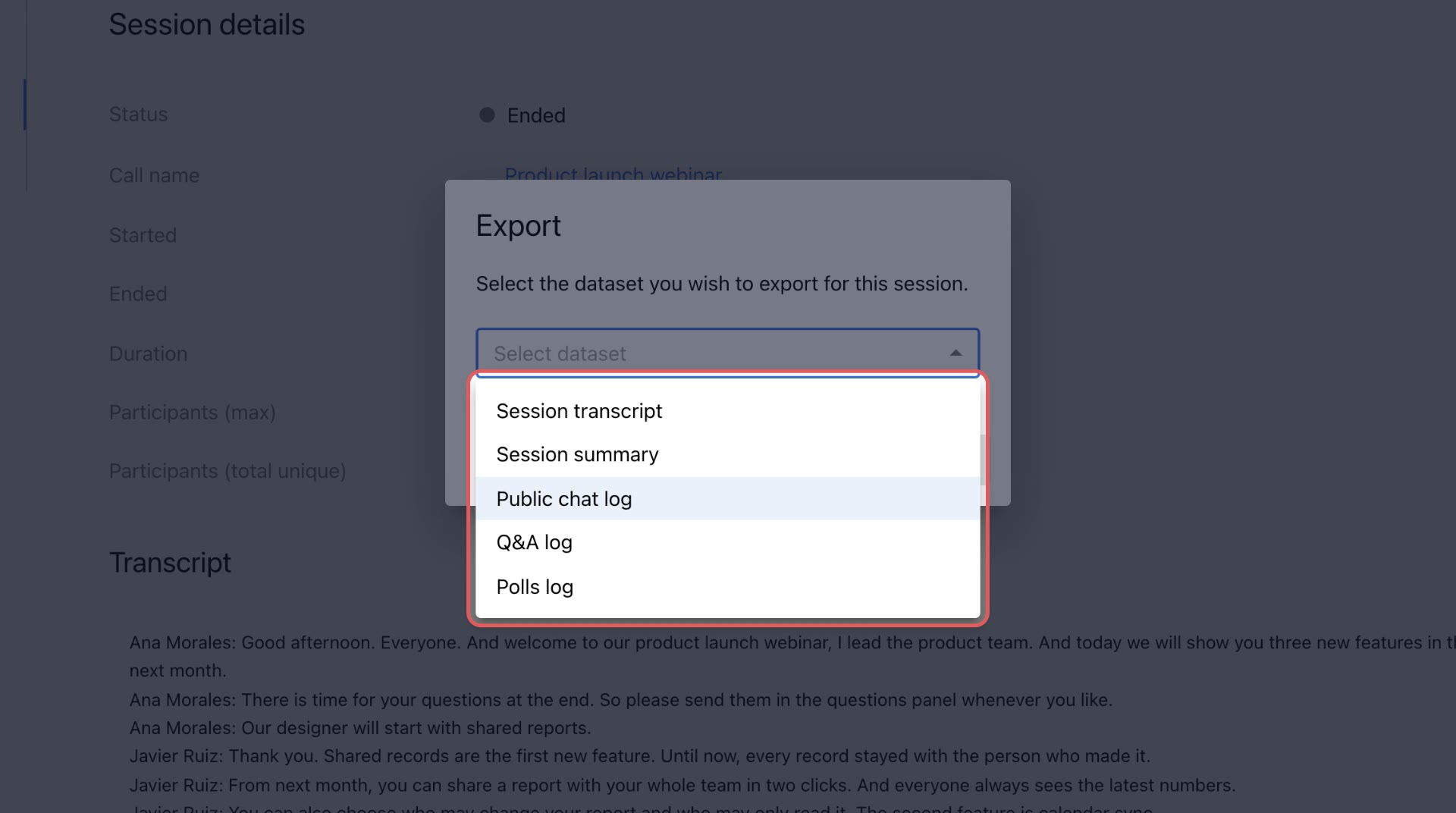
To keep a file, click Export at the top, and select a dataset.
This webinar has five: Session transcript, Session summary, Public chat log, Q&A log and Polls log.
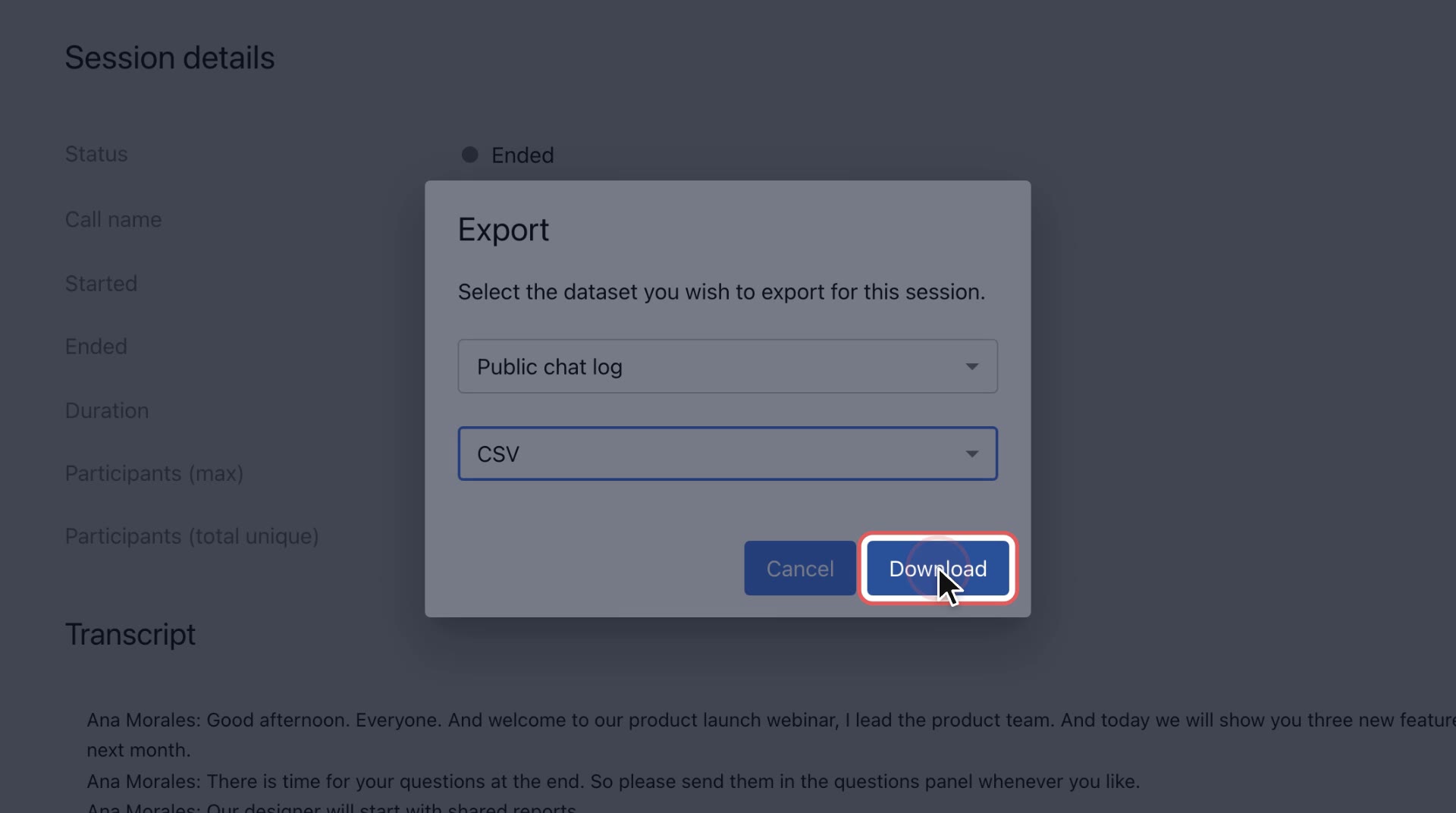
The public chat comes as TXT or CSV. Ana picks CSV and clicks Download.
6Delete a session1:38
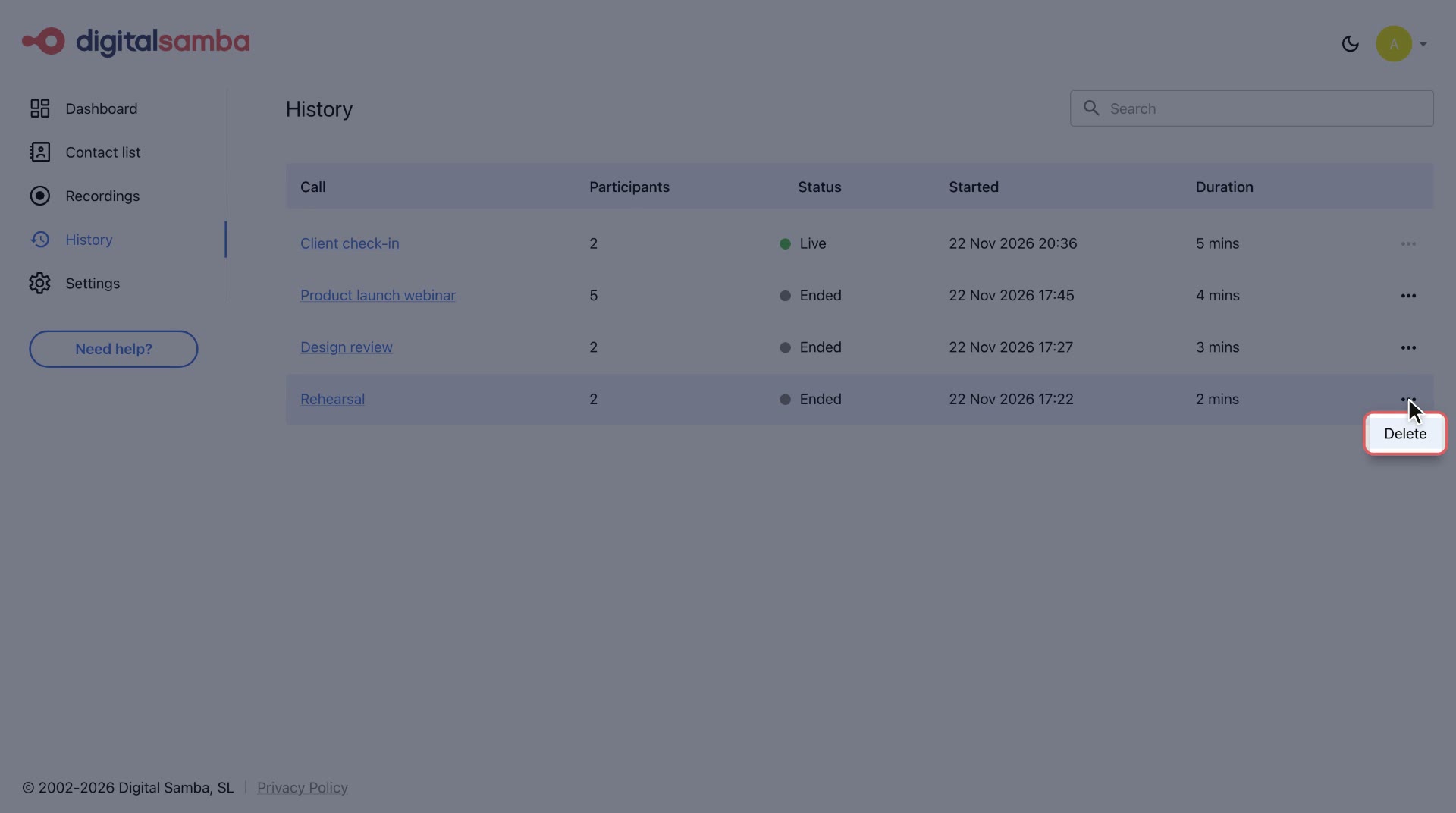
Back in History, Ana removes the rehearsal she held before the webinar: click the three dots, then Delete.
Confirm with Delete session. The row is gone from History, and so is the session's page.
Good to know1:52
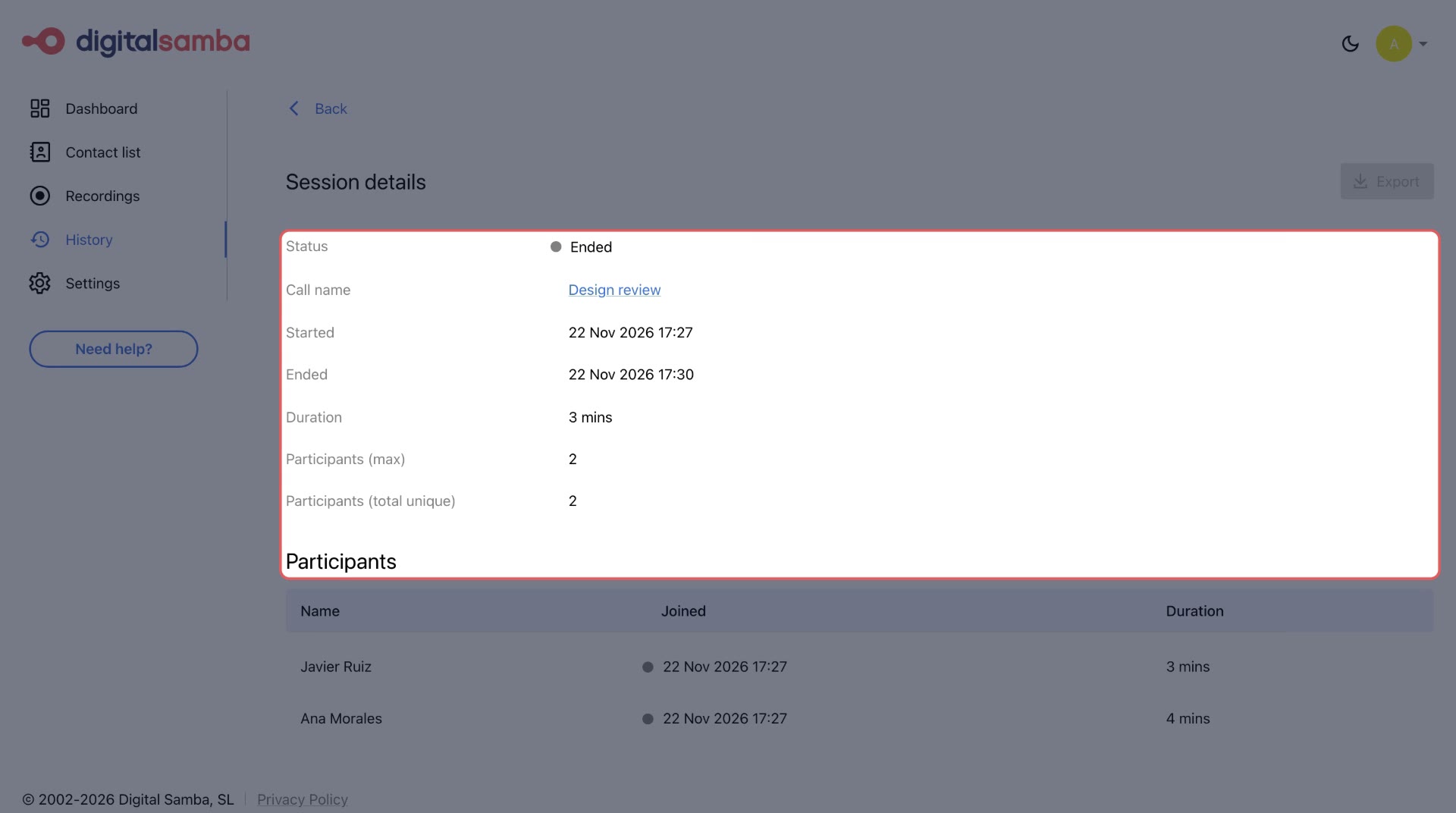
A session without transcription has no transcript and no summary, like this design review. To turn it on, see Turn on recording and transcription.
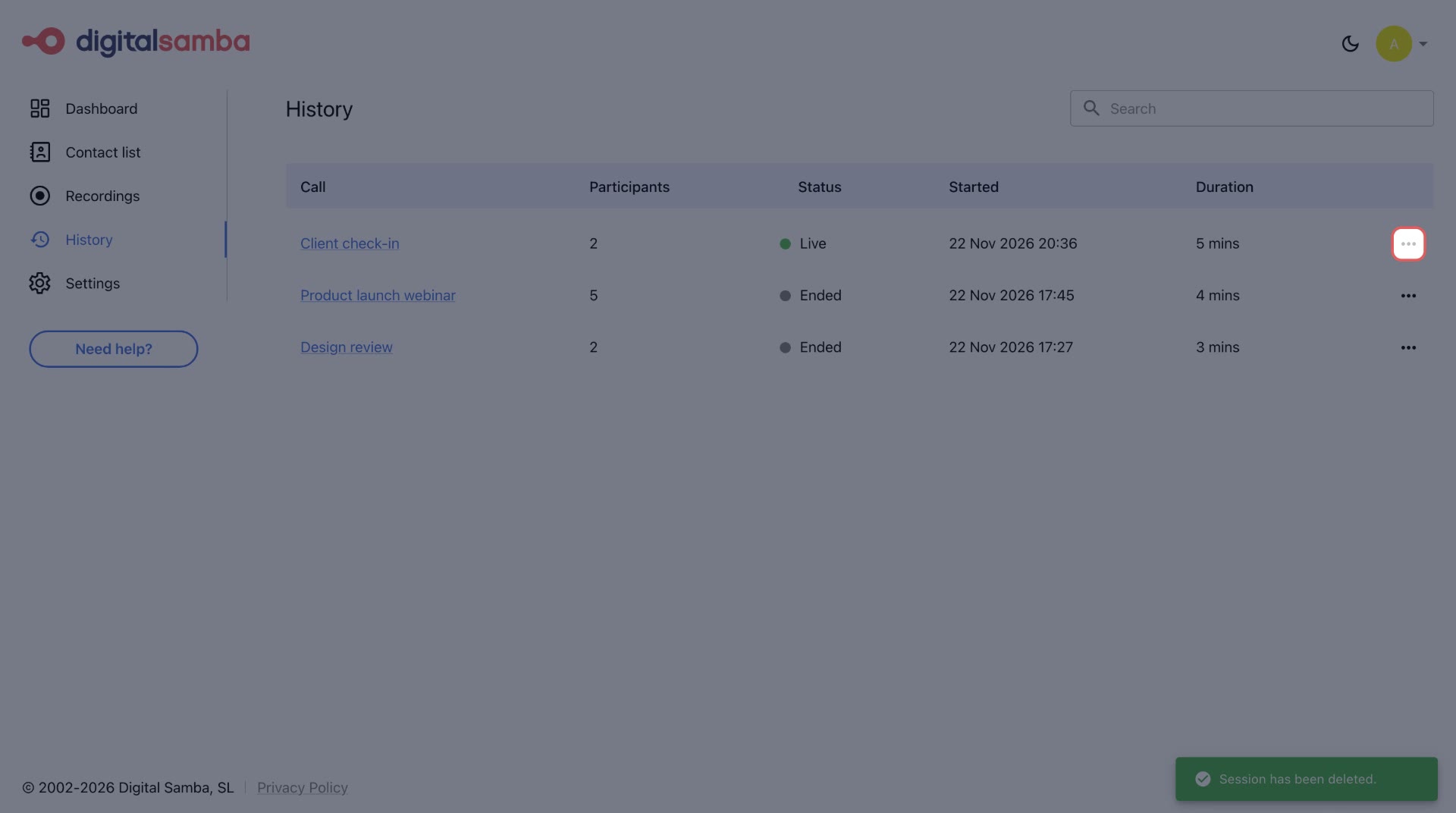
And a session that is still Live can't be deleted until it ends.
Recap2:09
So: History, open a session, copy its transcript or summary, and export what you need.
Did this article help?
Sorry about that. What was the problem?