1Registrants0:10
Our example is the Product launch webinar, set to approve each registration manually.
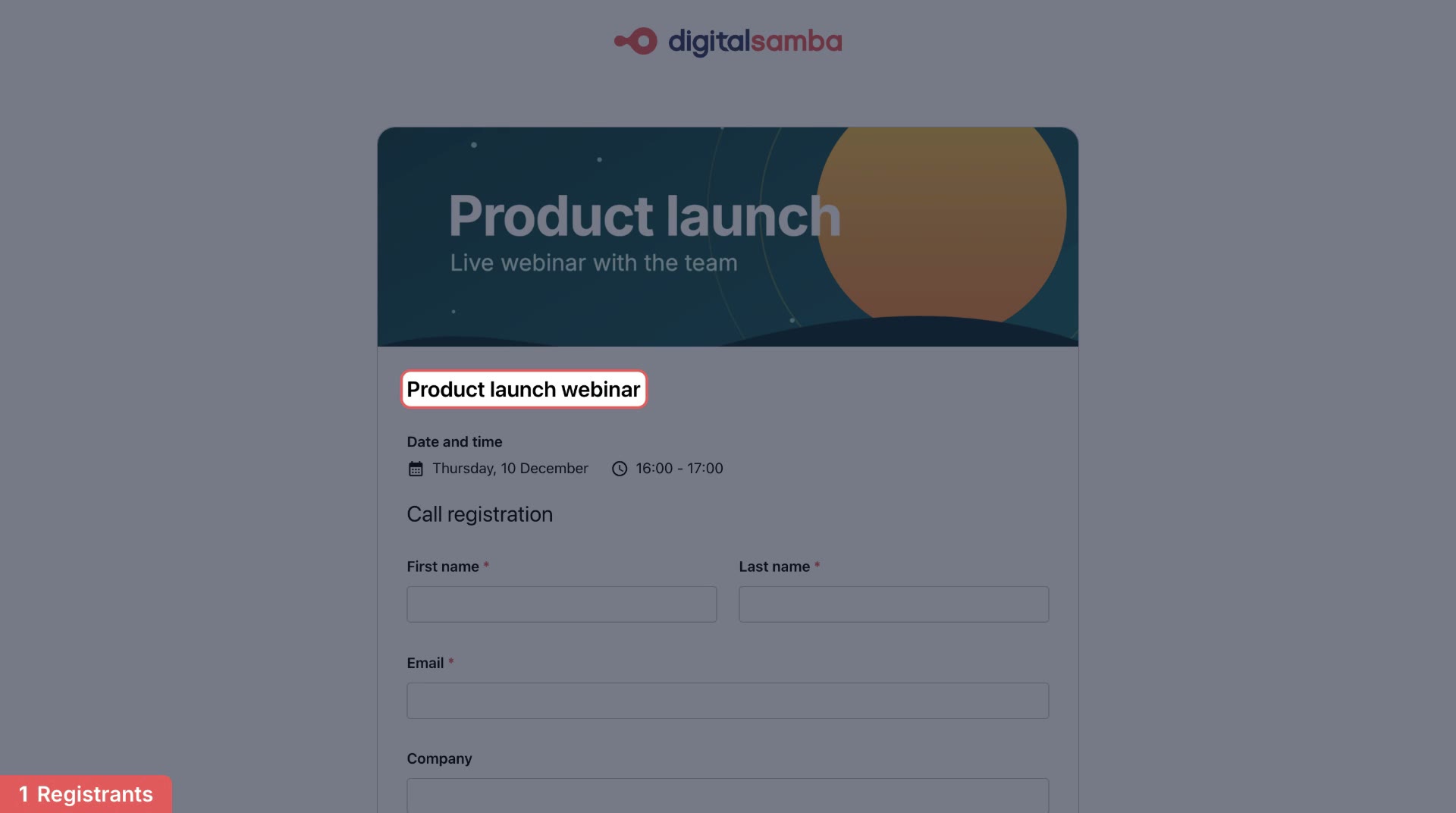
Nine people have registered on its page, and each was told that their registration is awaiting approval.
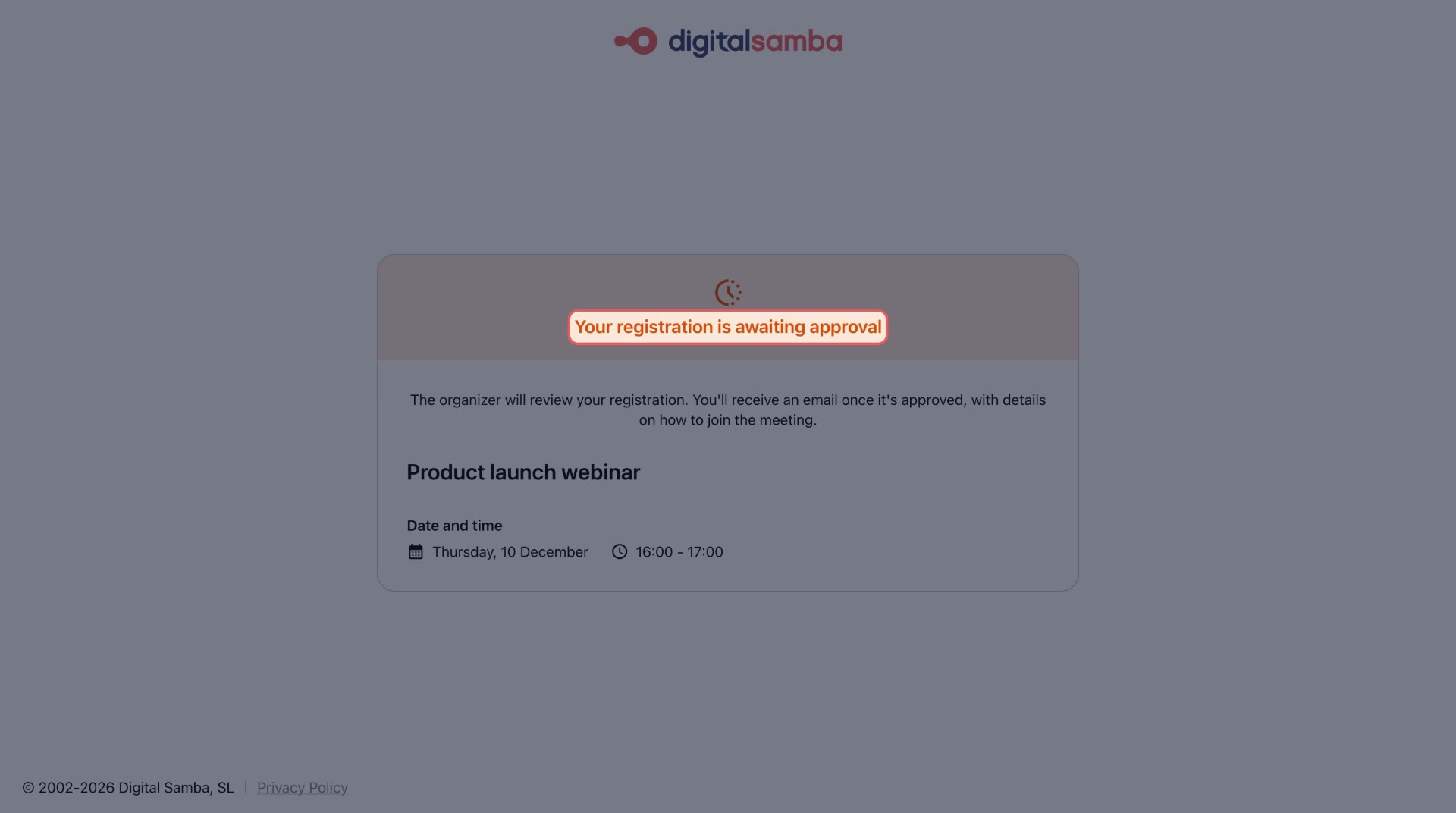
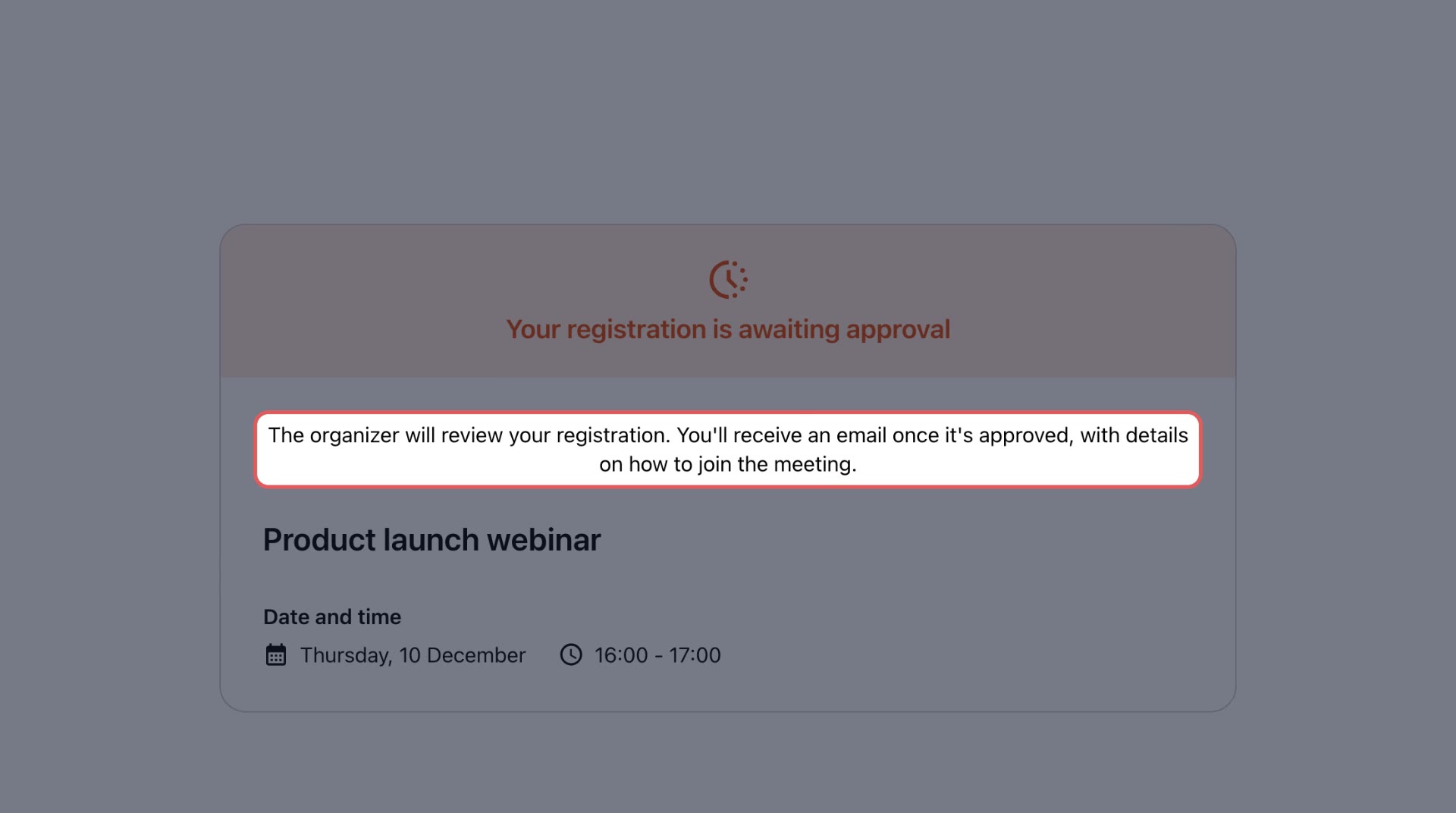
No email has gone out yet: not to them, and not to you.
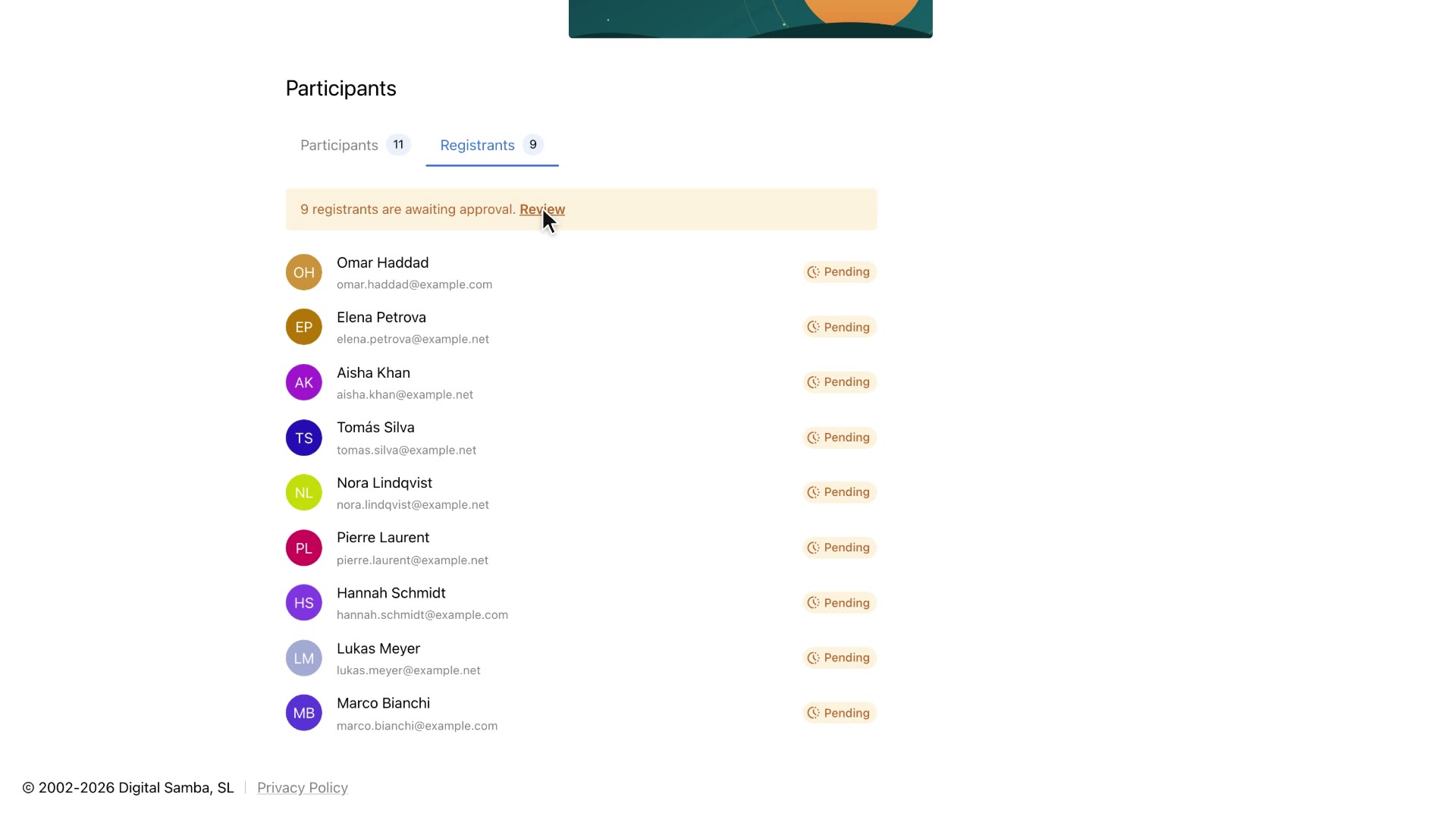
So open the webinar's page: the Registrants tab shows who is waiting.
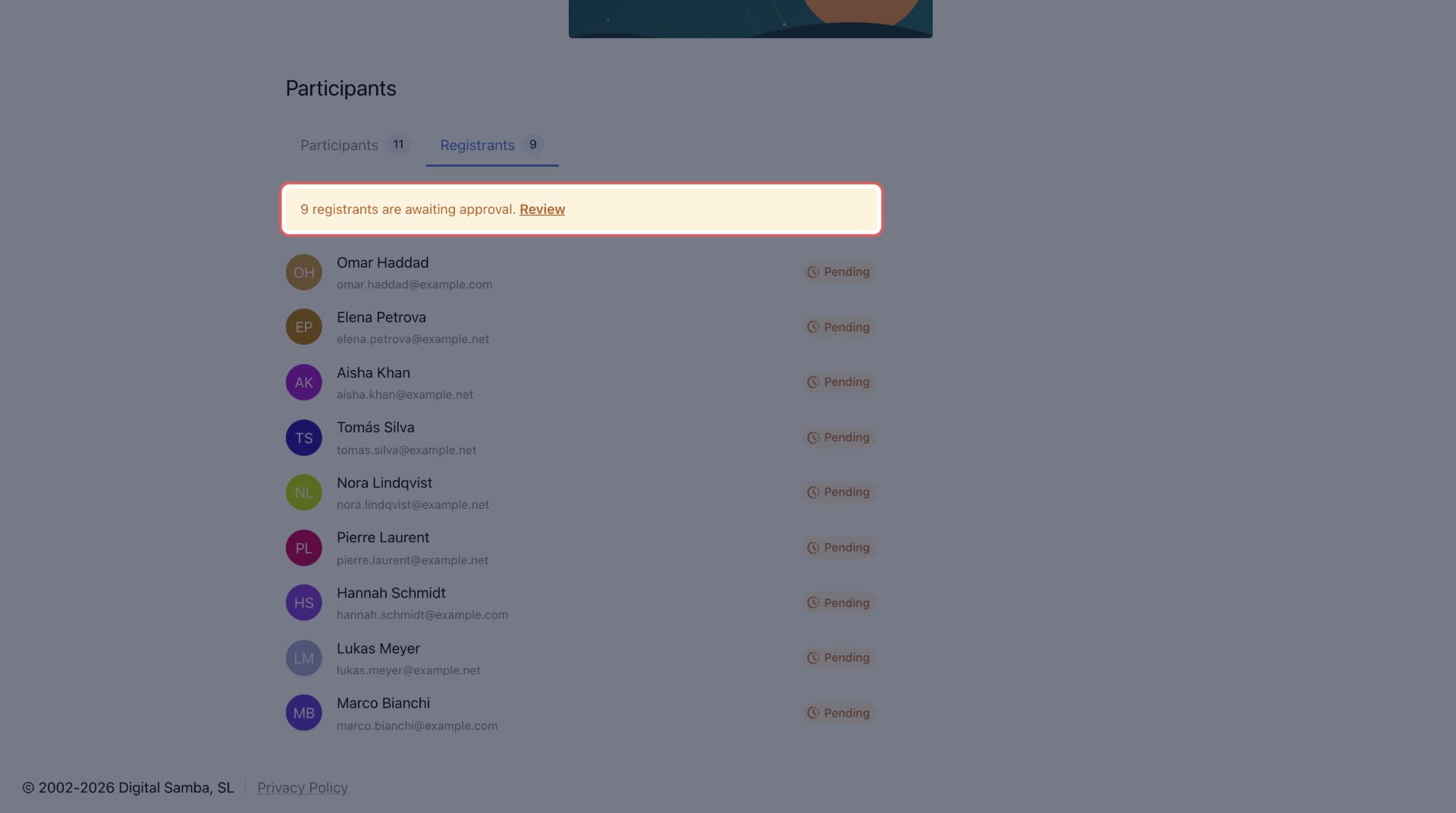
Click Review.
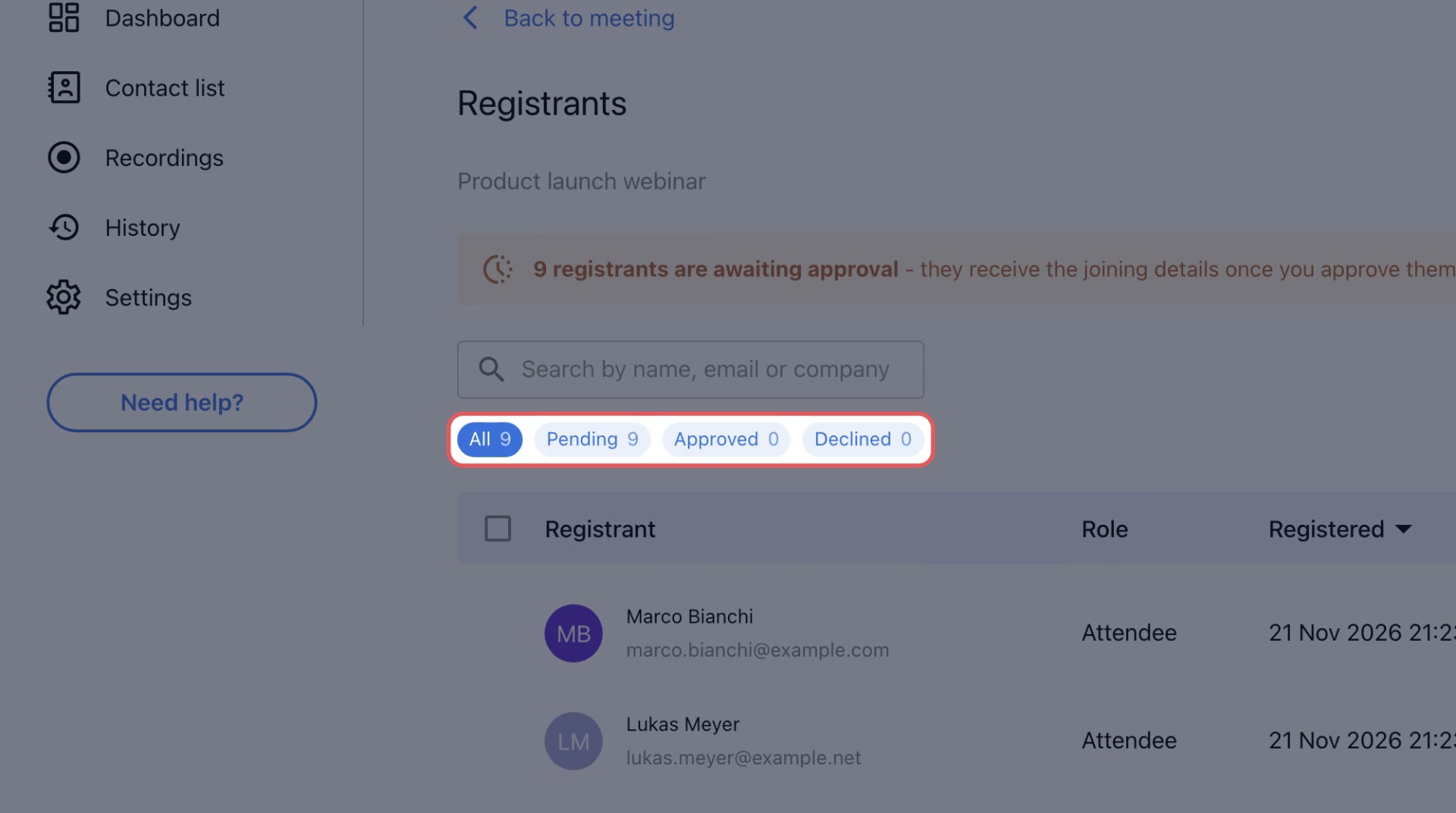
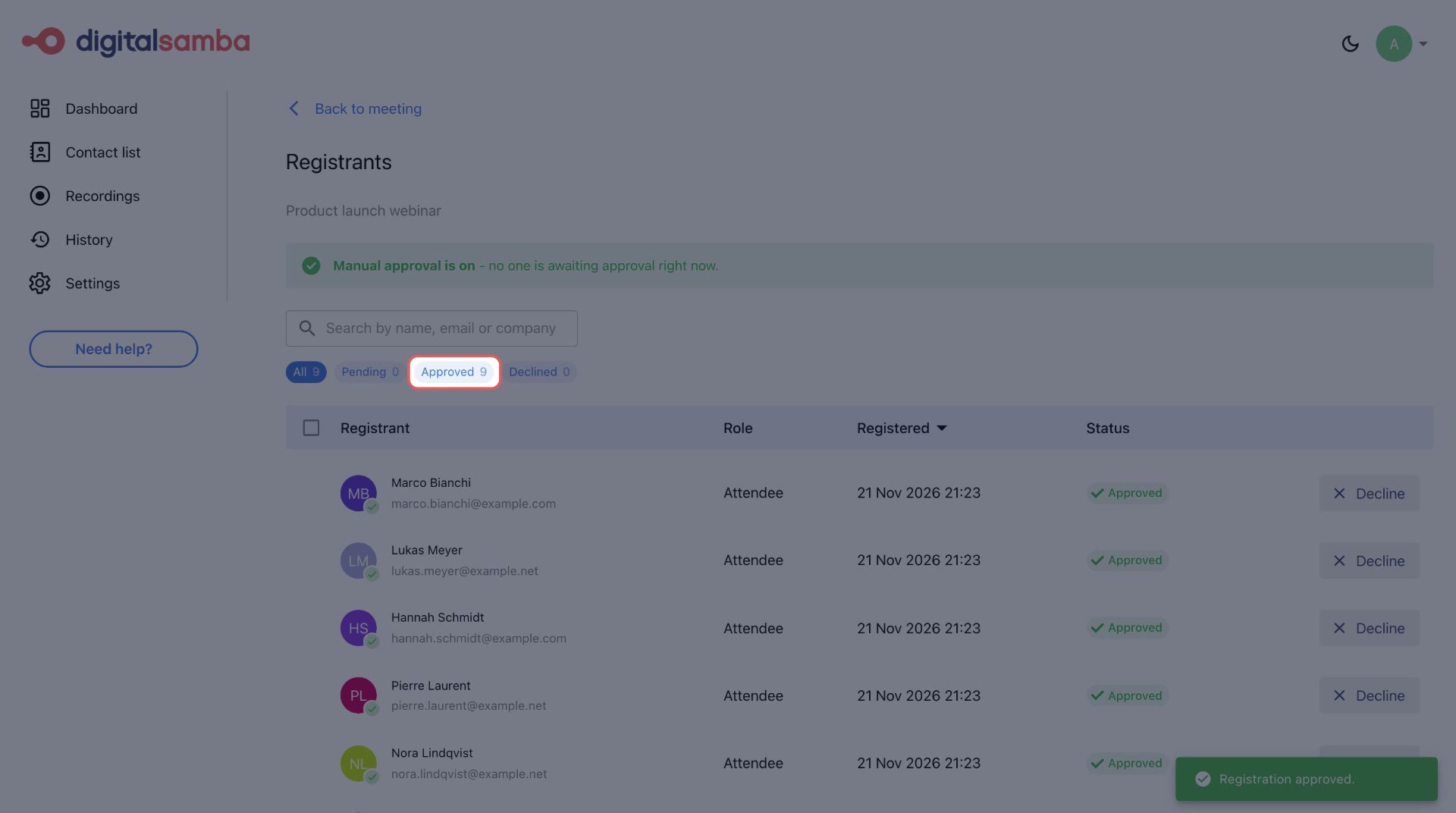
Here you can search by name, email or company, or show only Pending, Approved or Declined.
2Approve or decline0:42
Each registrant has their own Approve and Decline buttons.
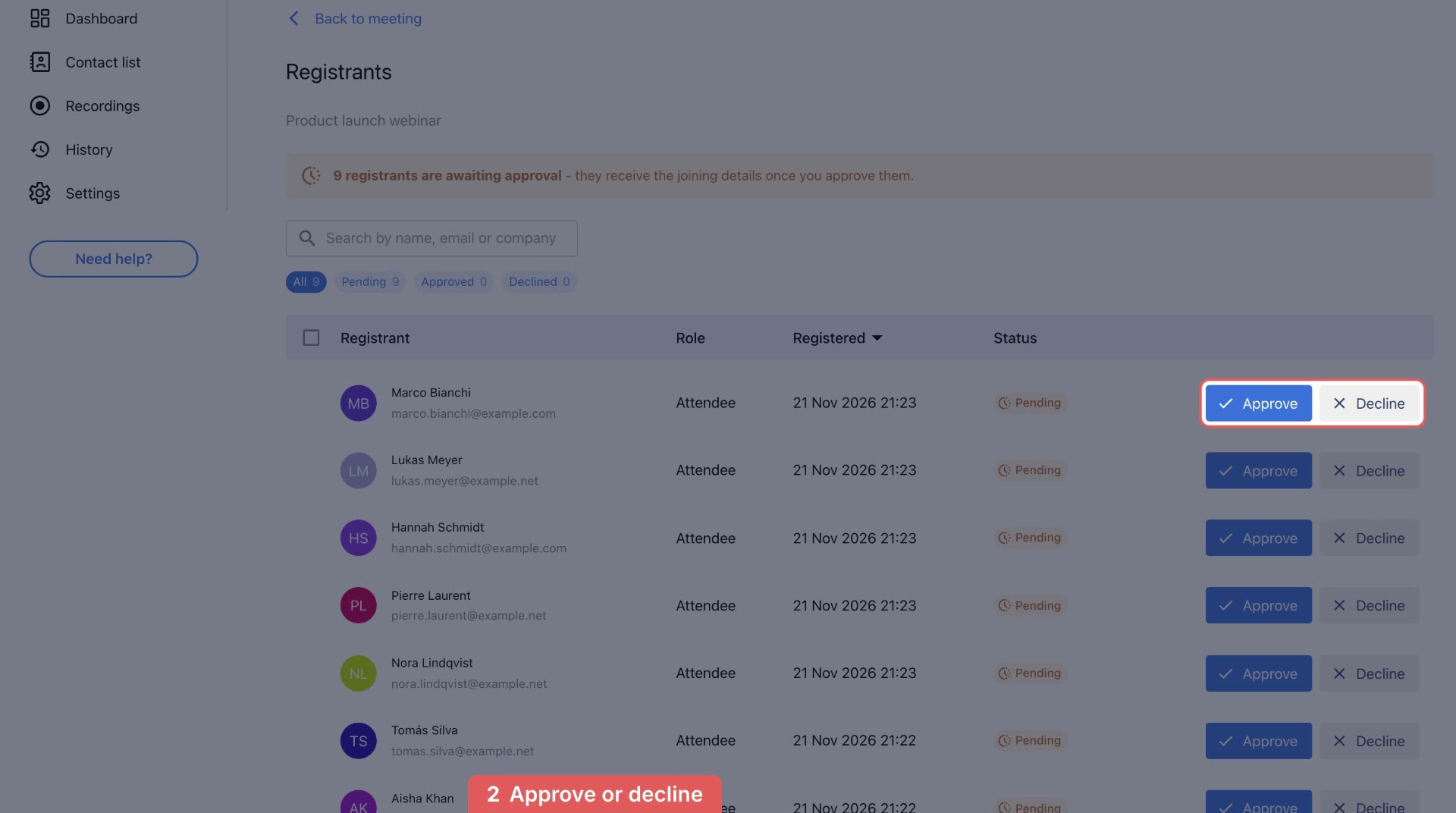
Approve Marco, and he gets an email with his personal link to join.
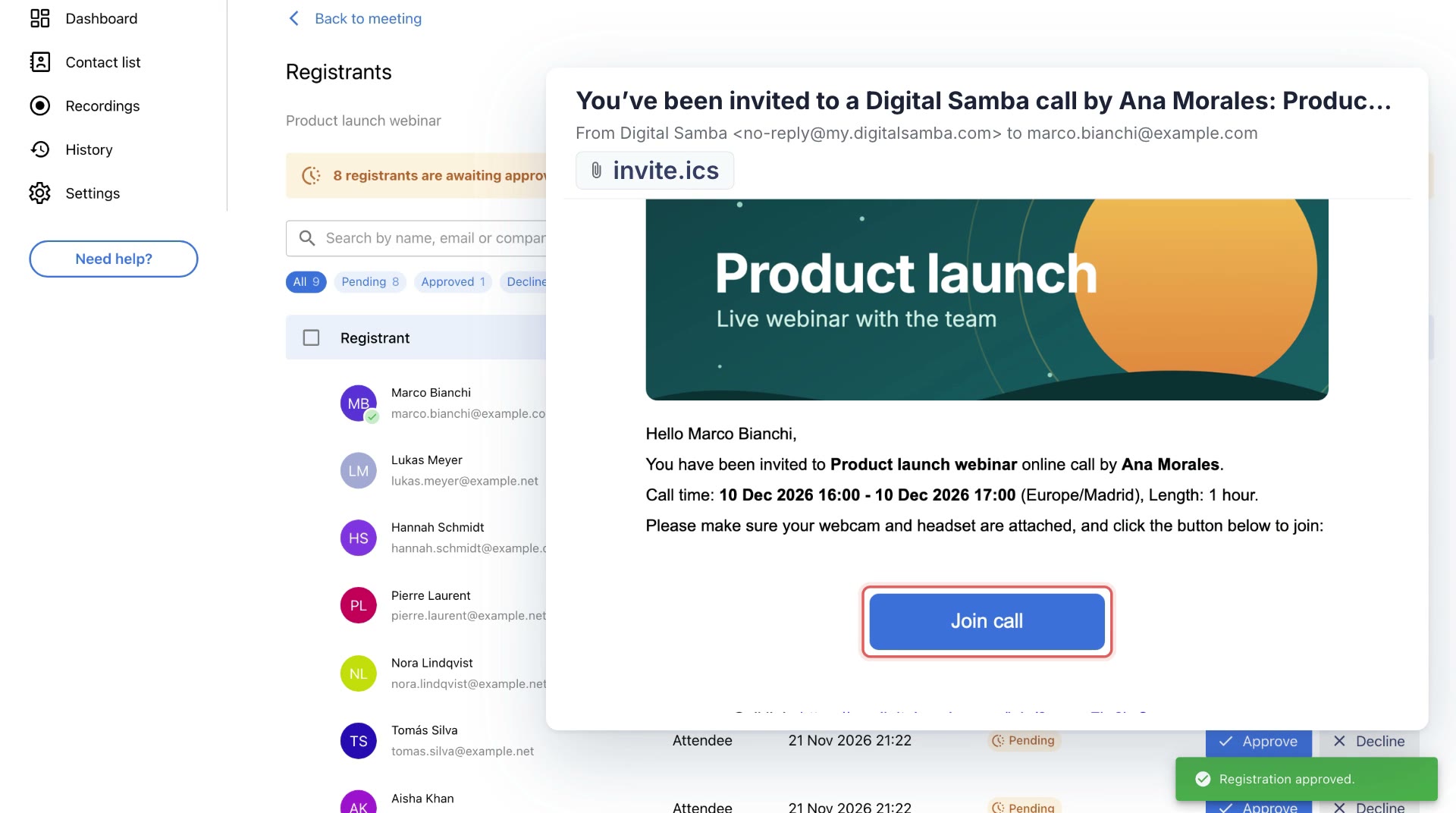
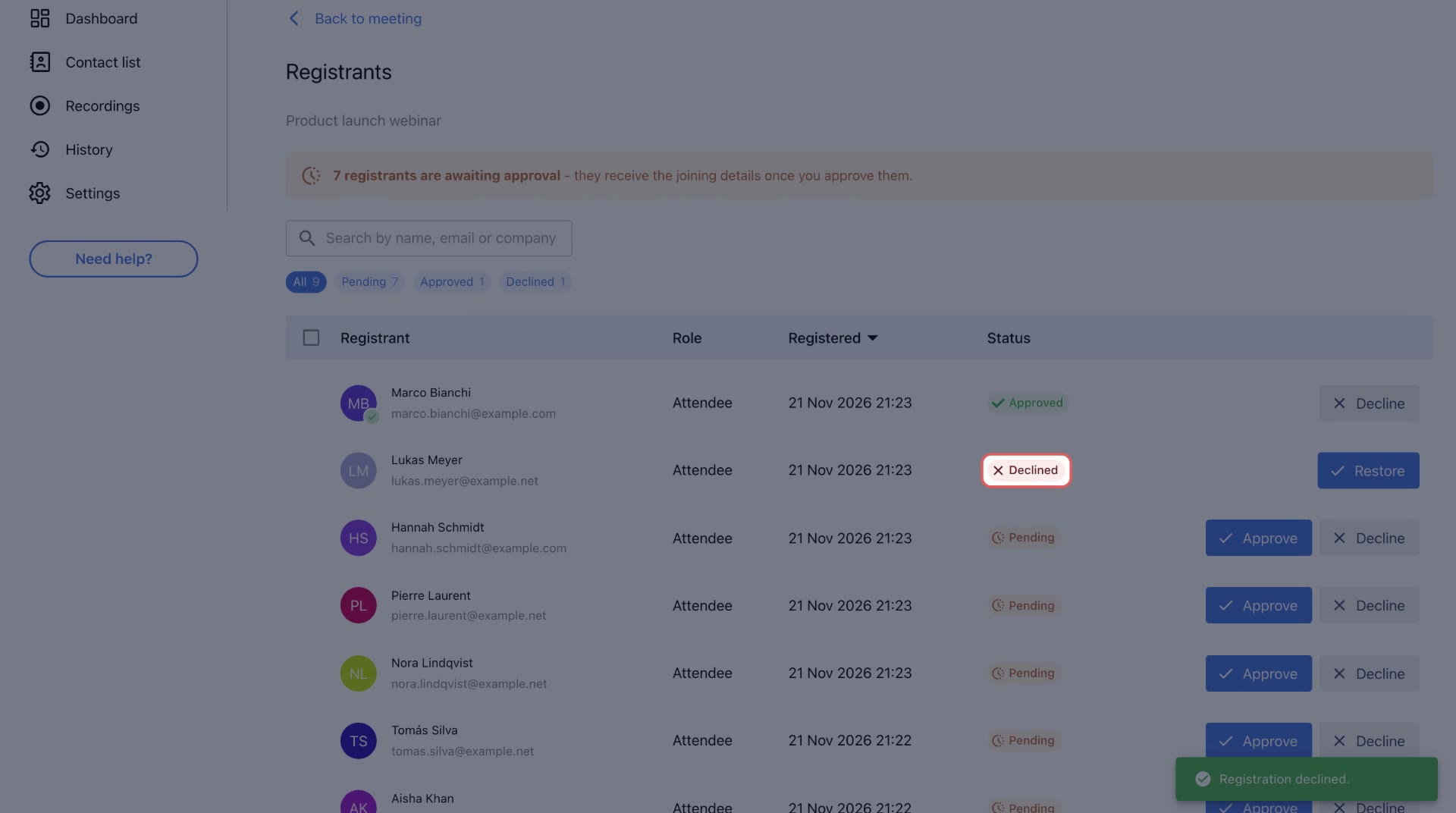
Decline Lukas, and nothing is sent: he simply never gets the joining details.
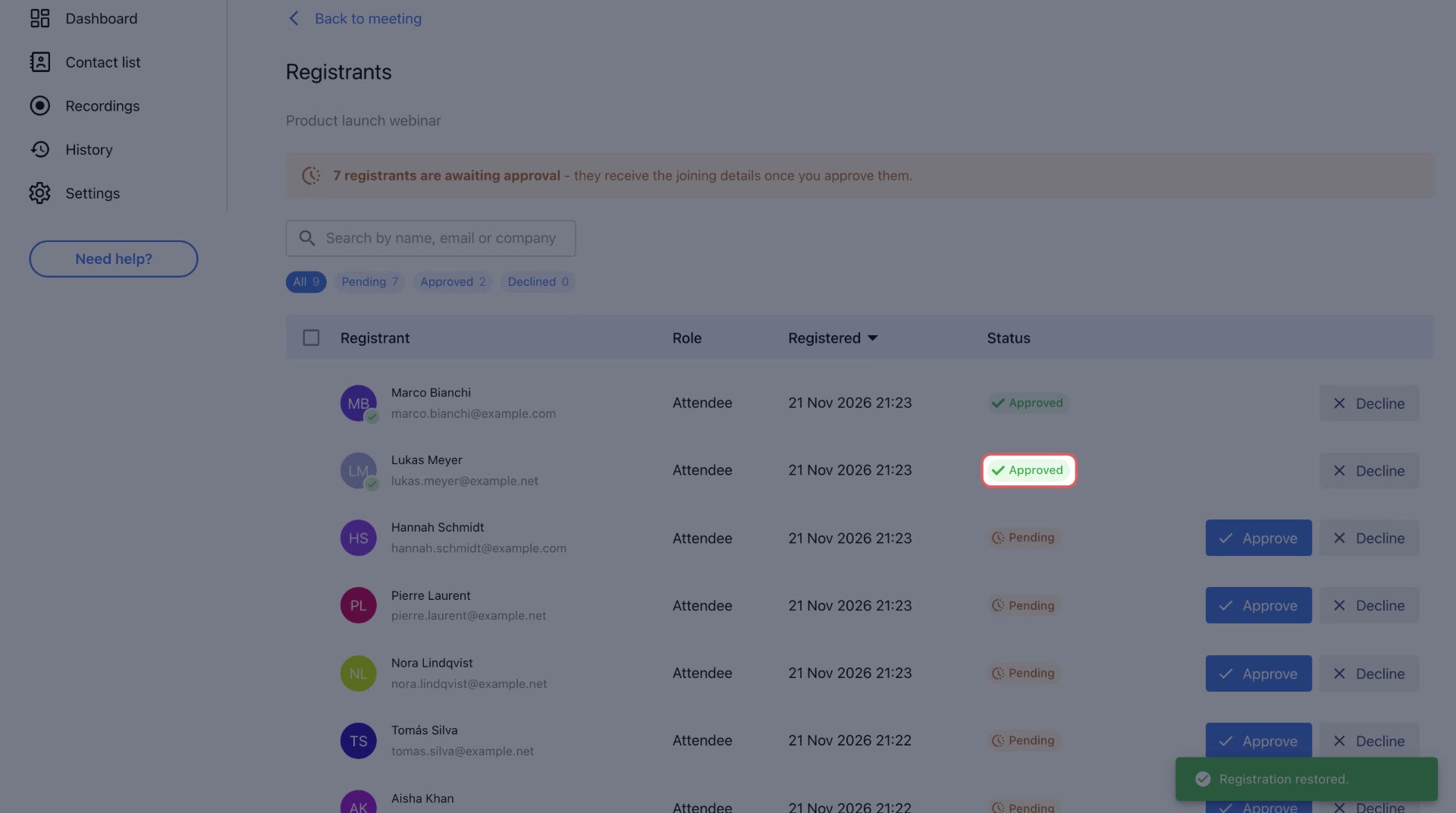
Declined by mistake? Restore approves Lukas, and his email goes out.
3Approve all1:03
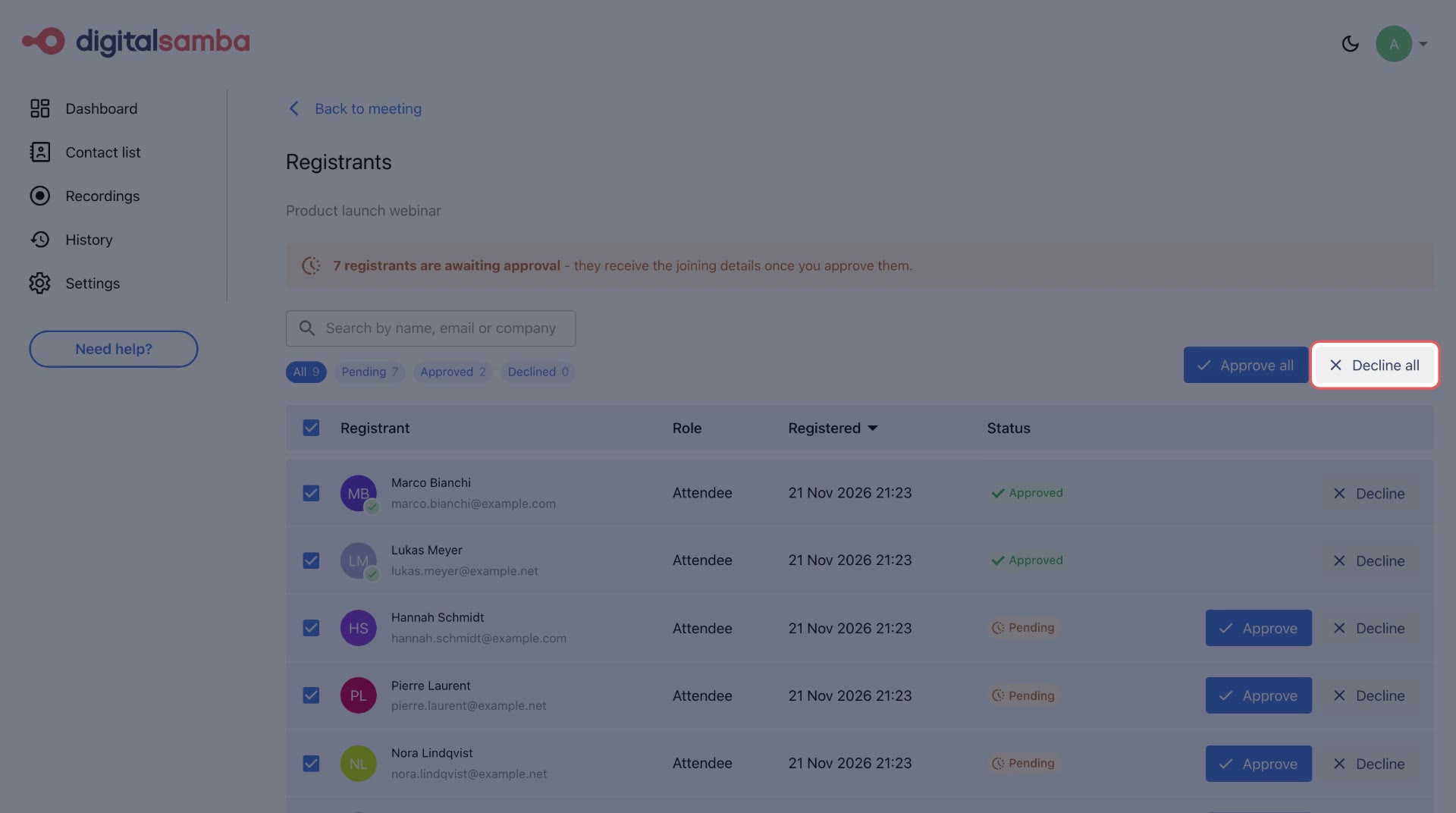
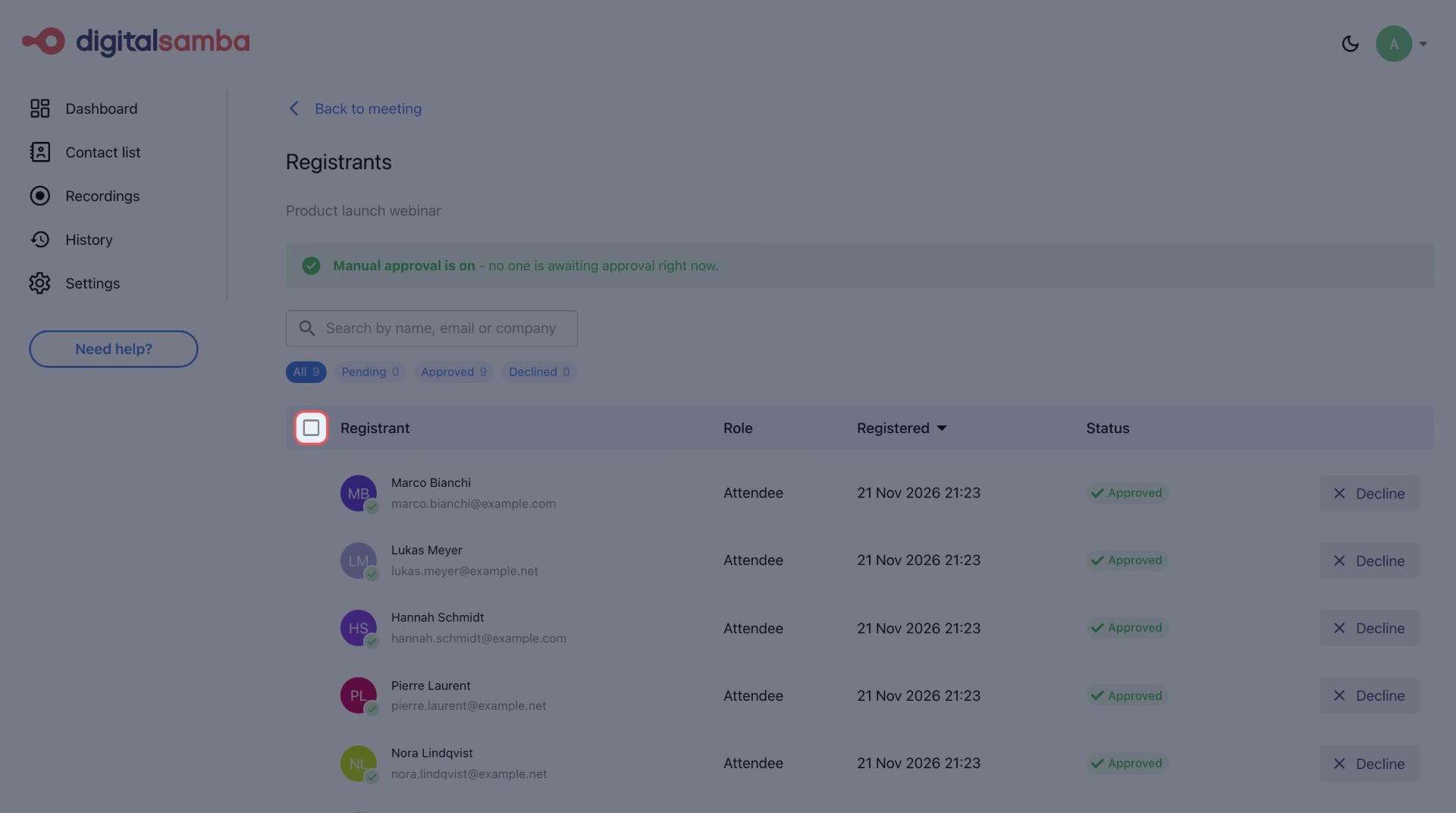
To answer many at once, tick the box at the top: it selects everyone on the page.
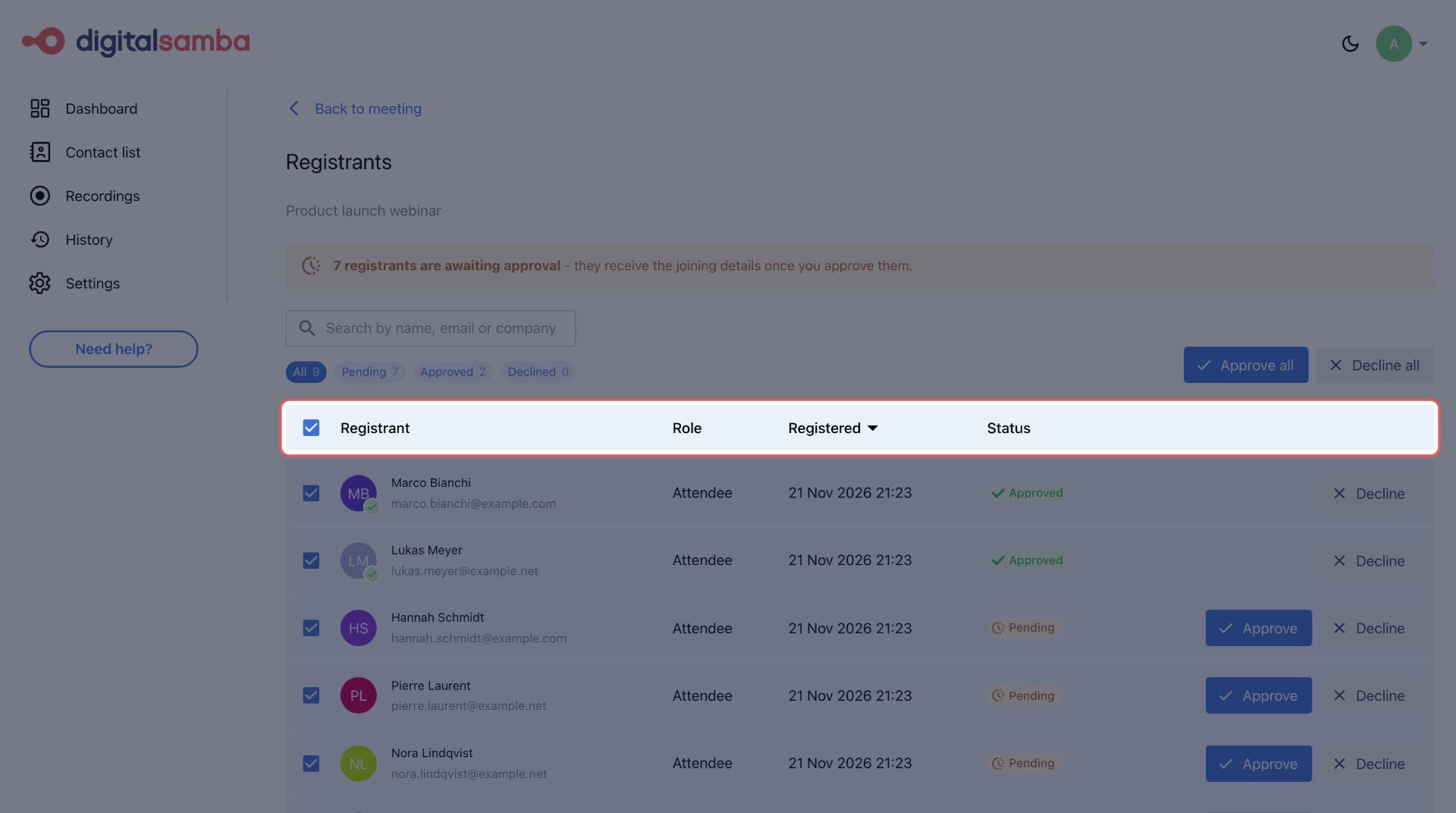
Click Approve all and confirm: the seven people still waiting are approved, and each one gets the email.
Decline all works the same way, on the people you've ticked.
Good to know1:21
Decline someone you already approved, and their join link tells them their registration was not approved.

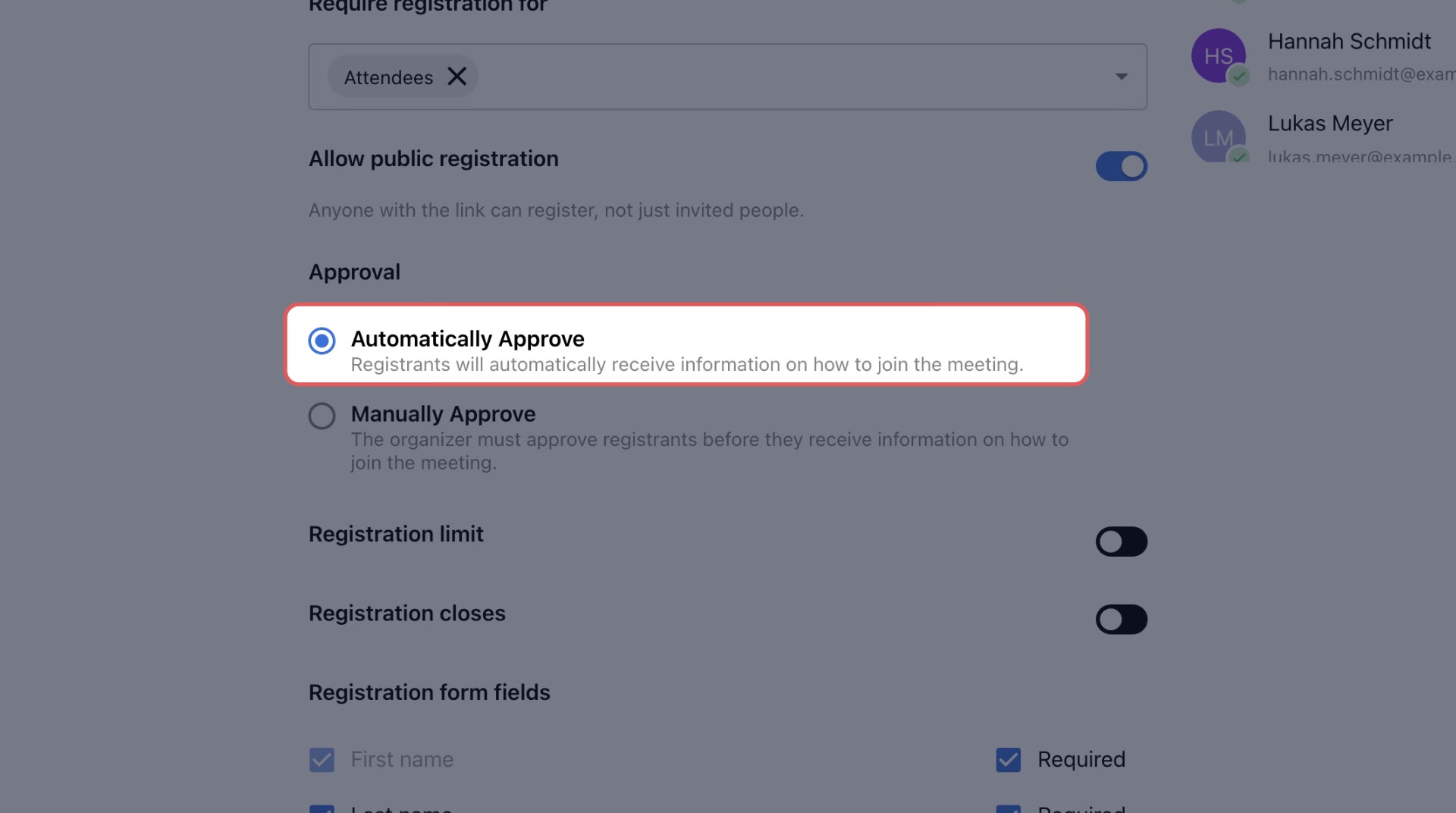
And if you switch Approval to Automatically Approve, everyone still waiting is approved and emailed at once; declined people stay declined.
Recap1:40
So: open Registrants, then approve people one at a time, or tick them and click Approve all.
Did this article help?
Sorry about that. What was the problem?