Skip to content
University
Videos
Most watched
Topics
Updates
Search the videos
Topics
Editing a call
All 16 moments in Digital Samba University that depend on this.
Edit, reschedule or cancel a call
Scheduling calls · 2:27
0:17
Edit
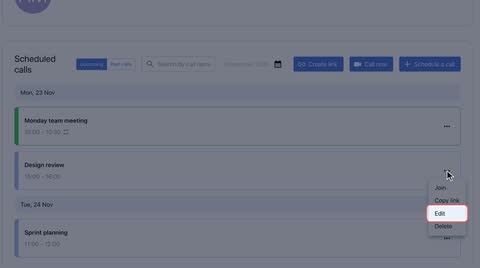
On your dashboard, open the menu on the call's card and choose Edit.
Read
0:22
Edit
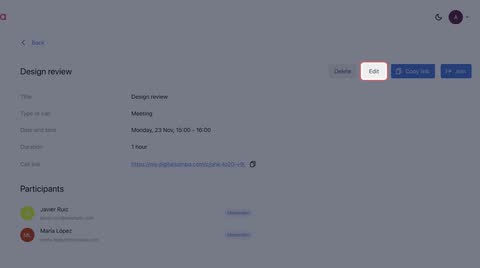
Edit is also on the call's own page.
Read
0:25
Edit
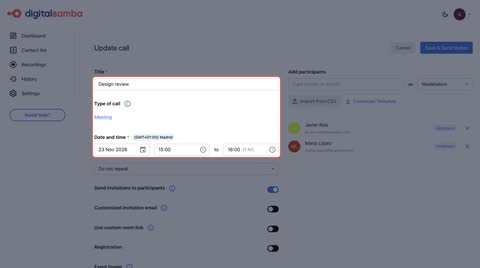
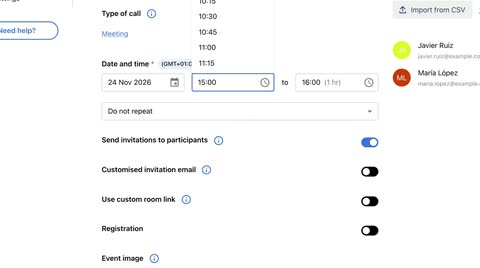
The form opens with everything already filled in.
Read
0:29
Edit
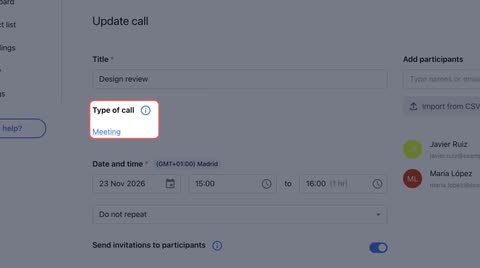
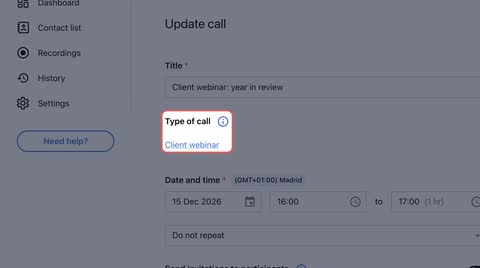
Only the Type of call is fixed: for another type, schedule a new call.
Read
0:35
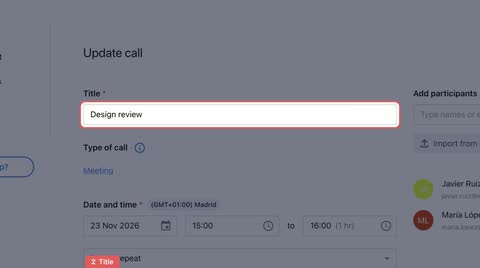
Title
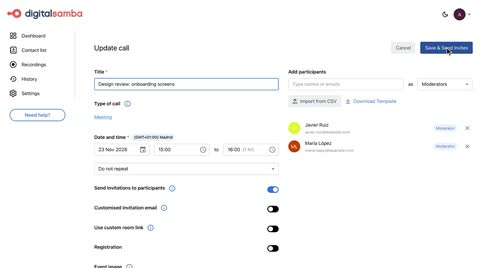
First, a clearer title: Design review: onboarding screens.
Read
0:40
Title
Click Save and Send Invites.
Read
0:43
Title
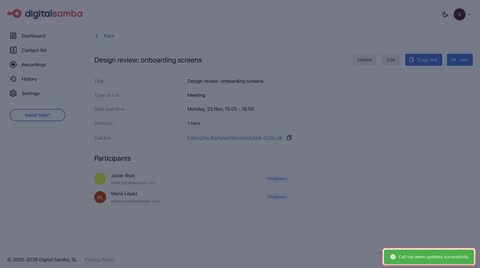
The dashboard only says the call was updated, but the emails have gone out.
Read
0:48
Title
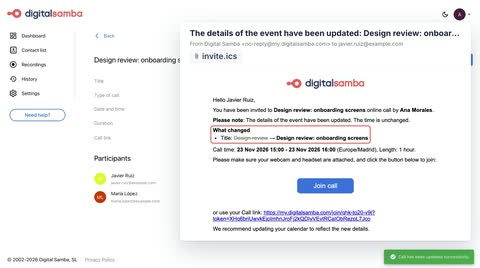
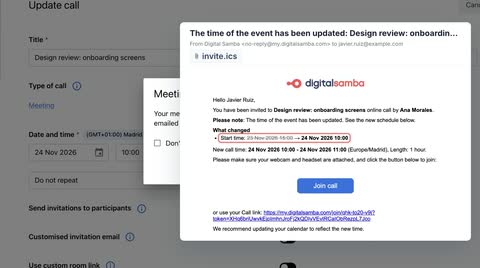
Javier and María get The details of the event have been updated, with the old title and the new one under What changed.
Read
0:58
Date and time
Now the review moves to Tuesday at ten.
Read
1:01
Date and time
Pick the new date, then the new start time.
Read
1:06
Date and time
Save, and everyone on the list gets The time of the event has been updated, with the old time crossed out and the new one.
Read
2:01
Good to know
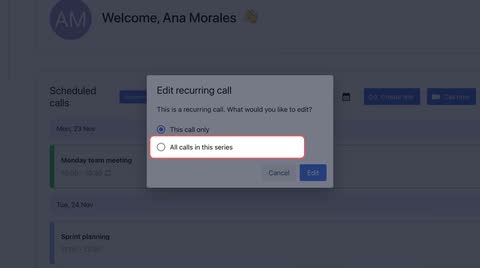
And for a recurring call, you choose between this call only and all calls in the series: see Set up a recurring call.
Read
2:11
Recap
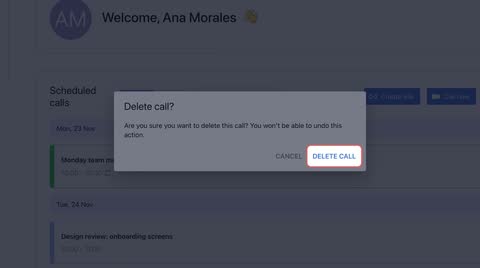
So: Edit from the card or the call's page, save to tell everyone what changed, and Delete to cancel for good.
Read
Approve and manage registrants
Webinars and registration · 1:57
1:31
Good to know
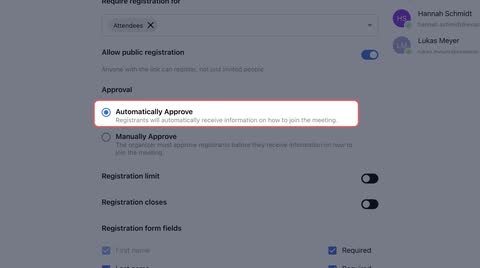
And if you switch Approval to Automatically Approve, everyone still waiting is approved and emailed at once; declined people stay declined.
Read
Types of call: Meeting, Webinar and Classroom
Customise your calls · 2:42
2:22
Good to know
And a call's type can't be changed once it's saved.
Read
Get notified with webhooks
For developers · 3:18
1:23
What arrives
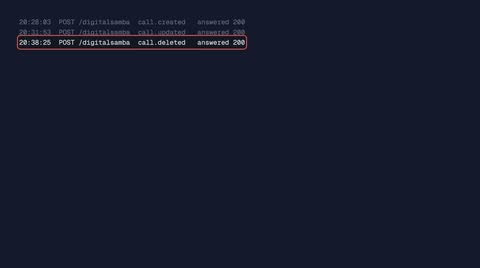
Moving the call sends call updated; deleting it sends call deleted.
Read
All topics