1Create link0:10
Our example: office hours, one standing link that Ana's team gives to its clients.
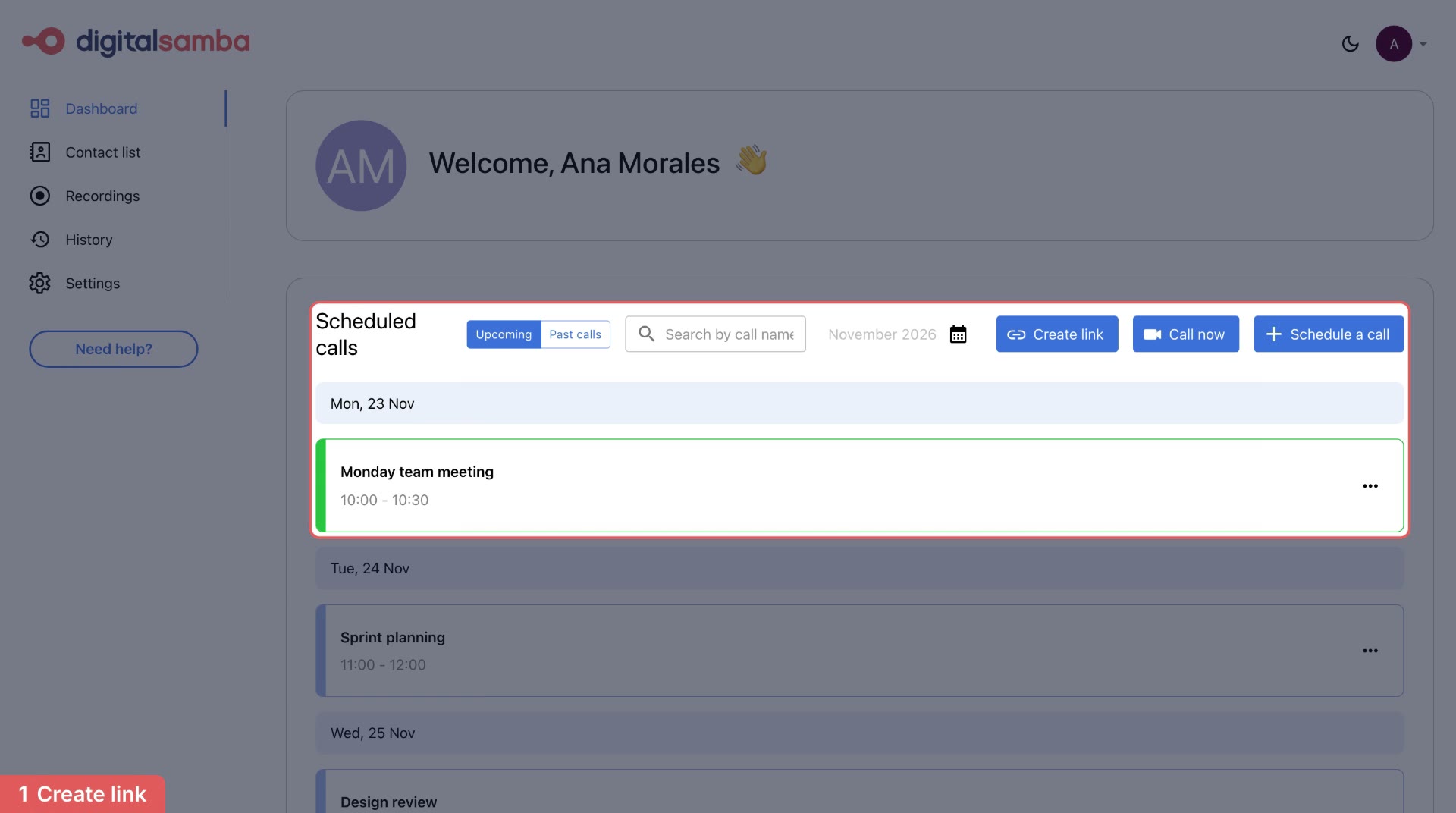
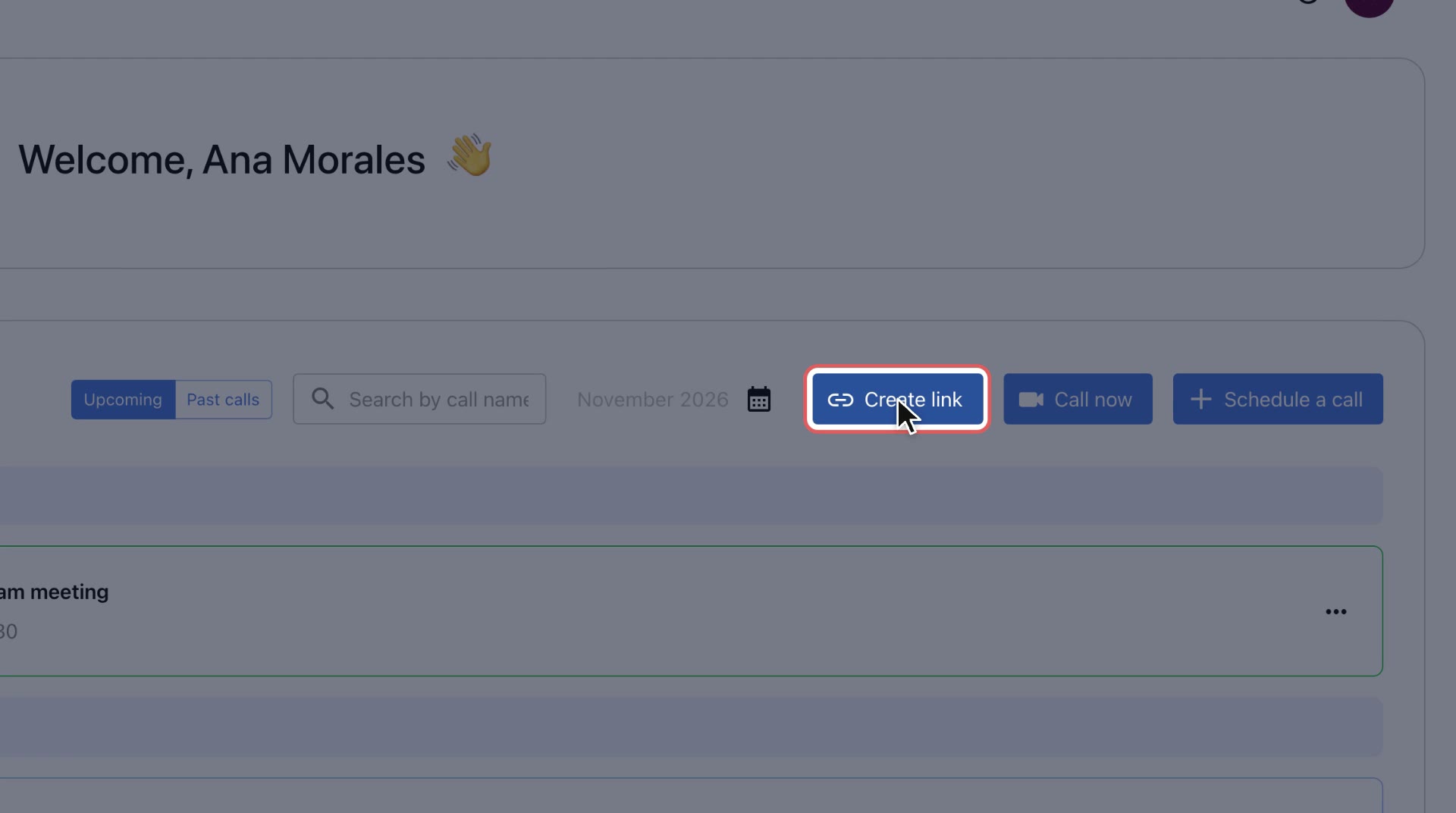
On your dashboard, click Create link.
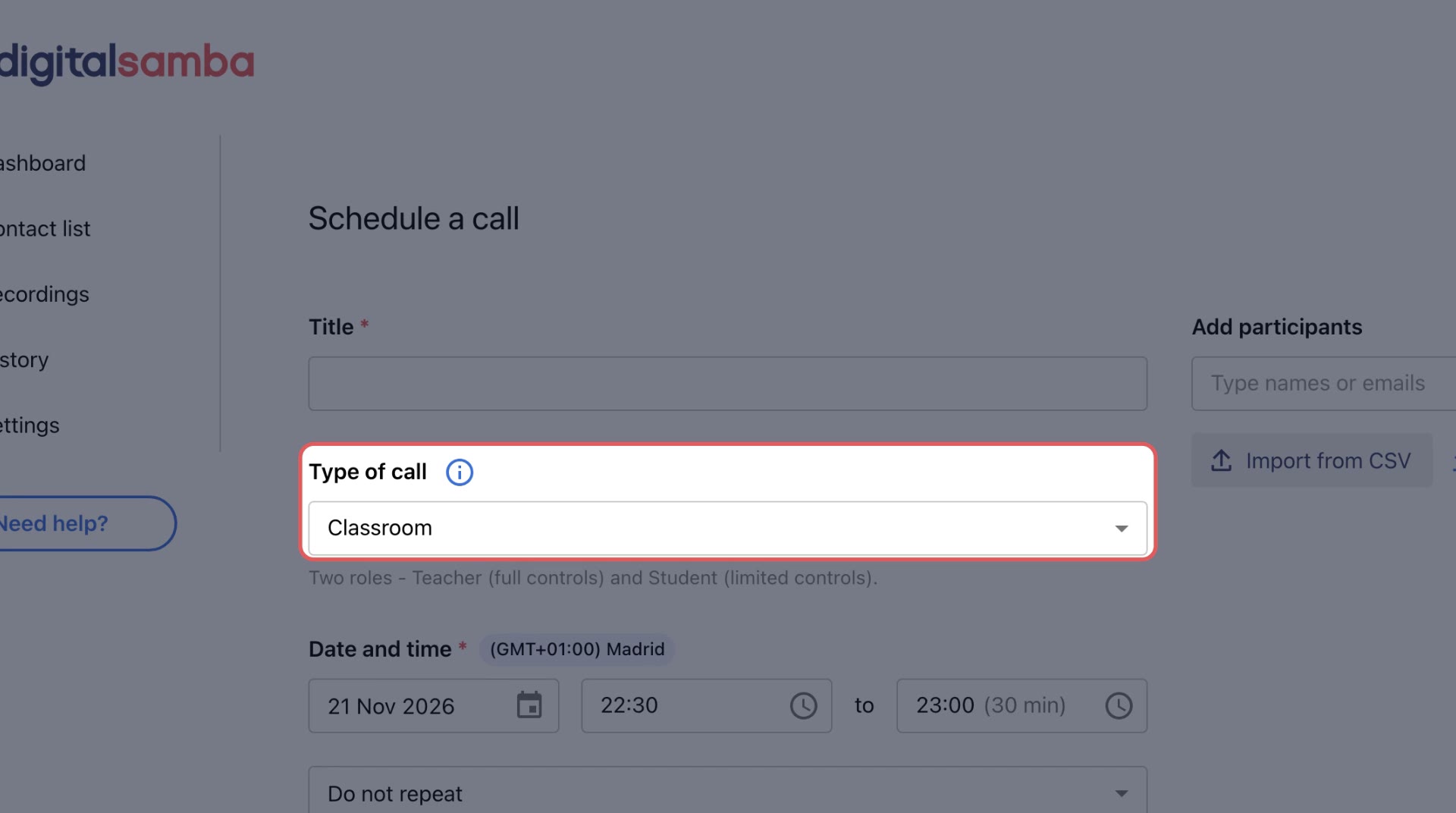
Open Type of call: each role gets its own link.
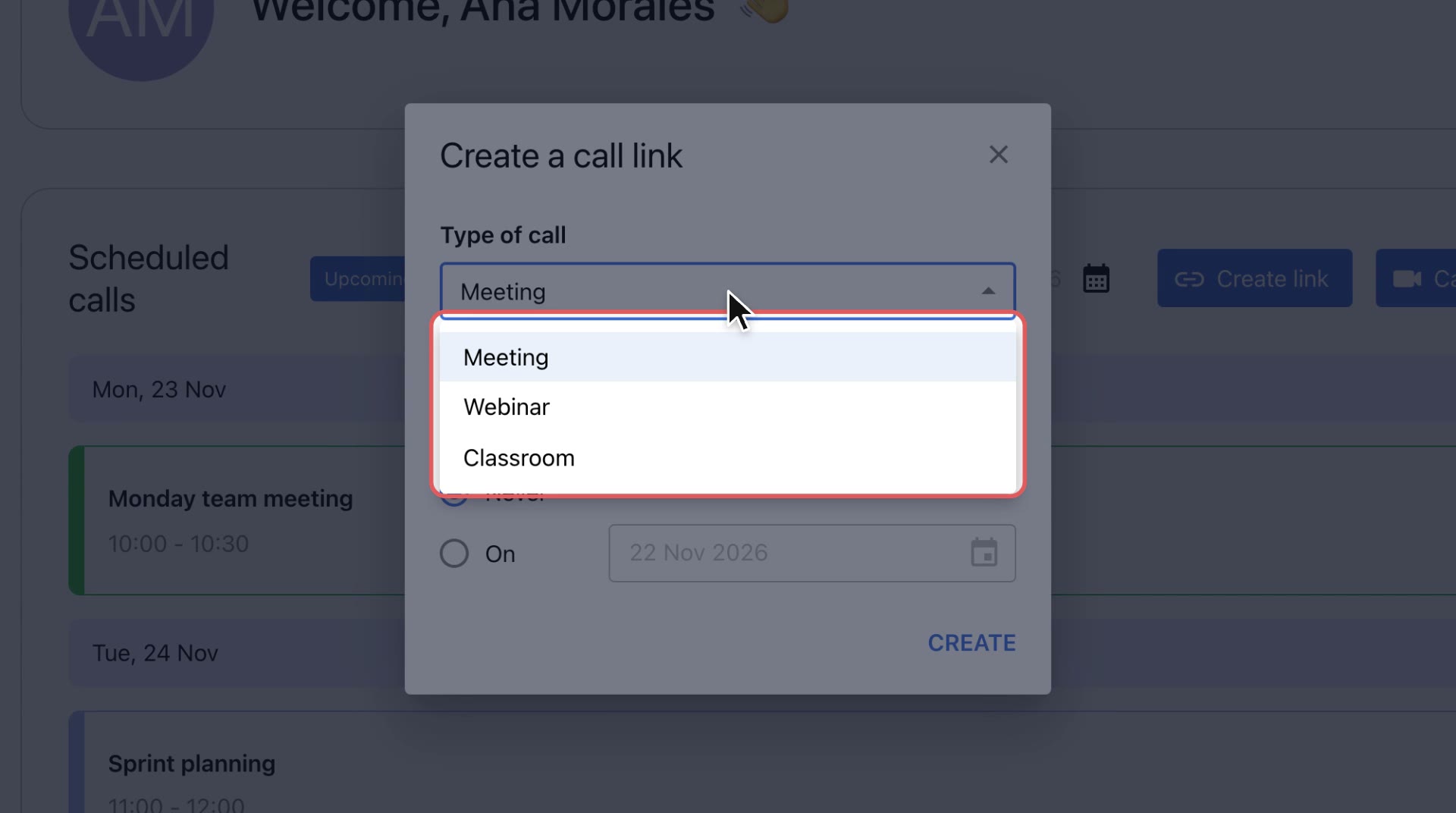
A Meeting gives one link for everyone, a Webinar three.
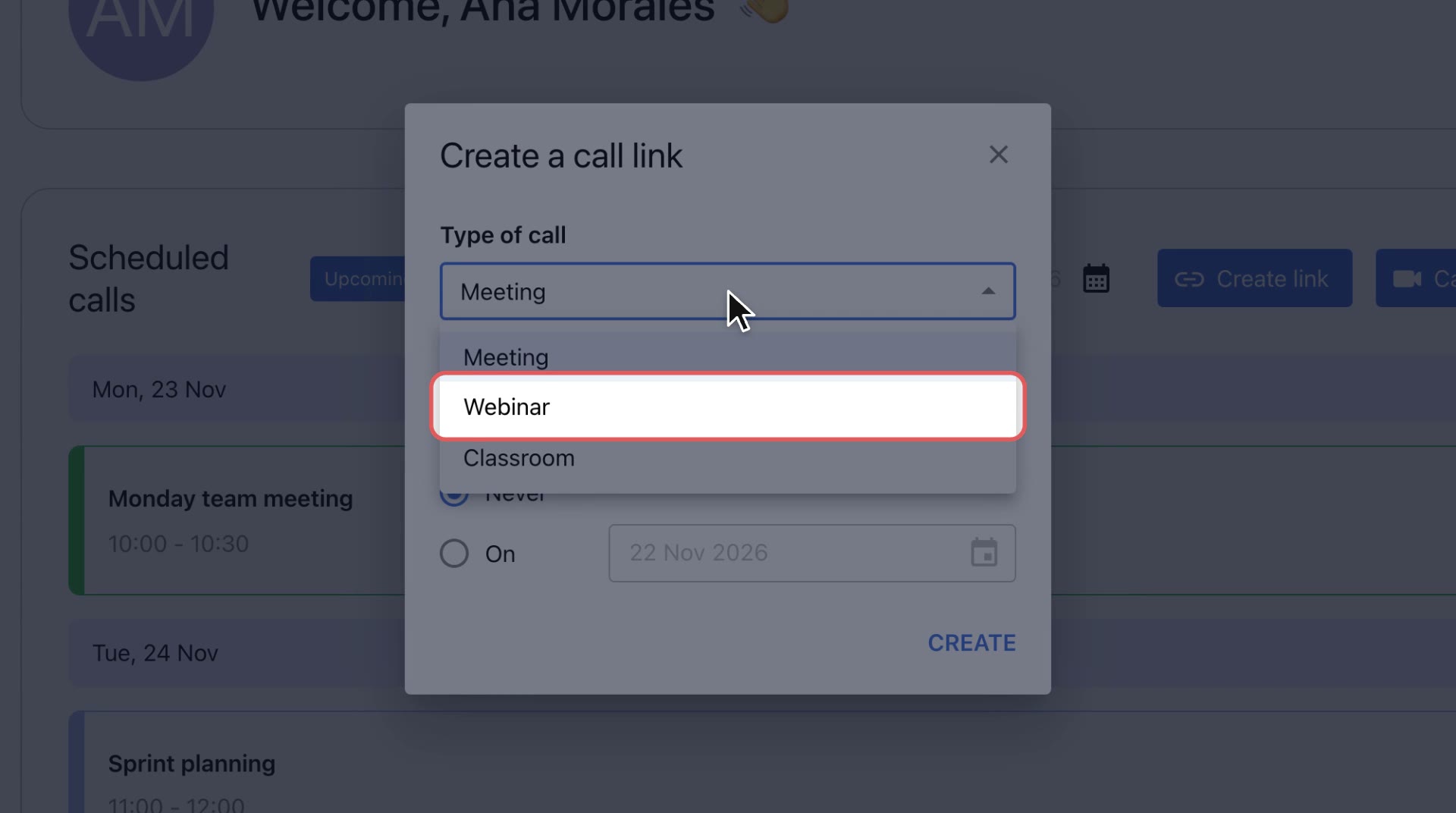
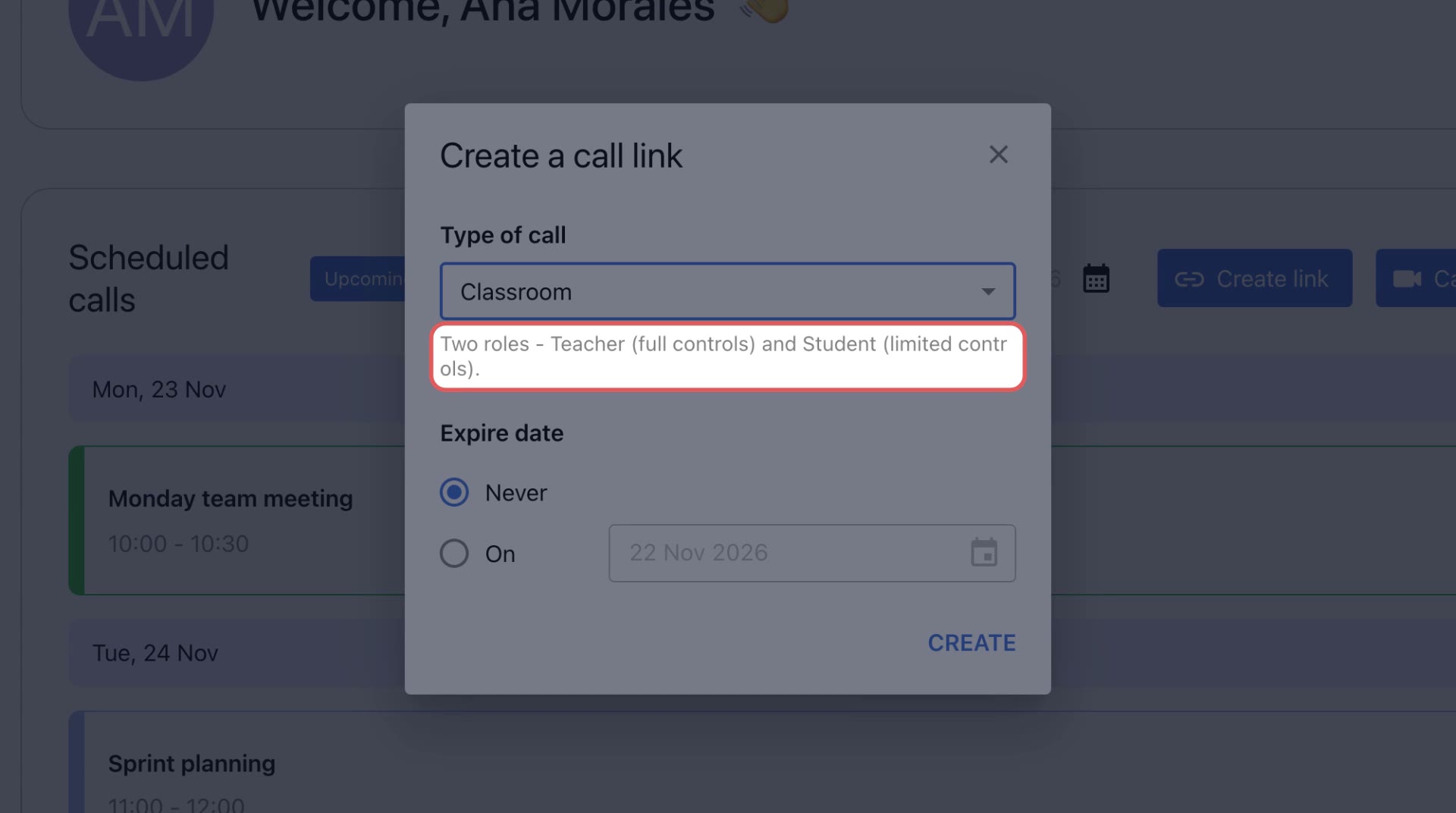
Ana chooses Classroom, with two roles: teachers for her team, students for the clients.
2Expire date0:36
Under Expire date, Never keeps the links working with no end date.
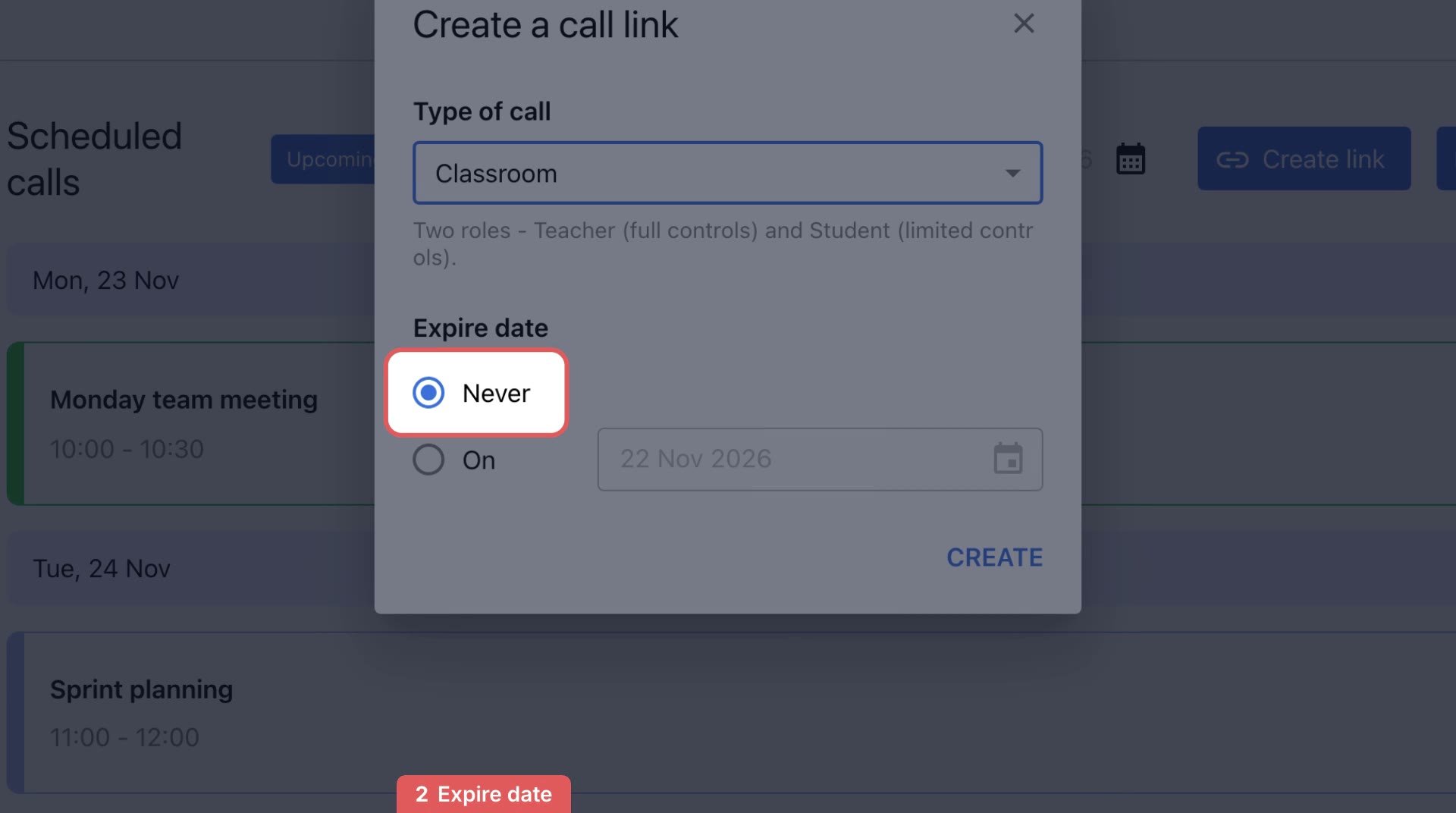
Ana chooses On and the last day of the year: the links work until the end of that day.
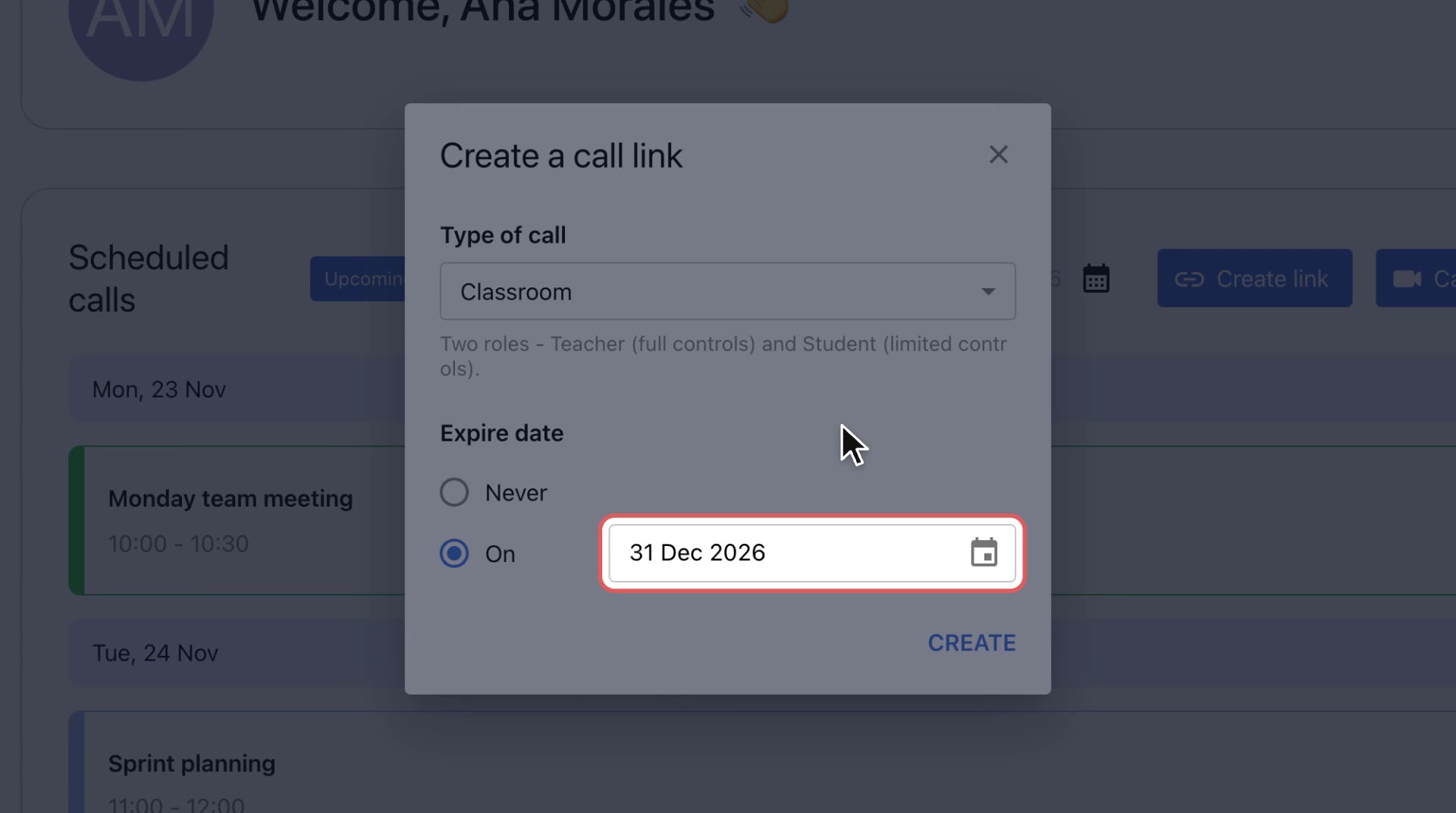
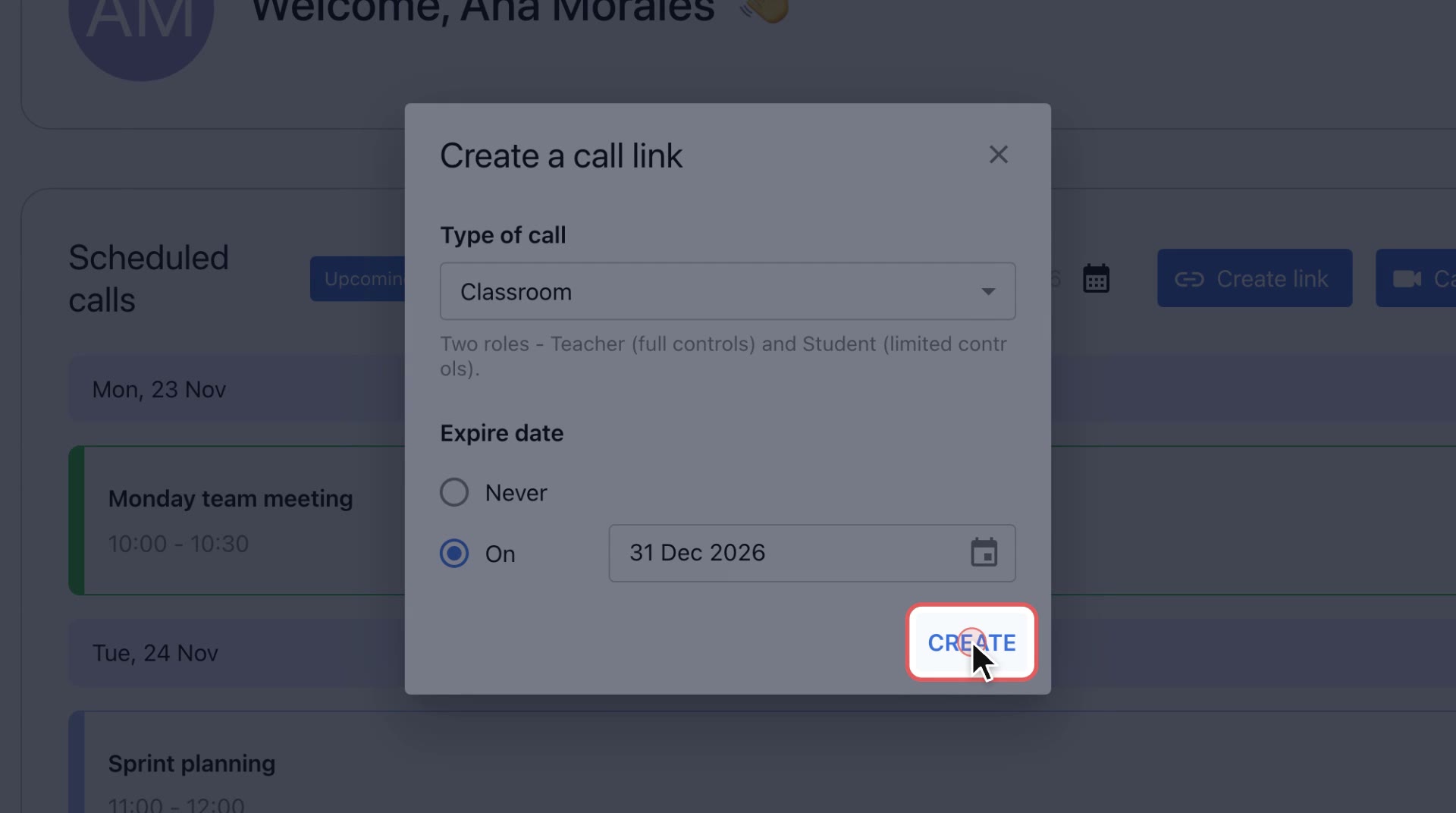
Then click Create.
3Copy your links0:50
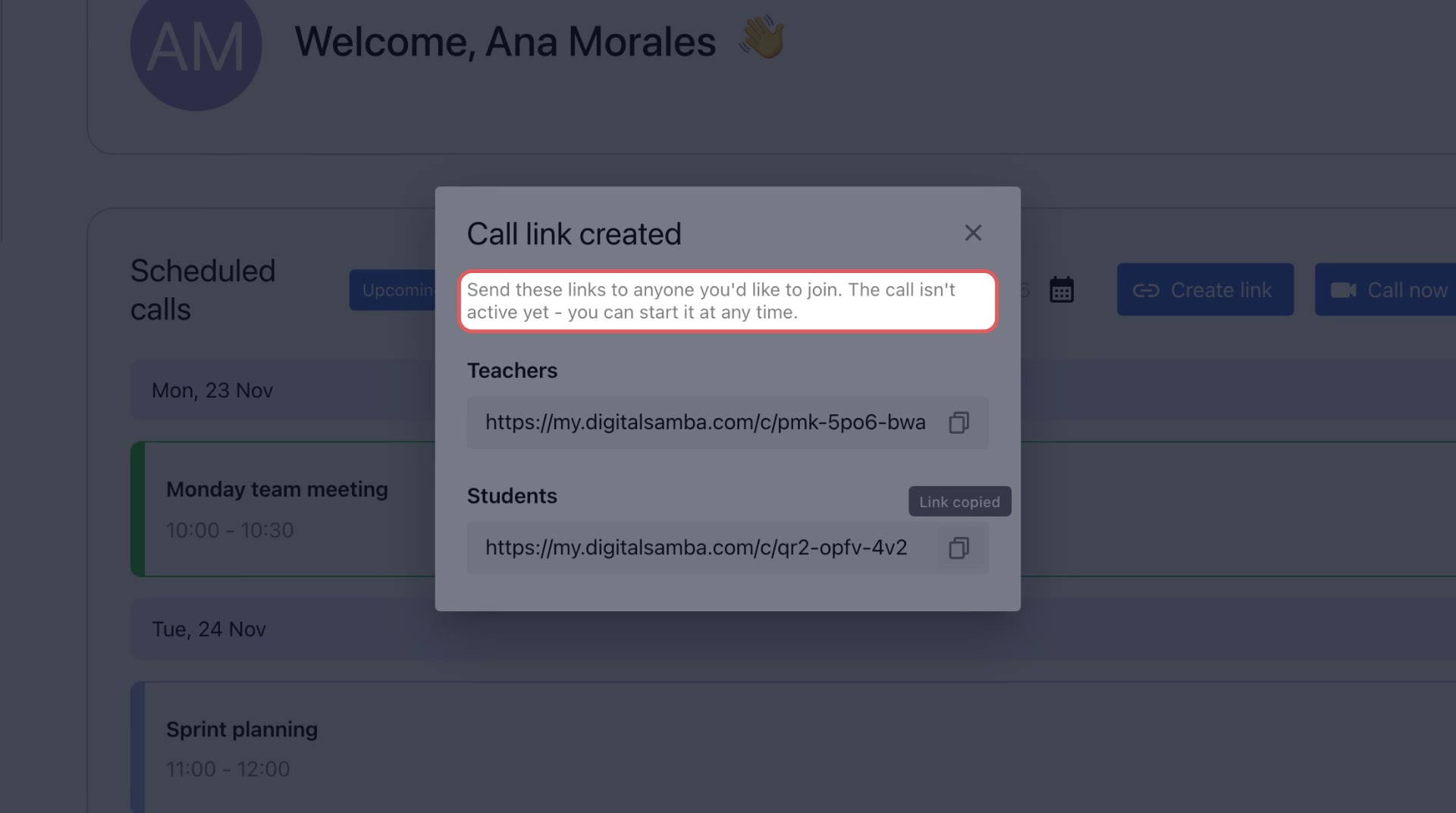
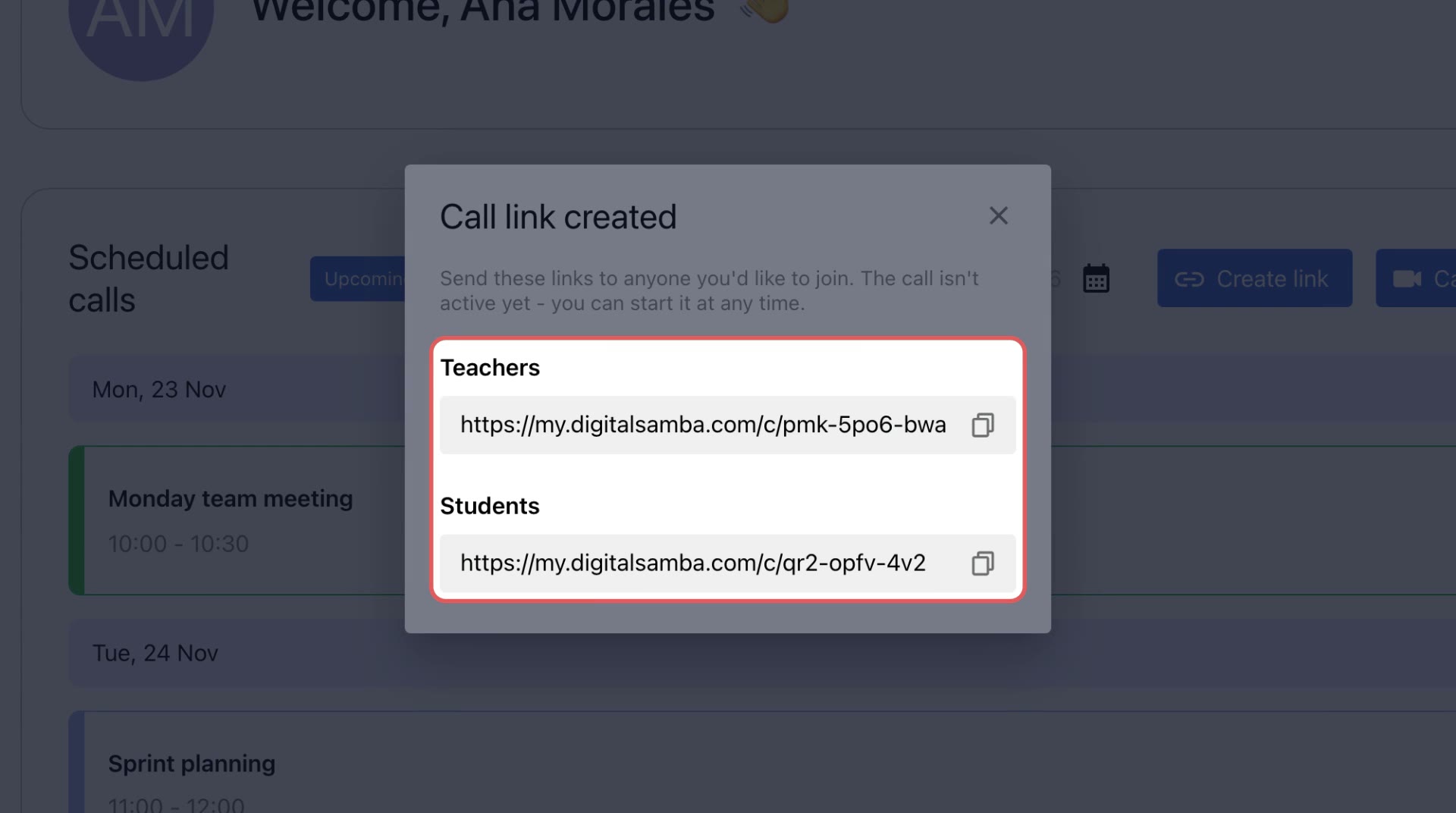
Now there's a link for each role.
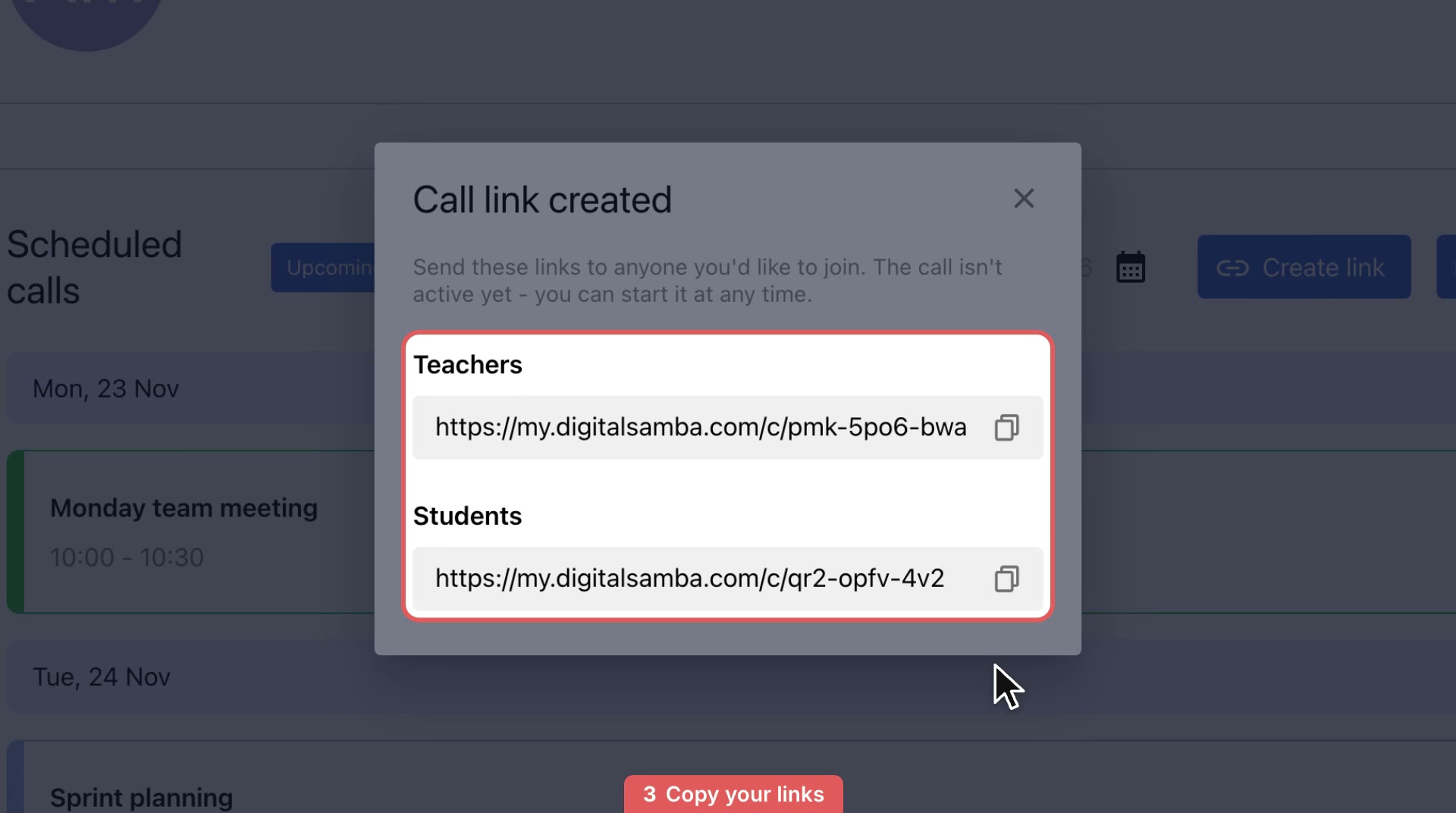
Copy the Teachers link for the team, and the Students link for the clients.
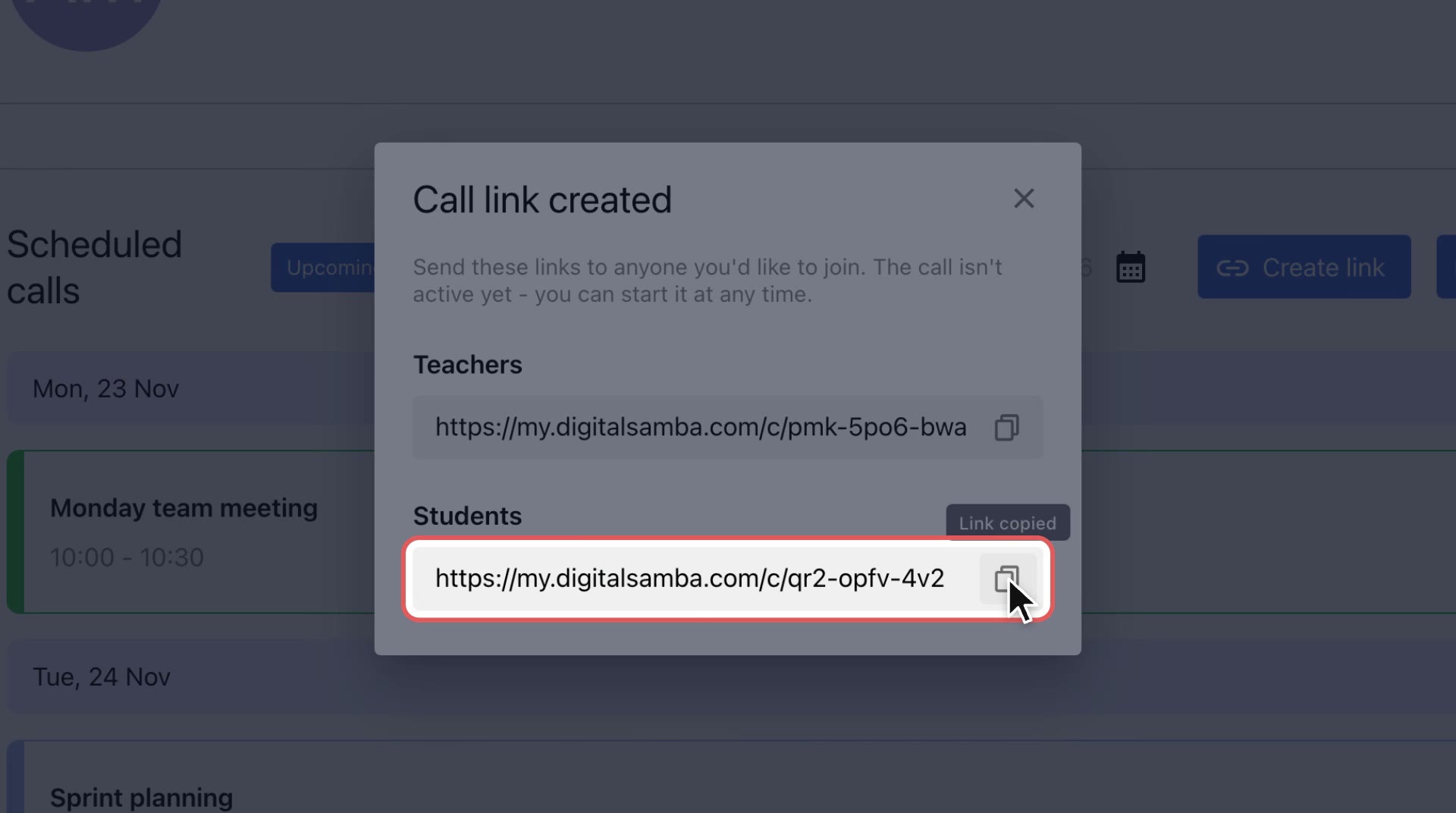
No email is sent: you share the links yourself.
4What clients see1:02
A client who opens the Students link sees this page, headed by the link's own code.
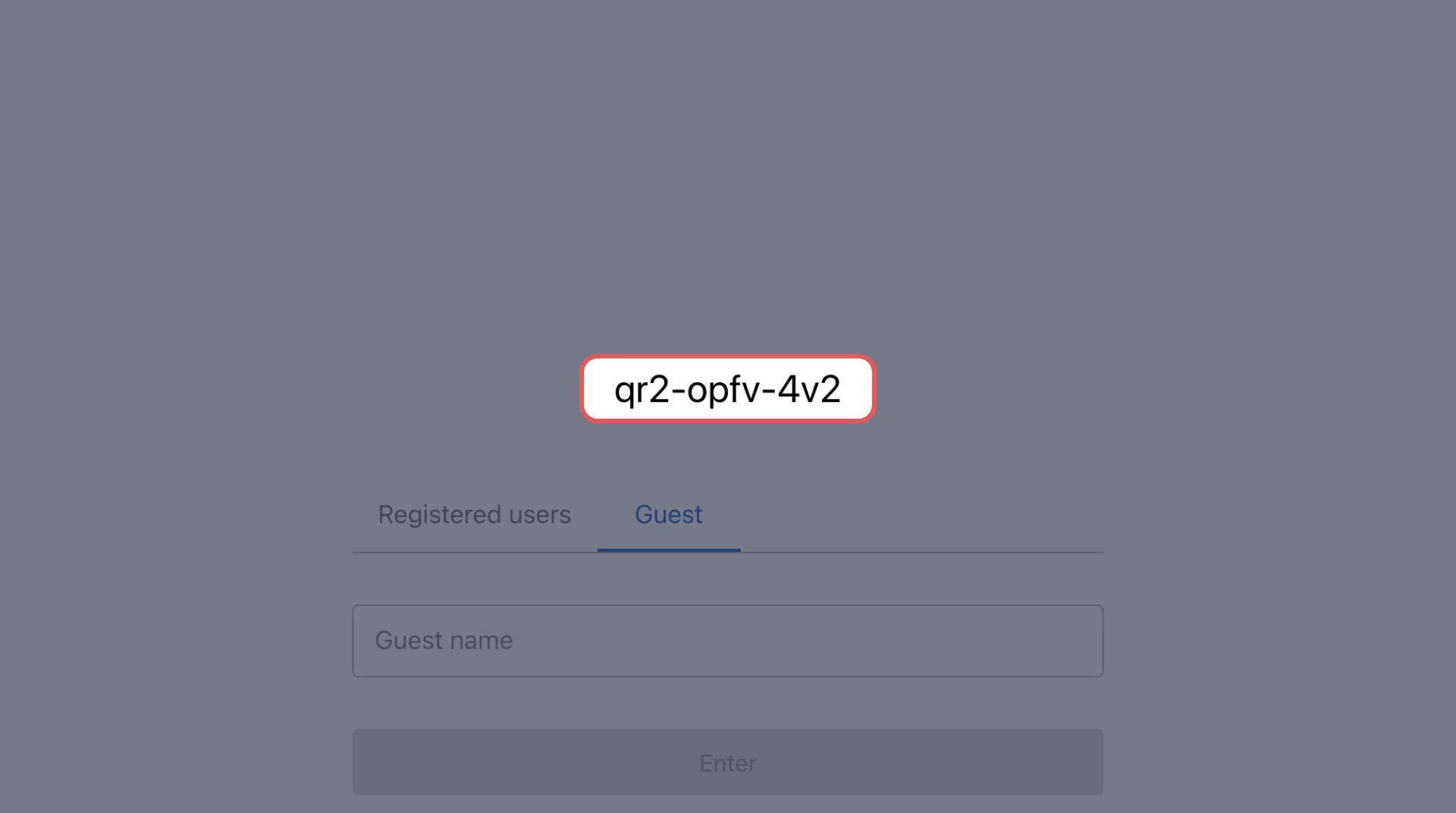
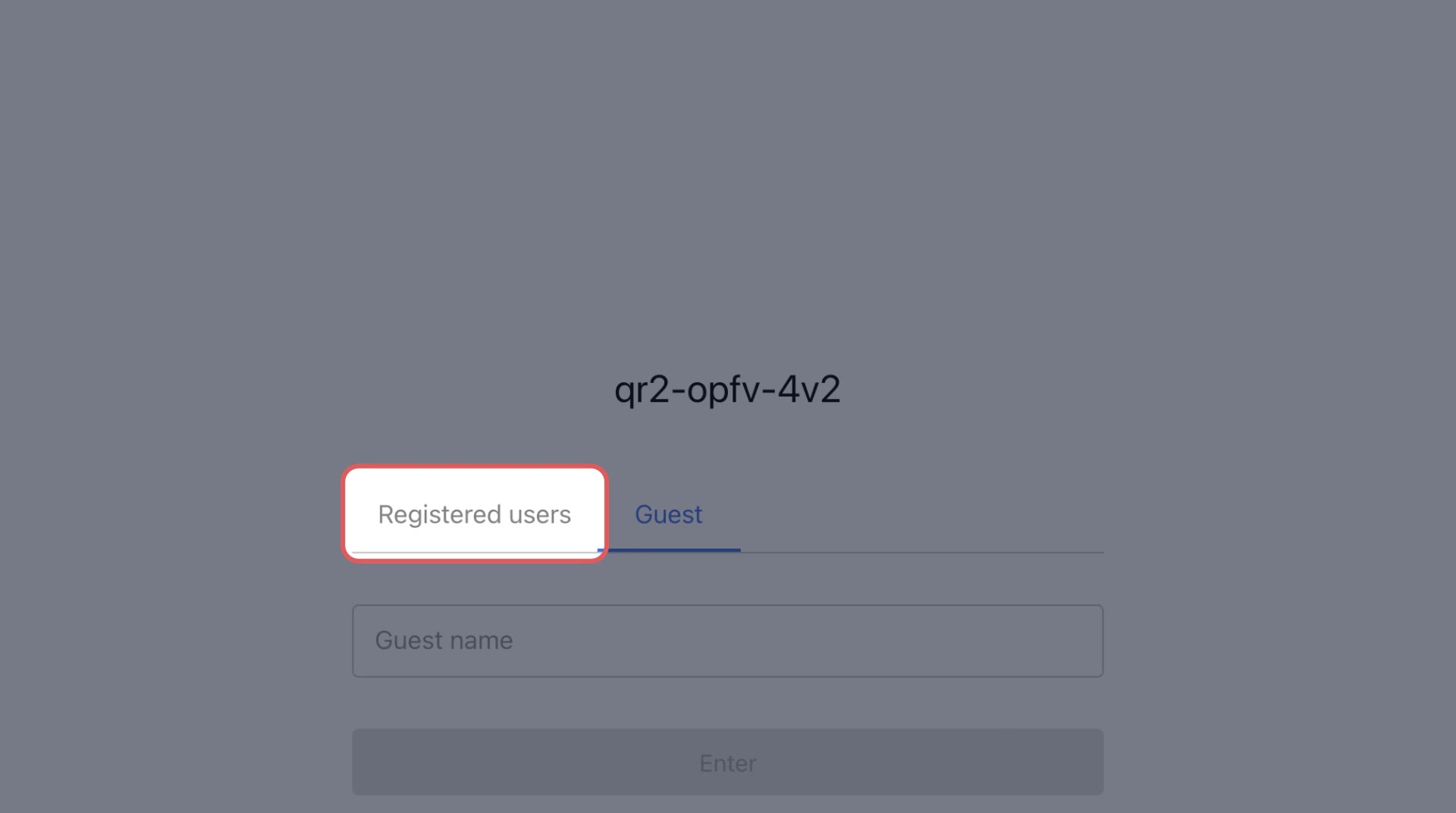
Guests type a name and click Enter; people with an account use Registered users.
Good to know1:15
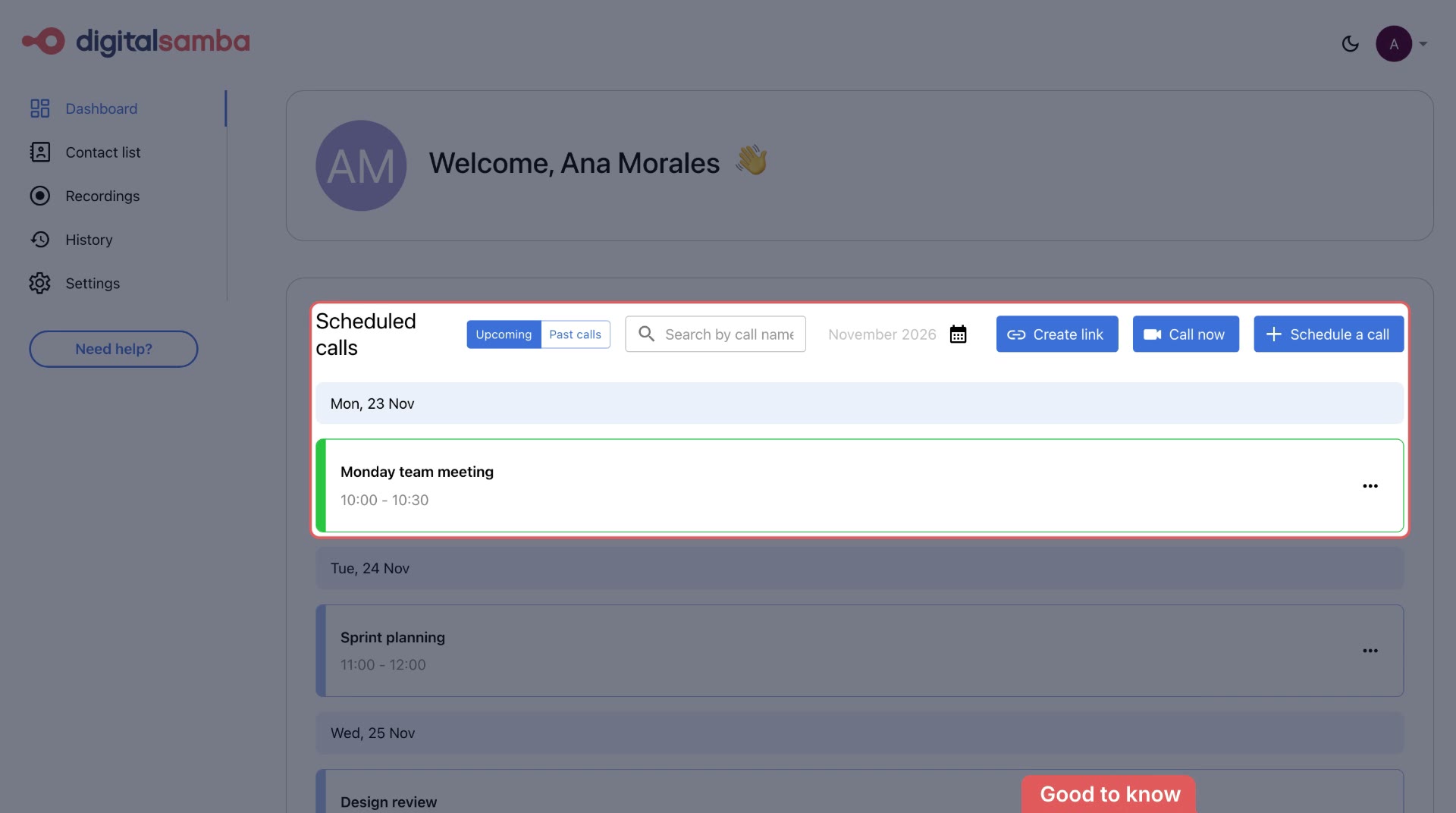
Call links don't appear in your list of calls, so keep them somewhere safe.
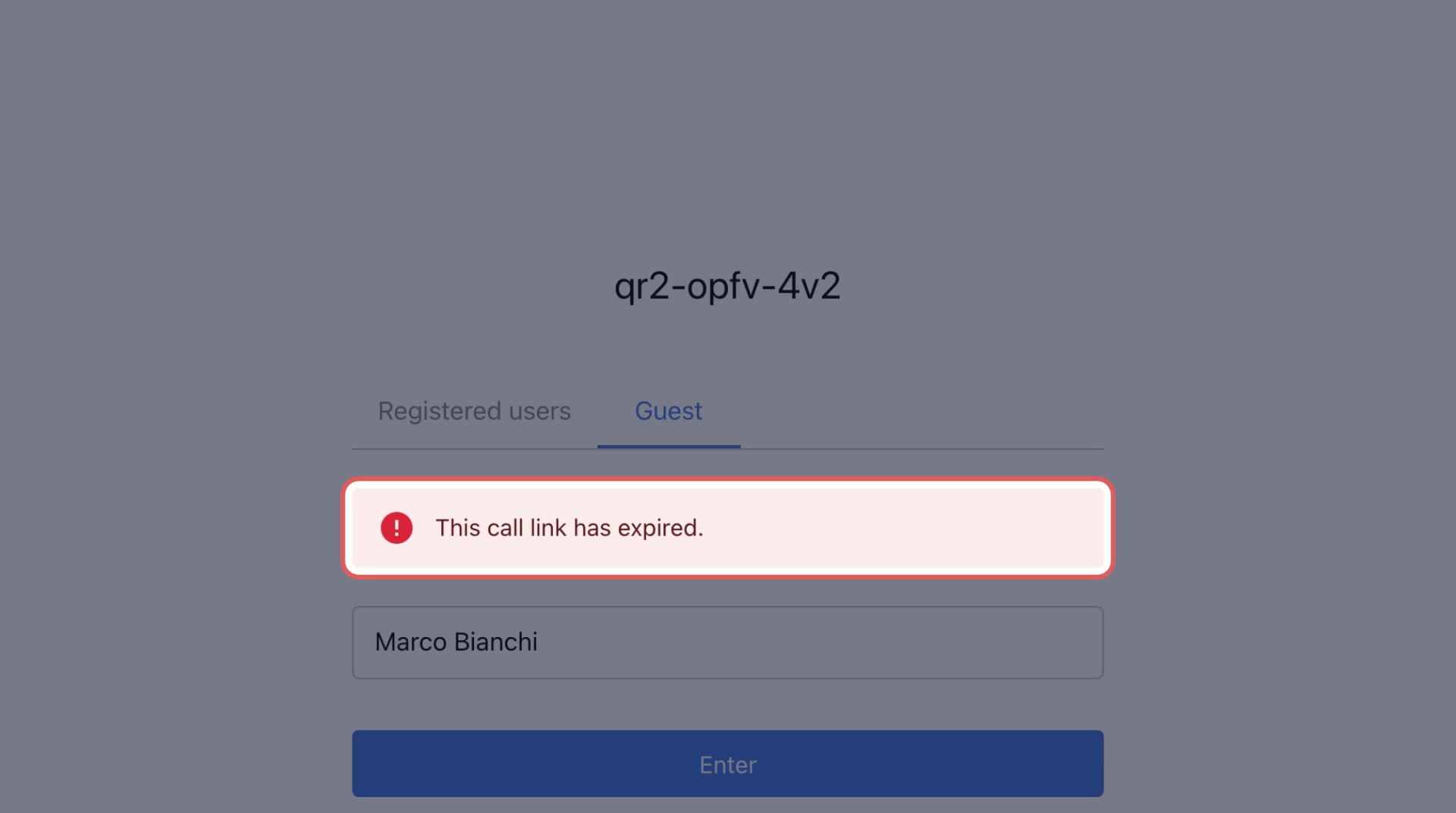
After the expire date, the page still opens, but Enter says: This call link has expired.
And the type of call you choose here becomes the default for your next call.
Recap1:33
So: click Create link, choose the type and the expire date, click Create, and copy a link for each role.
Did this article help?
Sorry about that. What was the problem?