Skip to content
University
Videos
Most watched
Topics
Updates
Search the videos
Topics
Roles
All 37 moments in Digital Samba University that depend on this.
Start here: Digital Samba in 90 seconds
1:36
0:01
Introduction
In this video, you'll see what you can do with Digital Samba, from a quick meeting to a webinar, and how this series is organised.
Read
0:40
Registration
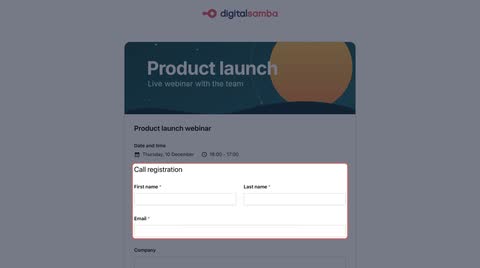
For the Product launch webinar, she turns on registration, and people sign up on a page of its own.
Read
Your dashboard at a glance
Getting started · 2:12
0:49
Call cards
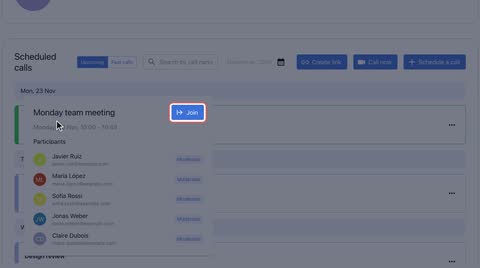
Point at a call's name, and a panel shows who's invited, with a Join button.
Read
1:29
Menus
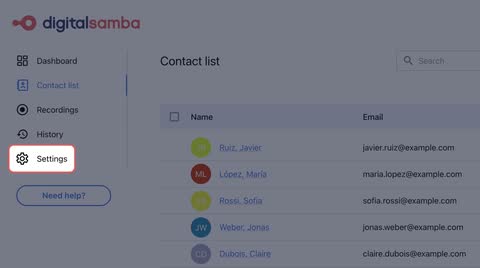
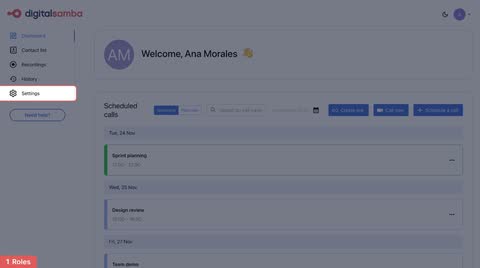
Settings holds your roles and templates.
Read
Create a call link to share
Start a call now · 1:50
0:22
Create link
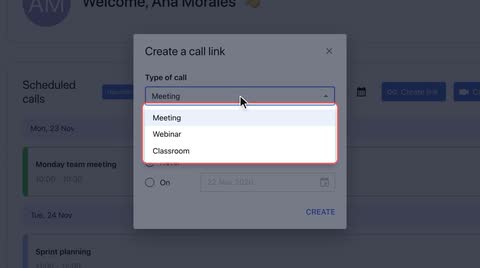
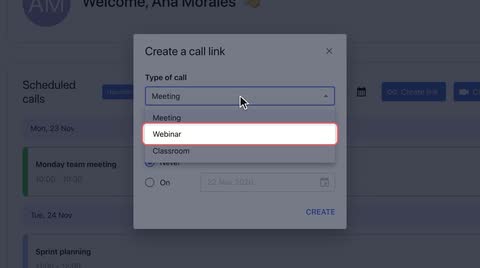
Open Type of call: each role gets its own link.
Read
0:26
Create link
A Meeting gives one link for everyone, a Webinar three.
Read
0:30
Create link
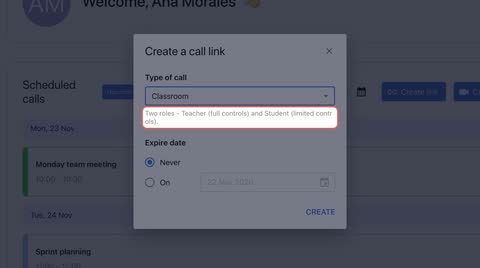
Ana chooses Classroom, with two roles: teachers for her team, students for the clients.
Read
0:51
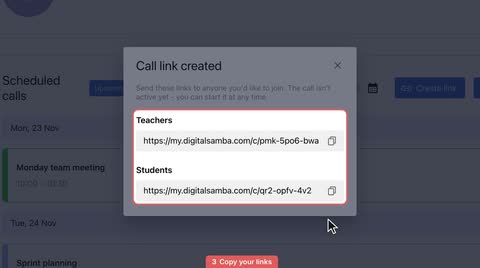
Copy your links
Now there's a link for each role.
Read
Schedule a call and invite people
Scheduling calls · 2:40
0:26
Schedule a call
Each one comes with its own roles and features.
Read
1:34
Add participants
In a meeting, everyone joins as a moderator.
Read
1:38
Add participants
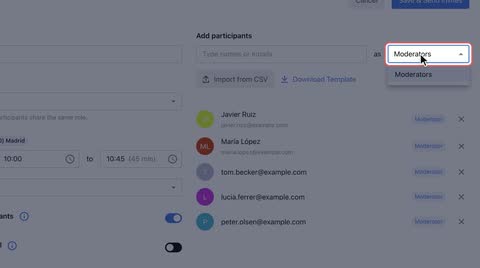
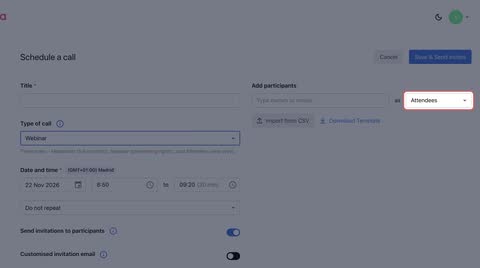
For webinars and classes, you choose each person's role here.
Read
Set up a webinar with registration
Webinars and registration · 3:05
0:17
Type of call
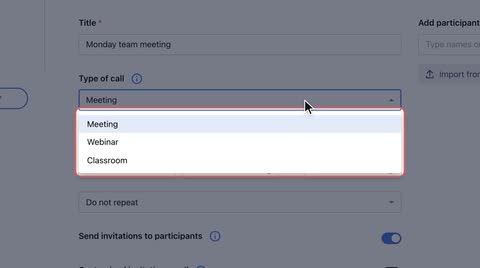
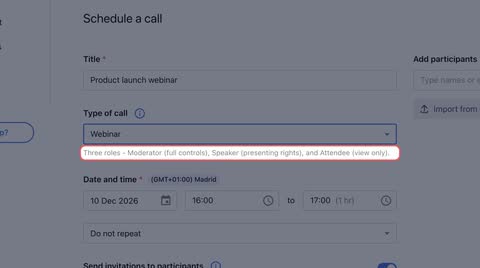
Under Type of call, choose Webinar: it has three roles, moderators, speakers and attendees.
Read
0:25
Type of call
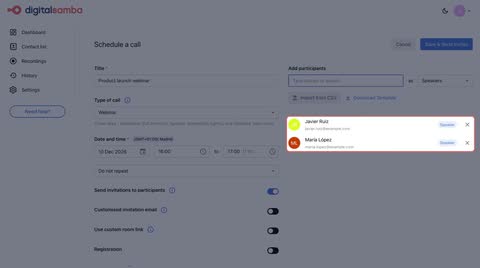
Javier and María will present, so next to Add participants, choose Speakers, then add them by name.
Read
0:41
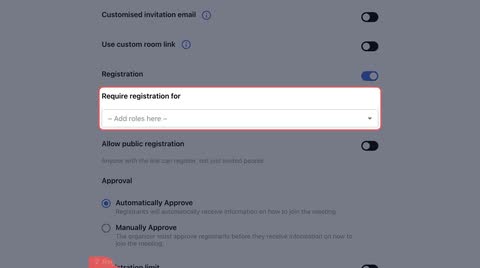
Registration
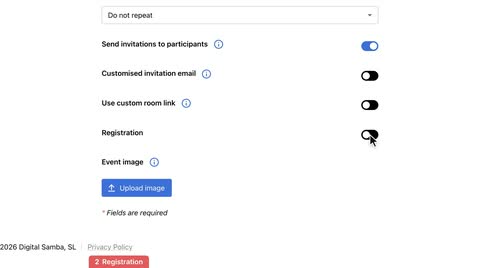
Turn on Registration.
Read
0:44
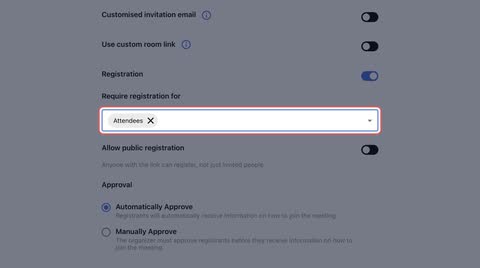
Registration
Under Require registration for, choose Attendees.
Read
0:48
Registration
Anyone you invite as an attendee is emailed a registration link instead of a join link; your speakers are simply invited.
Read
Types of call: Meeting, Webinar and Classroom
Customise your calls · 2:42
0:39
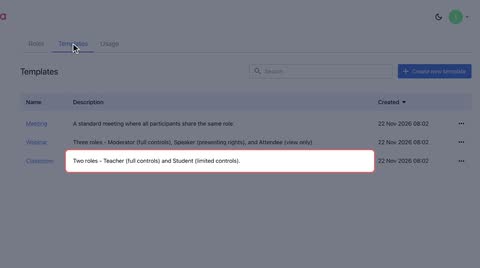
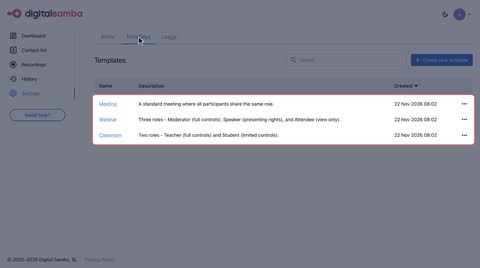
Templates
Meeting gives everyone one role; Webinar has moderators, speakers and attendees; Classroom, teachers and students.
Read
0:48
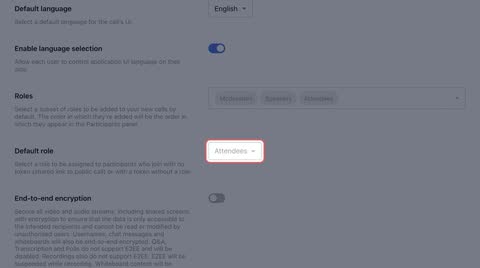
Templates
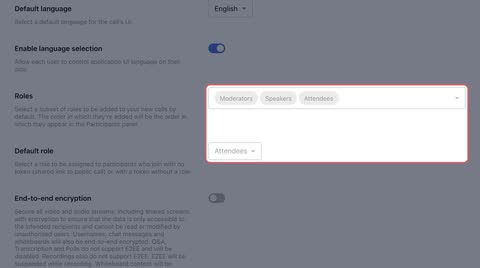
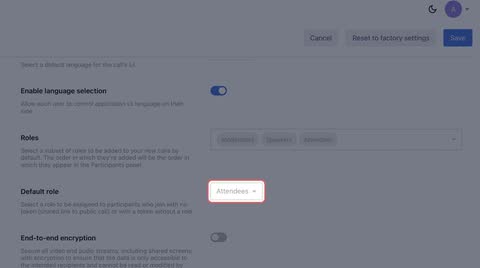
Open Webinar: here are its three roles, and its Default role, Attendees.
Read
0:54
Templates
On a built-in type, they're greyed out: they can't be changed.
Read
0:58
Templates
People you add to a webinar are added as Attendees, unless you pick another role.
Read
1:12
Create new template
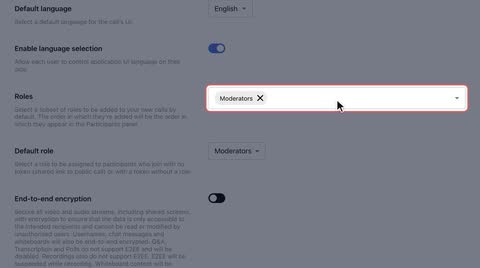
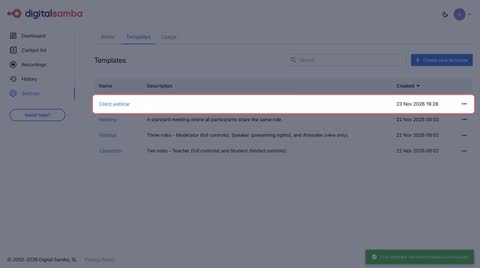
A new type starts with one role, Moderators; she adds Speakers and Attendees.
Read
Choose the tools in your calls
Customise your calls · 2:35
1:11
Q&A and polls
Upvoting makes sense when people can see each other's questions before they're answered, and that is a permission of their role: See all questions, which attendees don't have from the start.
Read
1:29
Q&A and polls
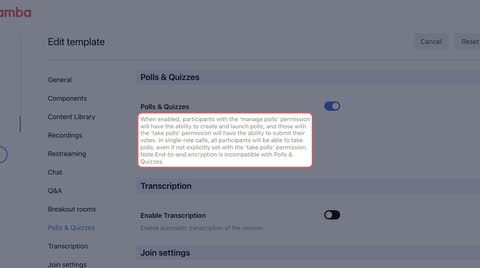
Who can launch a poll and who can vote, the page explains, are permissions: more on those in Roles and permissions.
Read
Roles and permissions: create a custom role
Customise your calls · 2:59
0:01
Introduction
In this video, you'll create your own role for a call — a meeting, a class or a webinar — choose what it may do, and invite someone in that role.
Read
0:13
Roles
Our example: a co-host who helps Ana run the Product launch webinar.
Read
0:18
Roles
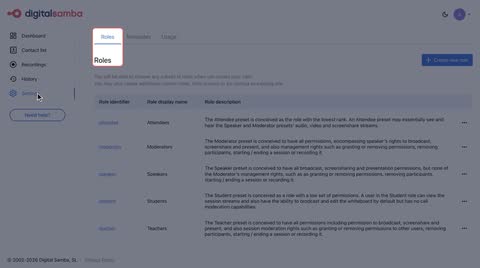
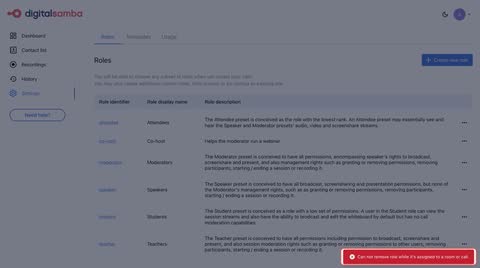
Open Settings: the first page is Roles.
Read
0:22
Roles
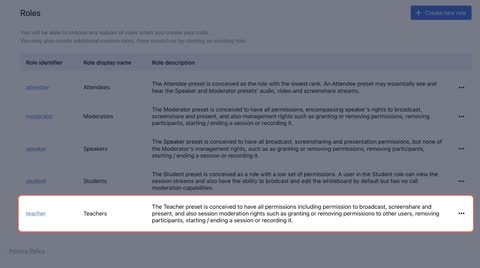
Five roles are there from the start, each with a description: attendees, moderators, speakers, students and teachers.
Read
0:31
Roles
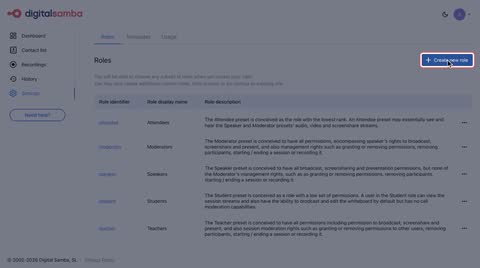
Click Create new role.
Read
1:37
Type of call
A role is used through a type of call, which these settings call a template.
Read
1:42
Type of call
The built-in Webinar keeps its own roles: they can't be changed.
Read
1:51
Type of call
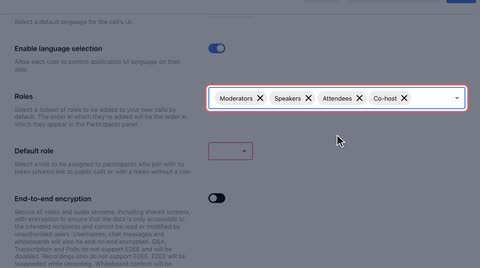
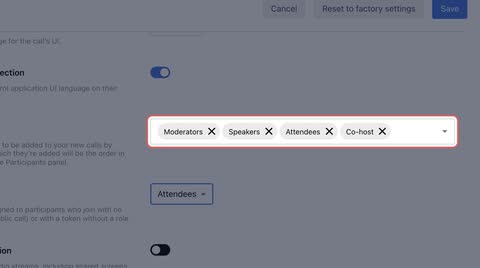
Under Roles, add Speakers, Attendees and Co-host next to Moderators.
Read
1:57
Type of call
Choose Attendees as the Default role, then click Save.
Read
2:06
Invite as Co-host
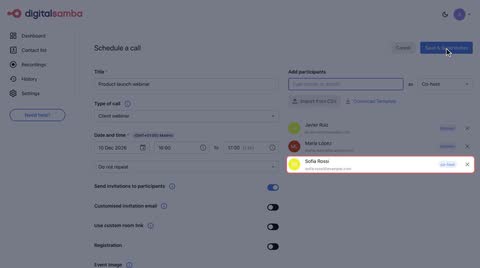
Javier and María are speakers; for Sofia, choose Co-host next to Add participants, then add her.
Read
2:14
Invite as Co-host
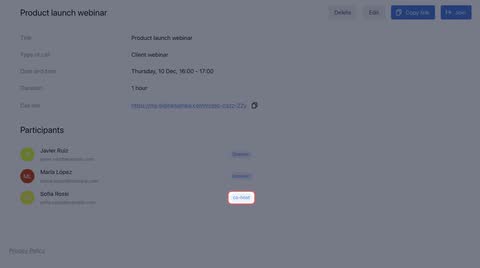
Click Save and Send Invites: the call's page lists Sofia as co-host.
Read
2:20
Invite as Co-host
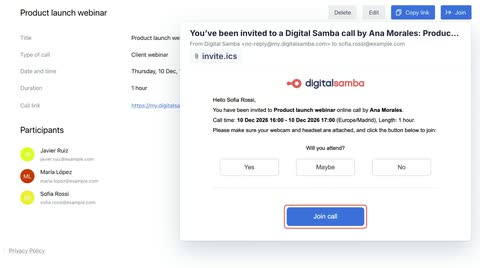
Her invitation is the usual one, with her own Join call link; it doesn't name her role.
Read
2:27
Good to know
Good to know: a call keeps the roles its type had when it was scheduled, so a role added to a type later reaches only calls scheduled afterwards.
Read
2:37
Good to know
Built-in roles can't be deleted, and neither can a role that someone holds in a call.
Read
All topics