University

Invitations and RSVPs: what your participants receive

In this video, you'll see what people receive when you invite them to a call — a meeting, a class or a webinar — and how their answers come back to you.

Updated Version 1

1Send invitations to participants0:11

Our example is the team's Monday meeting.
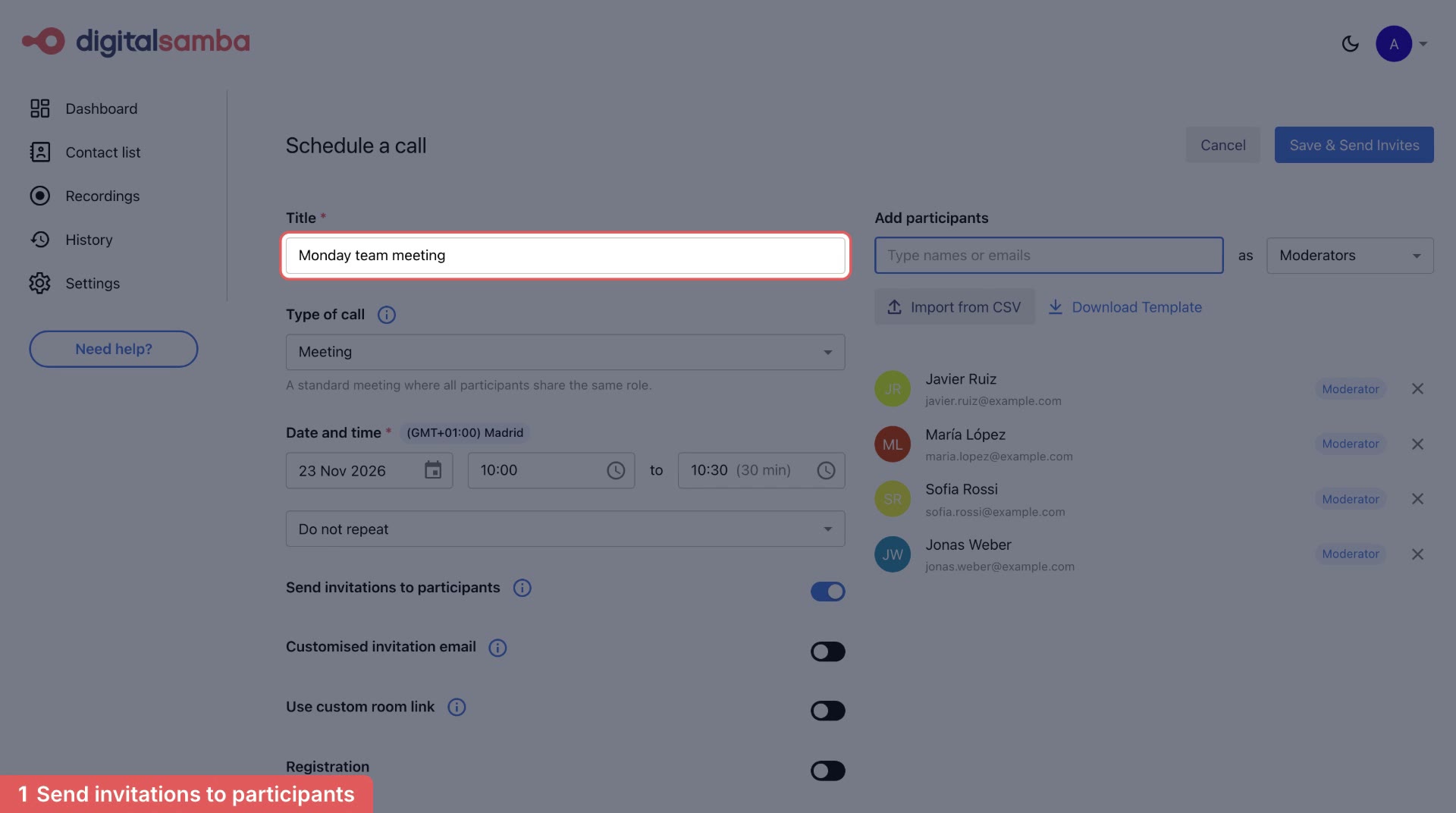
Screenshot from the film at 0:15: Our example is the team's Monday meeting.
Watch this step · 0:13

On the Schedule a call form, find Send invitations to participants.
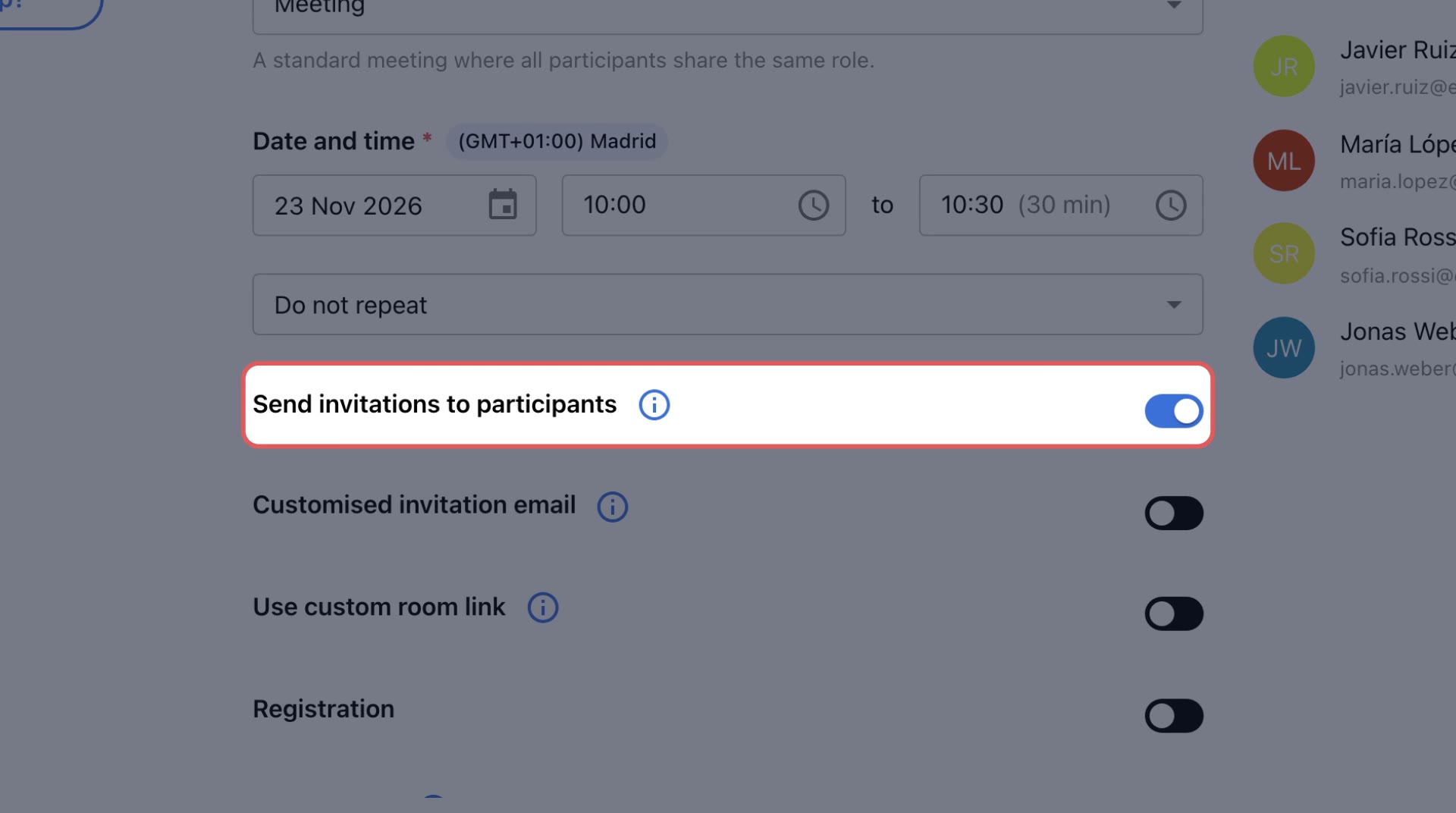
Screenshot from the film at 0:19: On the Schedule a call form, find Send invitations to participants.
Watch this step · 0:16

While it is on, saving the call emails an invitation to everyone on the list.
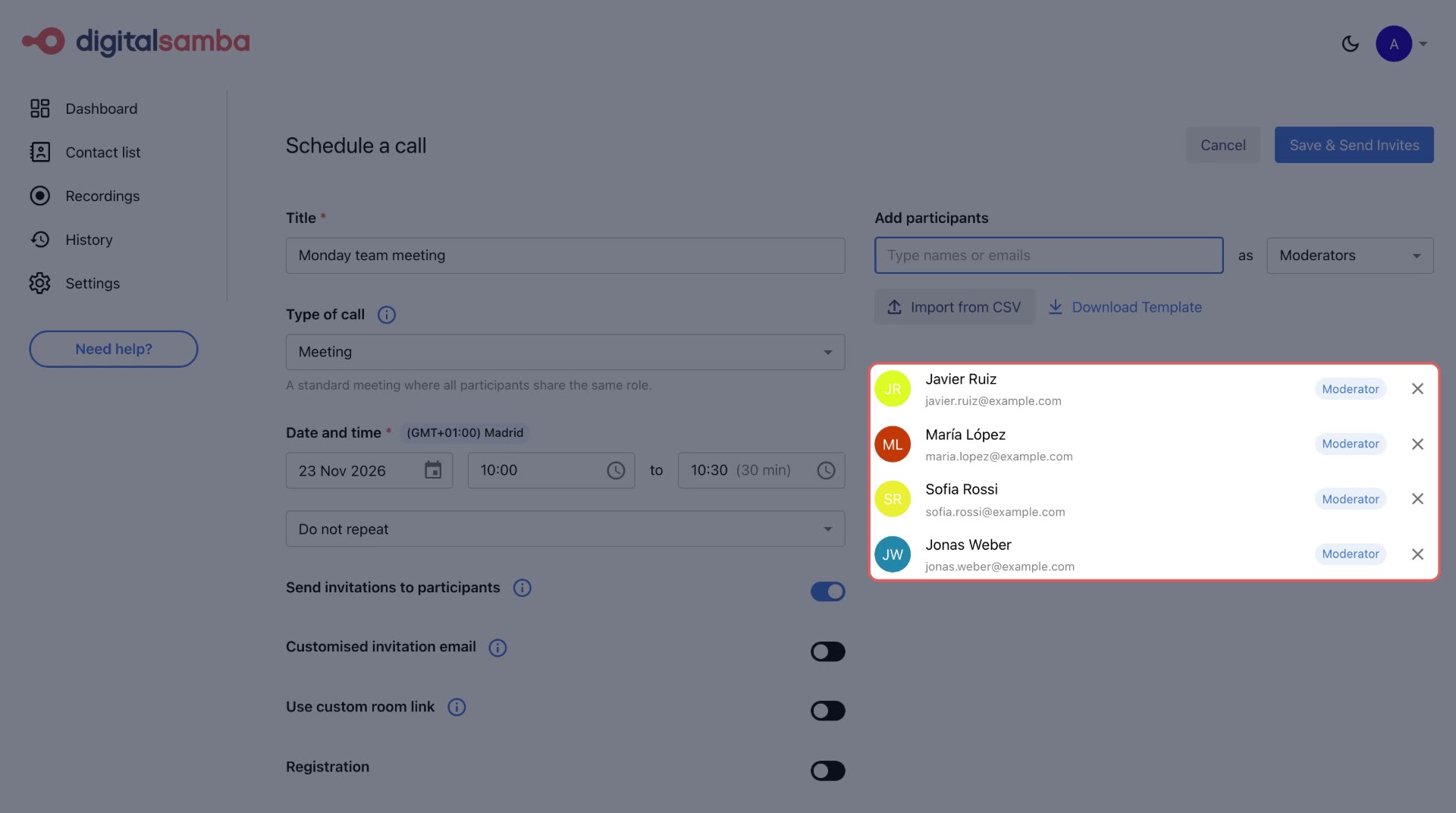
Screenshot from the film at 0:25: While it is on, saving the call emails an invitation to everyone on the list.
Watch this step · 0:21

Turn it off, and the call is saved without sending anything: you share the link yourself.
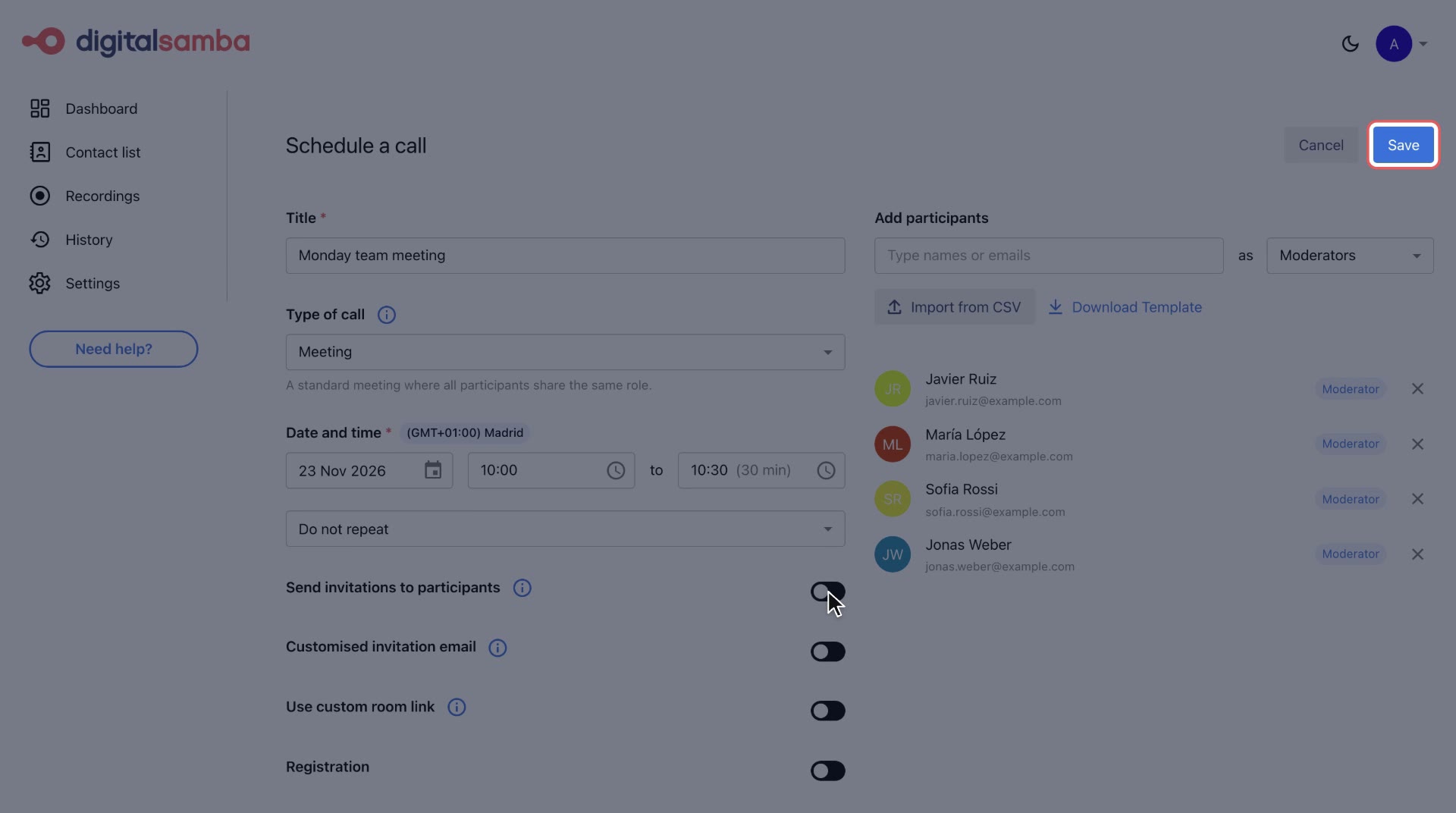
Screenshot from the film at 0:30: Turn it off, and the call is saved without sending anything: you share the link yourself.
Watch this step · 0:28

A second switch is in your profile: Send invitation emails.
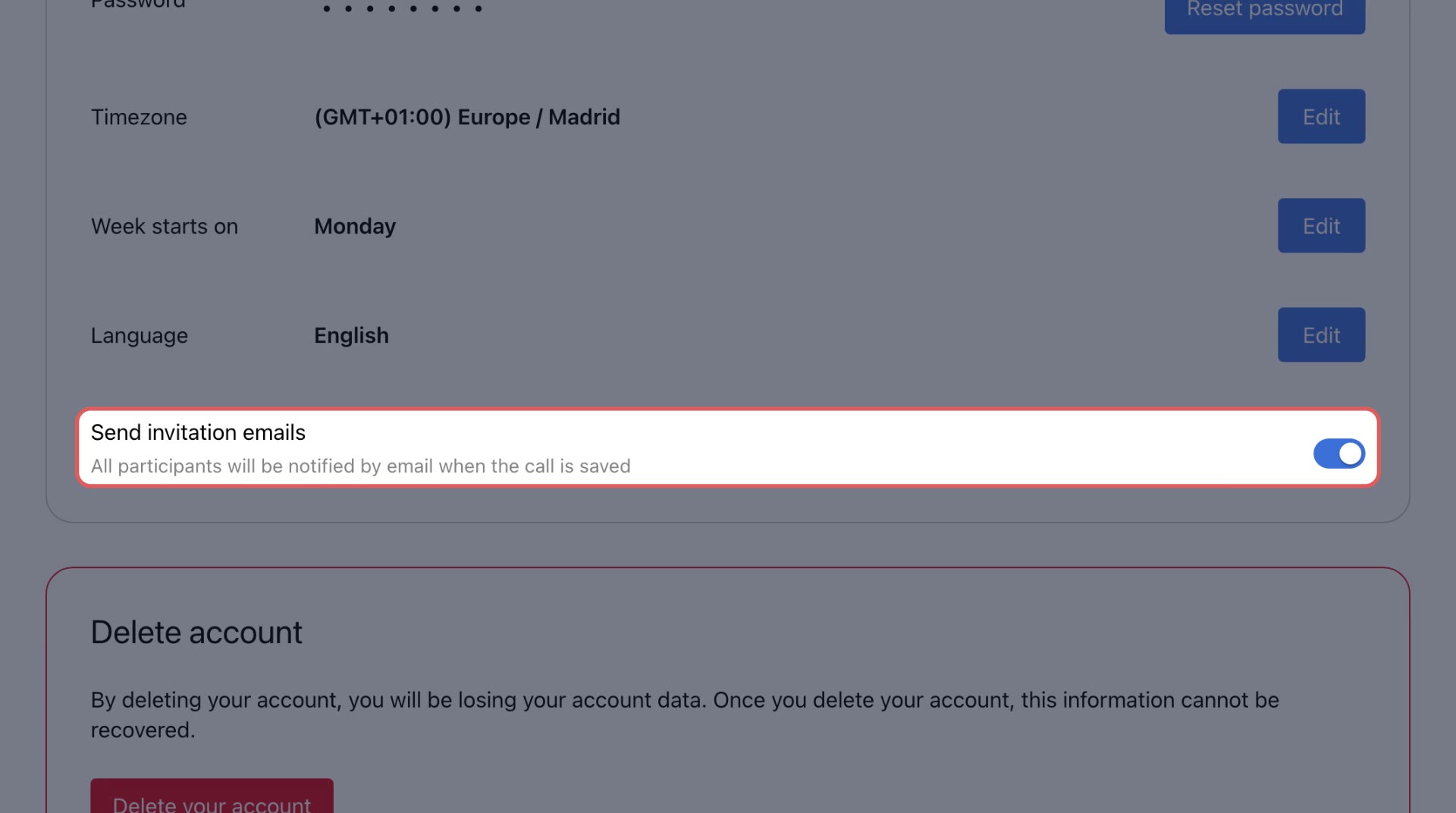
Screenshot from the film at 0:37: A second switch is in your profile: Send invitation emails.
Watch this step · 0:34

With that one off, none of your calls send emails.
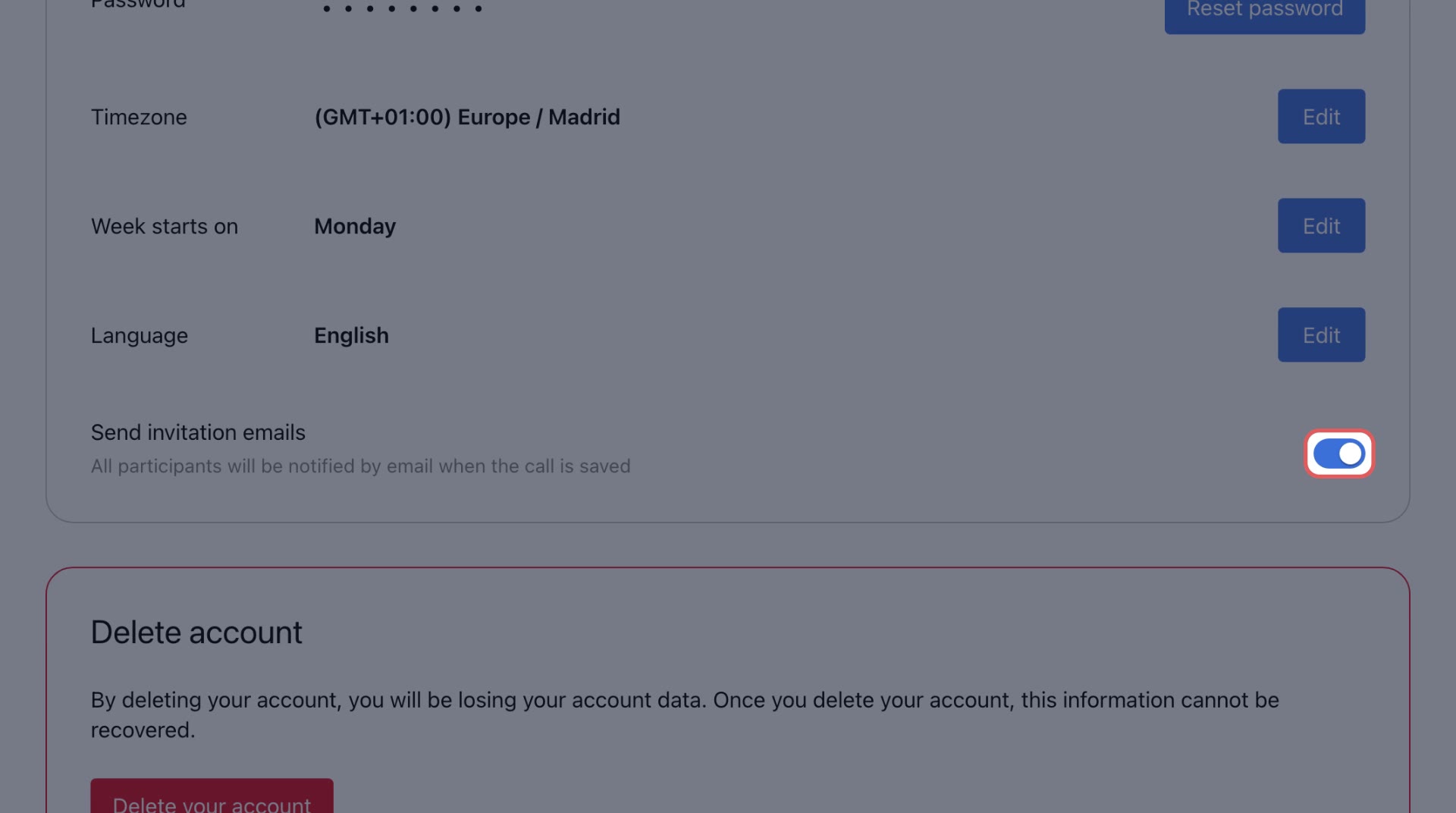
Screenshot from the film at 0:40: With that one off, none of your calls send emails.
Watch this step · 0:39

2Customised invitation email0:42

Below it is Customised invitation email.
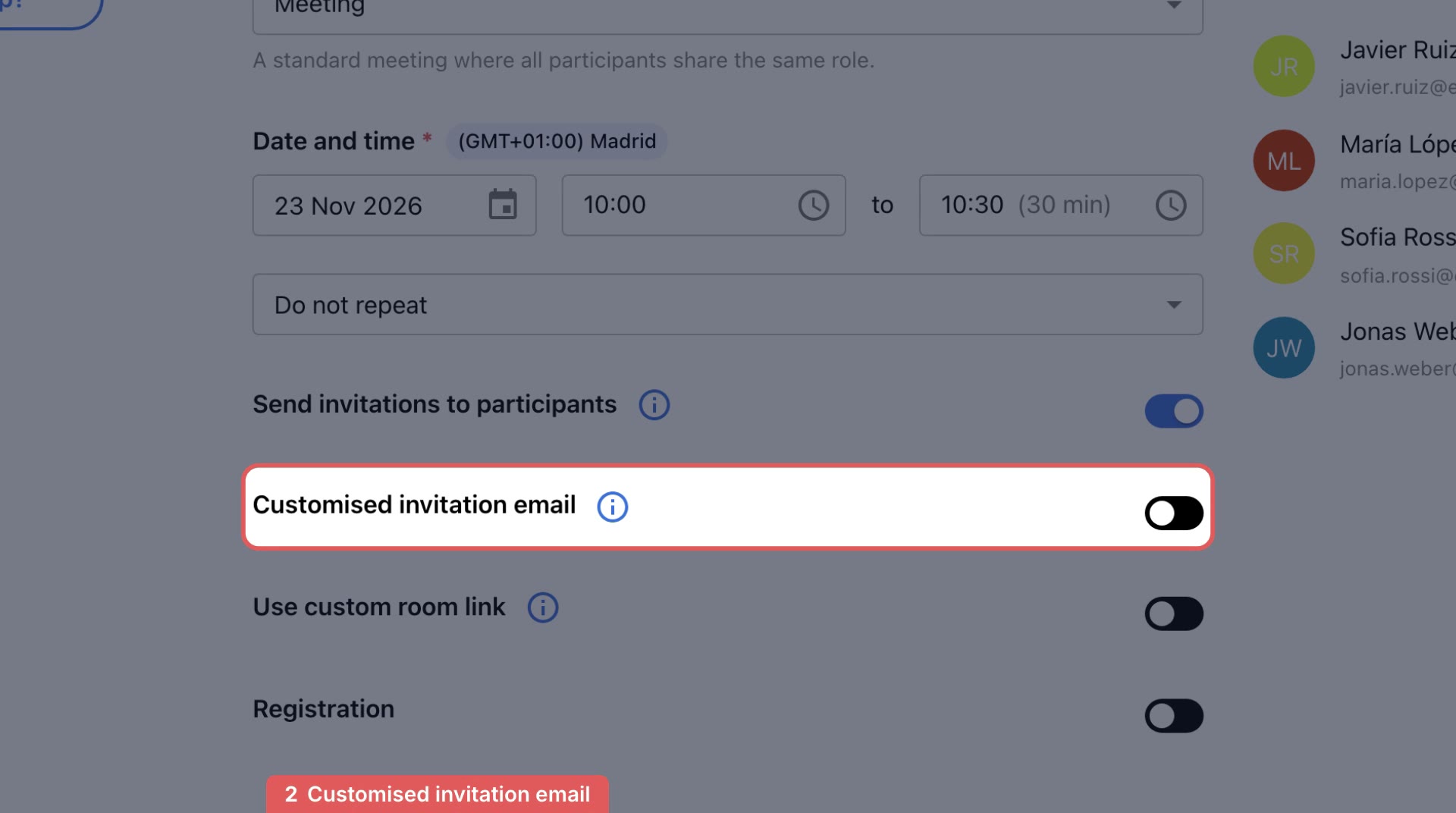
Screenshot from the film at 0:45: Below it is Customised invitation email.
Watch this step · 0:43

Turn it on, and replace the sample text with your own message: an agenda, or what to prepare.
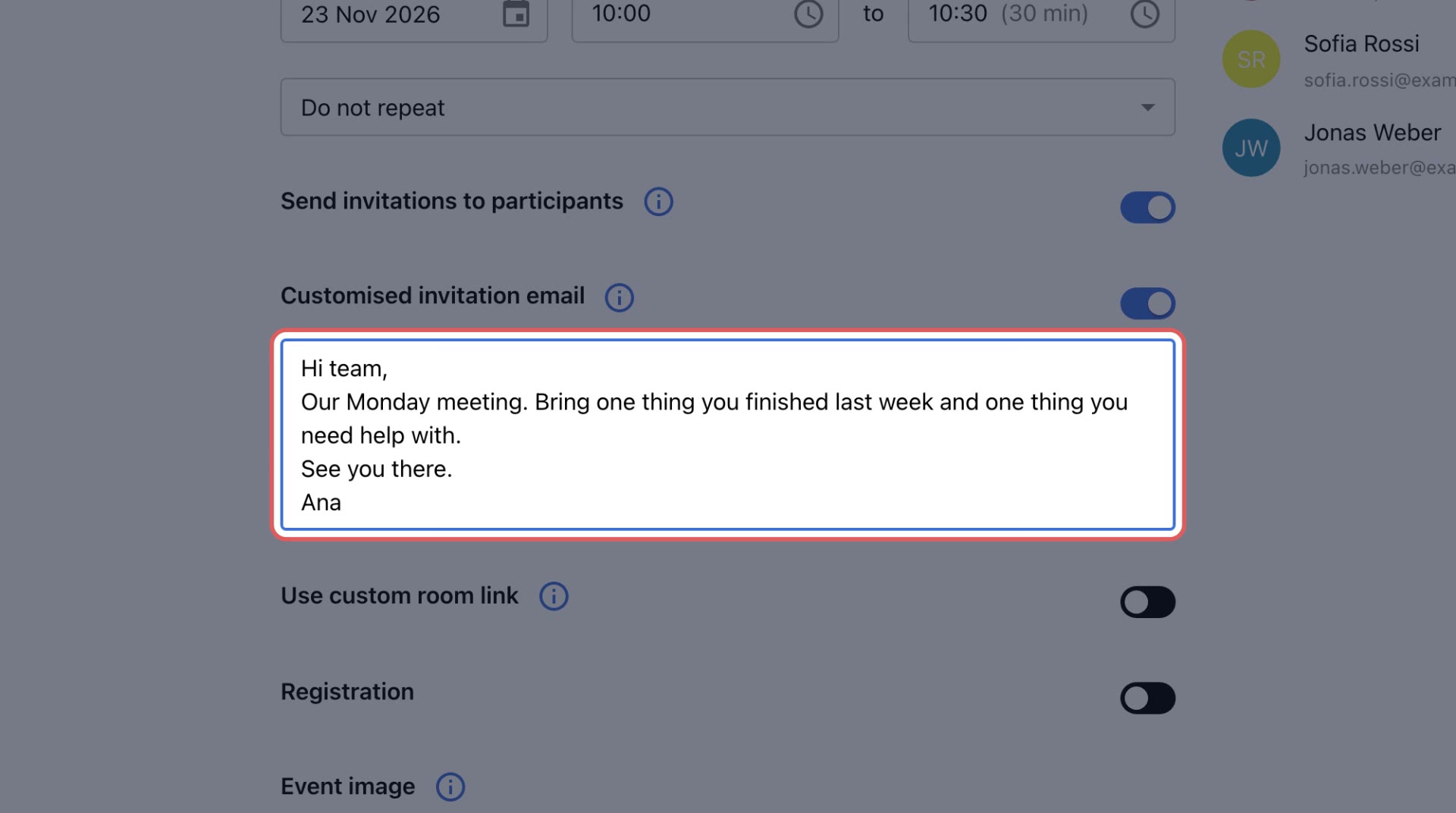
Screenshot from the film at 0:52: Turn it on, and replace the sample text with your own message: an agenda, or what to prepare.
Watch this step · 0:48

It replaces the standard greeting.

The call time and the Join button are added below your message automatically.
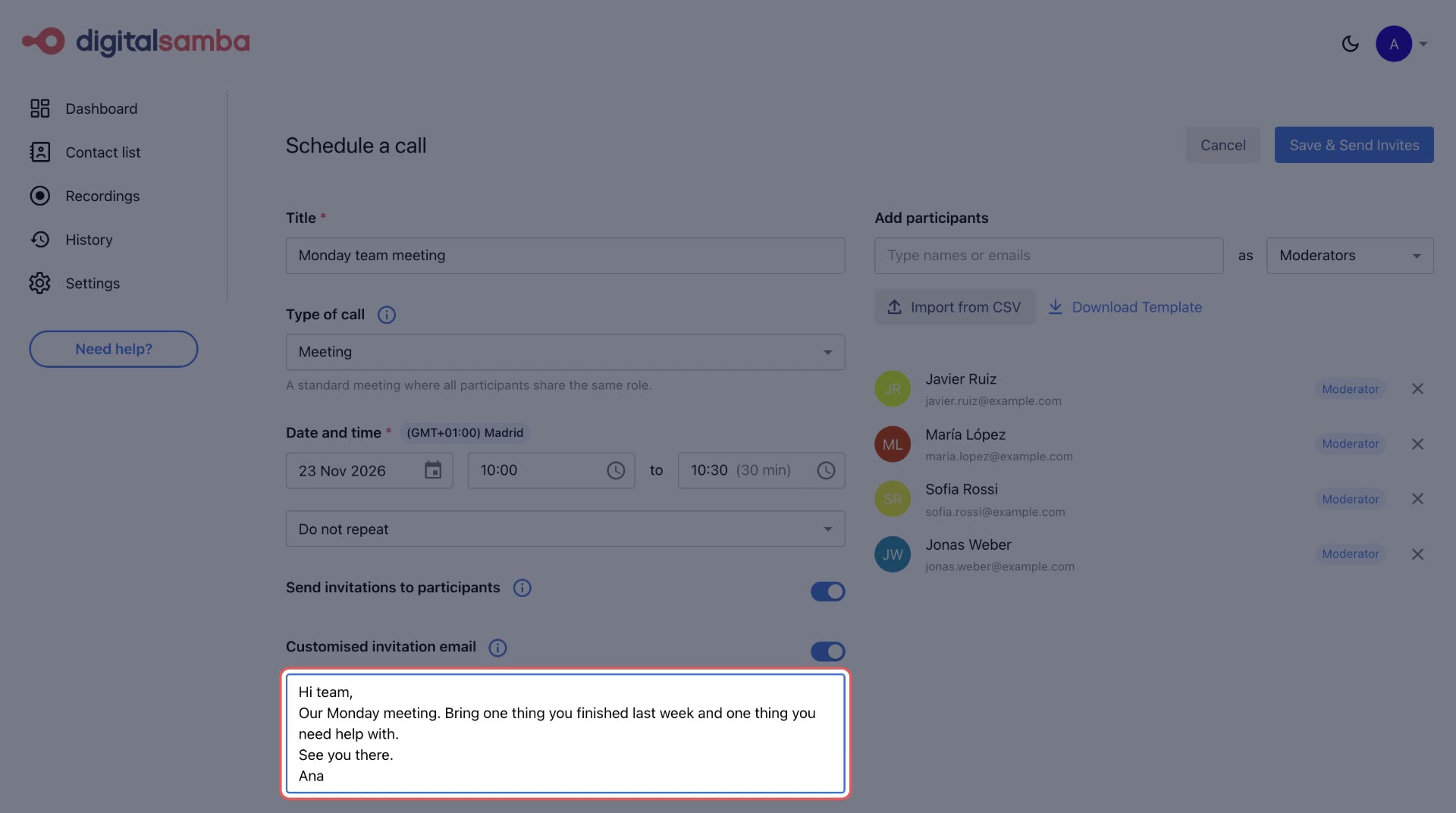
Screenshot from the film at 1:00: The call time and the Join button are added below your message automatically.
Watch this step · 0:57

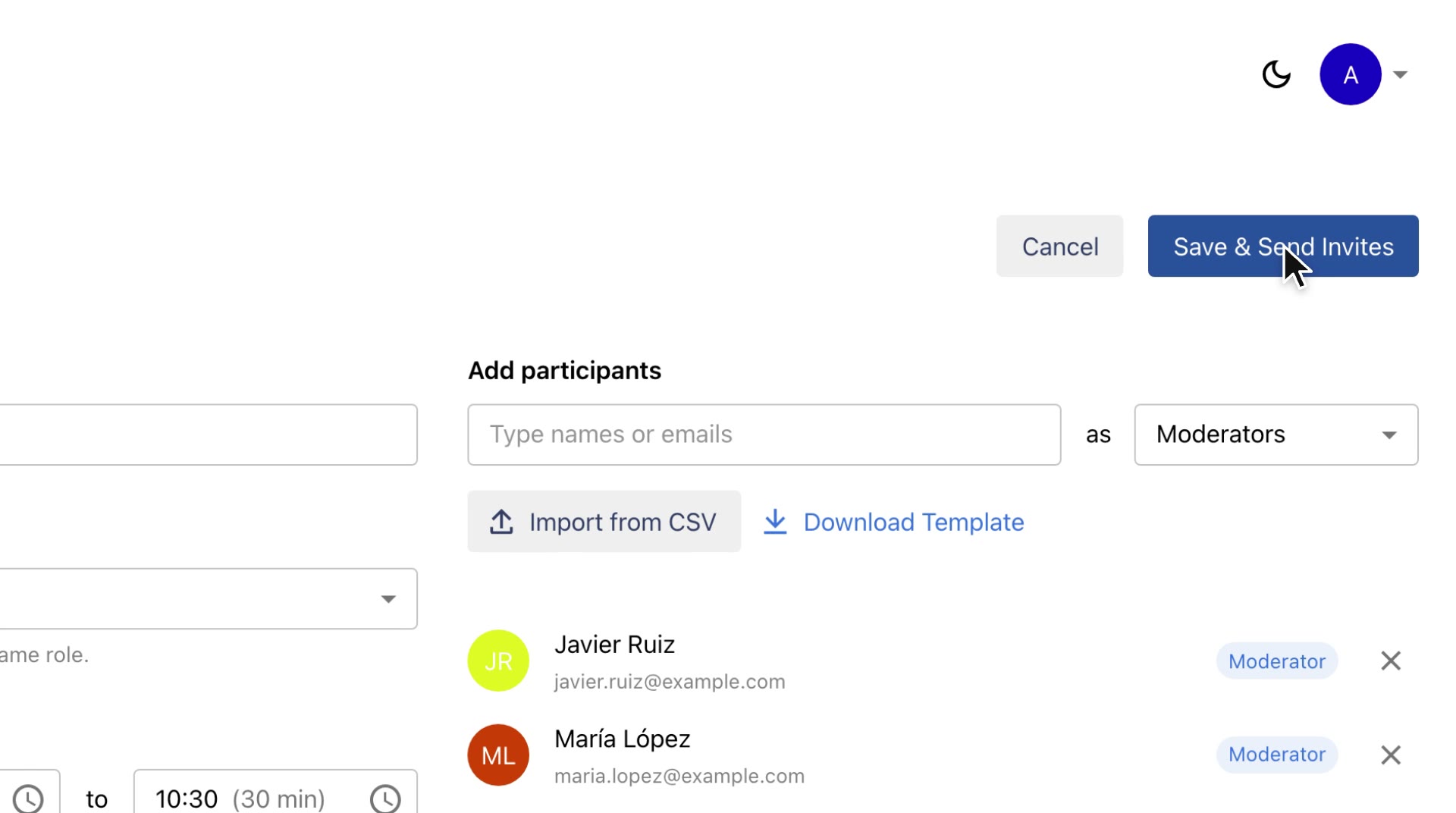
Now click Save and Send Invites.

Screenshot from the film at 1:04: Now click Save and Send Invites.
Watch this step · 1:02

You get a confirmation by email as well.
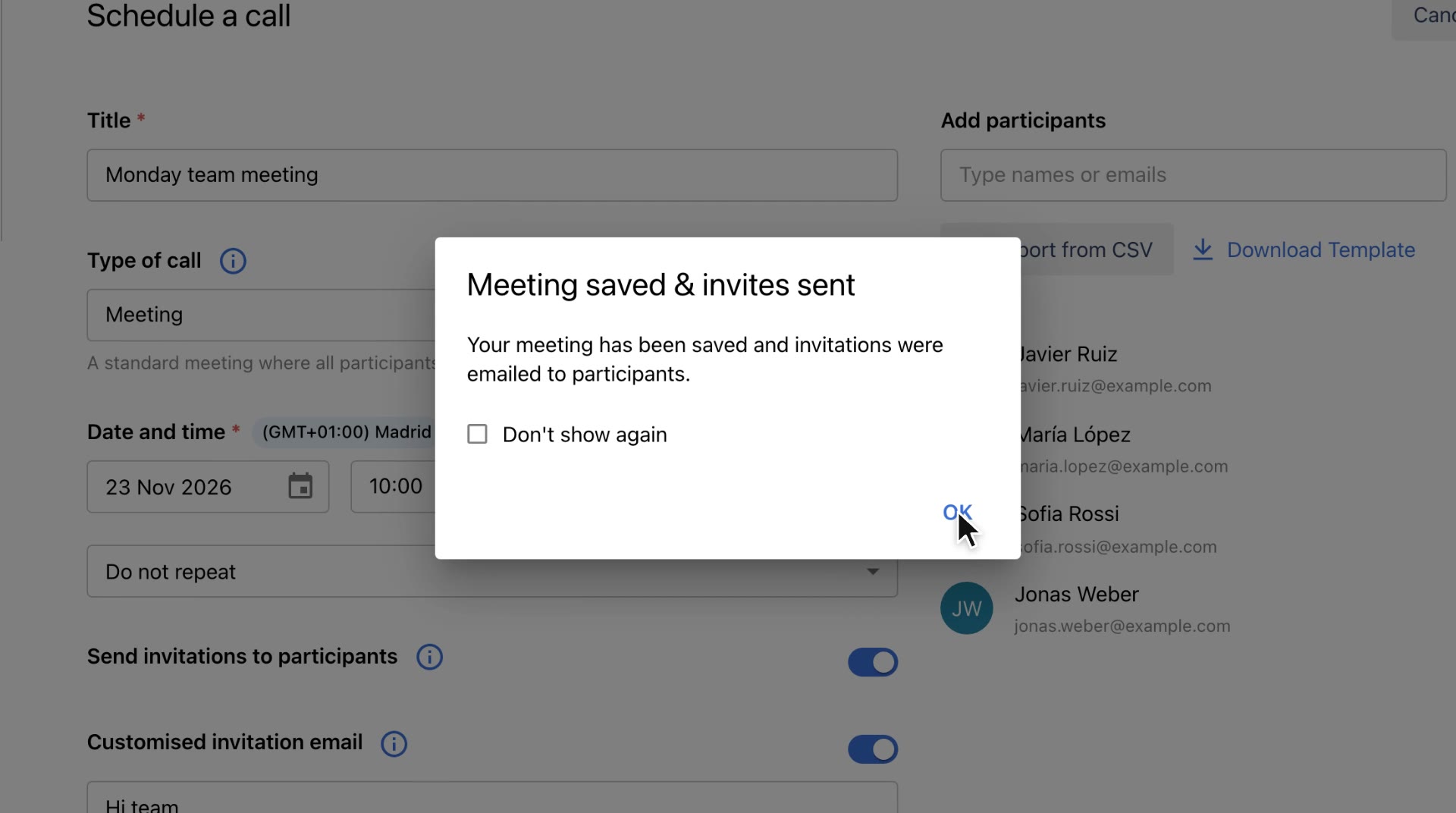
Screenshot from the film at 1:06: You get a confirmation by email as well.
Watch this step · 1:05

3The invitation1:08

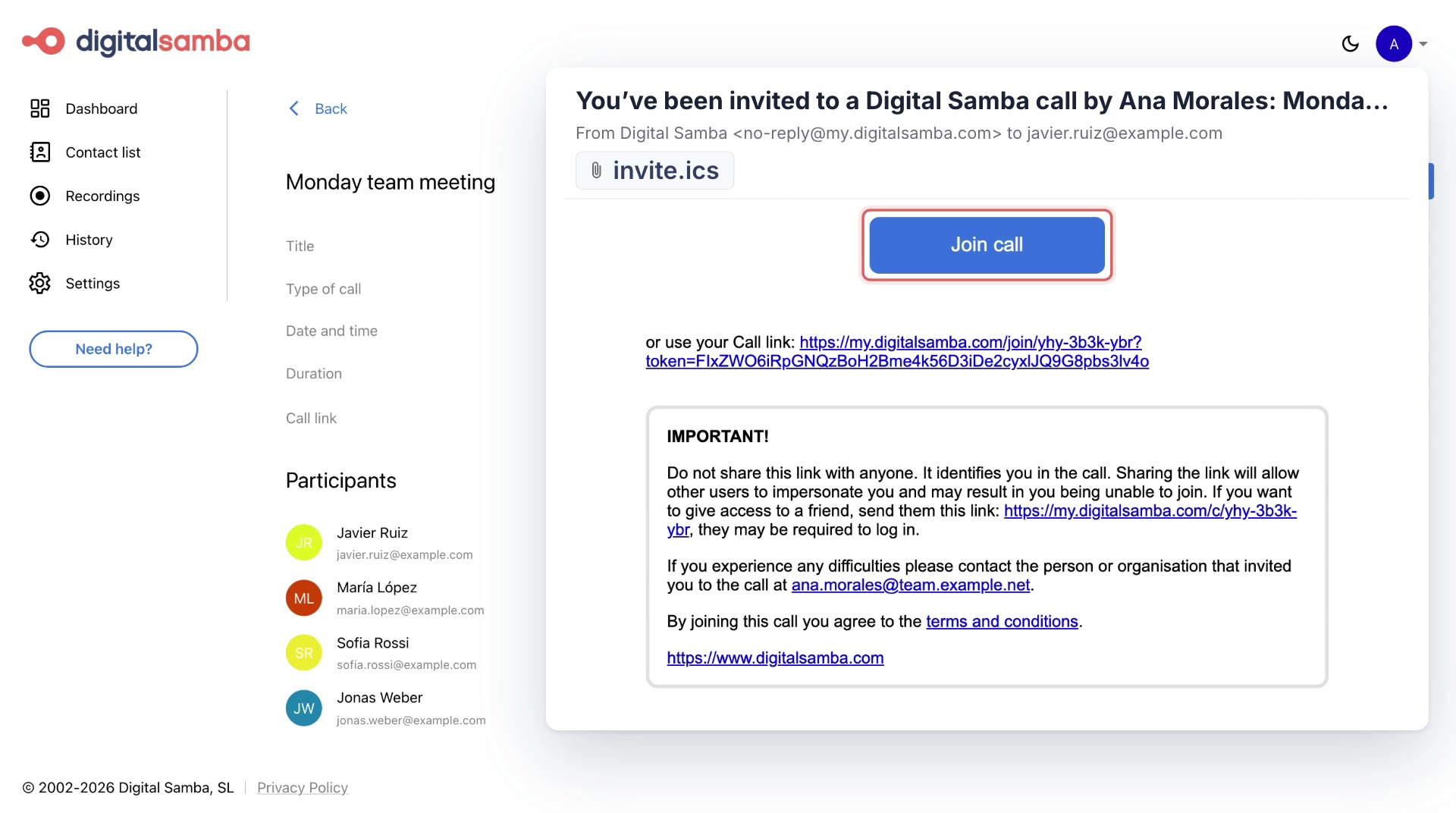
This is the email Javier receives.
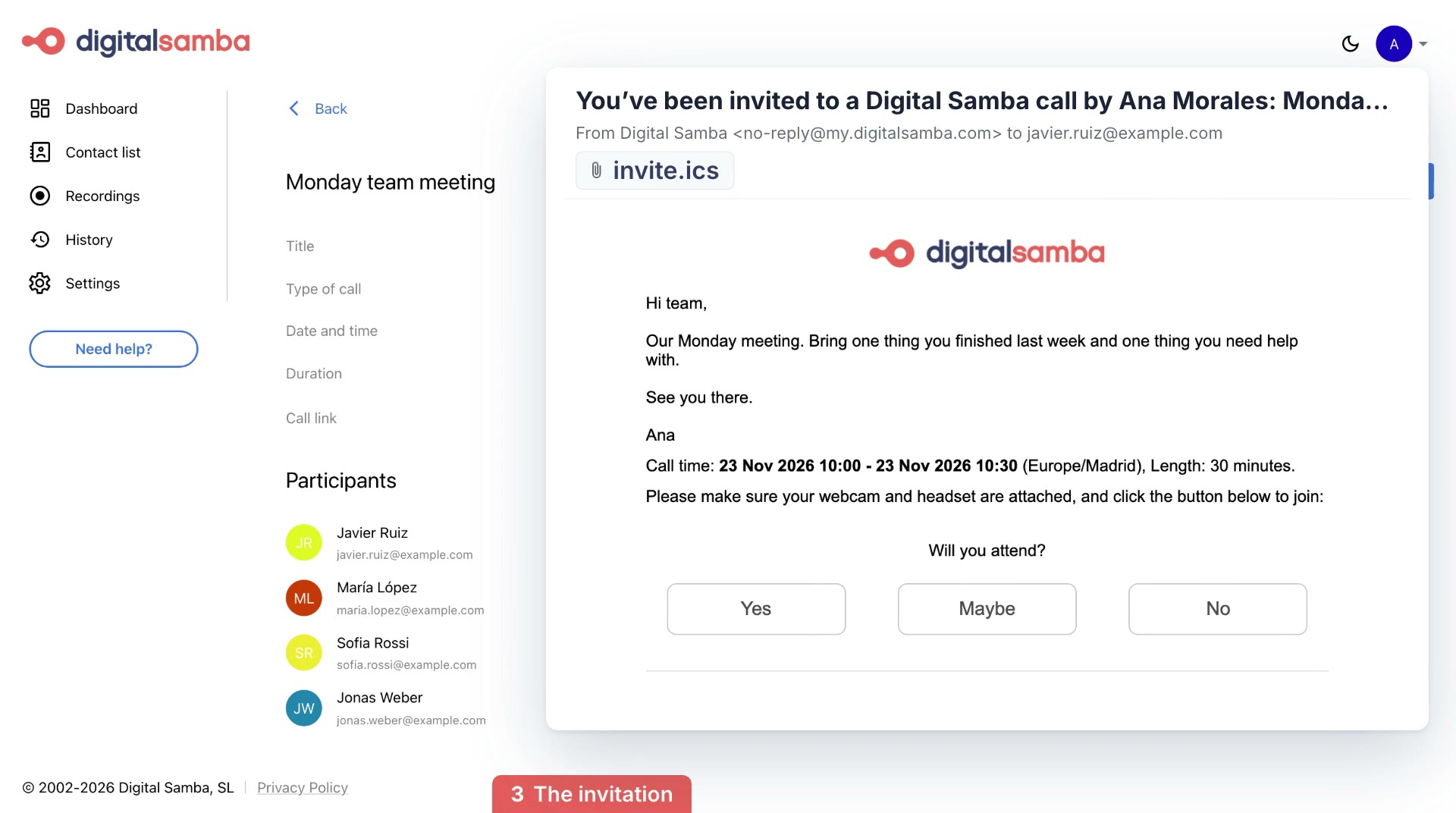
Screenshot from the film at 1:10: This is the email Javier receives.
Watch this step · 1:09

Your message comes first, then the call time.
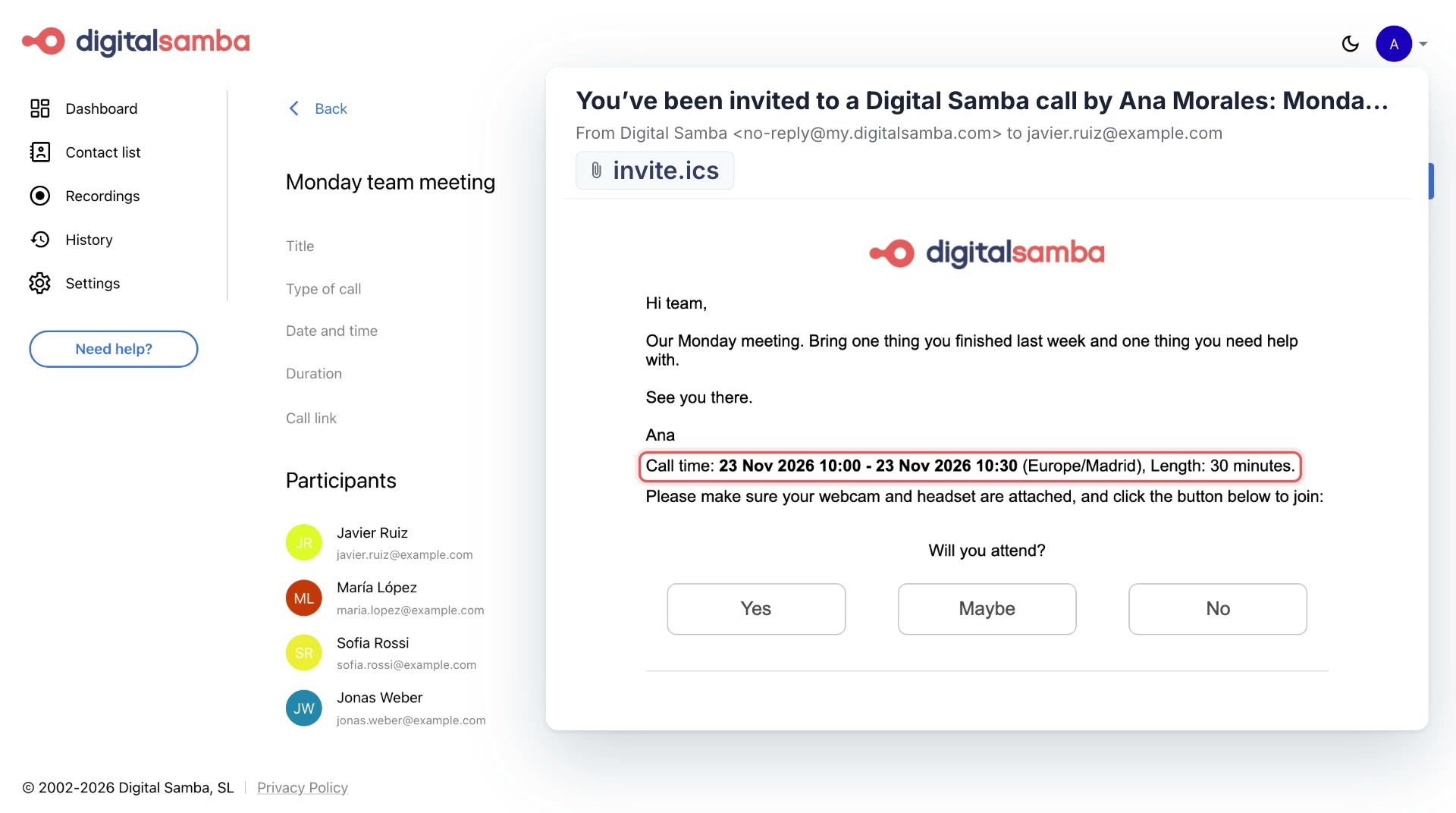
Screenshot from the film at 1:14: Your message comes first, then the call time.
Watch this step · 1:12

Join call is his personal link.

Screenshot from the film at 1:16: Join call is his personal link.
Watch this step · 1:16

The email asks him not to share it, and gives him the call link to pass on instead.
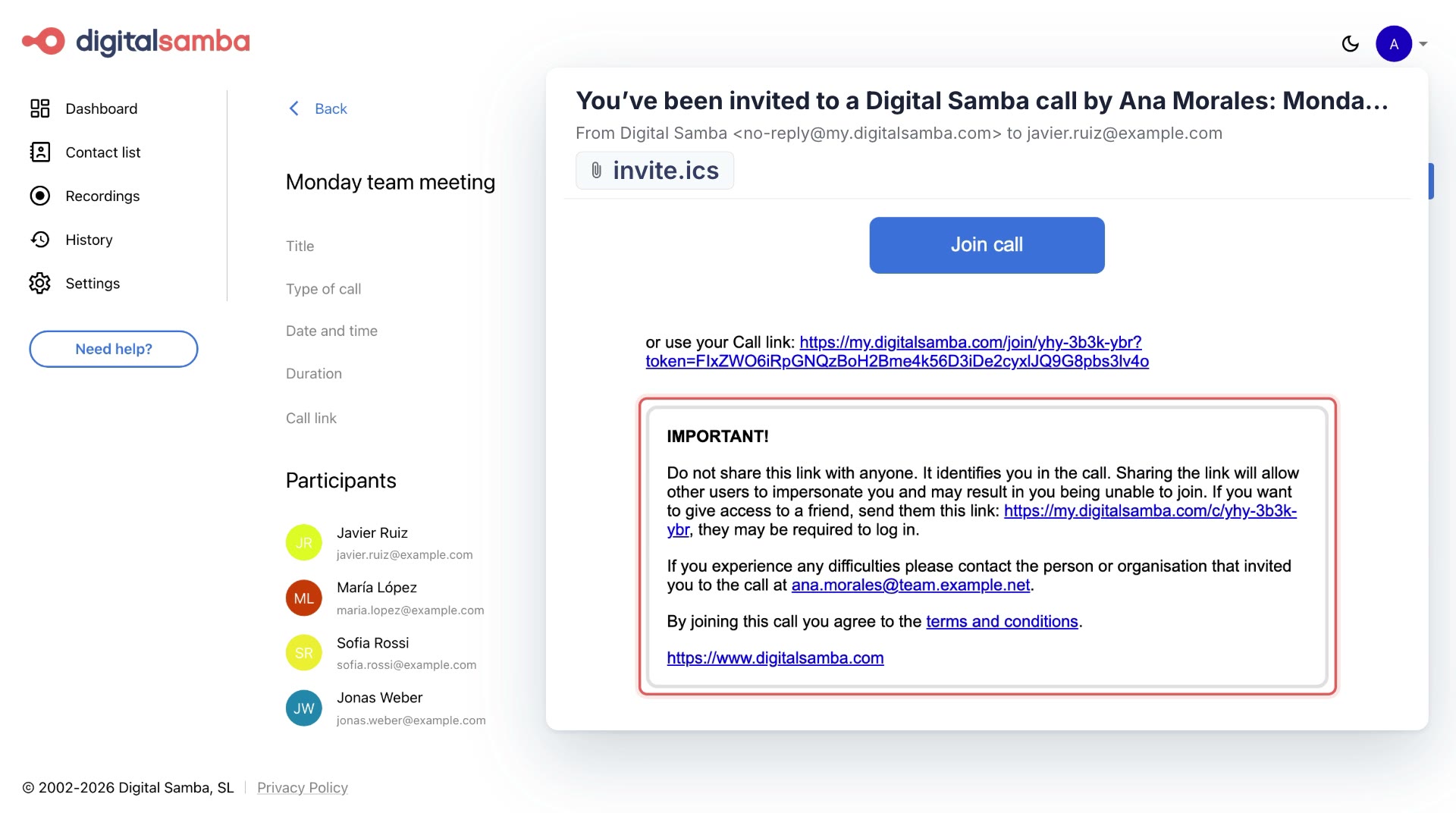
Screenshot from the film at 1:22: The email asks him not to share it, and gives him the call link to pass on instead.
Watch this step · 1:19

A calendar file comes with it, holding the title, the time and his link.
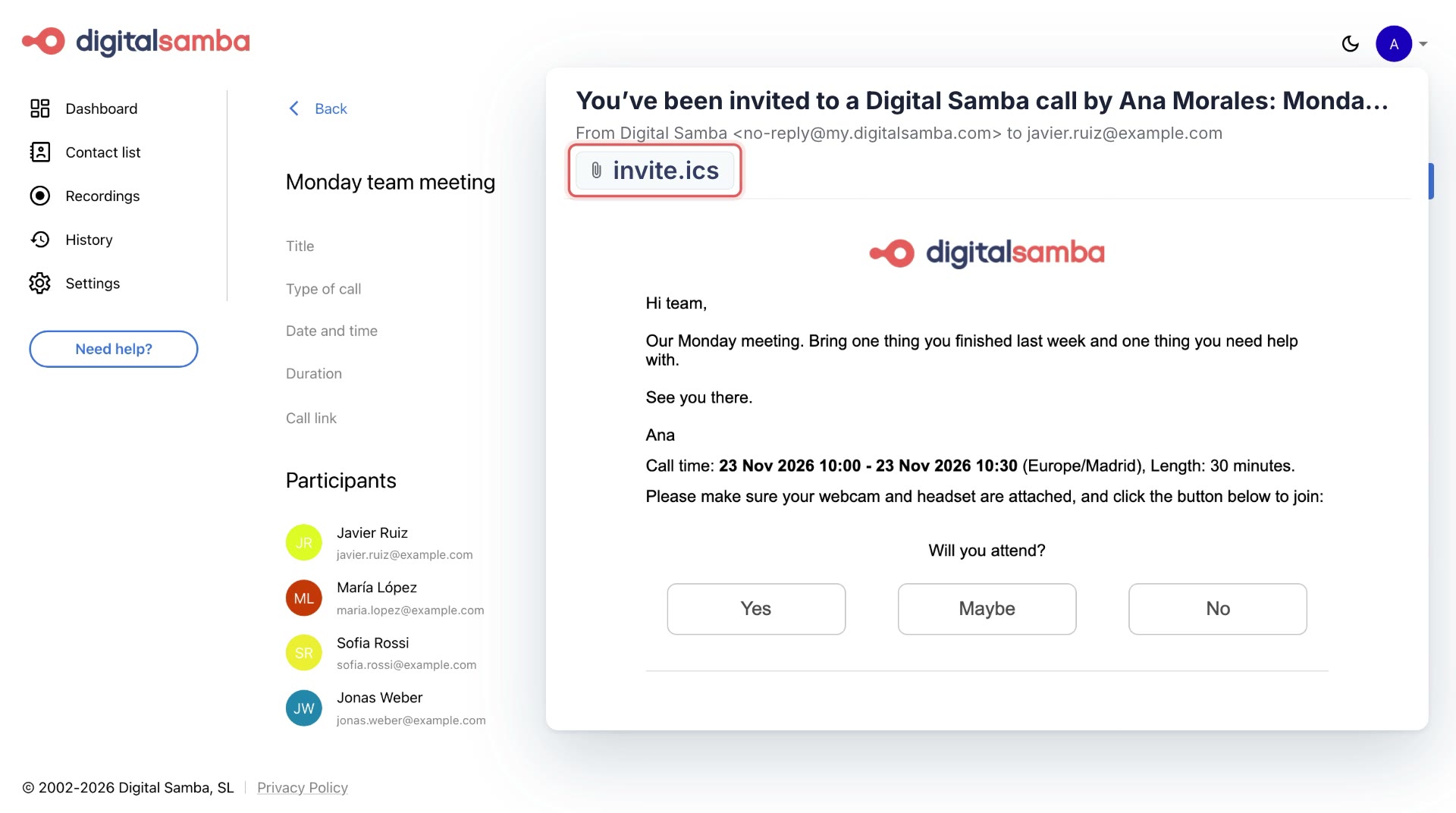
Screenshot from the film at 1:26: A calendar file comes with it, holding the title, the time and his link.
Watch this step · 1:25

4Will you attend?1:30

Under Will you attend?, Javier clicks Yes, Maybe or No.
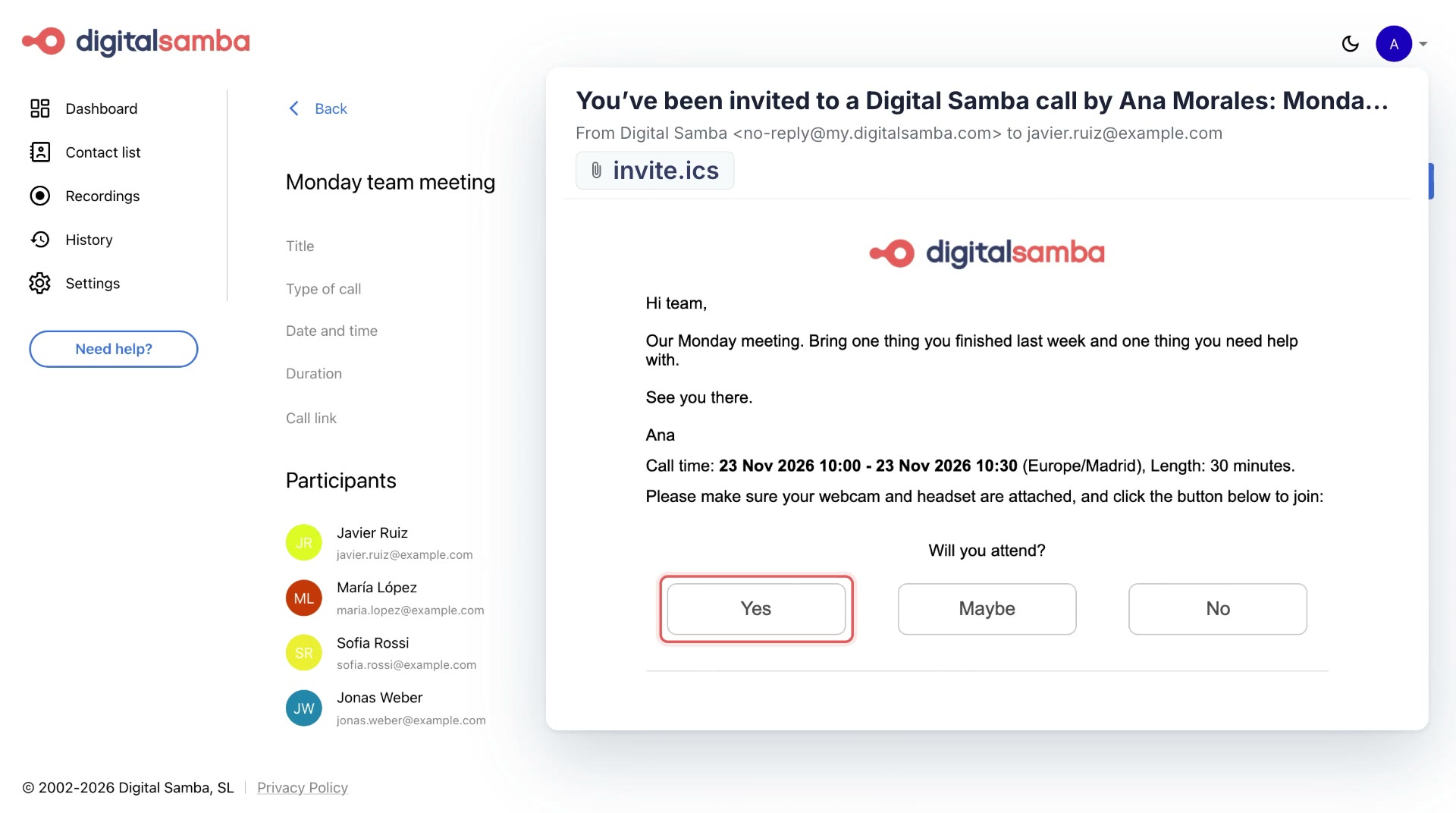
Screenshot from the film at 1:34: Under Will you attend?, Javier clicks Yes, Maybe or No.
Watch this step · 1:30

He needs no account: a page opens, confirms his answer and lets him change it.
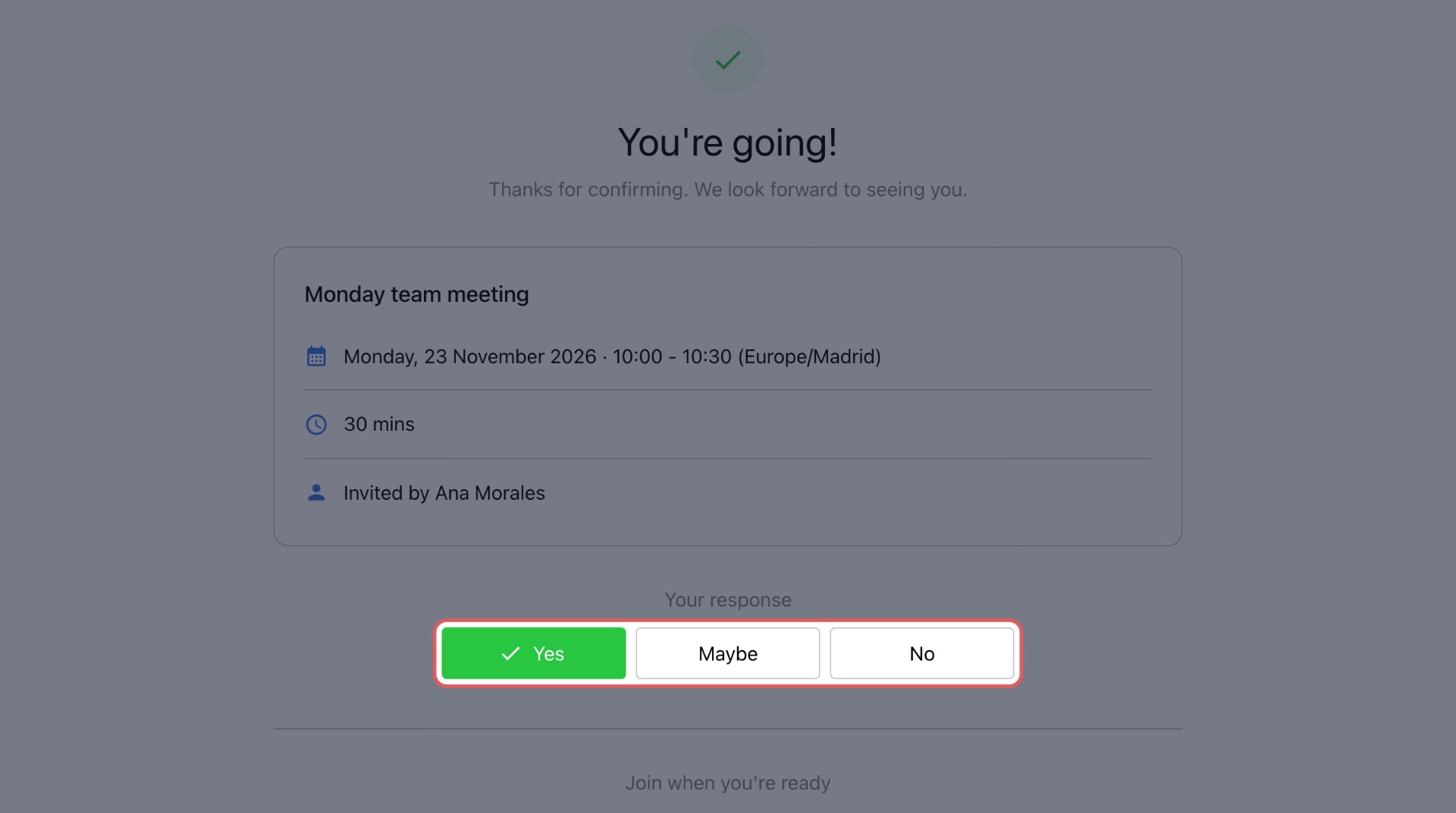
Screenshot from the film at 1:41: He needs no account: a page opens, confirms his answer and lets him change it.
Watch this step · 1:36

After Yes, it also offers Add to calendar.
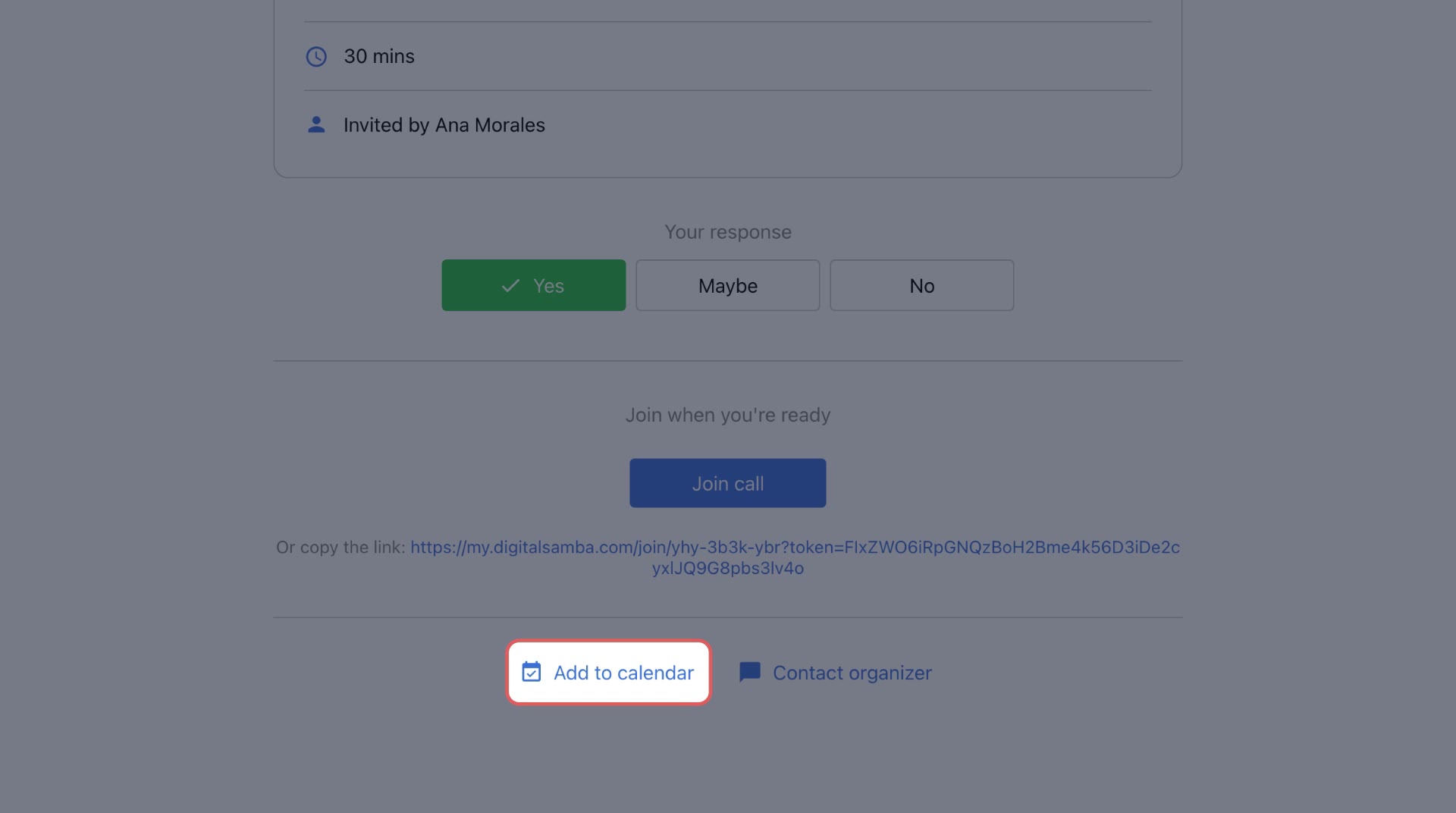
Screenshot from the film at 1:45: After Yes, it also offers Add to calendar.
Watch this step · 1:42

Now open the call in your dashboard.

A small mark beside a name shows that person's answer: a tick for Yes, a question mark for Maybe, a cross for No.
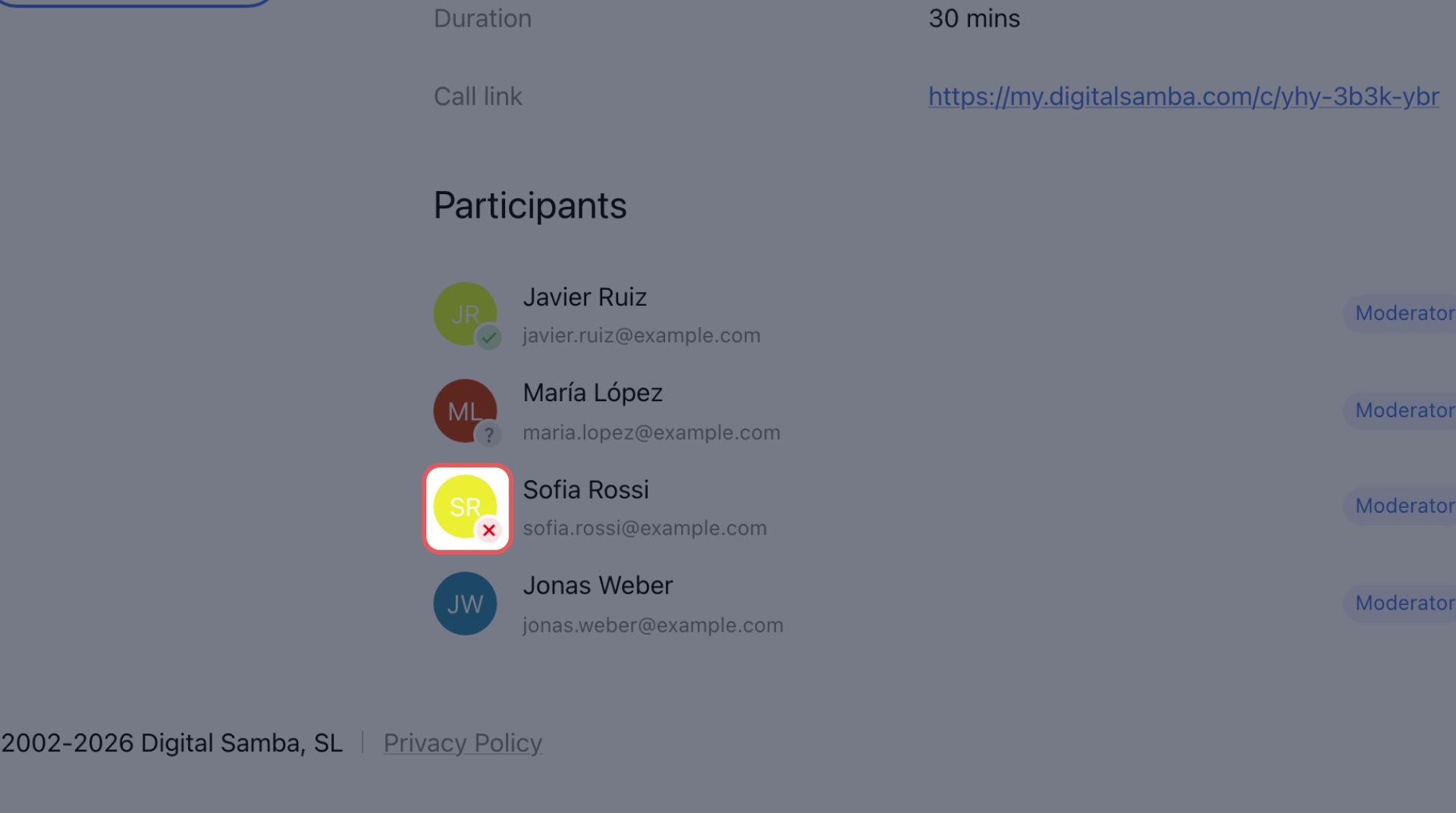
Screenshot from the film at 1:56: A small mark beside a name shows that person's answer: a tick for Yes, a question mark for Maybe, a cross for No.
Watch this step · 1:49

And you get an email each time someone answers.
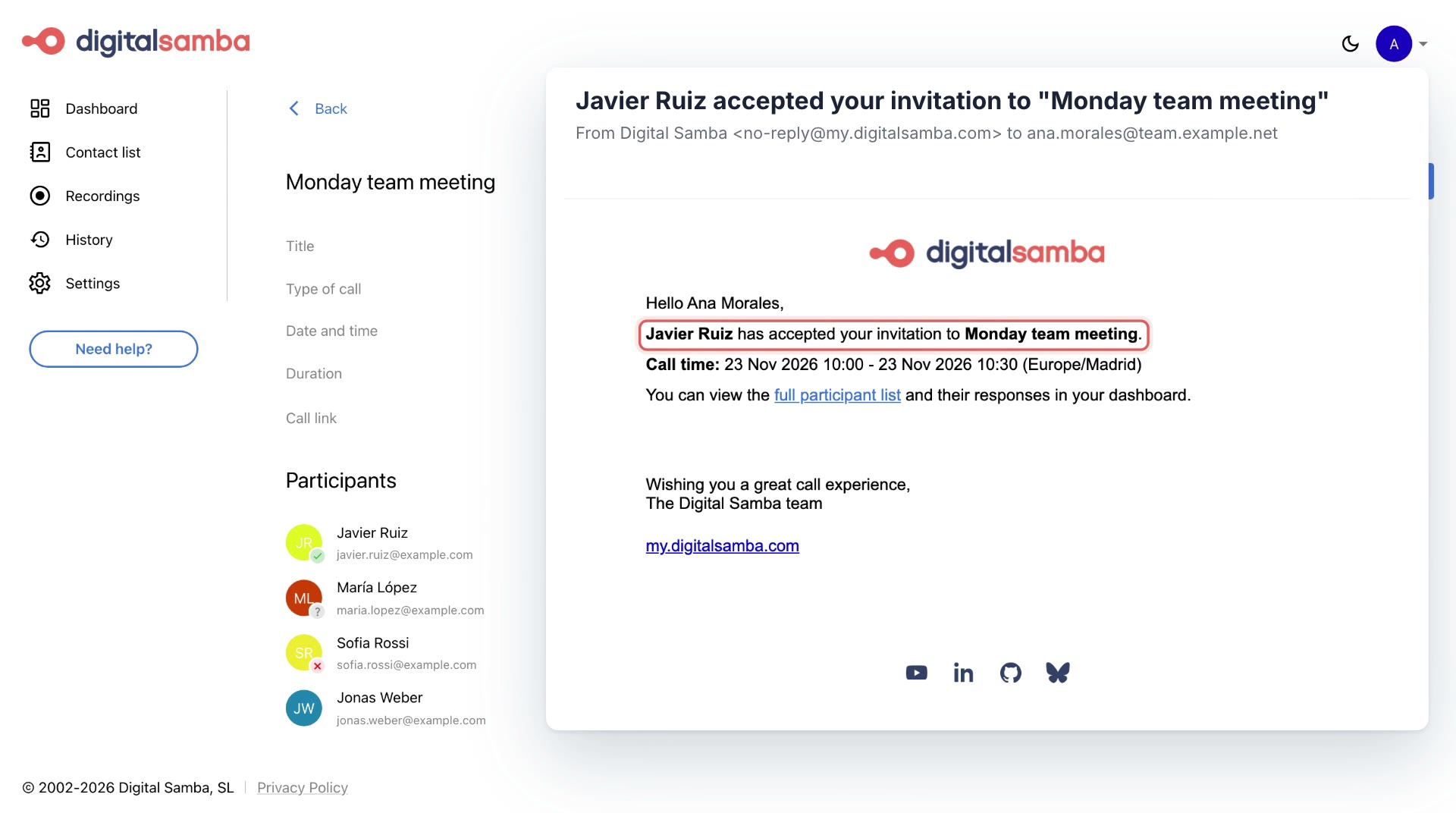
Screenshot from the film at 1:59: And you get an email each time someone answers.
Watch this step · 1:58

5What changed2:01

Now move the meeting to eleven: everyone invited gets an update.
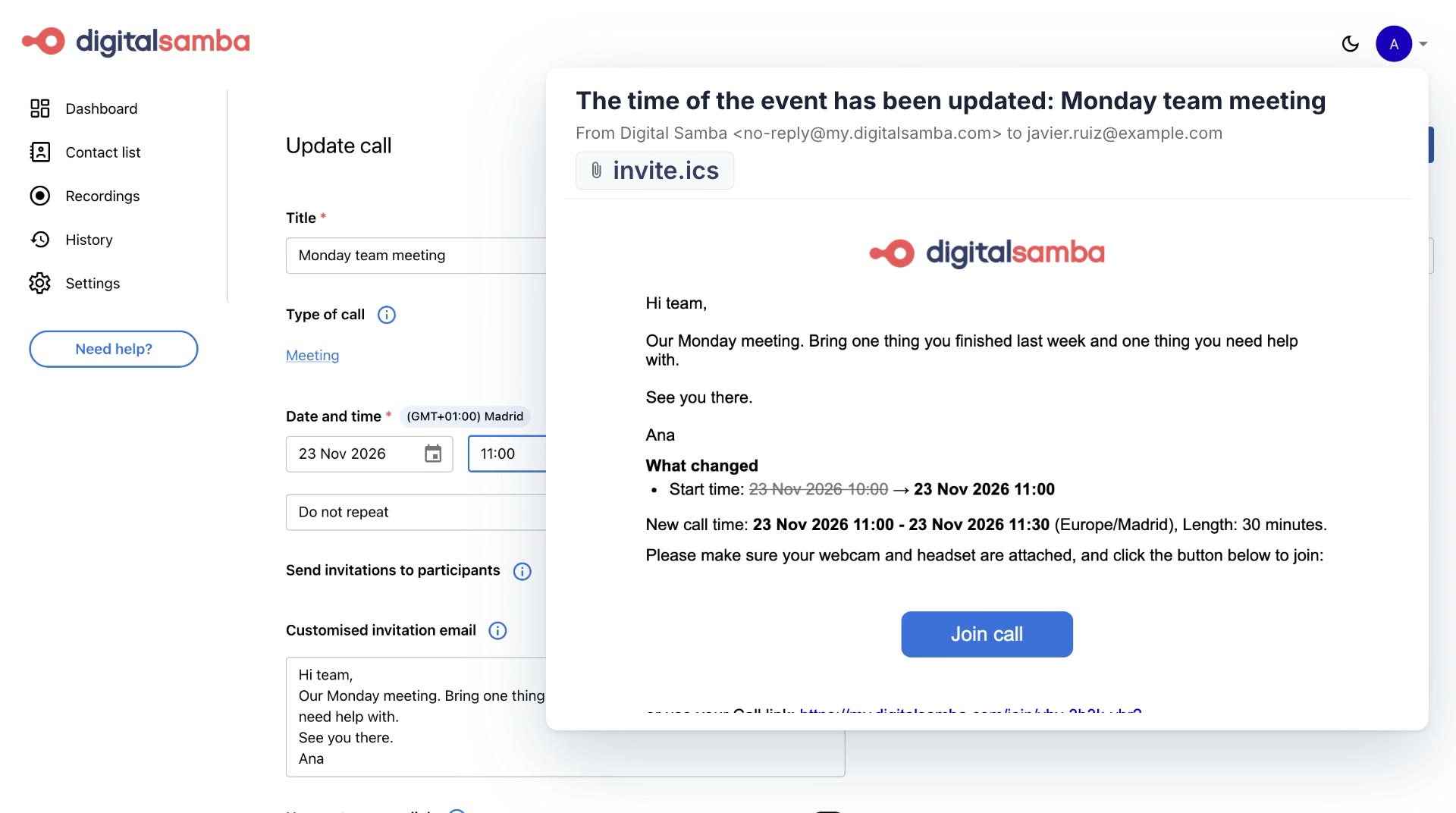
Screenshot from the film at 2:06: Now move the meeting to eleven: everyone invited gets an update.
Watch this step · 2:02

Under What changed, it shows the old time crossed out and the new one.
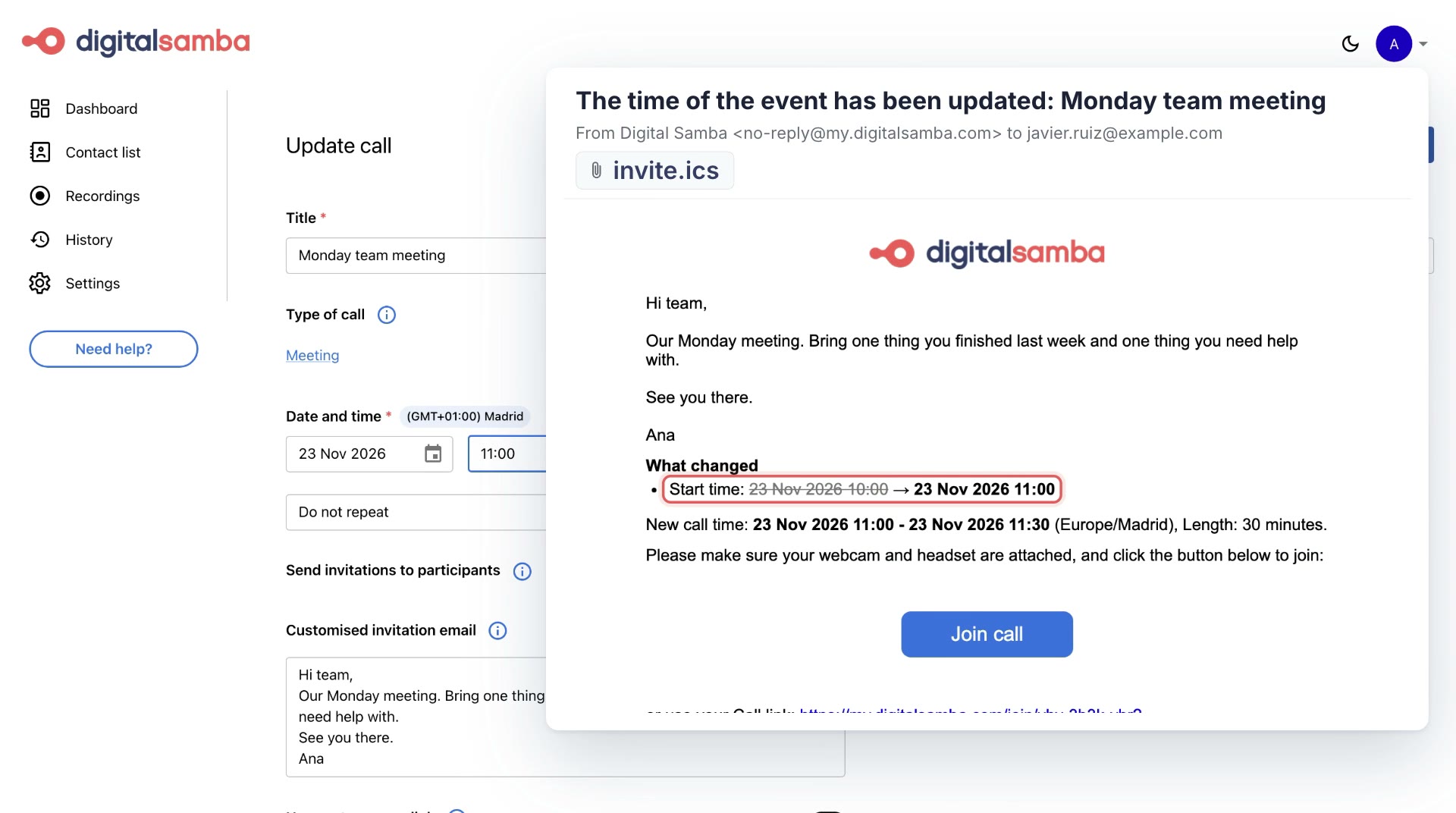
Screenshot from the film at 2:09: Under What changed, it shows the old time crossed out and the new one.
Watch this step · 2:07

Add someone later, and only that person gets an invitation.
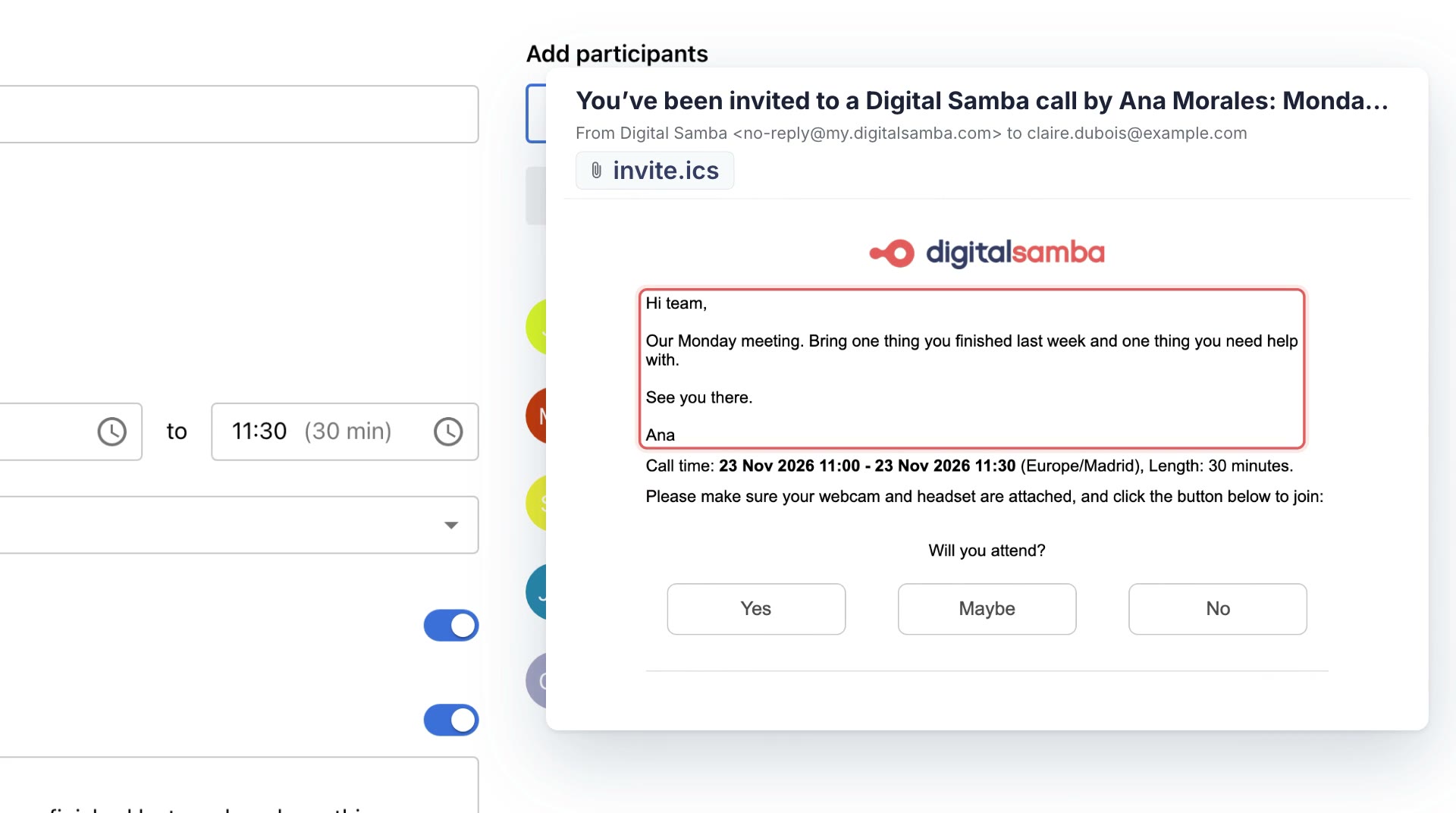
Screenshot from the film at 2:16: Add someone later, and only that person gets an invitation.
Watch this step · 2:13

Remove someone, and they are told their invitation has been cancelled: their link stops working.
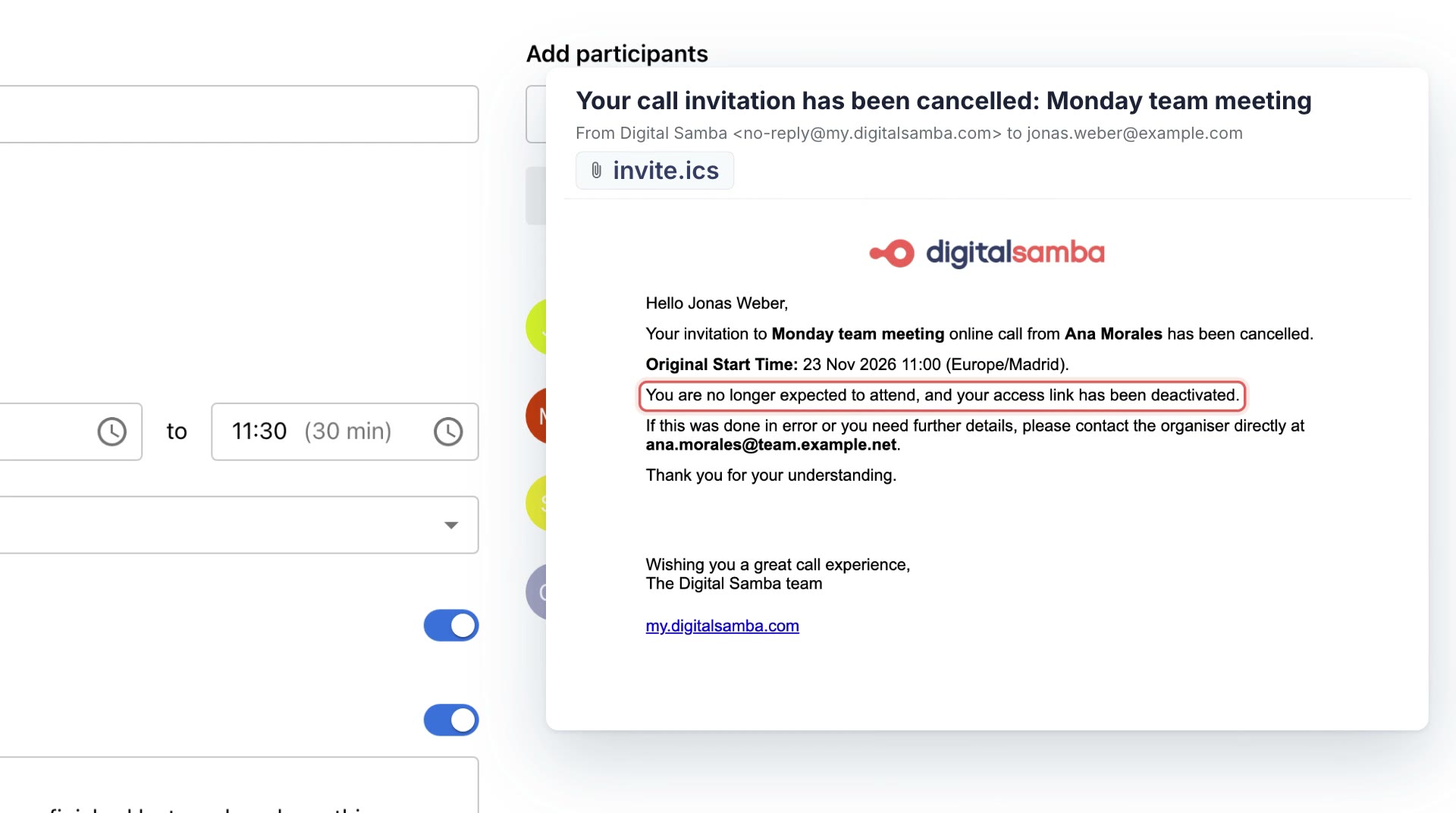
Screenshot from the film at 2:24: Remove someone, and they are told their invitation has been cancelled: their link stops working.
Watch this step · 2:19

Changing only your message sends nothing.
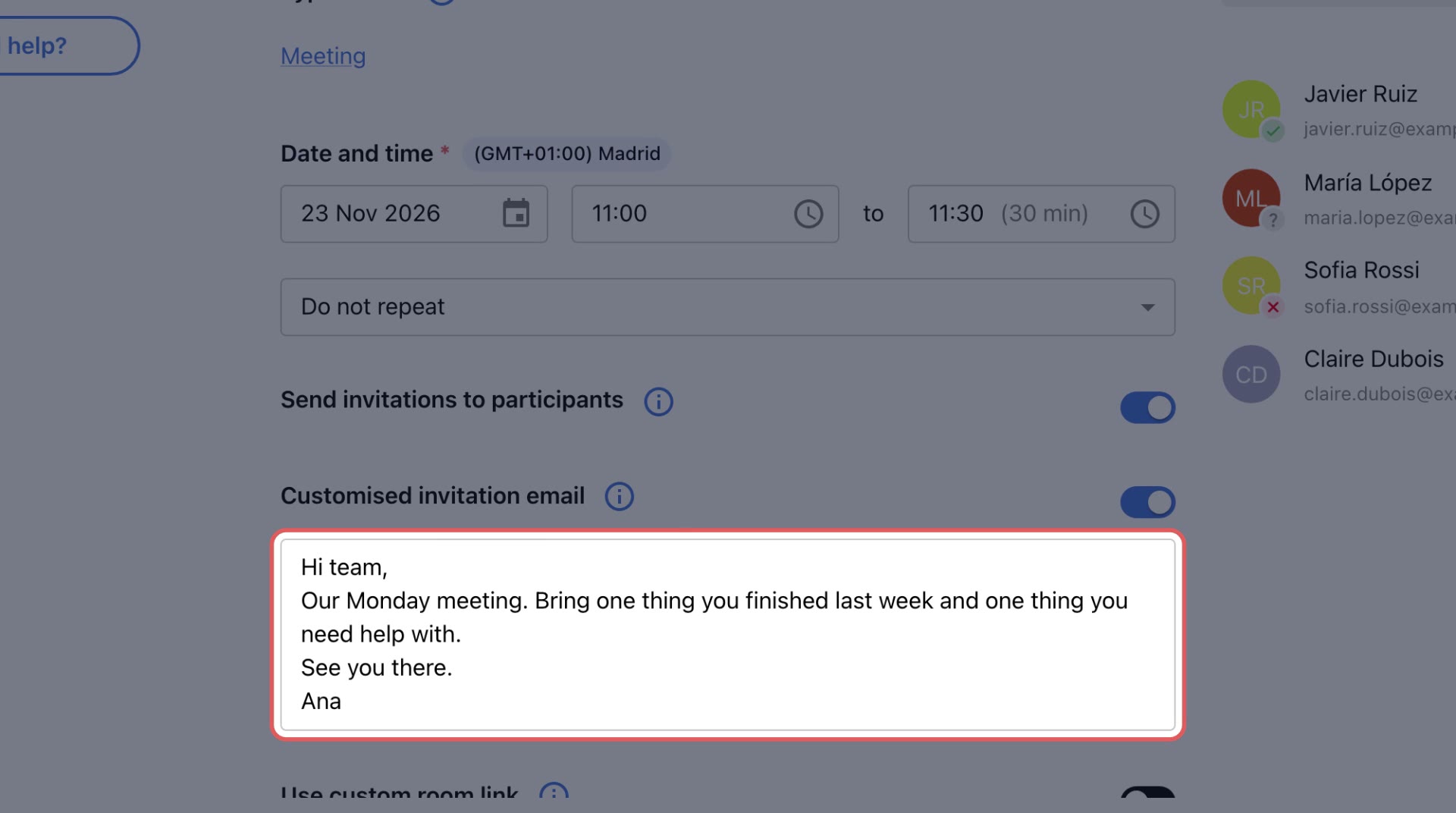
Screenshot from the film at 2:27: Changing only your message sends nothing.
Watch this step · 2:26

Good to know2:29

A call that is already over sends nothing.
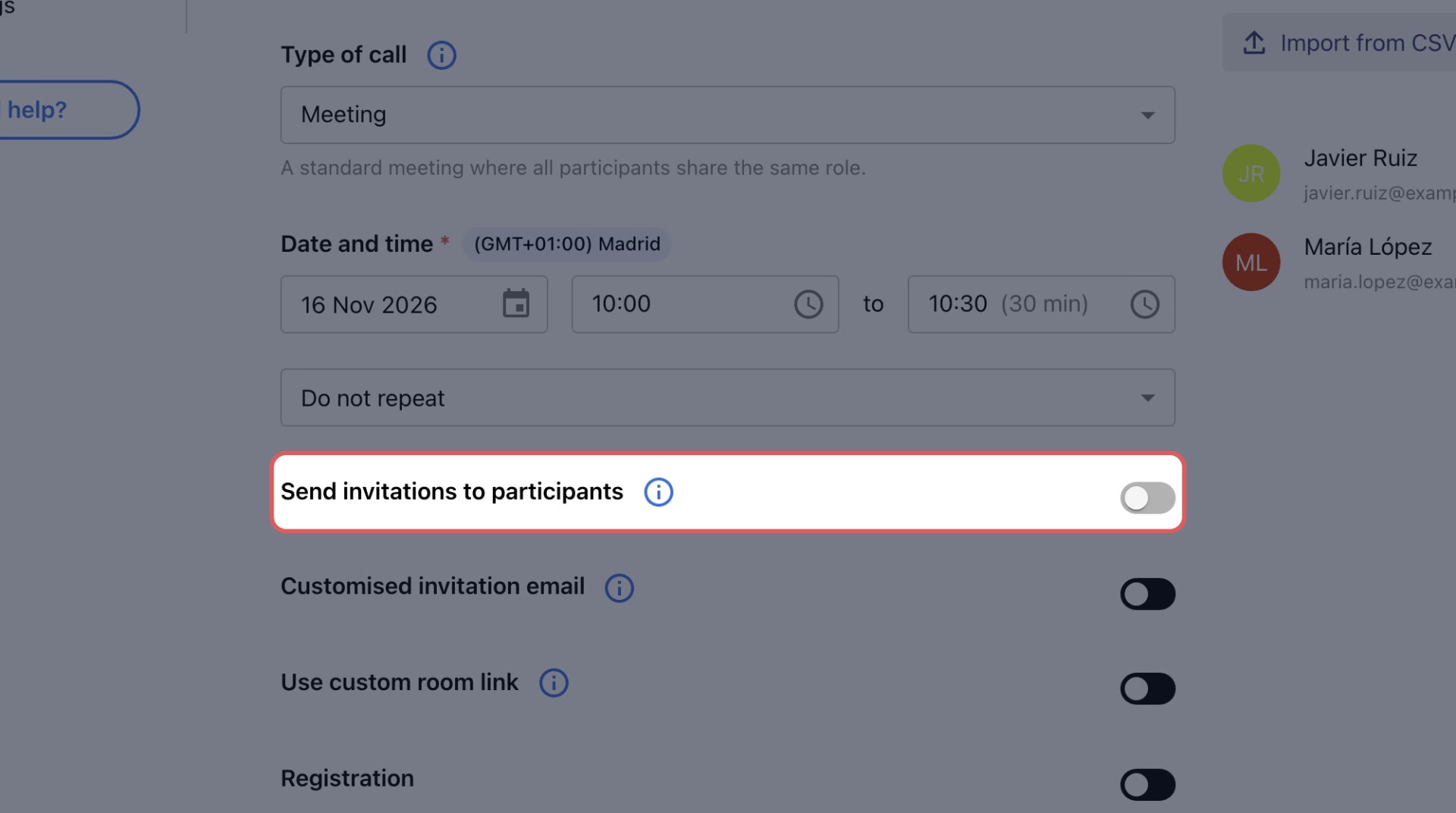
Screenshot from the film at 2:34: Good to know: a call that is already over sends nothing.
Watch this step · 2:30

Calls made with Create link never send email.
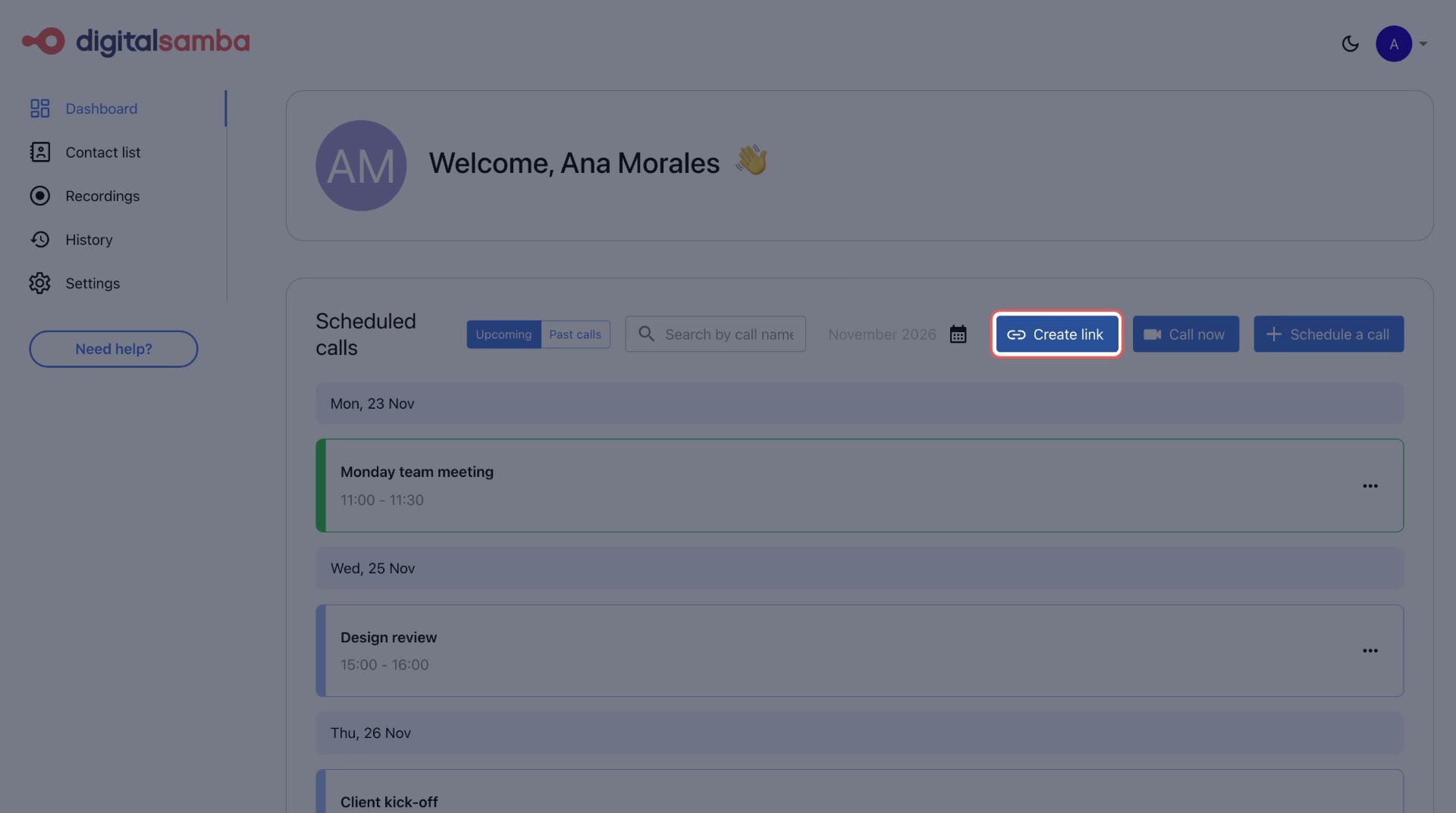
Screenshot from the film at 2:37: Calls made with Create link never send email.
Watch this step · 2:35

Turning the switch back on later does not send the invitations you skipped.
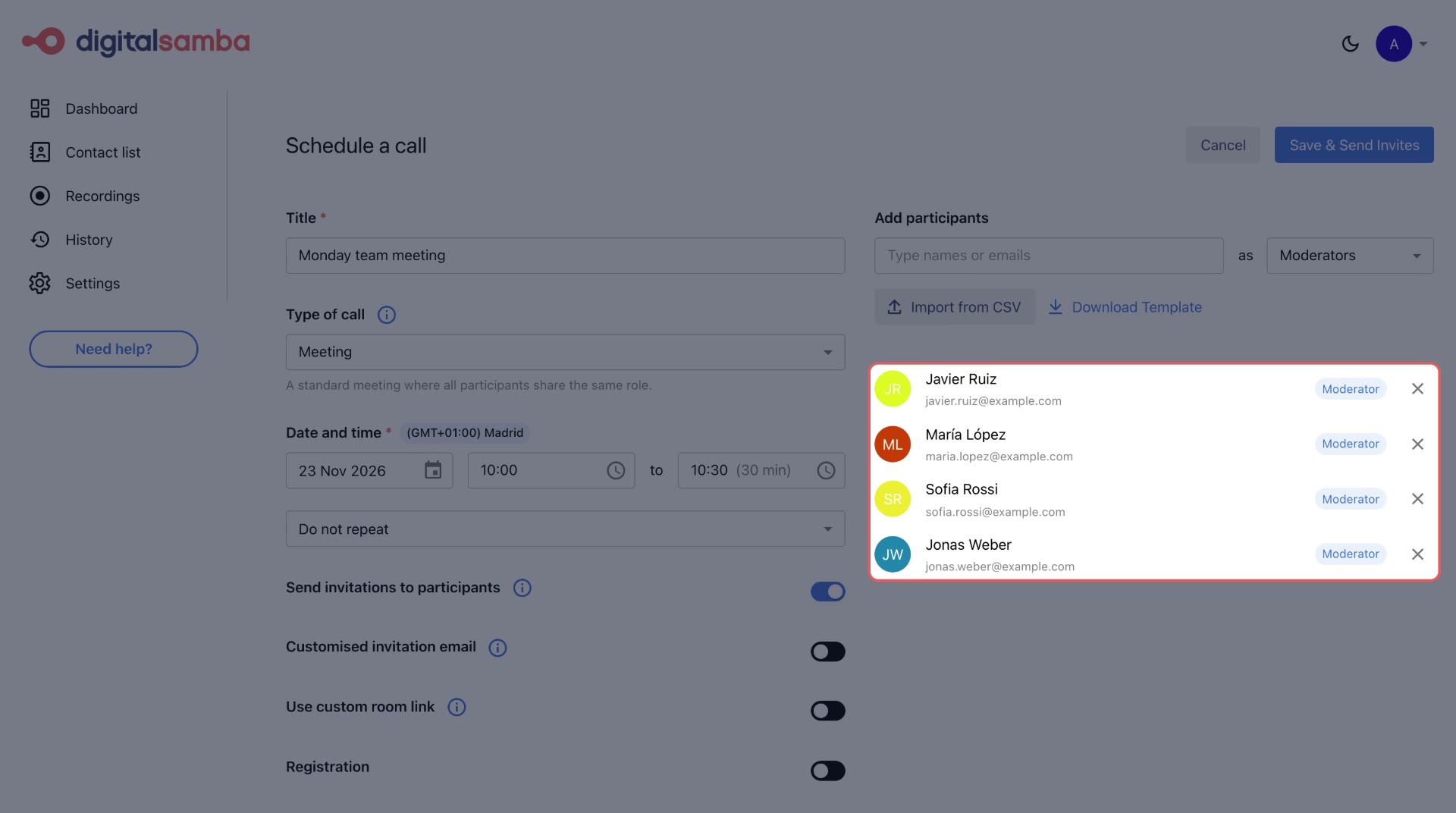
Screenshot from the film at 2:44: Turning the switch back on later does not send the invitations you skipped.
Watch this step · 2:40

And answers stay when you move a call.
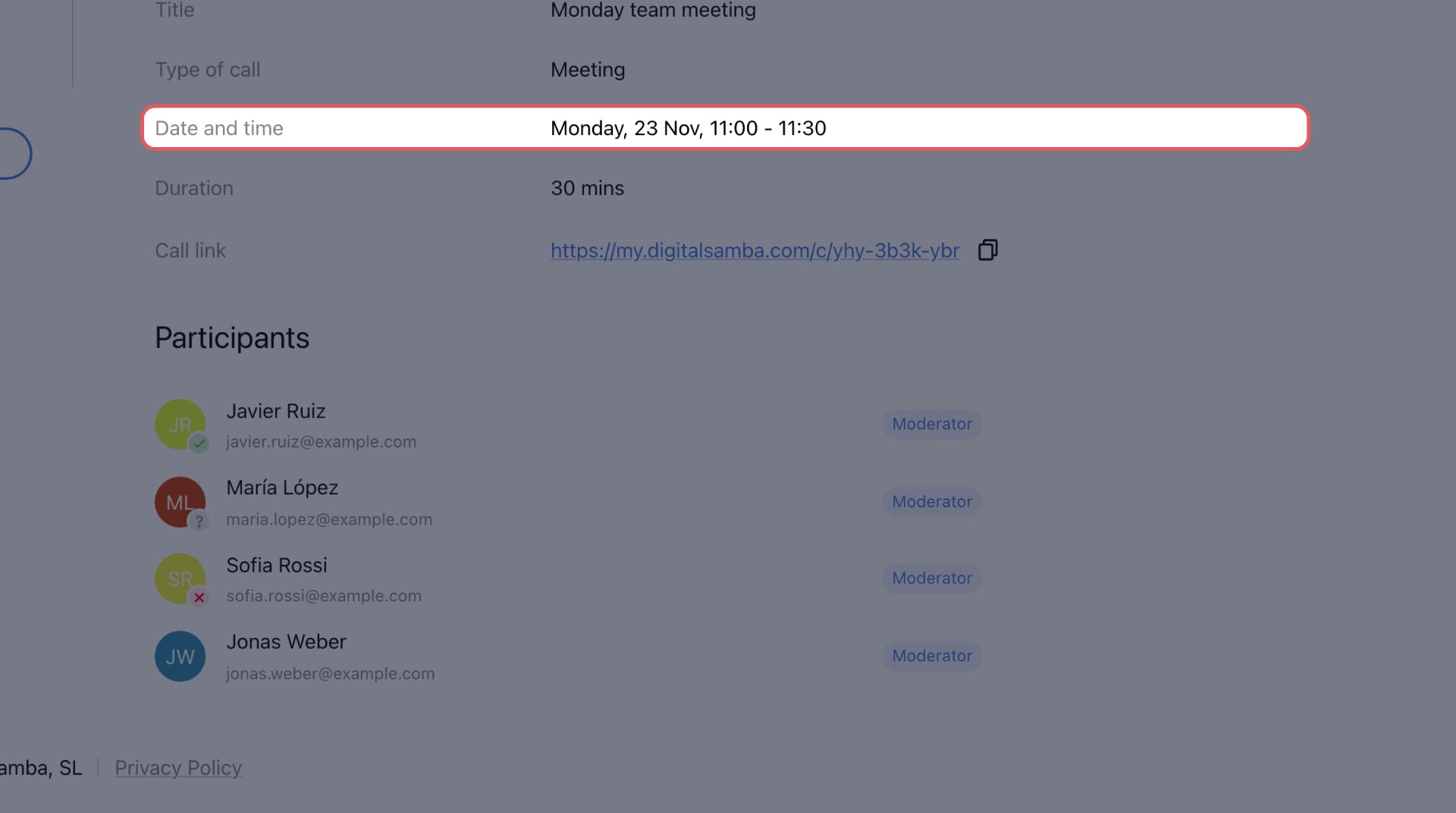
Screenshot from the film at 2:47: And answers stay when you move a call.
Watch this step · 2:45

Recap2:49

So: two switches, your own message, a personal link and a calendar file for each person — and every answer comes back to you.
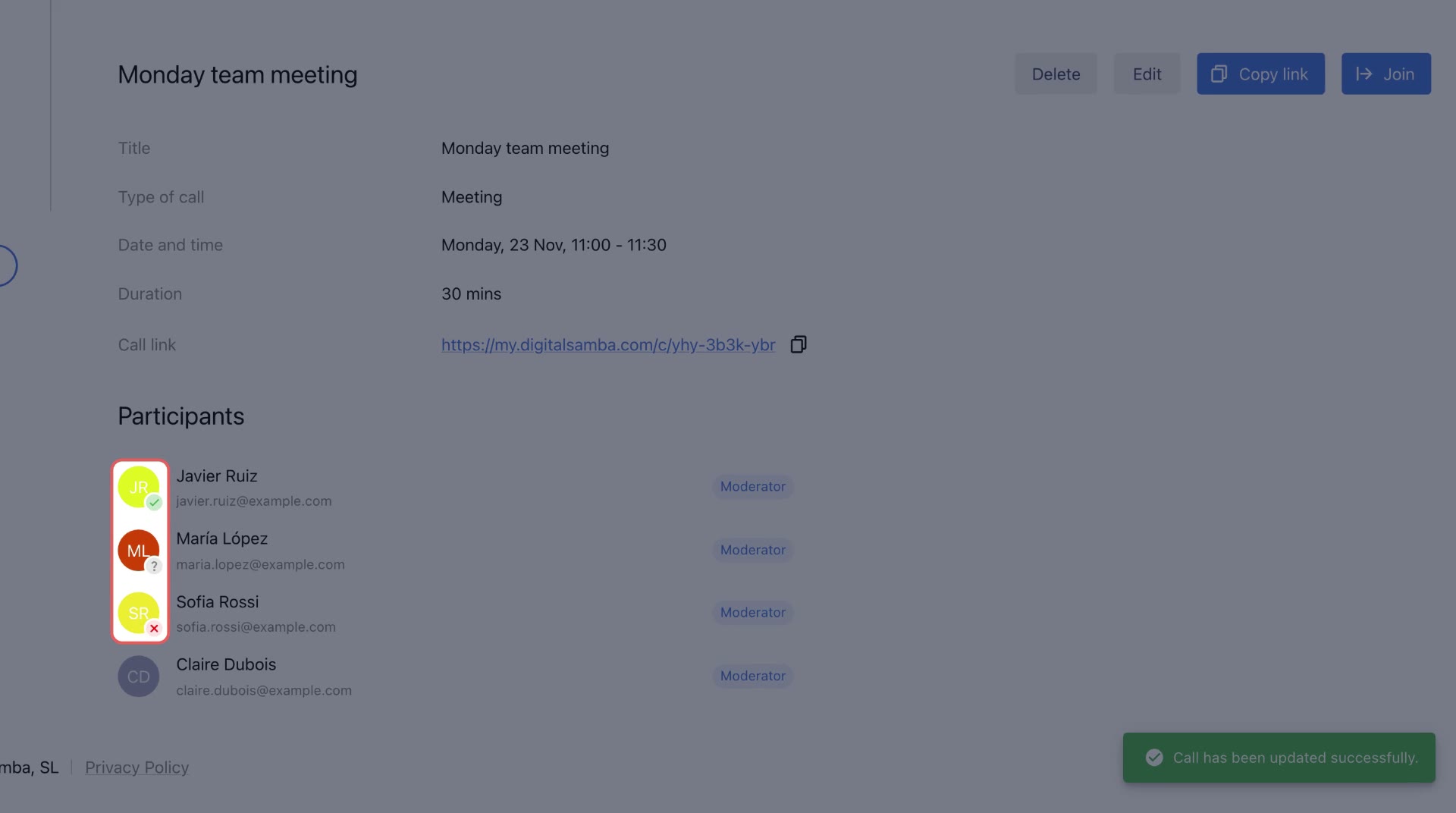
Screenshot from the film at 2:57: So: two switches, your own message, a personal link and a calendar file for each person — and every answer comes back to you.
Watch this step · 2:49

In this video

Next

Related

Updated

The film, the article, the captions and the search results all come from one source, so they change together.

  1. Version 1 ·
    First version.

All updates