University

Types of call: Meeting, Webinar and Classroom

In this video, you'll get to know the types of call — Meeting, Webinar and Classroom — and make one of your own.

Updated Version 1

1Type of call0:09

Our example: Ana makes her own type of call, for webinars with her clients.

Every call — a meeting, a class or a webinar — has a type of call, chosen when you schedule a call or create a link.
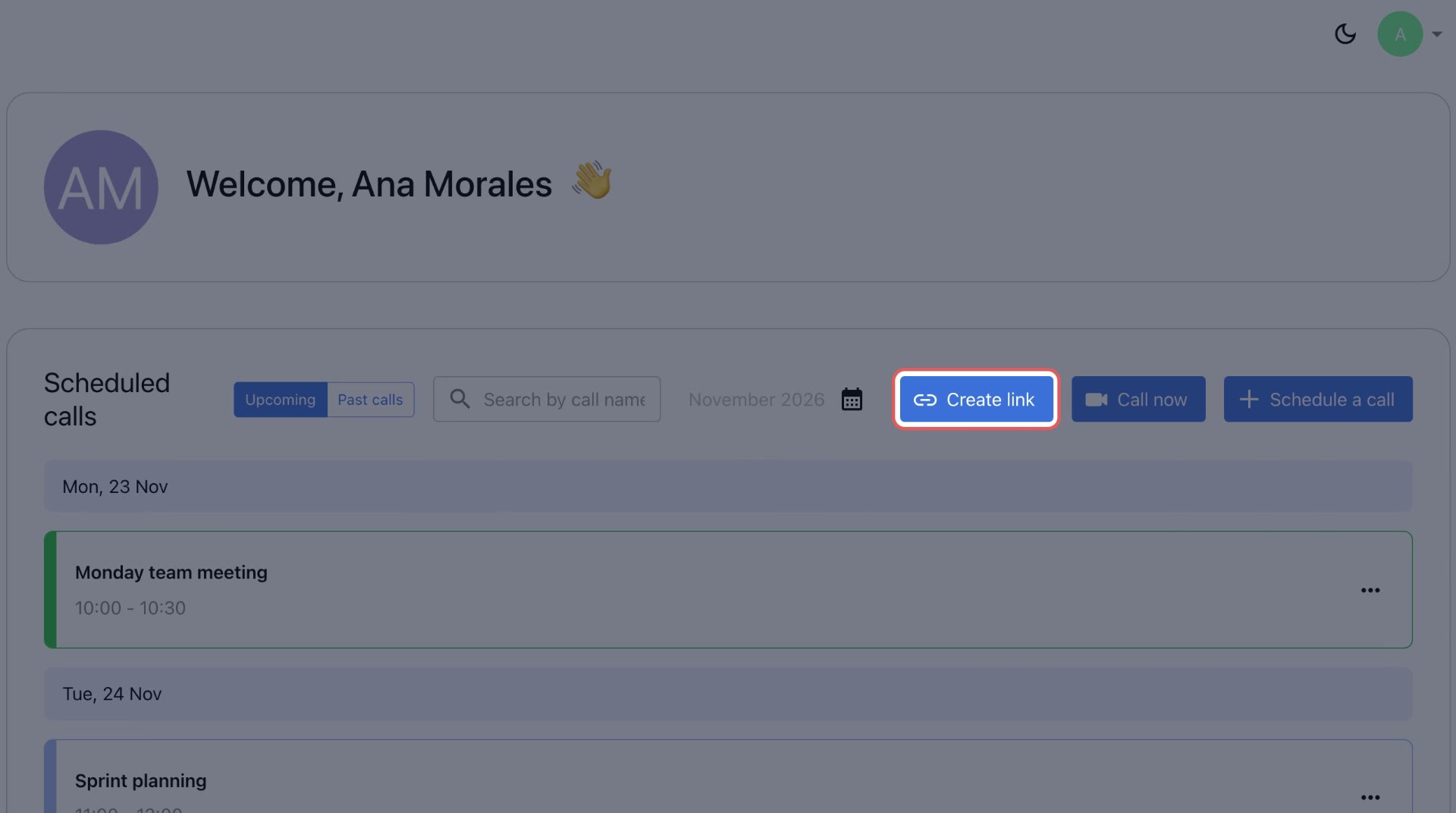
Screenshot from the film at 0:24: Every call — a meeting, a class or a webinar — has a type of call, chosen when you schedule a call or create a link.
Watch this step · 0:16

Click Schedule a call and open Type of call: Meeting, Webinar and Classroom are built in.
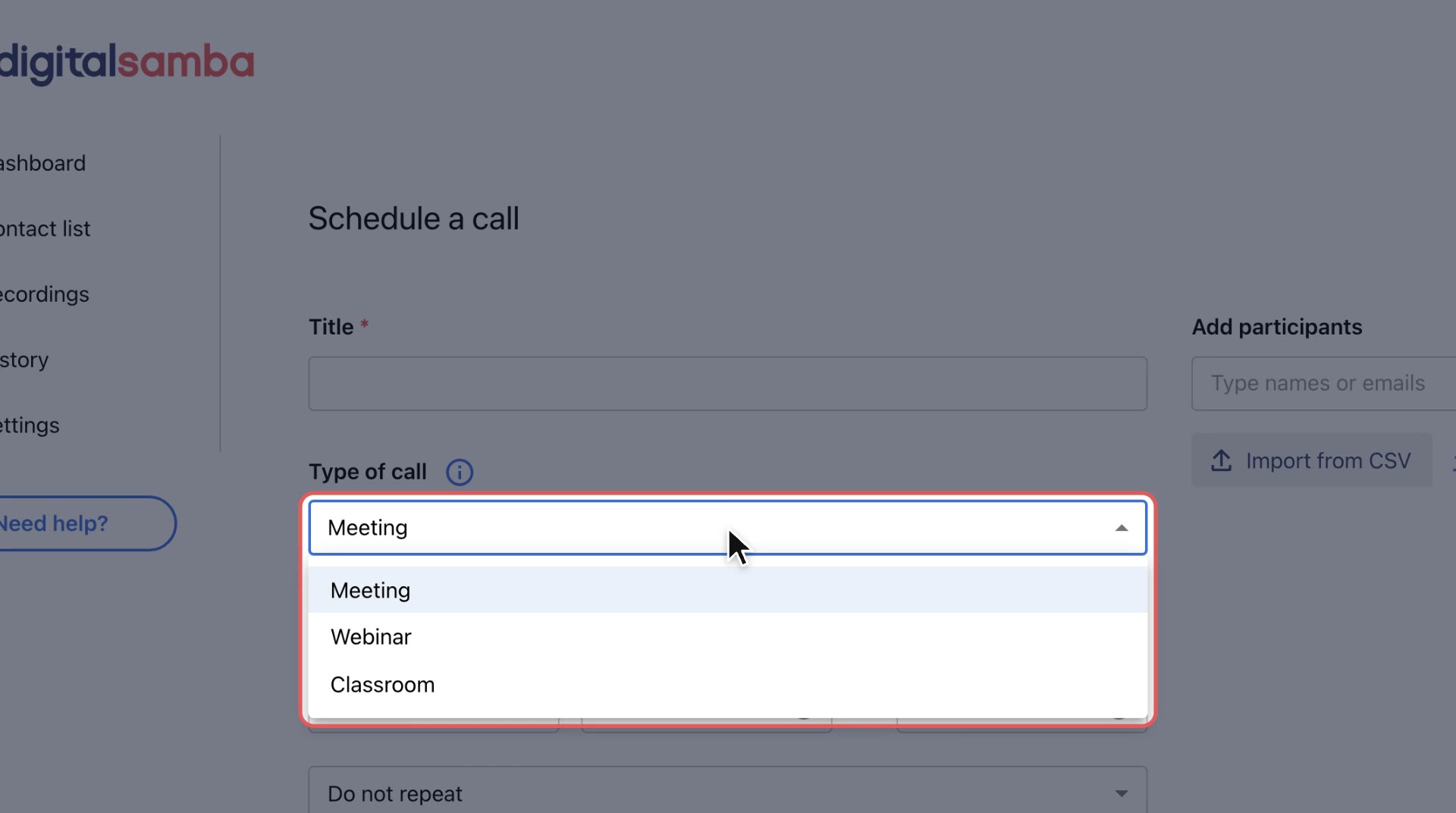
Screenshot from the film at 0:29: Click Schedule a call and open Type of call: Meeting, Webinar and Classroom are built in.
Watch this step · 0:25

2Templates0:32

You manage them in Settings, under Templates: the word the settings use for a type of call.
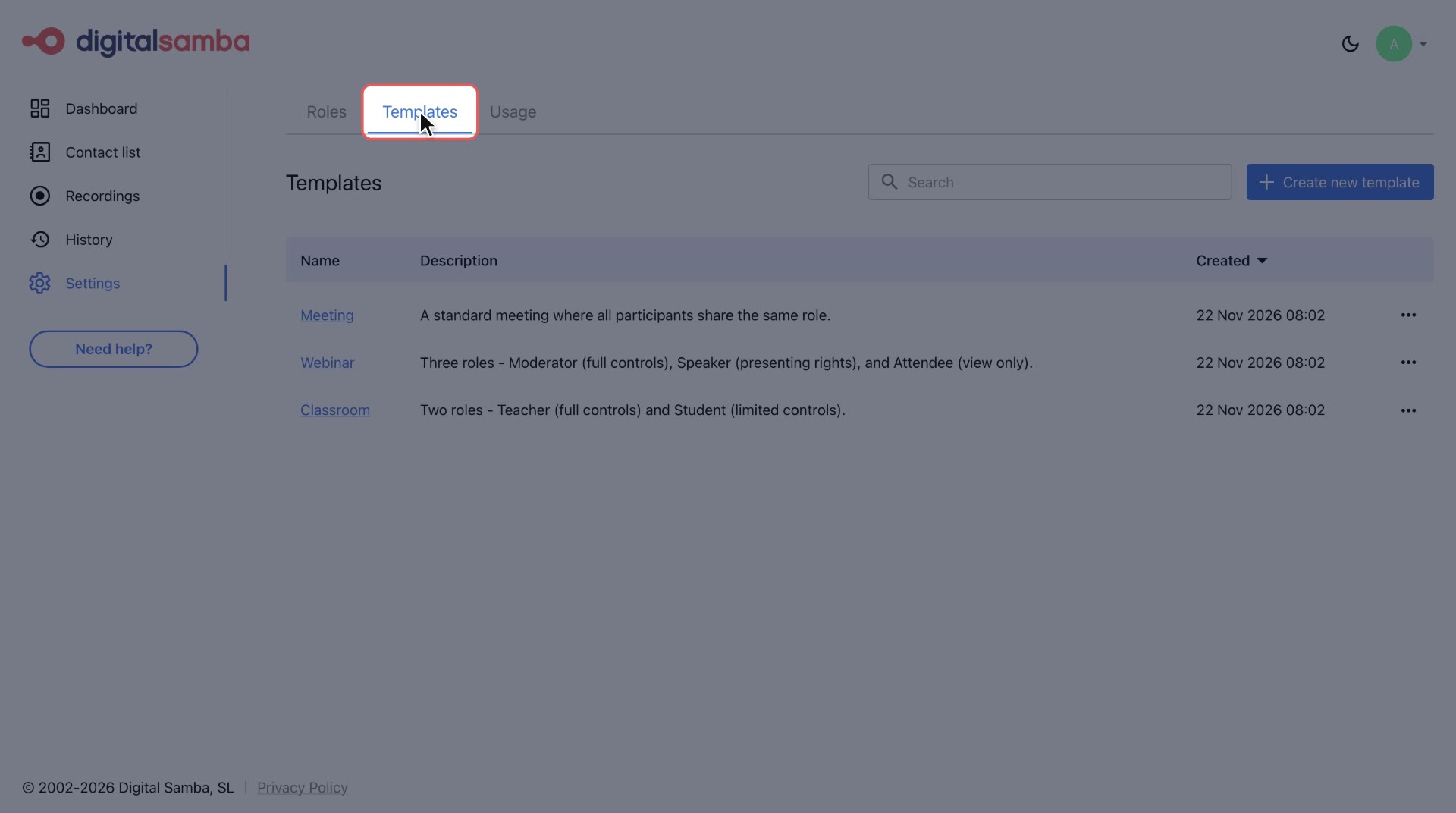
Screenshot from the film at 0:37: You manage them in Settings, under Templates: the word the settings use for a type of call.
Watch this step · 0:33

Meeting gives everyone one role; Webinar has moderators, speakers and attendees; Classroom, teachers and students.
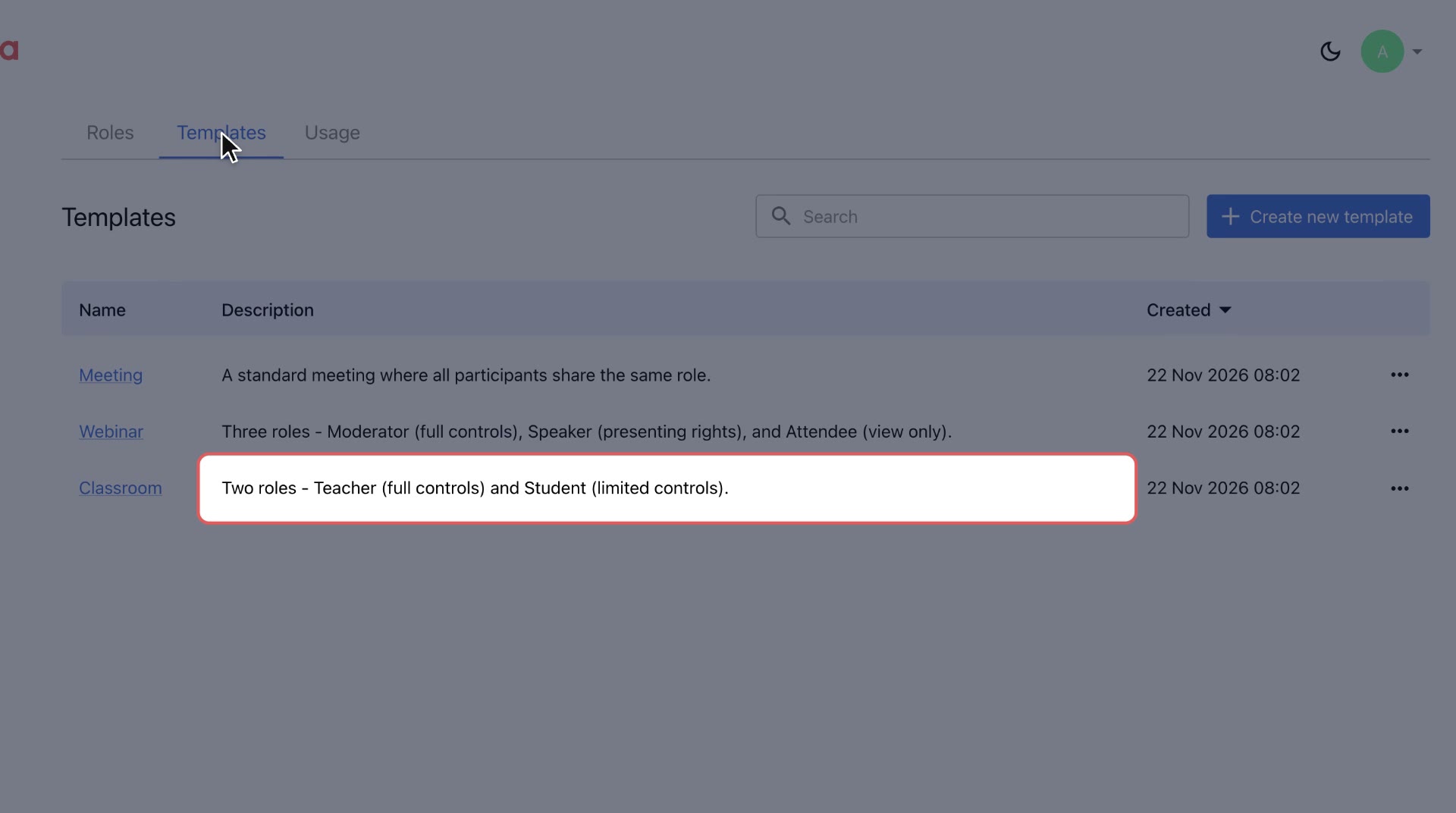
Screenshot from the film at 0:46: Meeting gives everyone one role; Webinar has moderators, speakers and attendees; Classroom, teachers and students.
Watch this step · 0:39

Open Webinar: here are its three roles, and its Default role, Attendees.
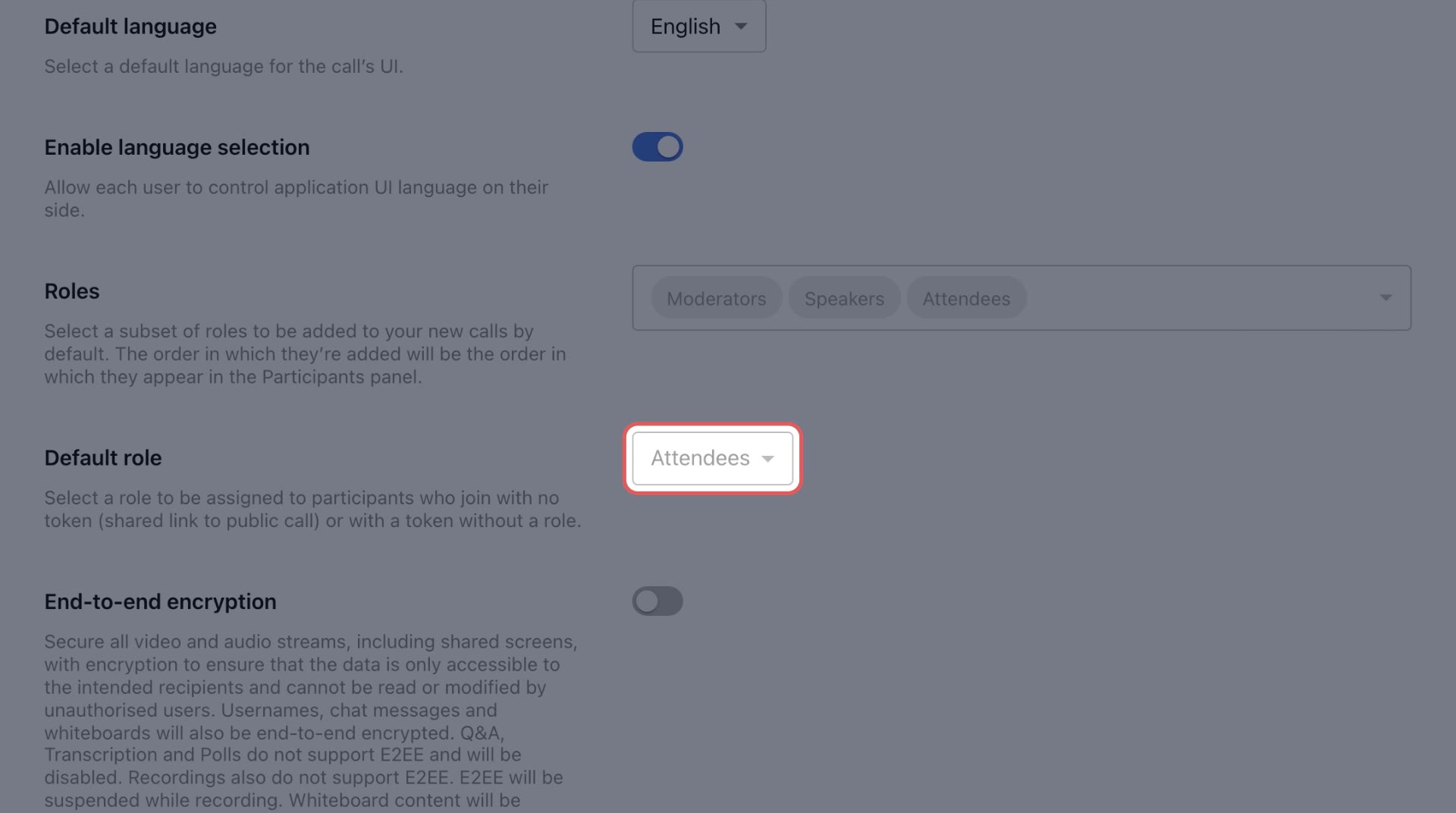
Screenshot from the film at 0:52: Open Webinar: here are its three roles, and its Default role, Attendees.
Watch this step · 0:48

On a built-in type, they're greyed out: they can't be changed.
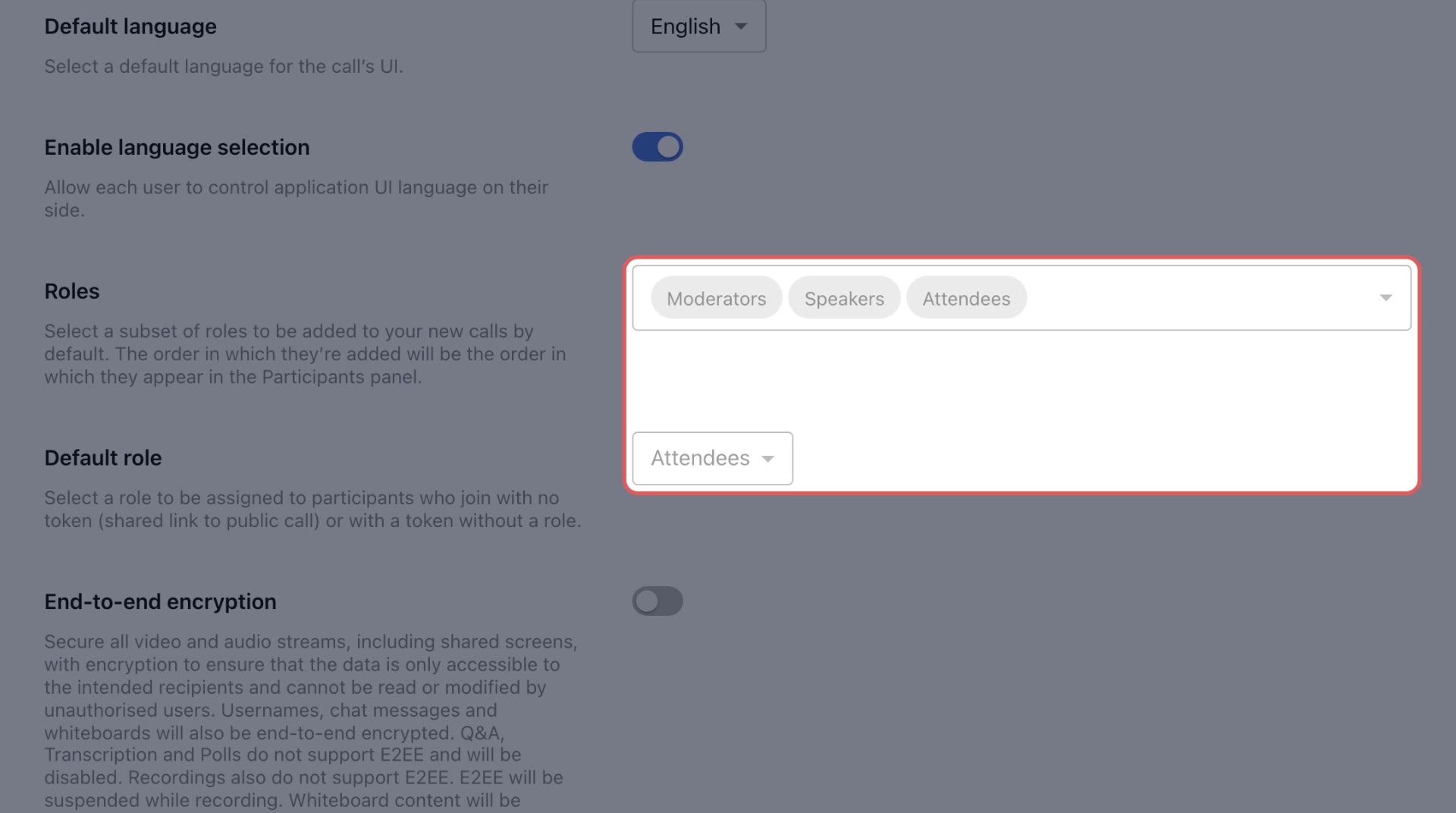
Screenshot from the film at 0:56: On a built-in type, they're greyed out: they can't be changed.
Watch this step · 0:54

People you add to a webinar are added as Attendees, unless you pick another role.
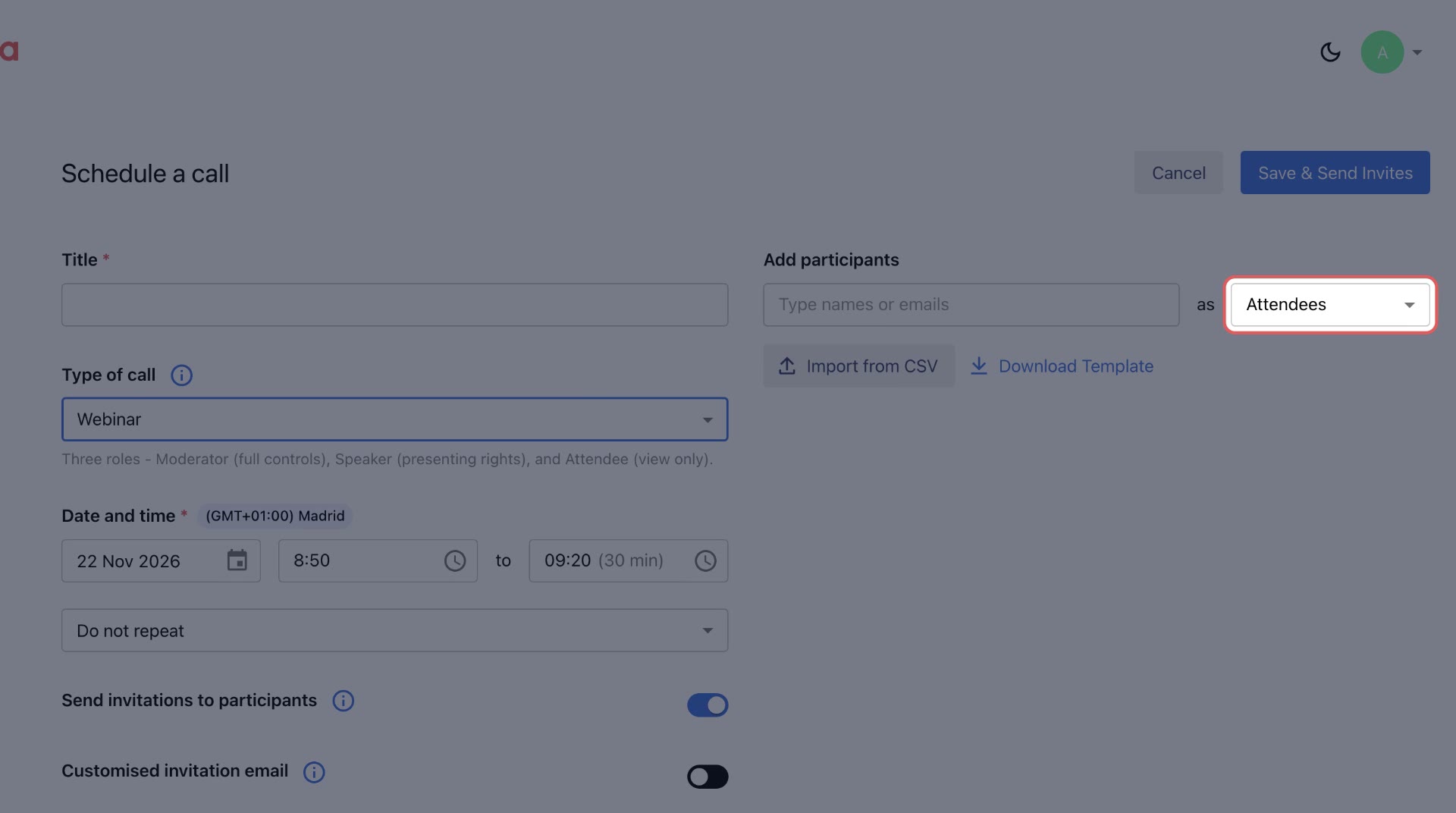
Screenshot from the film at 1:01: People you add to a webinar are added as Attendees, unless you pick another role.
Watch this step · 0:58

3Create new template1:04

To make your own, click Create new template.
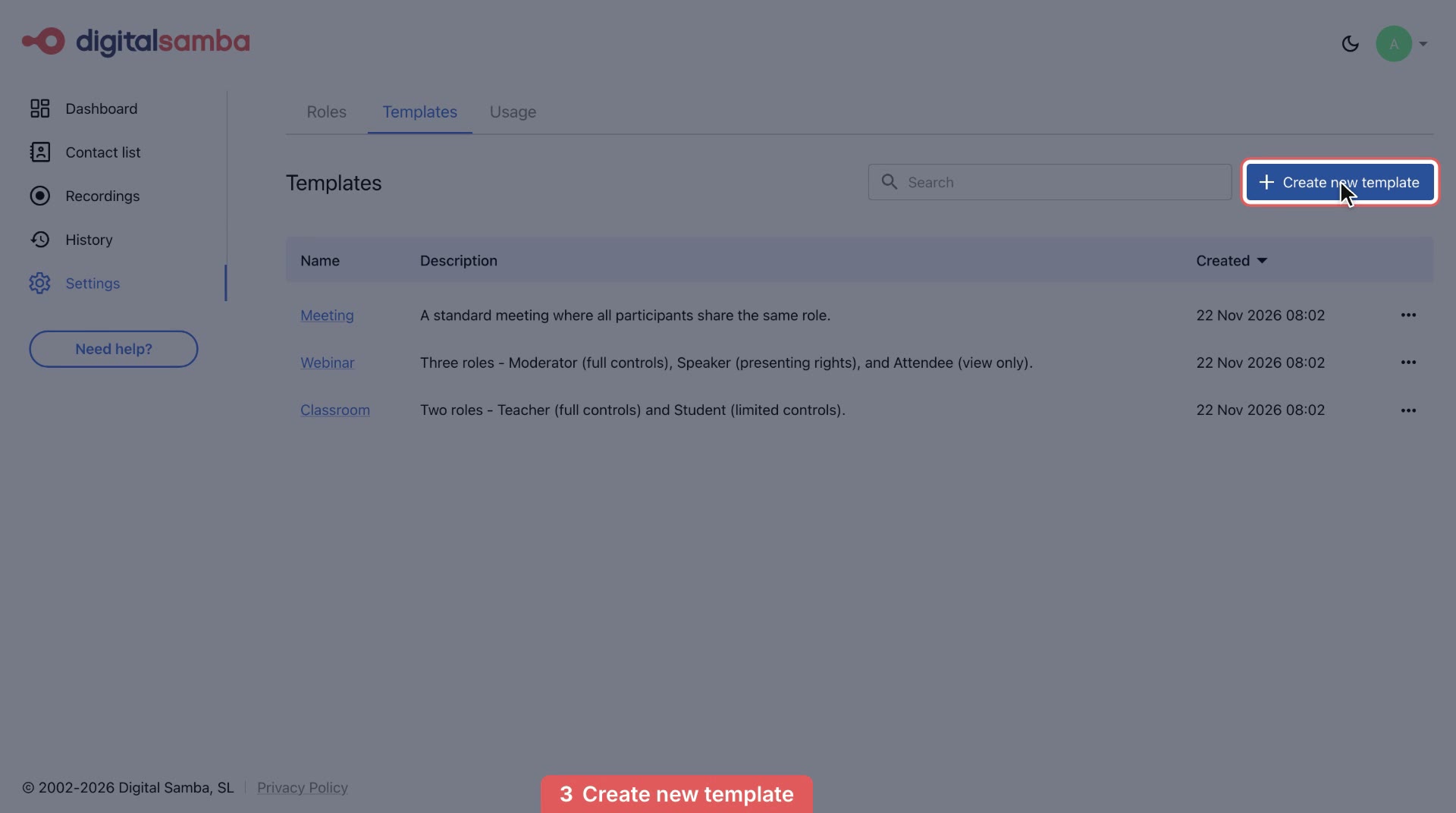
Screenshot from the film at 1:07: To make your own, click Create new template.
Watch this step · 1:04

Ana names it Client webinar and adds a description.
Screenshot from the film at 1:12: Ana names it Client webinar and adds a description.
Watch this step · 1:08

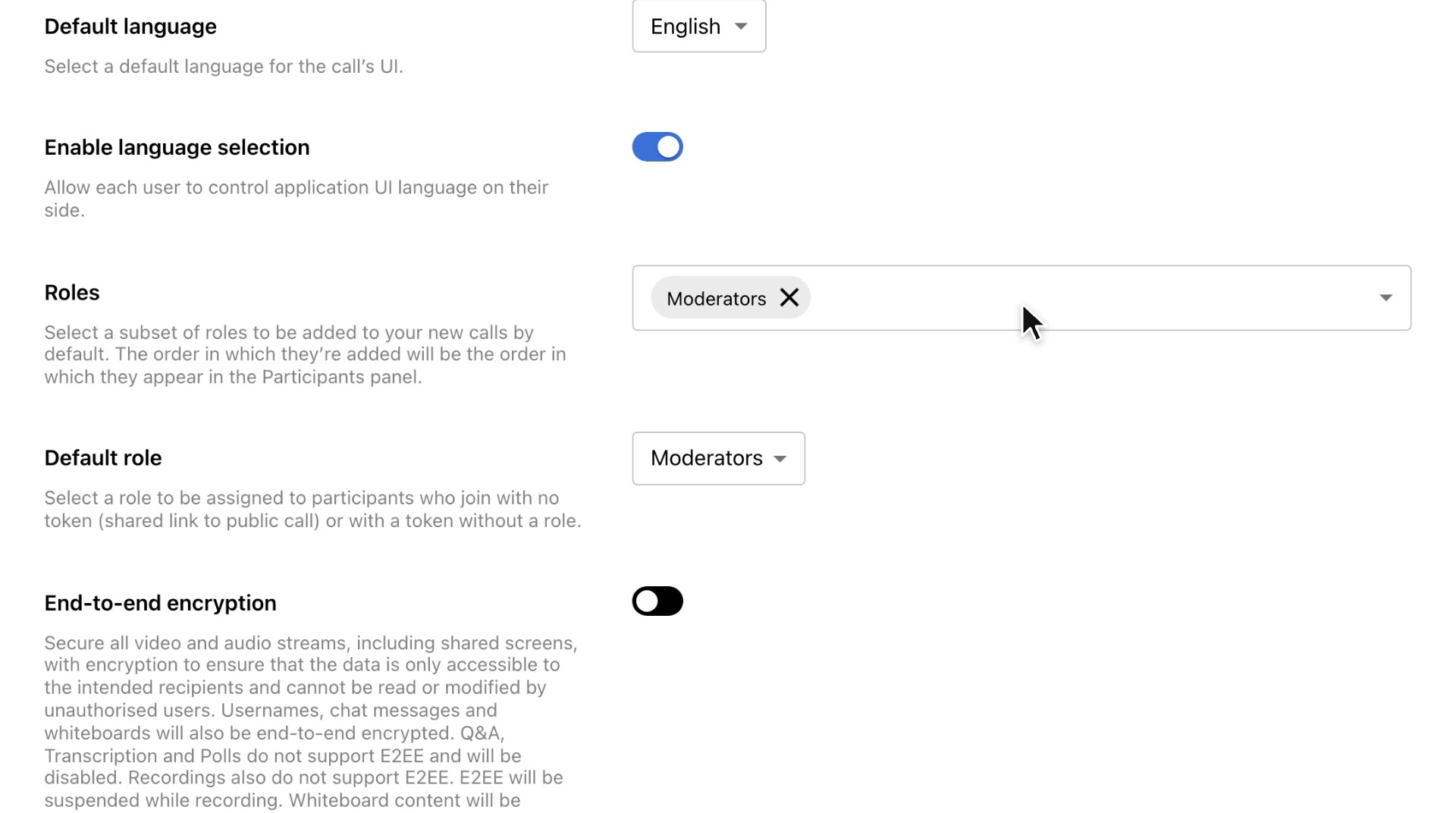
A new type starts with one role, Moderators; she adds Speakers and Attendees.
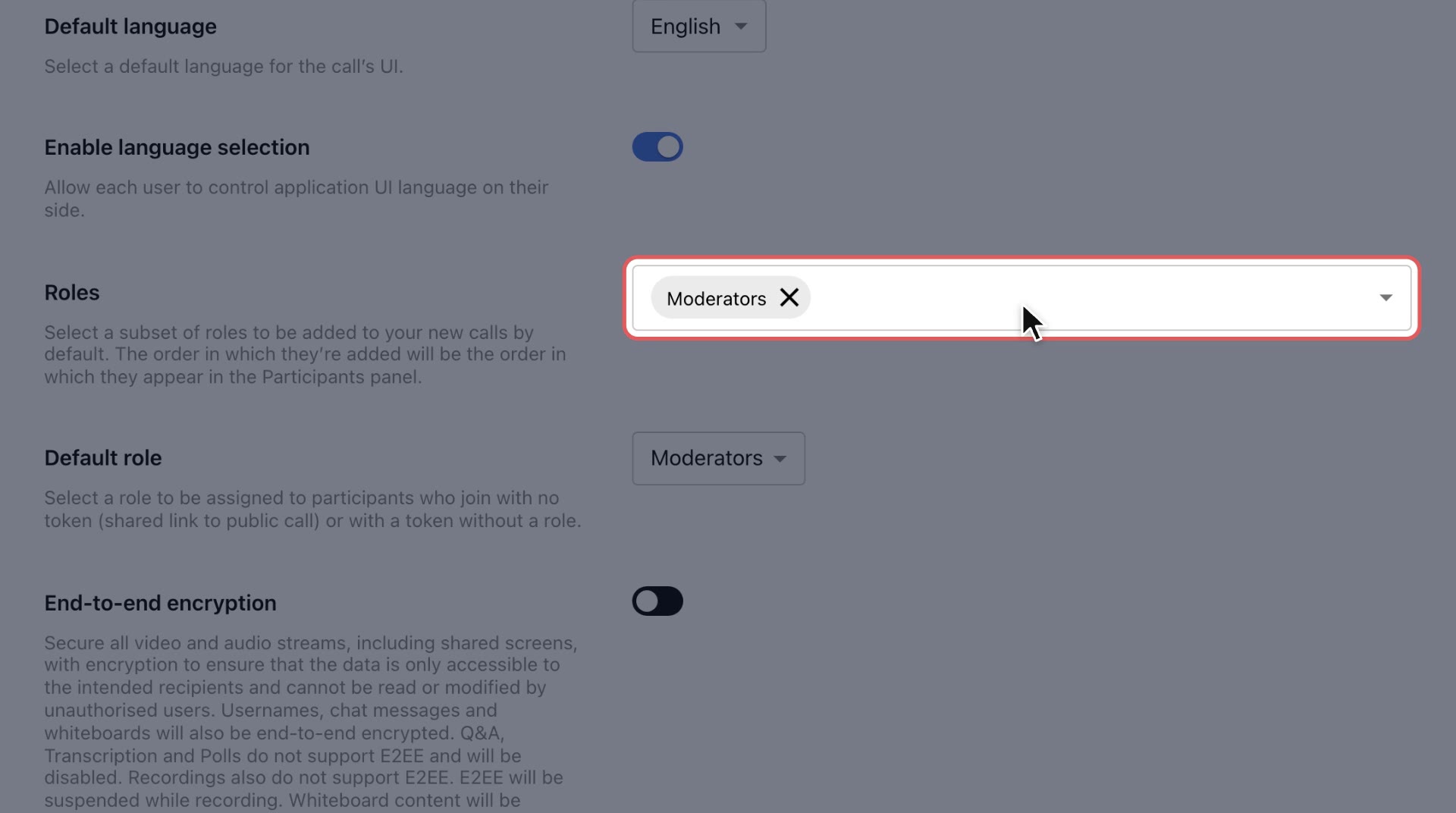
Screenshot from the film at 1:13: A new type starts with one role, Moderators; she adds Speakers and Attendees.
Watch this step · 1:12

That empties Default role, so she picks Attendees.
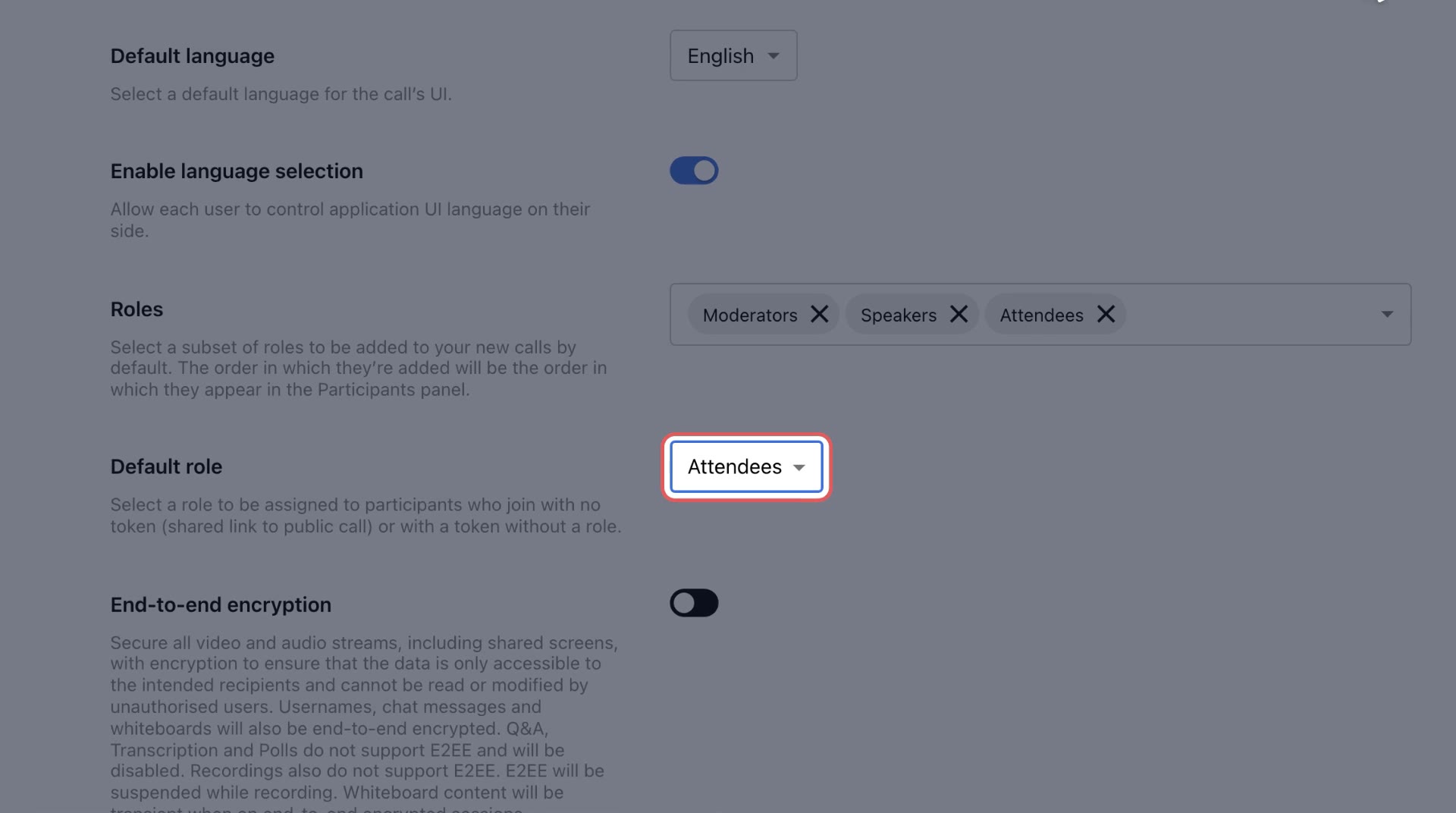
Screenshot from the film at 1:22: That empties Default role, so she picks Attendees.
Watch this step · 1:18

Click Save: Client webinar now sits beside the three built-in types.
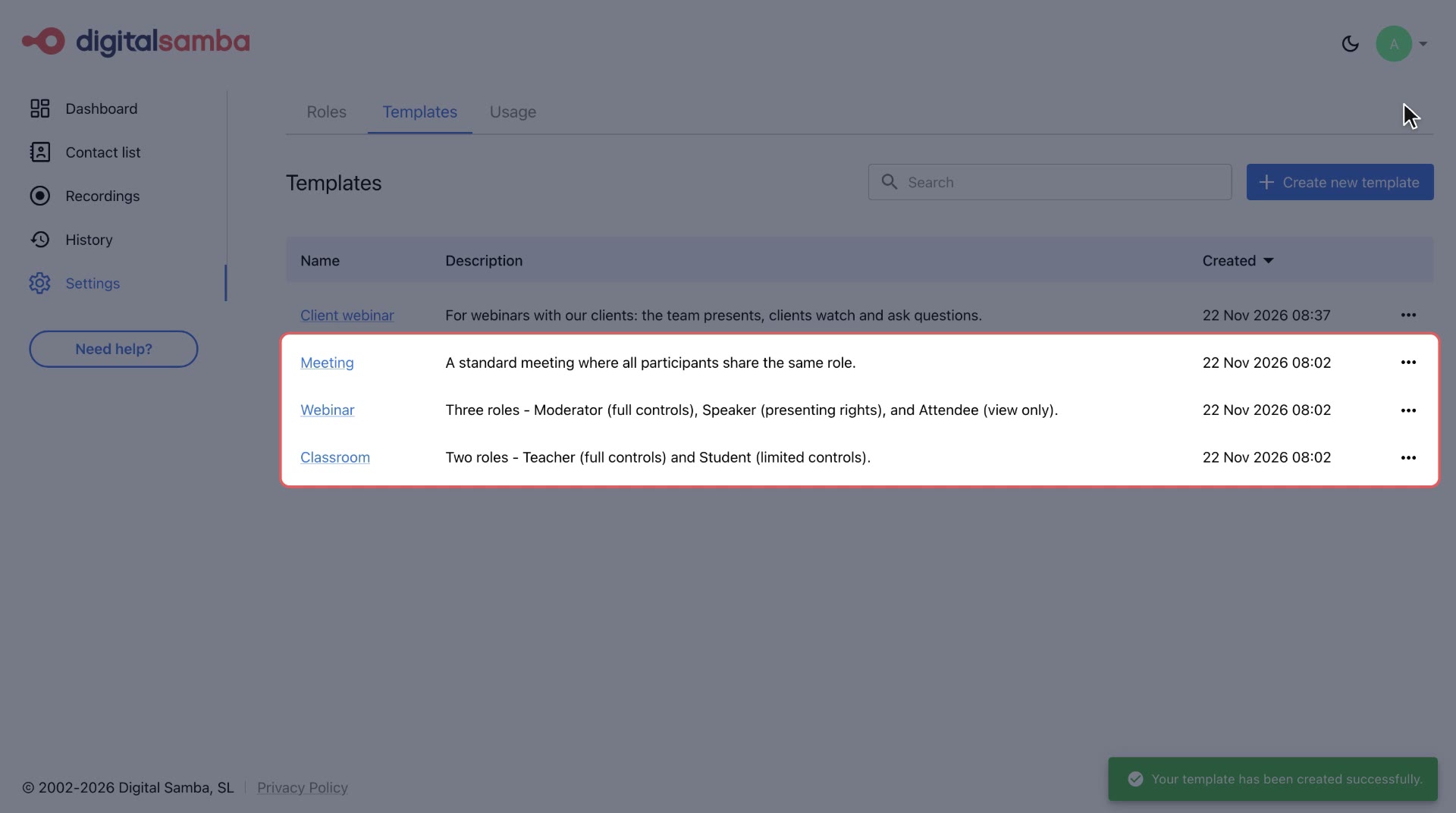
Screenshot from the film at 1:26: Click Save: Client webinar now sits beside the three built-in types.
Watch this step · 1:22

4Set as default1:27

Schedule a call starts with the default type; to change it, open Client webinar's menu and click Set as default.
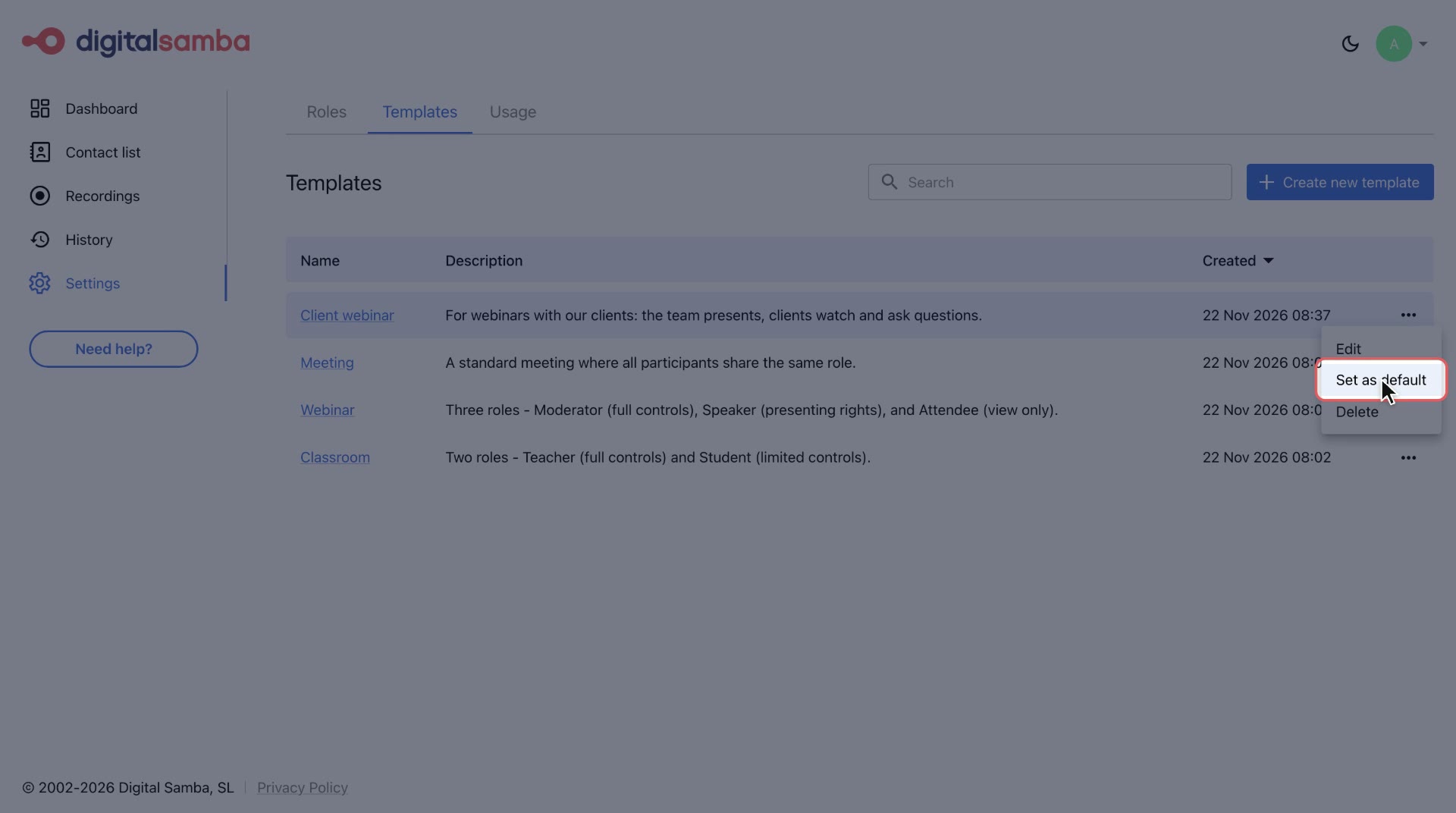
Screenshot from the film at 1:35: Schedule a call starts with the default type; to change it, open Client webinar's menu and click Set as default.
Watch this step · 1:28

Now the form starts with Client webinar.
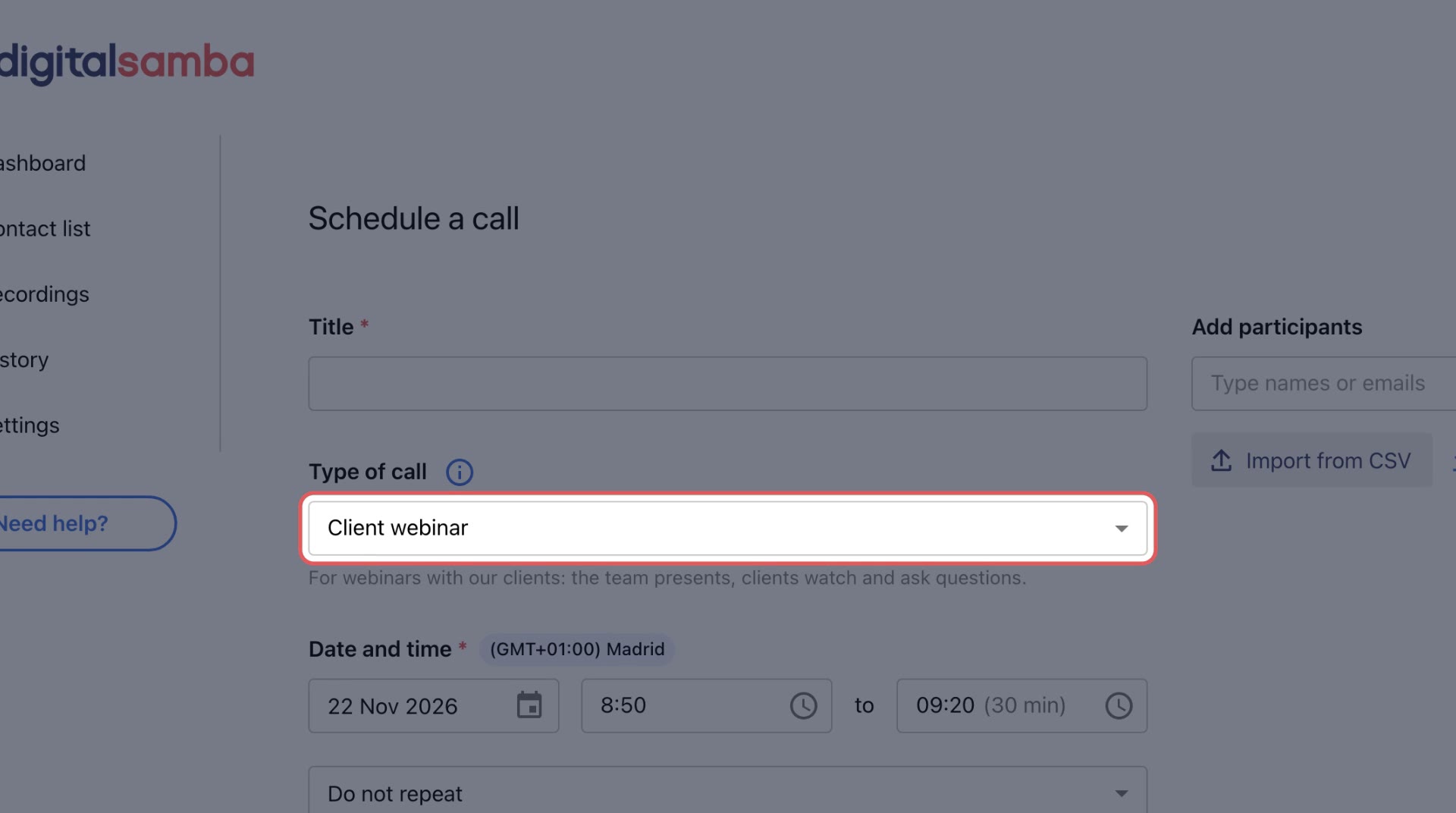
Screenshot from the film at 1:37: Now the form starts with Client webinar.
Watch this step · 1:36

Careful: scheduling a call or creating a link with another type makes that type the default.
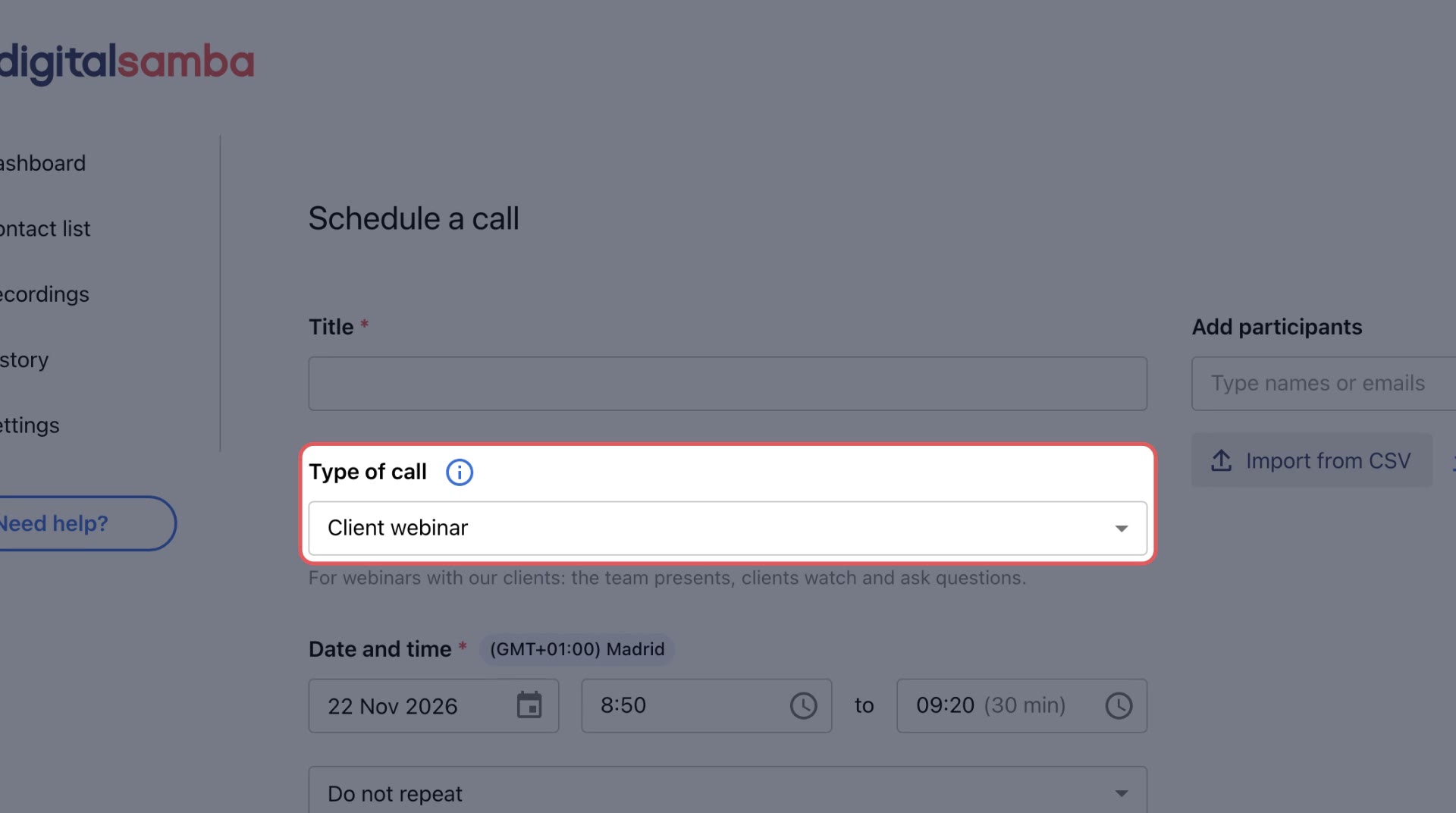
Screenshot from the film at 1:40: Careful: scheduling a call or creating a link with another type makes that type the default.
Watch this step · 1:39

5Change and reset1:46

To change a type, open it and change its settings: Ana turns off Always show names on video tiles.
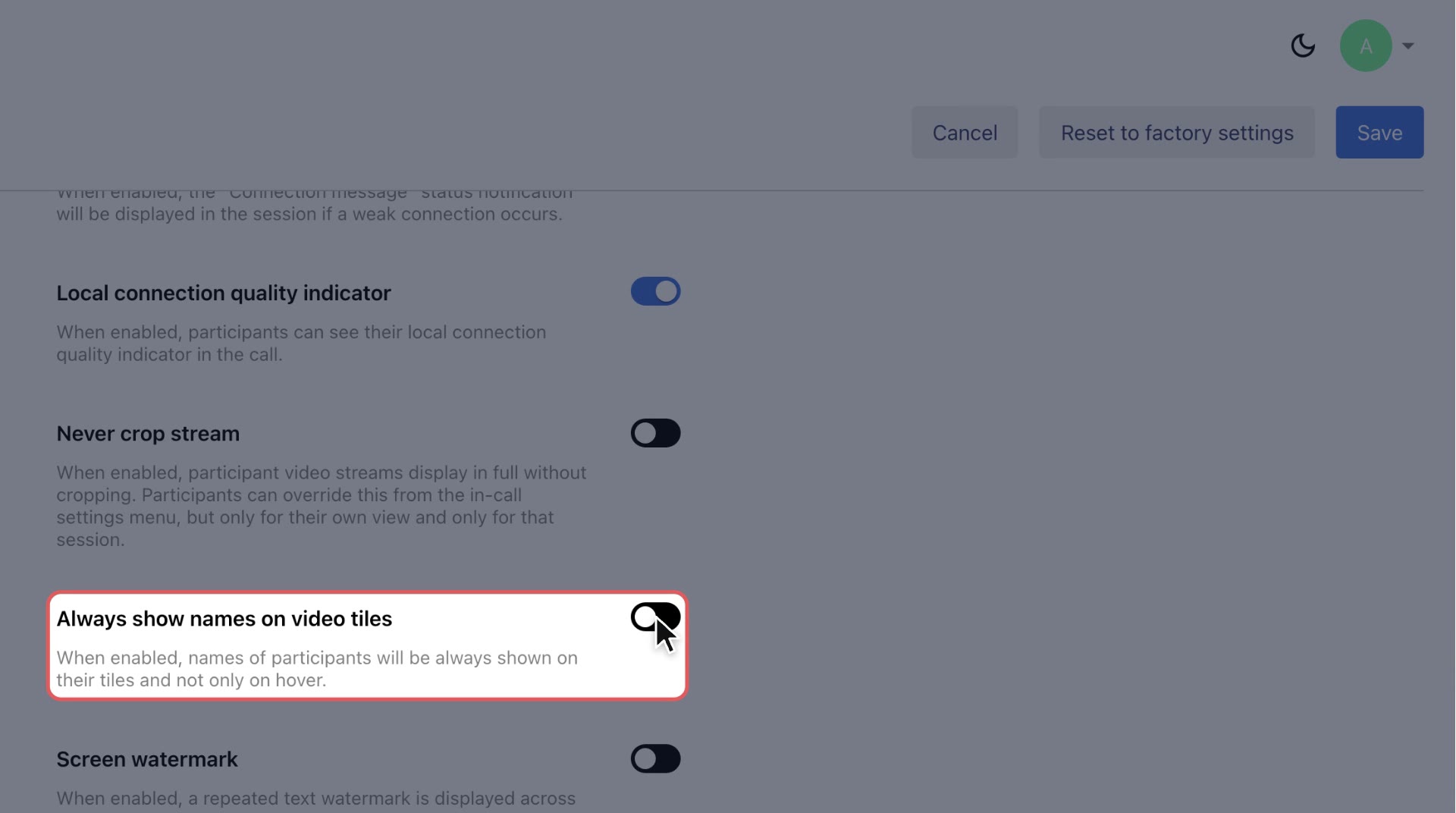
Screenshot from the film at 1:52: To change a type, open it and change its settings: Ana turns off Always show names on video tiles.
Watch this step · 1:47

On a built-in type, Reset to factory settings puts the settings back the way they came.
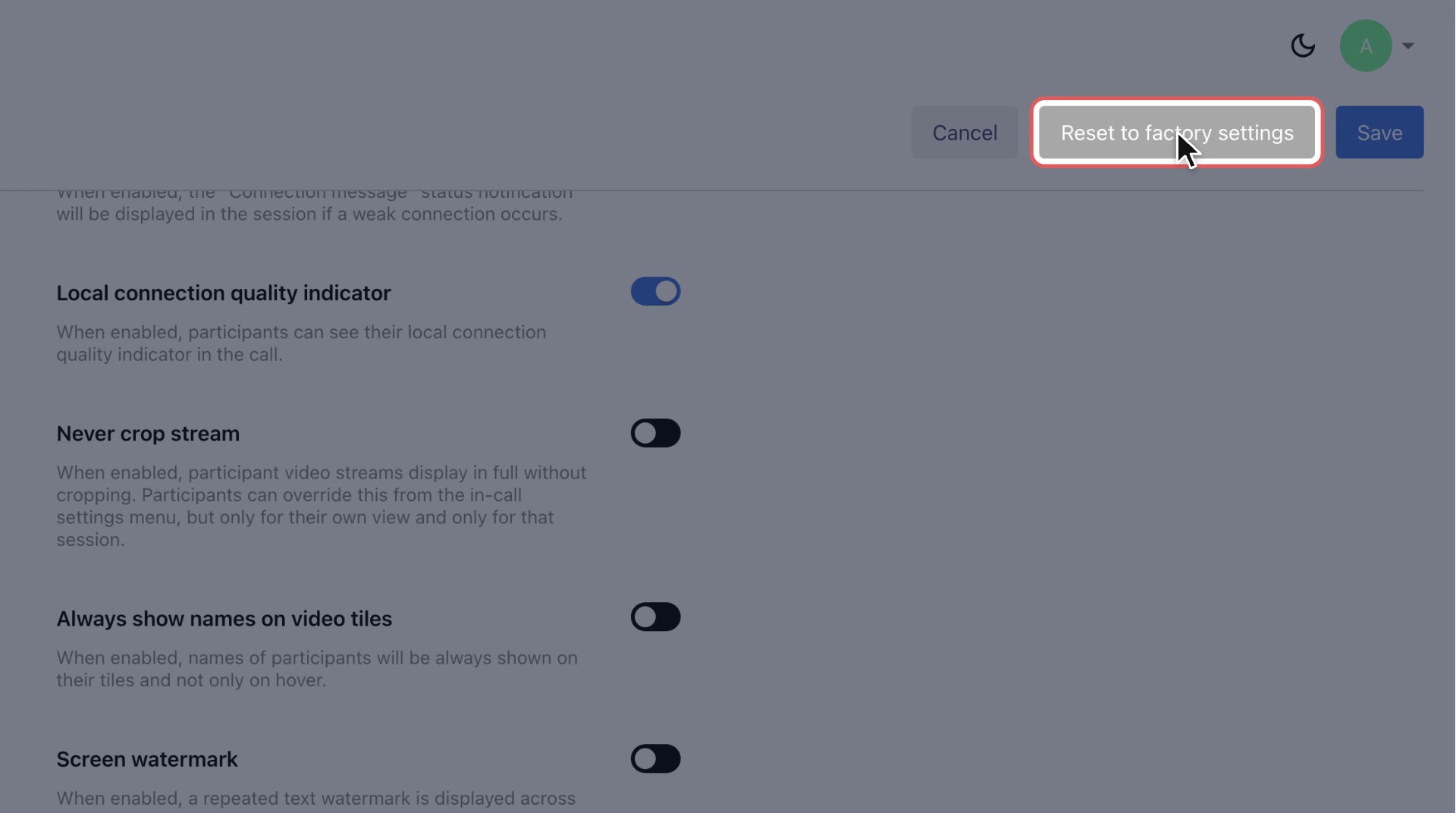
Screenshot from the film at 1:56: On a built-in type, Reset to factory settings puts the settings back the way they came.
Watch this step · 1:54

On your own type, it also leaves just one role, Moderators, so Ana clicks Cancel, then Save.
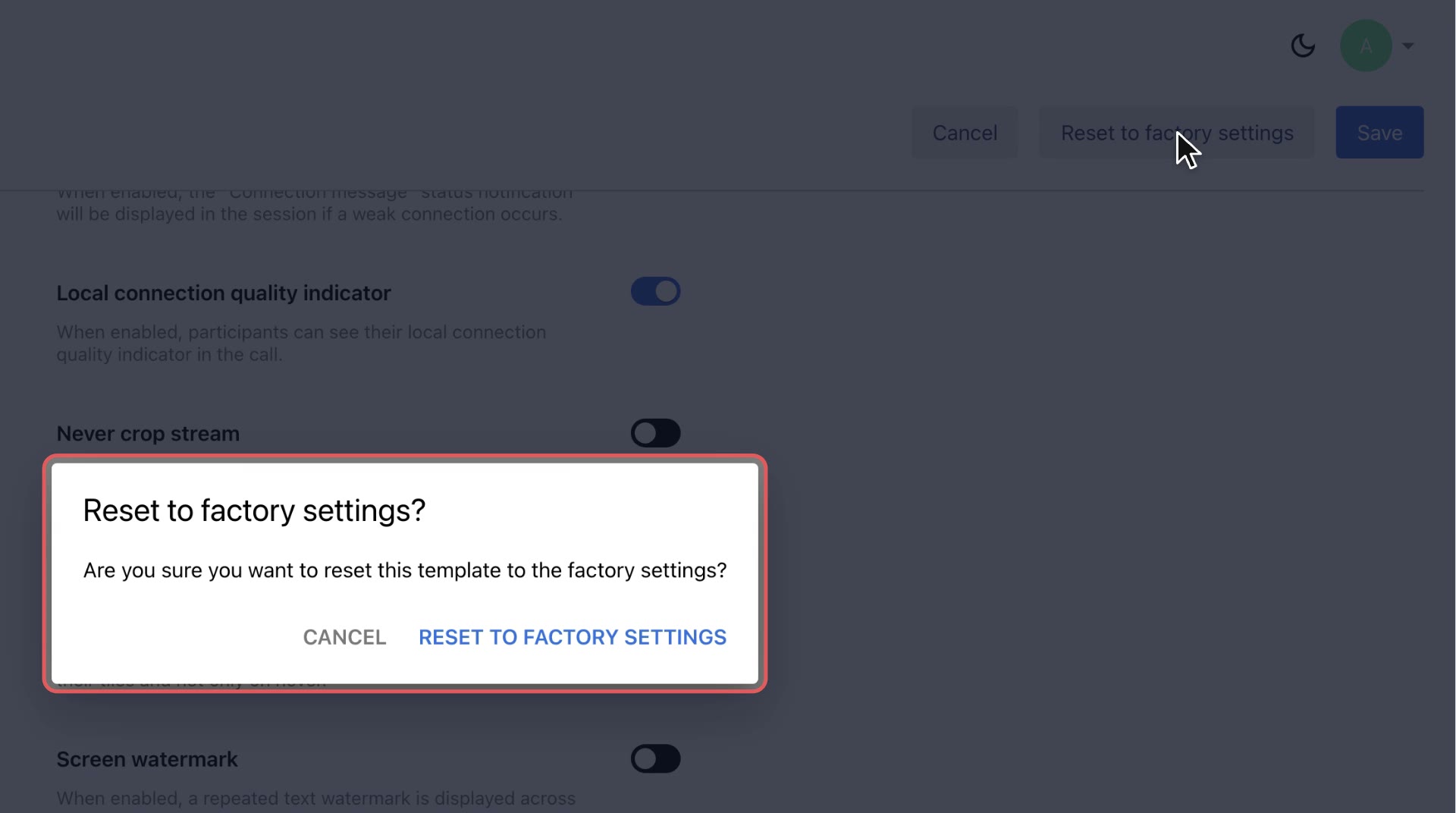
Screenshot from the film at 2:02: On your own type, it also leaves just one role, Moderators, so Ana clicks Cancel, then Save.
Watch this step · 2:00

Good to know2:07

Built-in types can't be deleted; your own can, once no call uses it.
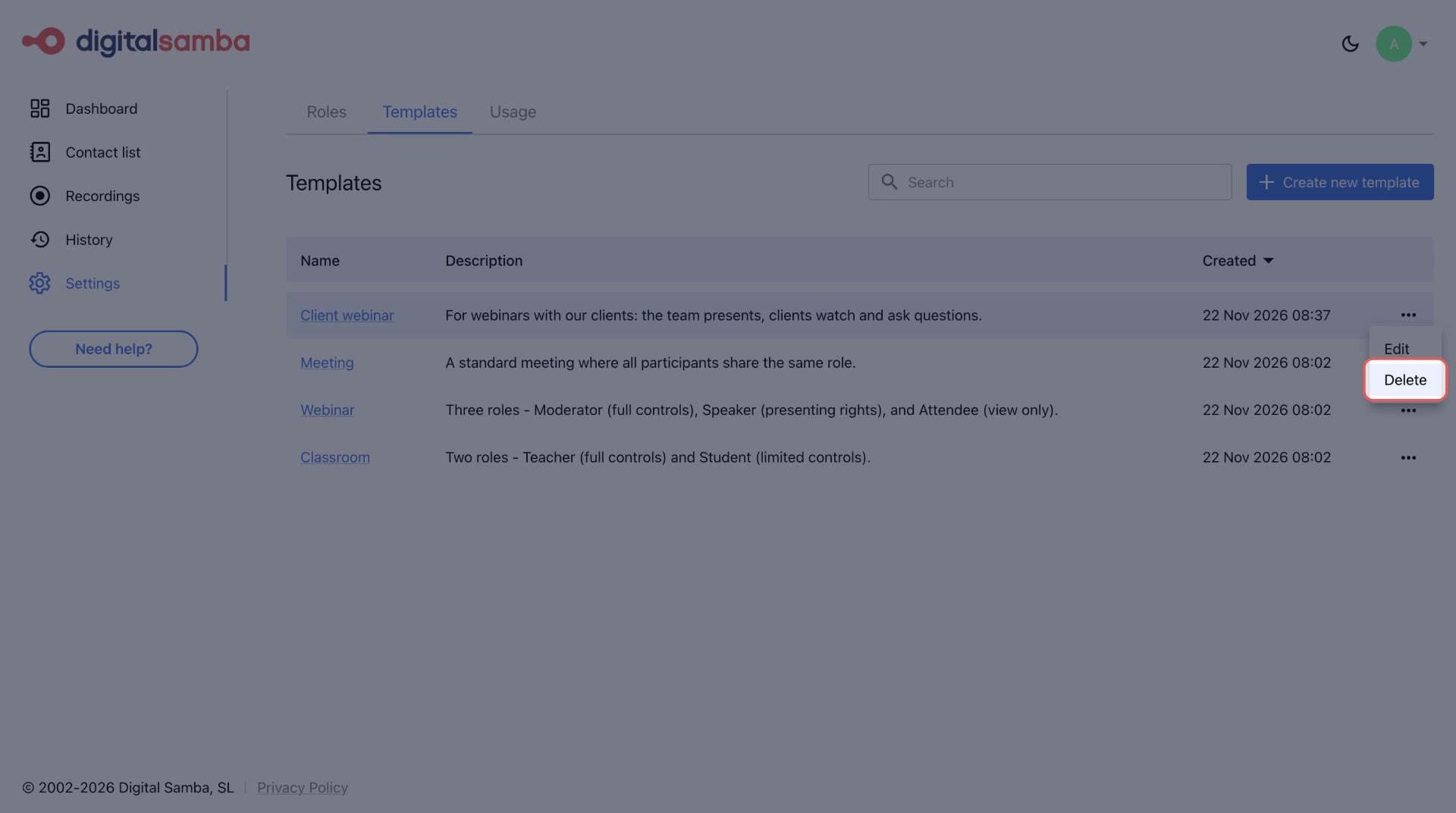
Screenshot from the film at 2:12: Good to know: built-in types can't be deleted; your own can, once no call uses it.
Watch this step · 2:08

A call takes its type's settings when it's scheduled: later changes reach only calls scheduled afterwards.
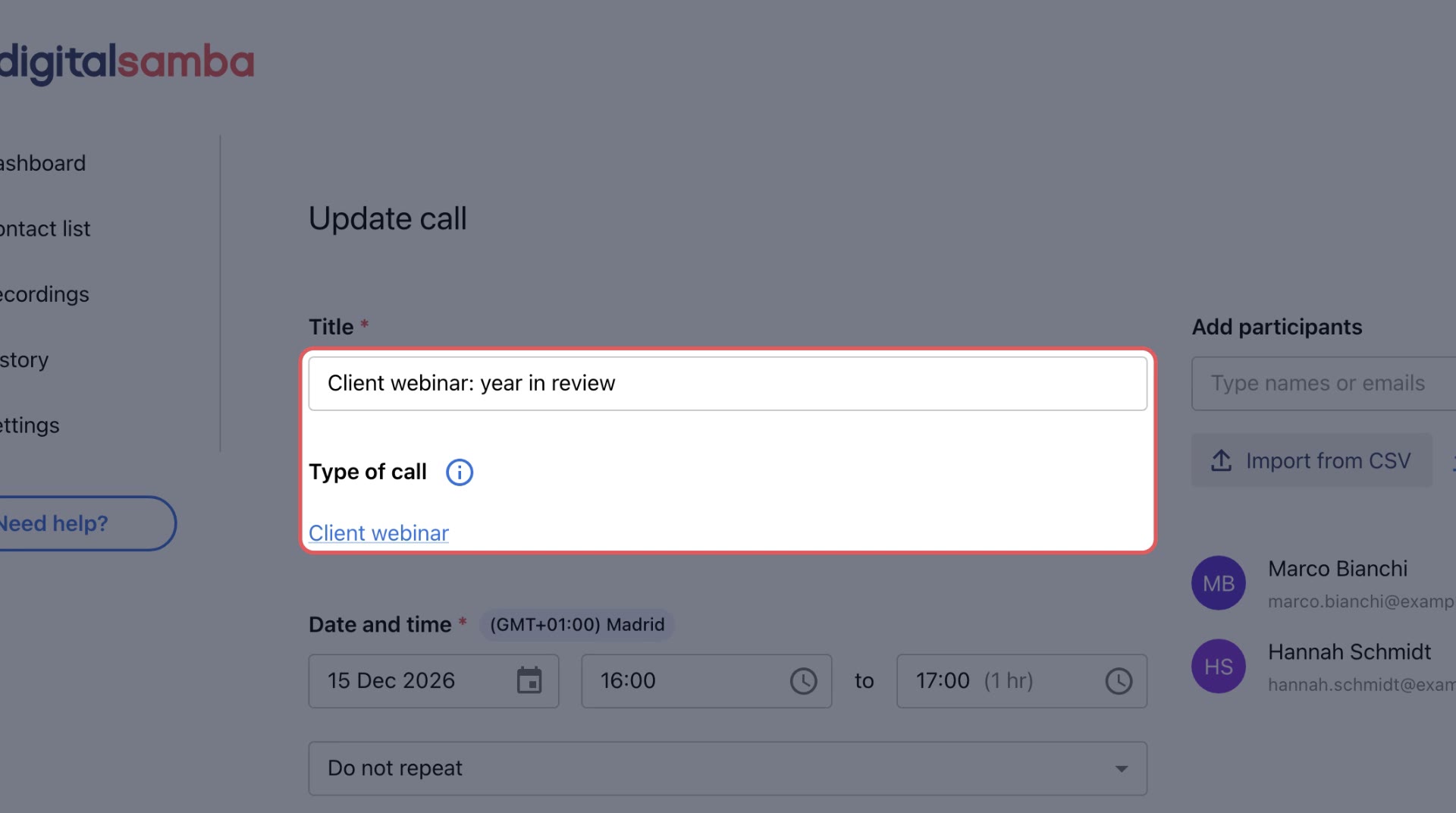
Screenshot from the film at 2:16: A call takes its type's settings when it's scheduled: later changes reach only calls scheduled afterwards.
Watch this step · 2:15

And a call's type can't be changed once it's saved.
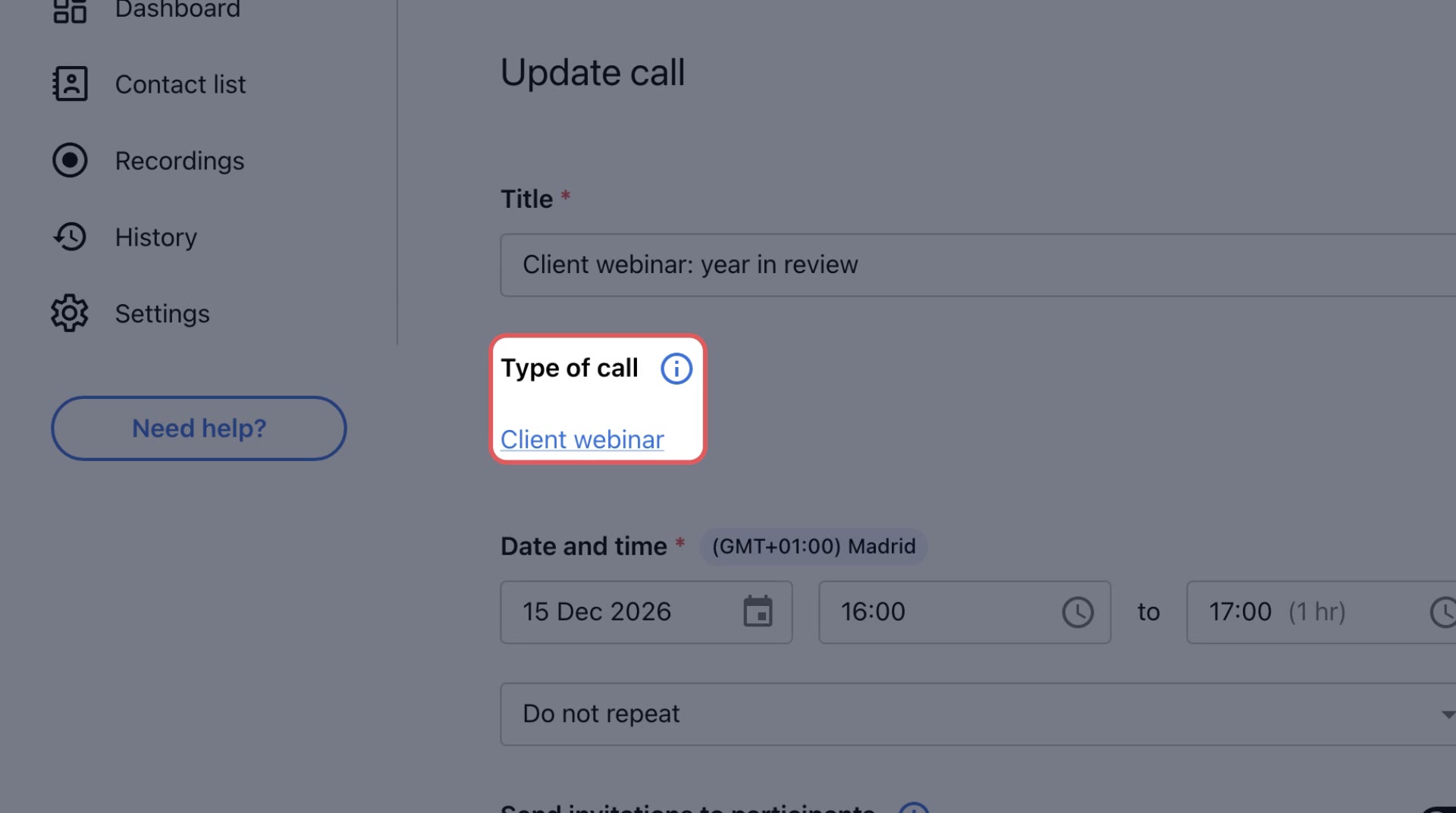
Screenshot from the film at 2:23: And a call's type can't be changed once it's saved.
Watch this step · 2:22

Recap2:26

So: pick a type when you schedule, manage types in Settings under Templates, and make your own and set it as default.
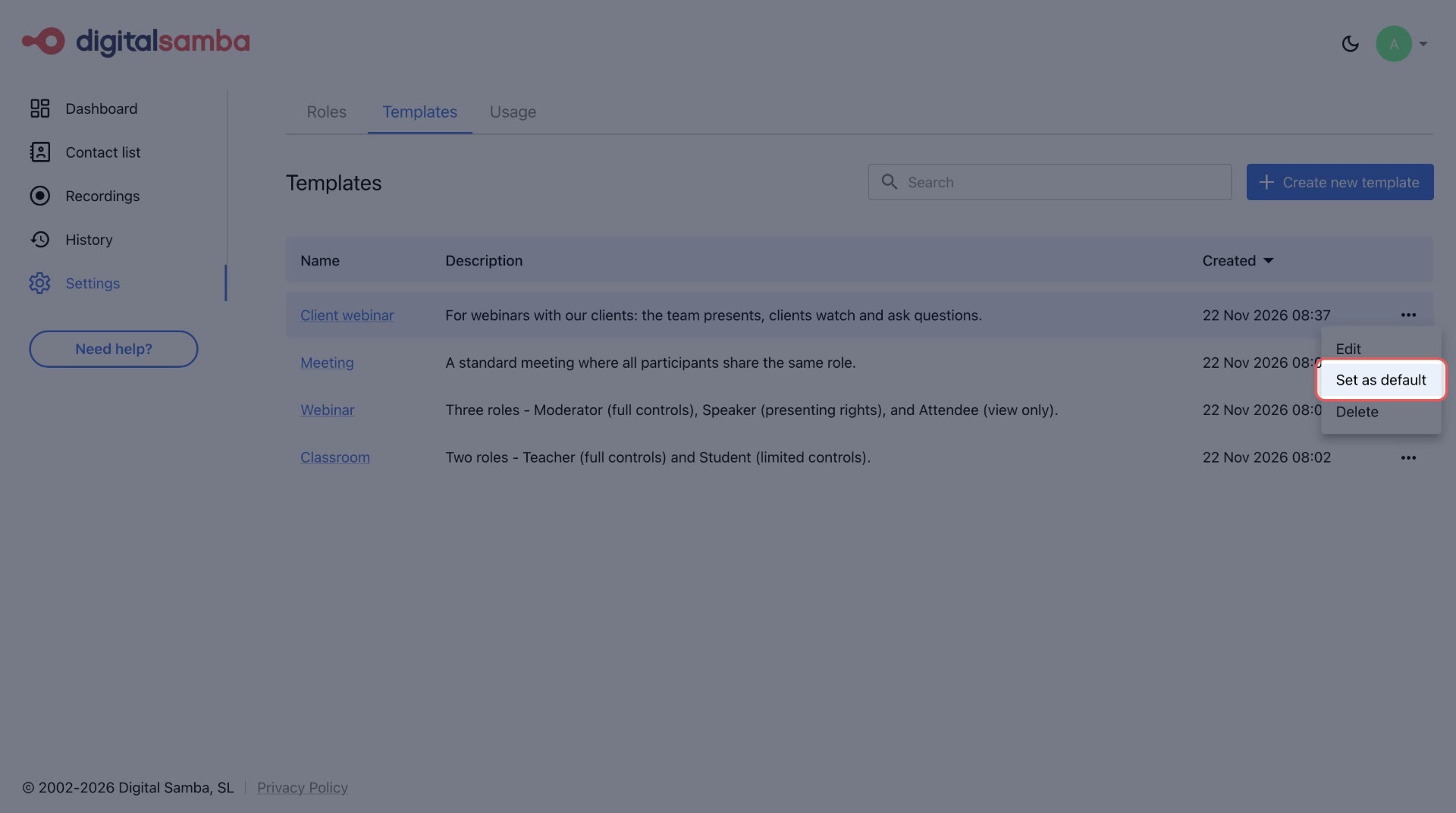
Screenshot from the film at 2:34: So: pick a type when you schedule, manage types in Settings under Templates, and make your own and set it as default.
Watch this step · 2:27

In this video

Next

Related

Updated

The film, the article, the captions and the search results all come from one source, so they change together.

  1. Version 1 ·
    First version.

All updates