1Join settings0:12
Our example: Ana runs webinars for clients, in her own type of call, Client webinar.
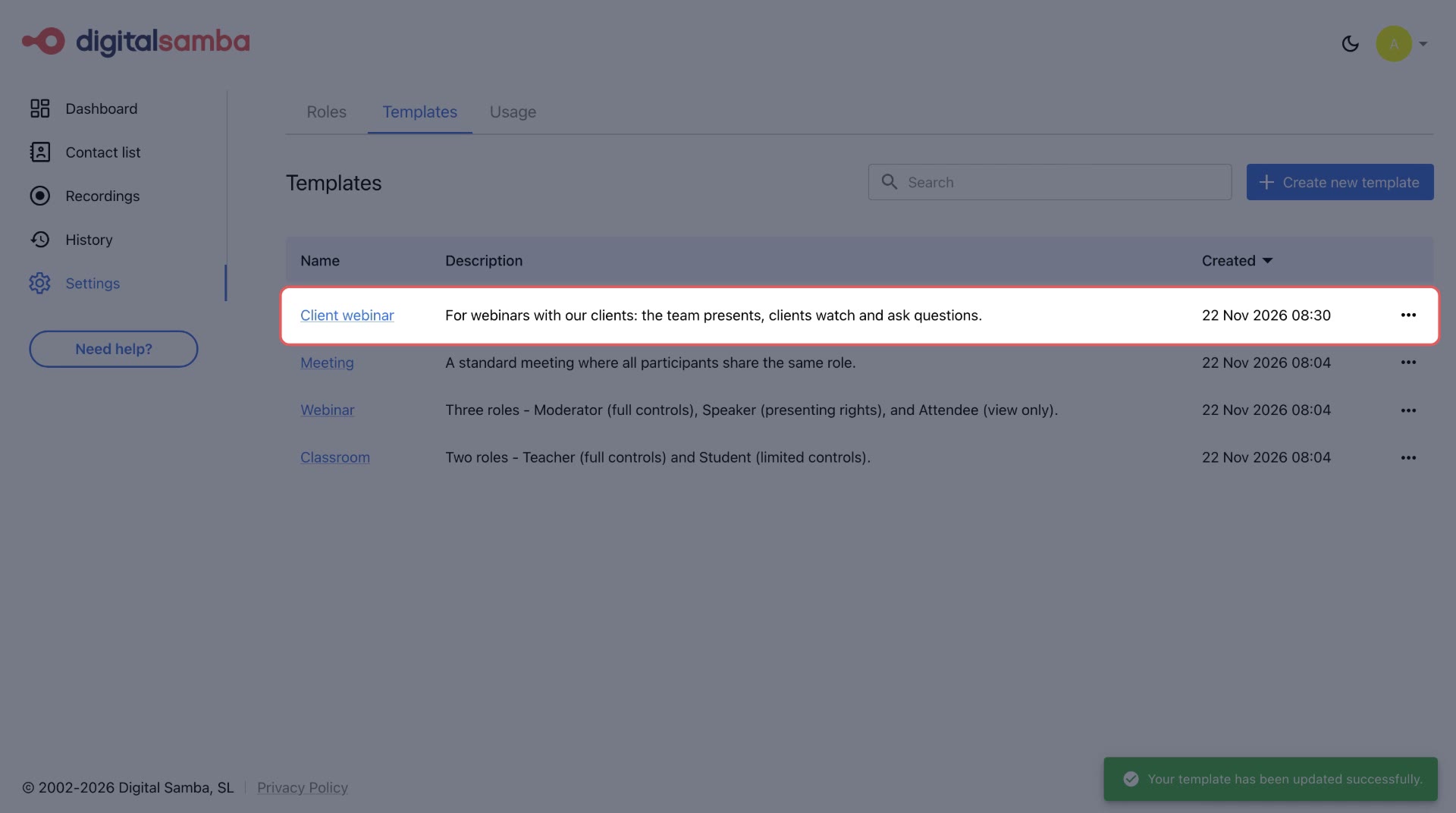
Go to Settings, then Templates: the name these pages use for types of call.
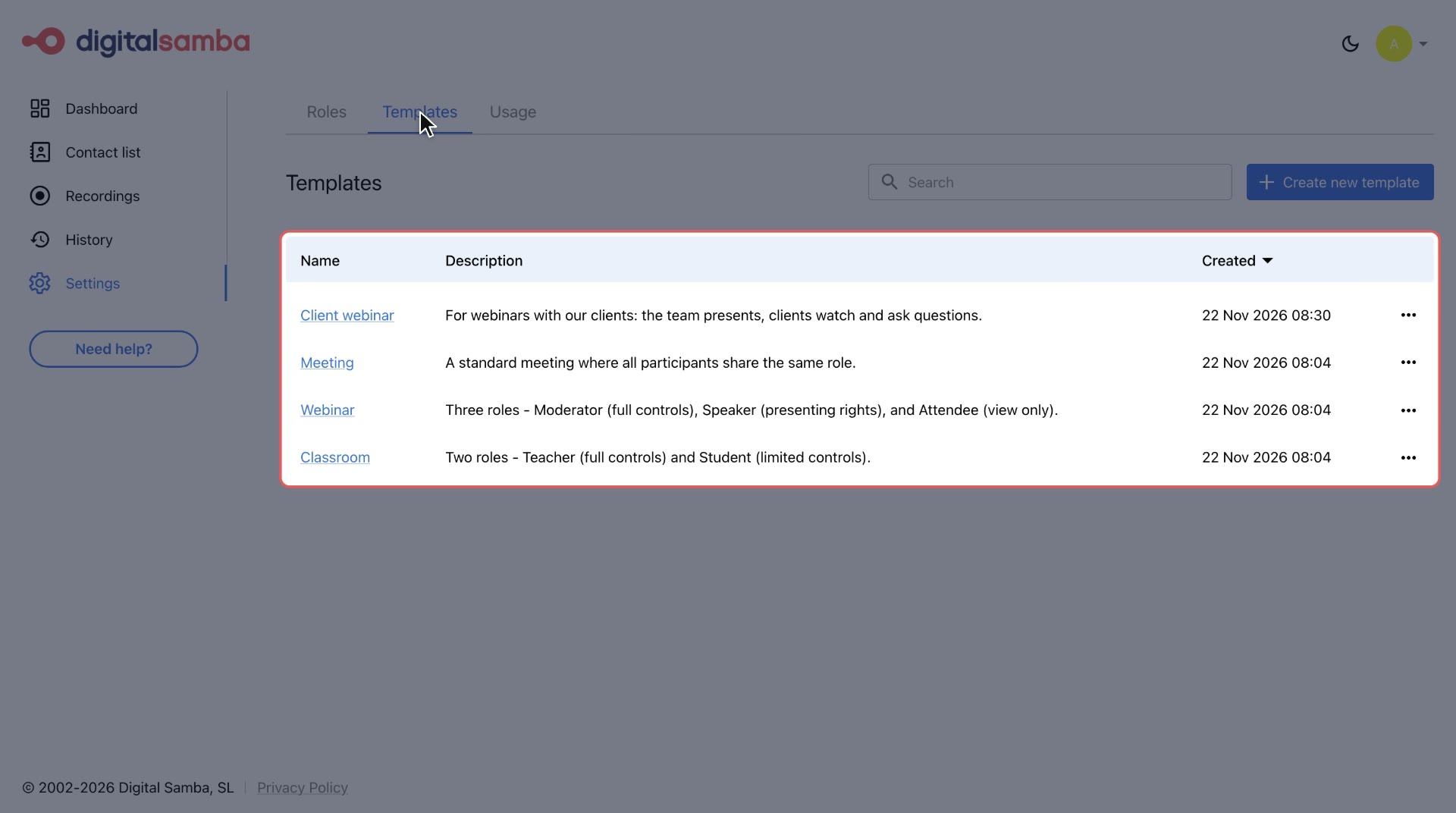
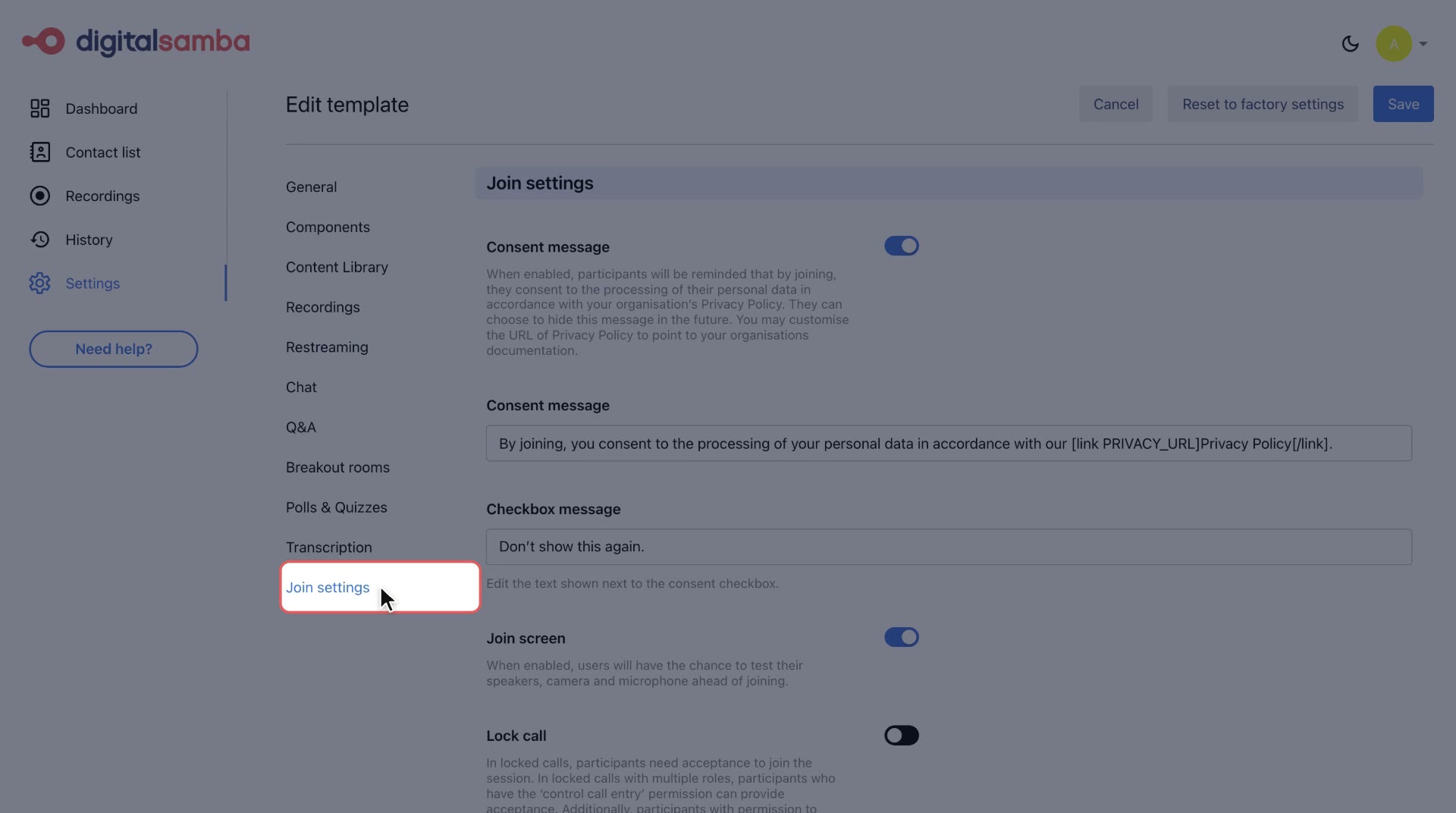
Click Client webinar, then Join settings.
2Consent message0:30
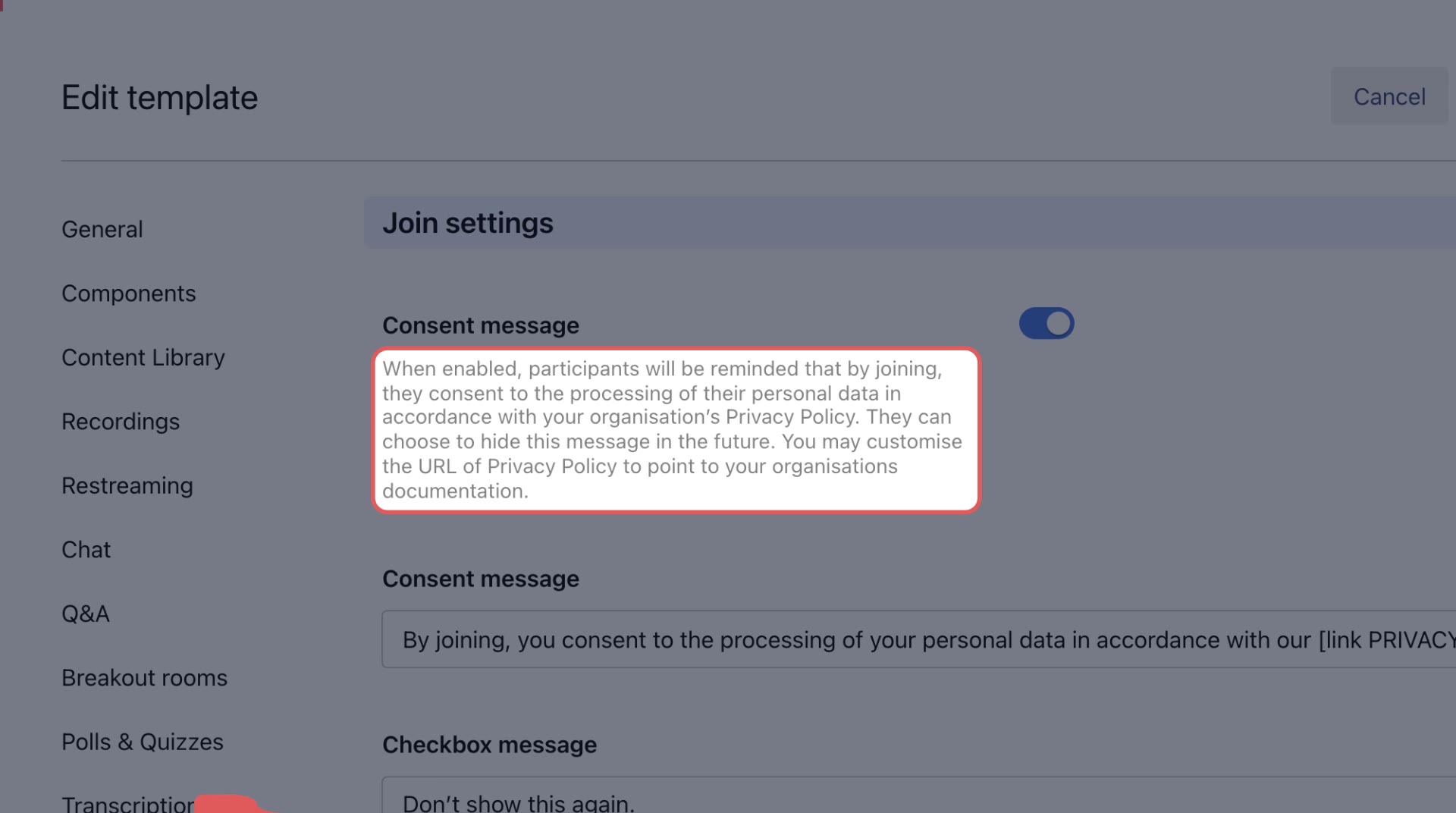
Consent message is on: the page explains that people are reminded that by joining, they consent to the processing of their personal data.
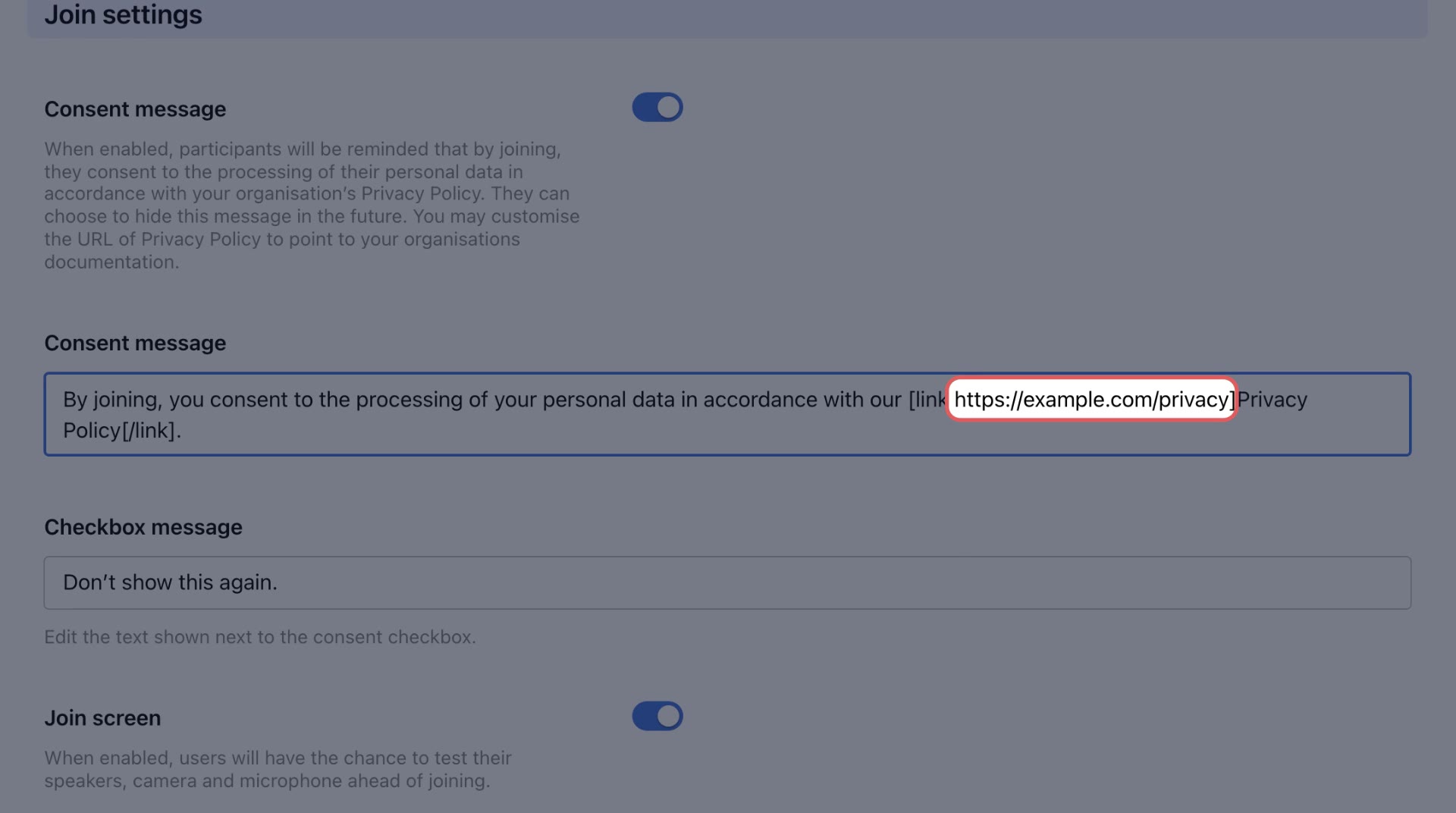
In the text, Ana replaces the placeholder Privacy URL with the address of her own privacy policy.
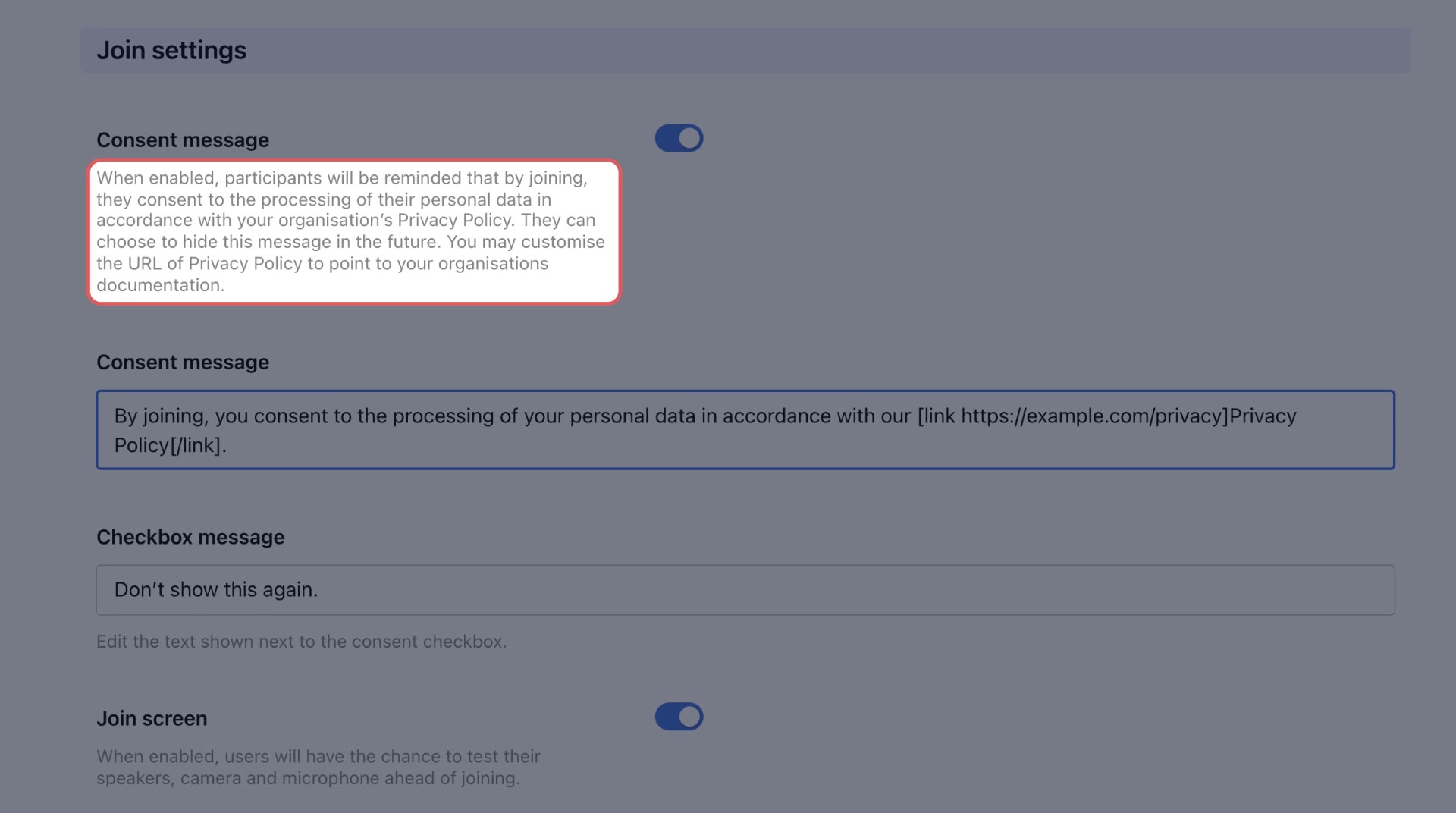
Checkbox message is the text beside the box people tick to hide the message in future.
3Join screen and lobby0:53
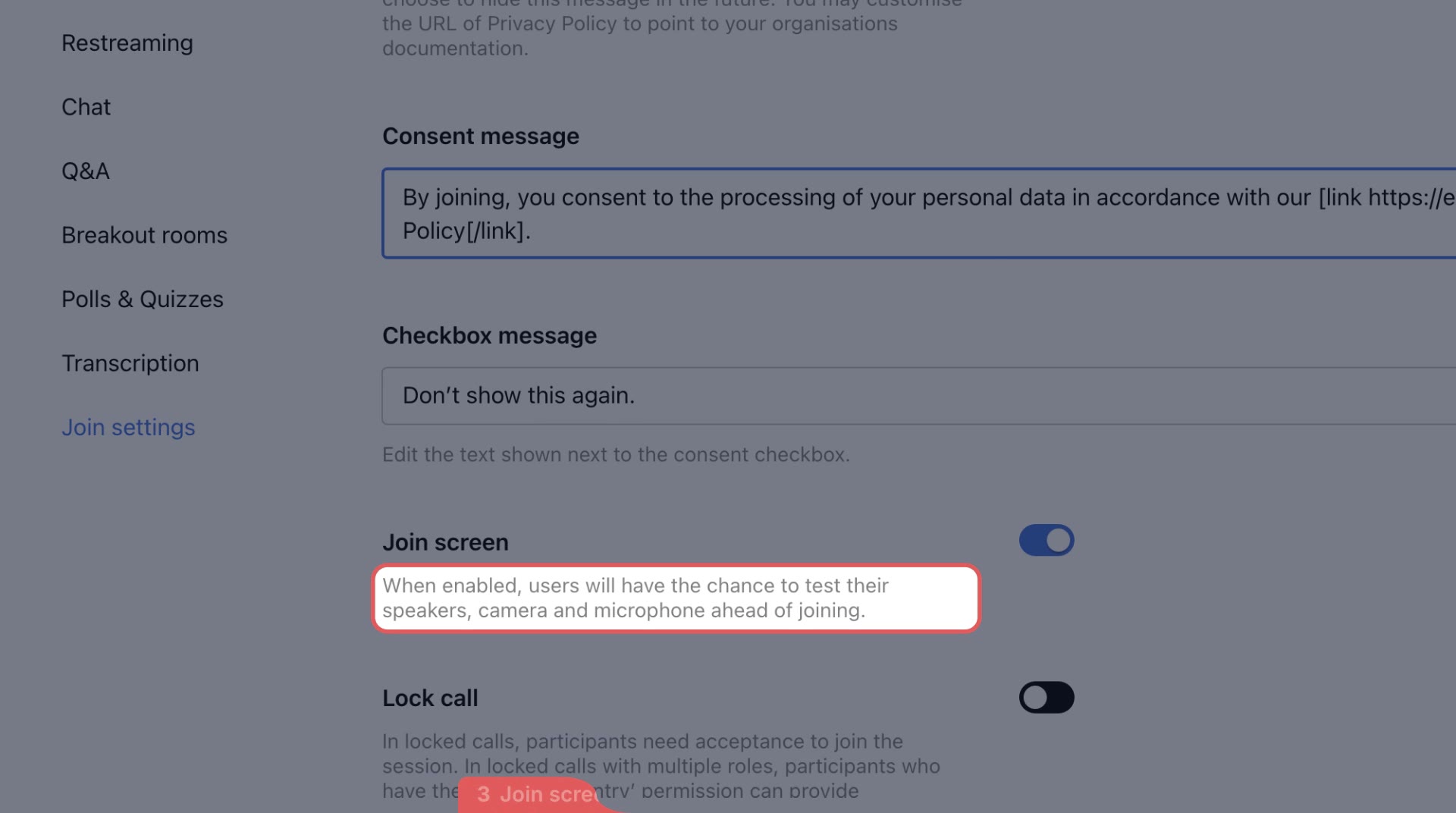
Join screen stays on: the page says people can test their speakers, camera and microphone before joining.
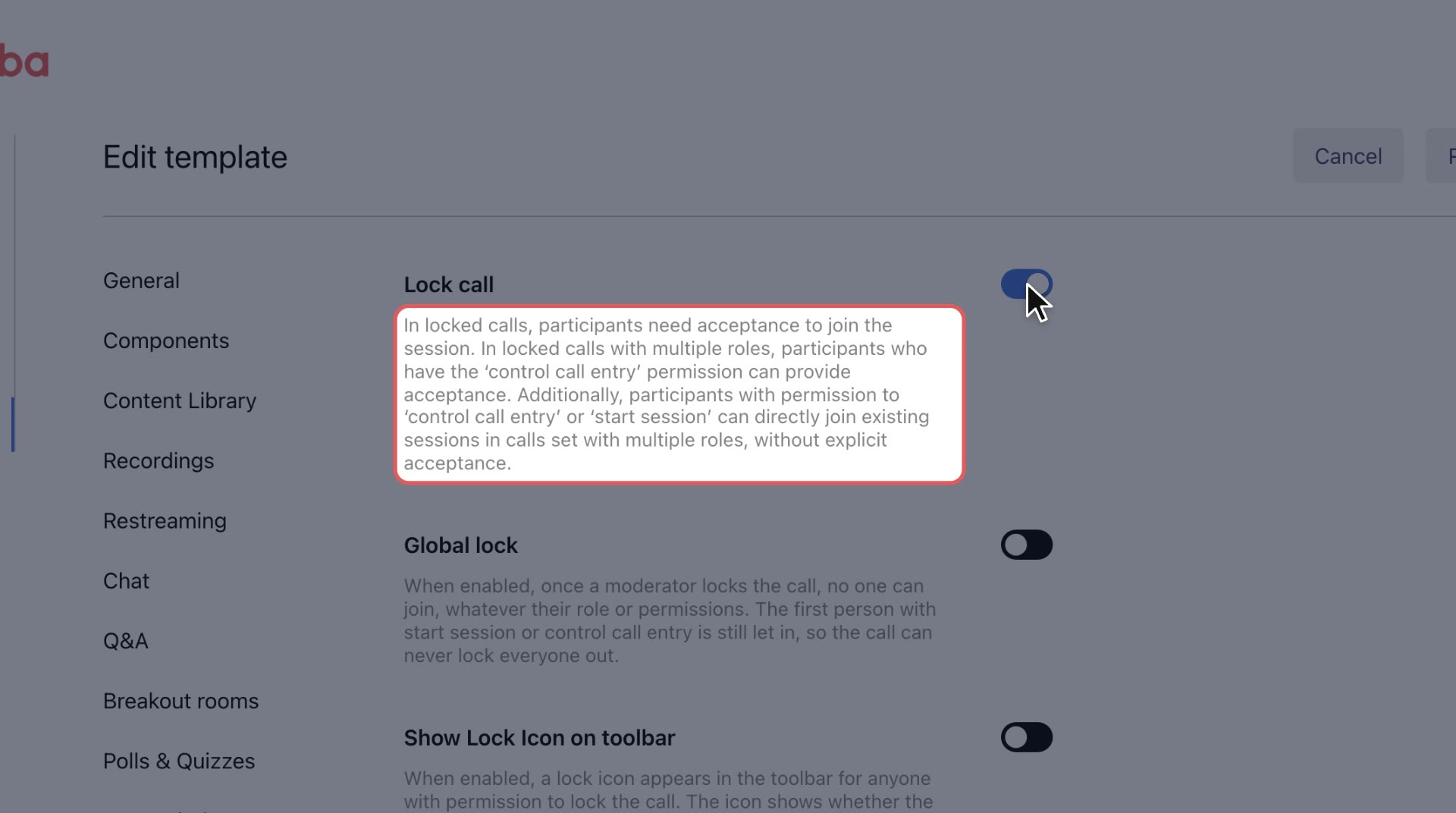
Ana turns on Lock call: in locked calls, the page explains, participants need acceptance to join.
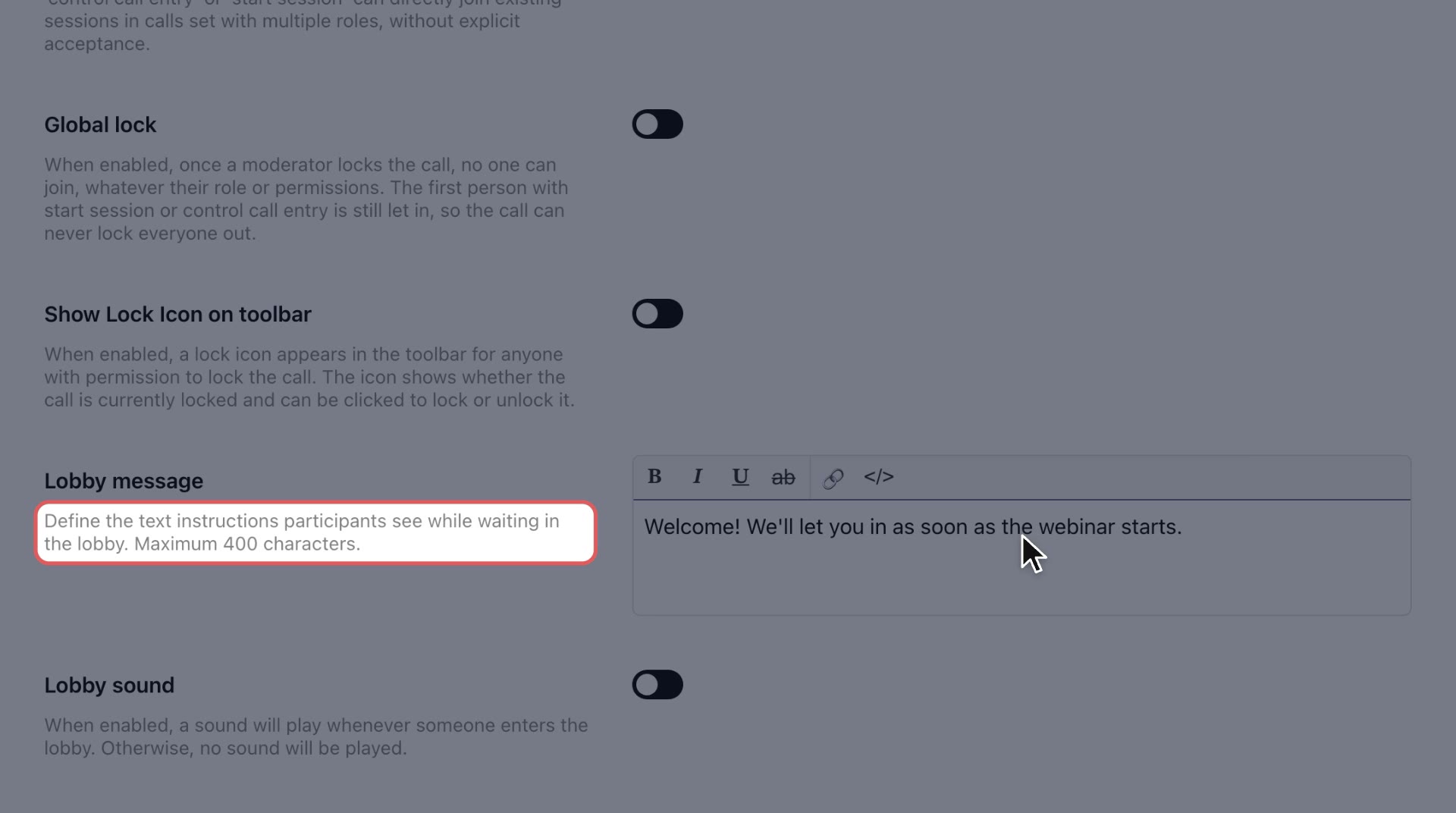
Under Lobby message, she types what people read while they wait in the lobby.
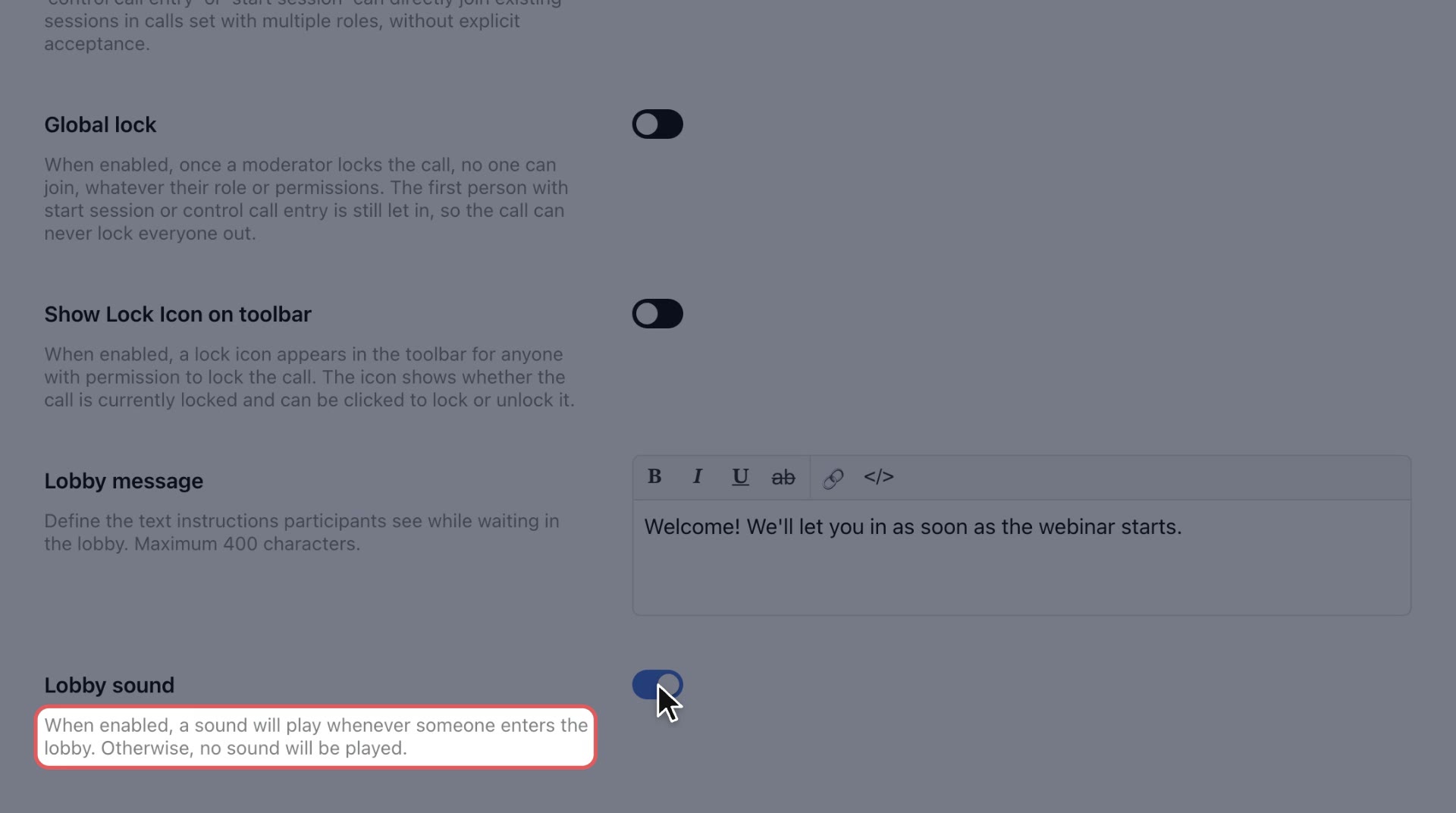
And she turns on Lobby sound, which plays a sound whenever someone enters the lobby.
4Microphones and cameras1:19
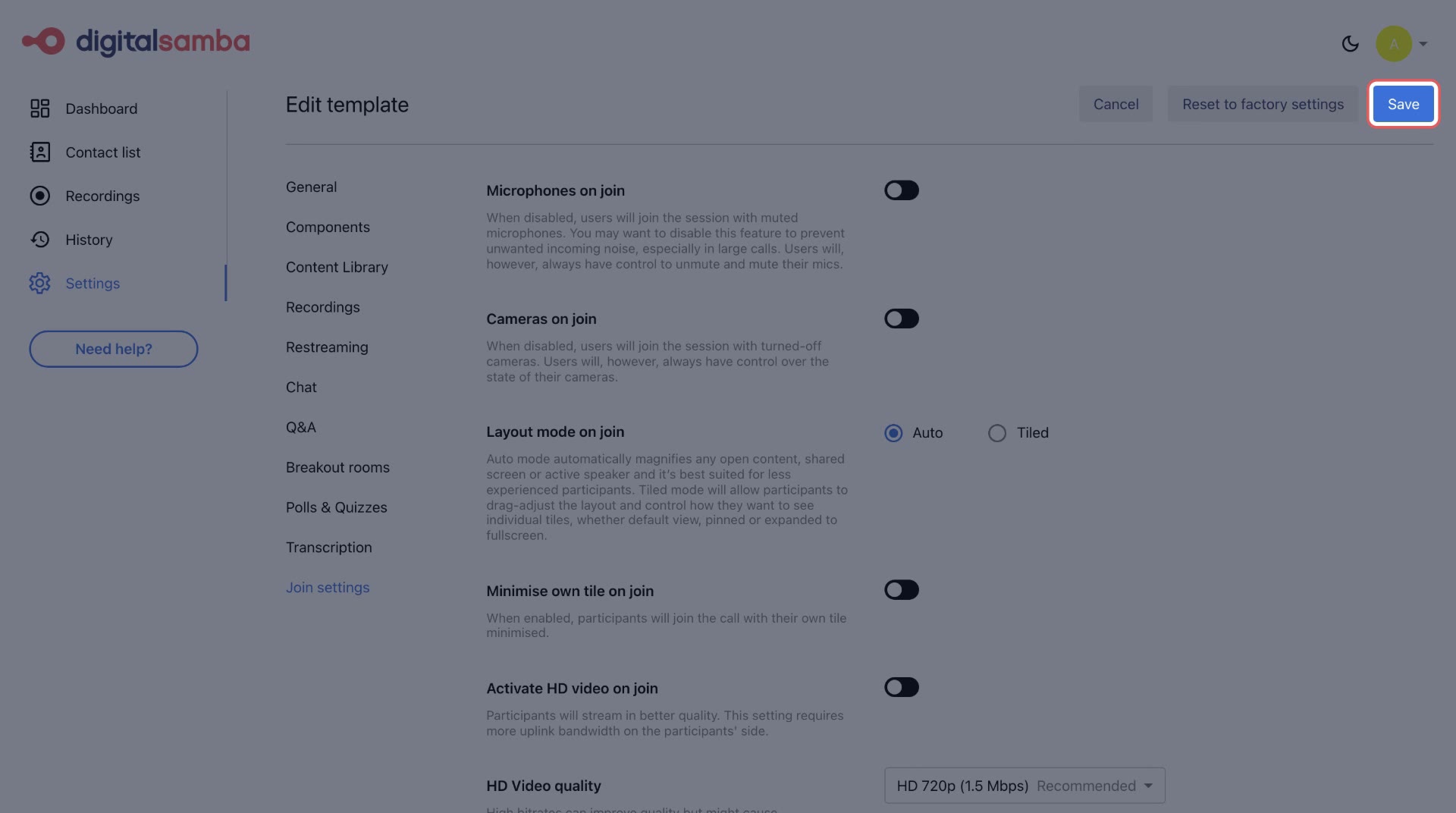
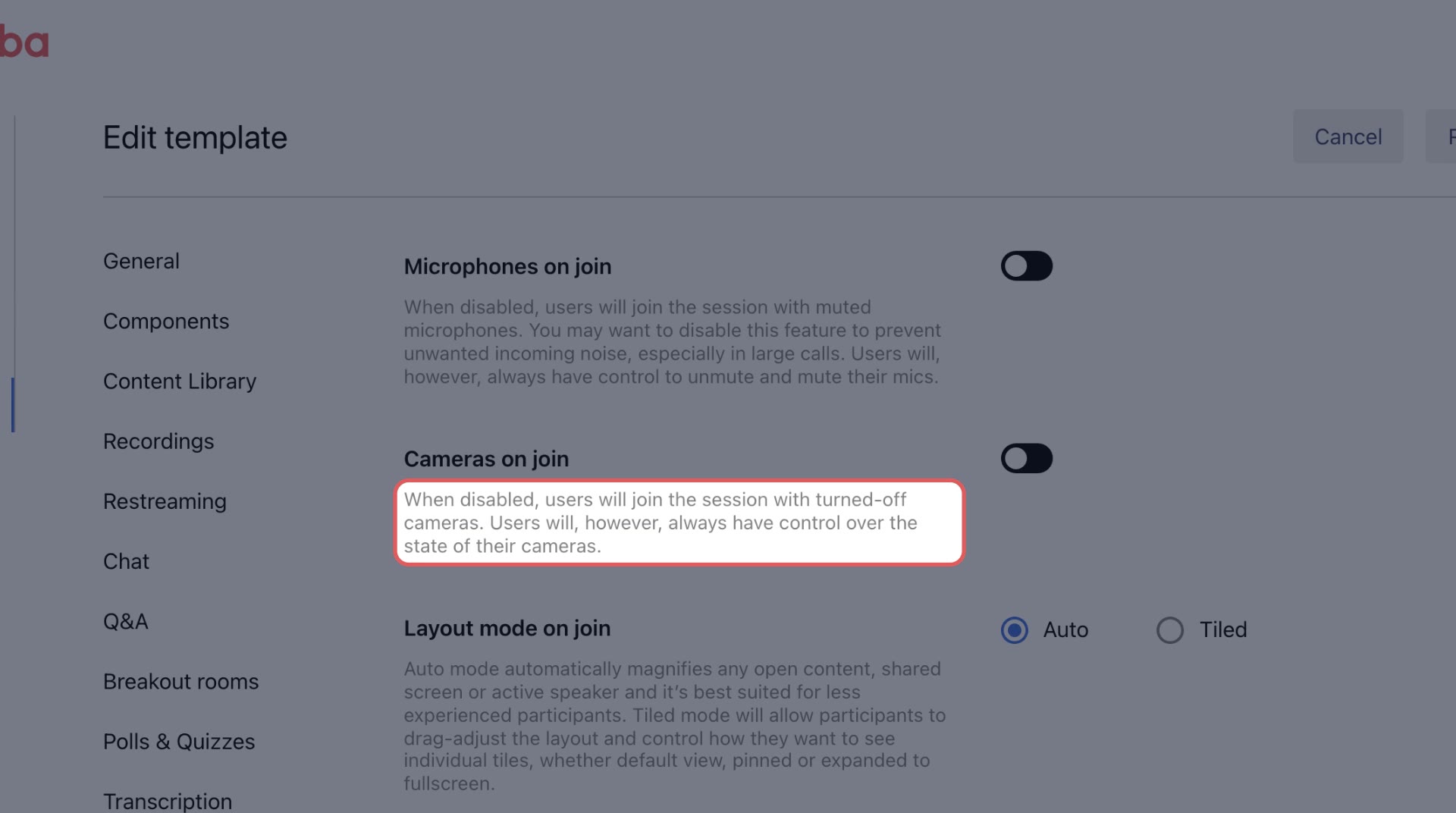
For her webinars, Ana turns off Microphones on join and Cameras on join.
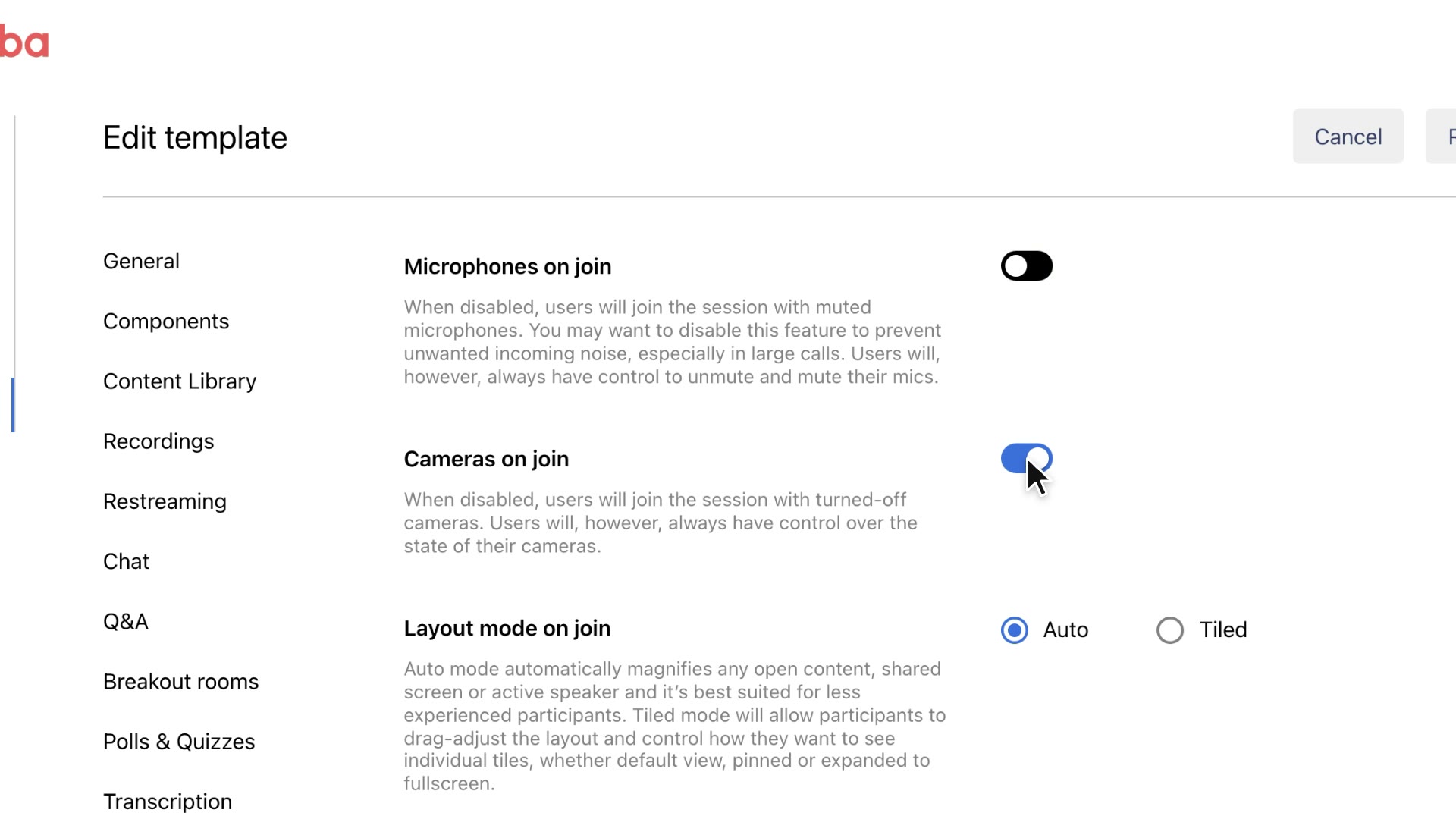
The page explains: people then join muted, with cameras off, and can still turn them on themselves.
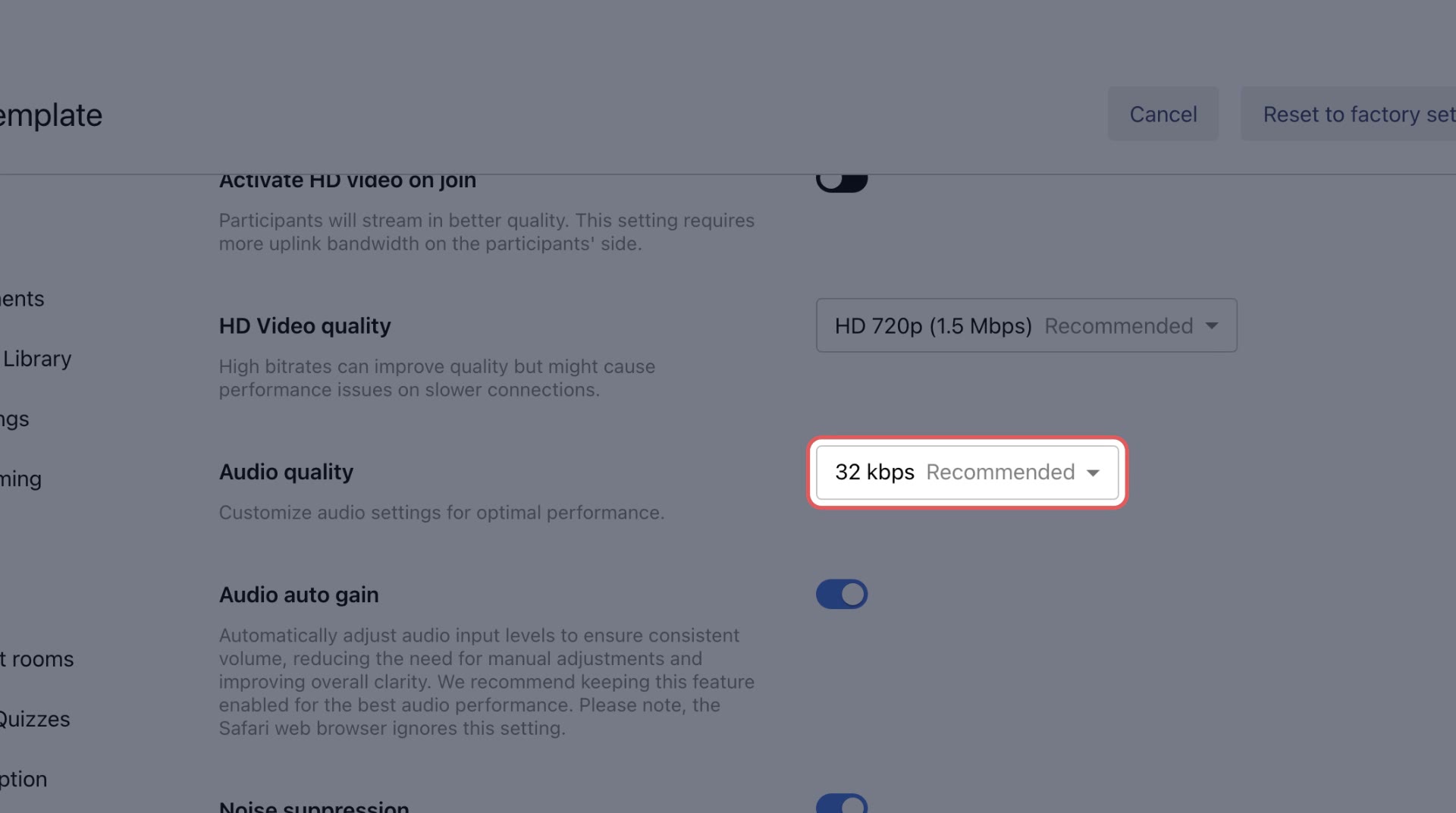
Further down, video and sound quality start on the recommended options.
5Save1:37
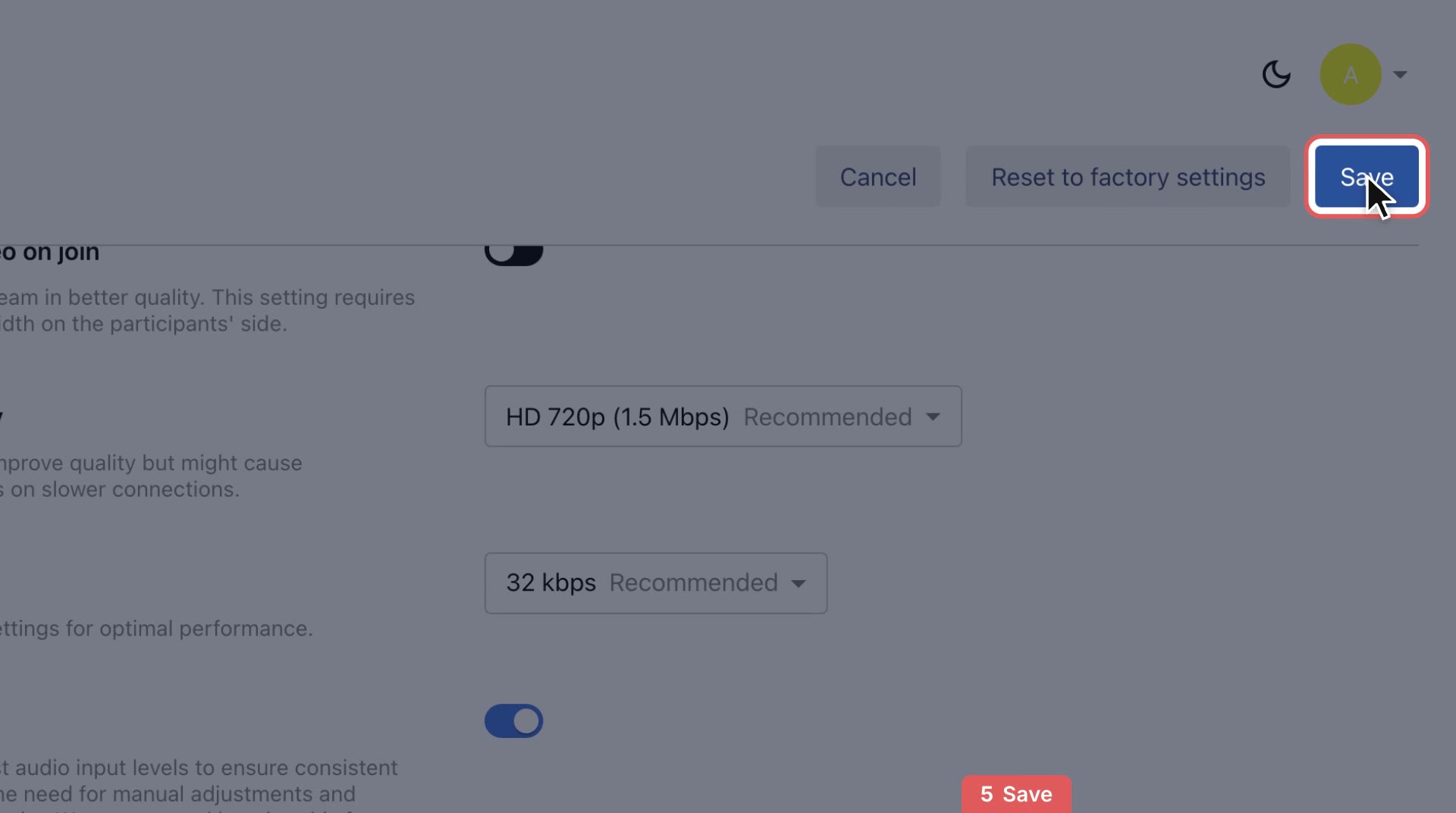
Now click Save at the top.
A message says your template has been updated successfully, and you're back at your types of call.
Good to know1:46
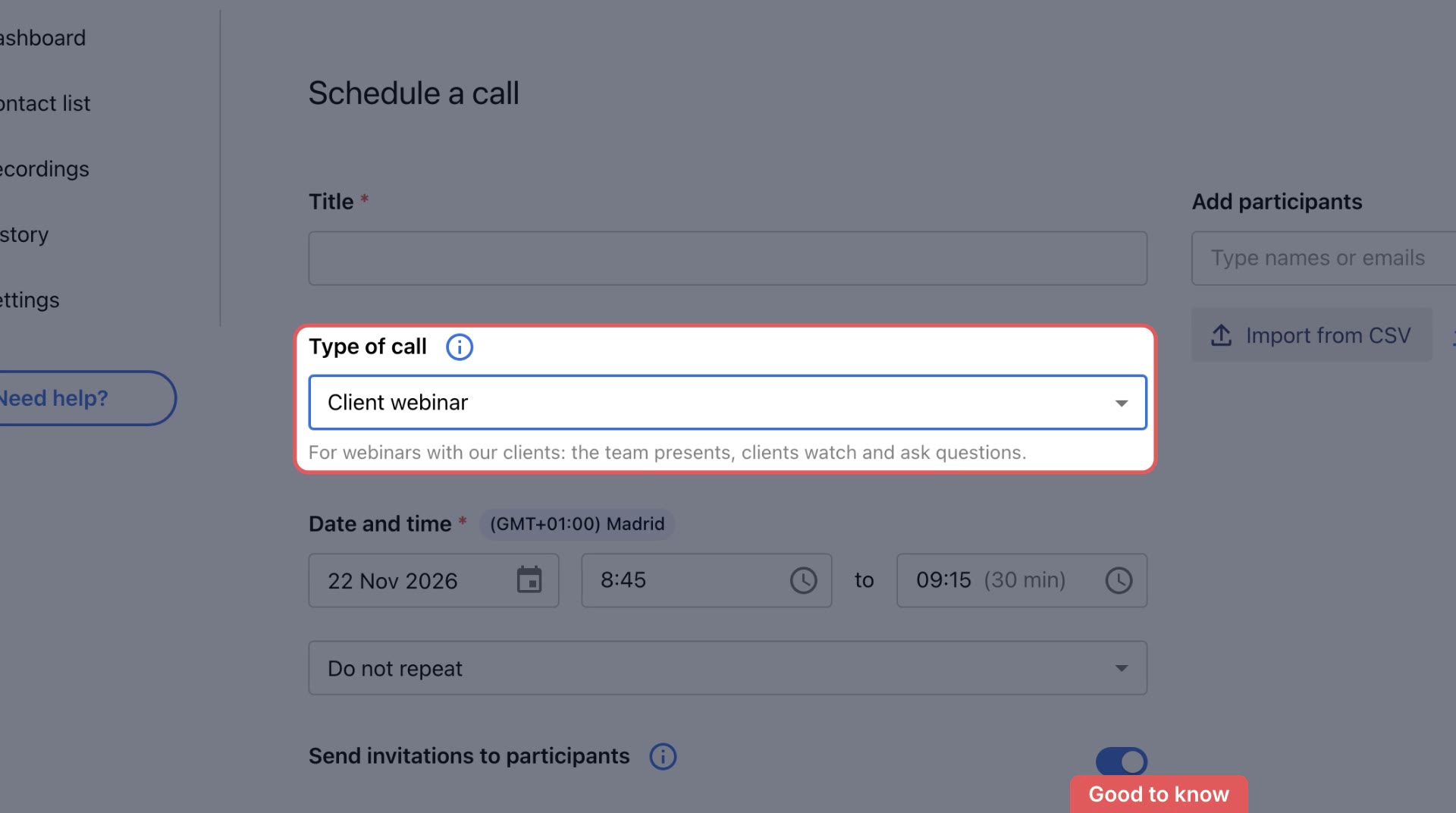
These settings are copied into a call when you schedule it, so a change reaches only calls you schedule afterwards.
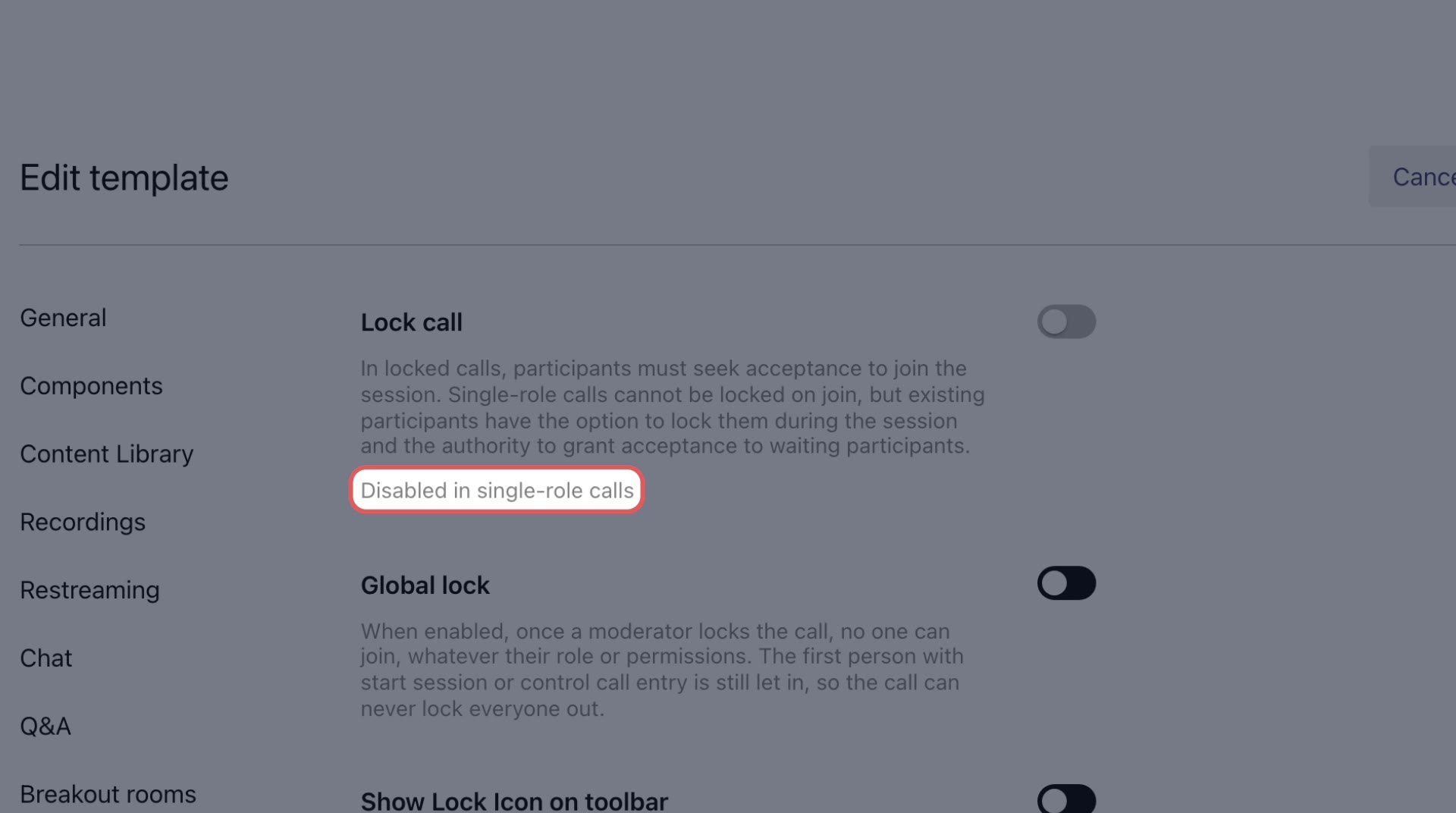
In a type with a single role, like Meeting, Lock call is greyed out: Disabled in single-role calls.
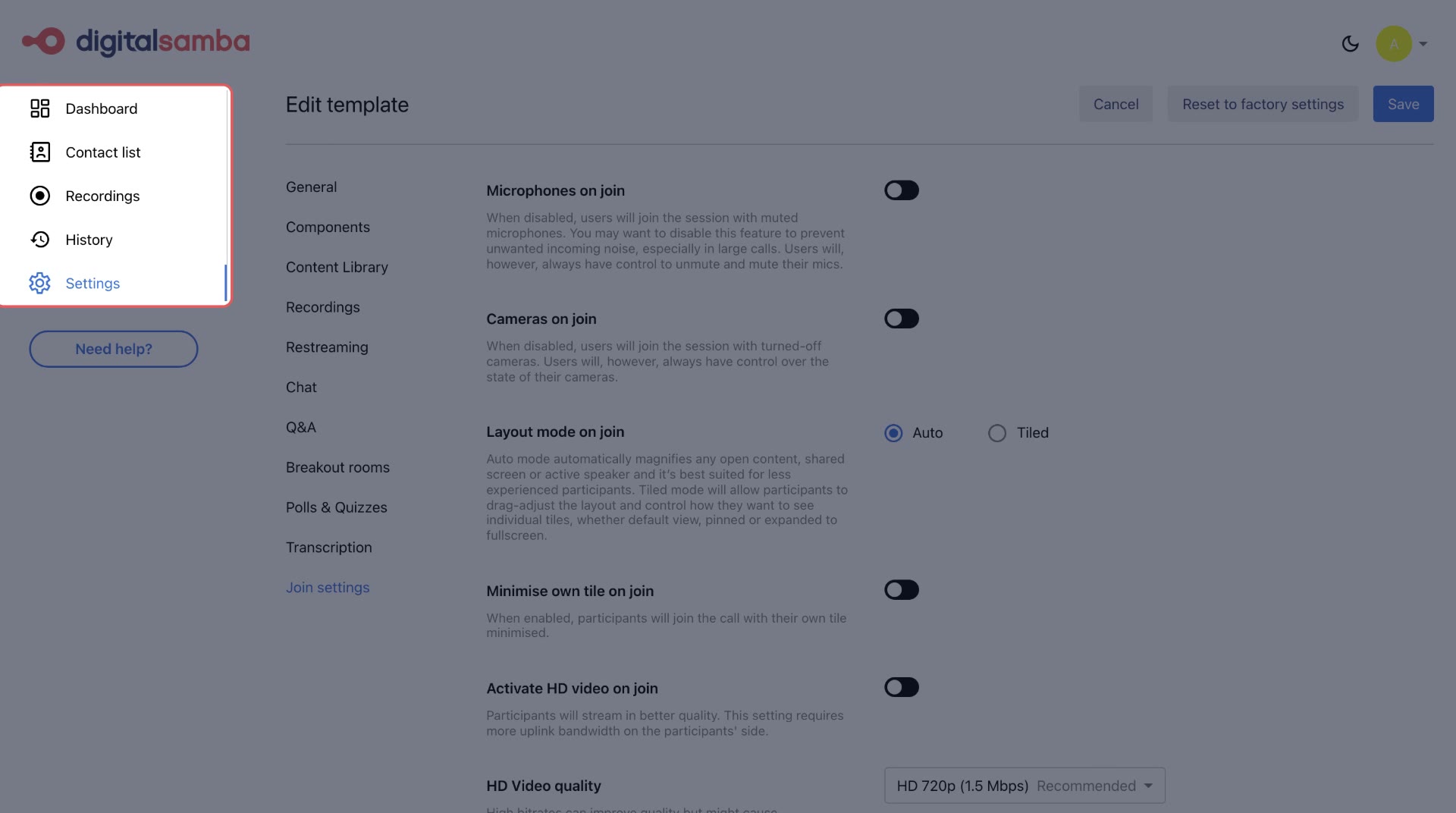
And Cancel, or leaving for another page, drops your changes without asking.
Recap2:09
So: Settings, Templates, your type of call, Join settings; choose consent, lobby, microphones and cameras, and click Save.