Skip to content
University
Videos
Topics
Updates
Search the videos
Topics
Types of call
All 63 moments in Digital Samba University that depend on this.
Start here: Digital Samba in 90 seconds
1:36
0:01
Introduction
In this video, you'll see what you can do with Digital Samba, from a quick meeting to a webinar, and how this series is organised.
Read
Your dashboard at a glance
Getting started · 2:12
0:18
Scheduled calls
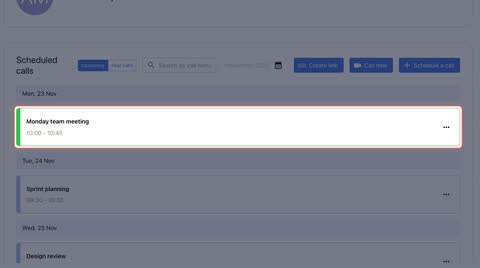
Each call, whether a meeting, a class or a webinar, sits under its day, with the next one marked in green.
Read
1:29
Menus
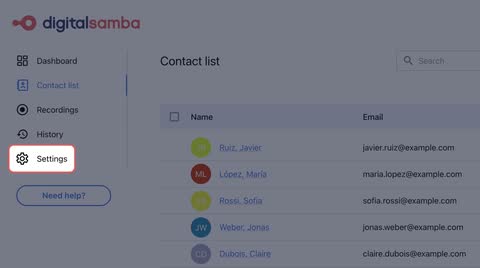
Settings holds your roles and templates.
Read
Start a call instantly with Call now
Start a call now · 1:56
0:01
Introduction
In this video, you'll start a call — a meeting — right now, and bring someone in with its link.
Read
1:33
Good to know
Call now always starts a Meeting.
Read
Create a call link to share
Start a call now · 1:50
0:01
Introduction
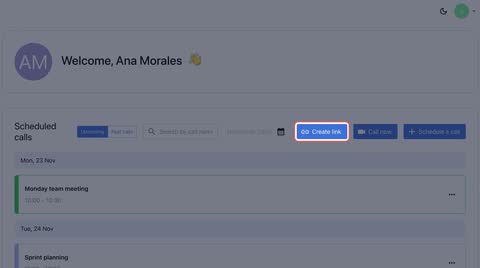
In this video, you'll create a call link — for a meeting, a class or a webinar — to share, with no date or time to choose.
Read
0:22
Create link
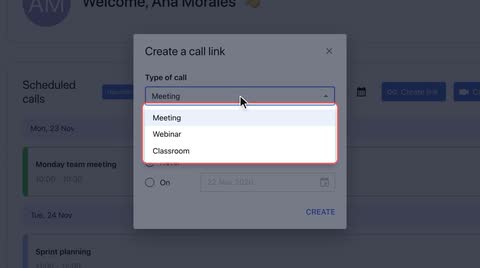
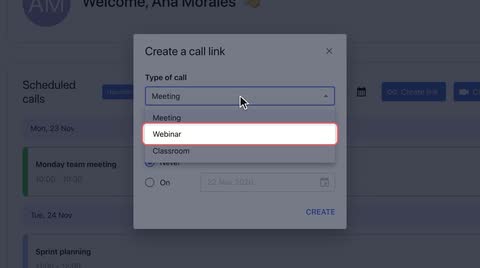
Open Type of call: each role gets its own link.
Read
0:26
Create link
A Meeting gives one link for everyone, a Webinar three.
Read
0:30
Create link
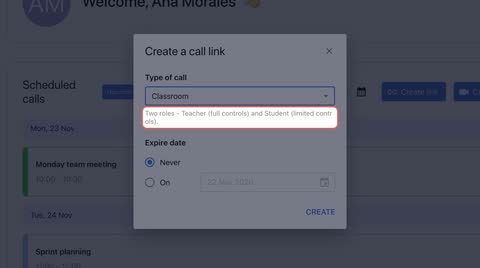
Ana chooses Classroom, with two roles: teachers for her team, students for the clients.
Read
0:51
Copy your links
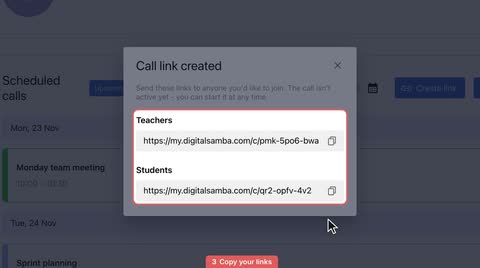
Now there's a link for each role.
Read
1:29
Good to know
And the type of call you choose here becomes the default for your next call.
Read
Schedule a call and invite people
Scheduling calls · 2:40
0:01
Introduction
In this video, you'll schedule a call — a meeting, a class or a webinar — and invite people to it.
Read
0:22
Schedule a call
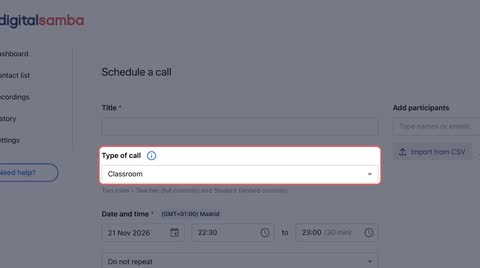
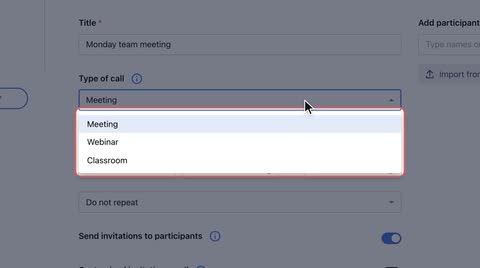
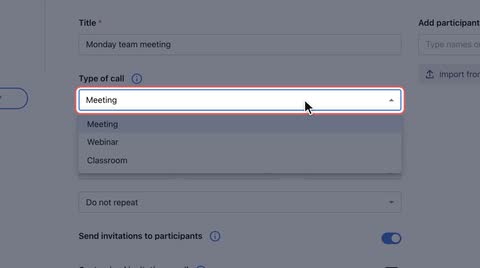
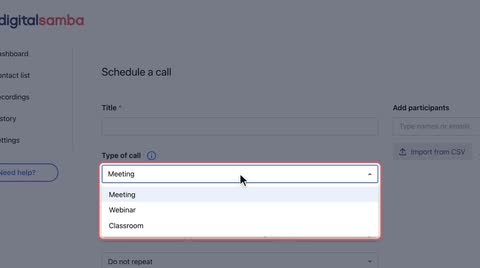
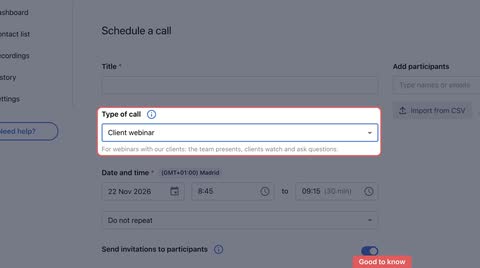
Then choose the type of call: Meeting, Webinar or Classroom.
Read
0:26
Schedule a call
Each one comes with its own roles and features.
Read
0:29
Schedule a call
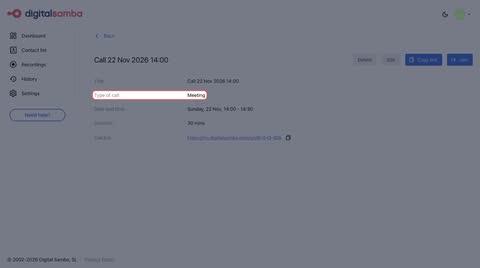
Choose carefully: you can't change it once the call is saved.
Read
0:33
Schedule a call
For a team catch-up, Meeting is the one.
Read
1:34
Add participants
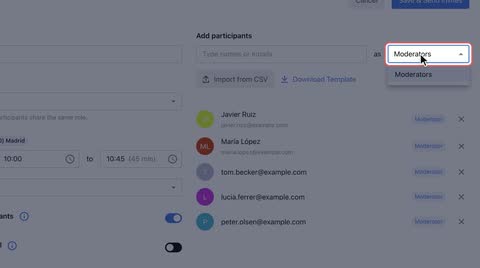
In a meeting, everyone joins as a moderator.
Read
1:38
Add participants
For webinars and classes, you choose each person's role here.
Read
2:25
Recap
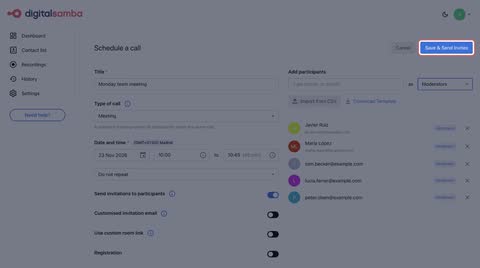
So: a title, a type of call, a time and your participants — and the invitations are on their way.
Read
Set up a recurring call
Scheduling calls · 2:42
0:01
Introduction
In this video, you'll make a call — a meeting, a class or a webinar — repeat on its own, then change or delete one date without touching the rest.
Read
Invitations and RSVPs: what your participants receive
Scheduling calls · 3:07
0:01
Introduction
In this video, you'll see what people receive when you invite them to a call — a meeting, a class or a webinar — and how their answers come back to you.
Read
Edit, reschedule or cancel a call
Scheduling calls · 2:27
0:01
Introduction
In this video, you'll change a call you've already scheduled — a meeting, a class or a webinar — give it a new time, and cancel it.
Read
0:29
Edit
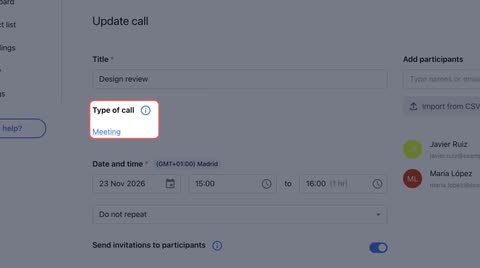
Only the Type of call is fixed: for another type, schedule a new call.
Read
Give your call a custom room link
Scheduling calls · 1:52
0:01
Introduction
In this video, you'll give a call — a meeting, a class or a webinar — a room link that is easy to read and easy to say.
Read
Set up a webinar with registration
Webinars and registration · 3:05
0:01
Introduction
In this video, you'll set up a webinar that people sign up for on a registration page, with your own event image.
Read
0:17
Type of call
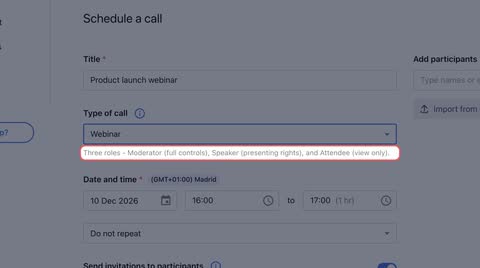
Under Type of call, choose Webinar: it has three roles, moderators, speakers and attendees.
Read
0:35
Type of call
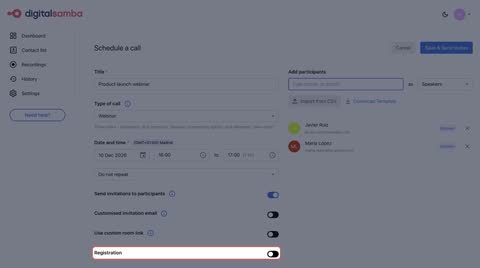
Registration is on this form for any call: a meeting, a class or a webinar.
Read
Turn on recording and transcription
After the call · 2:44
0:01
Introduction
In this video, you'll turn on recording and transcription in a type of call, before you schedule a meeting, a class or a webinar with it.
Read
0:12
Your type of call
Our example: Ana wants the Product launch webinar recorded and transcribed.
Read
0:18
Your type of call
So before she schedules it, she sets this up in her own type of call, Client webinar.
Read
0:24
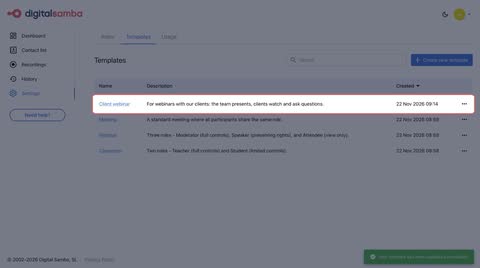
Your type of call
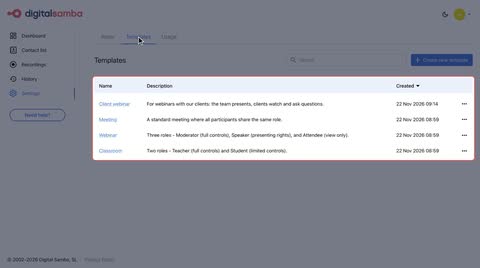
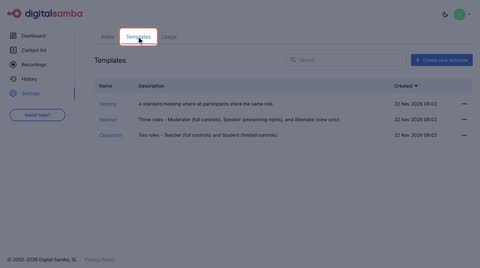
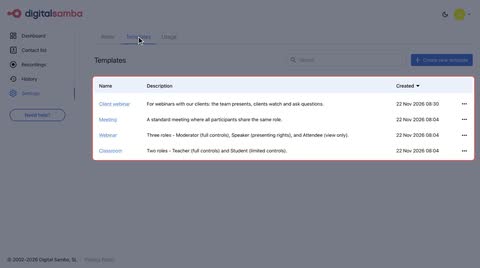
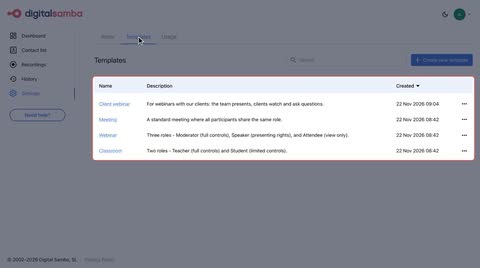
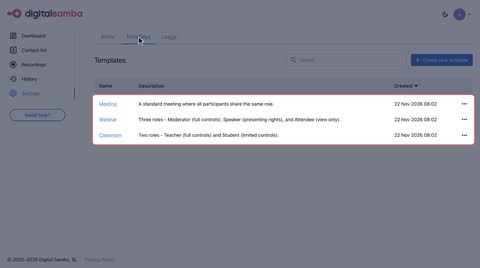
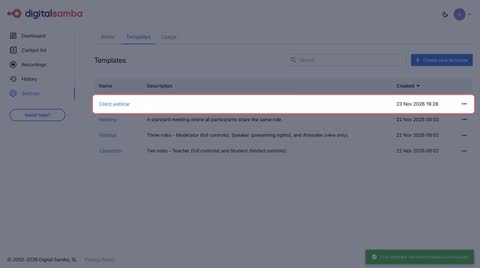
Go to Settings, then Templates: the name these pages use for types of call.
Read
1:56
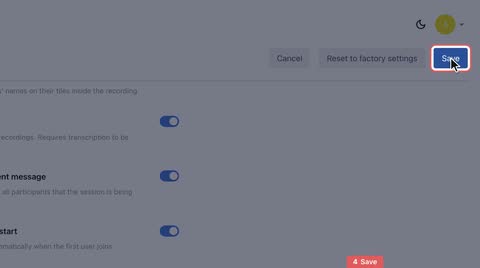
Save
Now click Save at the top.
Read
1:59
Save
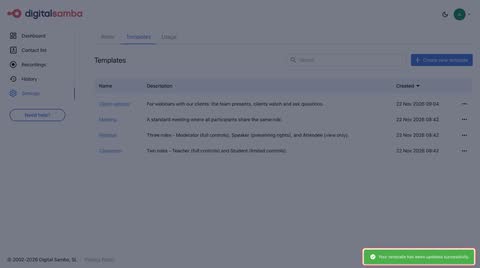
A message says your template has been updated successfully.
Read
Types of call: Meeting, Webinar and Classroom
Customise your calls · 2:42
0:01
Introduction
In this video, you'll get to know the types of call — Meeting, Webinar and Classroom — and make one of your own.
Read
0:16
Type of call
Every call — a meeting, a class or a webinar — has a type of call, chosen when you schedule a call or create a link.
Read
0:25
Type of call
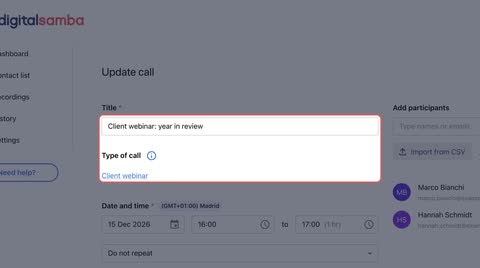
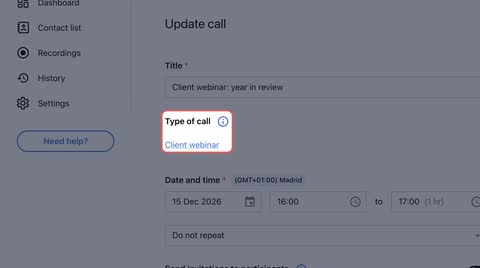
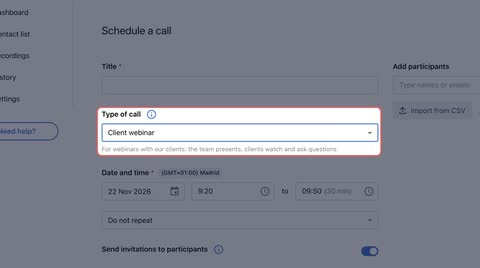
Click Schedule a call and open Type of call: Meeting, Webinar and Classroom are built in.
Read
0:33
Templates
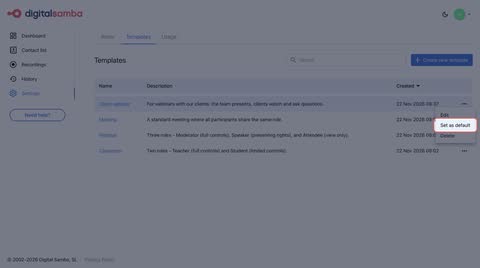
You manage them in Settings, under Templates: the word the settings use for a type of call.
Read
0:39
Templates
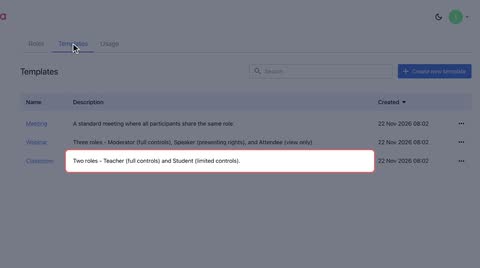
Meeting gives everyone one role; Webinar has moderators, speakers and attendees; Classroom, teachers and students.
Read
0:48
Templates
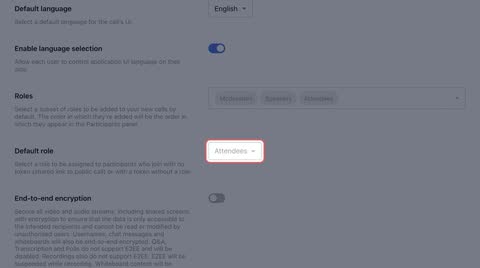
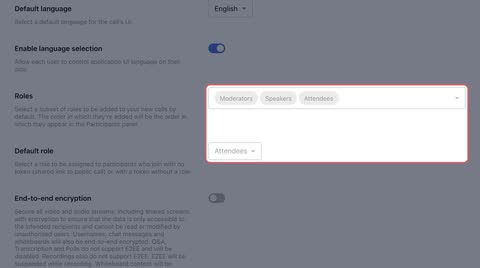
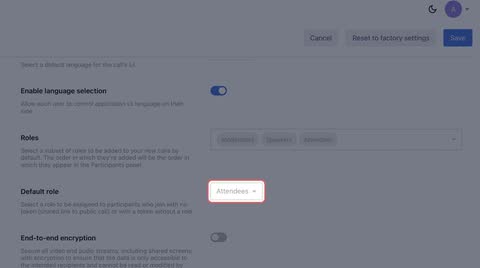
Open Webinar: here are its three roles, and its Default role, Attendees.
Read
0:54
Templates
On a built-in type, they're greyed out: they can't be changed.
Read
1:47
Change and reset
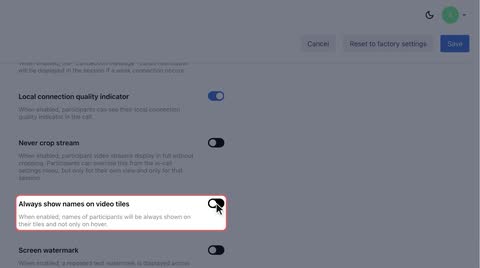
To change a type, open it and change its settings: Ana turns off Always show names on video tiles.
Read
2:08
Good to know
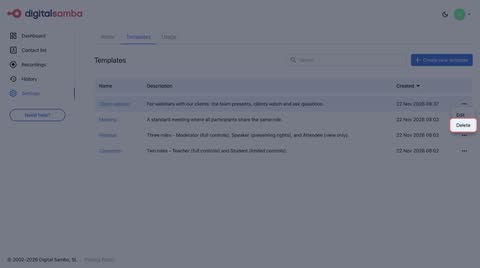
Good to know: built-in types can't be deleted; your own can, once no call uses it.
Read
2:15
Good to know
A call takes its type's settings when it's scheduled: later changes reach only calls scheduled afterwards.
Read
2:22
Good to know
And a call's type can't be changed once it's saved.
Read
2:27
Recap
So: pick a type when you schedule, manage types in Settings under Templates, and make your own and set it as default.
Read
Control how people join: lobby, consent and devices
Customise your calls · 2:28
0:01
Introduction
In this video, you'll choose how people join a call — a meeting, a class or a webinar: the consent message, the lobby, microphones and cameras.
Read
0:14
Join settings
Our example: Ana runs webinars for clients, in her own type of call, Client webinar.
Read
0:20
Join settings
Go to Settings, then Templates: the name these pages use for types of call.
Read
1:47
Good to know
Good to know: these settings are copied into a call when you schedule it, so a change reaches only calls you schedule afterwards.
Read
Choose the tools in your calls
Customise your calls · 2:35
0:01
Introduction
In this video, you'll choose the tools people get in a call — a meeting, a class or a webinar: chat, questions, polls and shared files.
Read
0:13
Components
Our example: Ana runs webinars for clients, in her own type of call, Client webinar.
Read
0:20
Components
Go to Settings, then Templates: the name these pages use for types of call.
Read
1:51
Save
Now click Save at the top: your template has been updated successfully.
Read
2:12
Good to know
And a change reaches only calls you schedule afterwards.
Read
Roles and permissions: create a custom role
Customise your calls · 2:59
1:37
Type of call
A role is used through a type of call, which these settings call a template.
Read
1:42
Type of call
The built-in Webinar keeps its own roles: they can't be changed.
Read
1:47
Type of call
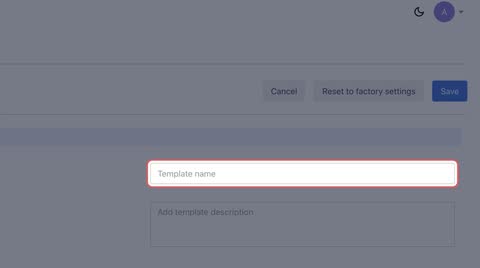
So click Create new template, and name it Client webinar.
Read
1:51
Type of call
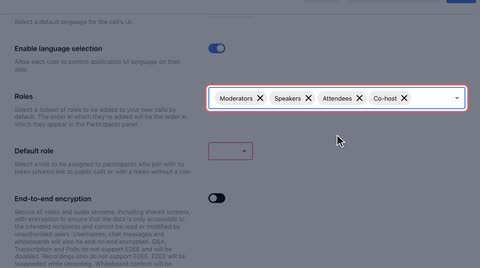
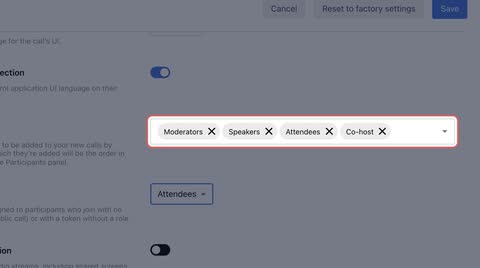
Under Roles, add Speakers, Attendees and Co-host next to Moderators.
Read
1:57
Type of call
Choose Attendees as the Default role, then click Save.
Read
2:02
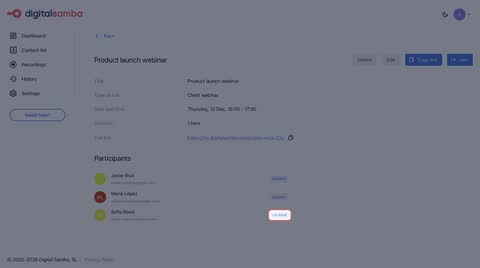
Invite as Co-host
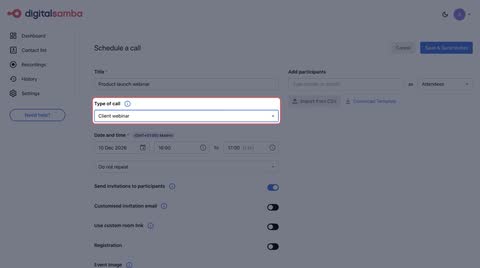
Now schedule the webinar, with Client webinar as its type of call.
Read
2:27
Good to know
Good to know: a call keeps the roles its type had when it was scheduled, so a role added to a type later reaches only calls scheduled afterwards.
Read
2:44
Recap
So: create the role and choose its permissions, add it to a type of call, and invite people in that role.
Read
Register for an event
For your participants · 1:29
0:01
Introduction
In this video, you'll register for an event — a webinar, a meeting or a class — and see what happens next.
Read
All topics