University

Roles and permissions: create a custom role

In this video, you'll create your own role for a call — a meeting, a class or a webinar — choose what it may do, and invite someone in that role.

Updated Version 2

1Roles0:12

Our example: a co-host who helps Ana run the Product launch webinar.
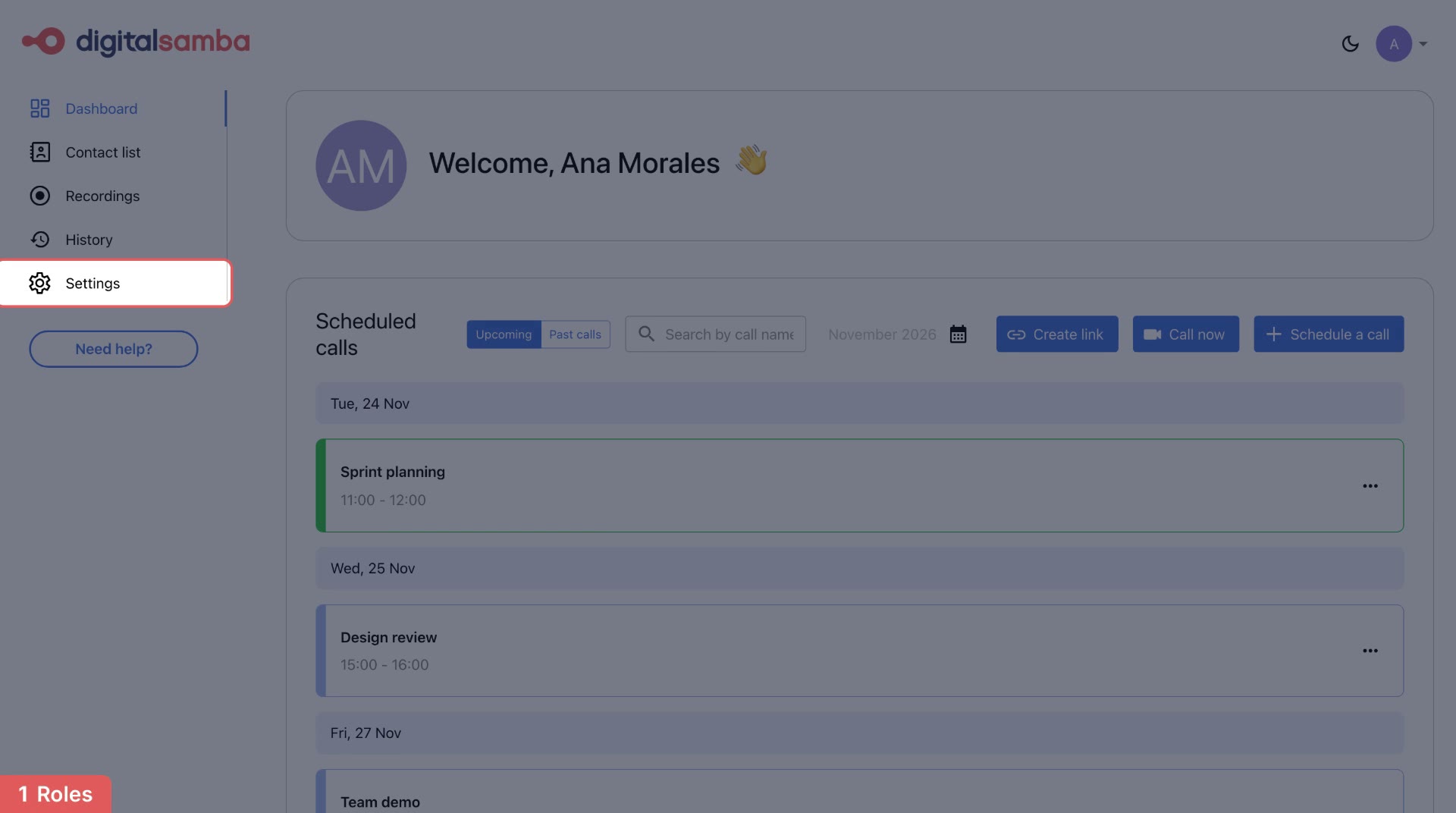
Screenshot from the film at 0:16: Our example: a co-host who helps Ana run the Product launch webinar.
Watch this step · 0:13

Open Settings: the first page is Roles.
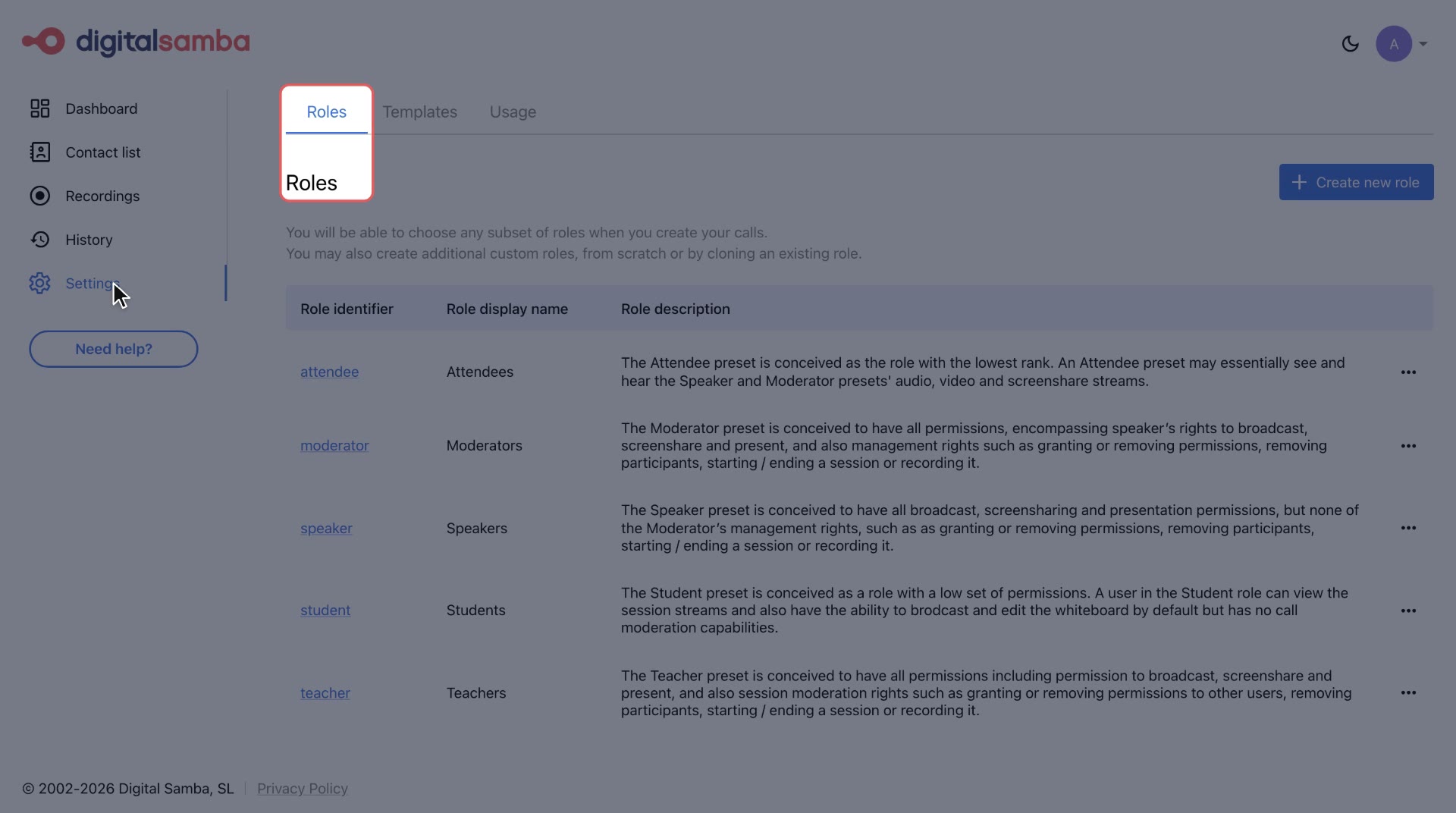
Screenshot from the film at 0:21: Open Settings: the first page is Roles.
Watch this step · 0:18

Five roles are there from the start, each with a description: attendees, moderators, speakers, students and teachers.
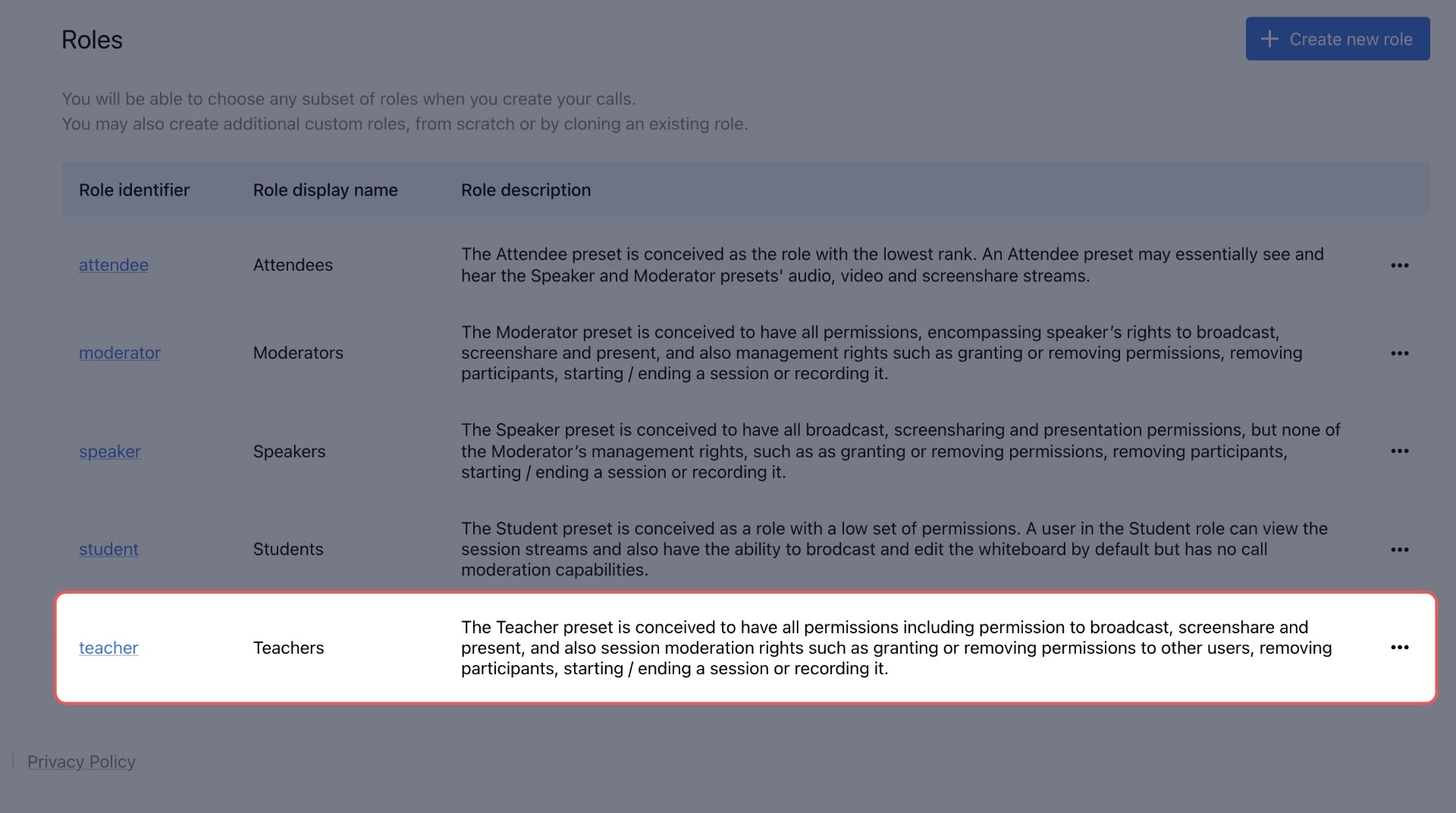
Screenshot from the film at 0:30: Five roles are there from the start, each with a description: attendees, moderators, speakers, students and teachers.
Watch this step · 0:22

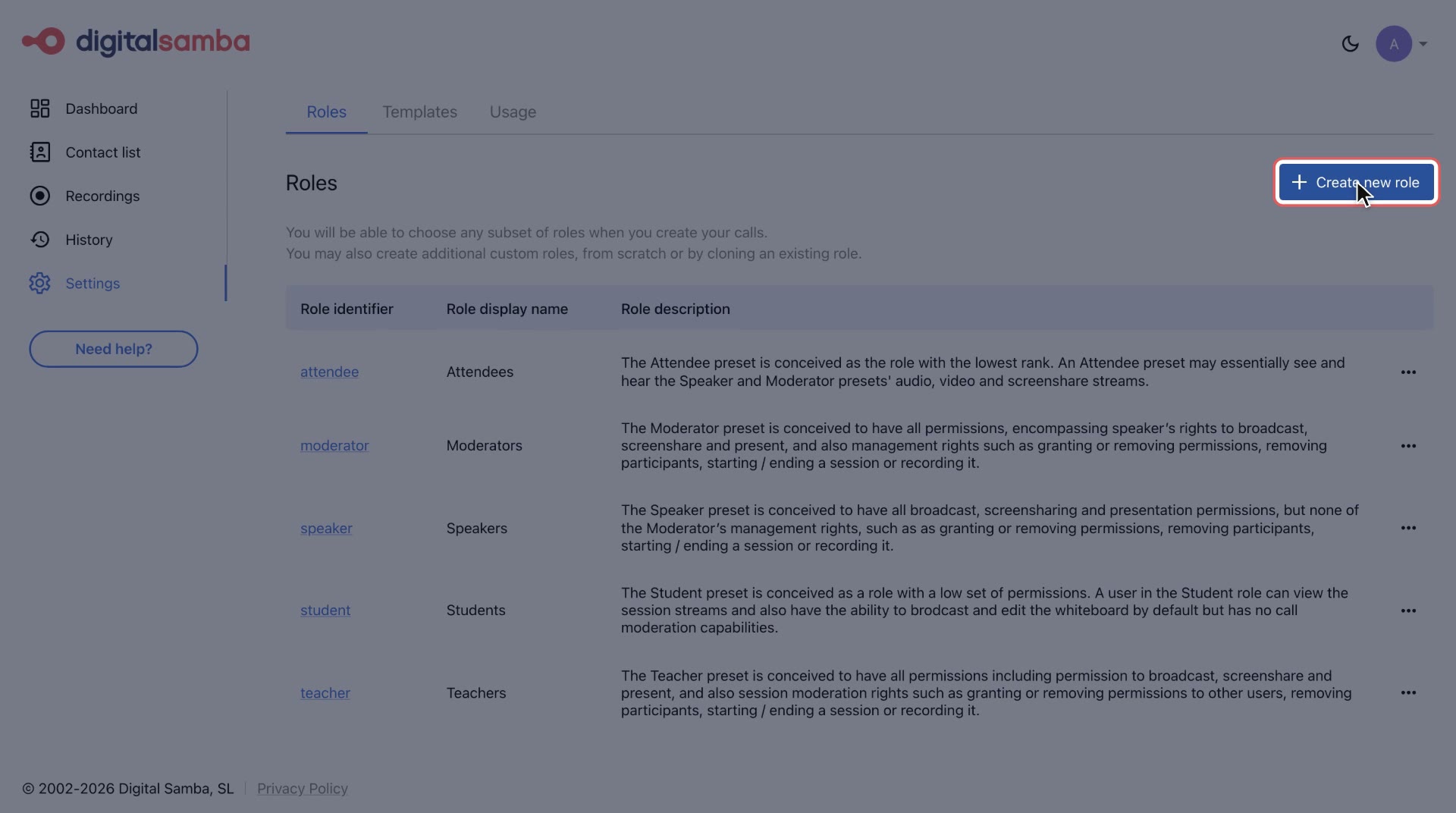
Click Create new role.

Screenshot from the film at 0:32: Click Create new role.
Watch this step · 0:31

2Create new role0:33

Under Role display name, choose one of the preset names, or Custom to type your own: Co-host.
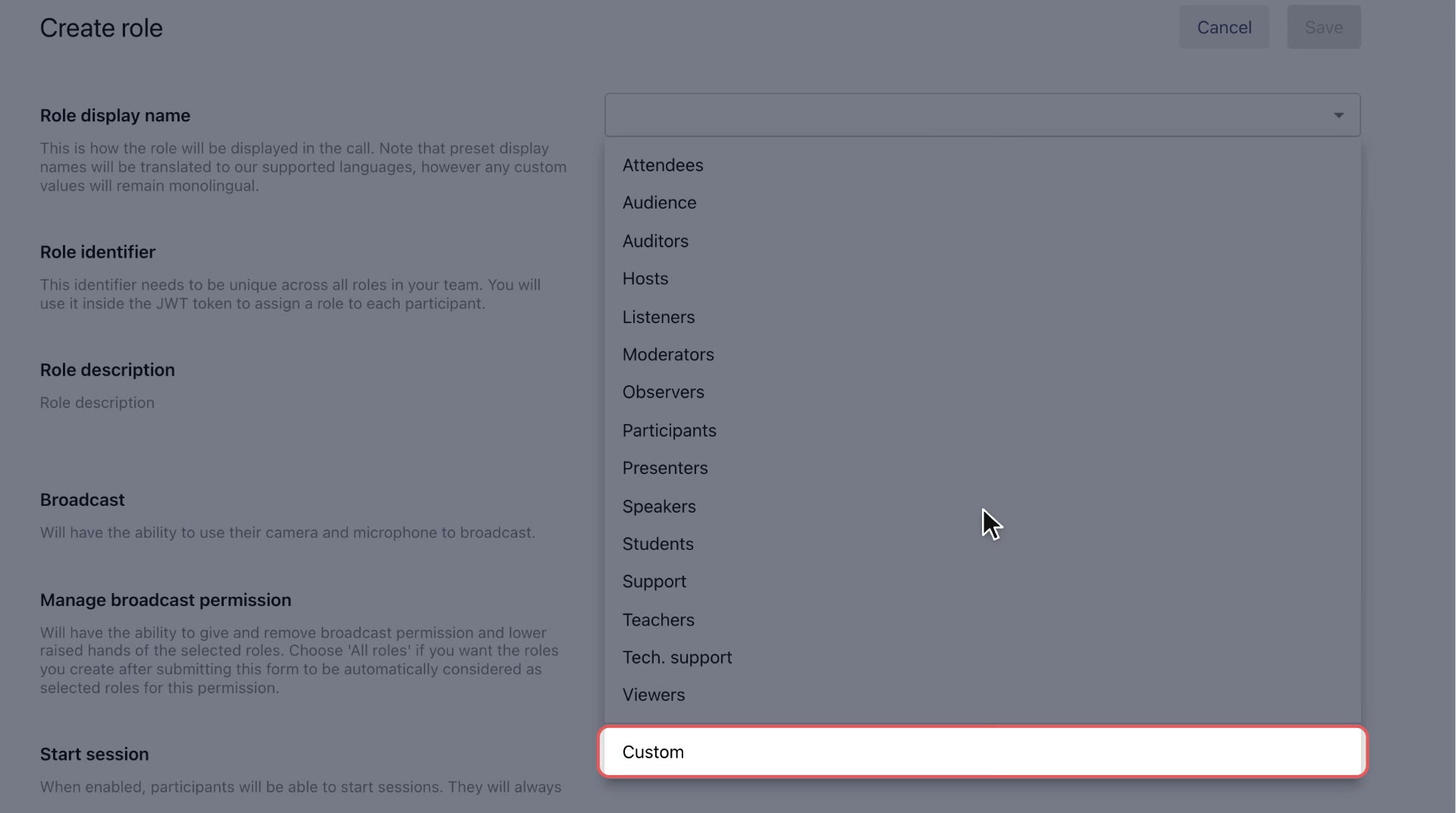
Screenshot from the film at 0:38: Under Role display name, choose one of the preset names, or Custom to type your own: Co-host.
Watch this step · 0:34

A preset name also fills in the Role identifier; with Custom, type it yourself.
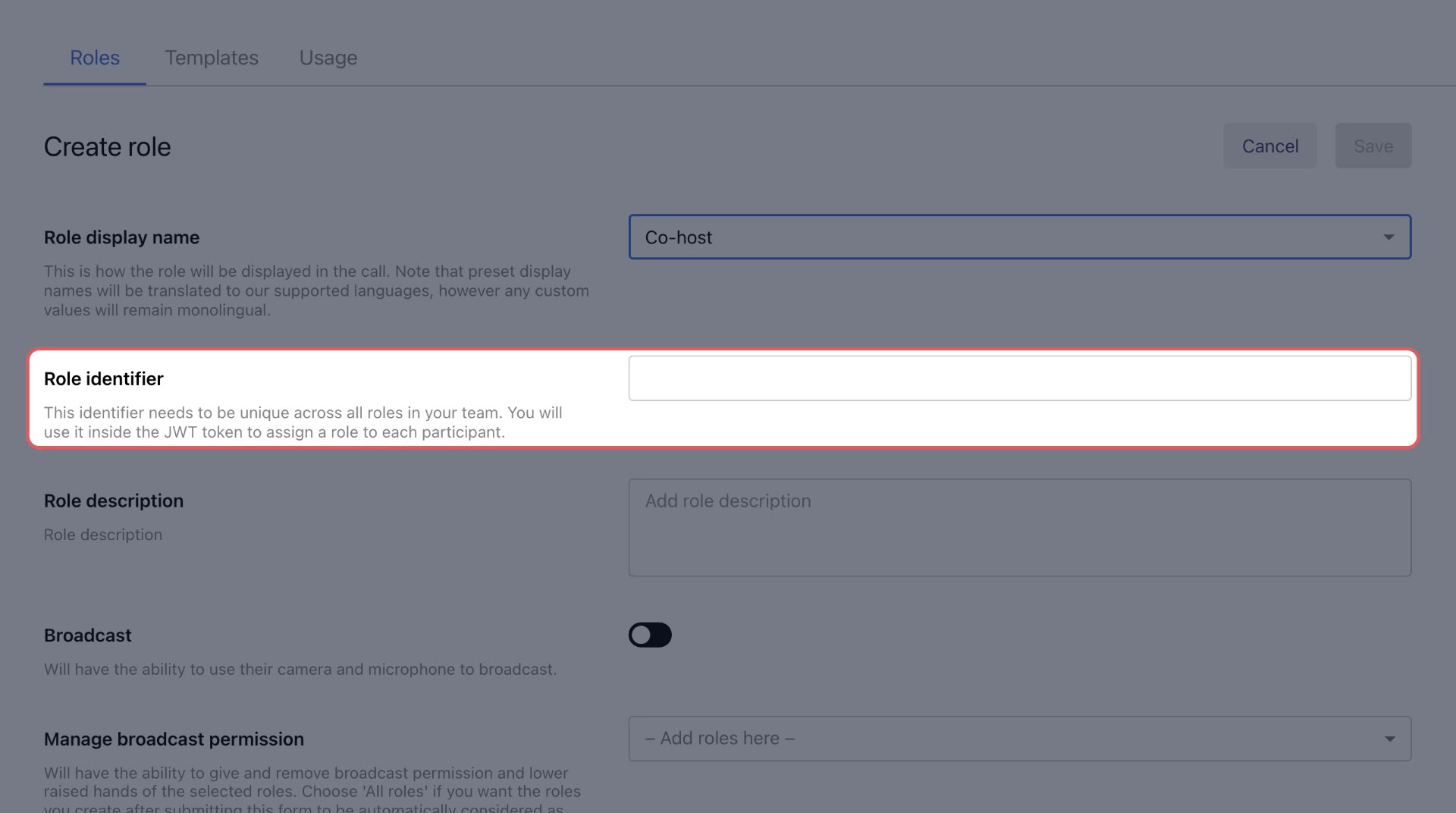
Screenshot from the film at 0:44: A preset name also fills in the Role identifier; with Custom, type it yourself.
Watch this step · 0:41

It can't be one that's already taken, and it takes only letters, numbers, dashes and underscores: no spaces.
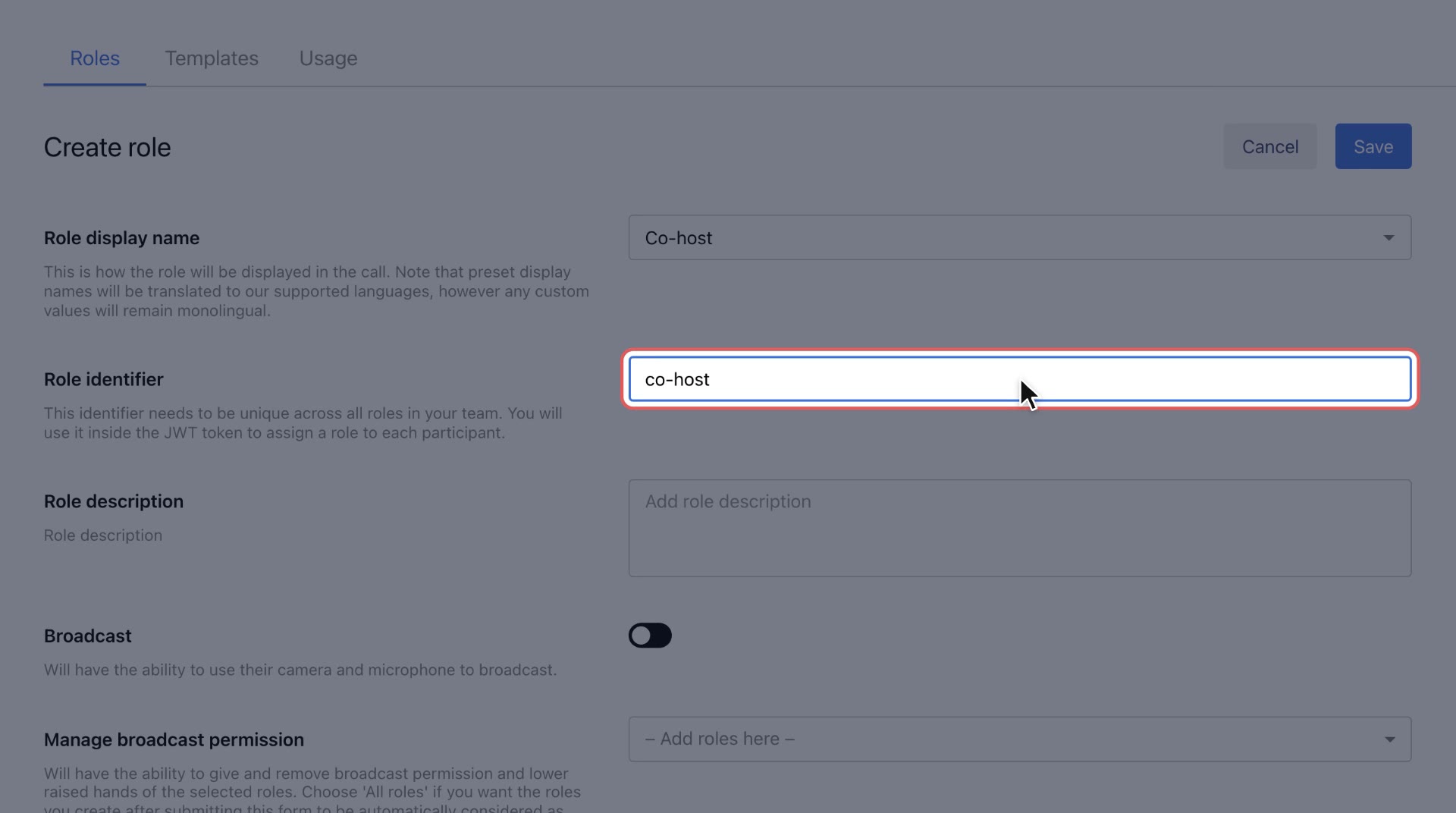
Screenshot from the film at 0:54: It can't be one that's already taken, and it takes only letters, numbers, dashes and underscores: no spaces.
Watch this step · 0:47

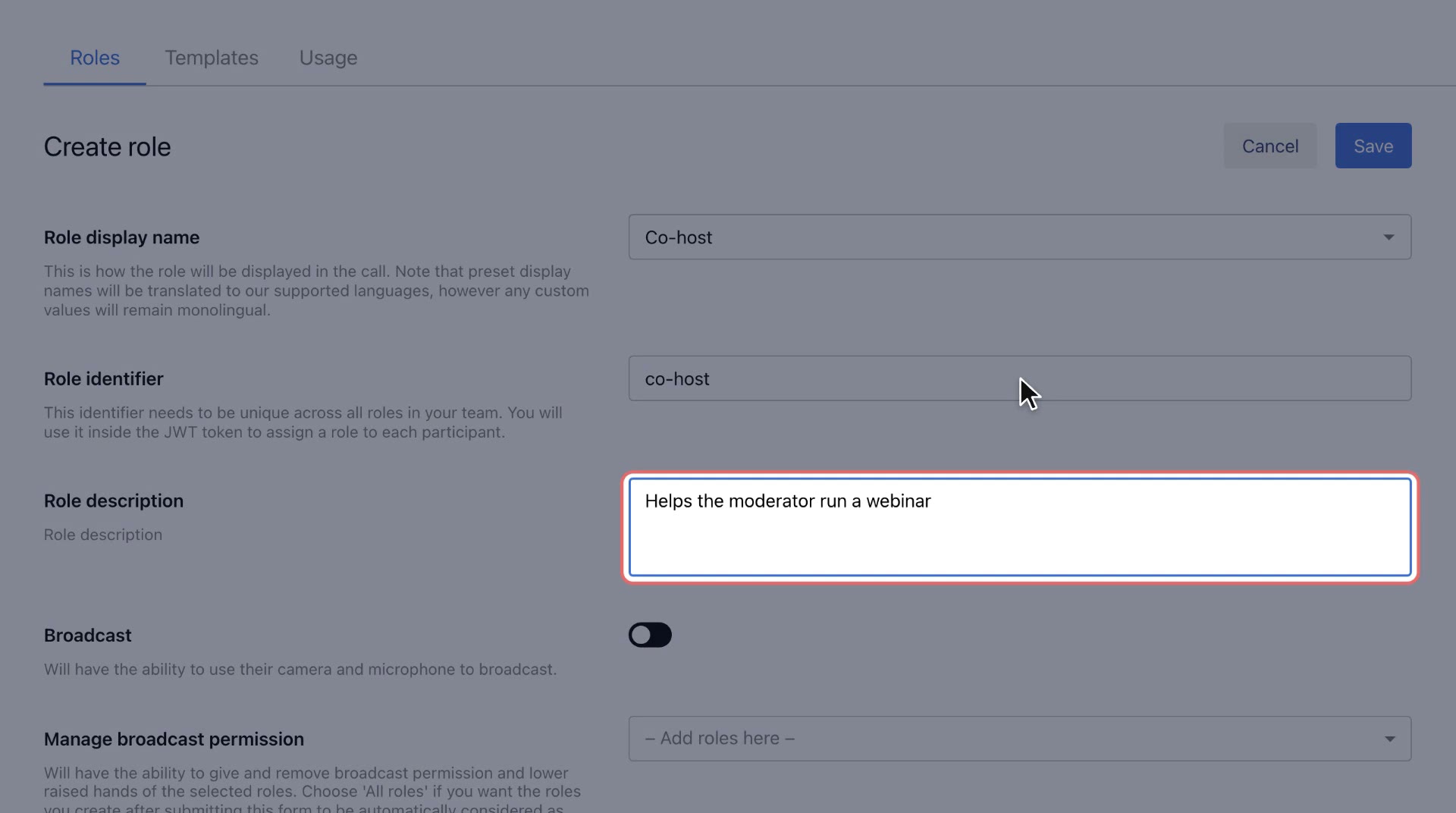
Then add a description.

Screenshot from the film at 0:56: Then add a description.
Watch this step · 0:55

3Permissions0:57

Below come the permissions, about sixty, each with the dashboard's own description, and every switch starts off.
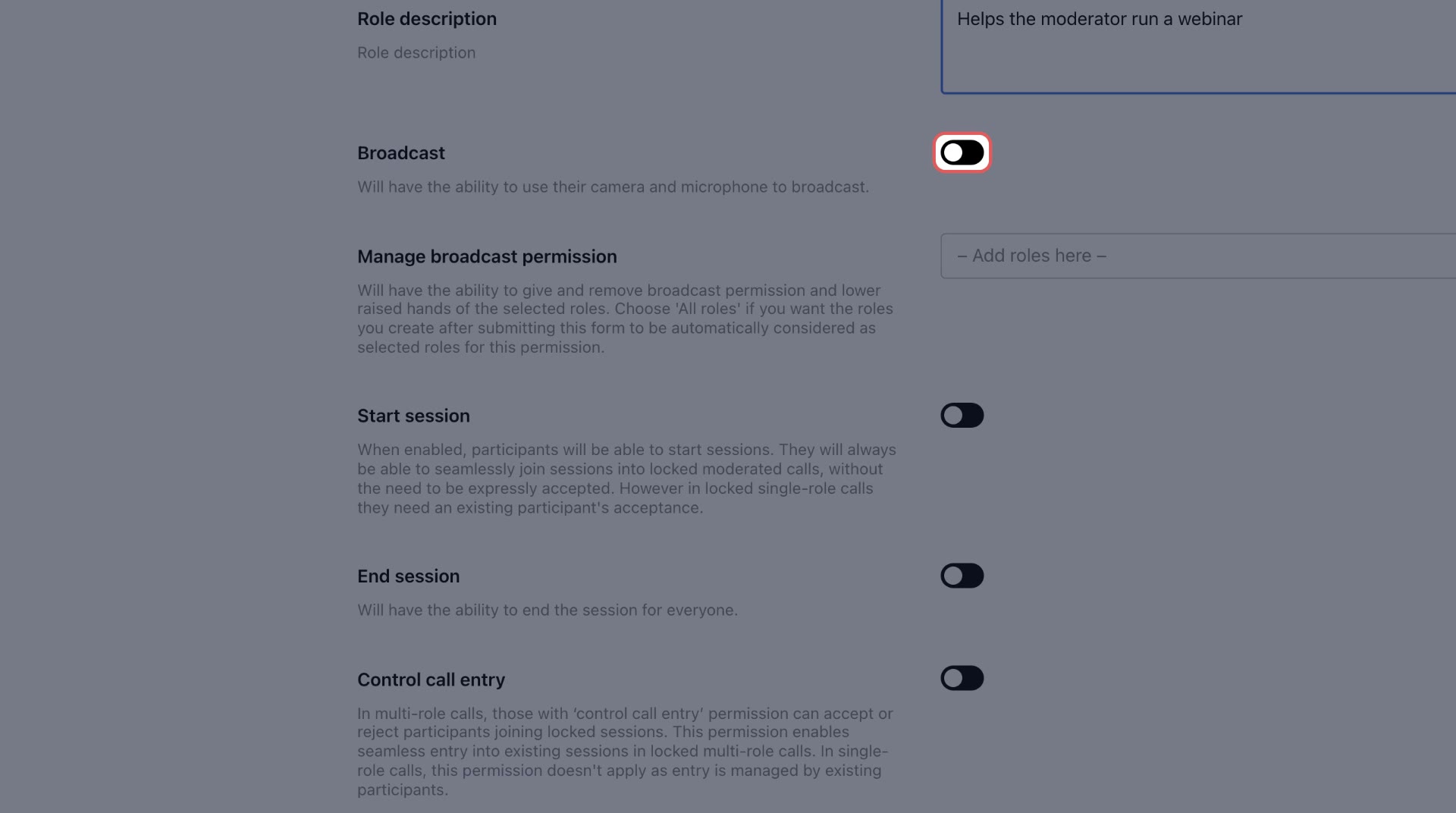
Screenshot from the film at 1:04: Below come the permissions, about sixty, each with the dashboard's own description, and every switch starts off.
Watch this step · 0:57

Ana turns on Broadcast; End session, the ability to end the session for everyone, stays off.
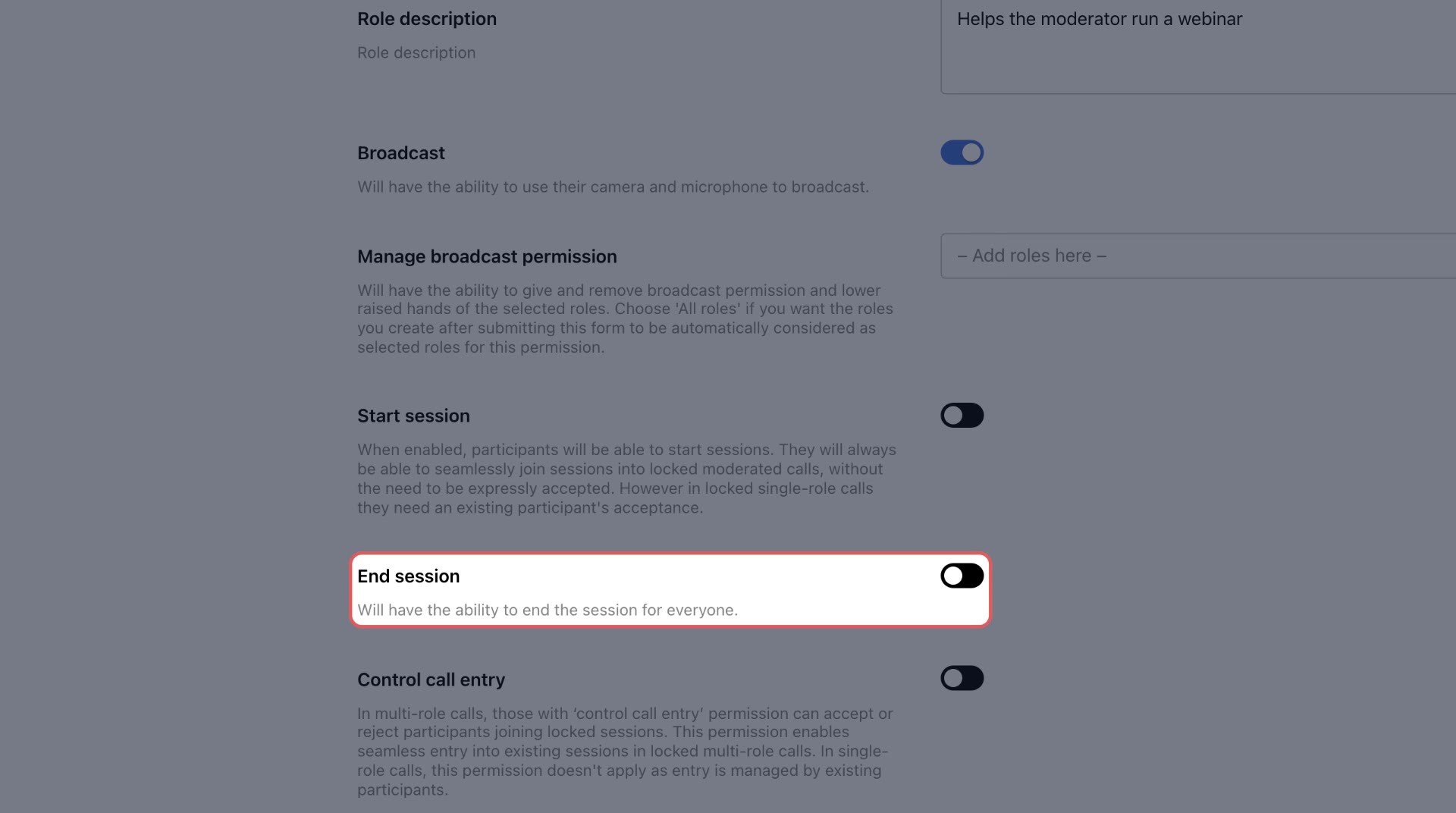
Screenshot from the film at 1:08: Ana turns on Broadcast; End session, the ability to end the session for everyone, stays off.
Watch this step · 1:05

Further down: See participants panel.
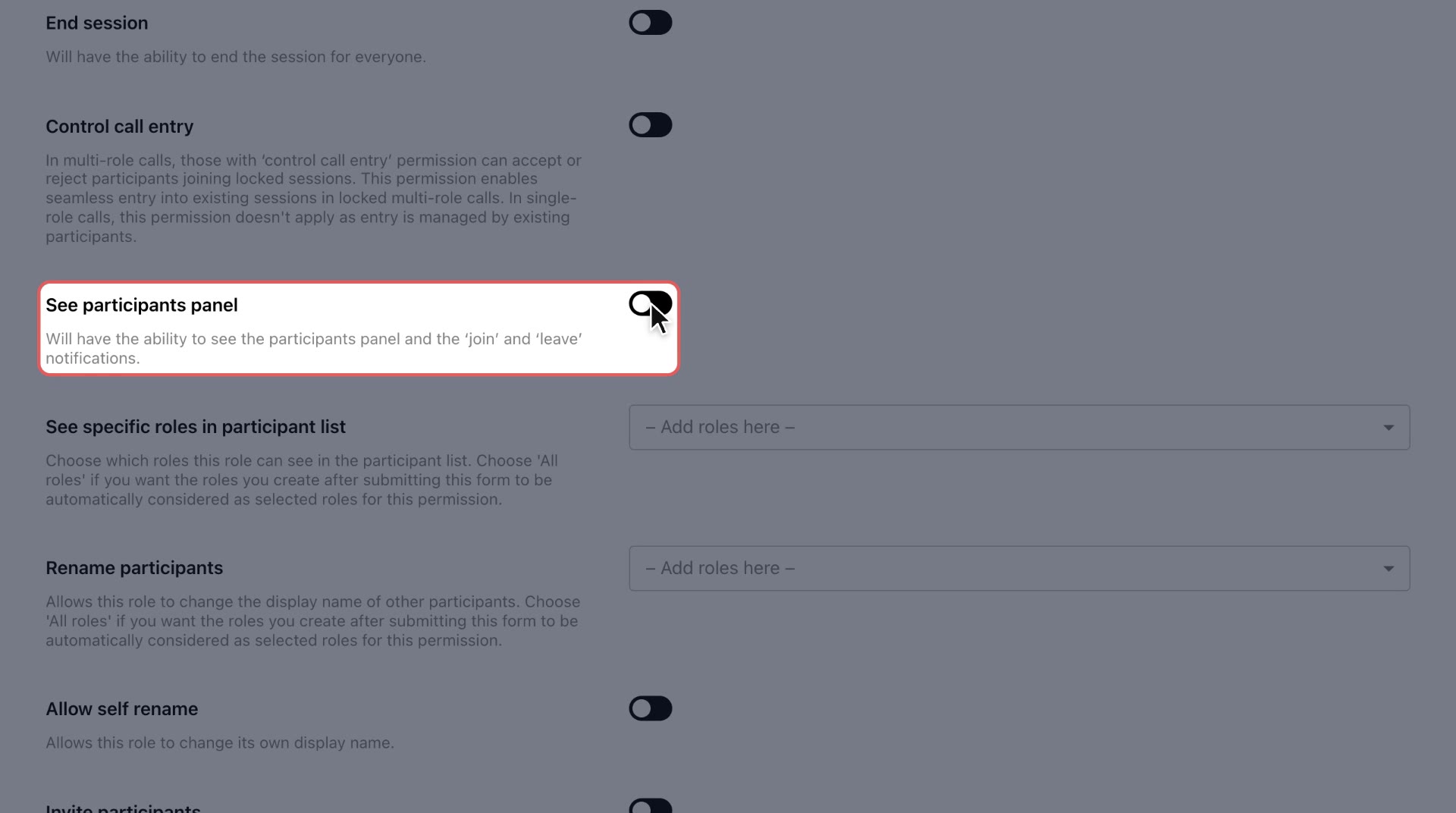
Screenshot from the film at 1:13: Further down: See participants panel.
Watch this step · 1:12

On its own the panel stays empty, so in the field below it Ana picks who is listed there: All roles.
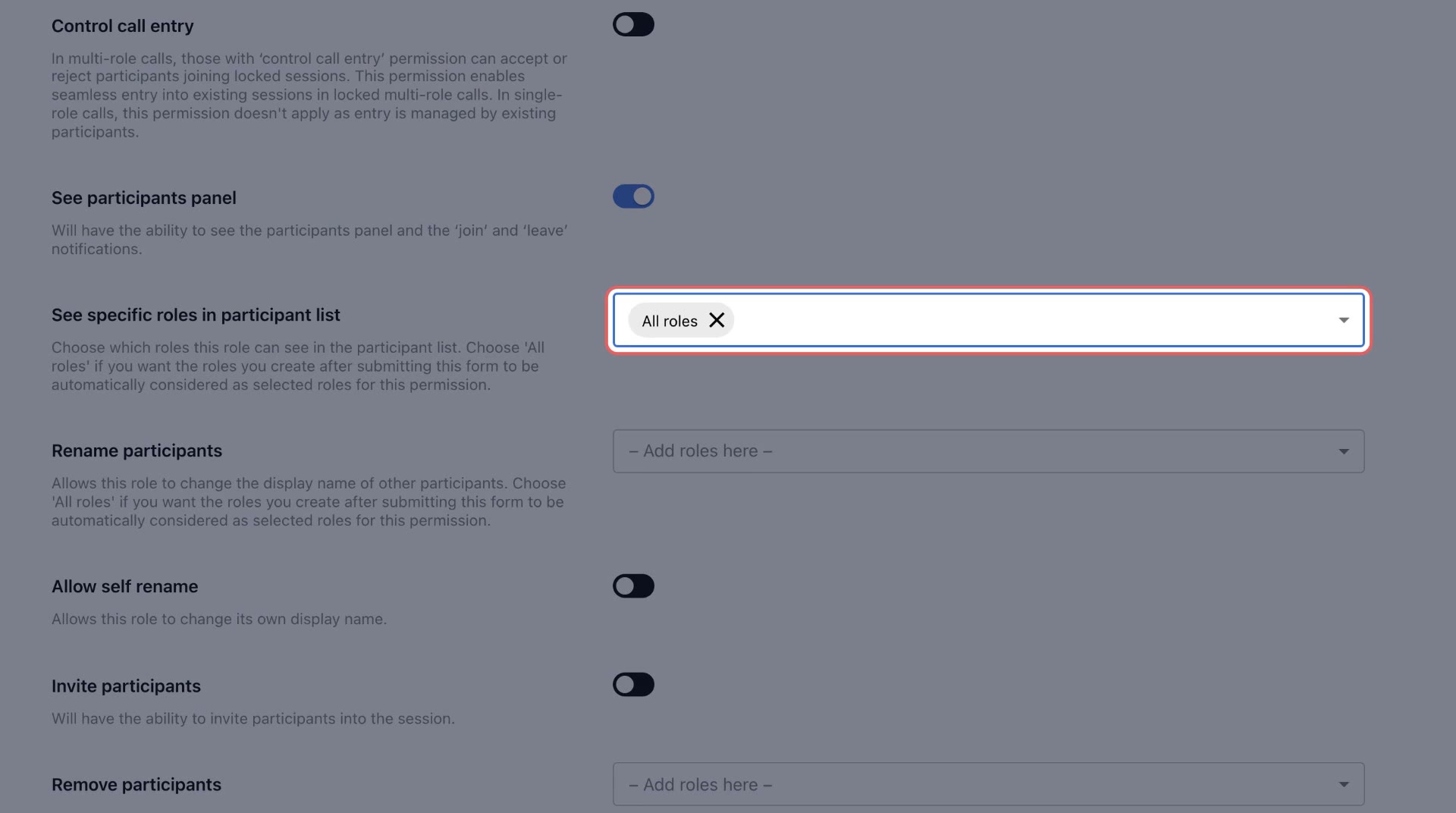
Screenshot from the film at 1:22: On its own the panel stays empty, so in the field below it Ana picks who is listed there: All roles.
Watch this step · 1:15

Then Screenshare, and Chat in public chat.
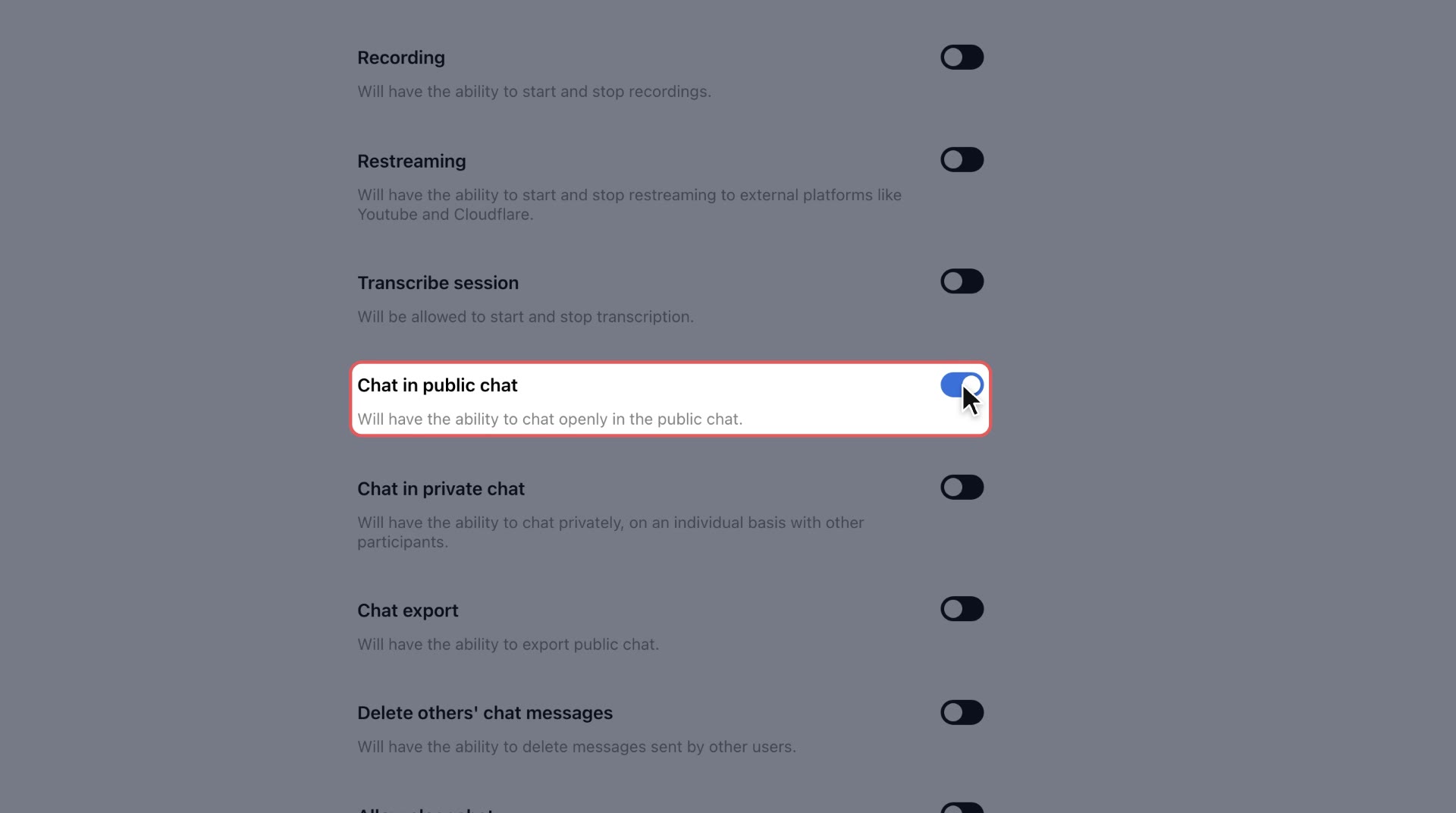
Screenshot from the film at 1:24: Then Screenshare, and Chat in public chat.
Watch this step · 1:22

Remote turn off cam / mic asks for roles too: Ana picks Speakers and Attendees.
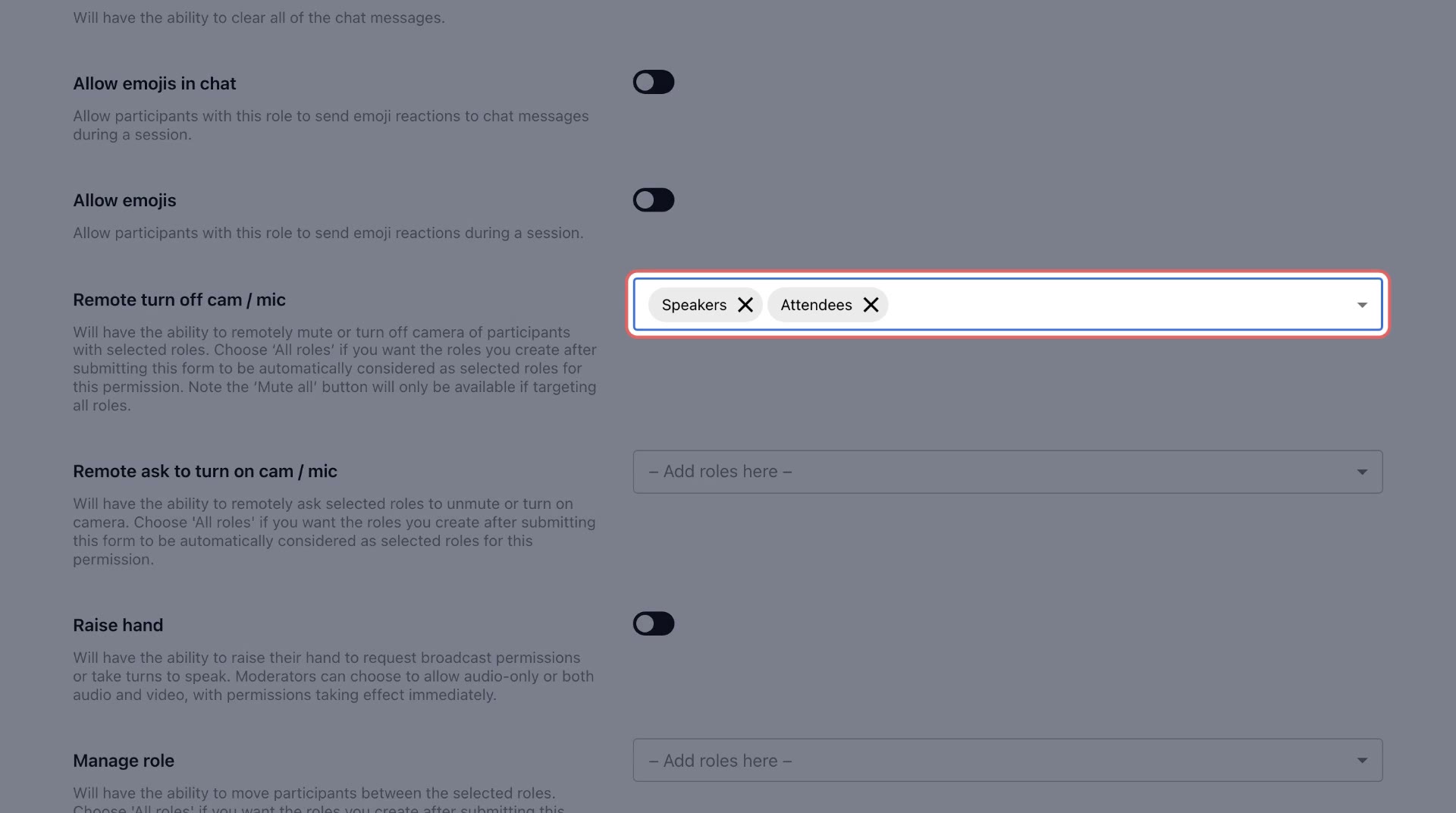
Screenshot from the film at 1:32: Remote turn off cam / mic asks for roles too: Ana picks Speakers and Attendees.
Watch this step · 1:26

Click Save: Co-host is now in the list.
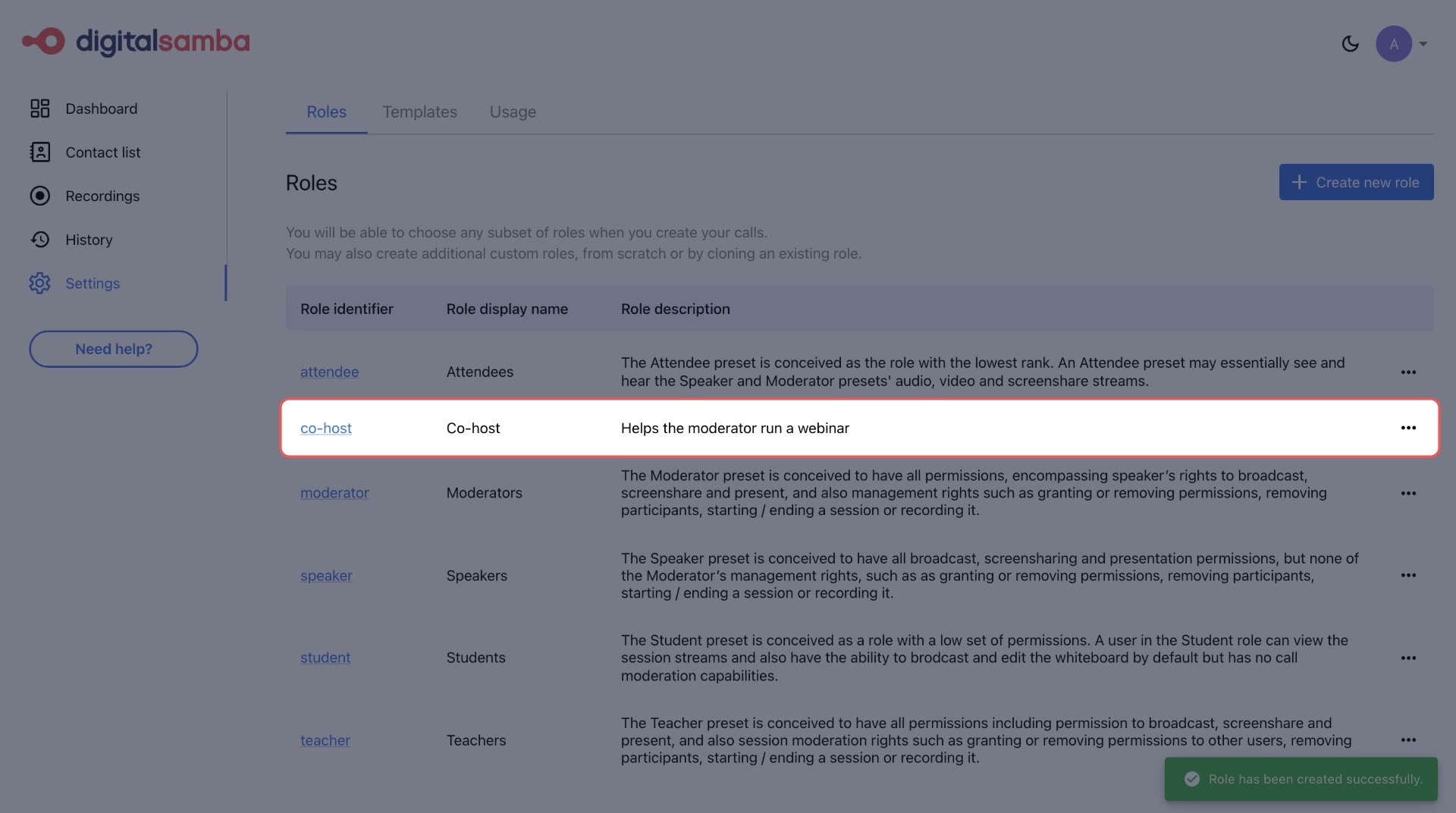
Screenshot from the film at 1:35: Click Save: Co-host is now in the list.
Watch this step · 1:33

4Type of call1:36

A role is used through a type of call, which these settings call a template.
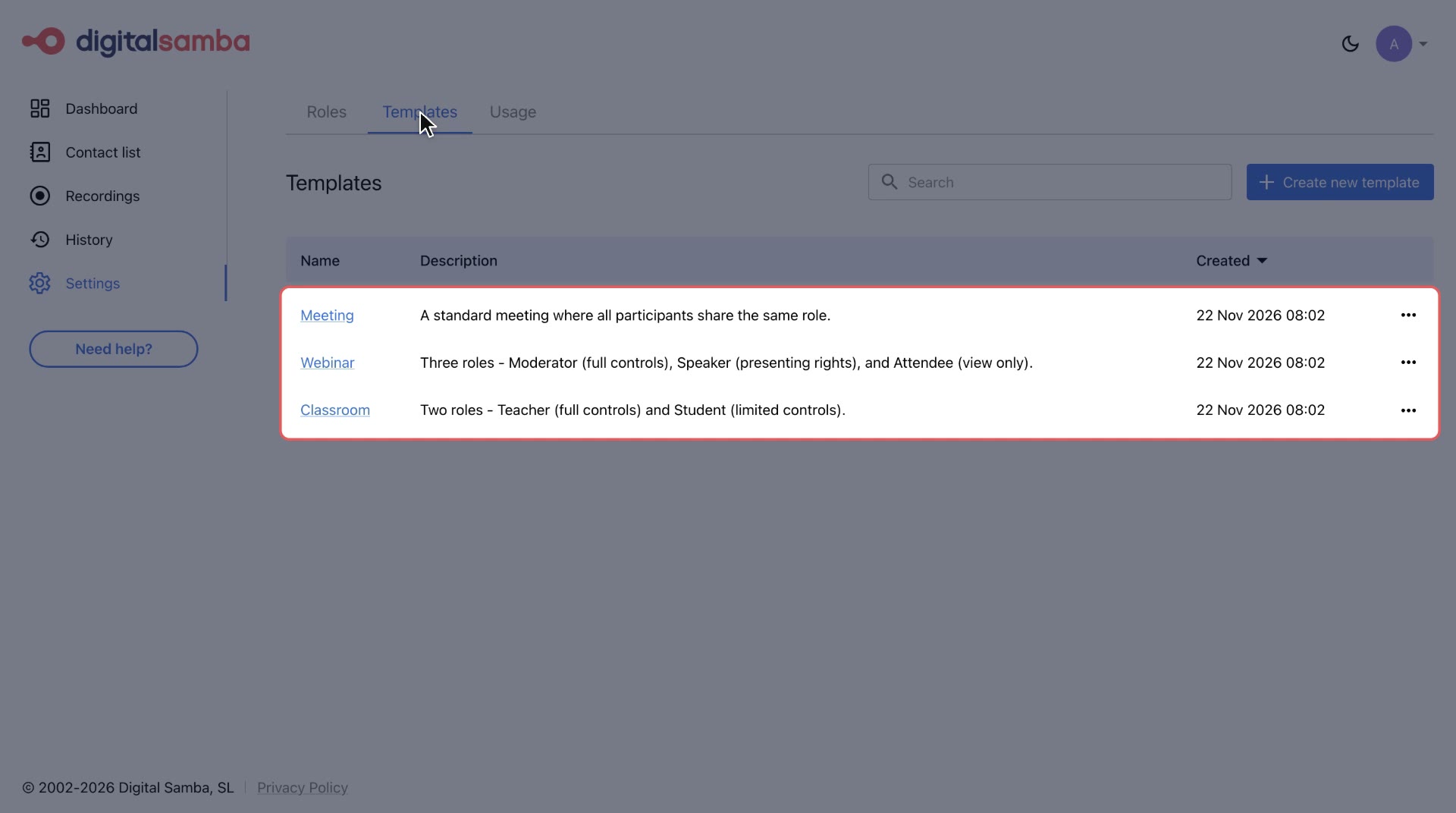
Screenshot from the film at 1:42: A role is used through a type of call, which these settings call a template.
Watch this step · 1:37

The built-in Webinar keeps its own roles: they can't be changed.
Screenshot from the film at 1:46: The built-in Webinar keeps its own roles: they can't be changed.
Watch this step · 1:42

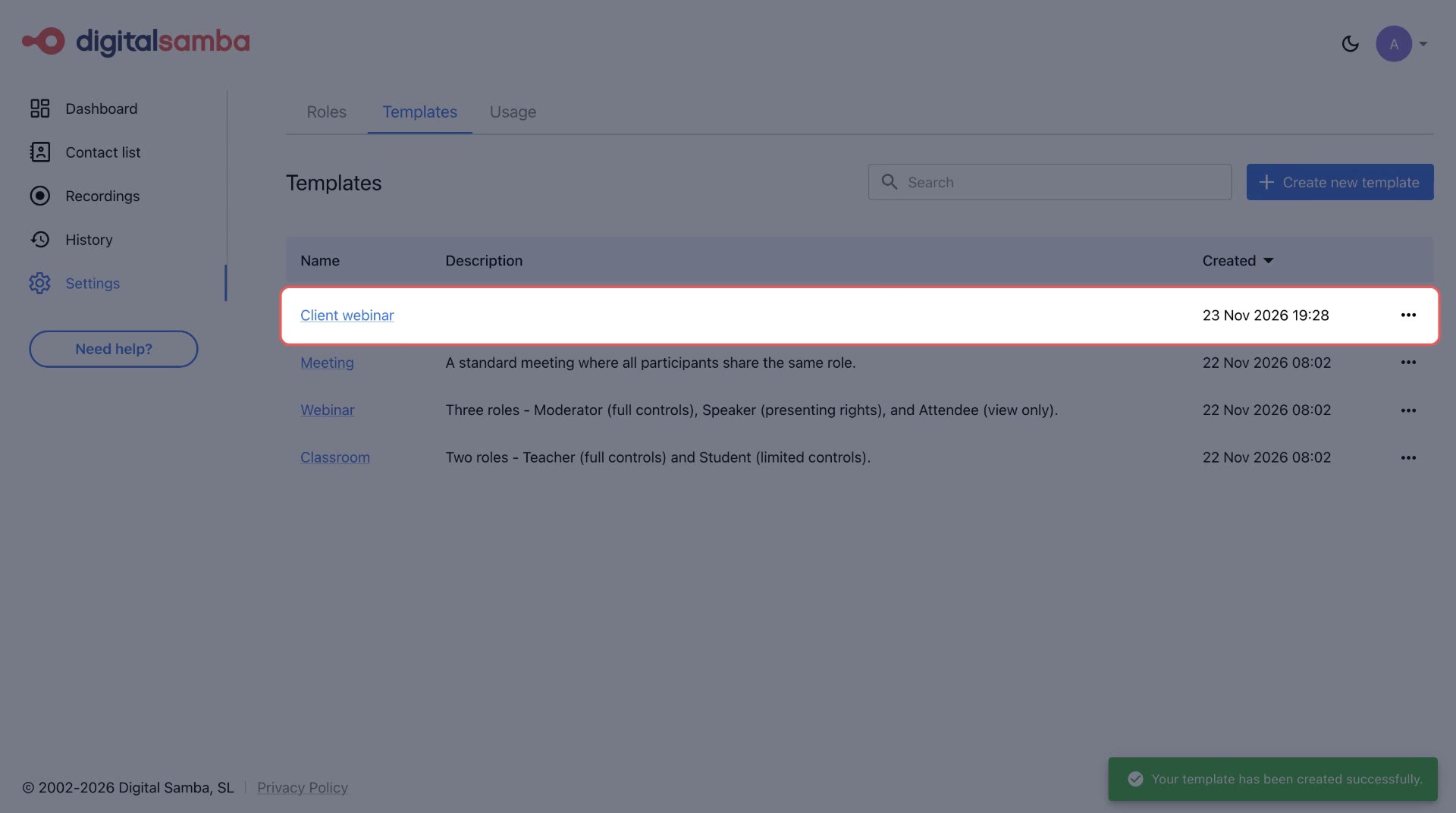
So click Create new template, and name it Client webinar.
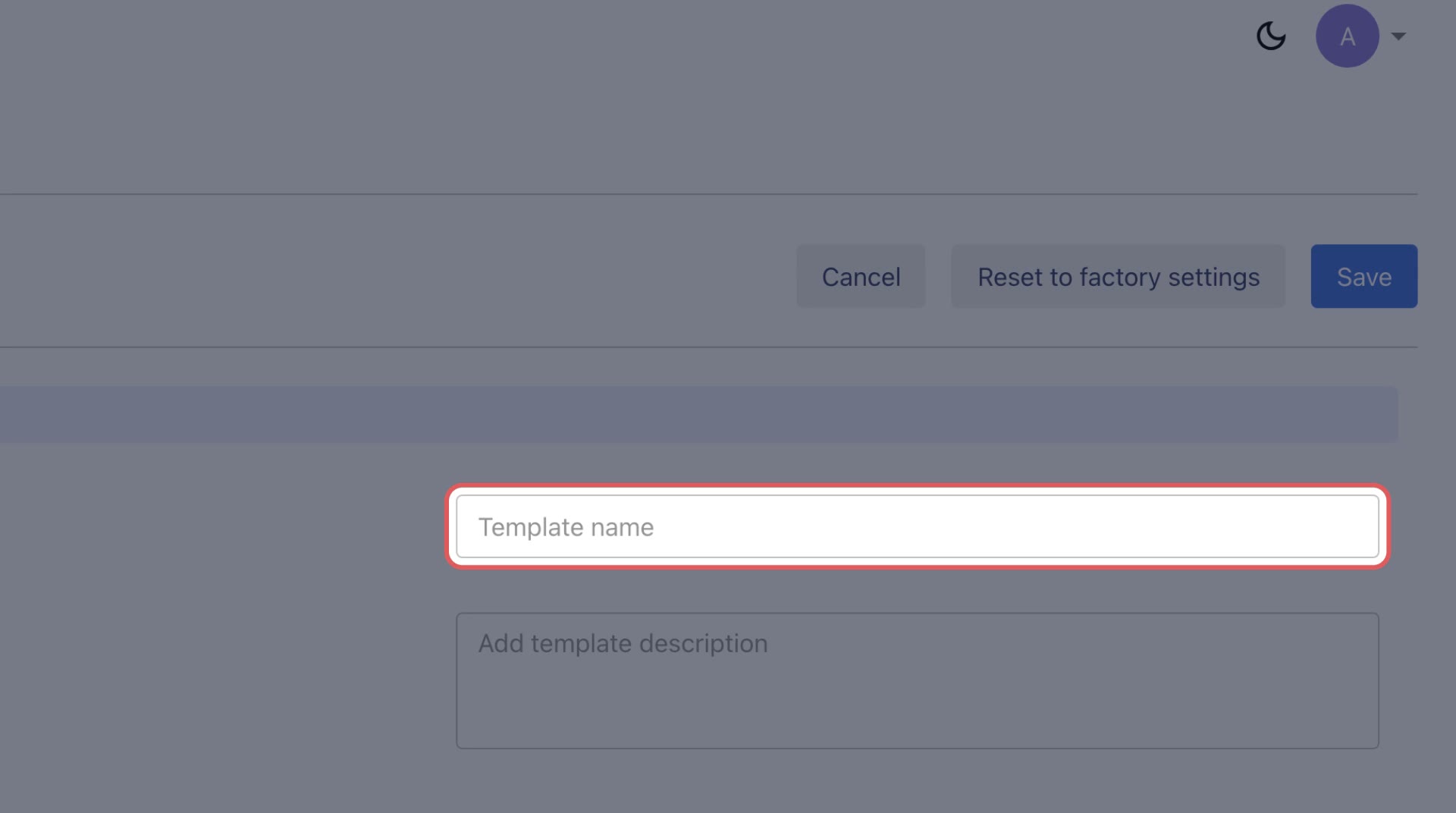
Screenshot from the film at 1:49: So click Create new template, and name it Client webinar.
Watch this step · 1:47

Under Roles, add Speakers, Attendees and Co-host next to Moderators.
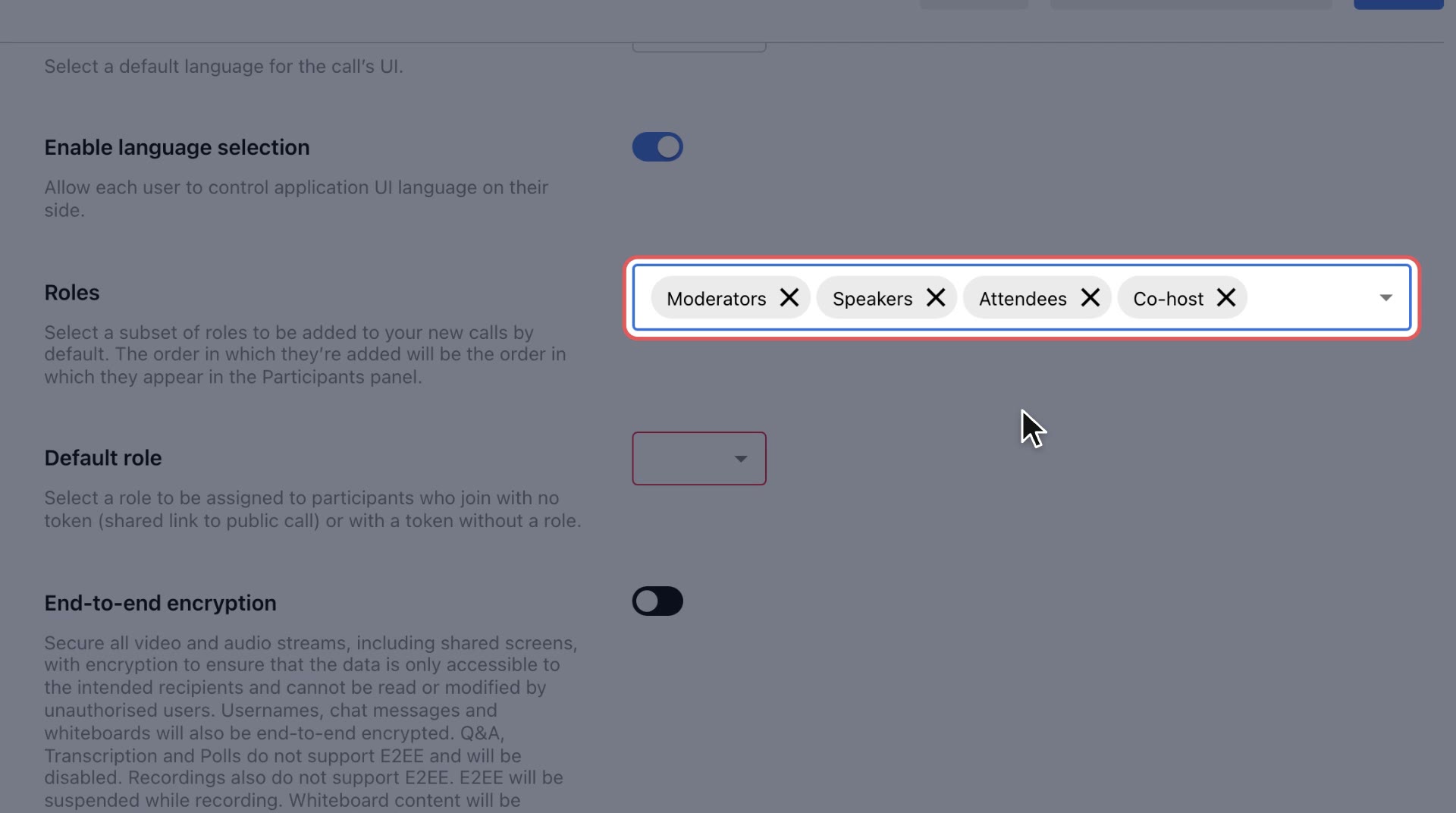
Screenshot from the film at 1:56: Under Roles, add Speakers, Attendees and Co-host next to Moderators.
Watch this step · 1:51

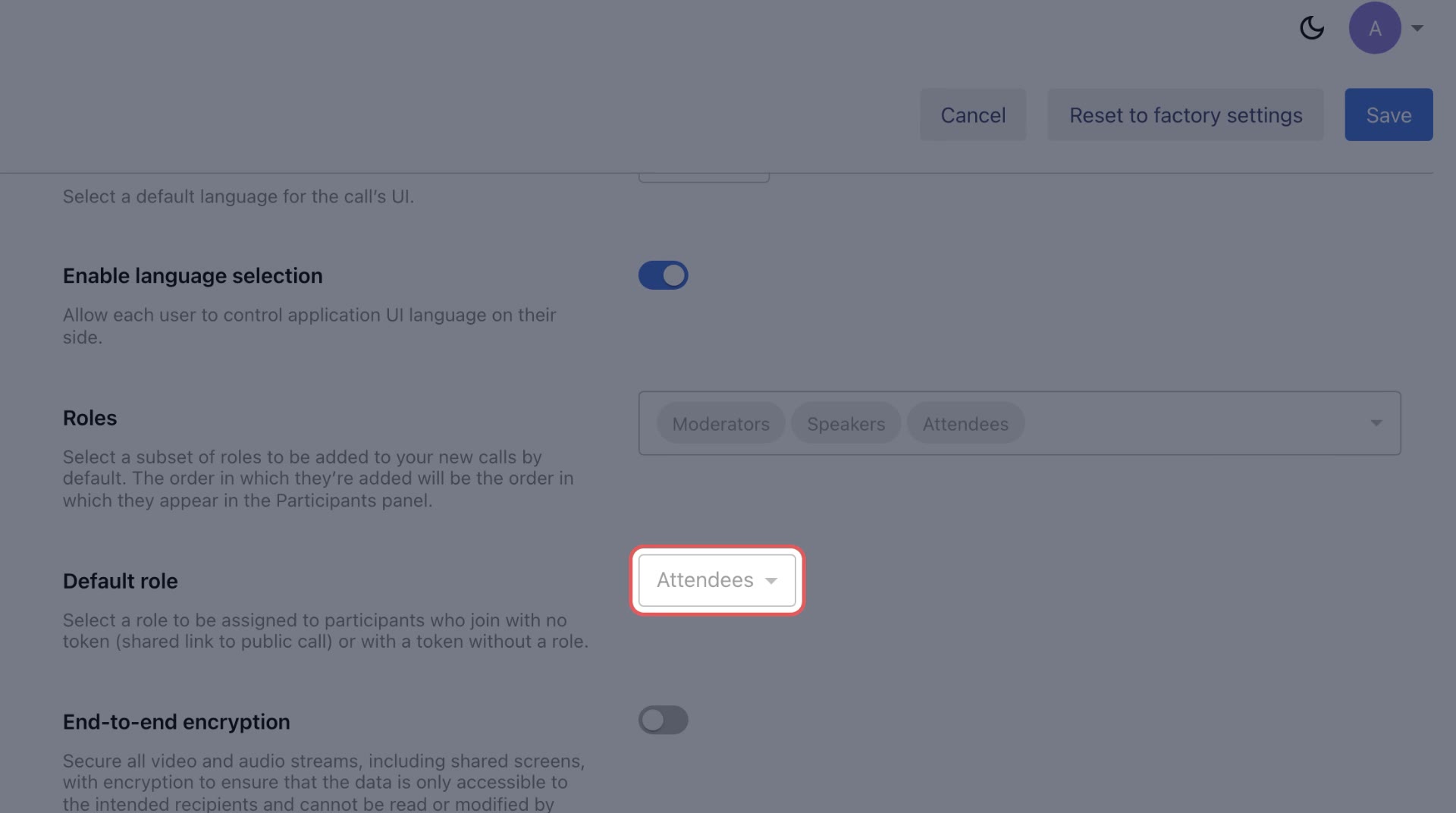
Choose Attendees as the Default role, then click Save.
Screenshot from the film at 2:00: Choose Attendees as the Default role, then click Save.
Watch this step · 1:57

5Invite as Co-host2:00

Now schedule the webinar, with Client webinar as its type of call.
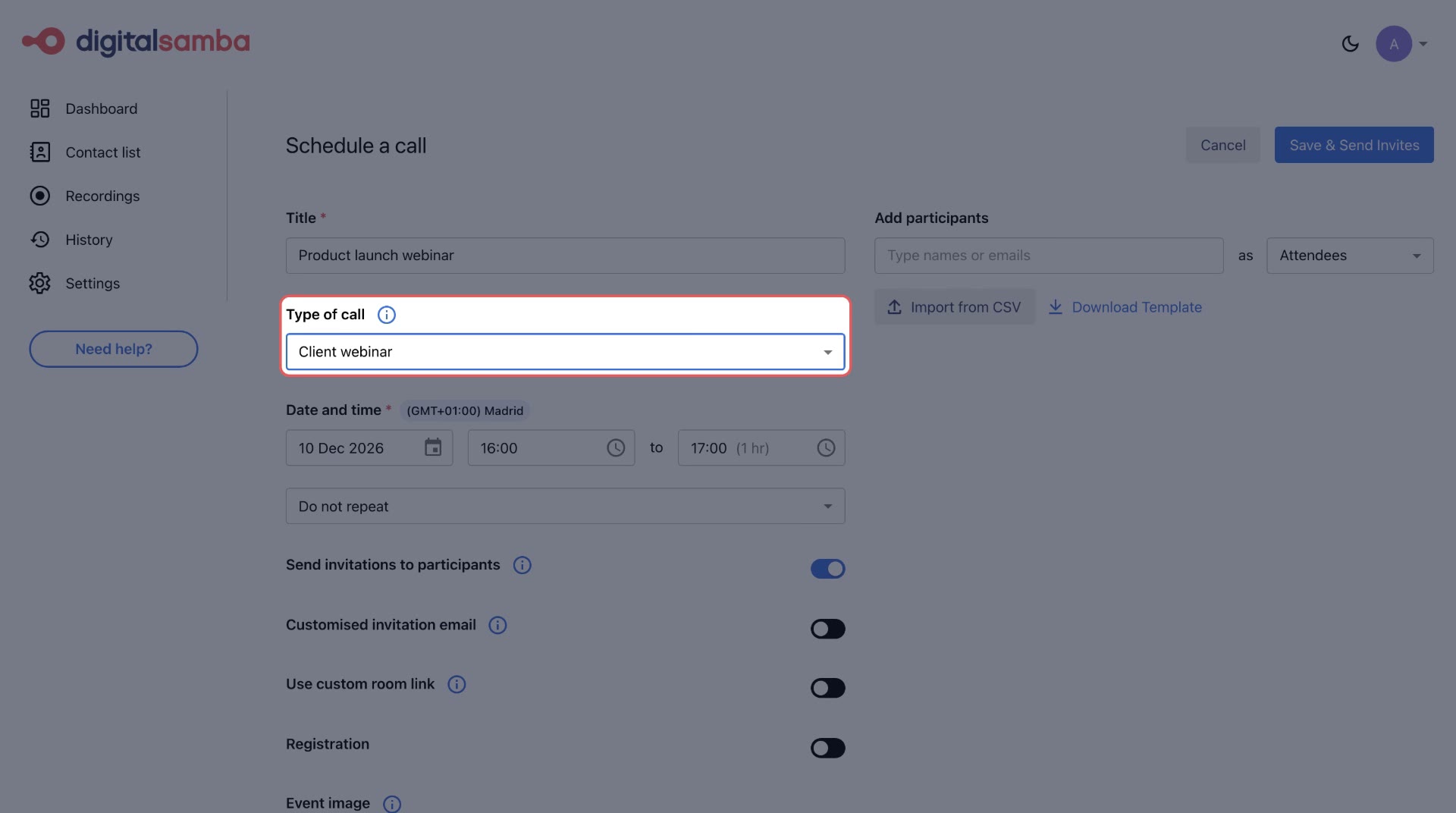
Screenshot from the film at 2:06: Now schedule the webinar, with Client webinar as its type of call.
Watch this step · 2:02

Javier and María are speakers; for Sofia, choose Co-host next to Add participants, then add her.
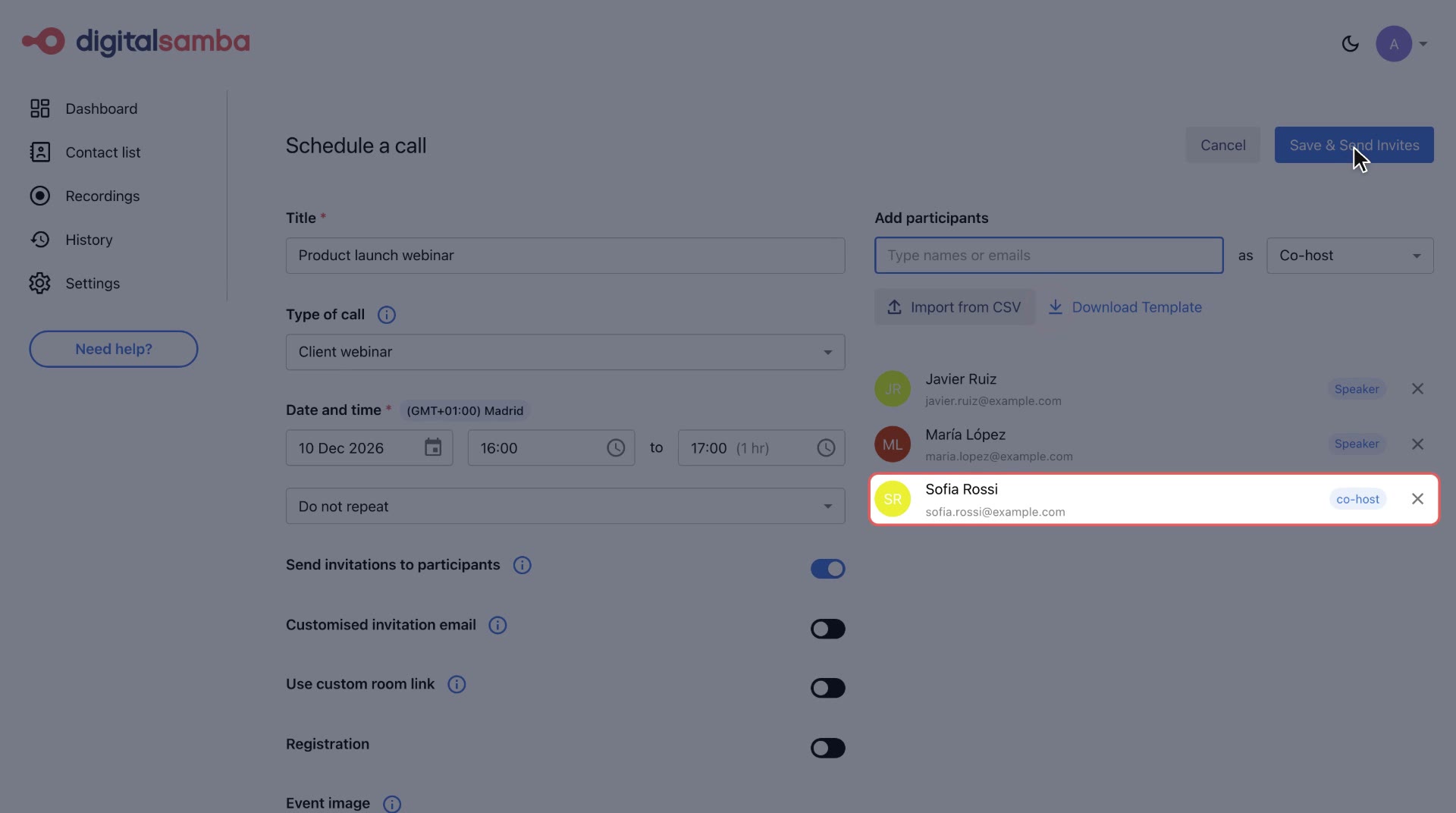
Screenshot from the film at 2:14: Javier and María are speakers; for Sofia, choose Co-host next to Add participants, then add her.
Watch this step · 2:06

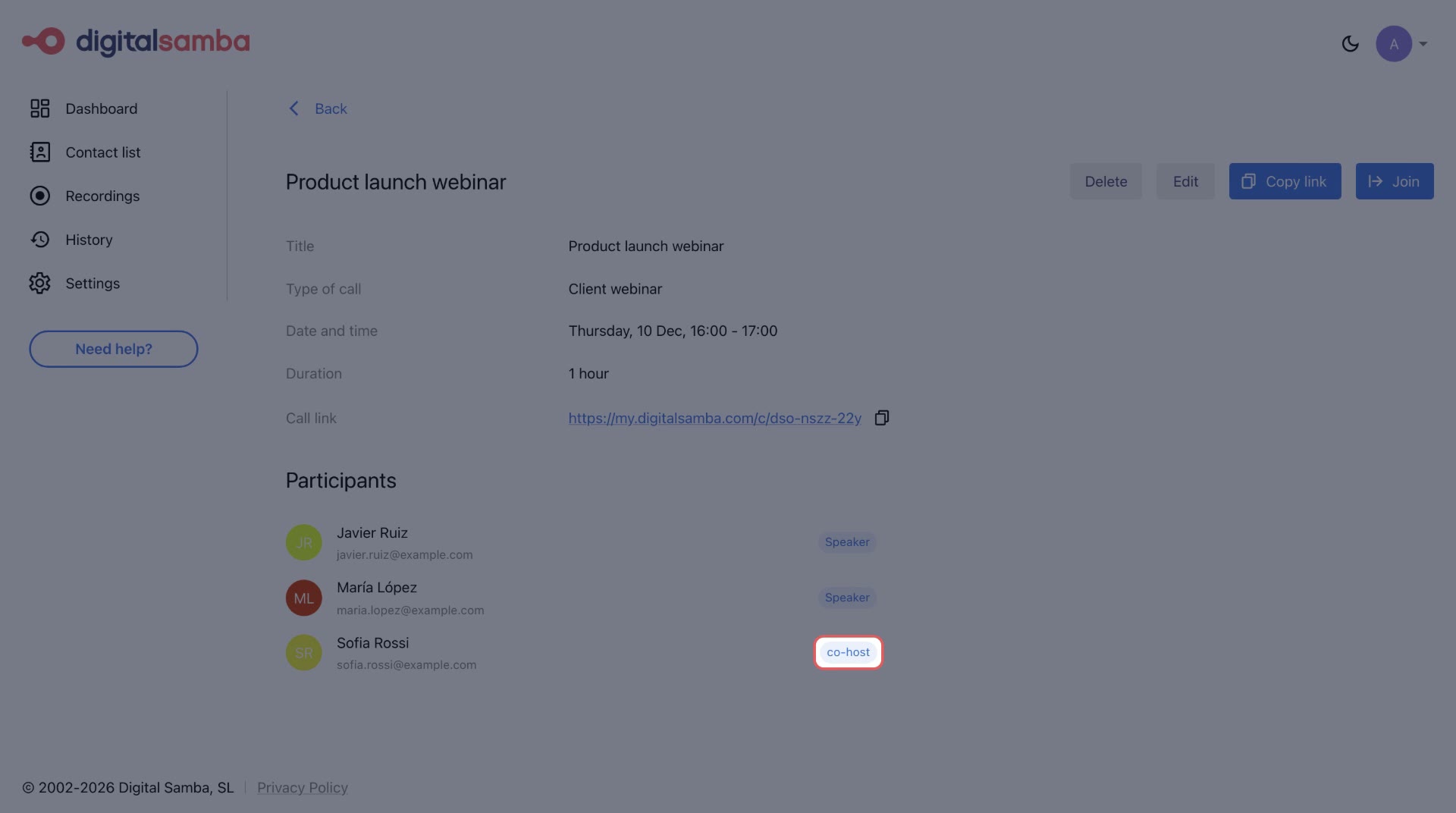
Click Save and Send Invites: the call's page lists Sofia as co-host.
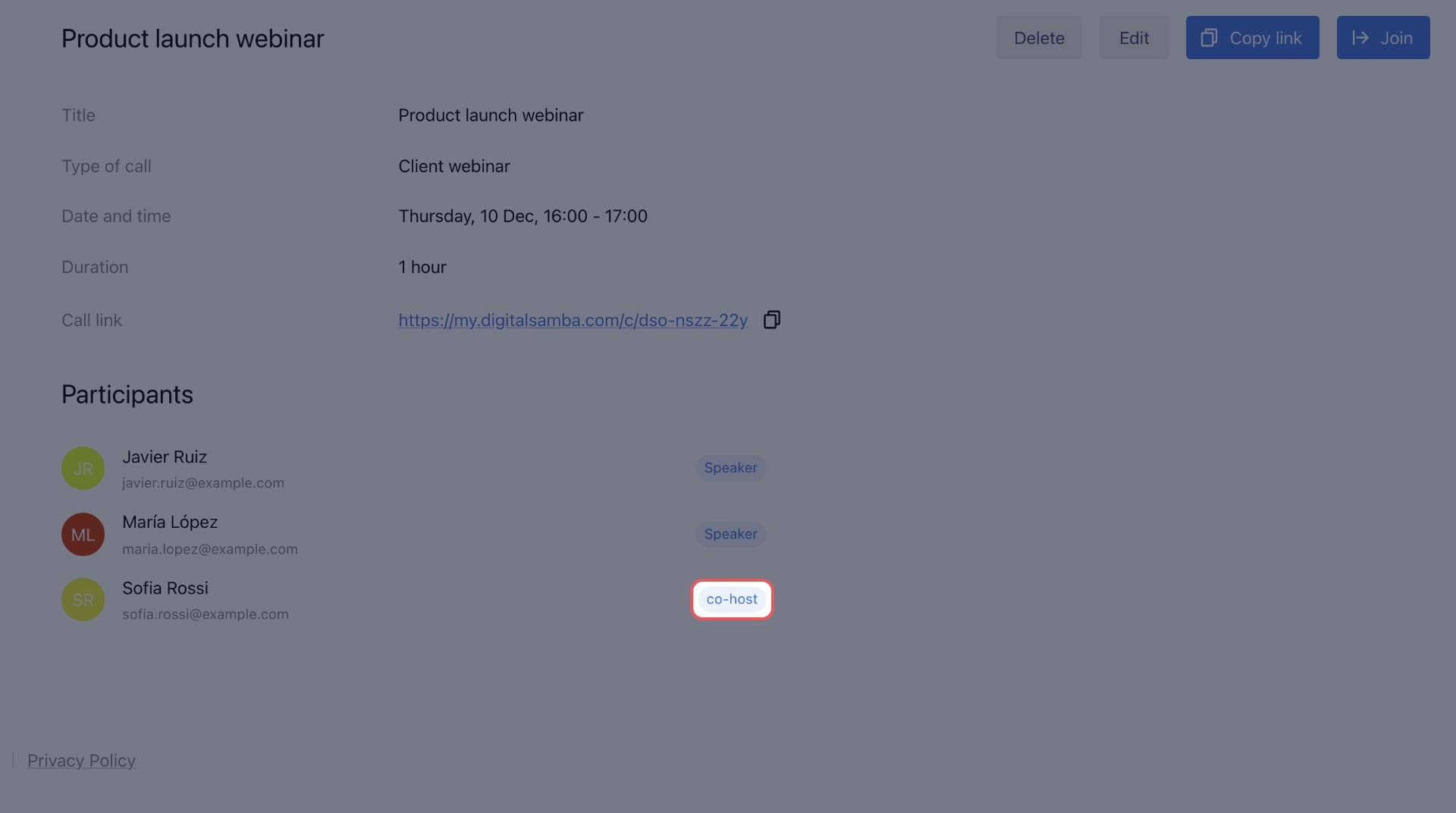
Screenshot from the film at 2:19: Click Save and Send Invites: the call's page lists Sofia as co-host.
Watch this step · 2:14

Her invitation is the usual one, with her own Join call link; it doesn't name her role.
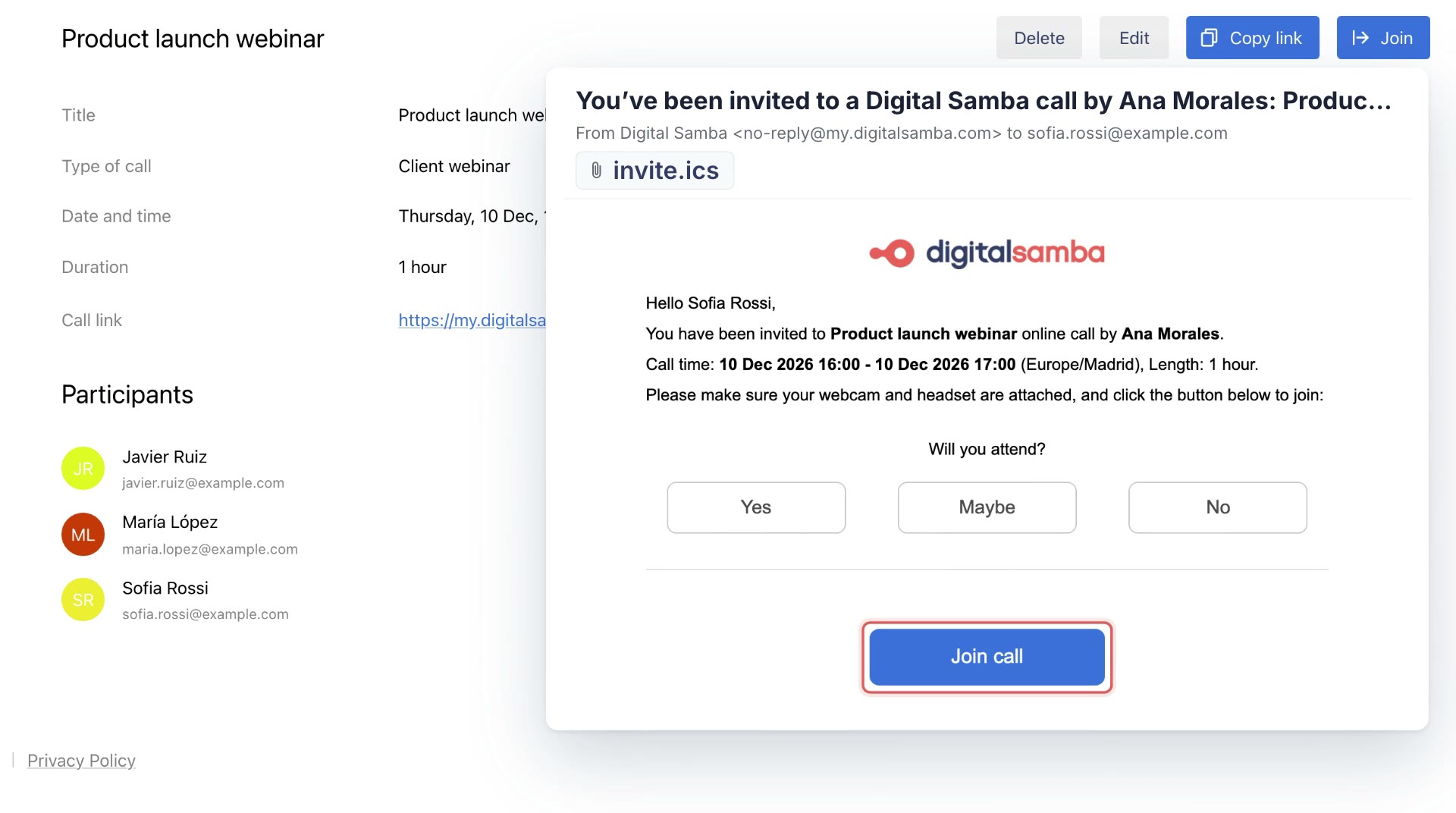
Screenshot from the film at 2:23: Her invitation is the usual one, with her own Join call link; it doesn't name her role.
Watch this step · 2:20

Good to know2:26

A call keeps the roles its type had when it was scheduled, so a role added to a type later reaches only calls scheduled afterwards.
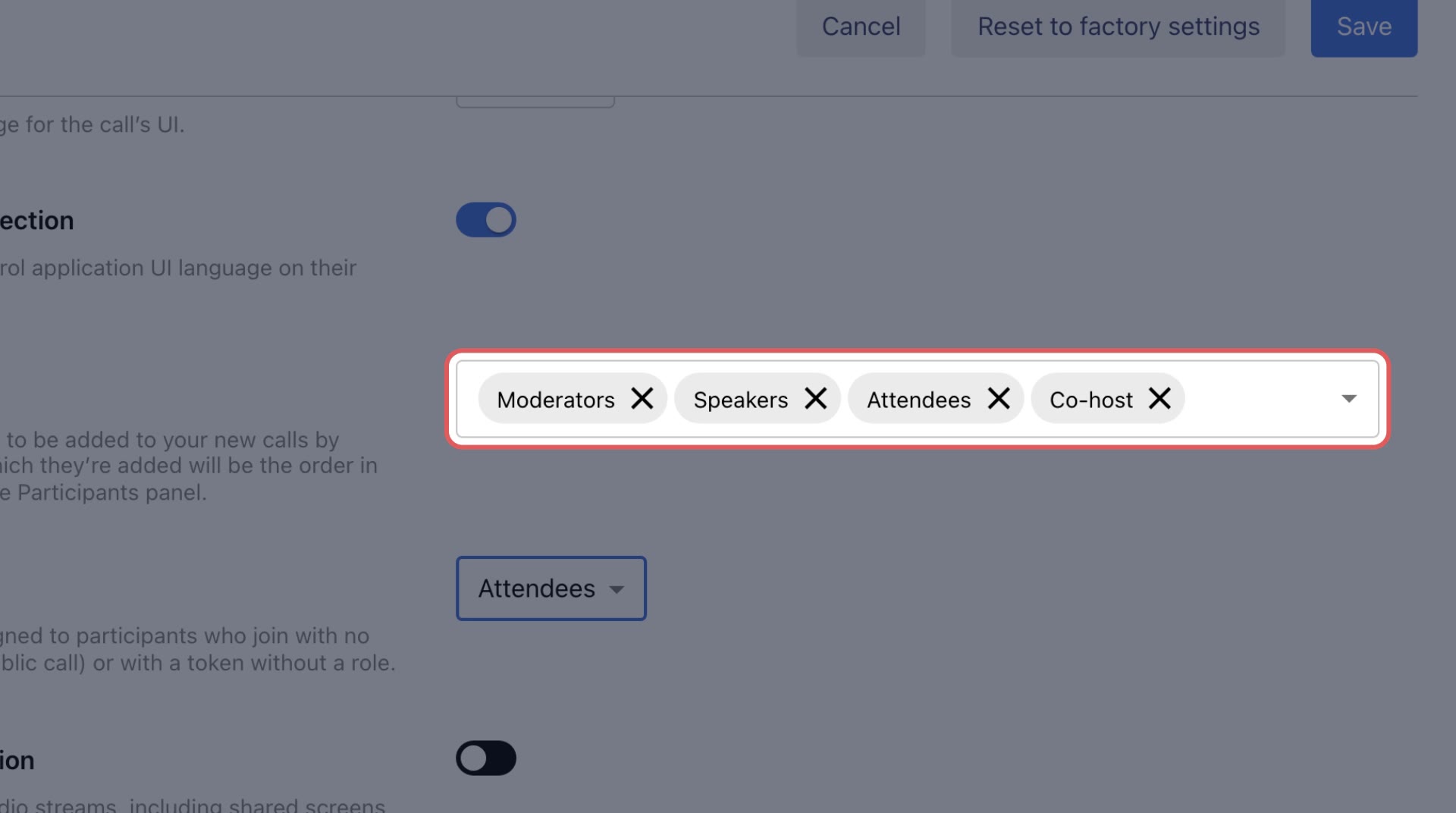
Screenshot from the film at 2:36: Good to know: a call keeps the roles its type had when it was scheduled, so a role added to a type later reaches only calls scheduled afterwards.
Watch this step · 2:27

Built-in roles can't be deleted, and neither can a role that someone holds in a call.
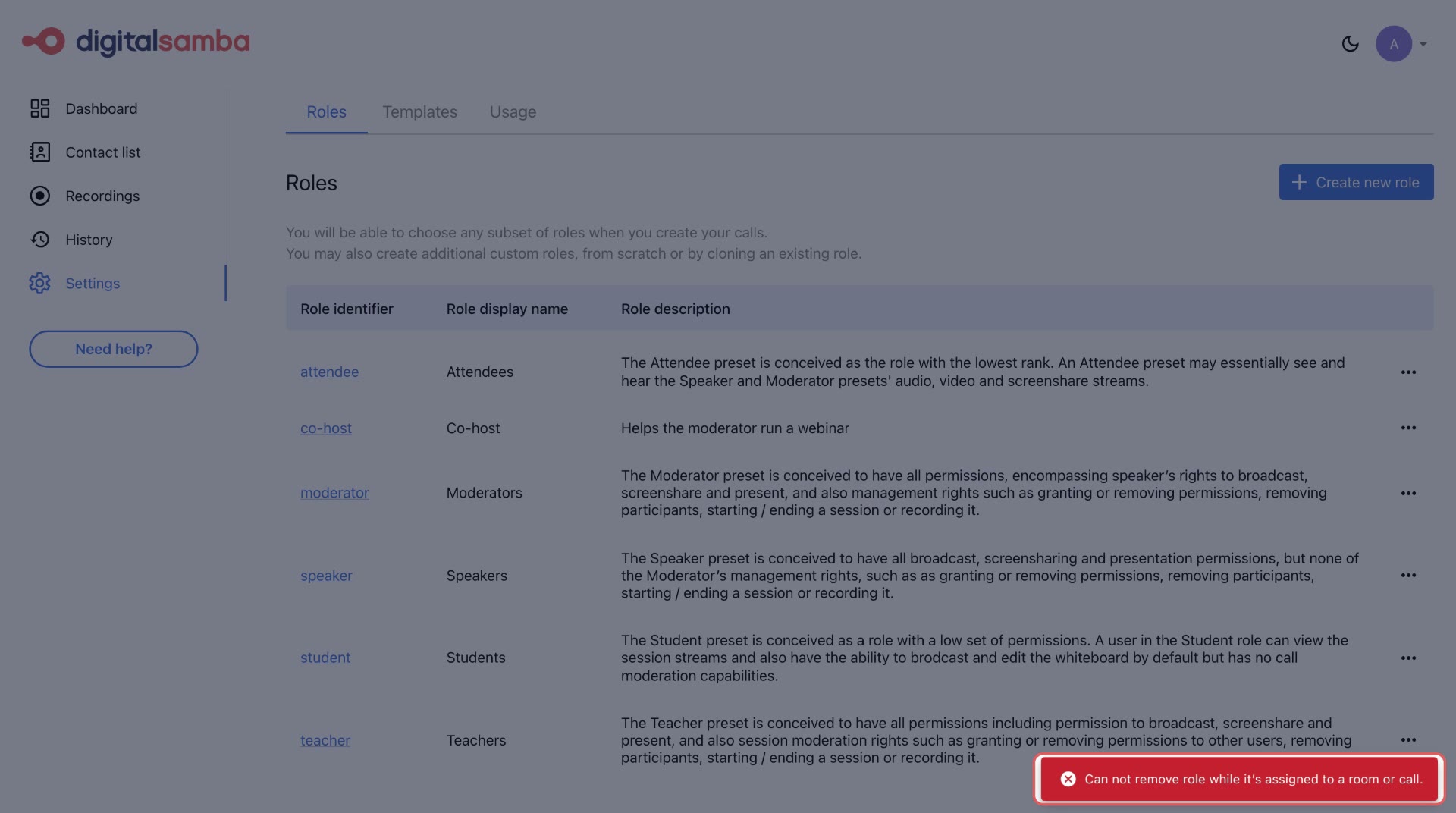
Screenshot from the film at 2:42: Built-in roles can't be deleted, and neither can a role that someone holds in a call.
Watch this step · 2:37

Recap2:43

So: create the role and choose its permissions, add it to a type of call, and invite people in that role.

Screenshot from the film at 2:50: So: create the role and choose its permissions, add it to a type of call, and invite people in that role.
Watch this step · 2:44

In this video

Next

Related

Updated

The film, the article, the captions and the search results all come from one source, so they change together.

  1. Version 2 ·
    The co-host now also gets "See specific roles in participant list" set to All roles, right below See participants panel: without it her participants panel stays empty in the call. The pictures were taken again, so the switches that are turned on are shown whole.
  2. Version 1 ·
    First version.

All updates