Skip to content
University
Videos
Topics
Updates
Search the videos
Topics
The invitation email
All 47 moments in Digital Samba University that depend on this.
Start here: Digital Samba in 90 seconds
1:36
0:34
Schedule a call
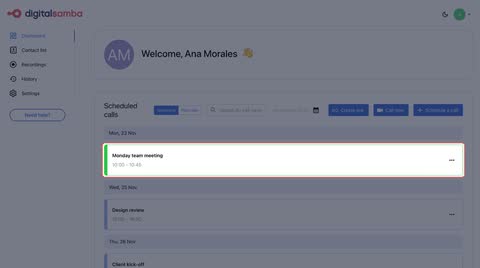
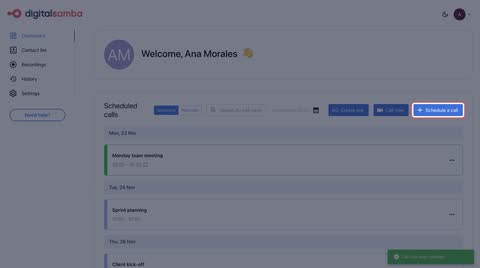
Each of them gets an invitation by email, and the call waits on her dashboard.
Read
0:46
Registration
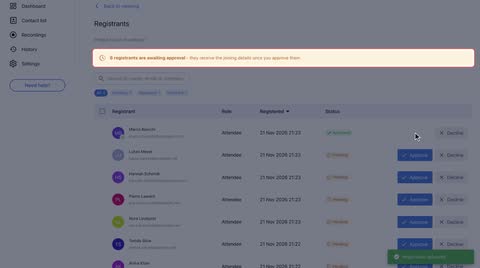
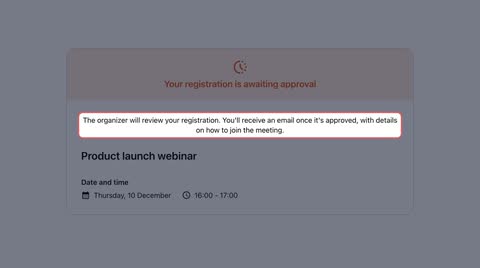
She approves each one, and only then do they receive the joining details.
Read
Set up your profile
Getting started · 2:40
0:36
Manage your profile
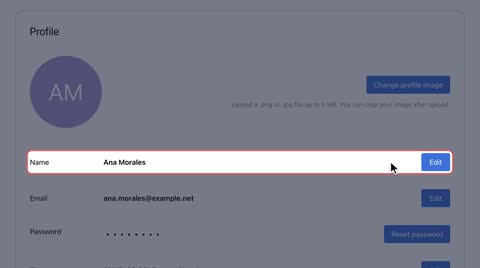
This is the name your participants see on every invitation.
Read
1:36
Timezone
Your participants see call times in your time zone too, with its name beside them.
Read
1:55
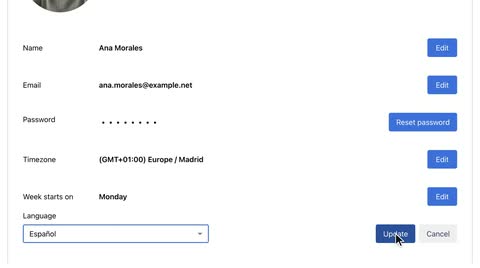
Language
Your invitations, and the pages your participants open from them, are in this language too.
Read
2:06
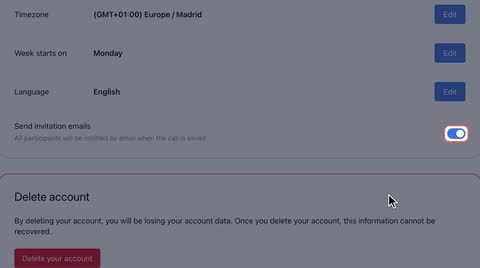
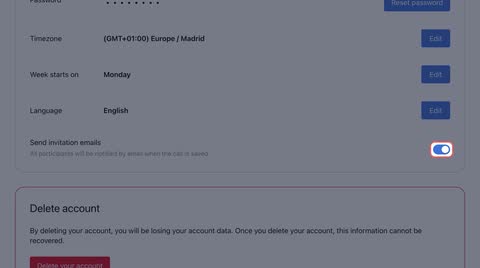
Send invitation emails
Good to know: Send invitation emails is for your whole account.
Read
2:11
Send invitation emails
Turn it off, and your calls send no invitations, no changes and no cancellations.
Read
2:17
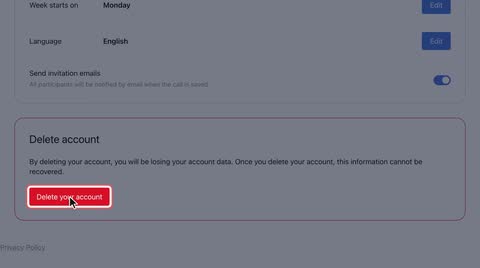
Send invitation emails
And Delete account cannot be undone.
Read
2:20
Send invitation emails
Your call links stop working, and your participants are not told.
Read
Create a call link to share
Start a call now · 1:50
0:58
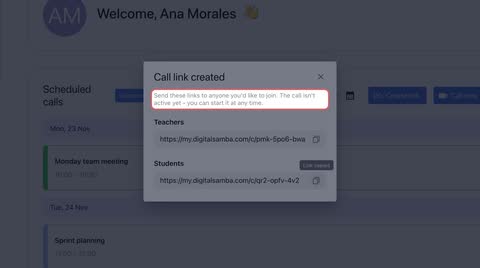
Copy your links
No email is sent: you share the links yourself.
Read
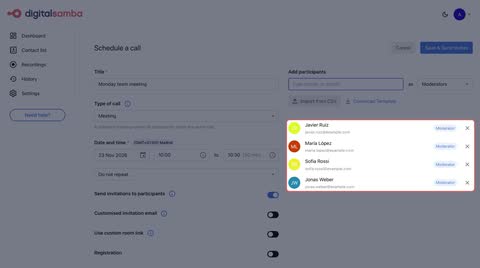
Schedule a call and invite people
Scheduling calls · 2:40
1:43
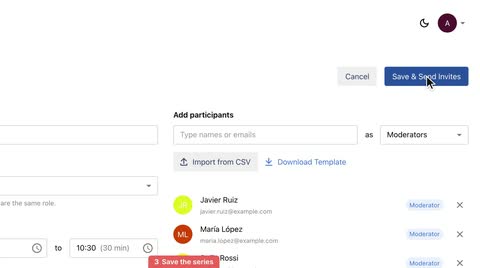
Save & Send Invites
Before you save: if you'd rather not email anyone yet, turn off Send invitations to participants.
Read
1:54
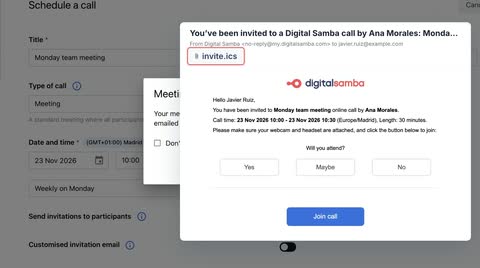
Save & Send Invites
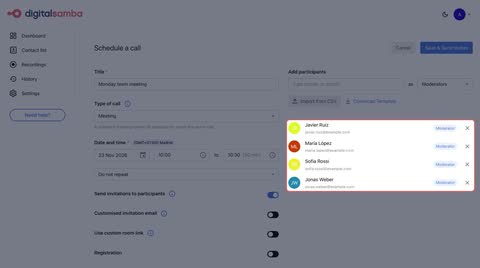
Each participant gets an email with the time, a calendar file, and their own link to join.
Read
2:15
Good to know
Good to know: each invitation link is personal, so ask people not to forward it.
Read
2:25
Recap
So: a title, a type of call, a time and your participants — and the invitations are on their way.
Read
Set up a recurring call
Scheduling calls · 2:42
0:57
Save the series
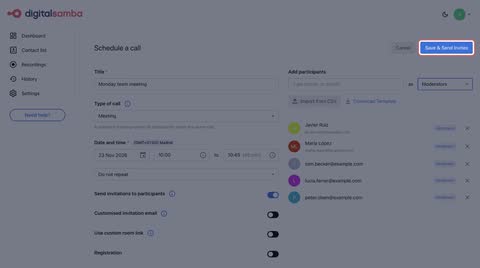
Now click Save and Send Invites.
Read
1:00
Save the series
Each person gets one invitation for the whole series.
Read
1:04
Save the series
It names the first Monday, and its calendar file repeats the meeting every week.
Read
Invitations and RSVPs: what your participants receive
Scheduling calls · 3:07
0:01
Introduction
In this video, you'll see what people receive when you invite them to a call — a meeting, a class or a webinar — and how their answers come back to you.
Read
0:21
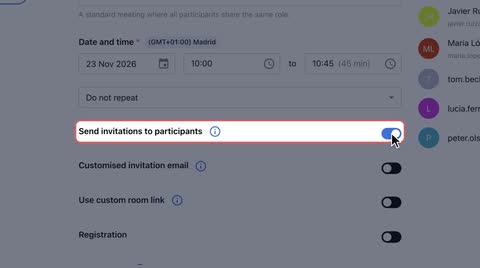
Send invitations to participants
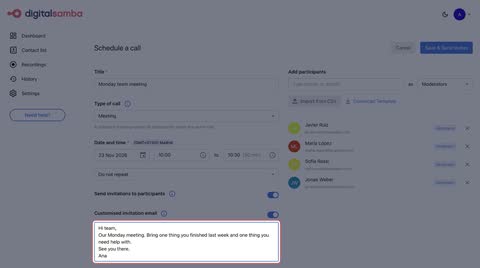
While it is on, saving the call emails an invitation to everyone on the list.
Read
0:39
Send invitations to participants
With that one off, none of your calls send emails.
Read
0:54
Customised invitation email
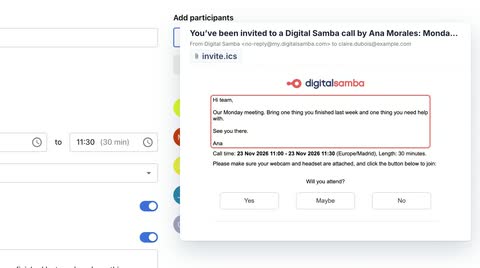
It replaces the standard greeting.
Read
0:57
Customised invitation email
The call time and the Join button are added below your message automatically.
Read
1:02
Customised invitation email
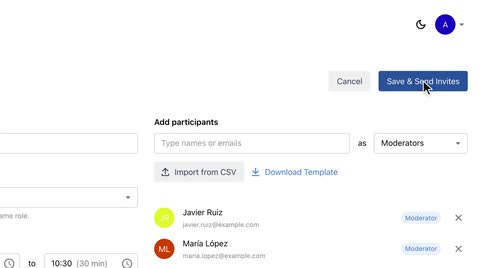
Now click Save and Send Invites.
Read
1:05
Customised invitation email
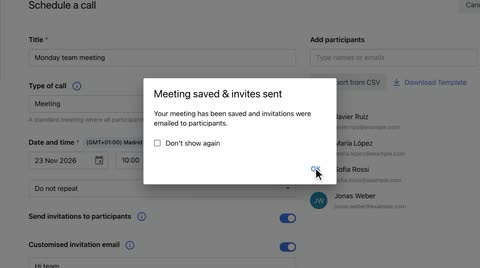
You get a confirmation by email as well.
Read
1:09
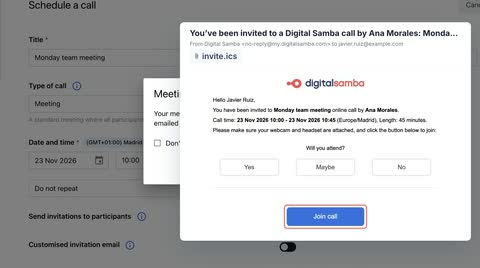
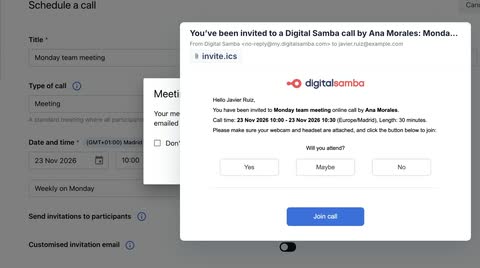
The invitation
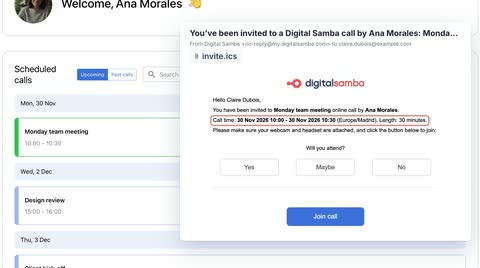
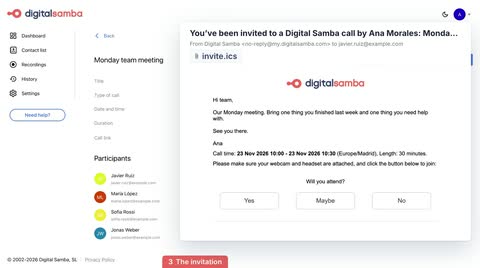
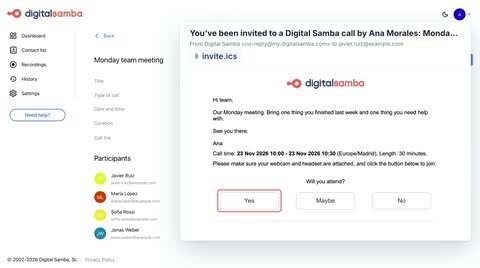
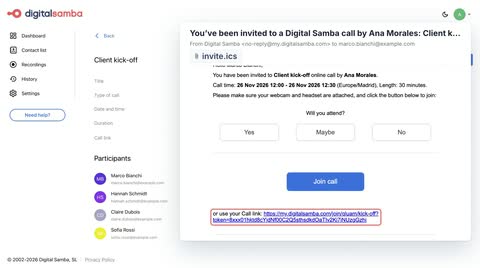
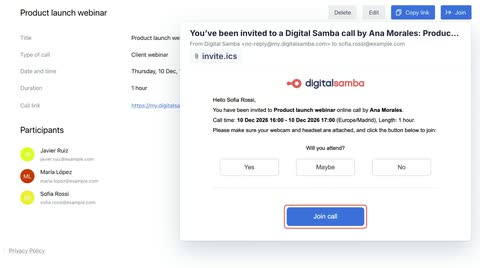
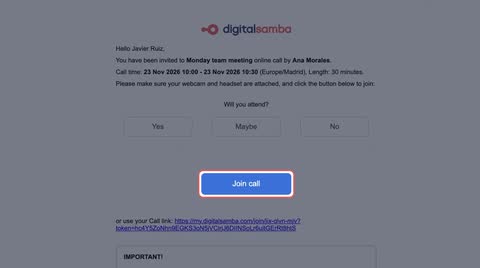
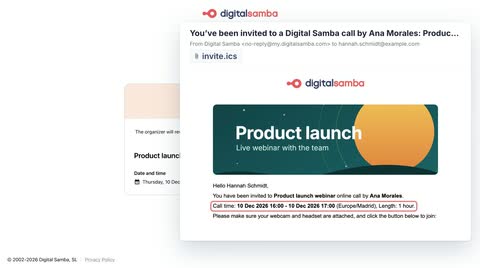
This is the email Javier receives.
Read
1:12
The invitation
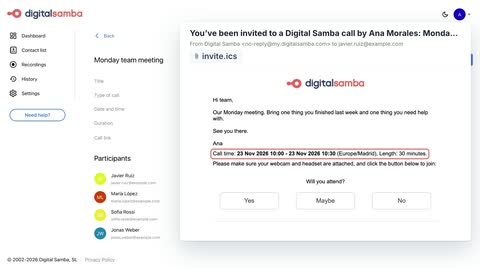
Your message comes first, then the call time.
Read
1:16
The invitation
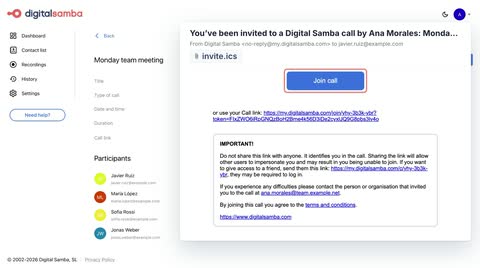
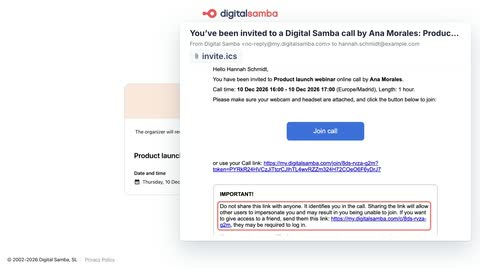
Join call is his personal link.
Read
1:25
The invitation
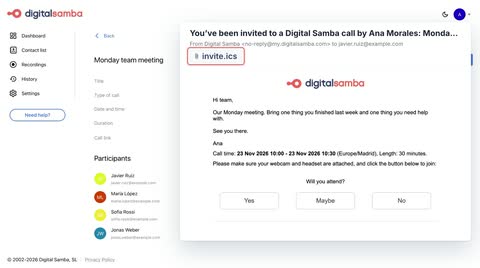
A calendar file comes with it, holding the title, the time and his link.
Read
1:30
Will you attend?
Under Will you attend?, Javier clicks Yes, Maybe or No.
Read
2:13
What changed
Add someone later, and only that person gets an invitation.
Read
2:40
Good to know
Turning the switch back on later does not send the invitations you skipped.
Read
Edit, reschedule or cancel a call
Scheduling calls · 2:27
1:38
Delete
To hold it after all, schedule it again: everyone gets a new invitation.
Read
Give your call a custom room link
Scheduling calls · 1:52
1:09
Save & Send Invites
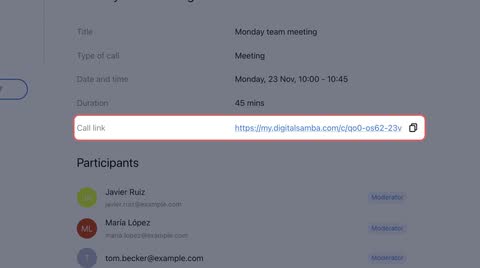
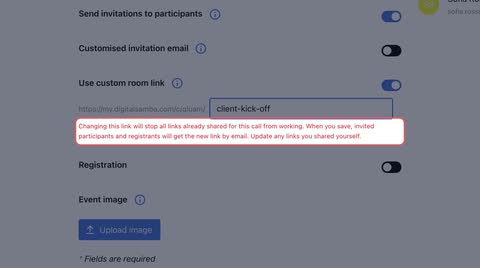
The call's page shows the new link, and the invitations carry it.
Read
1:26
Good to know
People you invited get the new link by email; update any links you shared yourself.
Read
Set up a webinar with registration
Webinars and registration · 3:05
0:48
Registration
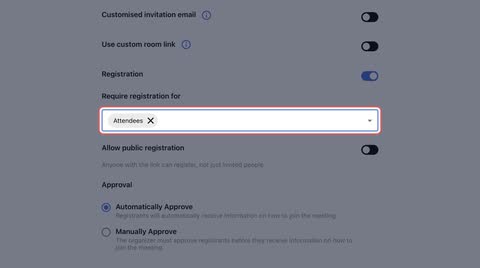
Anyone you invite as an attendee is emailed a registration link instead of a join link; your speakers are simply invited.
Read
2:10
Save & Send Invites
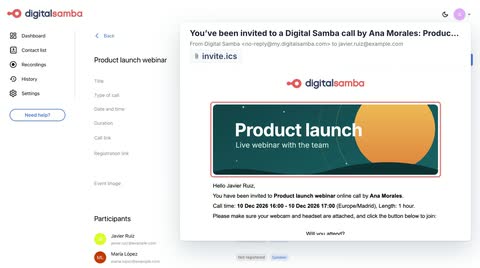
Click Save and Send Invites: Javier and María get their invitations, with the banner at the top.
Read
Approve and manage registrants
Webinars and registration · 1:57
0:47
Approve or decline
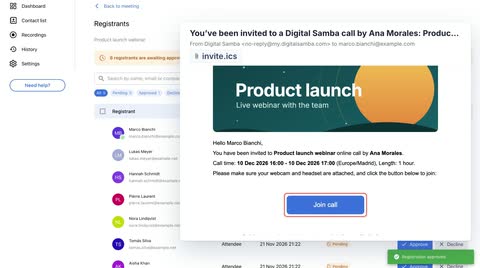
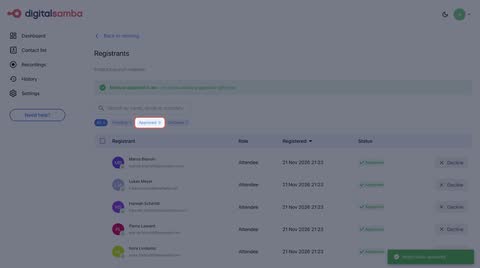
Approve Marco, and he gets an email with his personal link to join.
Read
1:10
Approve all
Click Approve all and confirm: the seven people still waiting are approved, and each one gets the email.
Read
Roles and permissions: create a custom role
Customise your calls · 2:59
2:20
Invite as Co-host
Her invitation is the usual one, with her own Join call link; it doesn't name her role.
Read
Join a Digital Samba call
For your participants · 2:03
0:01
Introduction
In this video, you'll join a Digital Samba call — a meeting, a class or a webinar — from your invitation, or from a link someone sends you.
Read
0:18
Your invitation
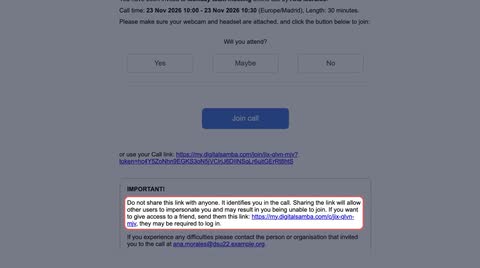
His invitation shows the call time and a Join call button.
Read
0:22
Your invitation
Join call is his personal link, and the email asks him not to share it.
Read
0:28
Your invitation
For anyone else, it gives the call link to pass on.
Read
Register for an event
For your participants · 1:29
0:36
Awaiting approval
No email comes until you're approved.
Read
0:39
Awaiting approval
Where approval is automatic, you see a confirmation instead, and the email comes straight away.
Read
0:46
Your invitation
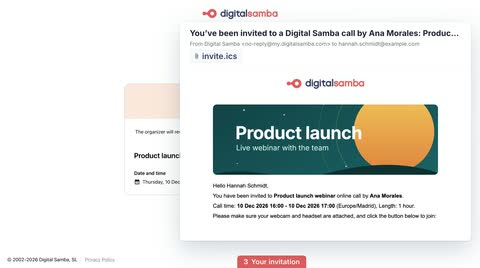
Once you're approved, your invitation arrives, with the event image and the time.
Read
0:51
Your invitation
Join call is your personal link: it identifies you in the call, so don't share it.
Read
All topics