1Use custom room link0:10
Our example is the Client kick-off with Marco and Hannah.
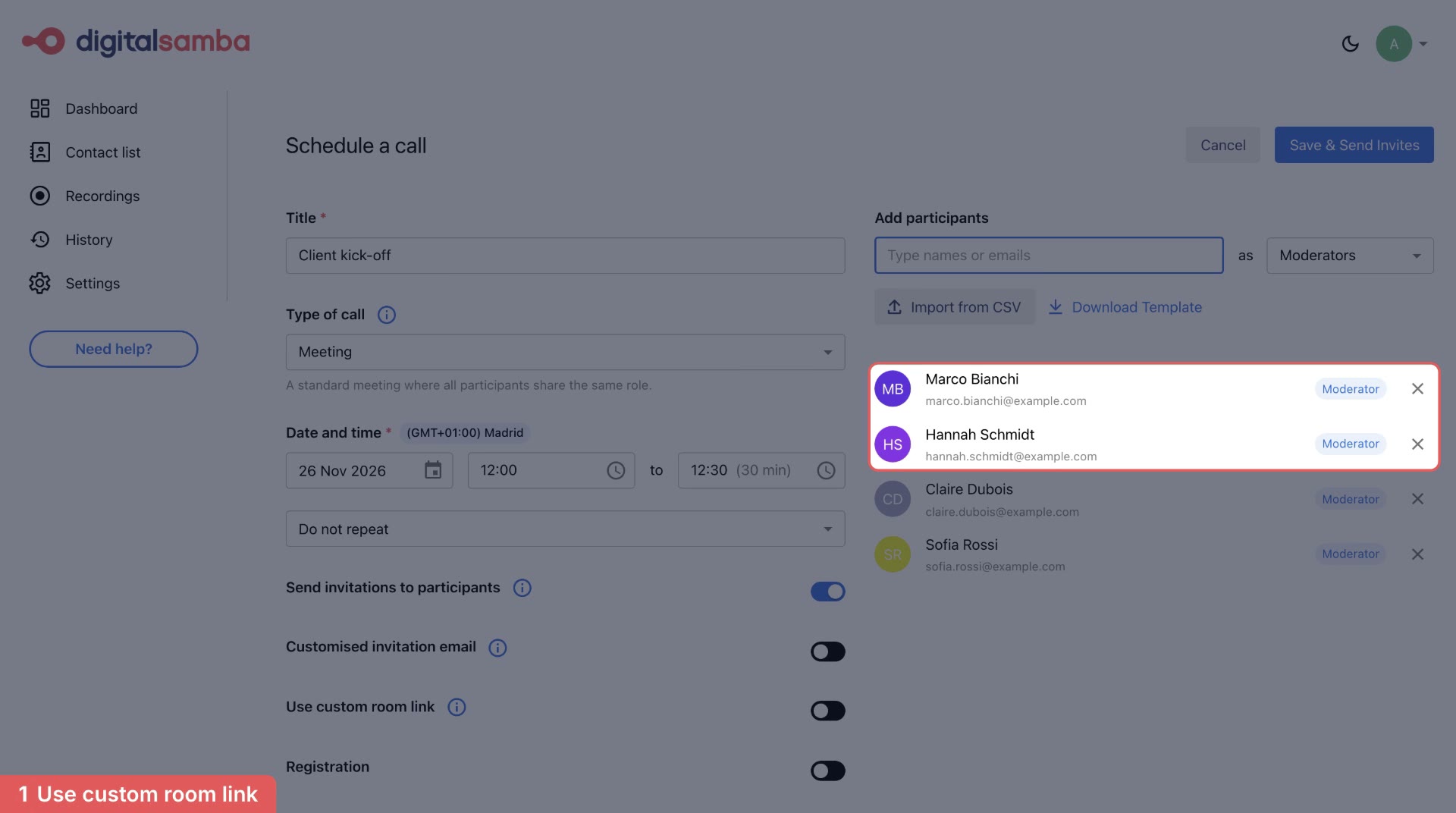
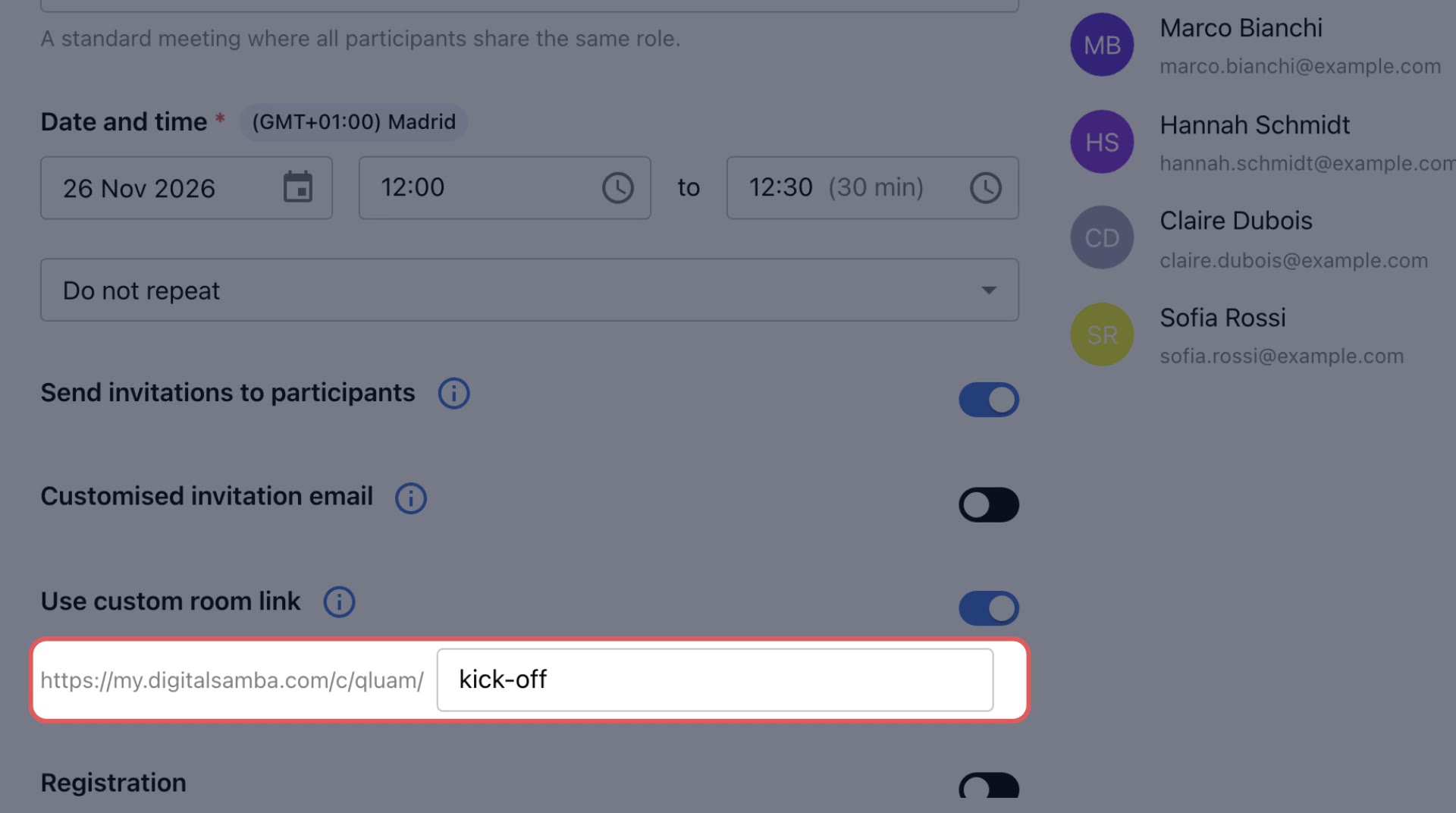
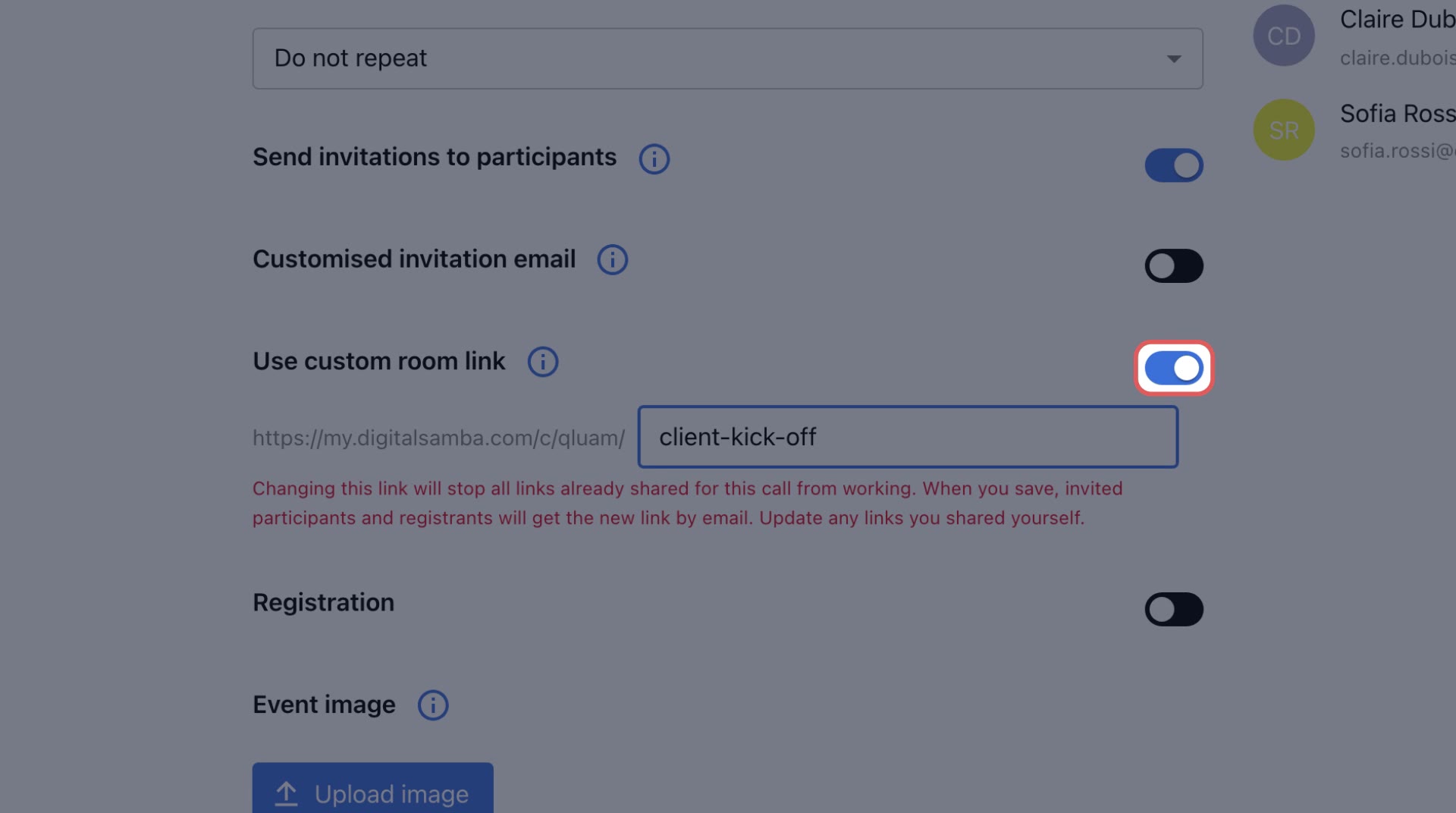
On the Schedule a call form, turn on Use custom room link.
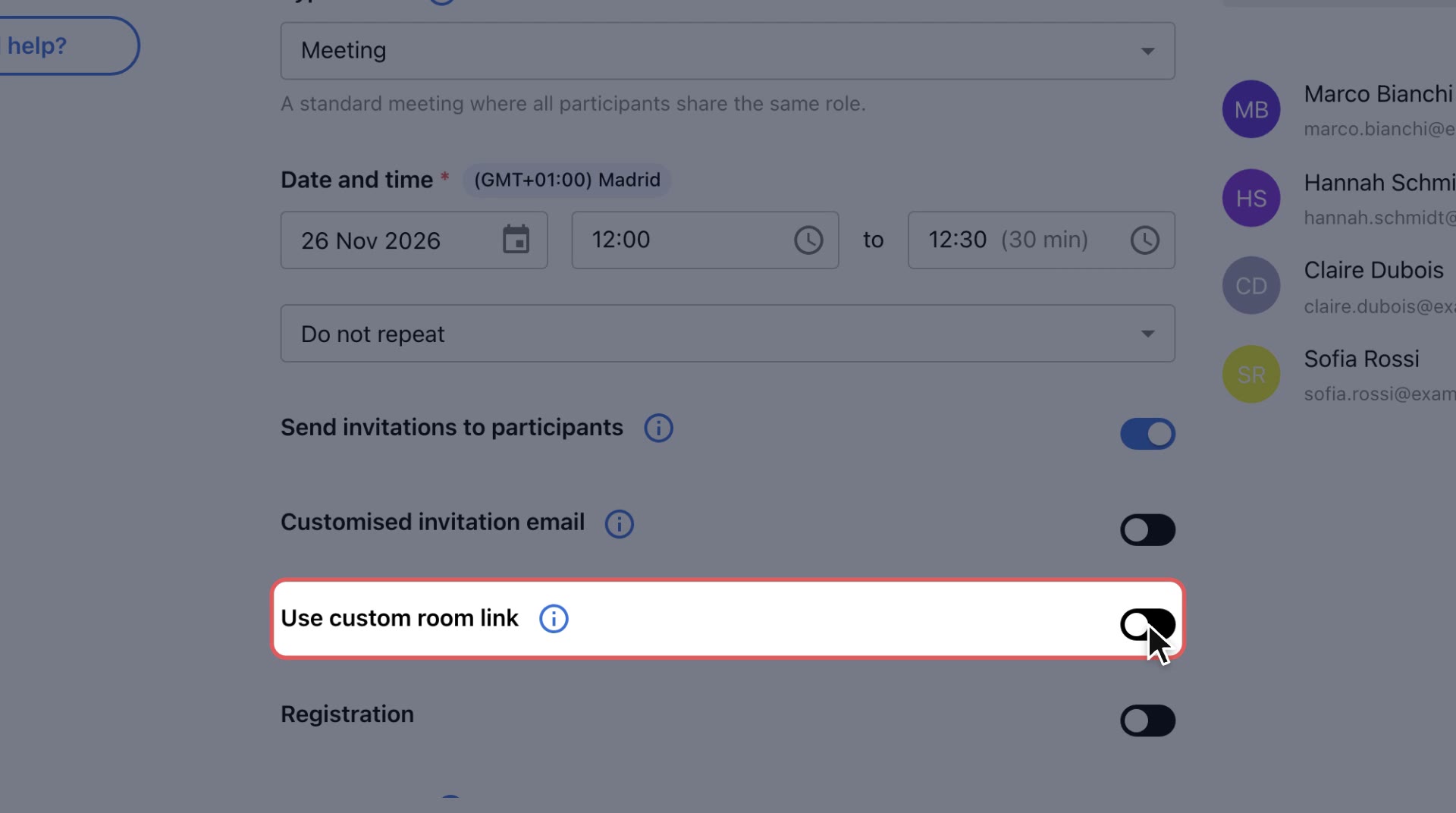
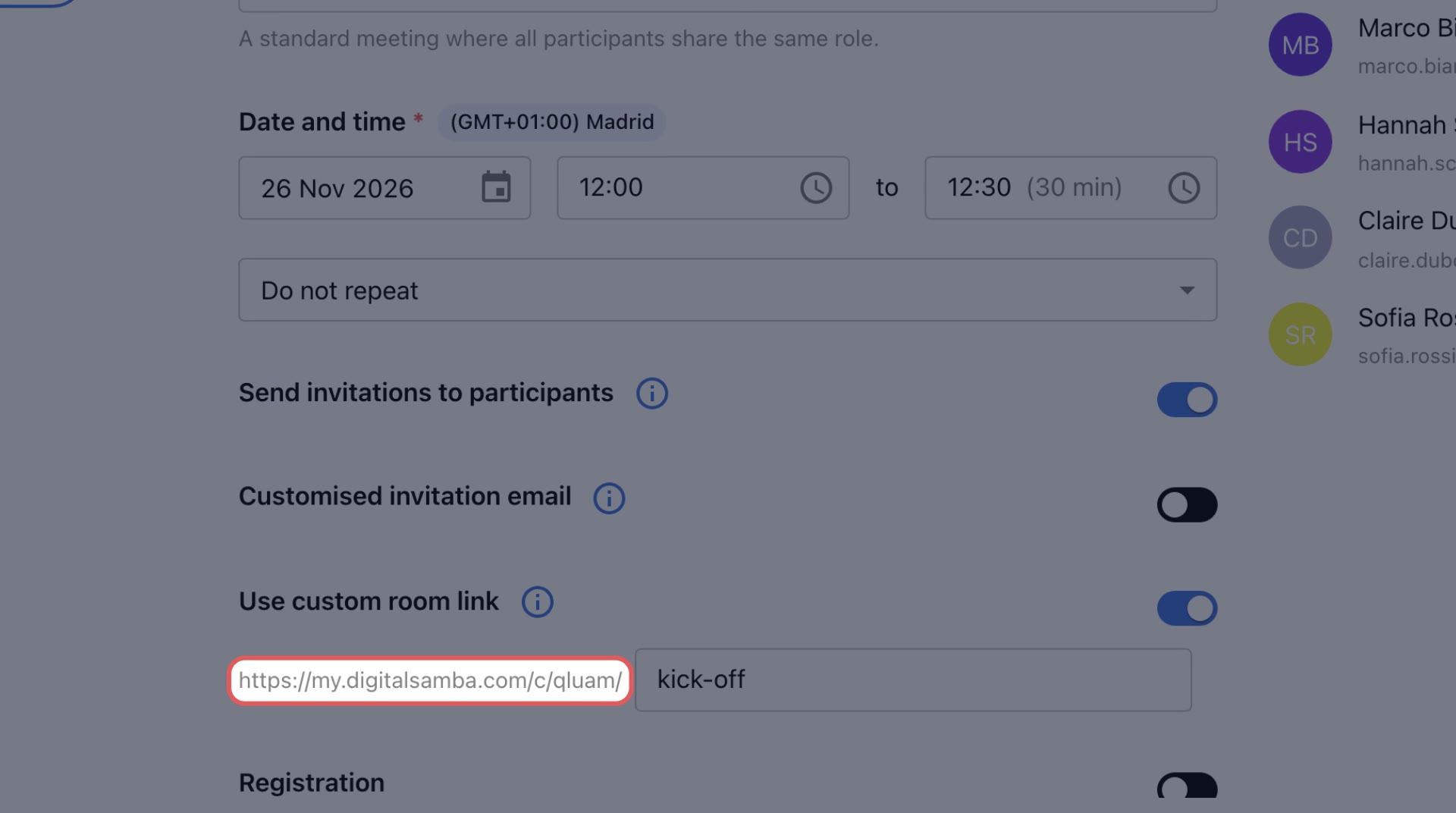
The start of the link belongs to your account and stays the same; you choose the ending.
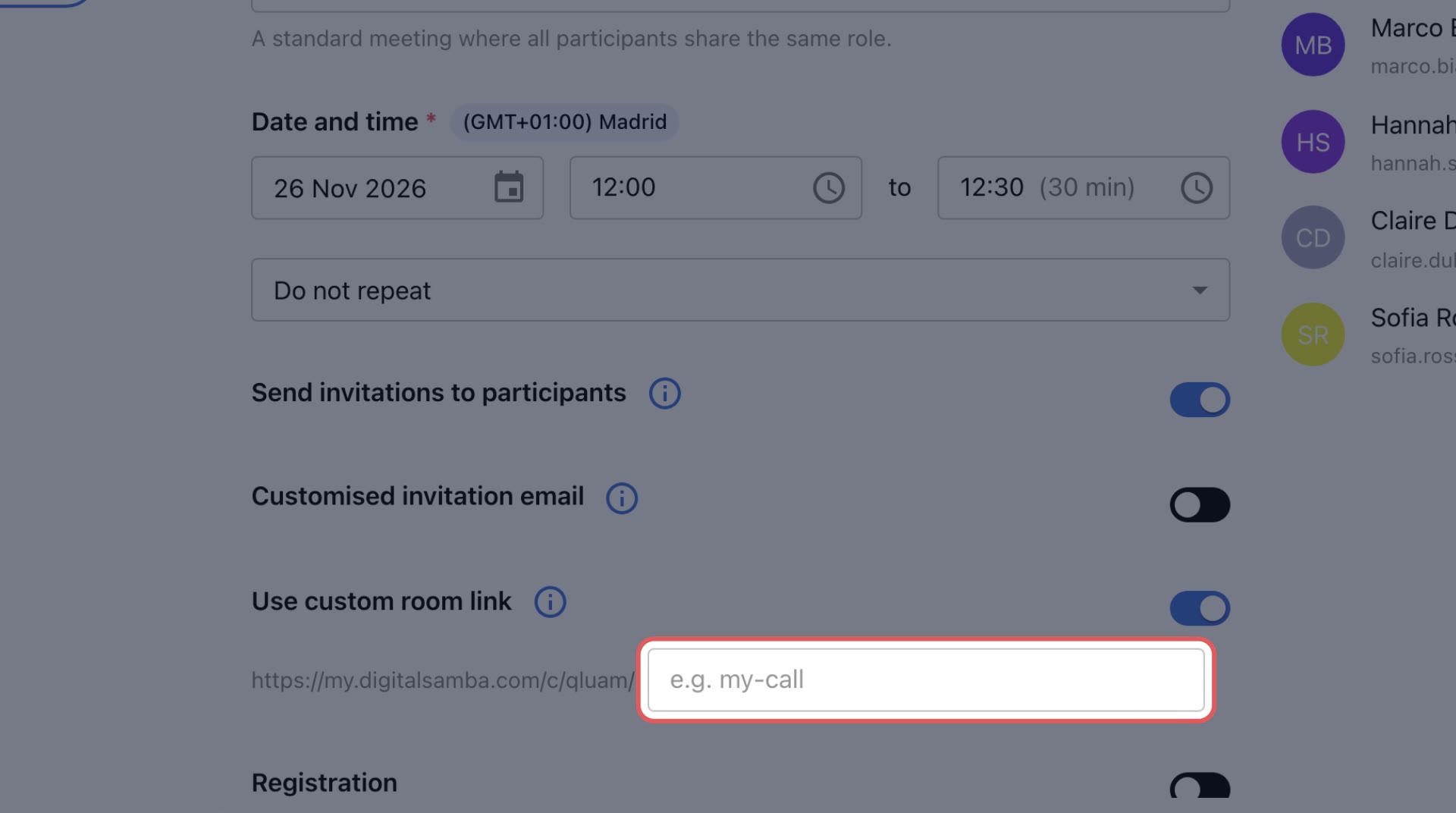
Type kick-off: capitals become lowercase and a space becomes a hyphen, and other characters are left out.
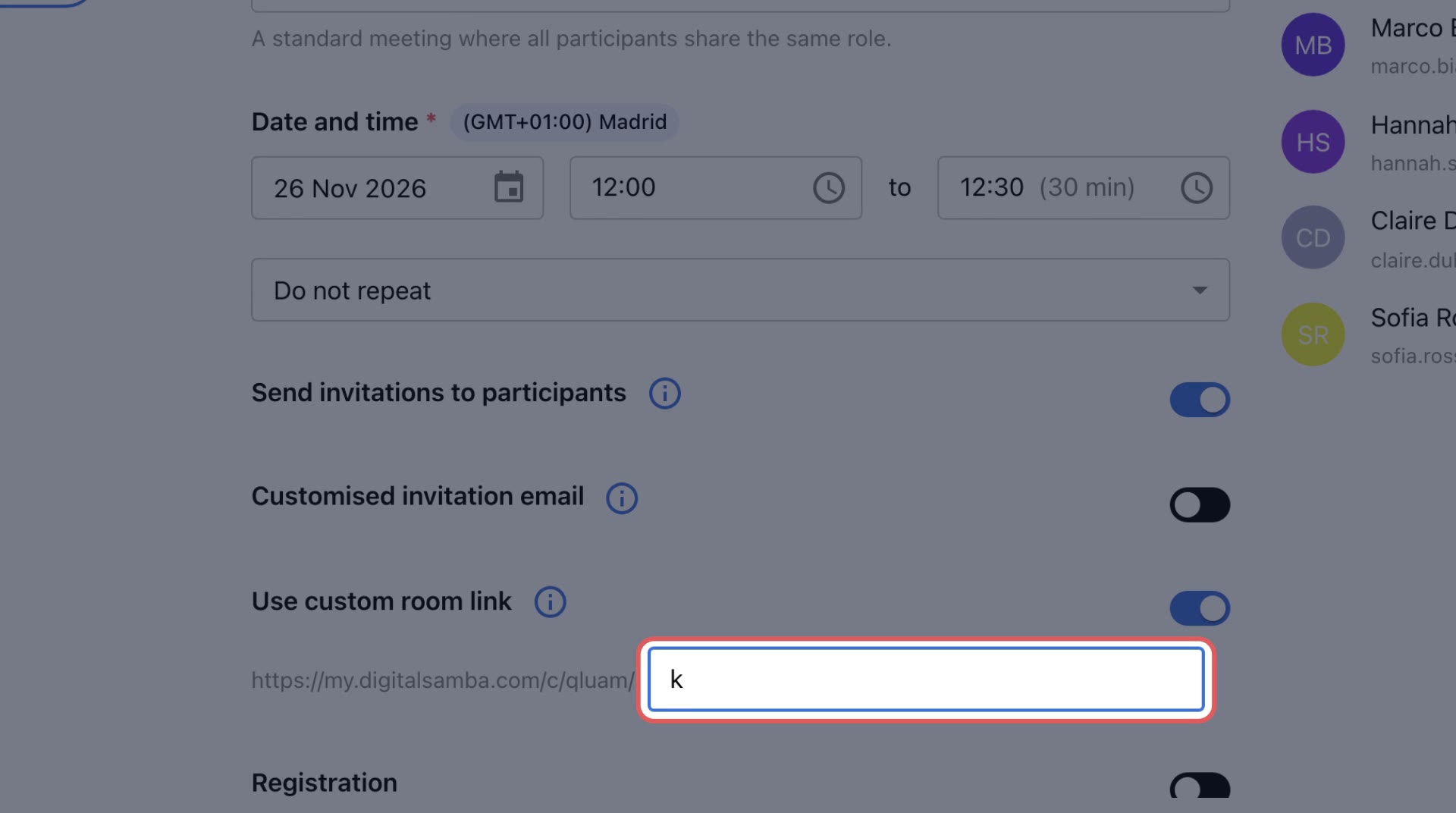
A hyphen can't come first, last or twice in a row.
2Already taken0:39
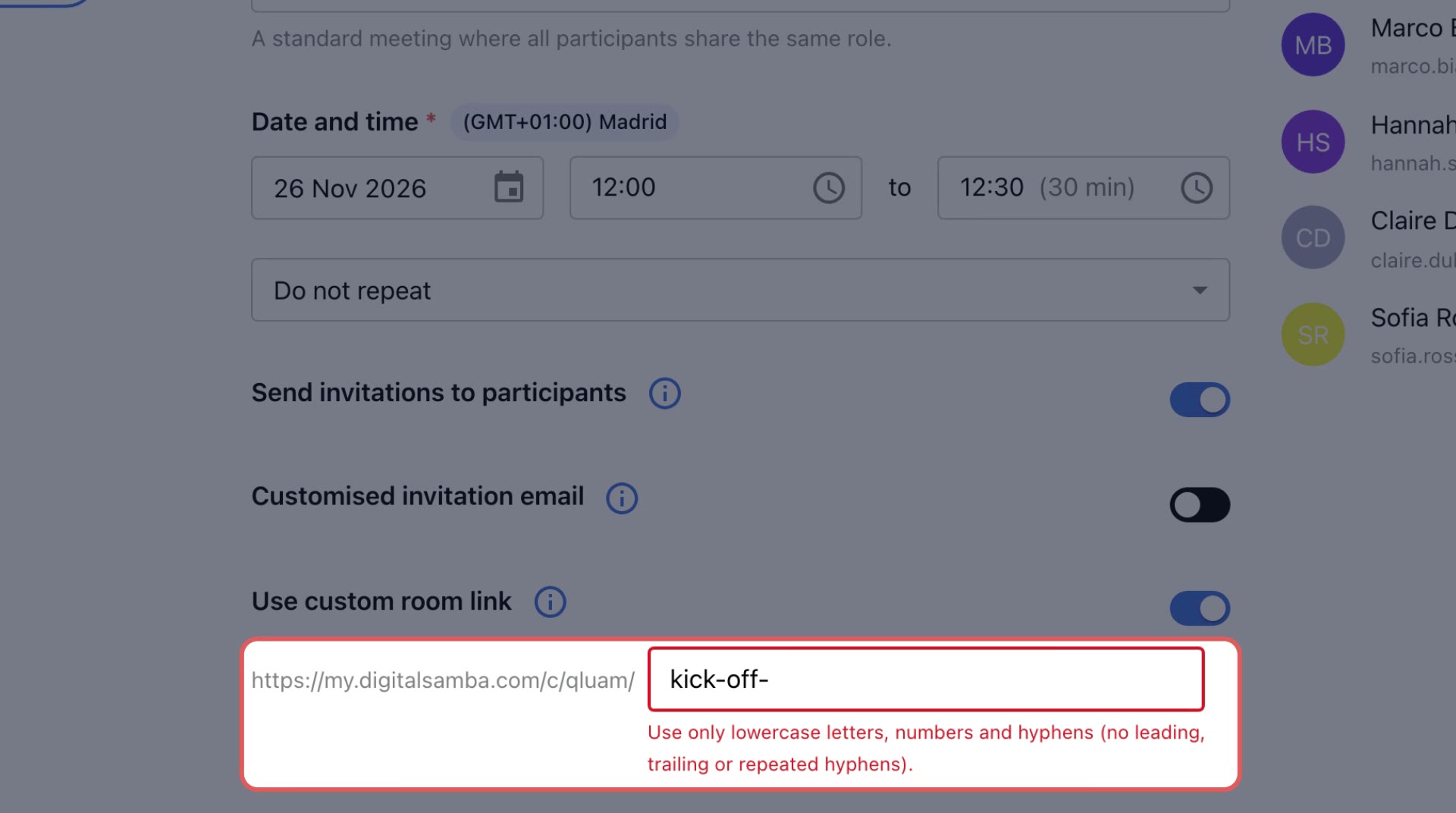
When you leave the field, the form checks the ending.
This one is taken: your older call, the Kick-off rehearsal, uses it.
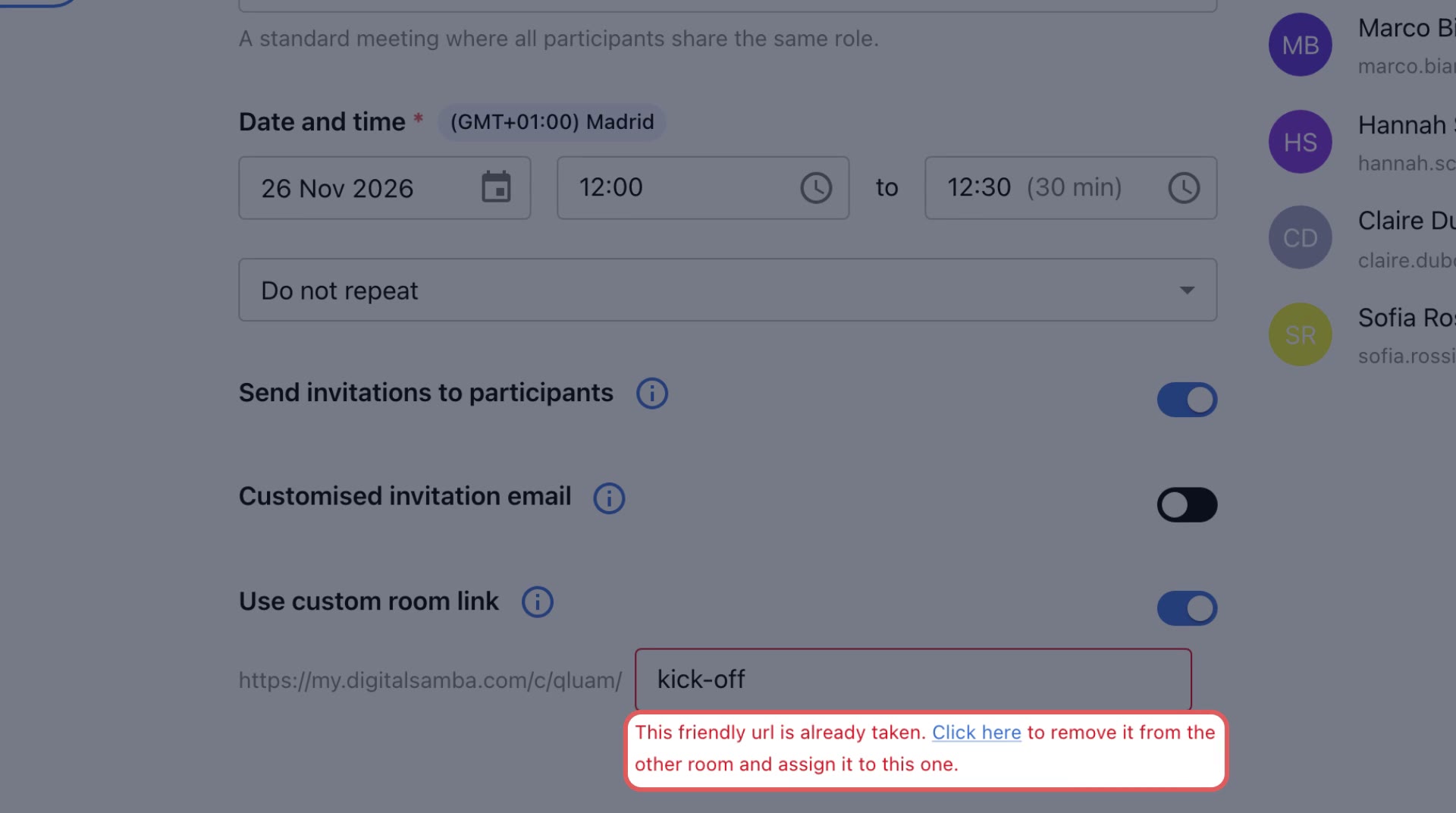
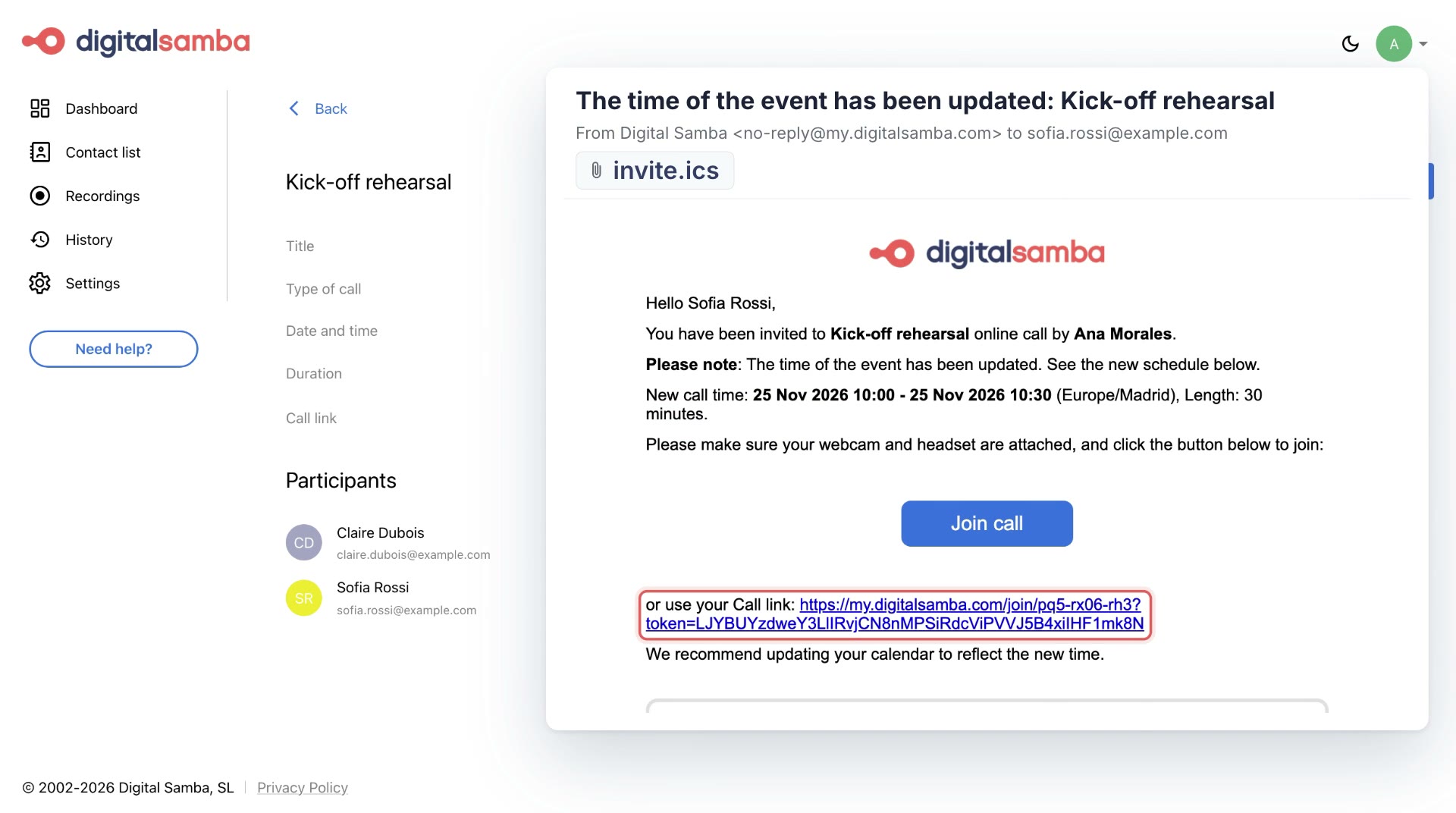
Click here moves the link to this call.
When you save, the rehearsal gets a new random link, and its participants are emailed the new one.
Endings in other accounts don't matter: each account has its own start of the link.
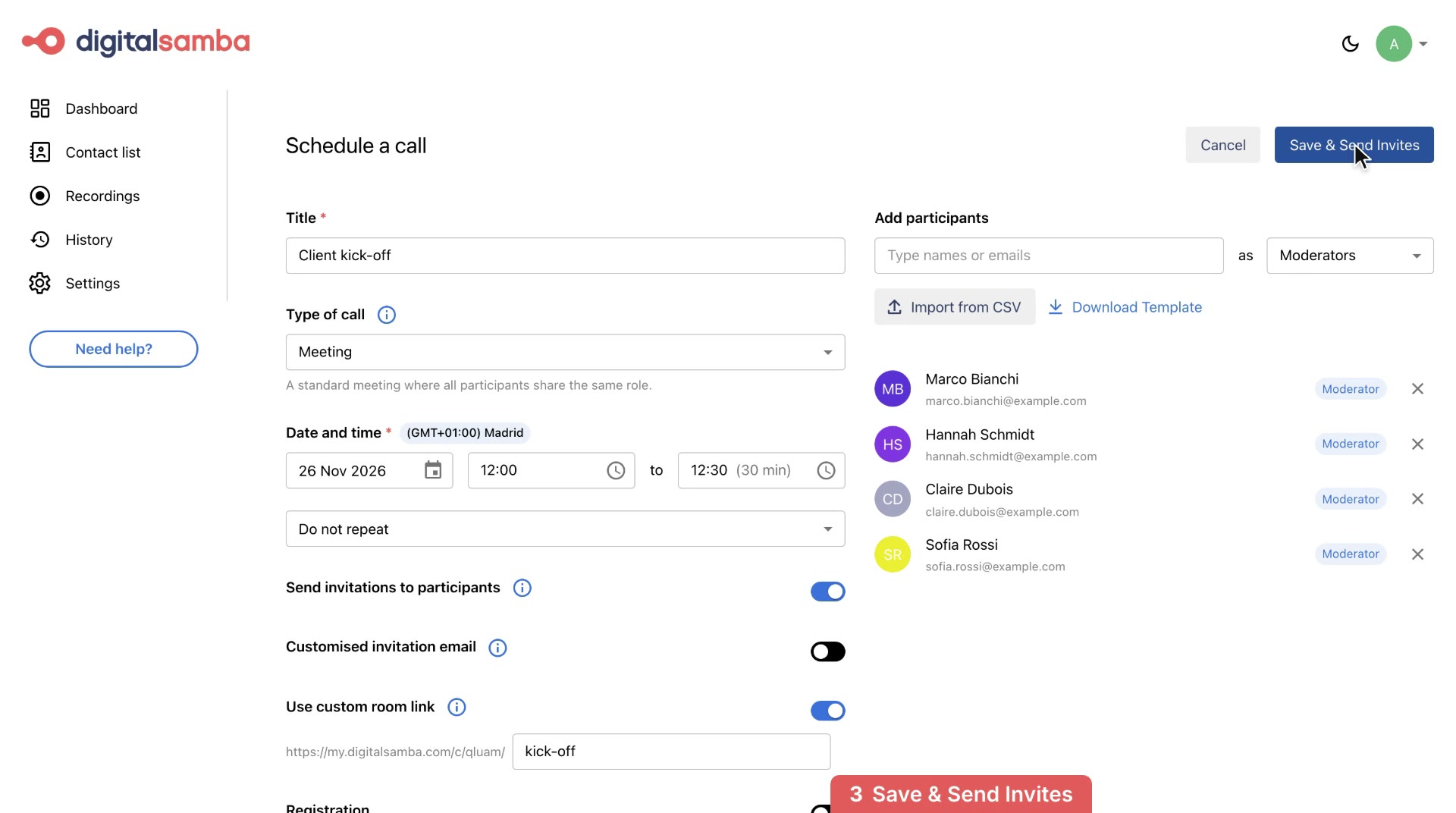
3Save & Send Invites1:04
Now click Save and Send Invites.
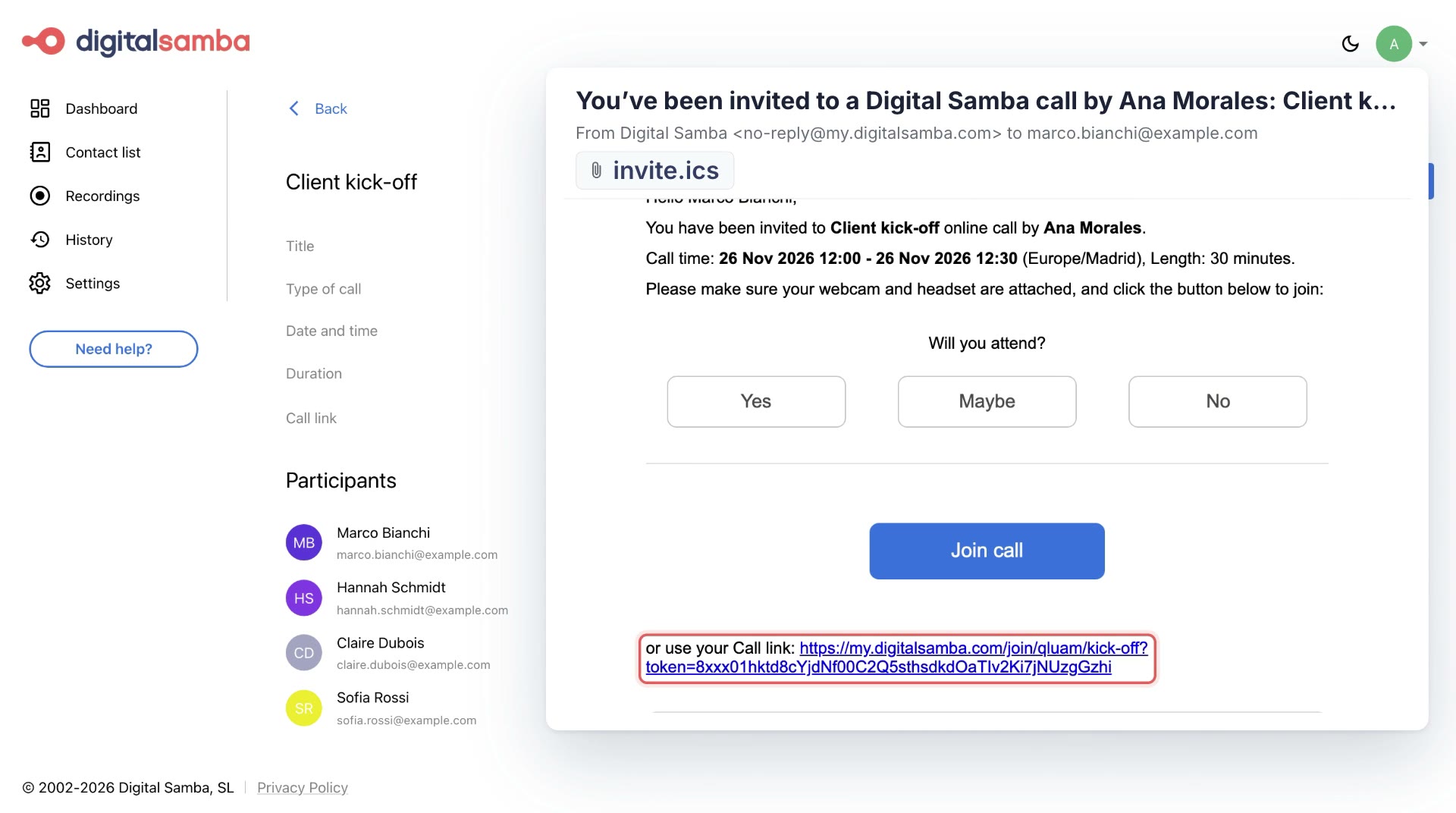
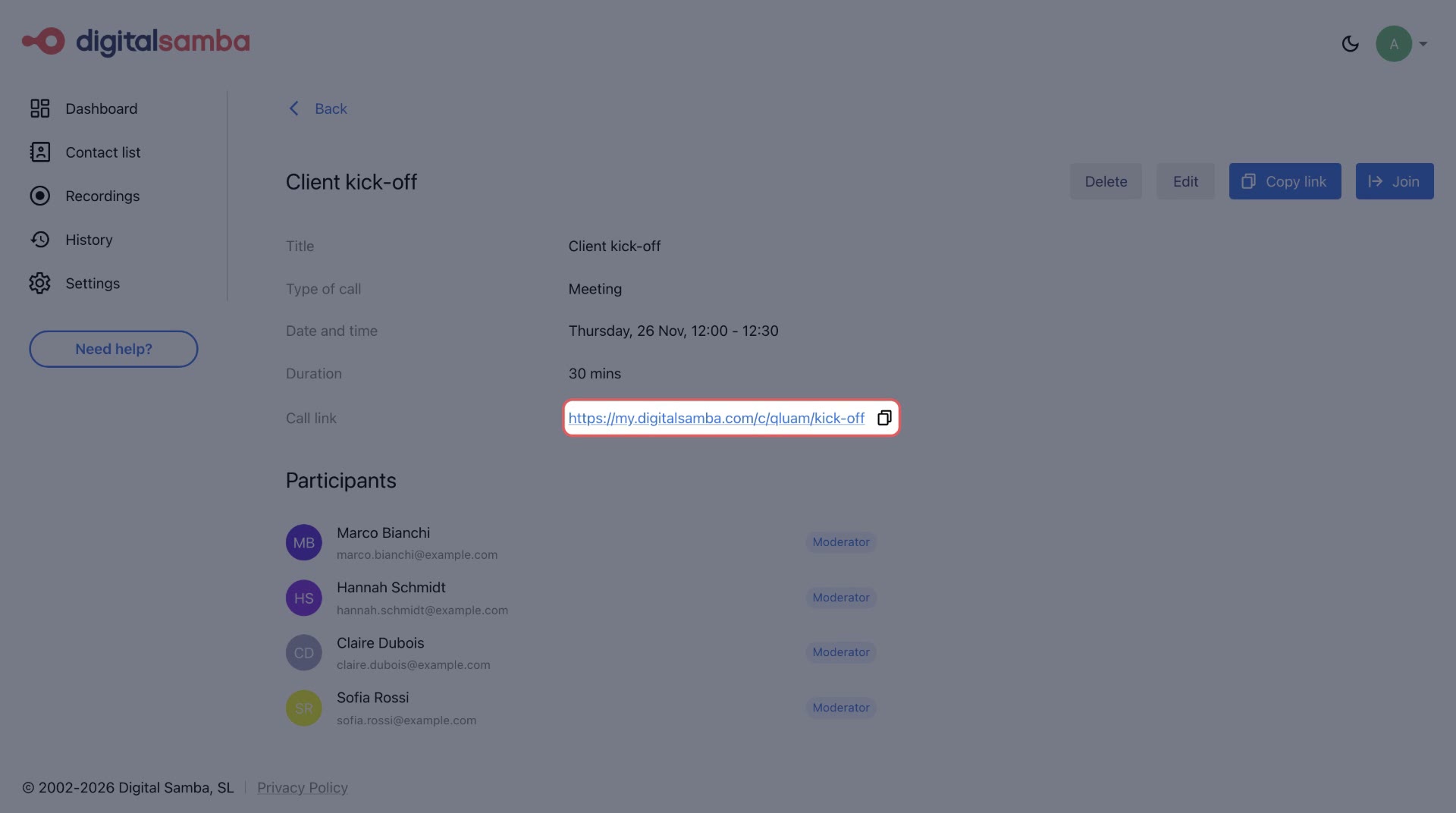
The call's page shows the new link, and the invitations carry it.
Good to know1:15
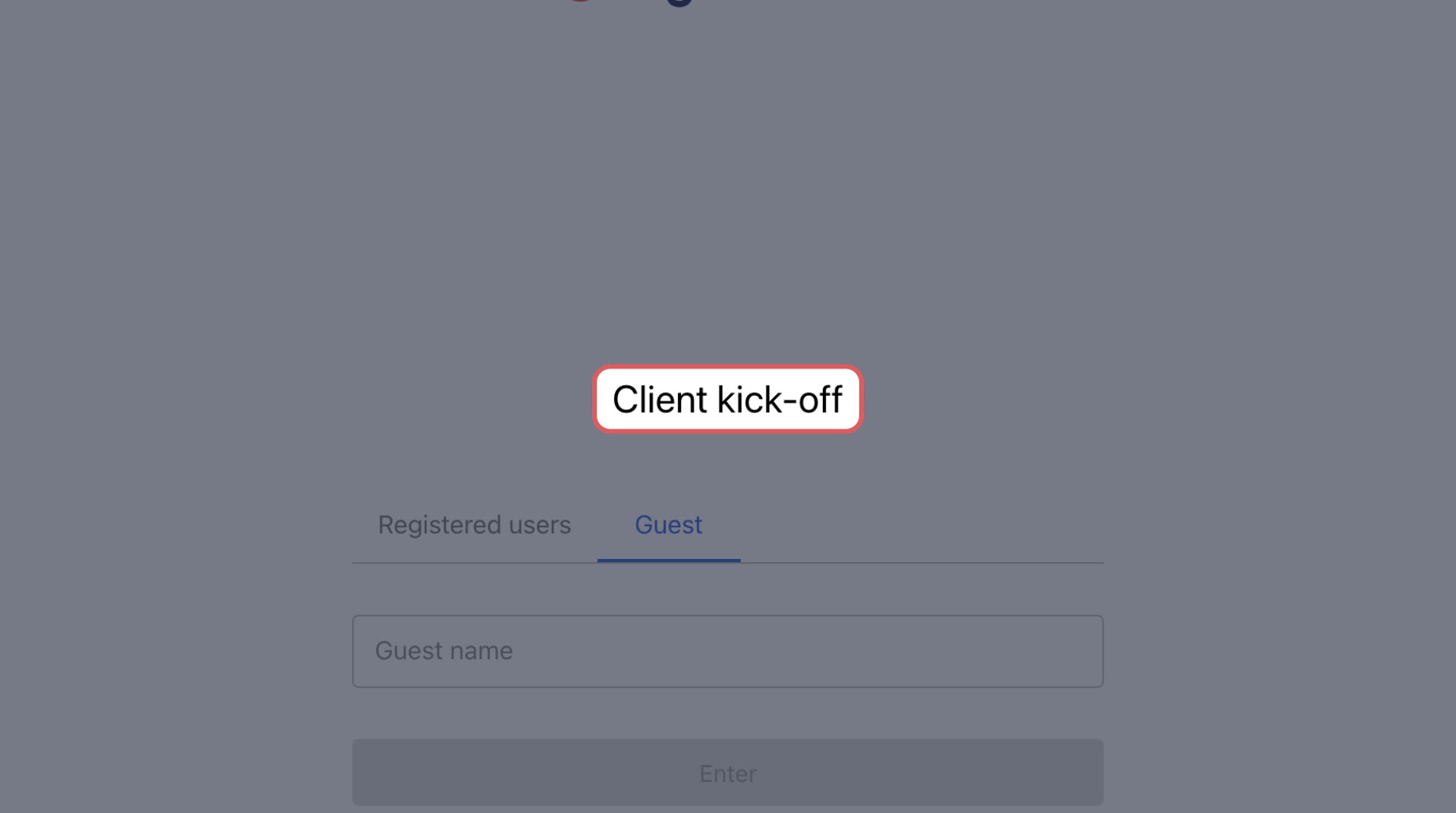
The rehearsal's old link now opens the Client kick-off.
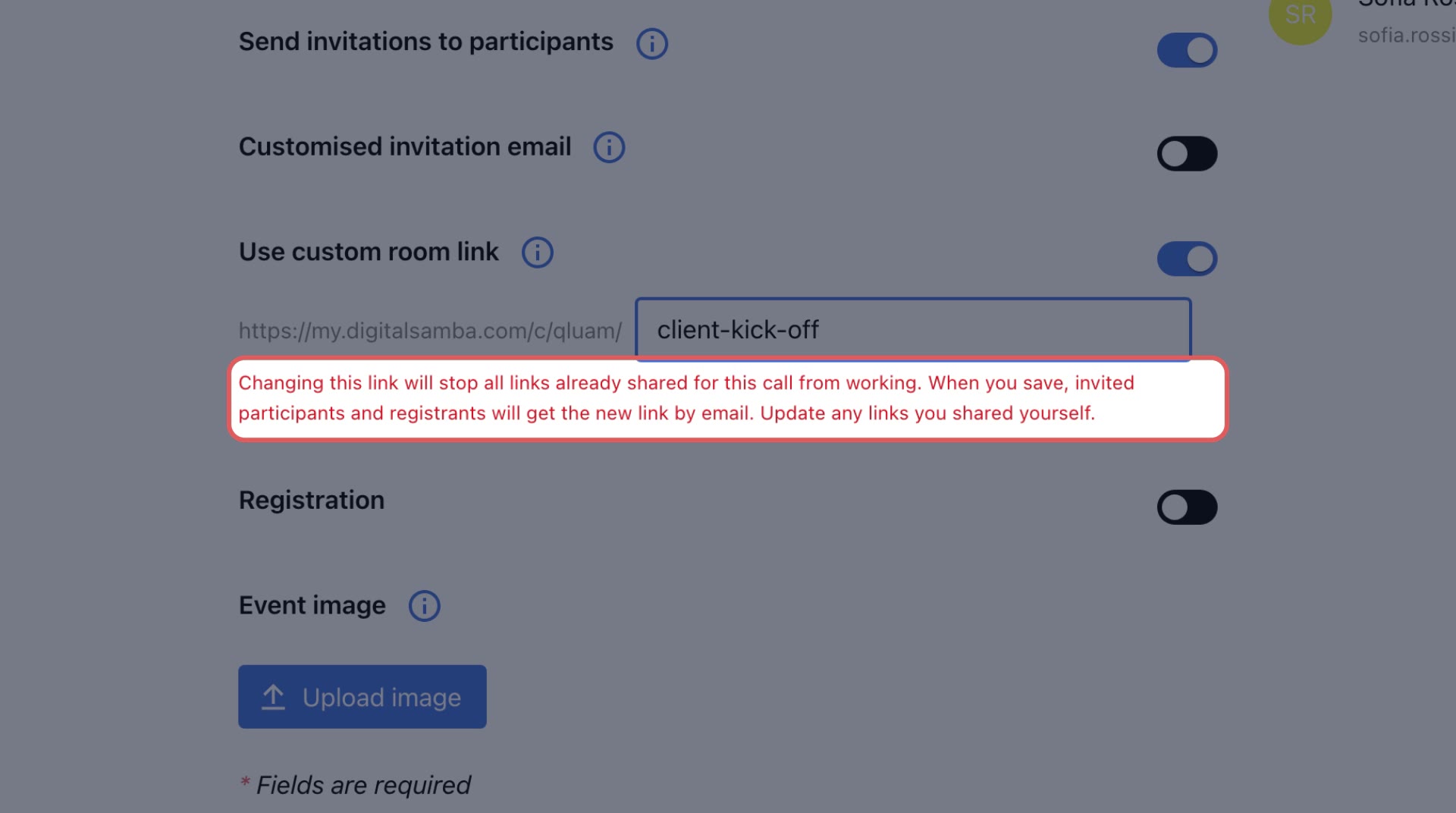
Change the link later, and every link already shared stops working.
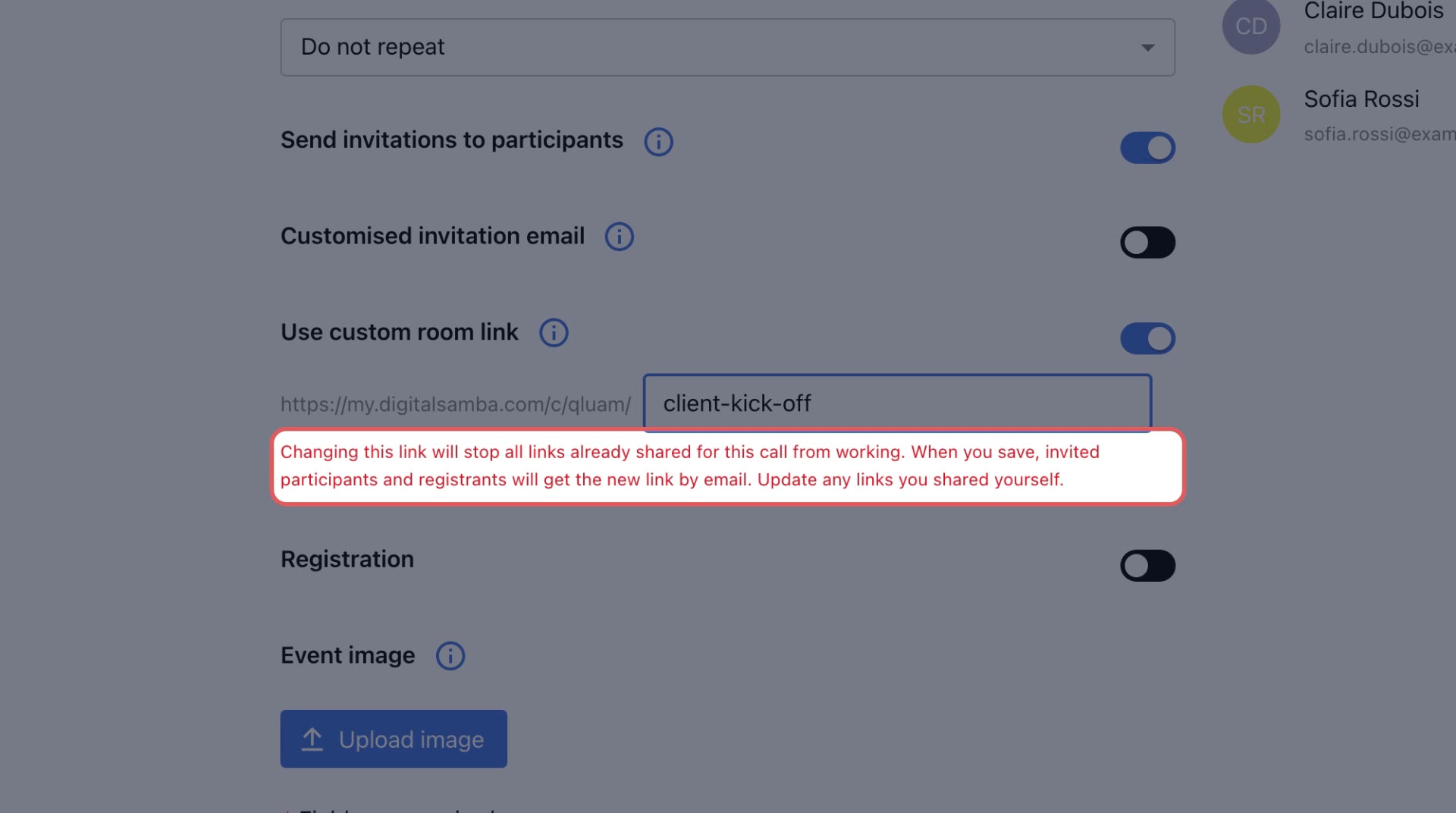
People you invited get the new link by email; update any links you shared yourself.
Turn the custom link off, and the call gets a new random link.
Recap1:36
So: turn on Use custom room link, type a short ending, move it if another call has it, and save.
Did this article help?
Sorry about that. What was the problem?