University

Start a call instantly with Call now

In this video, you'll start a call — a meeting — right now, and bring someone in with its link.

Updated Version 1

1Call now0:08

Our example: a quick call with Javier.

On your dashboard, click Call now.
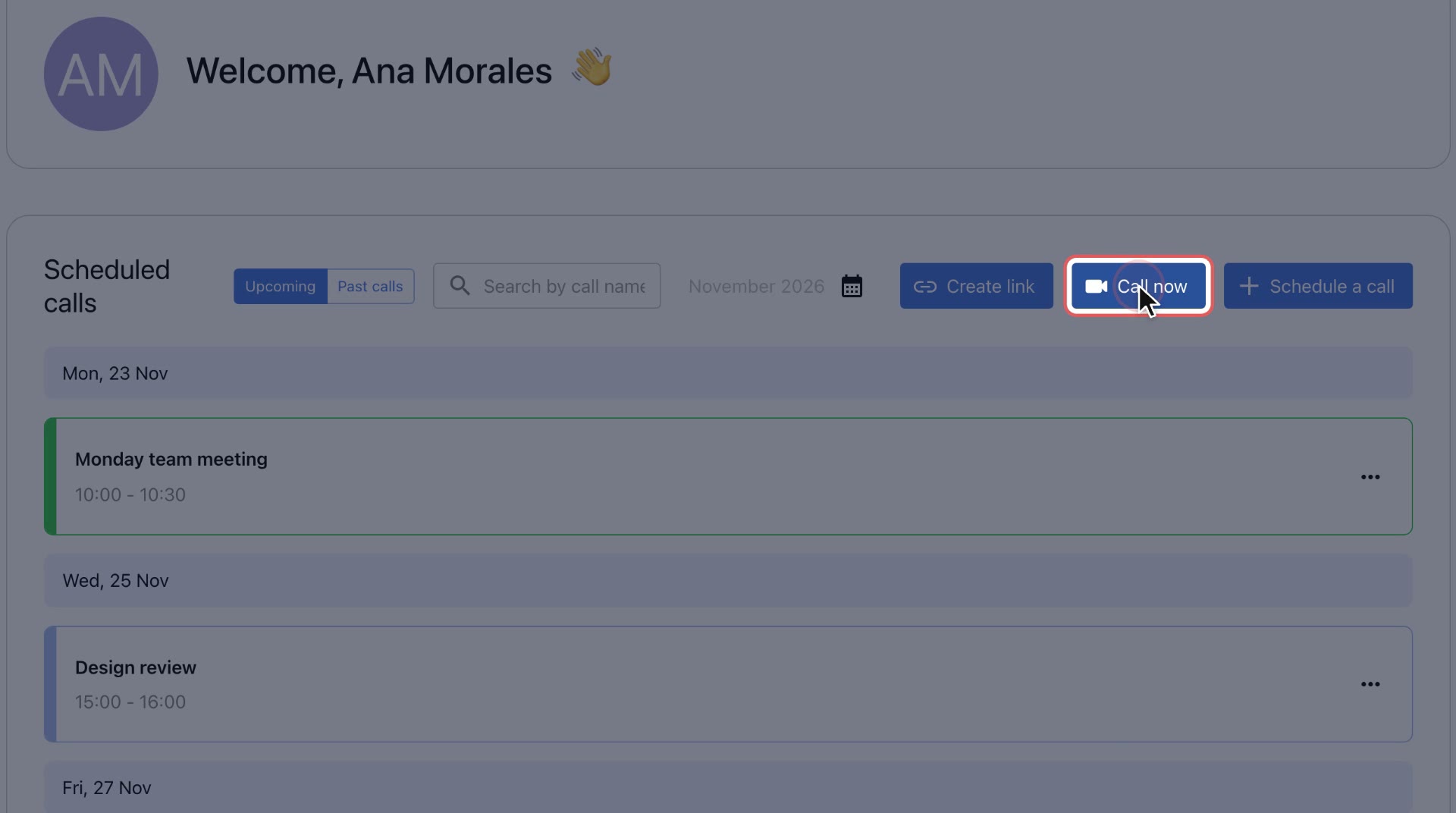
Screenshot from the film at 0:15: On your dashboard, click Call now.
Watch this step · 0:13

The call opens in a new tab.

2Join0:18

First, a consent message: click Join.
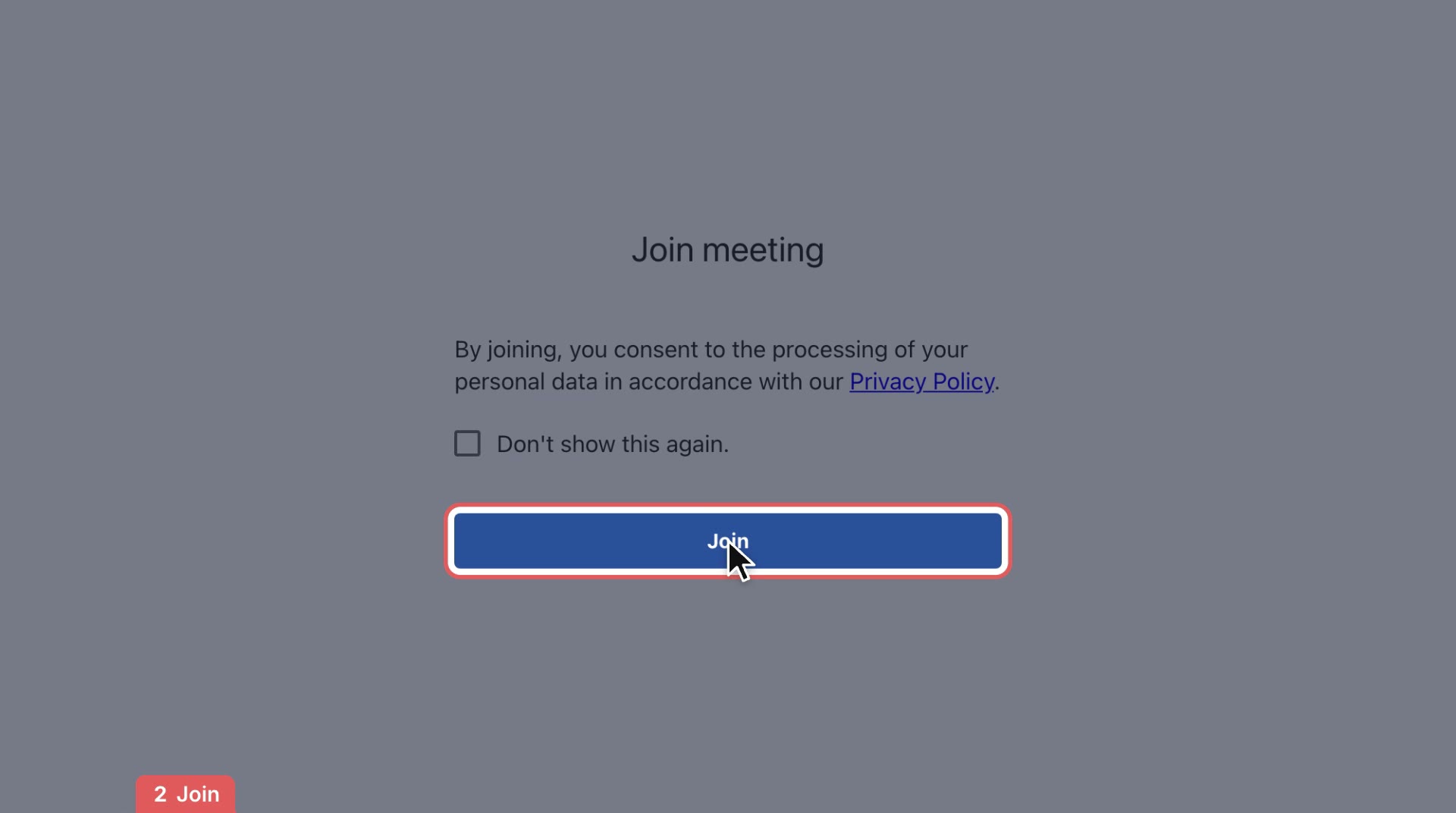
Screenshot from the film at 0:22: First, a consent message: click Join.
Watch this step · 0:19

Then check your camera and microphone, and click Join again.
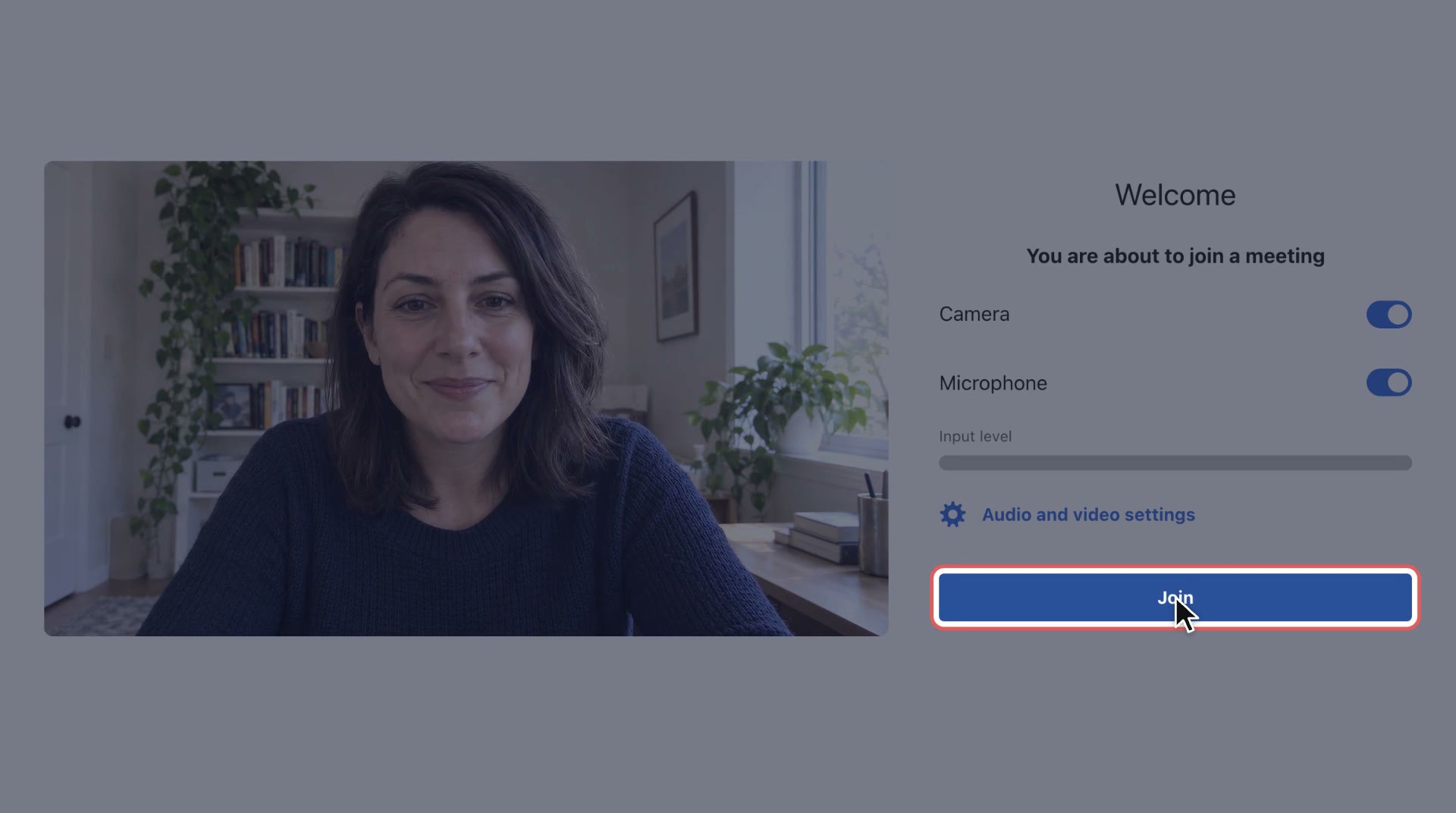
Screenshot from the film at 0:26: Then check your camera and microphone, and click Join again.
Watch this step · 0:23

You're in: your picture is marked You.
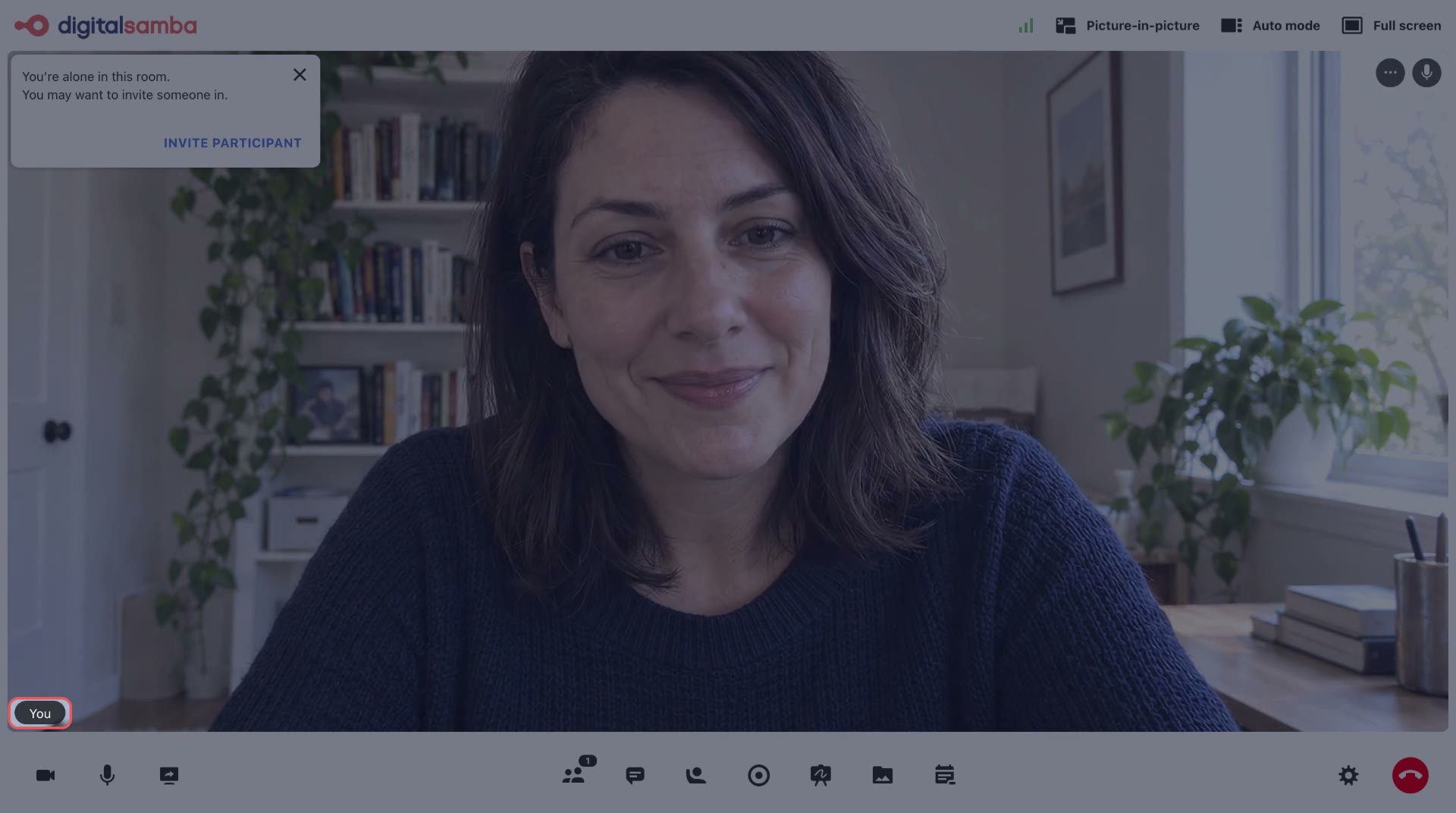
Screenshot from the film at 0:29: You're in: your picture is marked You.
Watch this step · 0:27

Along the bottom is the toolbar, with Leave / End session on the right.
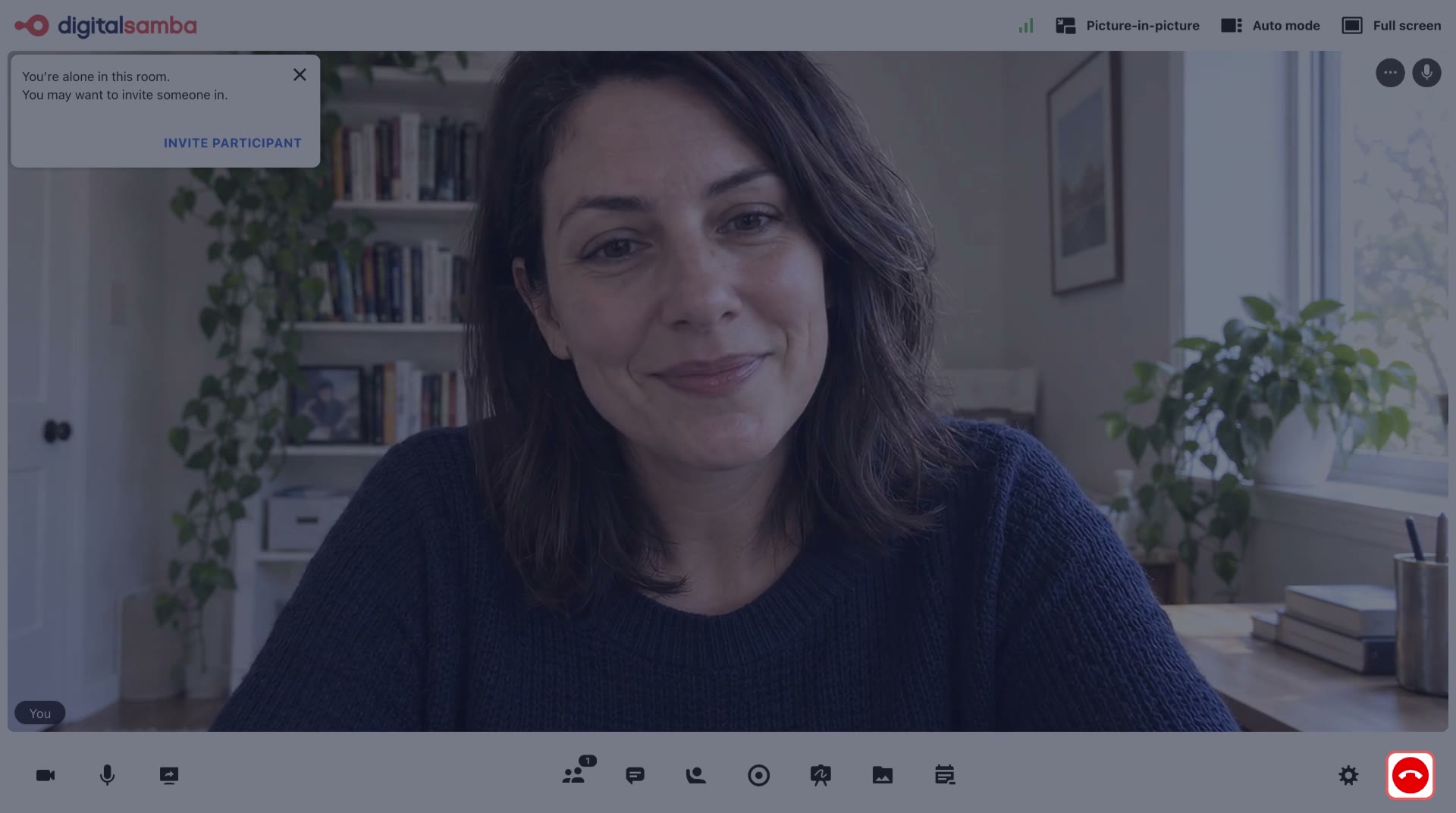
Screenshot from the film at 0:35: Along the bottom is the toolbar, with Leave / End session on the right.
Watch this step · 0:30

3Invite participant0:35

Alone in the call, the room offers to invite someone: click Invite participant.
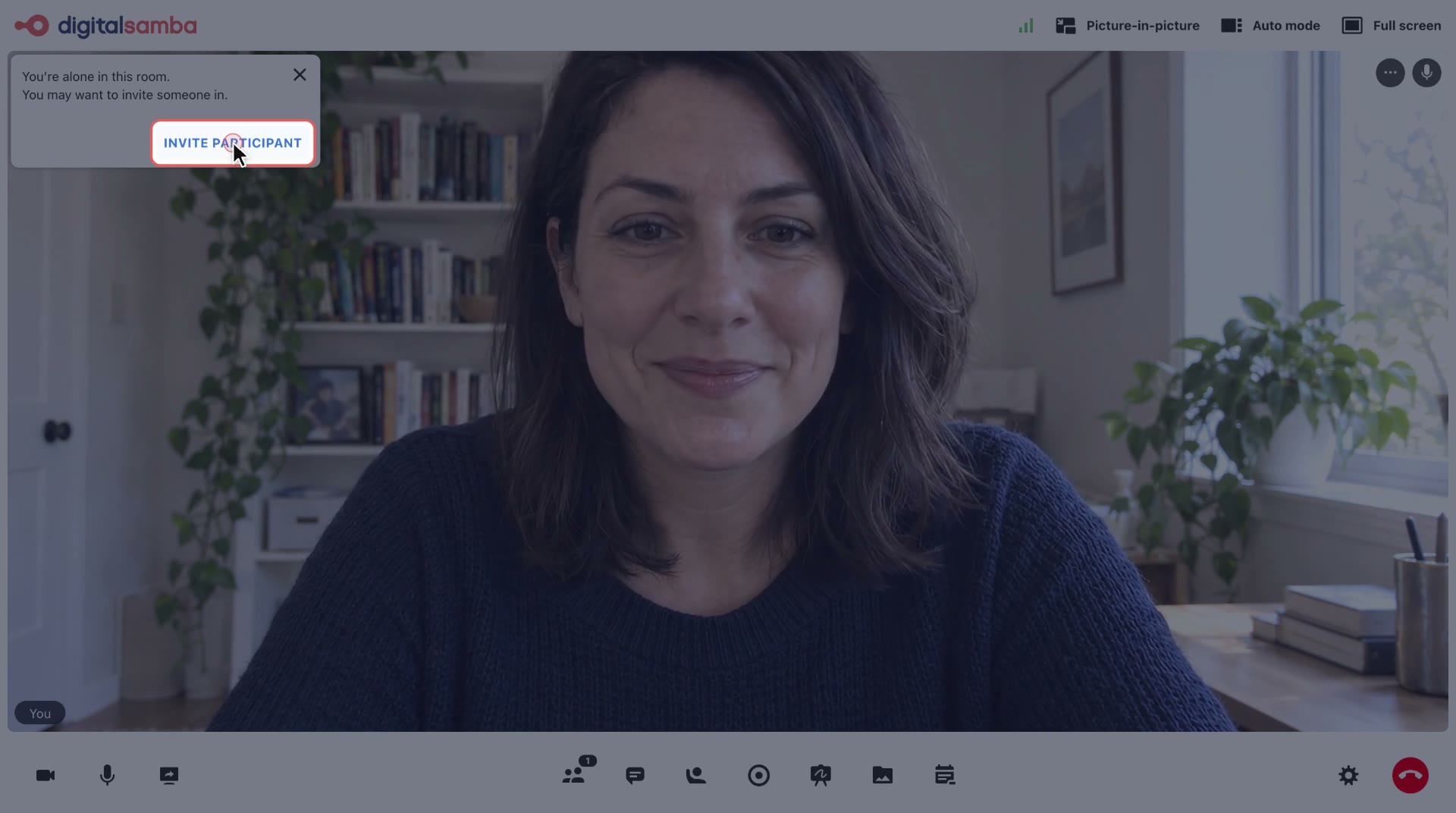
Screenshot from the film at 0:41: Alone in the call, the room offers to invite someone: click Invite participant.
Watch this step · 0:36

Click Copy link, and send the link to Javier.
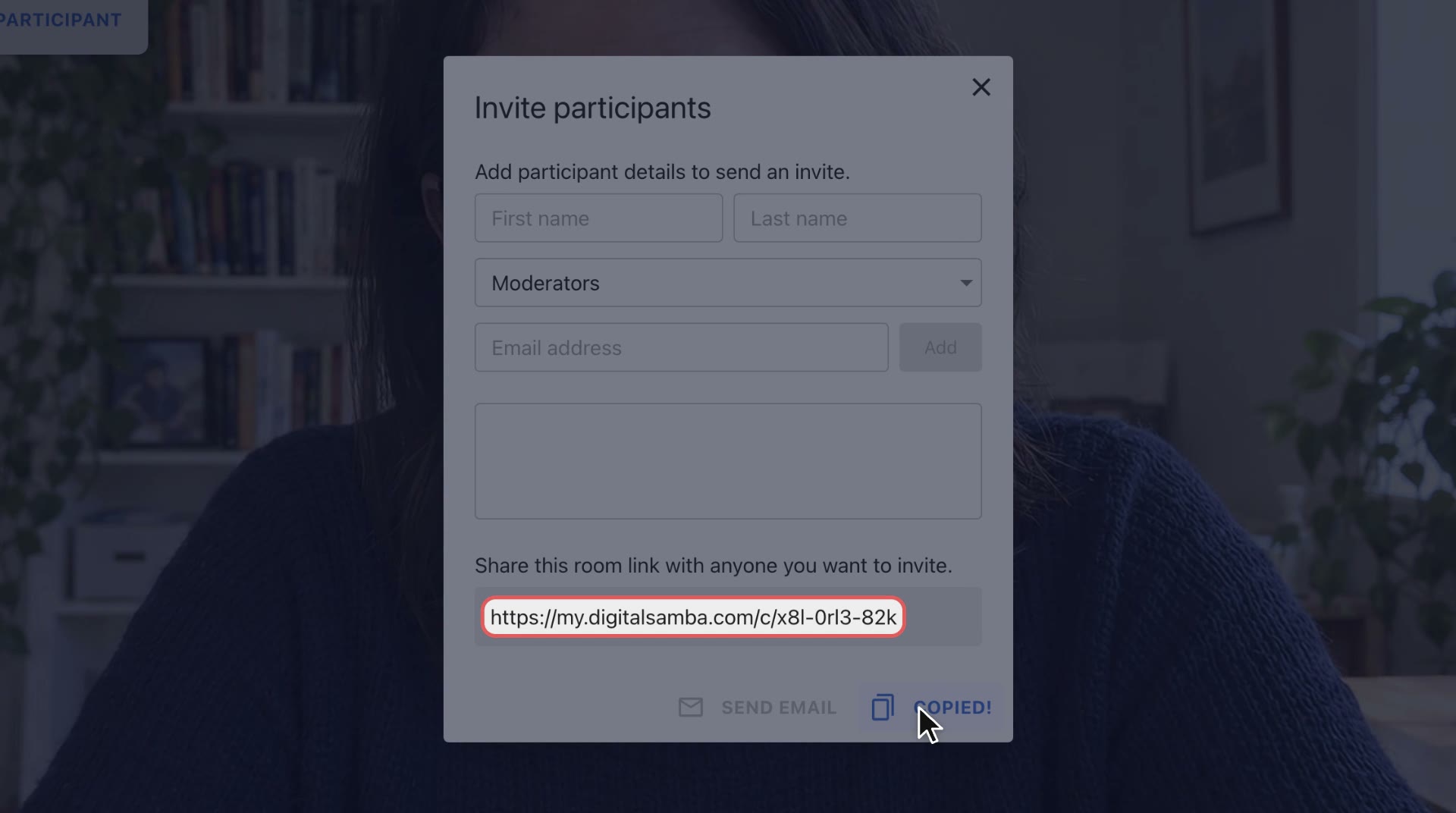
Screenshot from the film at 0:44: Click Copy link, and send the link to Javier.
Watch this step · 0:42

Javier has no account: on Guest, he types his name and clicks Enter.
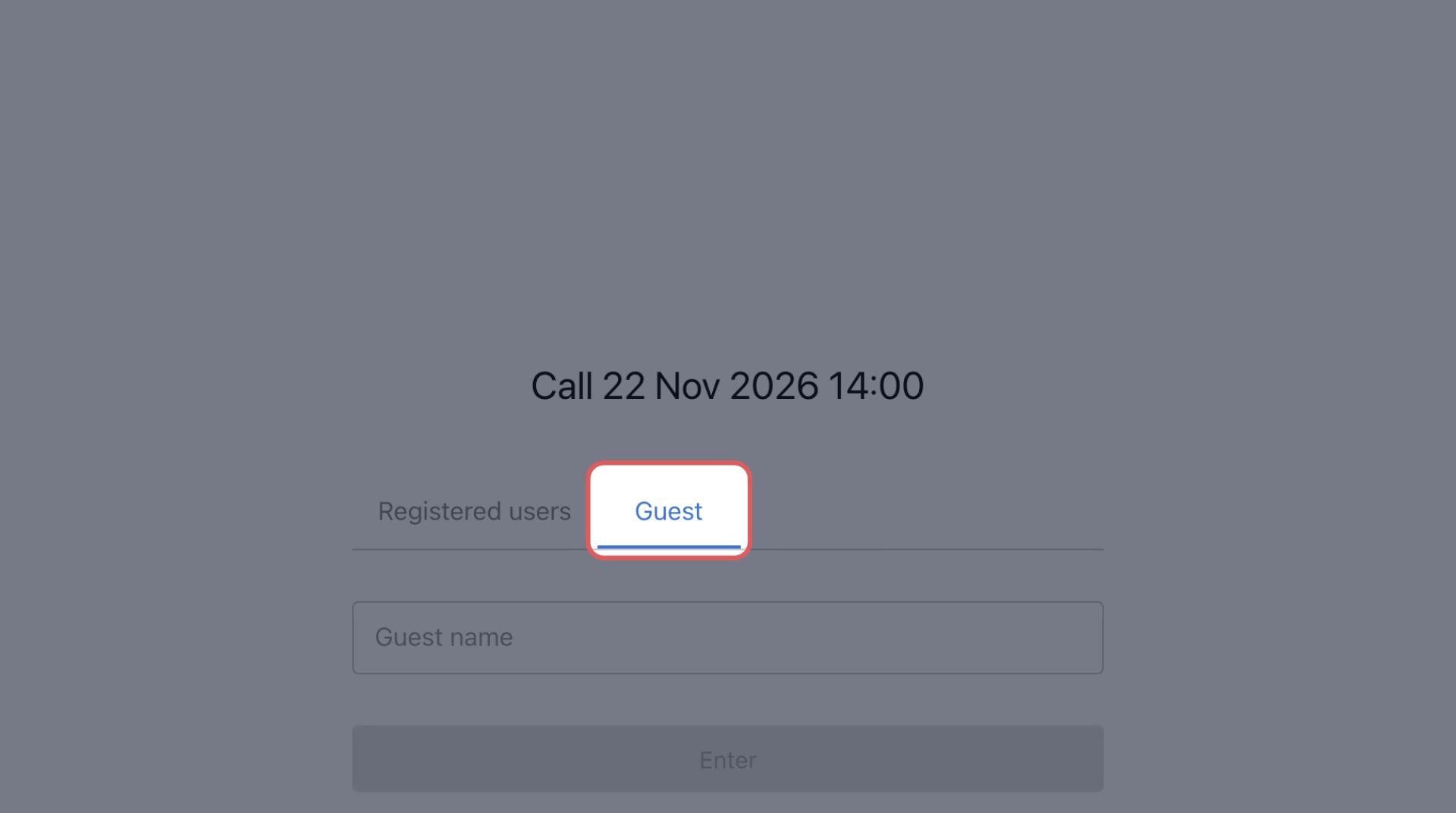
Screenshot from the film at 0:49: Javier has no account: on Guest, he types his name and clicks Enter.
Watch this step · 0:47

After the same two steps, he's in, and Ana sees him.
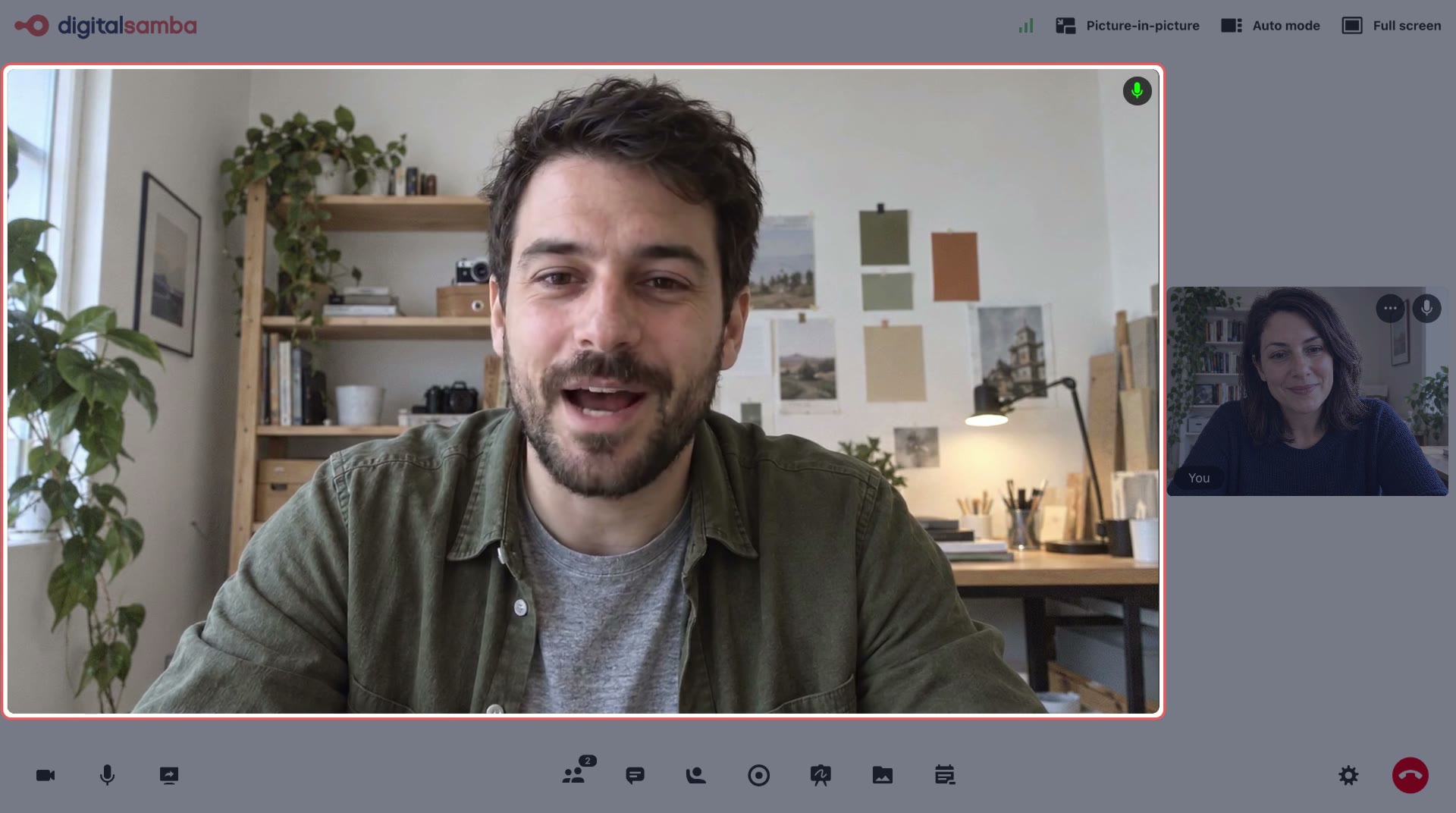
Screenshot from the film at 0:56: After the same two steps, he's in, and Ana sees him.
Watch this step · 0:52

4Leave / End session0:56

When you're done, click Leave / End session.
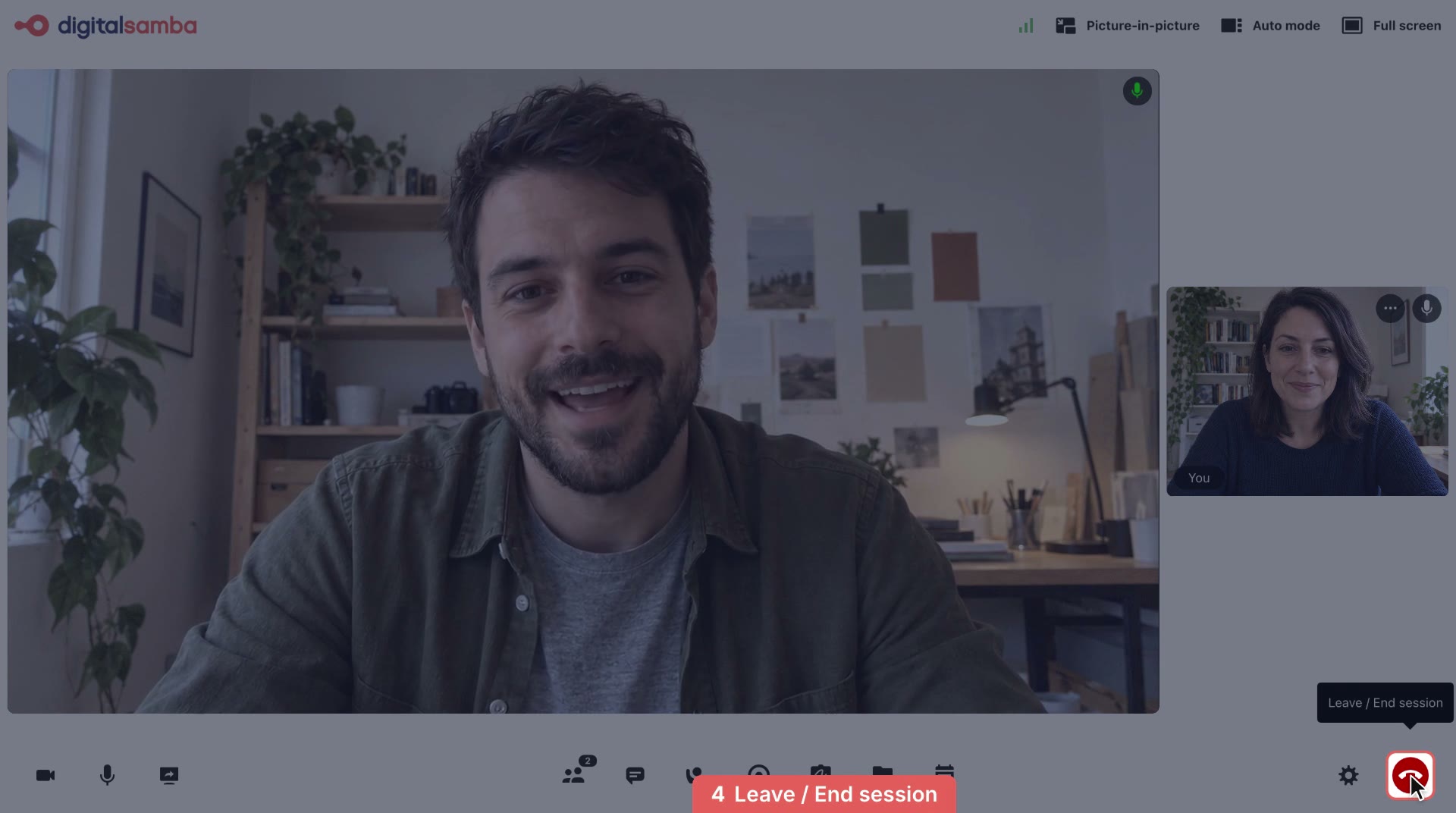
Screenshot from the film at 0:59: When you're done, click Leave / End session.
Watch this step · 0:57

Leave session takes only you out; End session for all ends it for everyone.
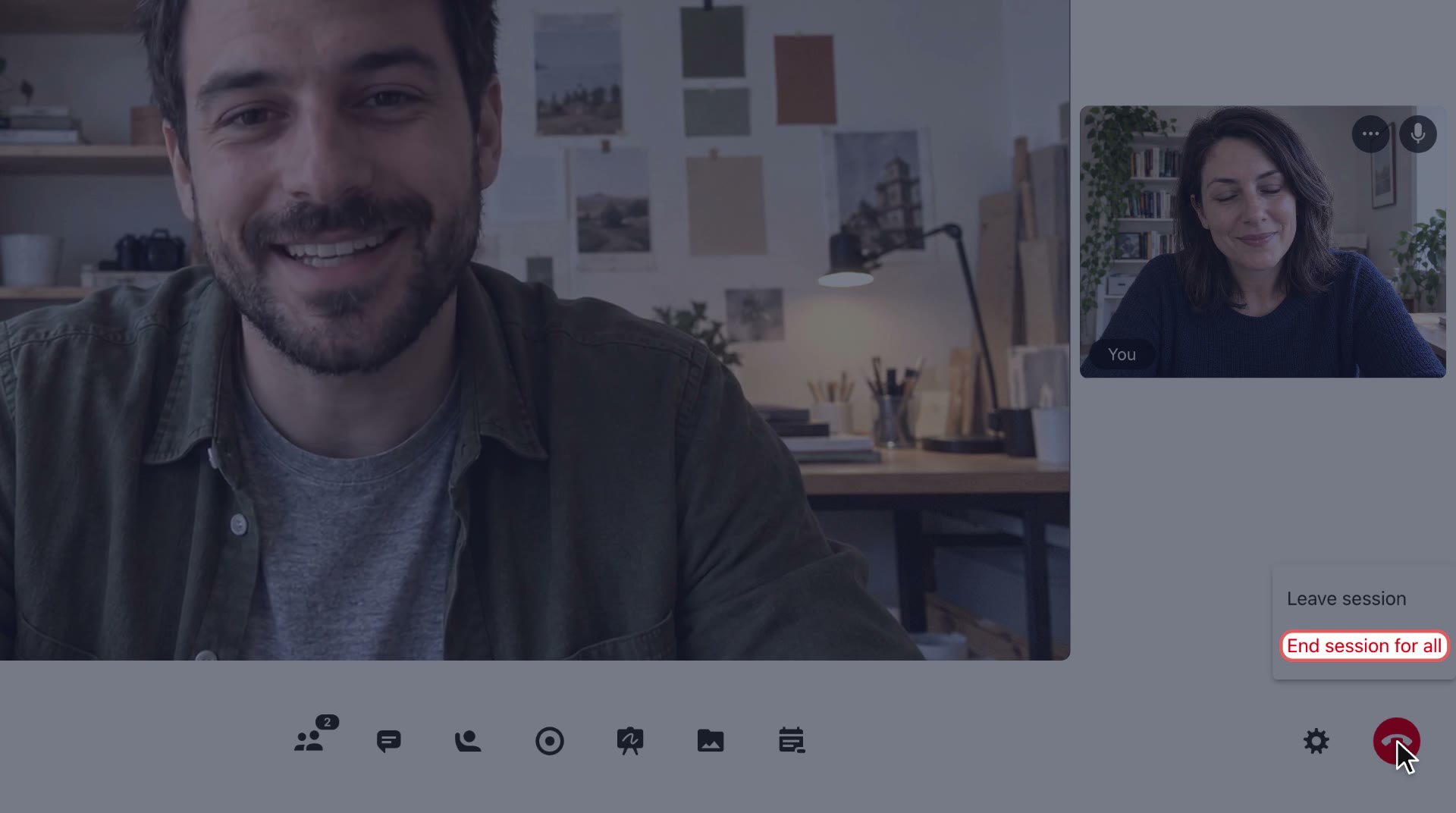
Screenshot from the film at 1:04: Leave session takes only you out; End session for all ends it for everyone.
Watch this step · 1:01

Ana chooses End session for all, and confirms.
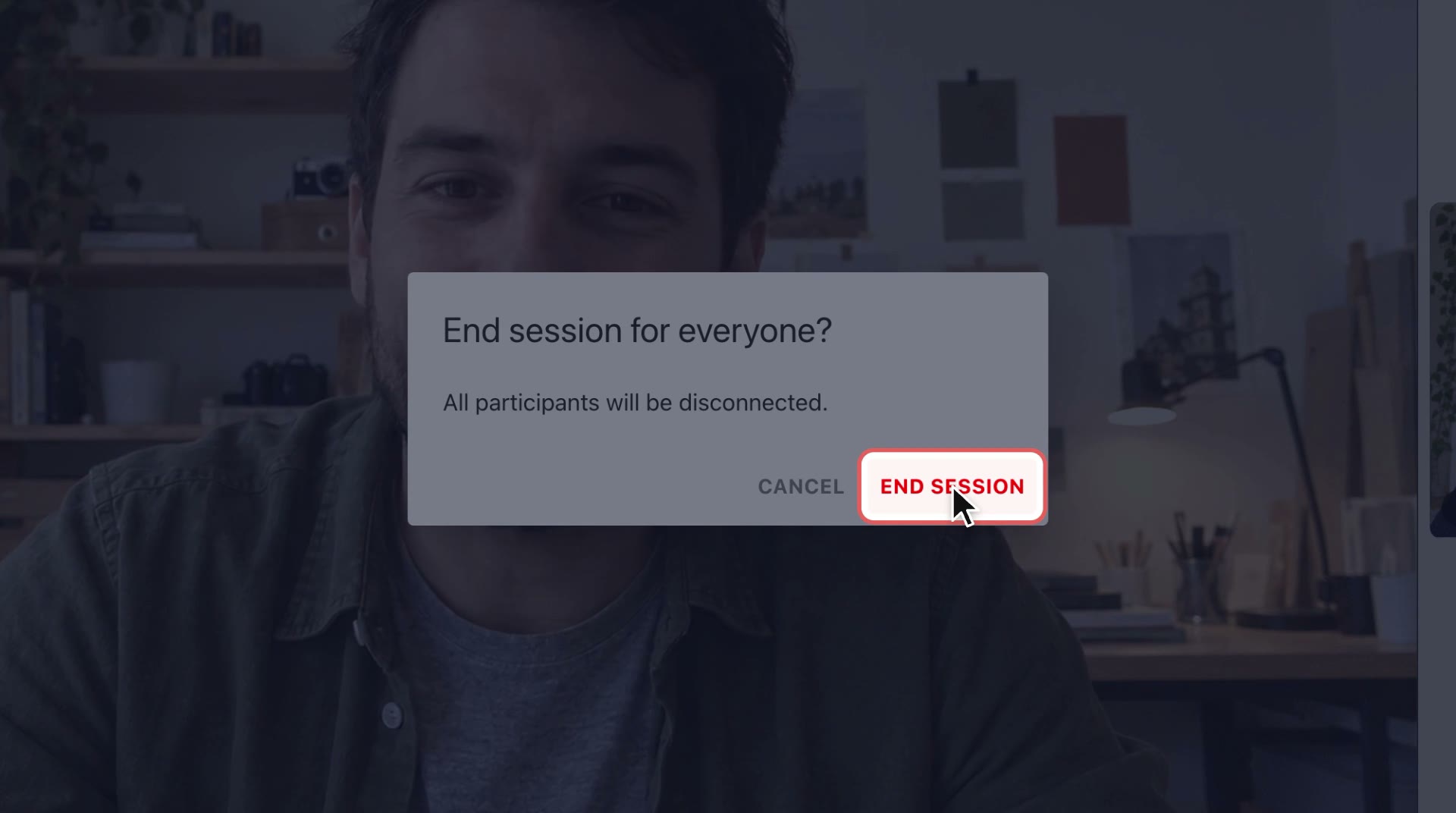
Screenshot from the film at 1:10: Ana chooses End session for all, and confirms.
Watch this step · 1:07

Javier reads: The session has been ended by Ana Morales.
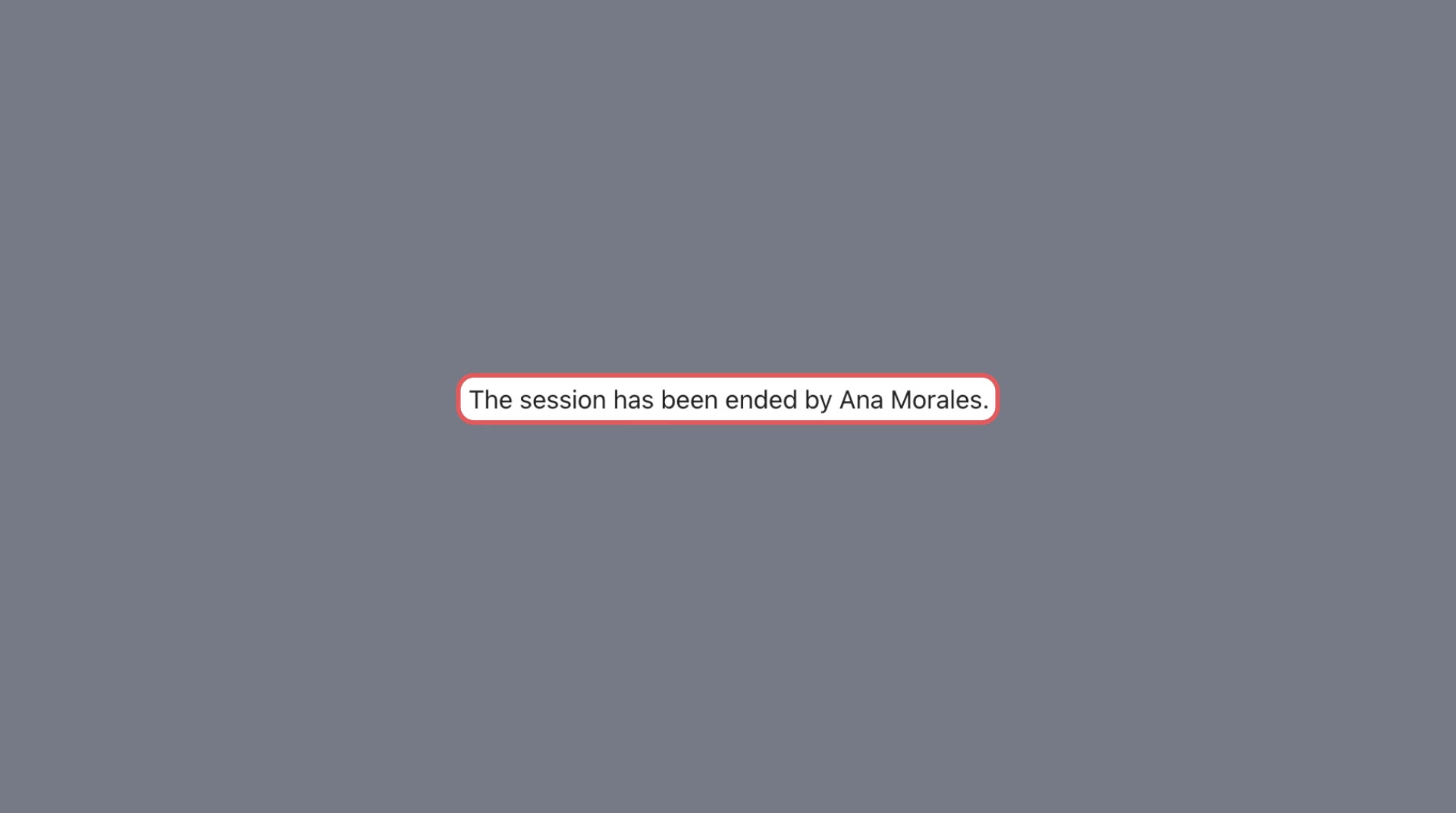
Screenshot from the film at 1:13: Javier reads: The session has been ended by Ana Morales.
Watch this step · 1:11

5History1:15

Afterwards, History in the side menu lists the session: open it to see who joined, and for how long.
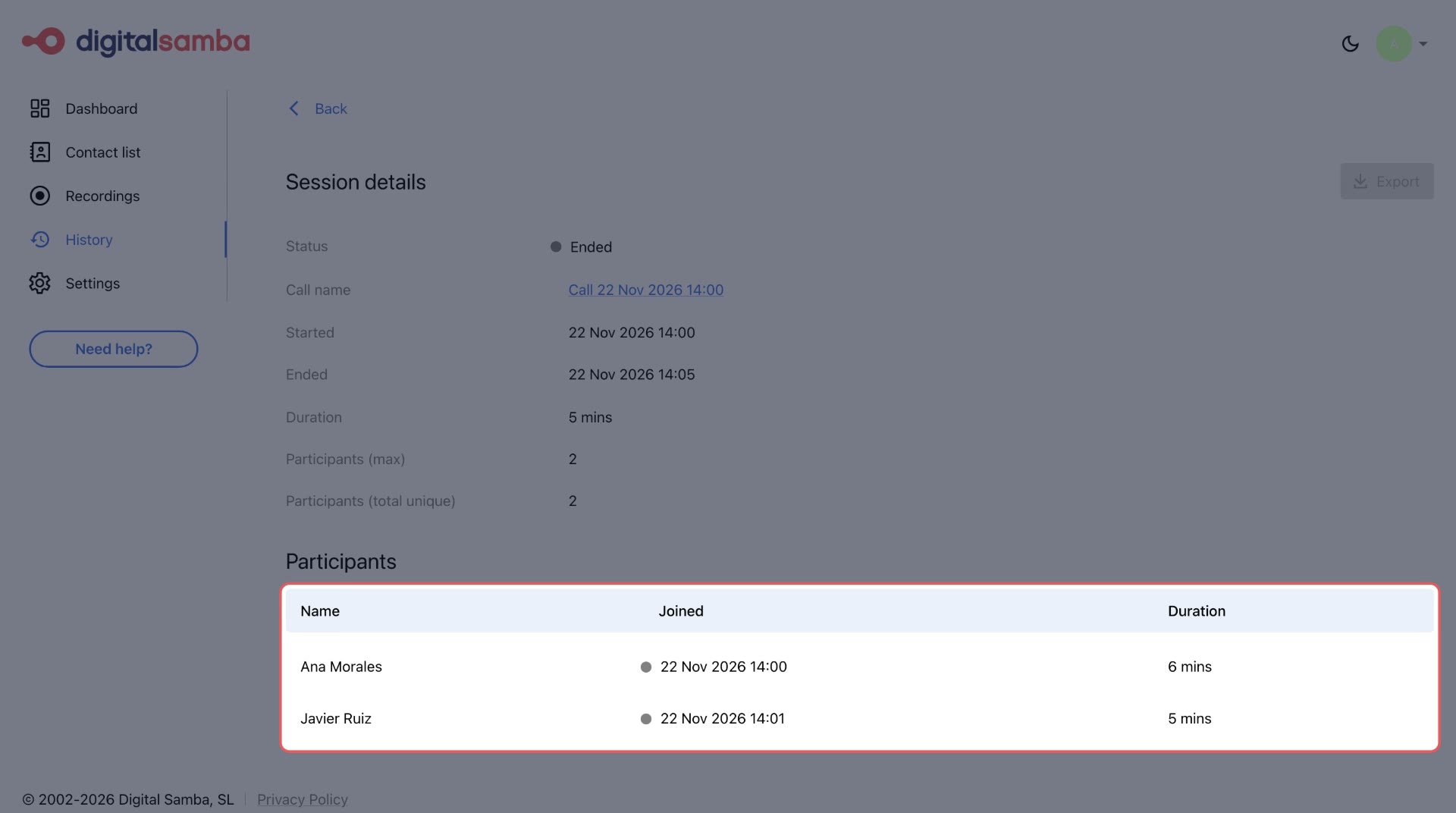
Screenshot from the film at 1:21: Afterwards, History in the side menu lists the session: open it to see who joined, and for how long.
Watch this step · 1:16

Good to know1:23

The link is also in the address bar of the call's tab, and on its card on your dashboard, under the three dots.
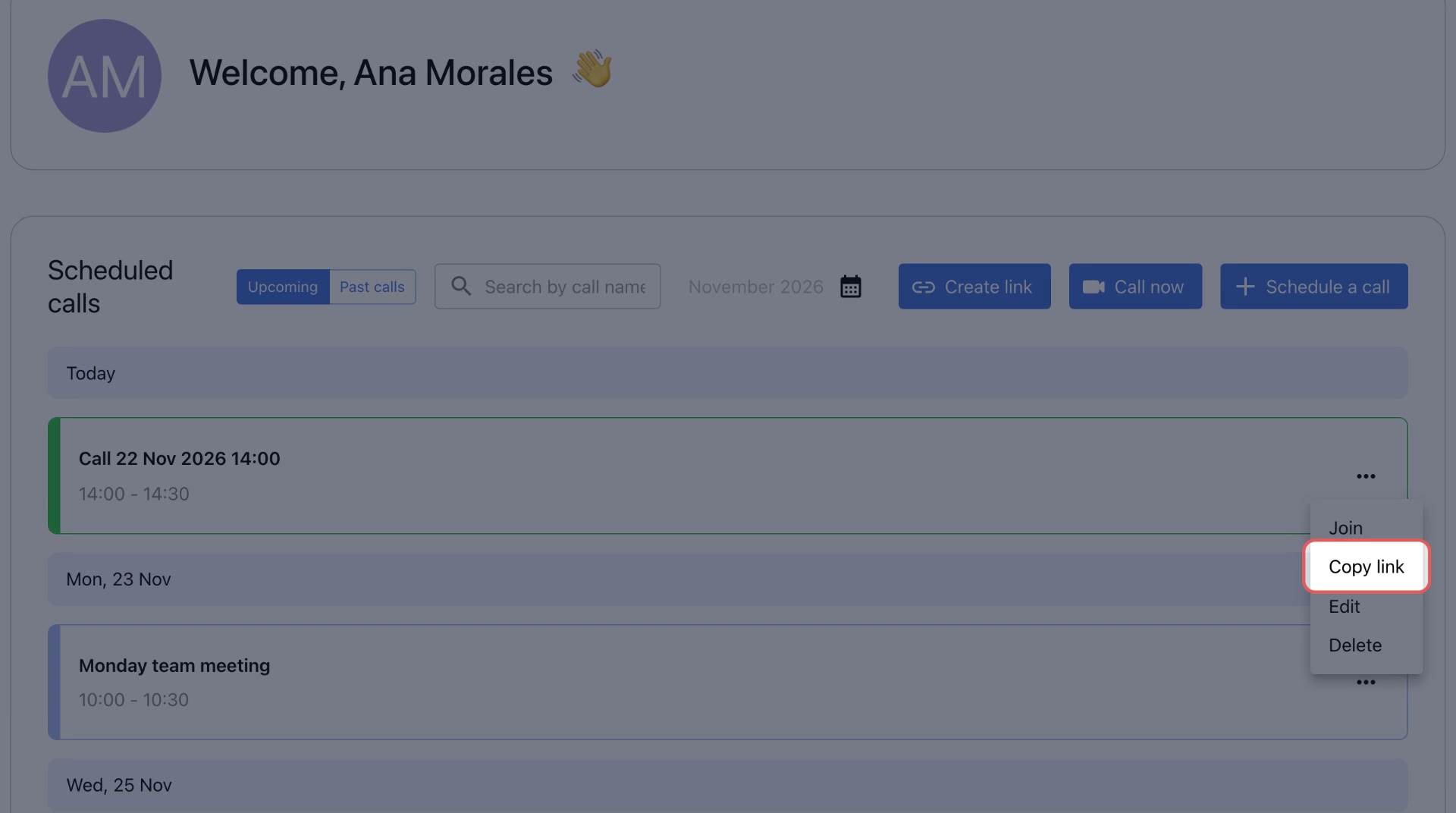
Screenshot from the film at 1:32: Good to know: the link is also in the address bar of the call's tab, and on its card on your dashboard, under the three dots.
Watch this step · 1:24

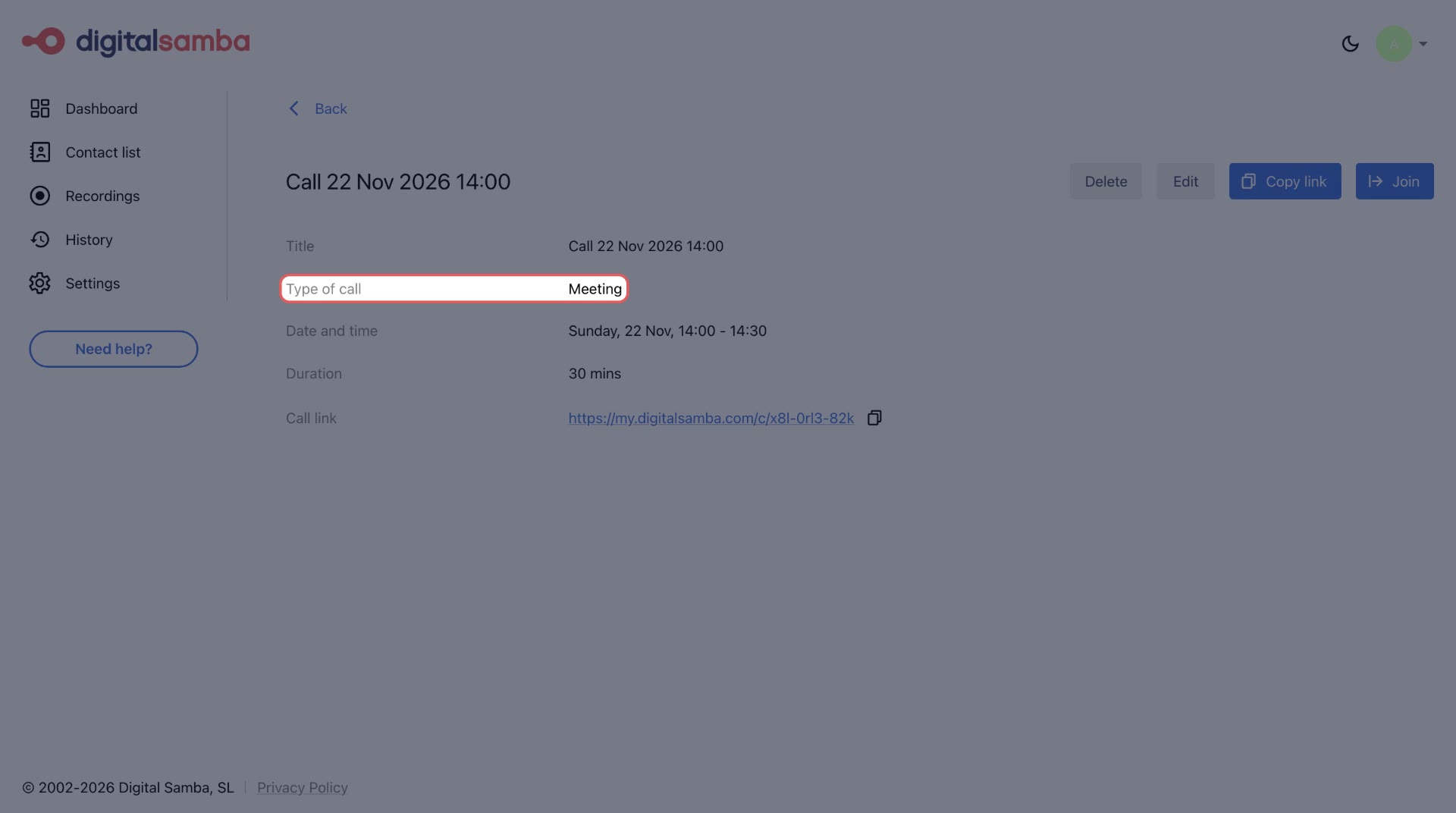
Call now always starts a Meeting.

Screenshot from the film at 1:35: Call now always starts a Meeting.
Watch this step · 1:33

And until the end time on its card, Call now takes you back into the same call.
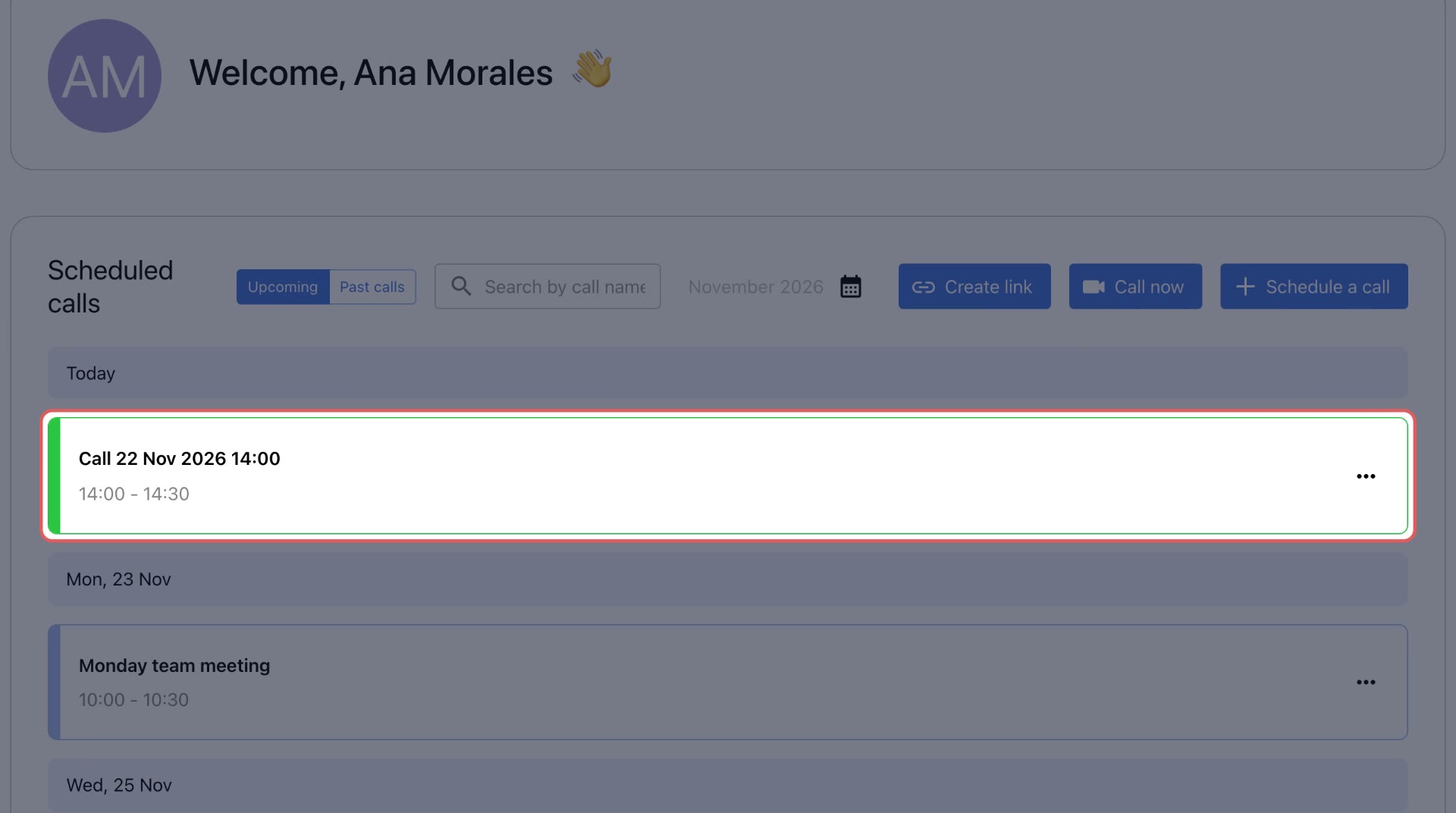
Screenshot from the film at 1:40: And until the end time on its card, Call now takes you back into the same call.
Watch this step · 1:36

Recap1:41

So: click Call now, join, copy the link for the others, and end the session for all.
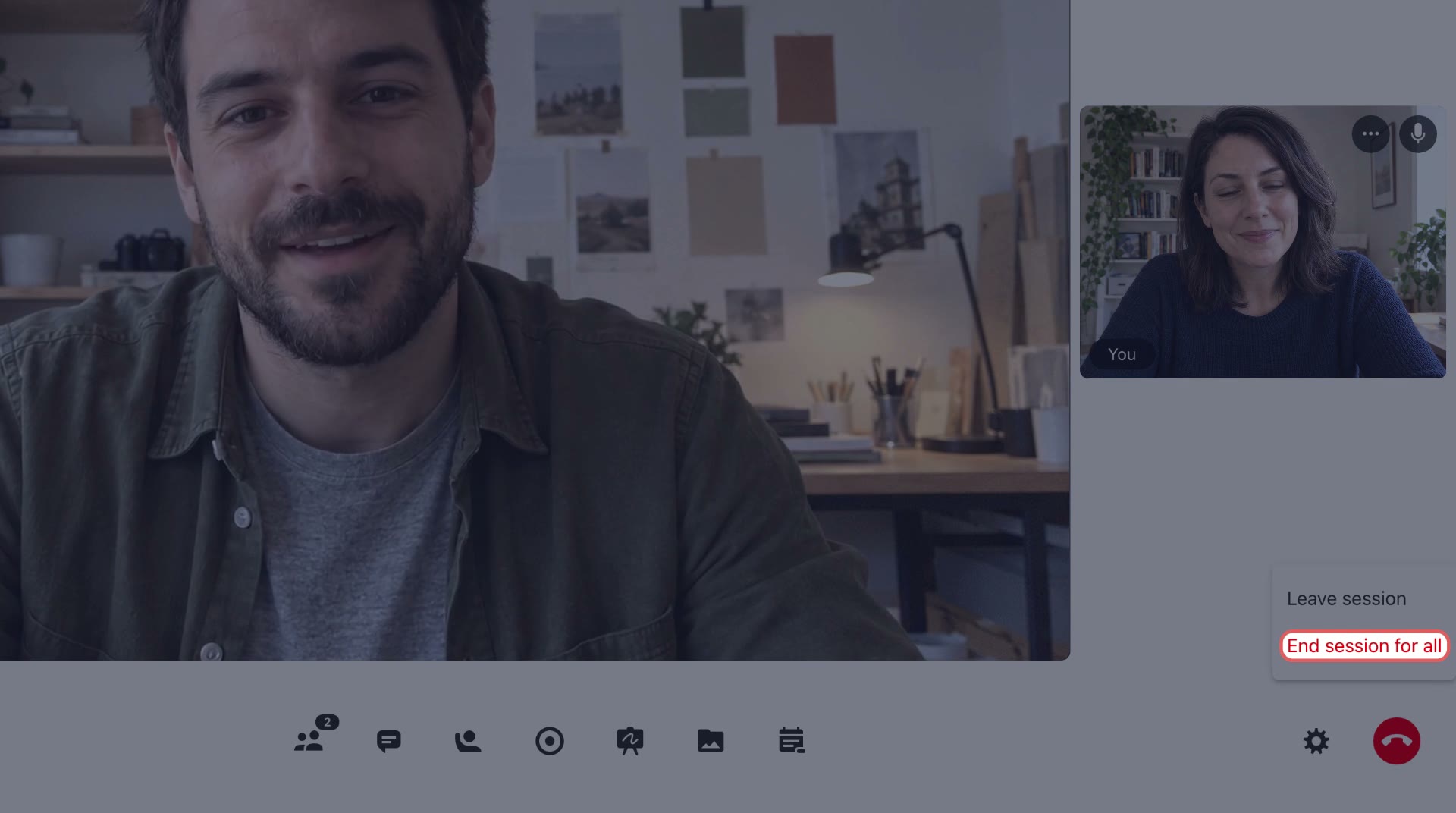
Screenshot from the film at 1:48: So: click Call now, join, copy the link for the others, and end the session for all.
Watch this step · 1:42

In this video

Next

Related

Updated

The film, the article, the captions and the search results all come from one source, so they change together.

  1. Version 1 ·
    First version.

All updates