1Schedule a call0:09
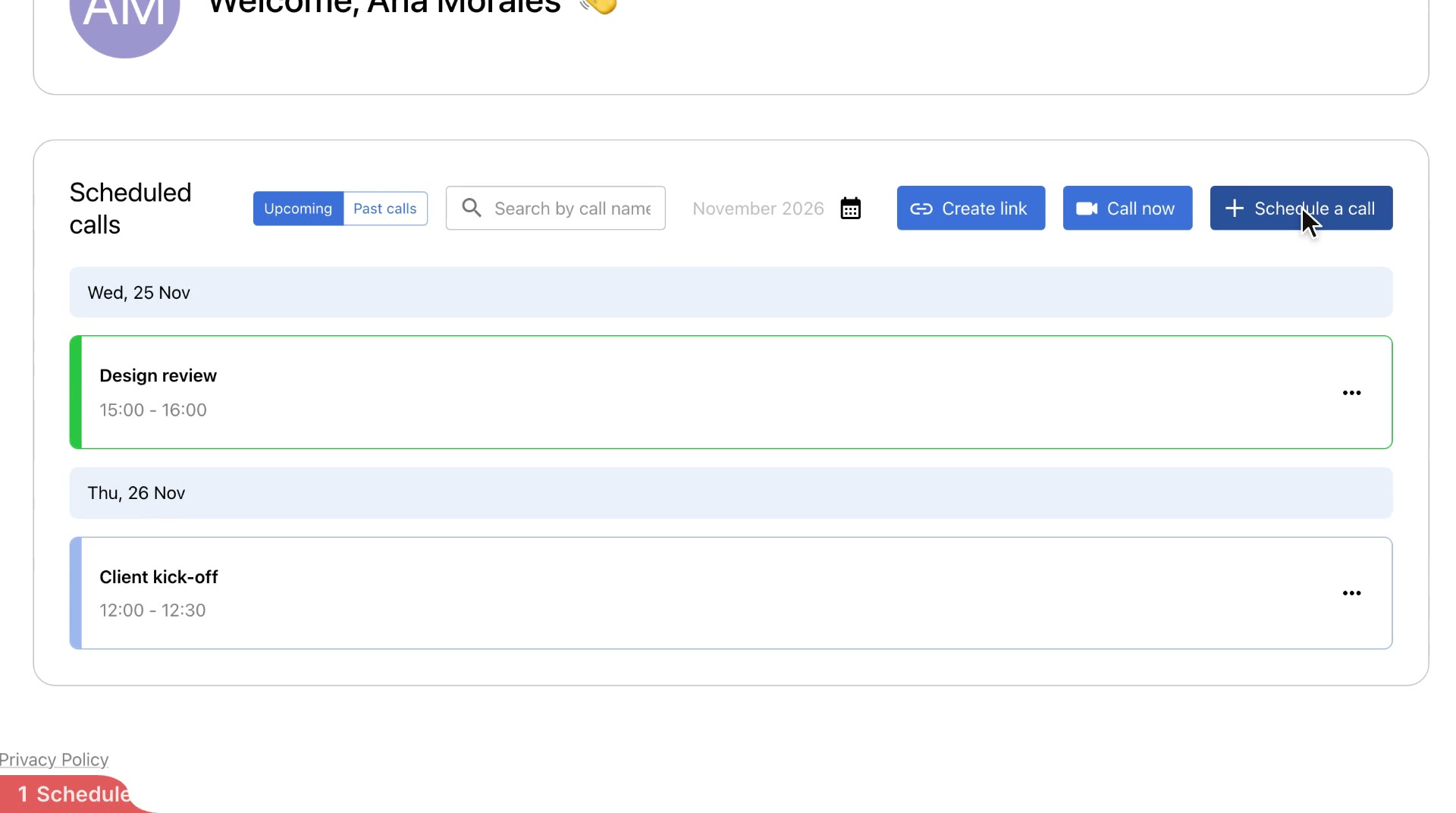
Start on your dashboard, and click Schedule a call.
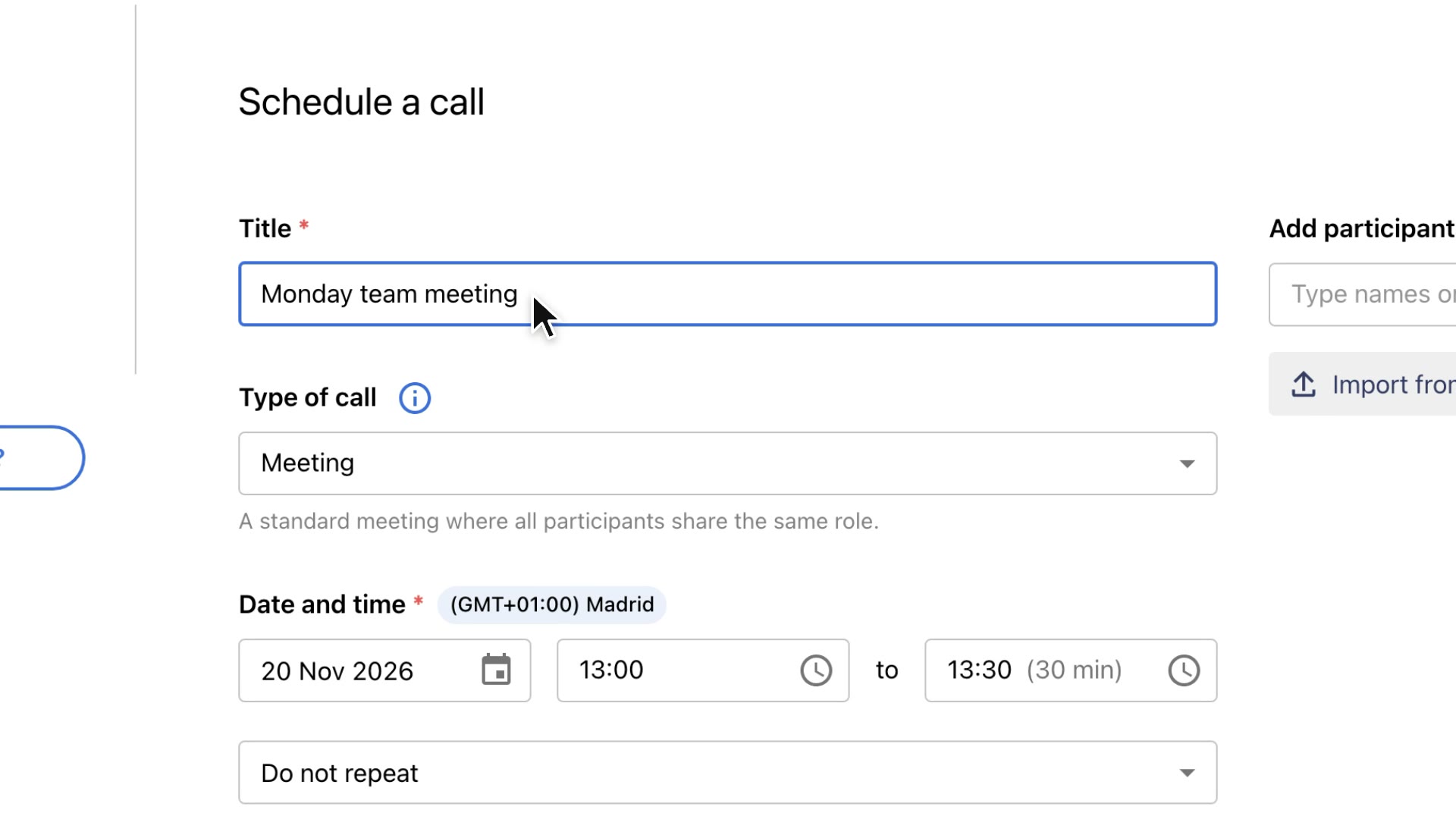
First, give your call a title: here, the team's Monday meeting.
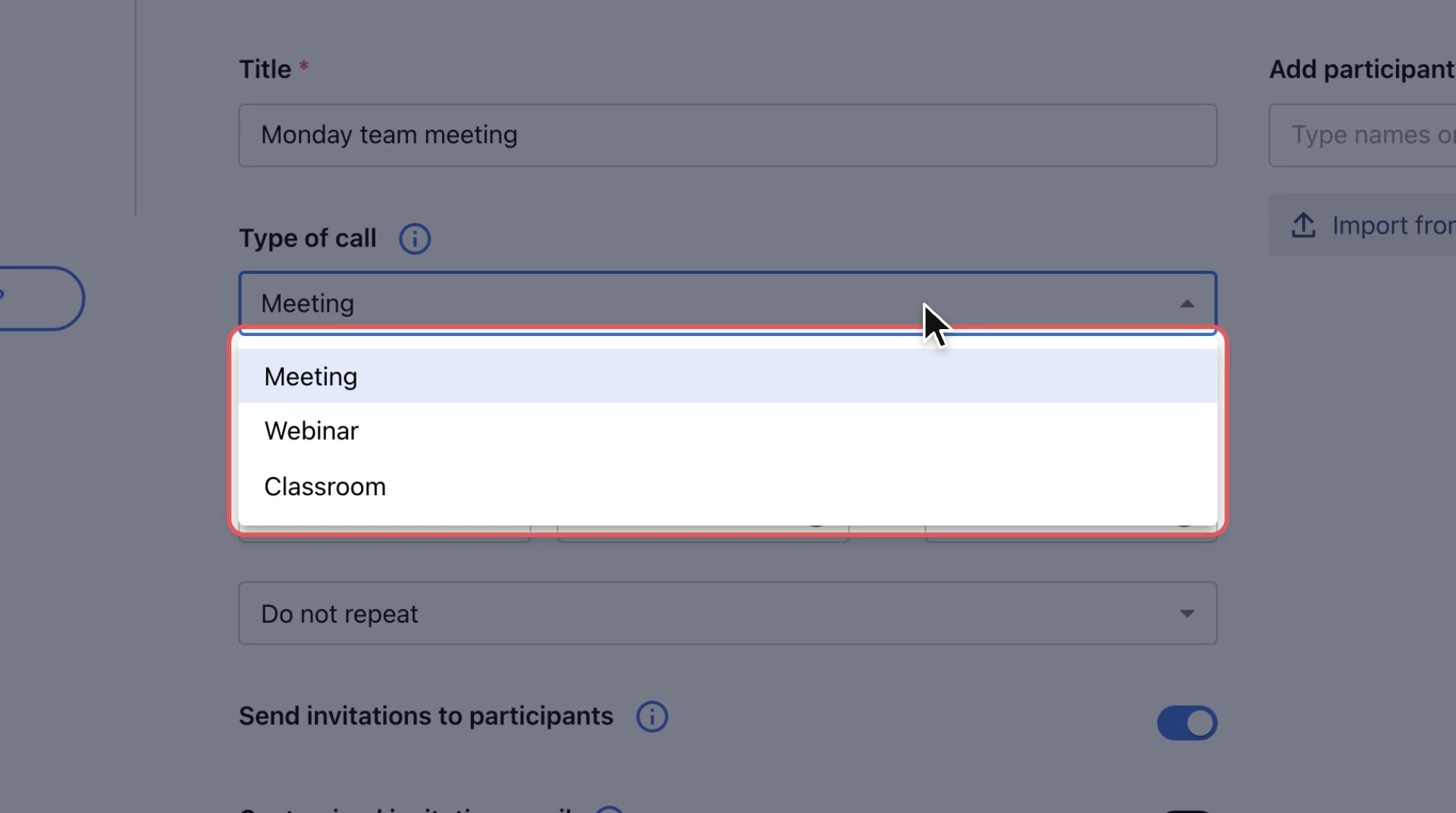
Then choose the type of call: Meeting, Webinar or Classroom. Each one comes with its own roles and features.
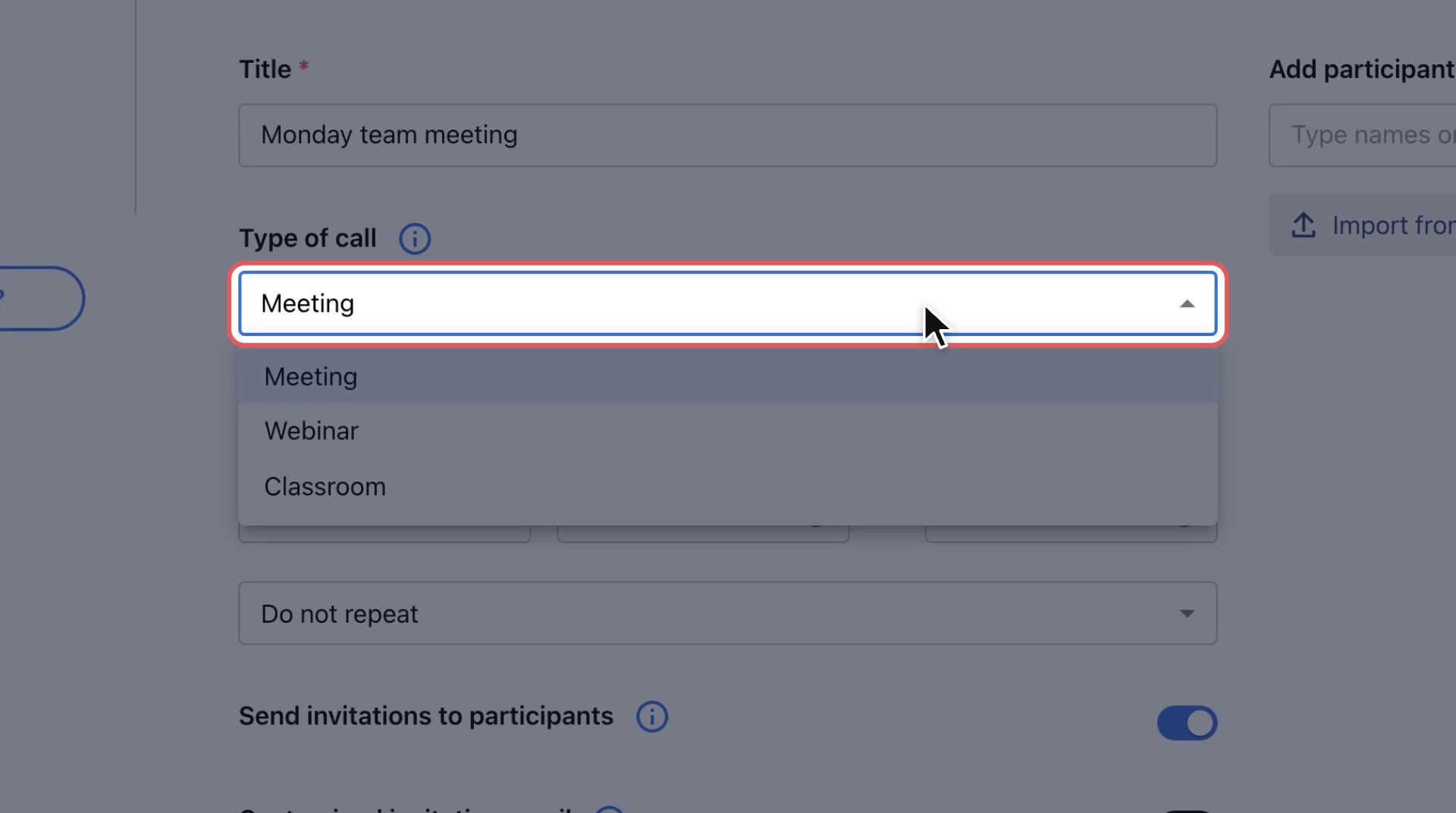
Choose carefully: you can't change it once the call is saved. For a team catch-up, Meeting is the one.
2Date and time0:36
Next, pick the date, and the time it starts.
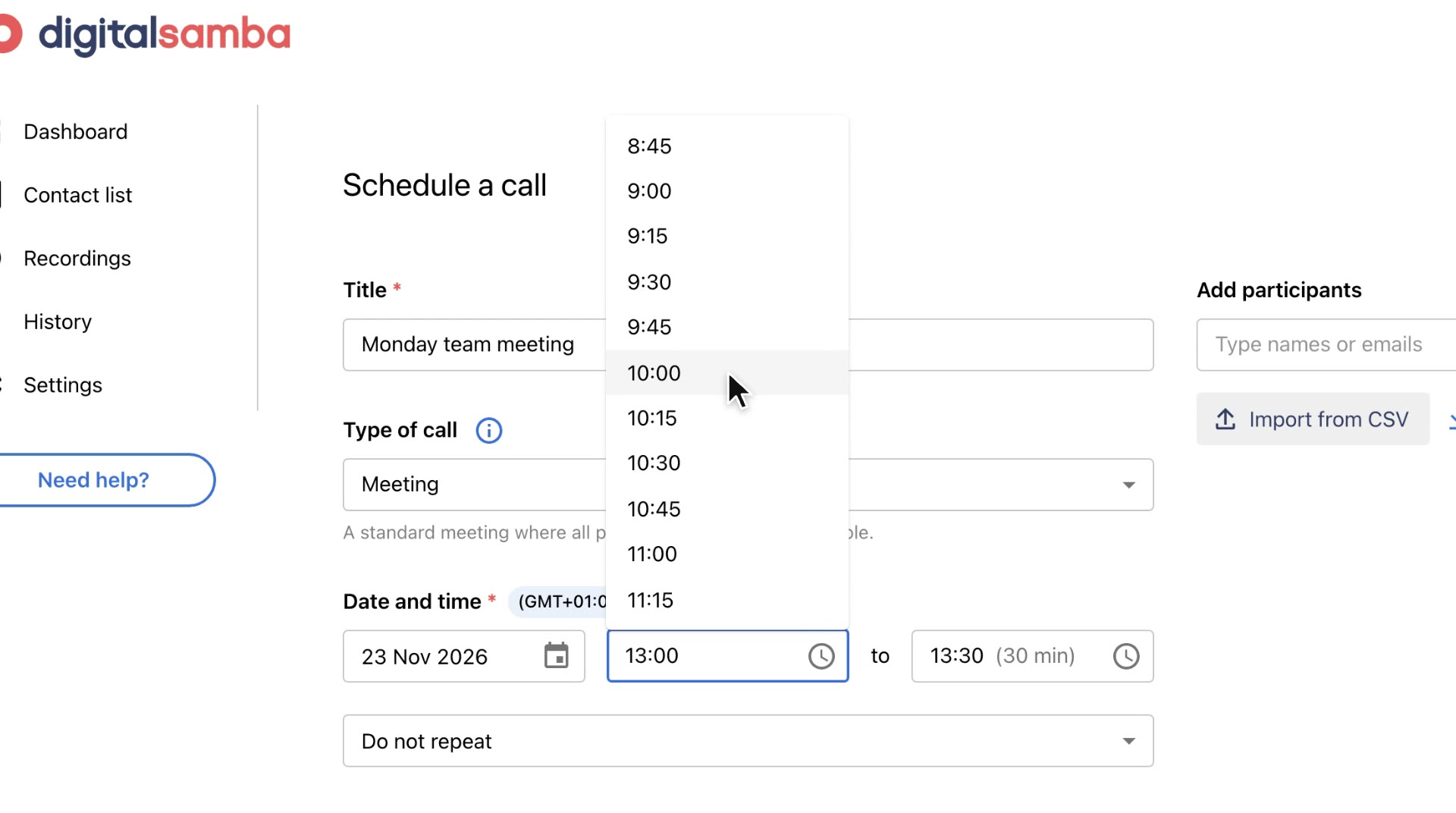
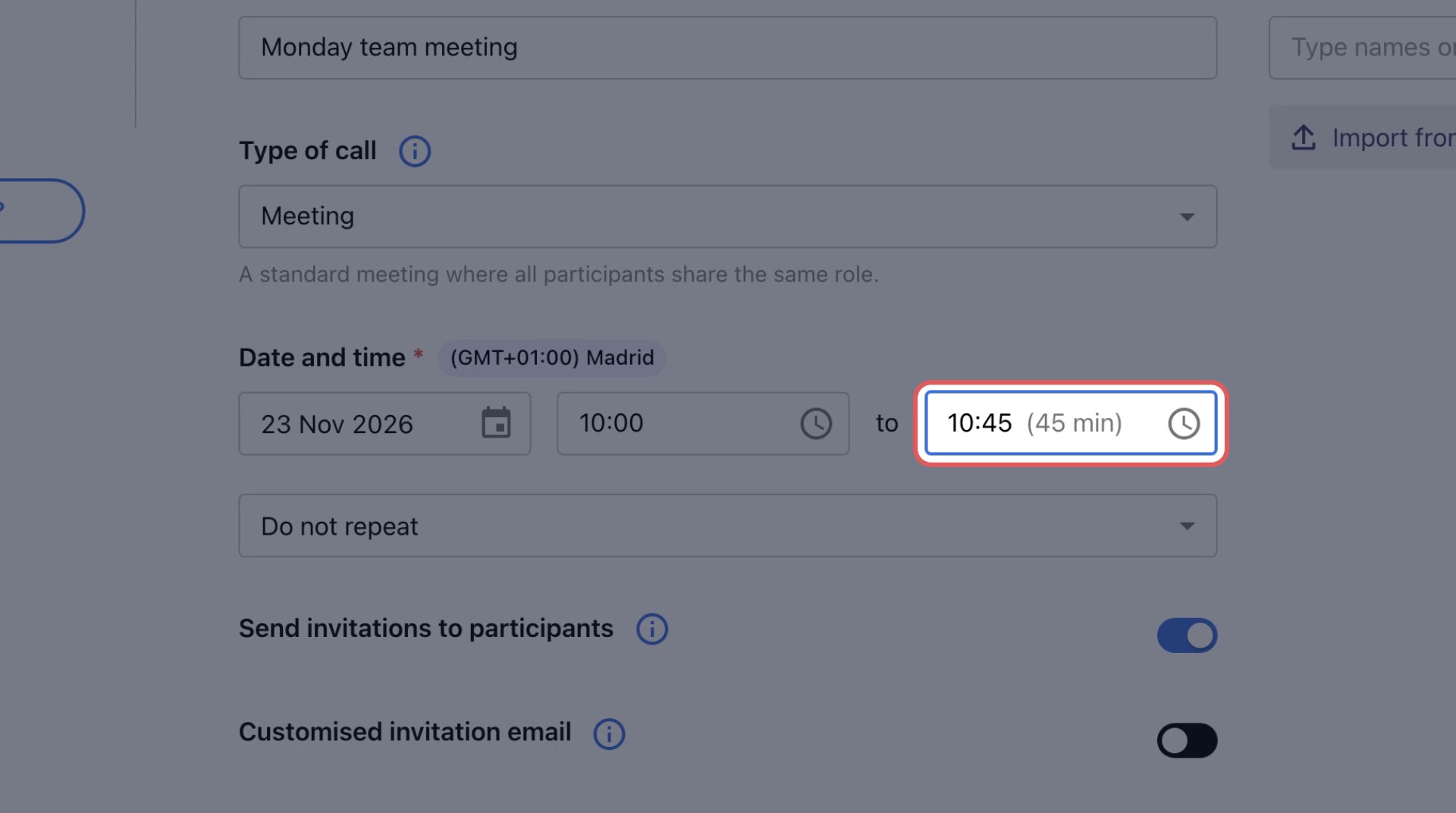
Then choose when it ends. Each option shows how long the call will last. That is only the plan: the call does not end by itself at that time.
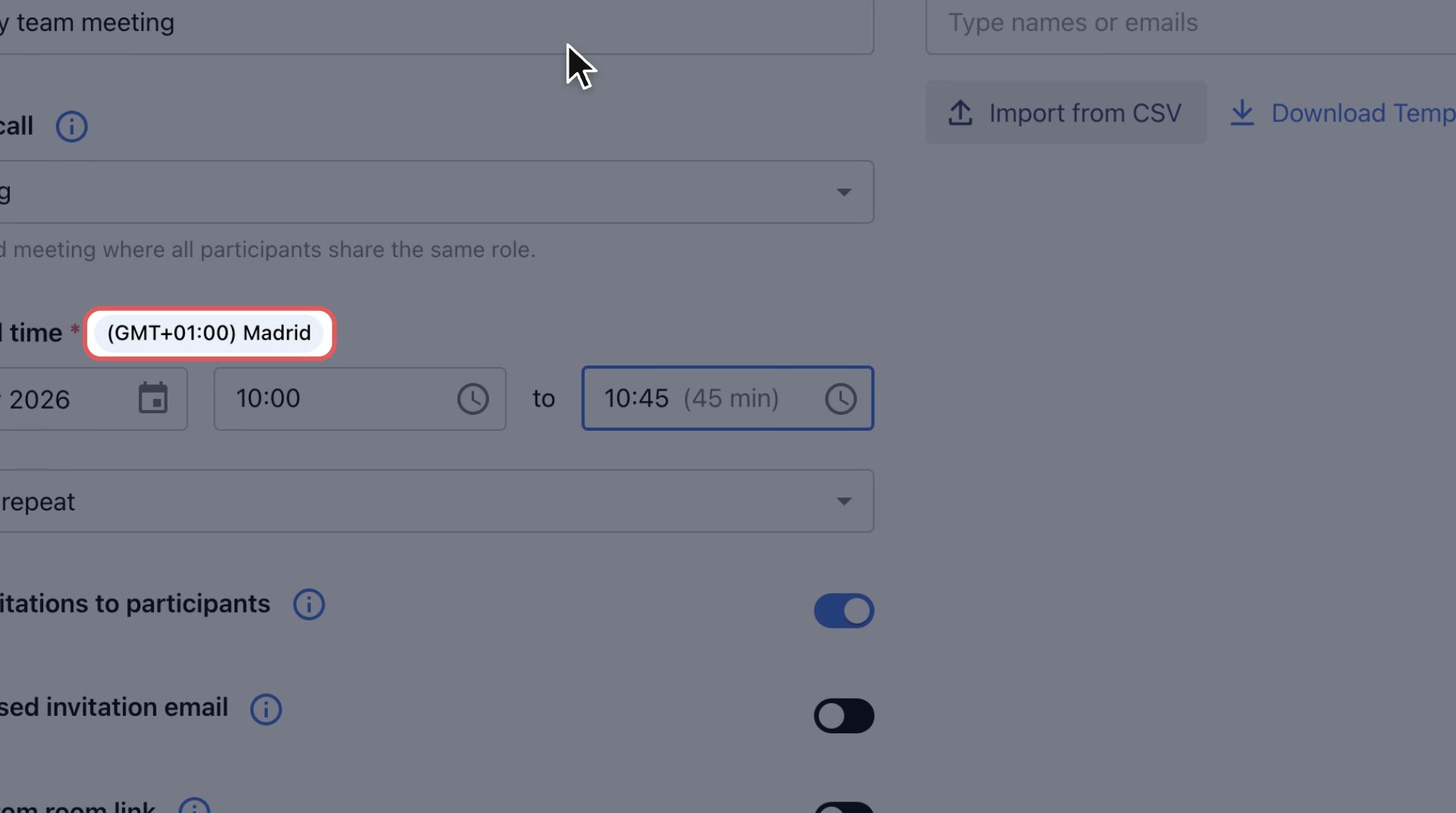
Times are in your own time zone, shown here. You can change it in your profile.
3Add participants0:59
Now add the people you're inviting.
Start typing a name or an email address, and people from your contact list appear.
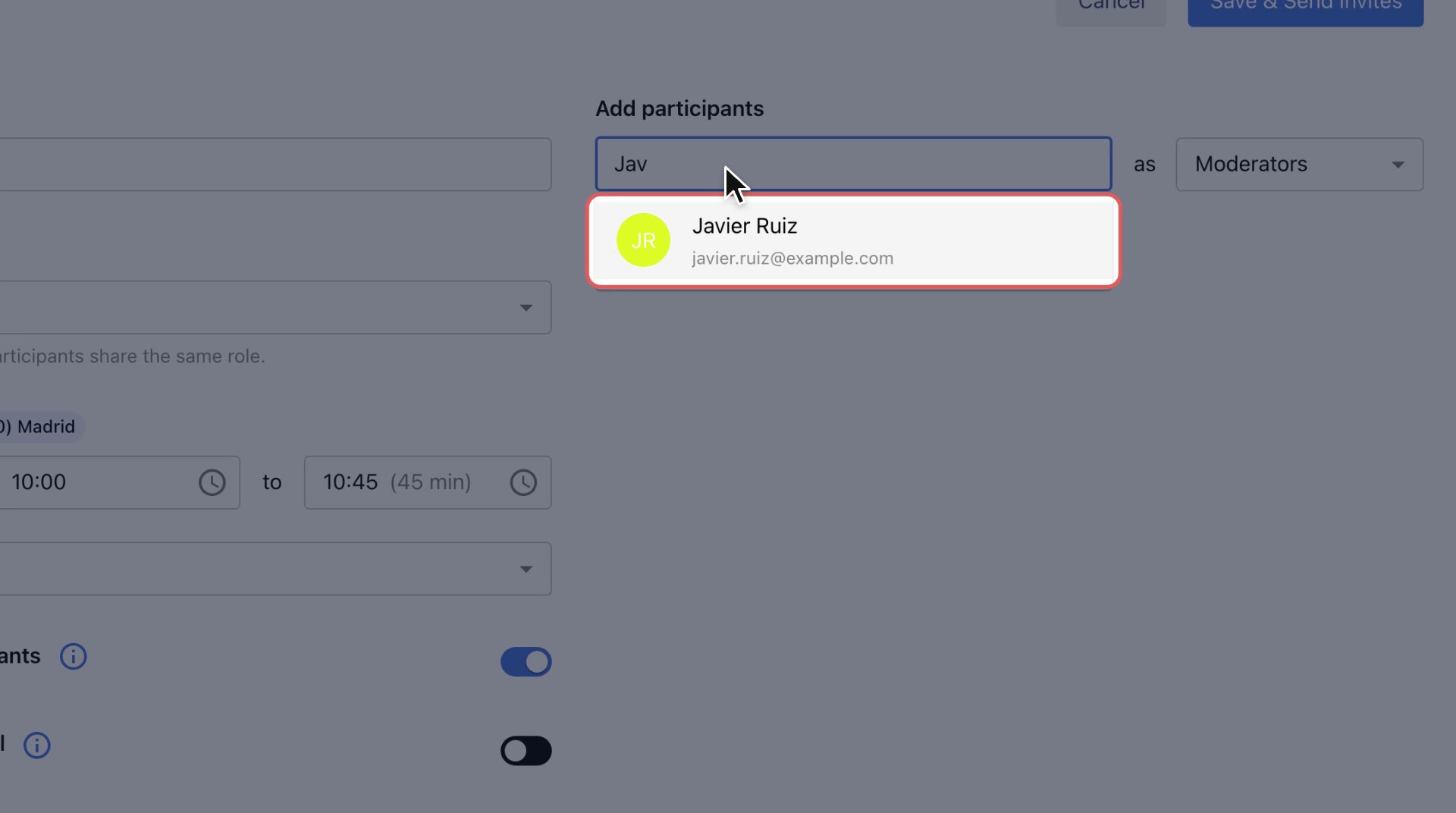
For someone new, type their address and press Enter.
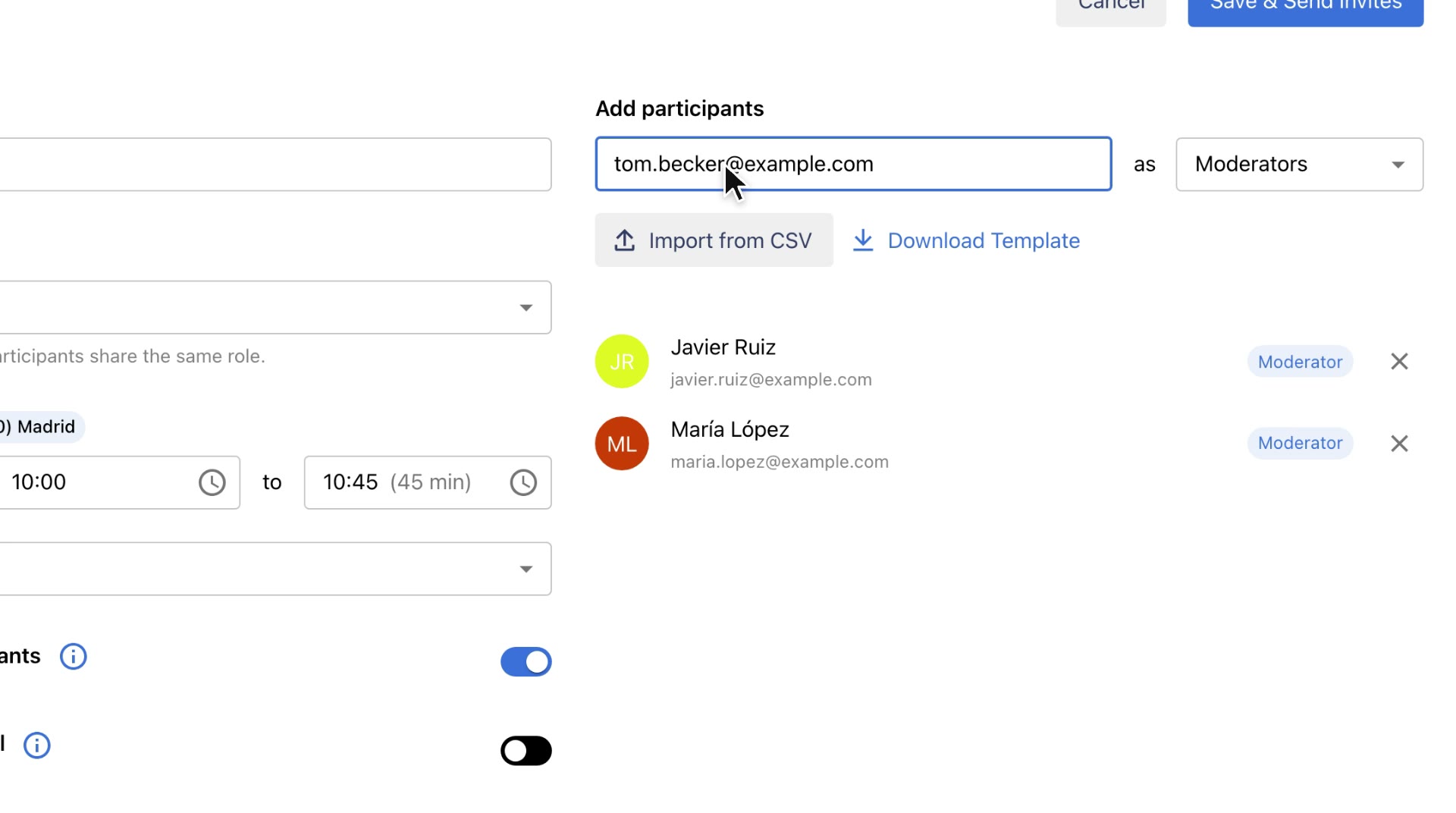
You can also paste a whole list of addresses at once.
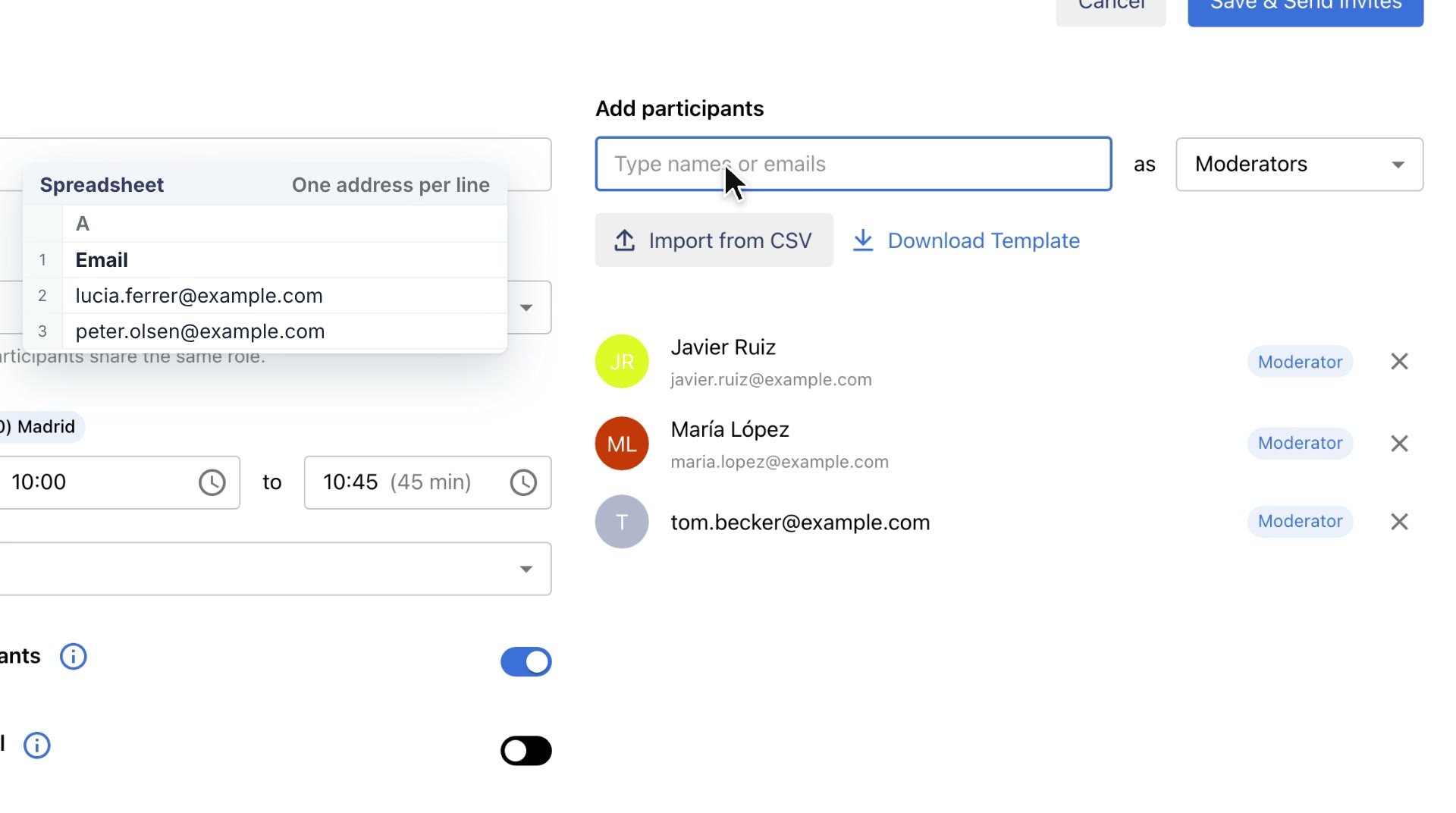
Copy plain addresses from a spreadsheet or a document: one per line, or separated by commas.
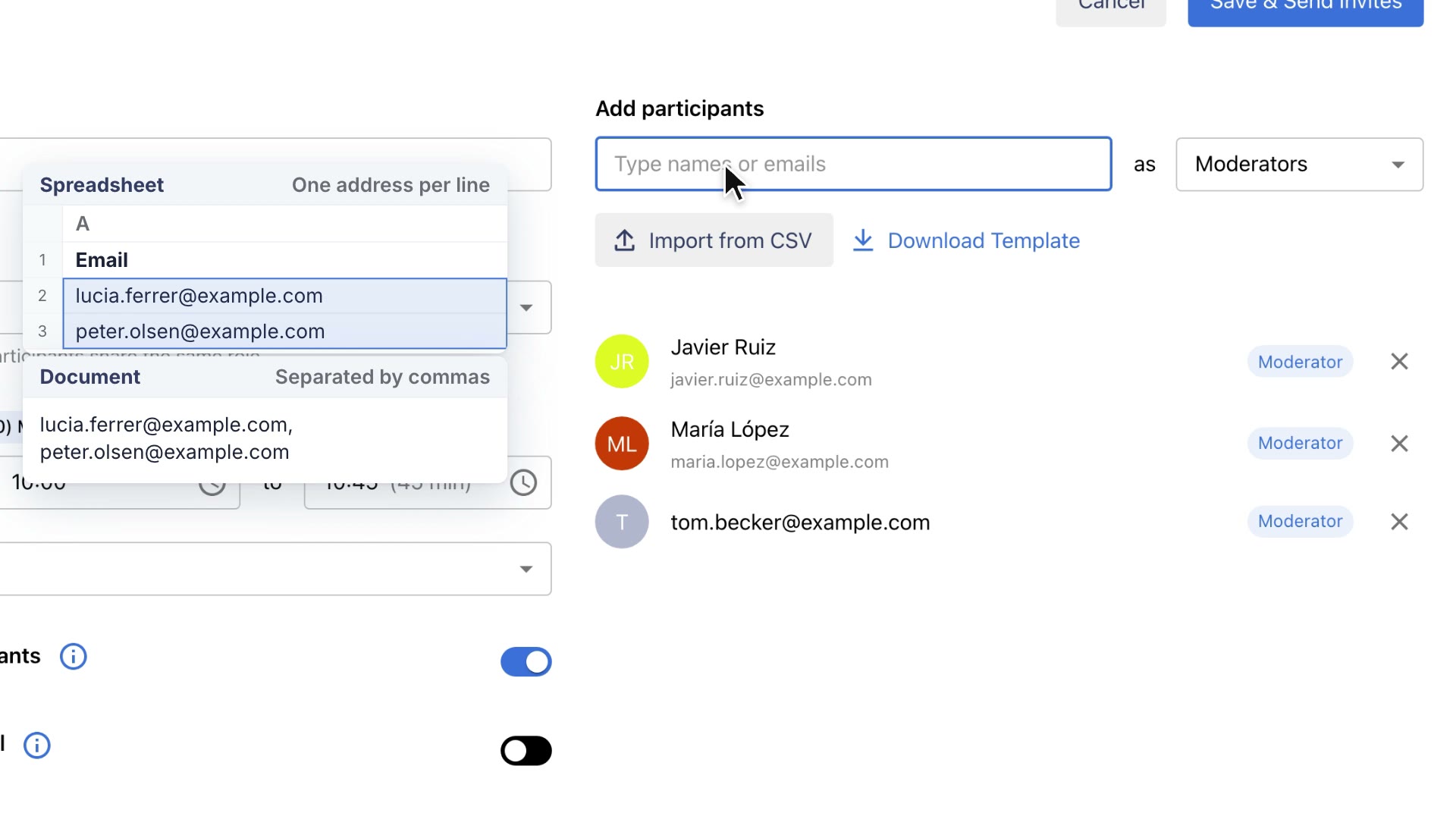
Then click in the field and paste. Every address on the list is added. A name with the address in brackets is not recognised.
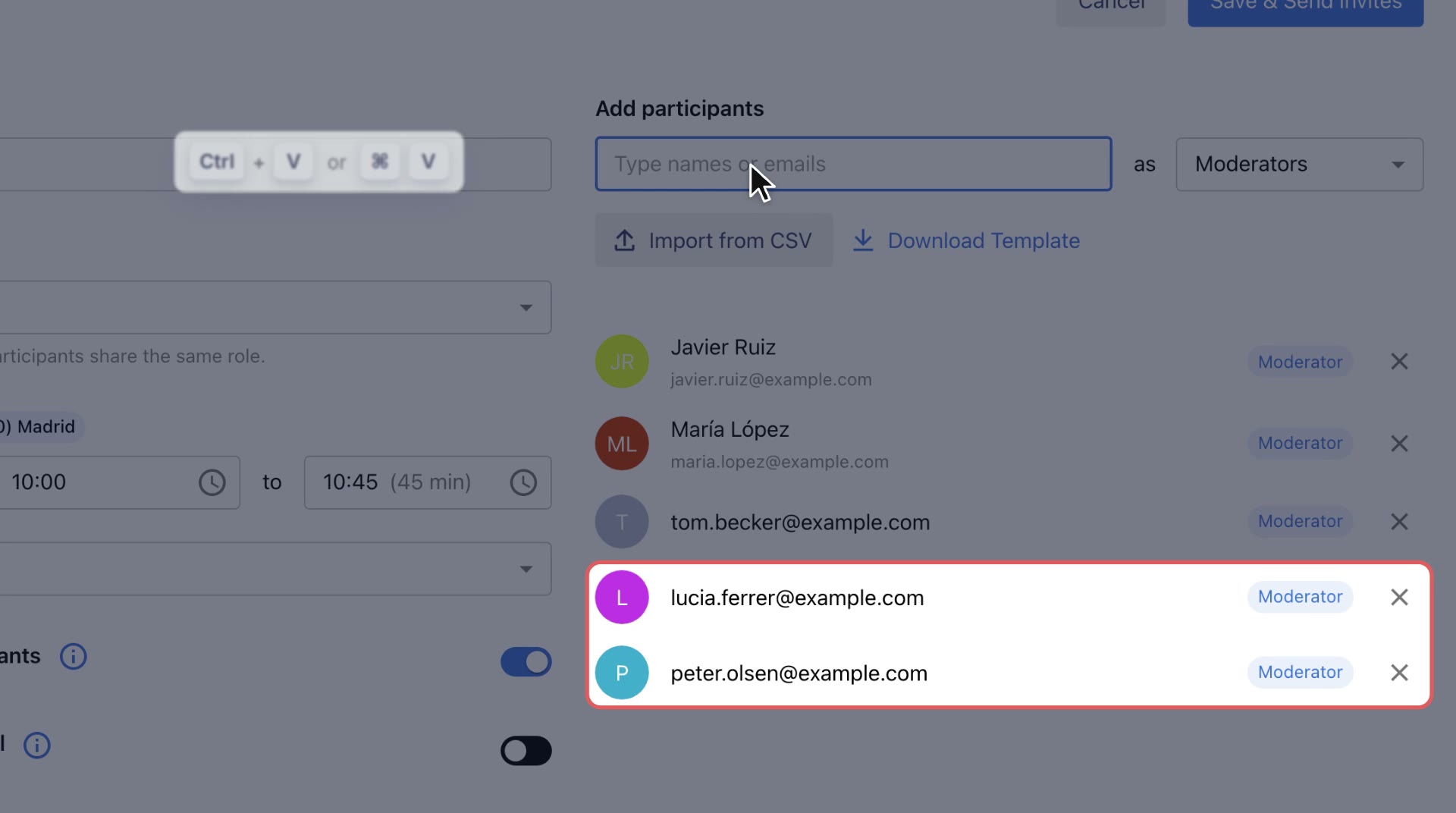
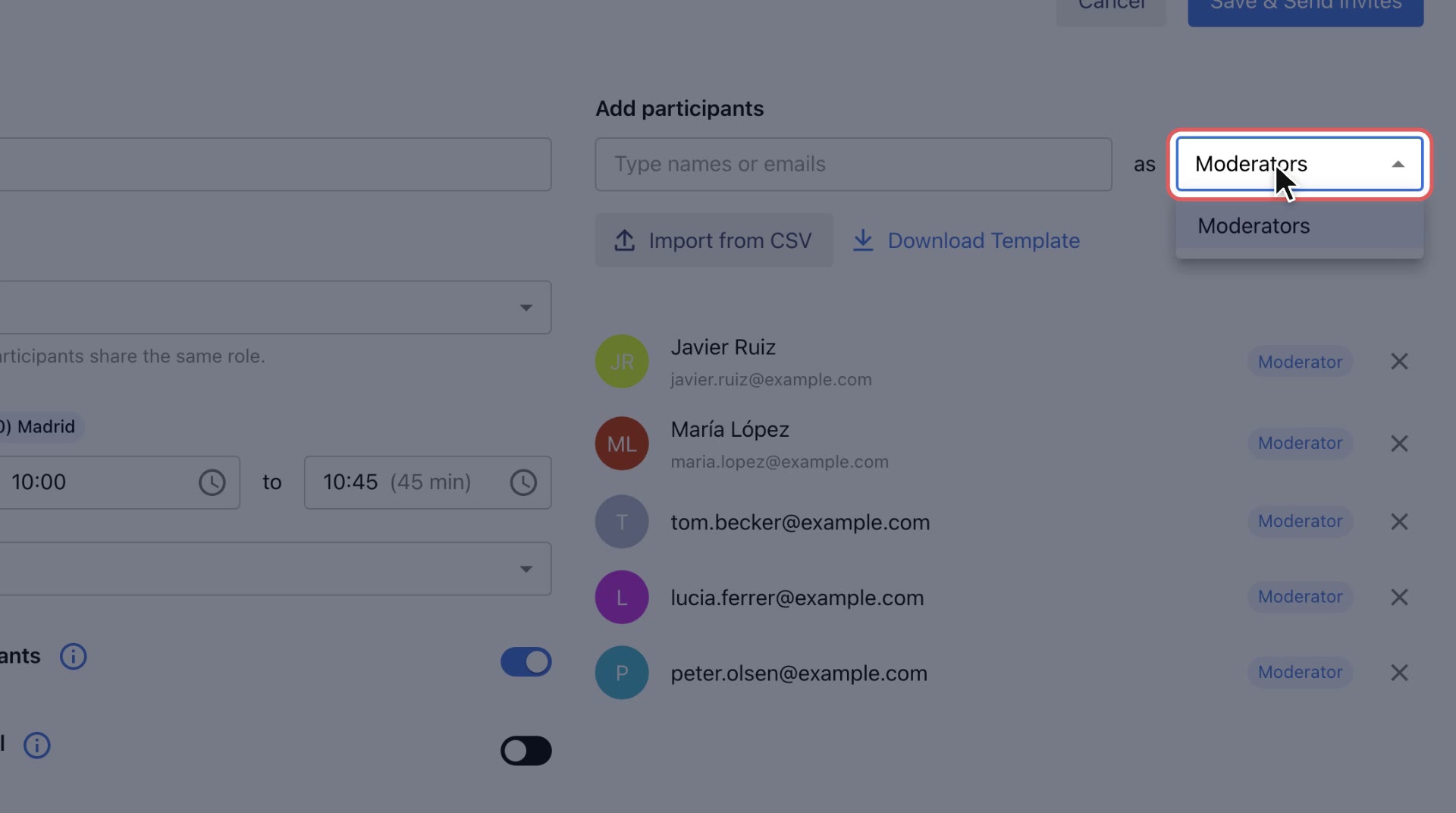
In a meeting, everyone joins as a moderator. For webinars and classes, you choose each person's role here.
4Save & Send Invites1:42
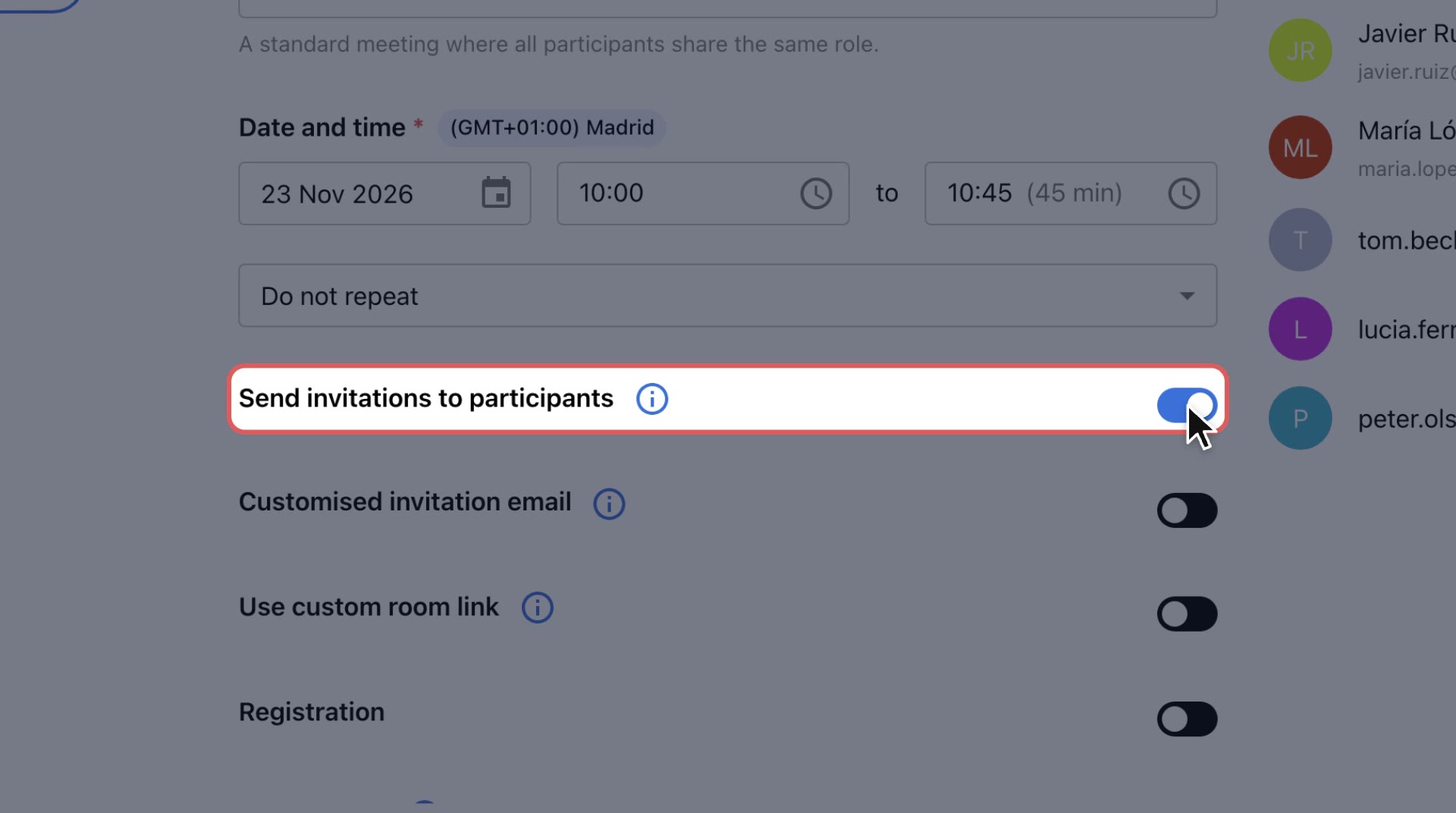
Before you save: if you'd rather not email anyone yet, turn off Send invitations to participants.
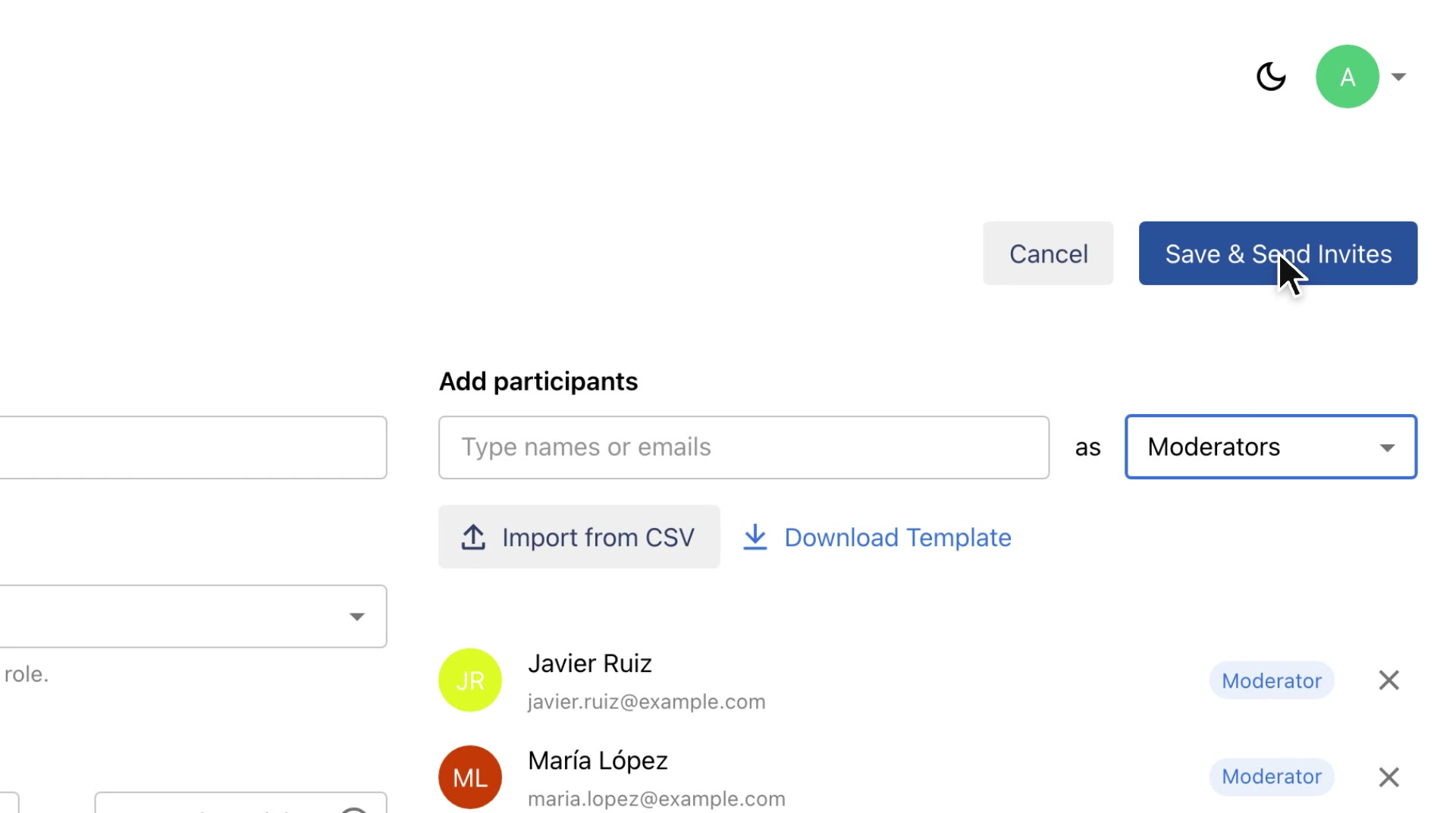
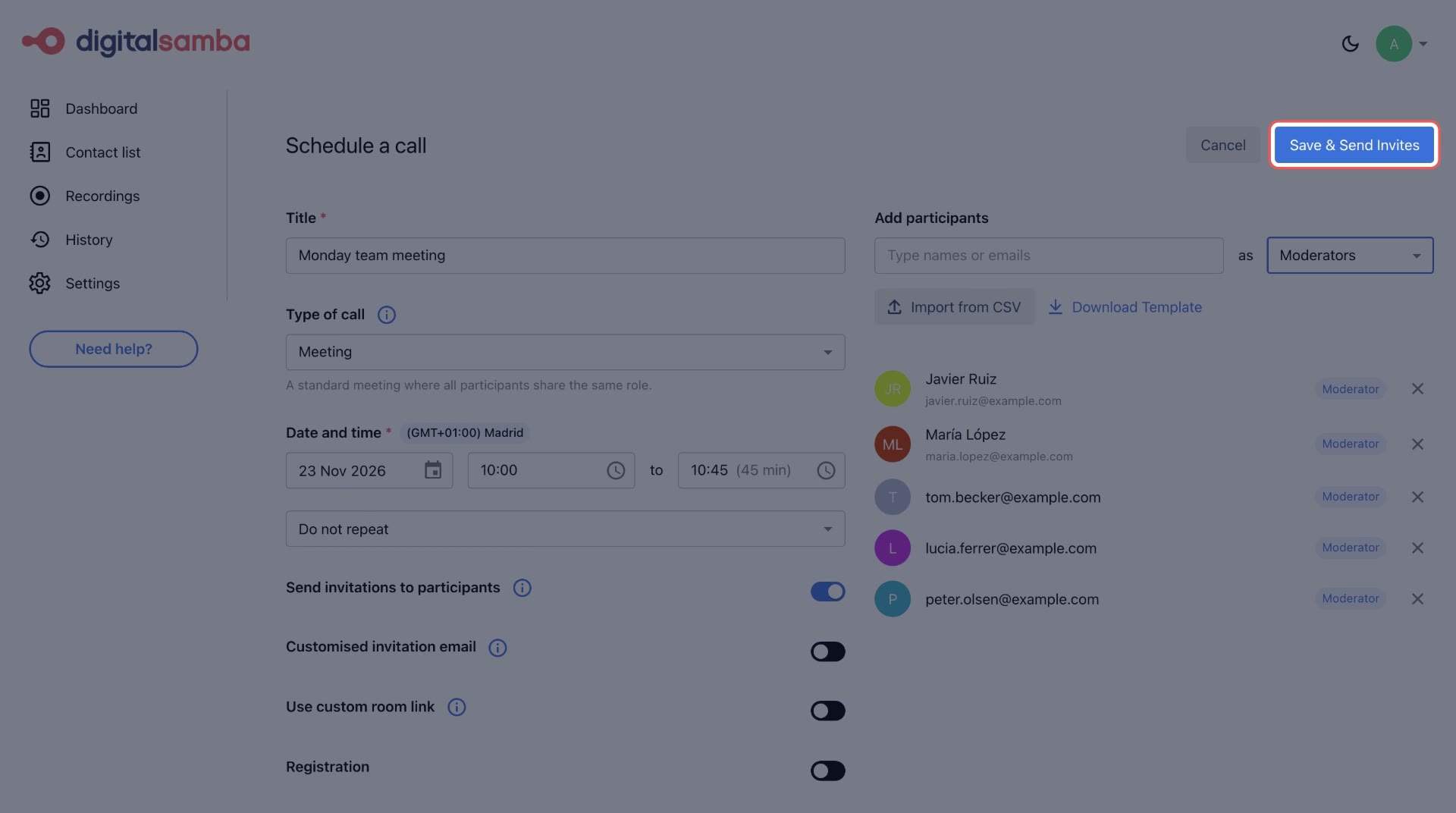
Otherwise, click Save & Send Invites.
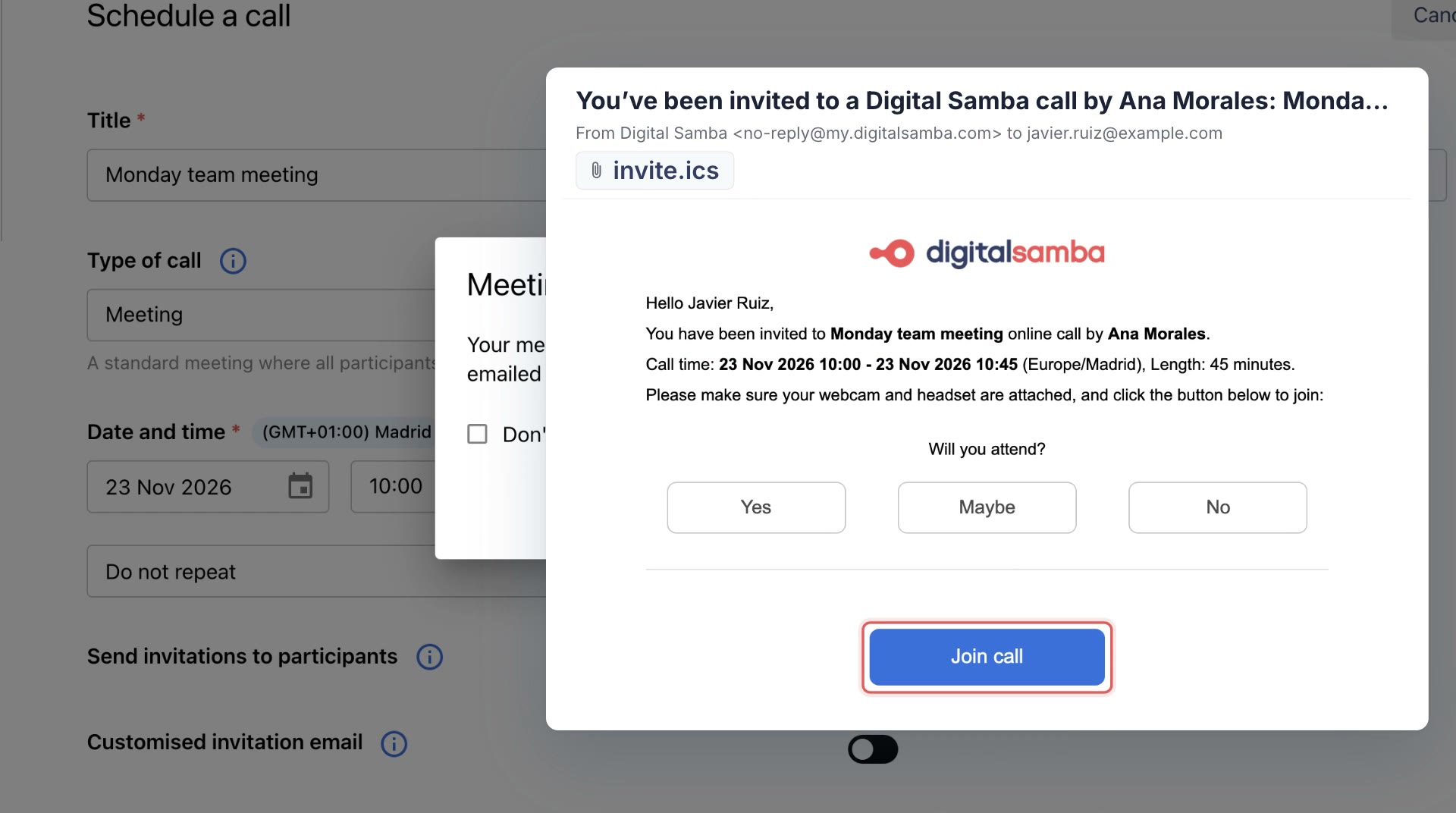
Each participant gets an email with the time, a calendar file, and their own link to join.
5The call's page2:01
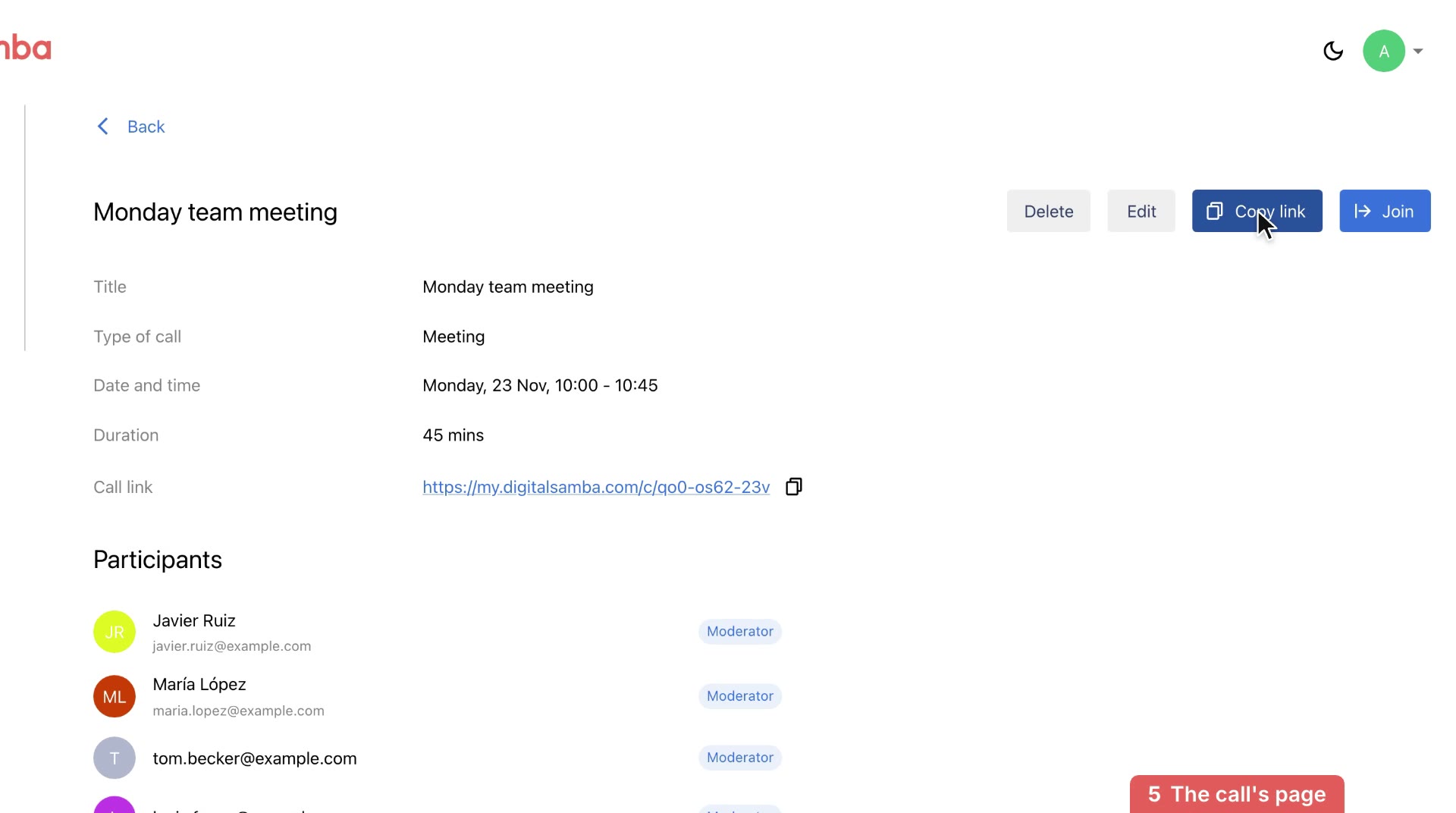
You're taken to the call's page.
Copy link gives you a link to share, and Join opens the call.
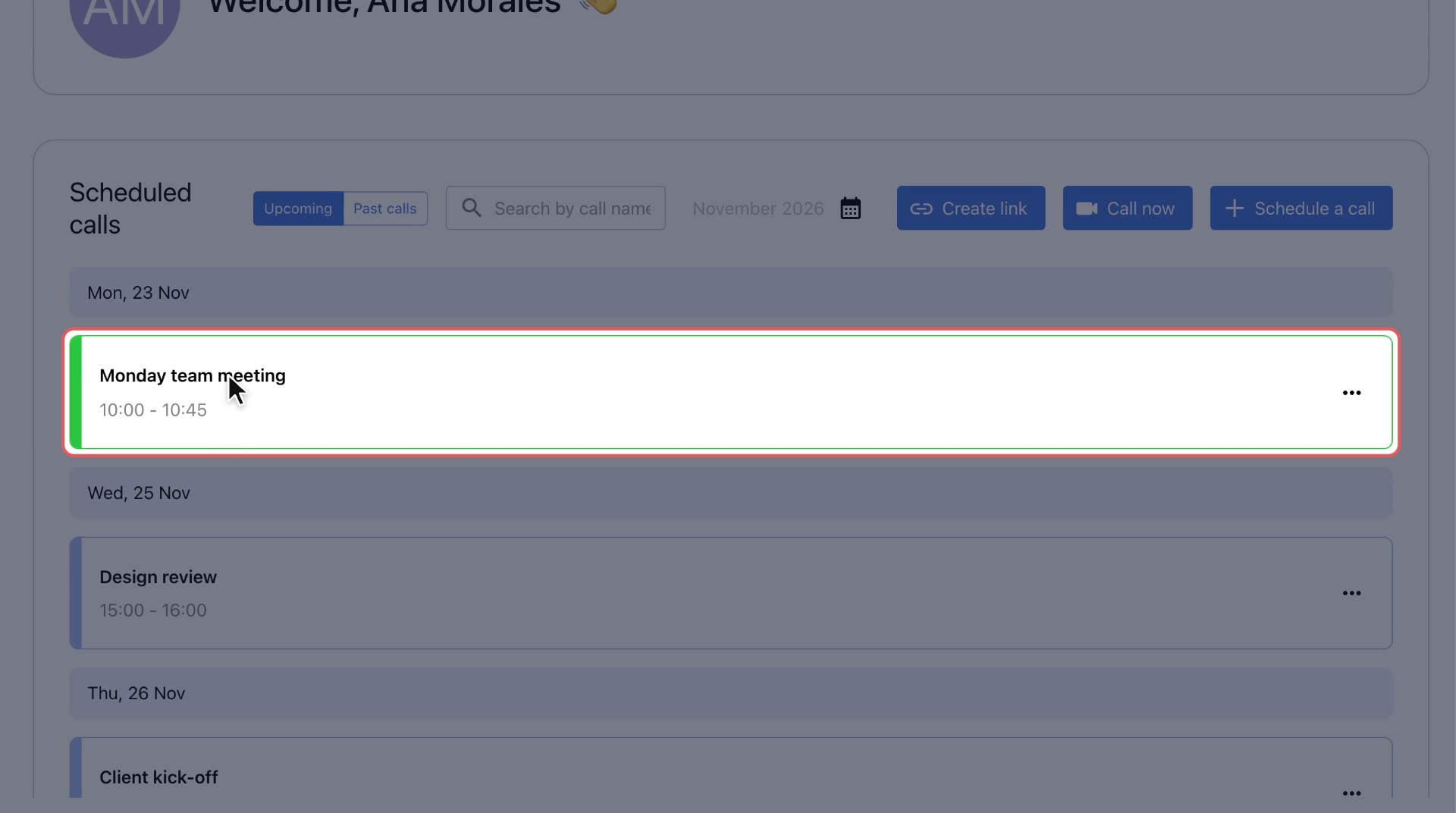
You'll also find it on your dashboard, under Upcoming.
Good to know2:13
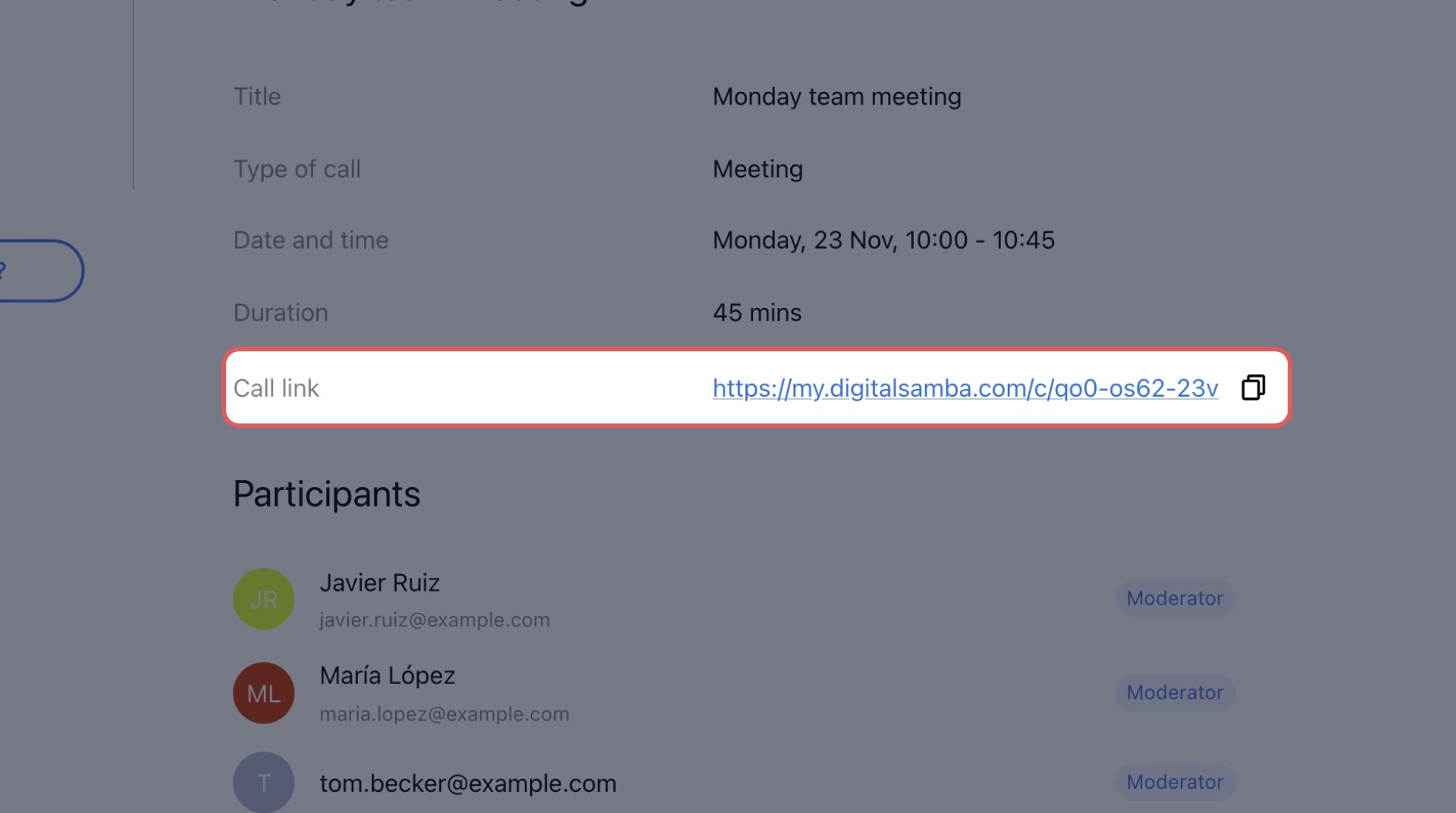
Each invitation link is personal, so ask people not to forward it. If someone else needs to join, share the call link instead.
Recap2:24
So: a title, a type of call, a time and your participants — and the invitations are on their way.
Did this article help?
Sorry about that. What was the problem?