University

Set up a webinar with registration

In this video, you'll set up a webinar that people sign up for on a registration page, with your own event image.

Updated Version 1

1Type of call0:09

Our example is the Product launch webinar, on Thursday the tenth of December, from four to five.
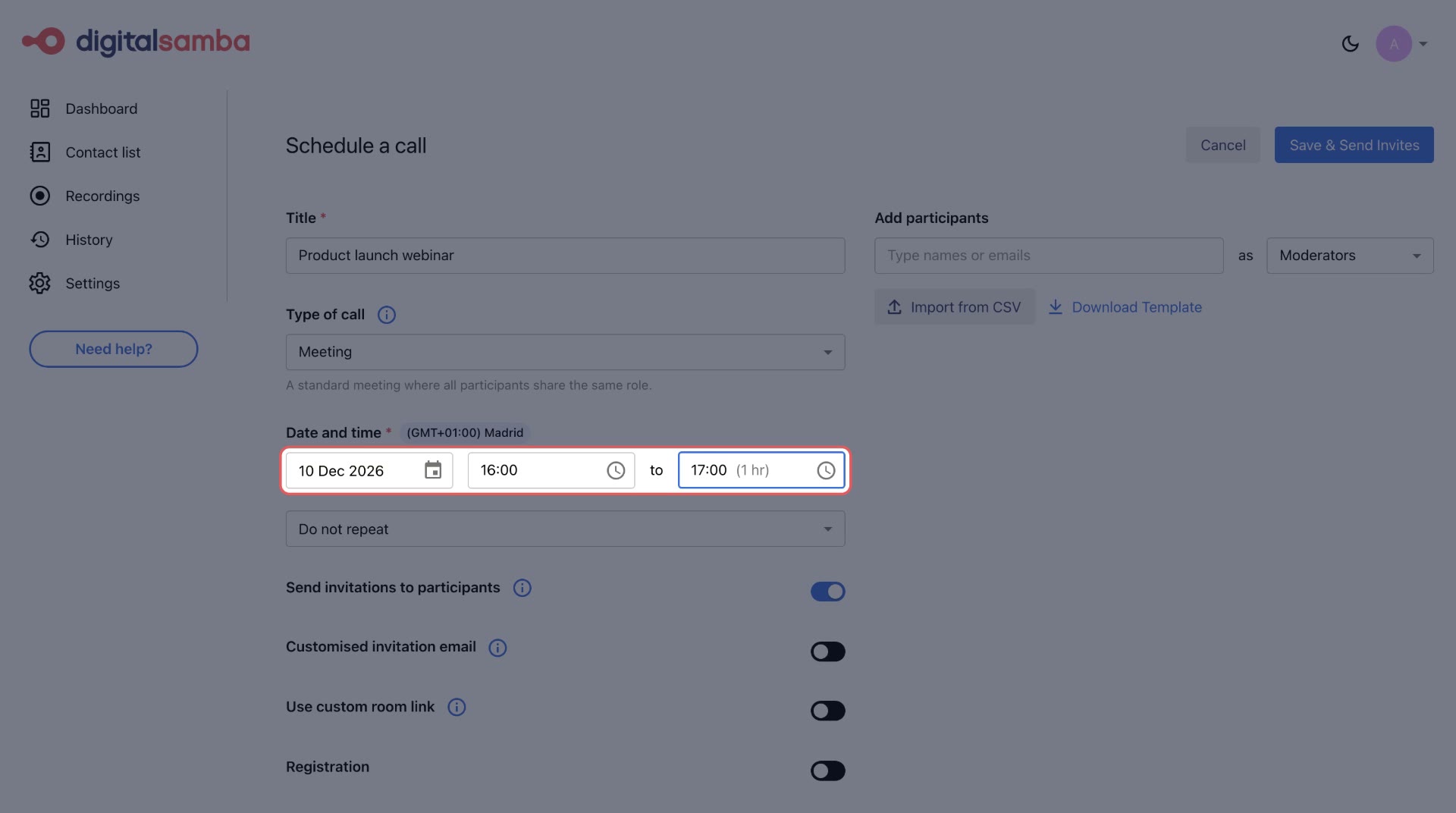
Screenshot from the film at 0:14: Our example is the Product launch webinar, on Thursday the tenth of December, from four to five.
Watch this step · 0:11

Under Type of call, choose Webinar: it has three roles, moderators, speakers and attendees.
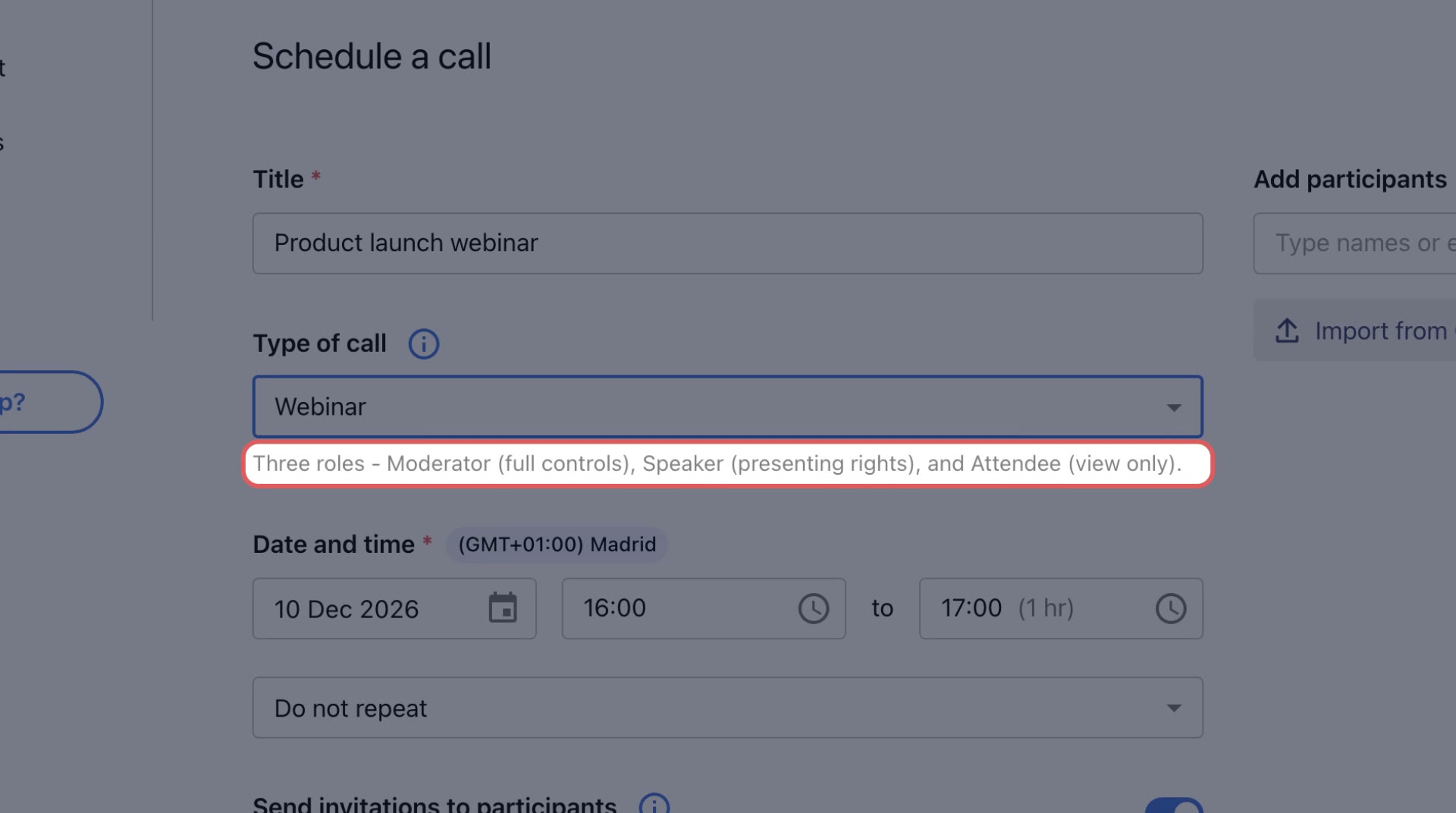
Screenshot from the film at 0:21: Under Type of call, choose Webinar: it has three roles, moderators, speakers and attendees.
Watch this step · 0:17

Javier and María will present, so next to Add participants, choose Speakers, then add them by name.
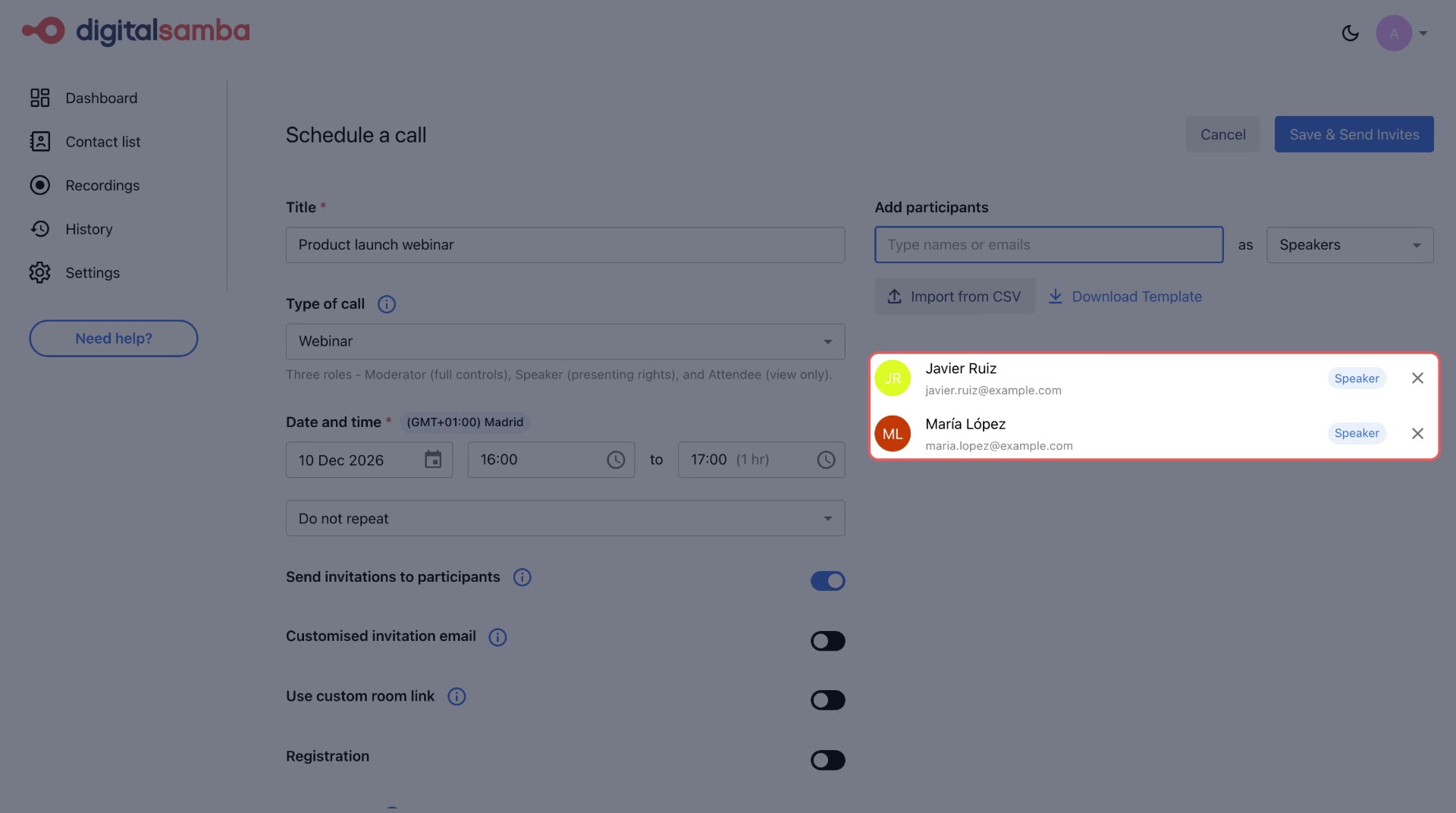
Screenshot from the film at 0:34: Javier and María will present, so next to Add participants, choose Speakers, then add them by name.
Watch this step · 0:25

Registration is on this form for any call: a meeting, a class or a webinar.
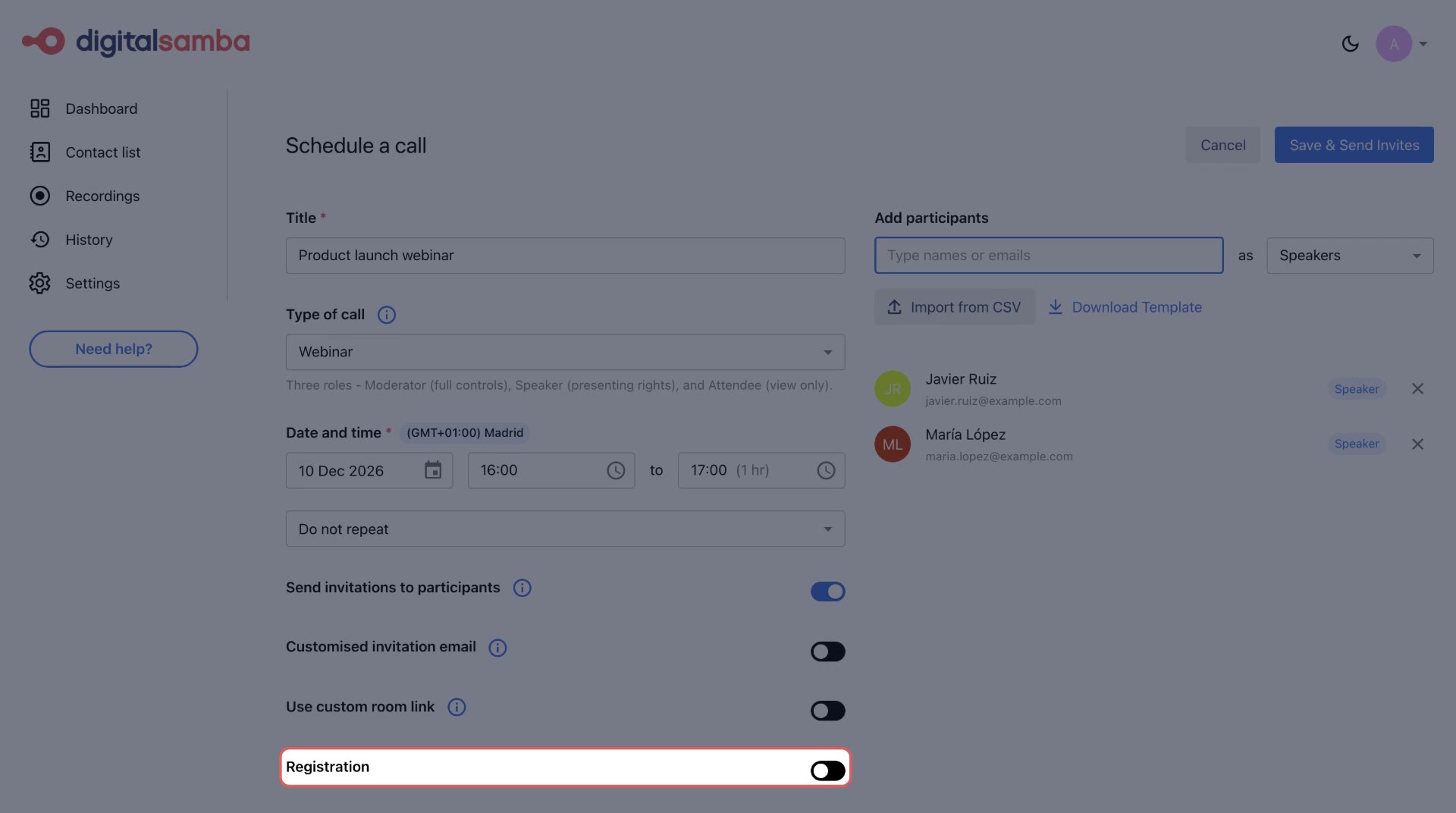
Screenshot from the film at 0:36: Registration is on this form for any call: a meeting, a class or a webinar.
Watch this step · 0:35

2Registration0:40

Turn on Registration.
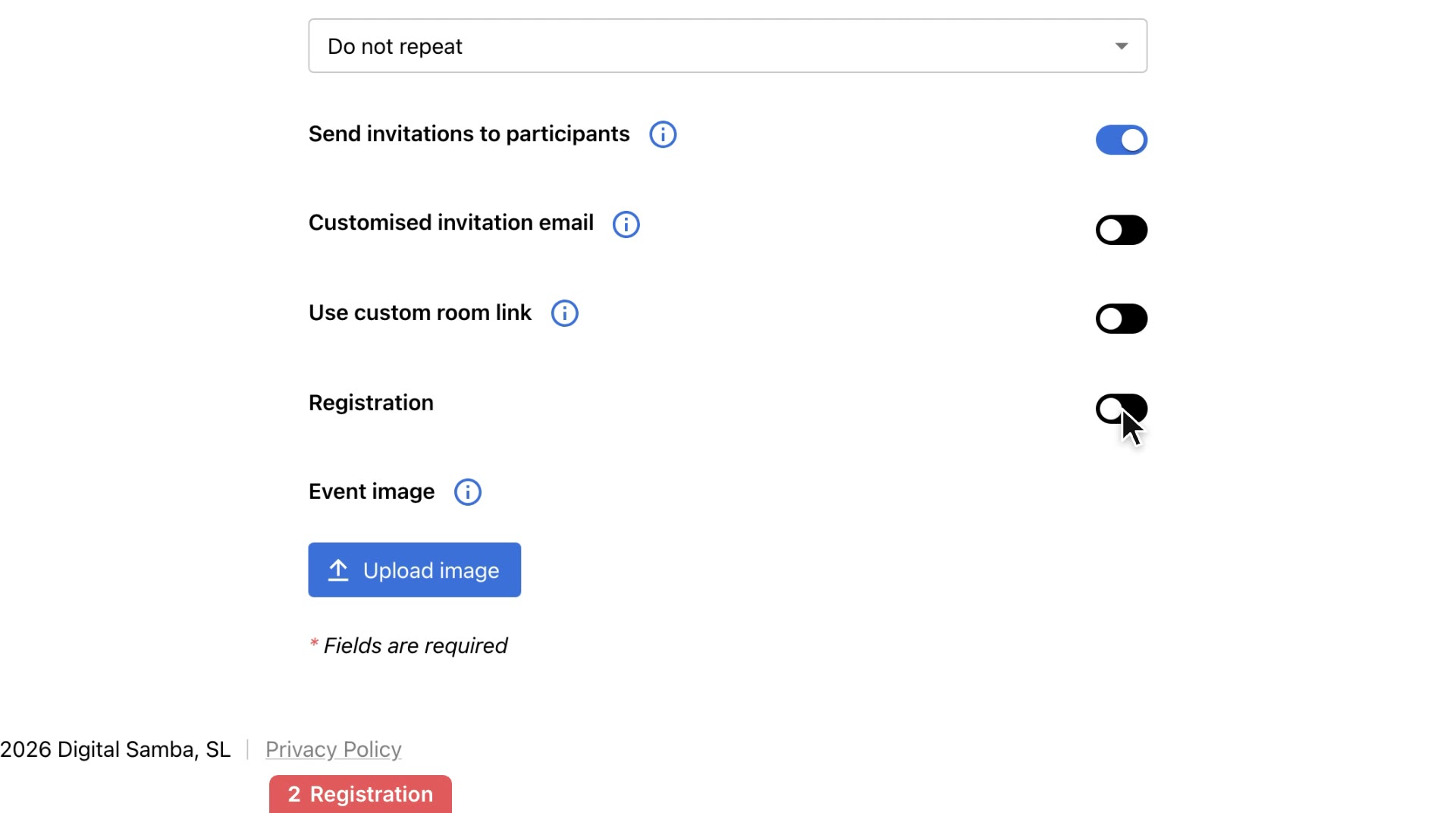
Screenshot from the film at 0:42: Turn on Registration.
Watch this step · 0:41

Under Require registration for, choose Attendees.
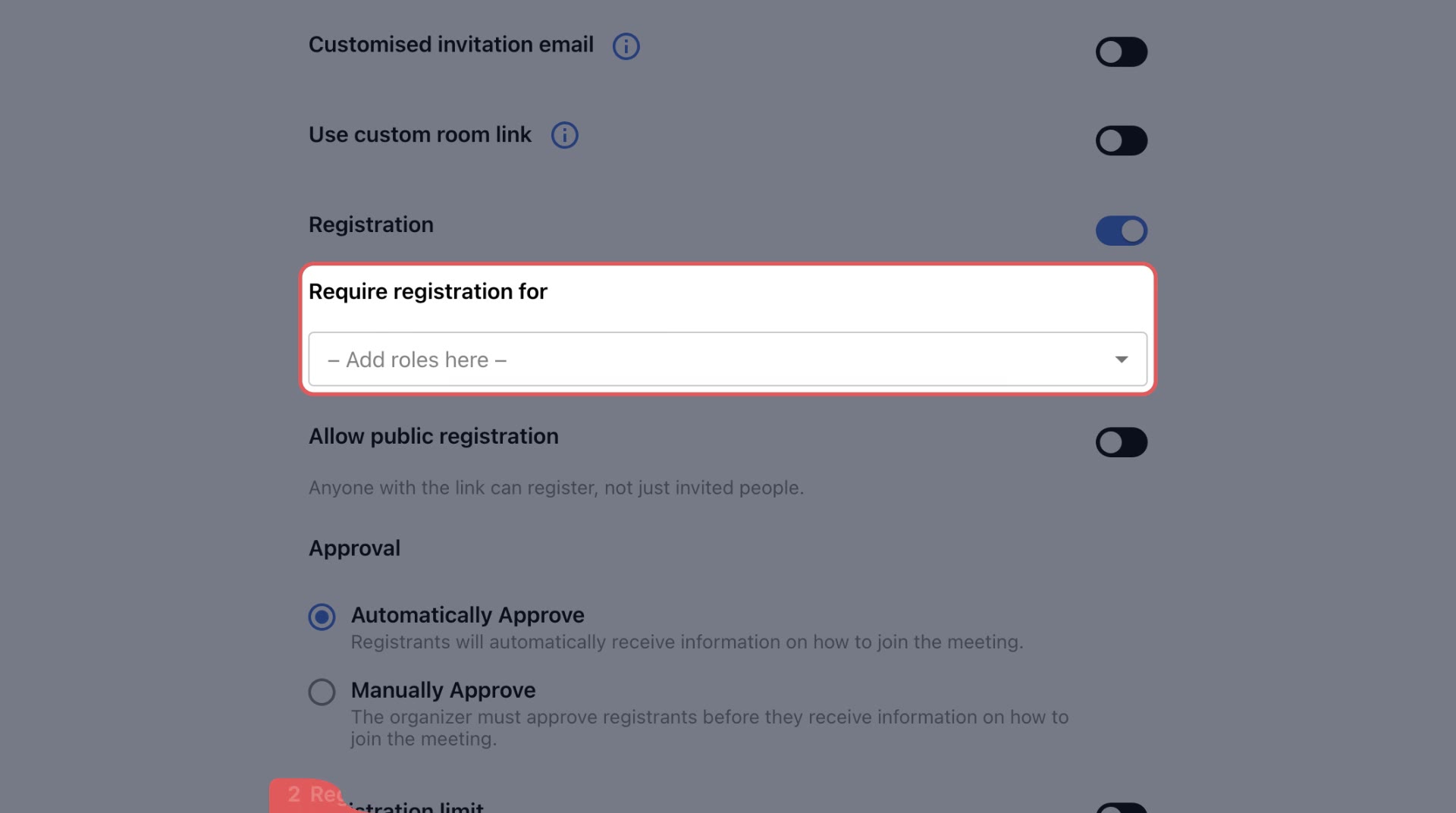
Screenshot from the film at 0:44: Under Require registration for, choose Attendees.
Watch this step · 0:44

Anyone you invite as an attendee is emailed a registration link instead of a join link; your speakers are simply invited.
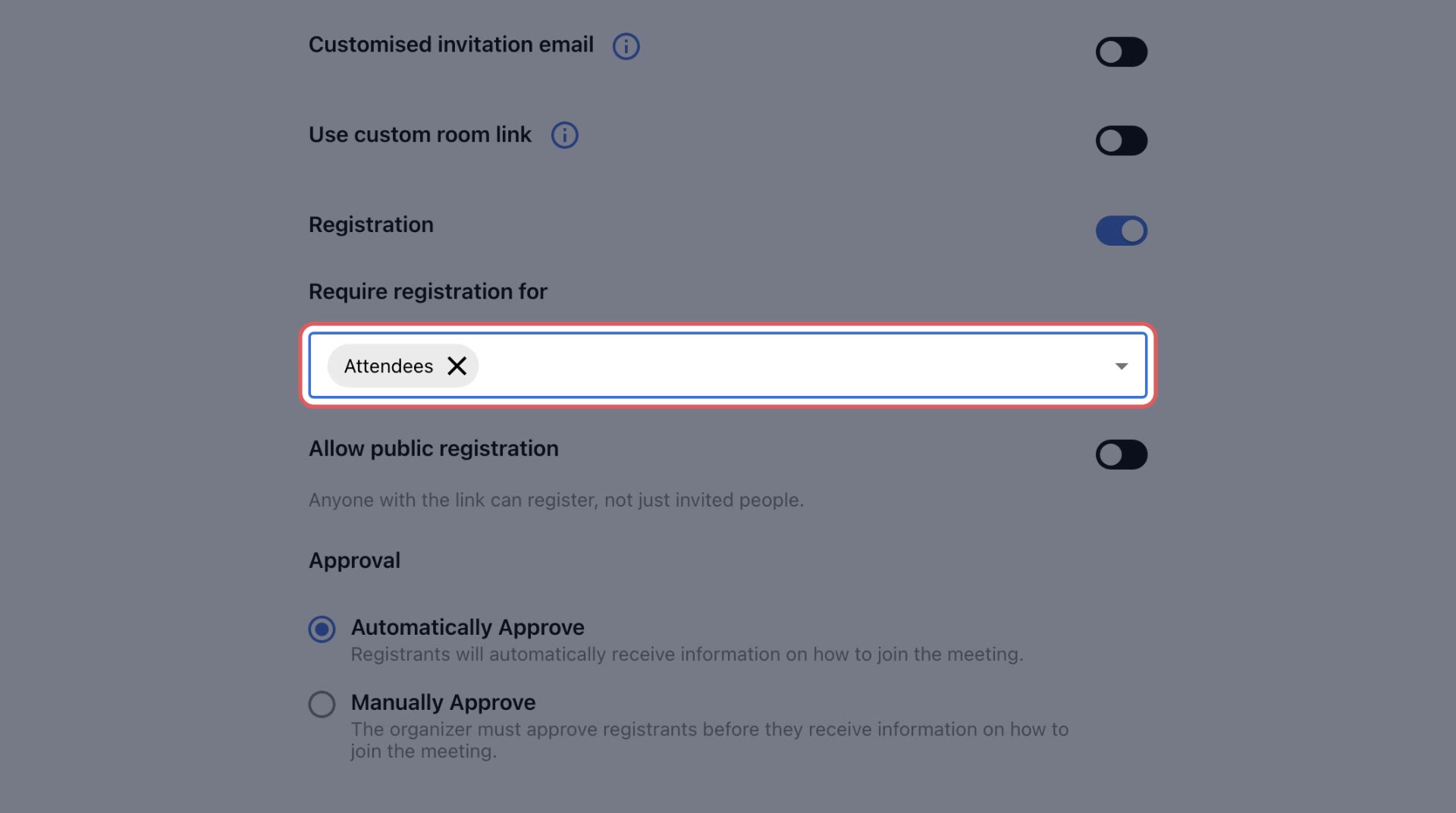
Screenshot from the film at 0:49: Anyone you invite as an attendee is emailed a registration link instead of a join link; your speakers are simply invited.
Watch this step · 0:48

Turn on Allow public registration: anyone with the link can sign up, not just the people you invited.
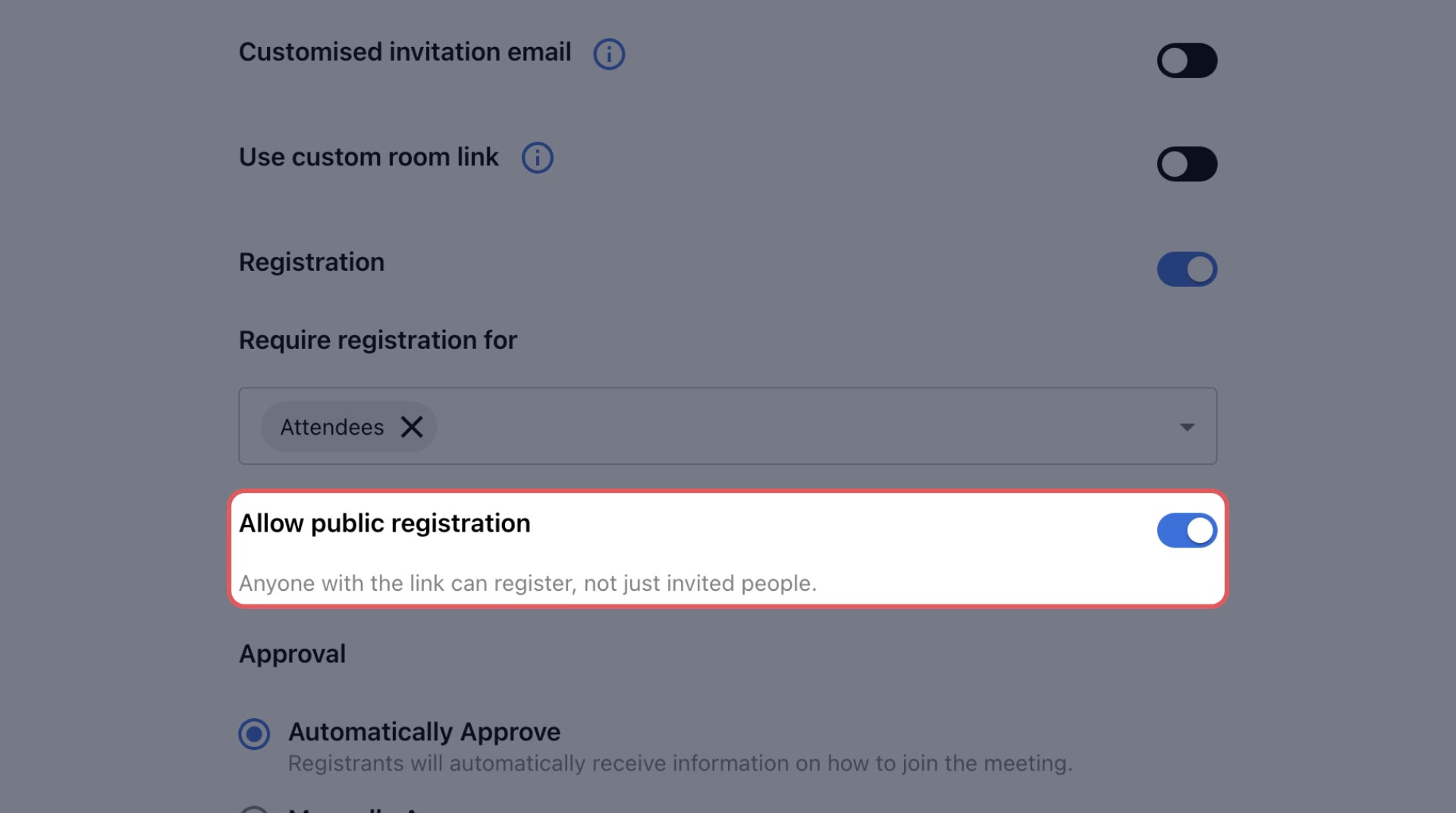
Screenshot from the film at 1:00: Turn on Allow public registration: anyone with the link can sign up, not just the people you invited.
Watch this step · 0:56

Under Approval, choose Manually Approve: people who sign up wait for you, and get the details on how to join only once you approve them.
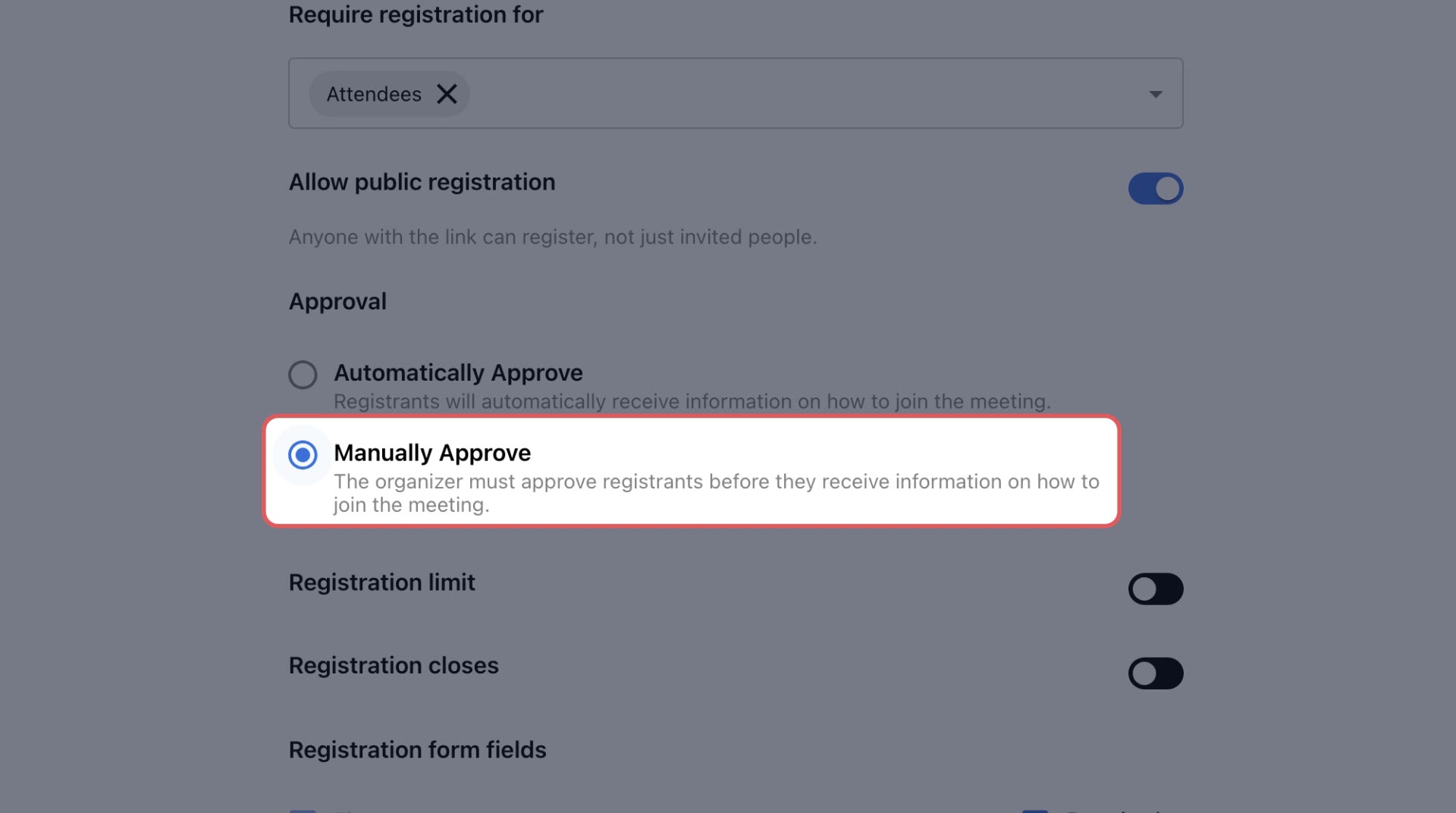
Screenshot from the film at 1:07: Under Approval, choose Manually Approve: people who sign up wait for you, and get the details on how to join only once you approve them.
Watch this step · 1:04

With Automatically Approve, they get them straight away.
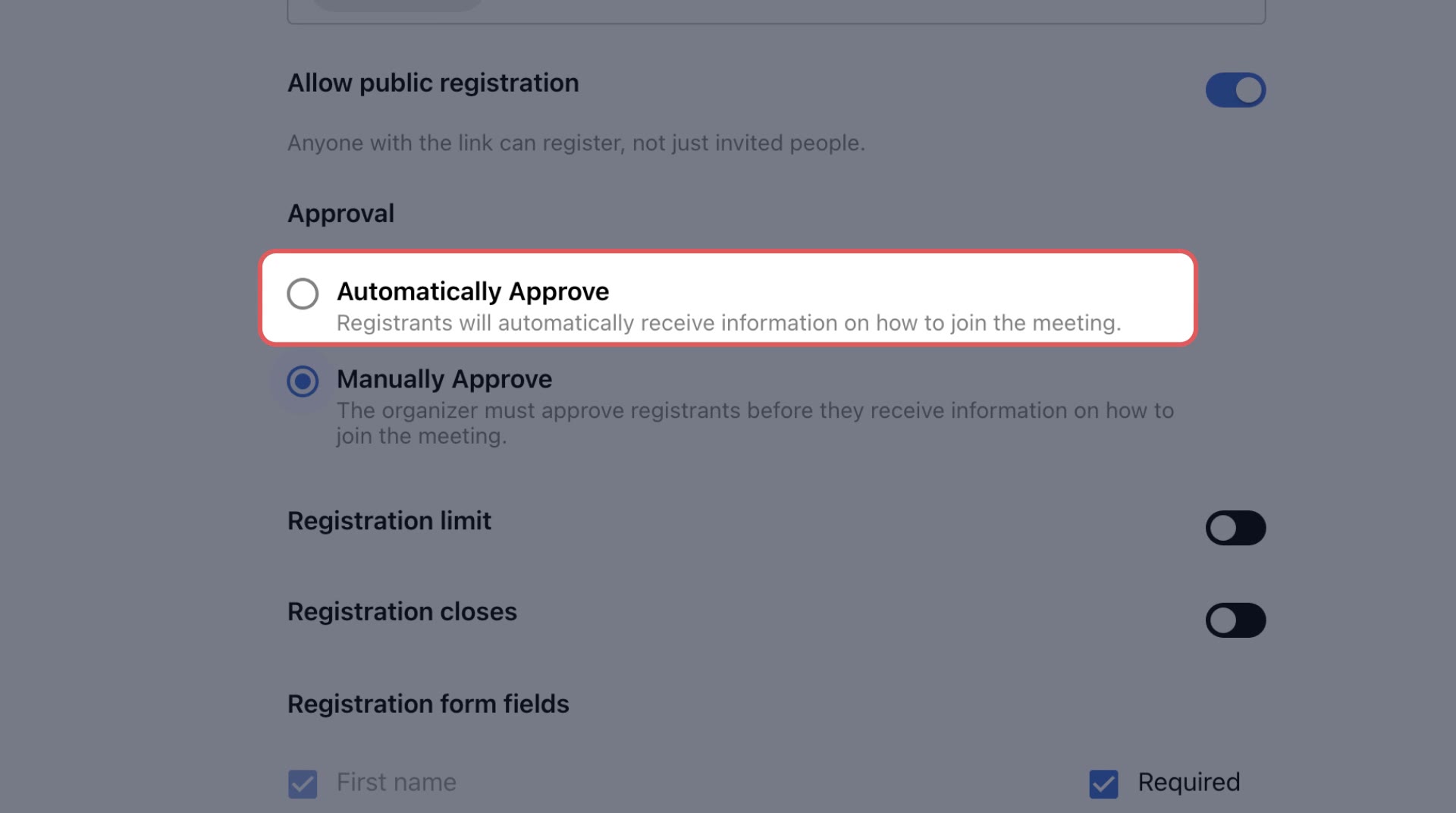
Screenshot from the film at 1:13: With Automatically Approve, they get them straight away.
Watch this step · 1:12

3Limit and closing time1:16

Turn on Registration limit, and type the most sign-ups you want; here, a hundred and fifty.
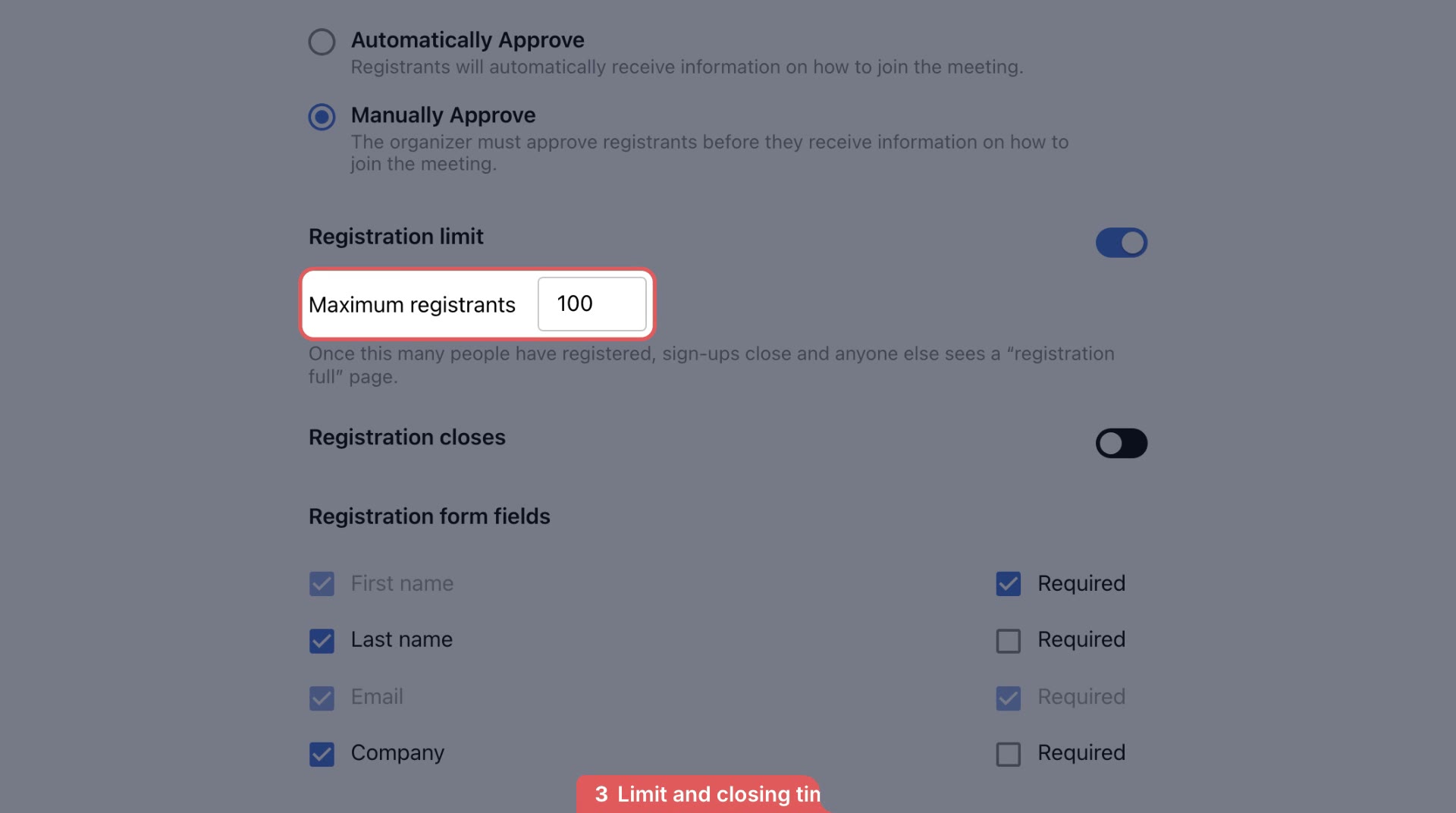
Screenshot from the film at 1:19: Turn on Registration limit, and type the most sign-ups you want; here, a hundred and fifty.
Watch this step · 1:17

When it's reached, anyone else sees a page saying registration is full.
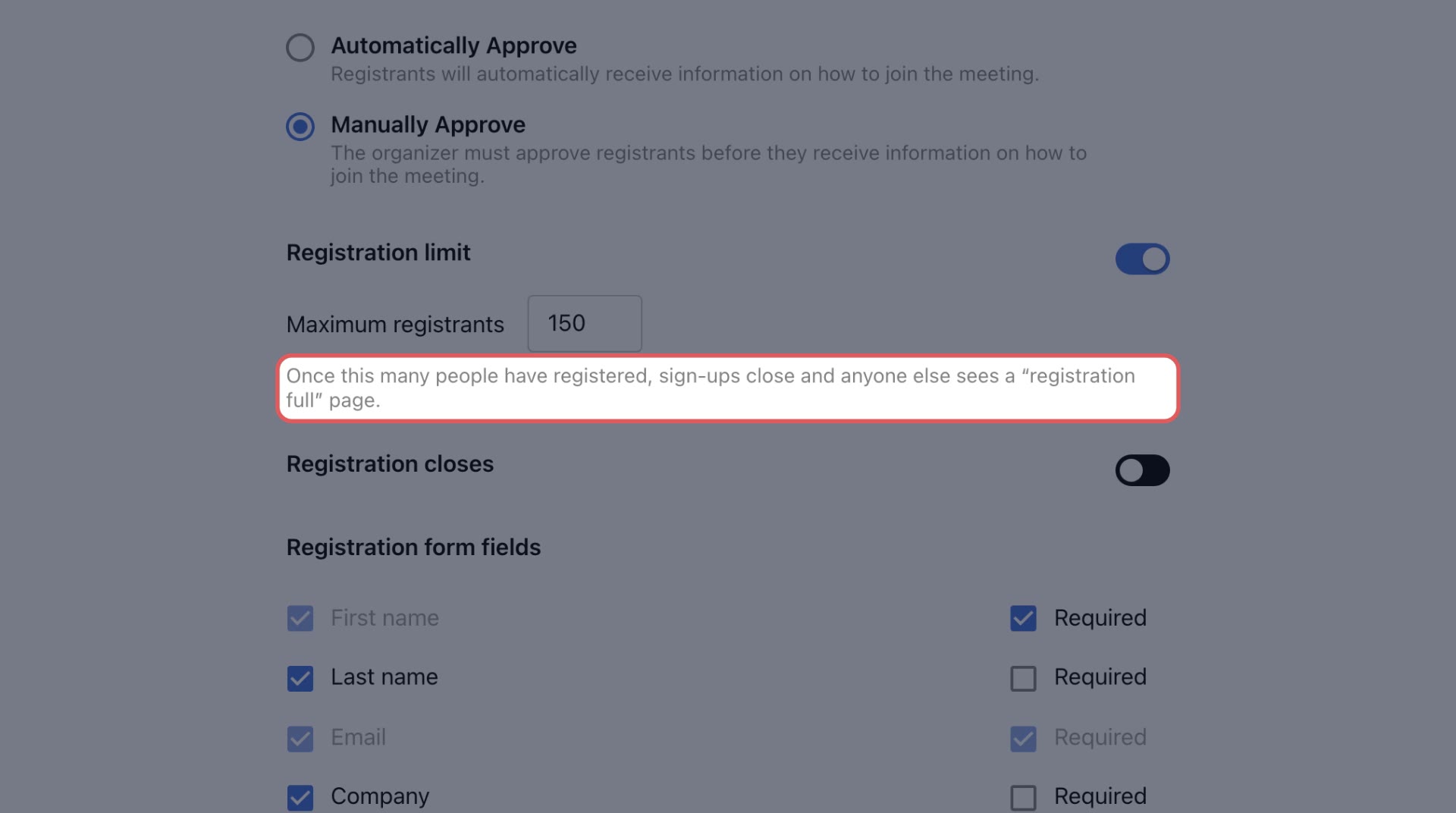
Screenshot from the film at 1:24: When it's reached, anyone else sees a page saying registration is full.
Watch this step · 1:23

Turn on Registration closes: it suggests one hour before the start, and it can't be later than the start.
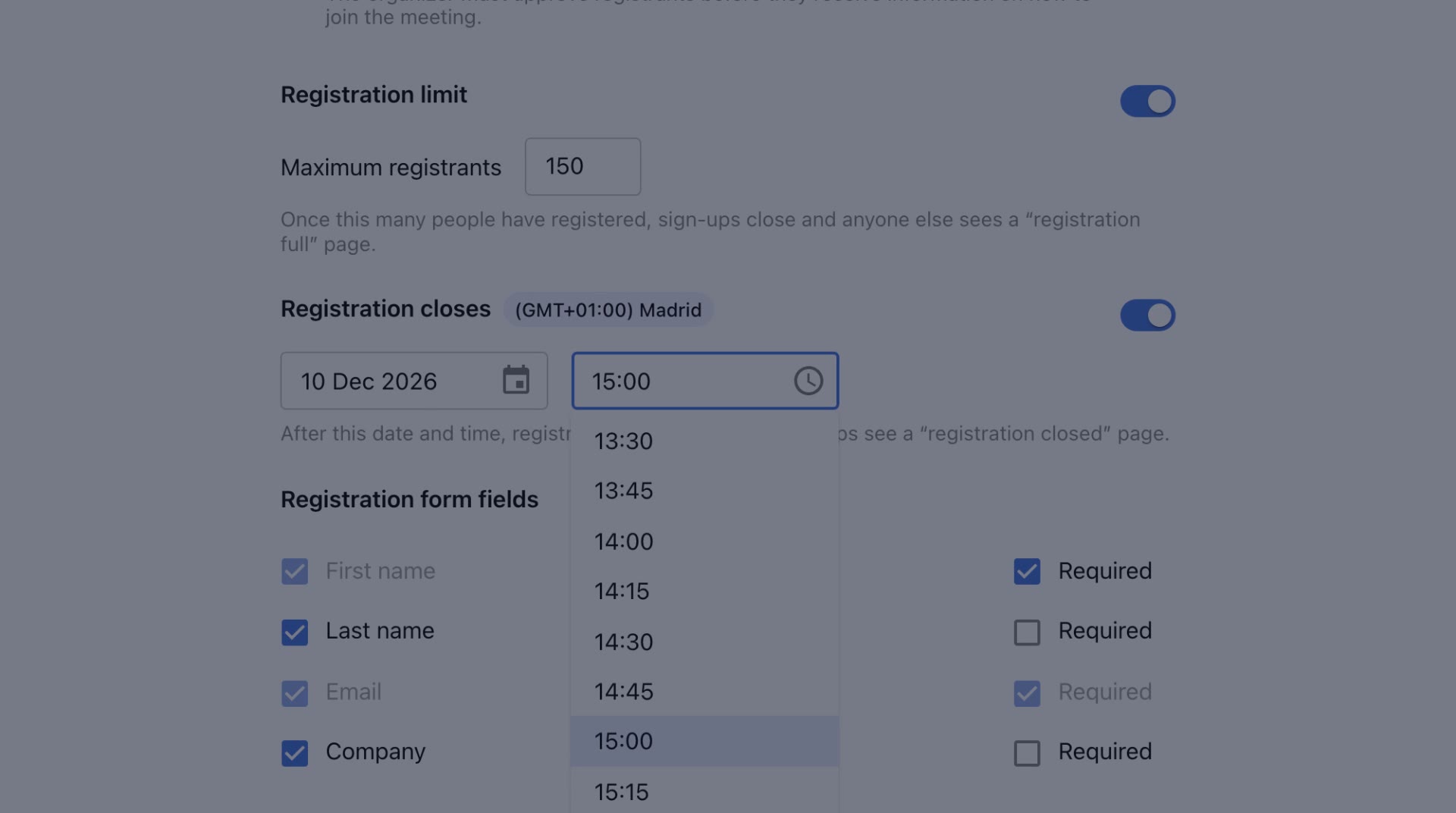
Screenshot from the film at 1:34: Turn on Registration closes: it suggests one hour before the start, and it can't be later than the start.
Watch this step · 1:28

After that time, the page says registration is closed.
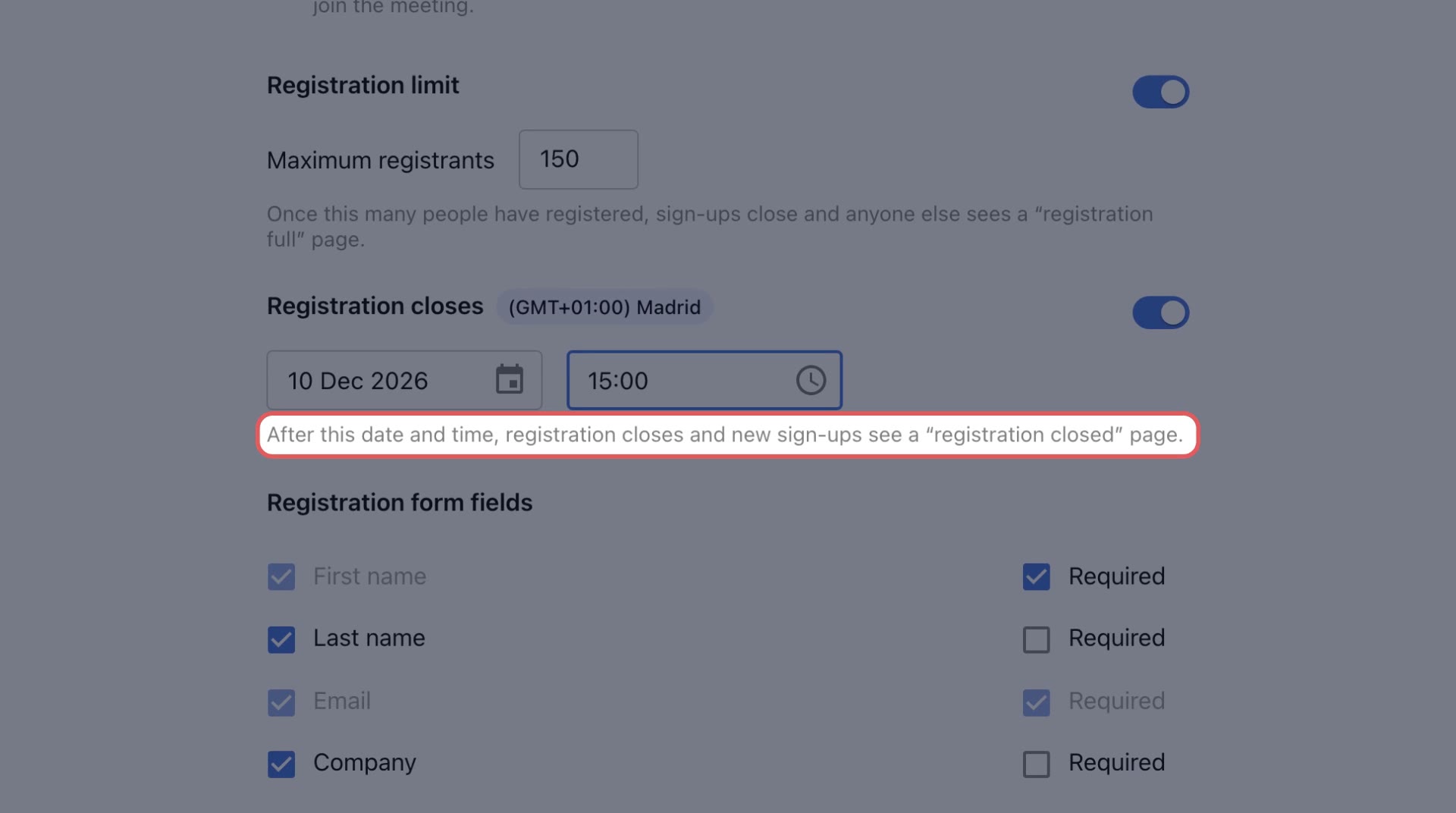
Screenshot from the film at 1:36: After that time, the page says registration is closed.
Watch this step · 1:36

Under Registration form fields, first name and email are always asked; last name and company can be left out, or made required.
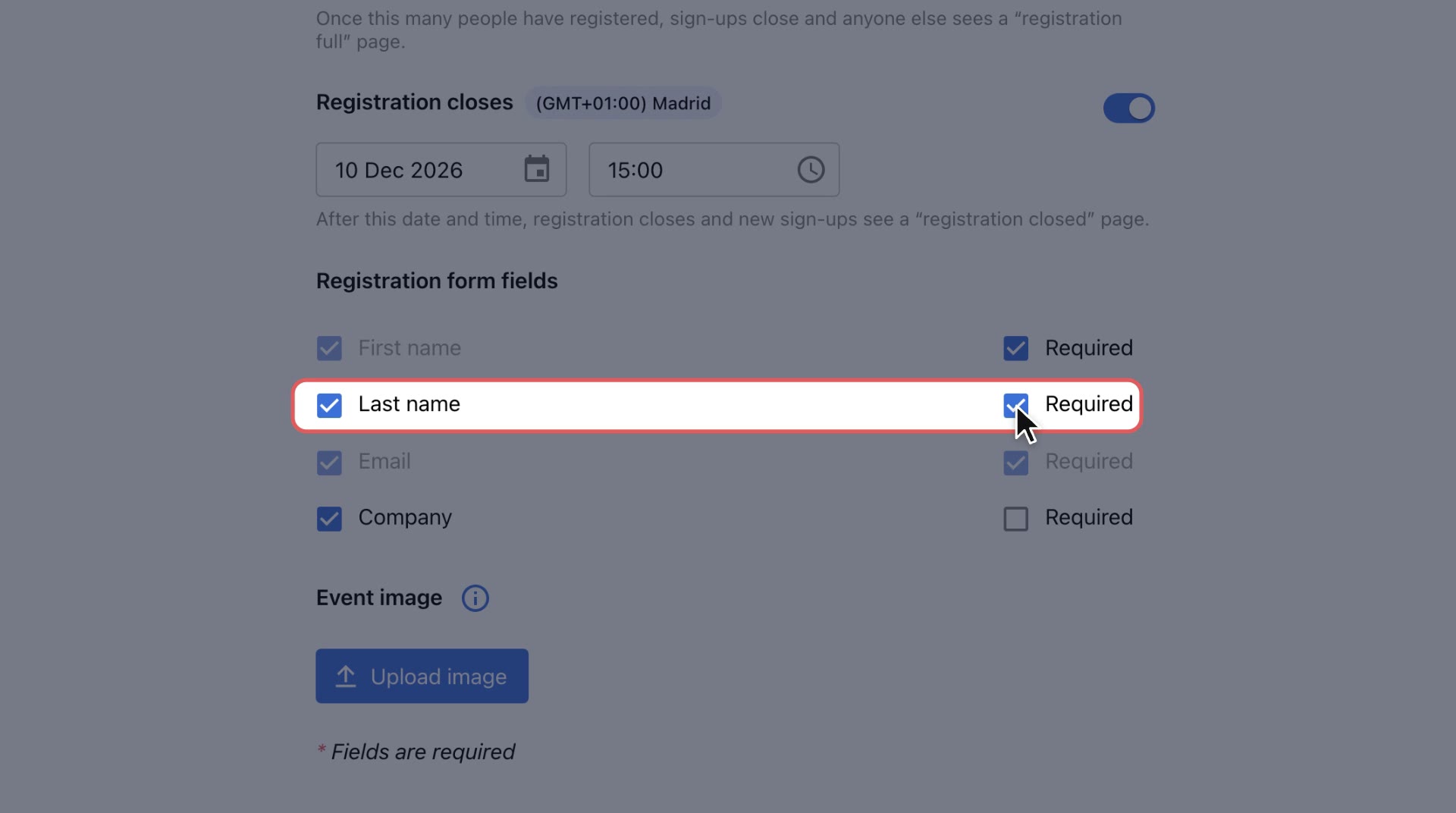
Screenshot from the film at 1:48: Under Registration form fields, first name and email are always asked; last name and company can be left out, or made required.
Watch this step · 1:40

4Event image1:49

Under Event image, click Upload image, and choose a picture: PNG or JPG, up to five megabytes.
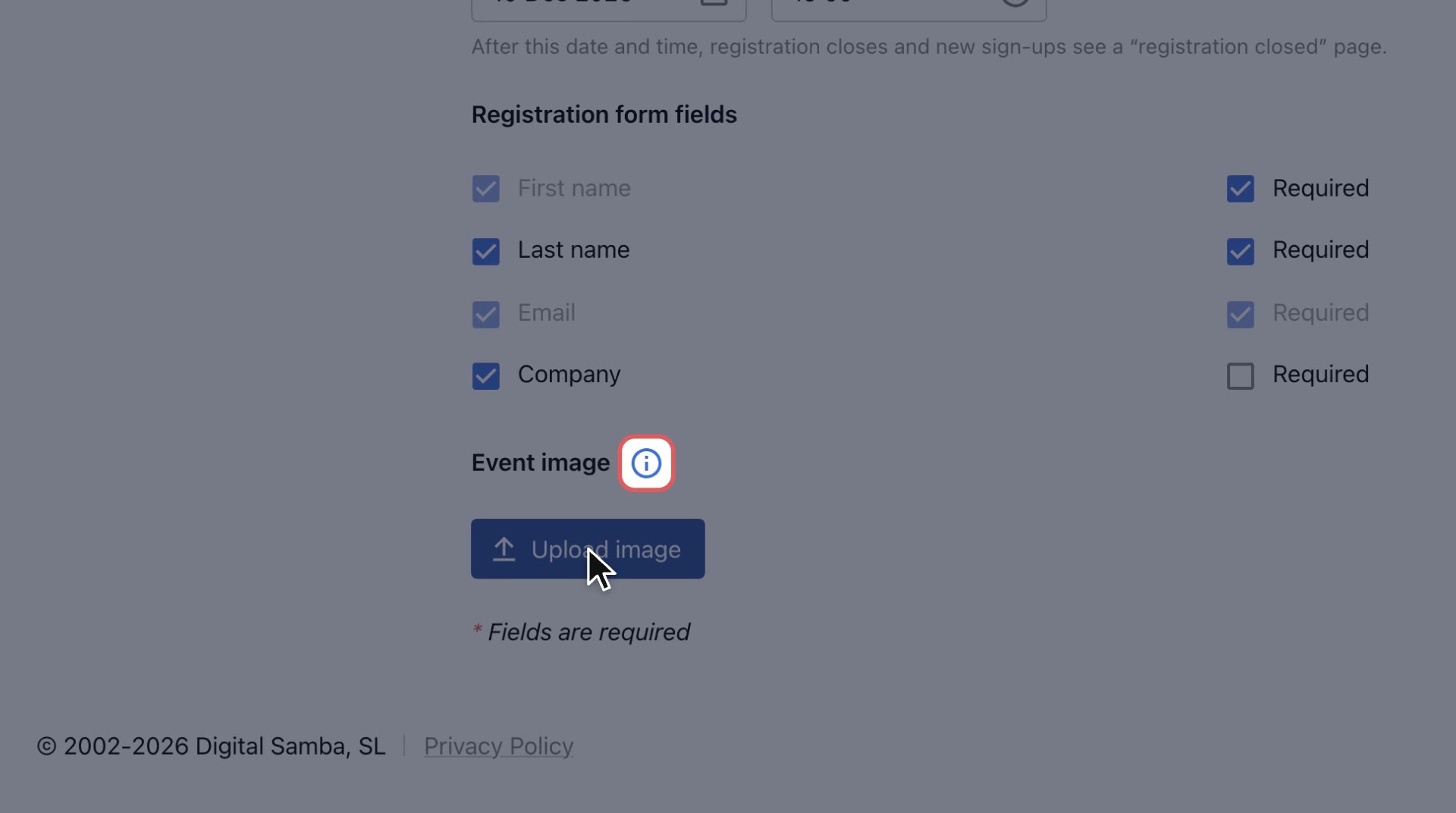
Screenshot from the film at 1:55: Under Event image, click Upload image, and choose a picture: PNG or JPG, up to five megabytes.
Watch this step · 1:50

It's cut to a wide banner: zoom with the slider, and drag the picture into place.
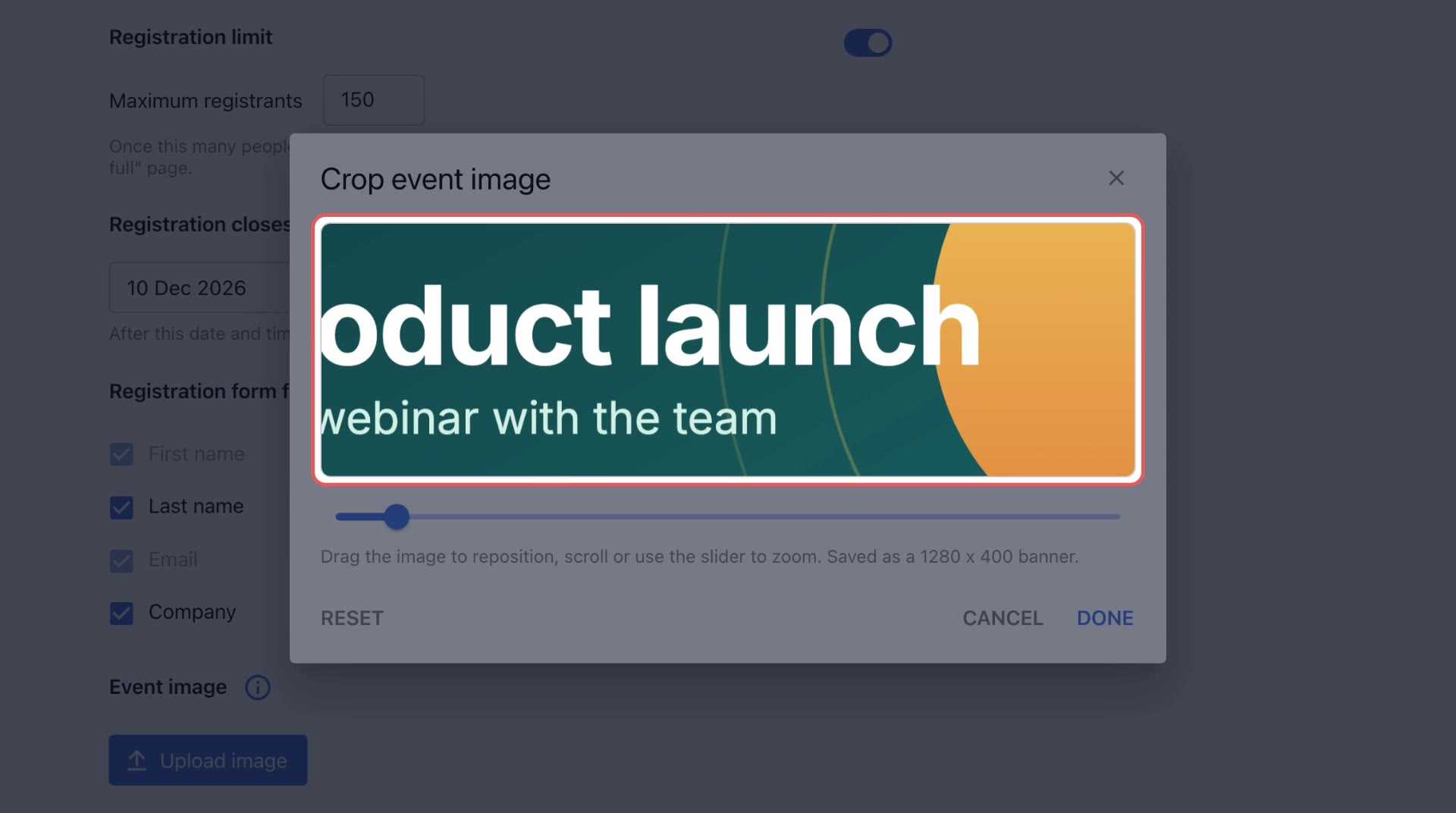
Screenshot from the film at 2:02: It's cut to a wide banner: zoom with the slider, and drag the picture into place.
Watch this step · 1:58

Here the middle is right, so click Reset, then Done.
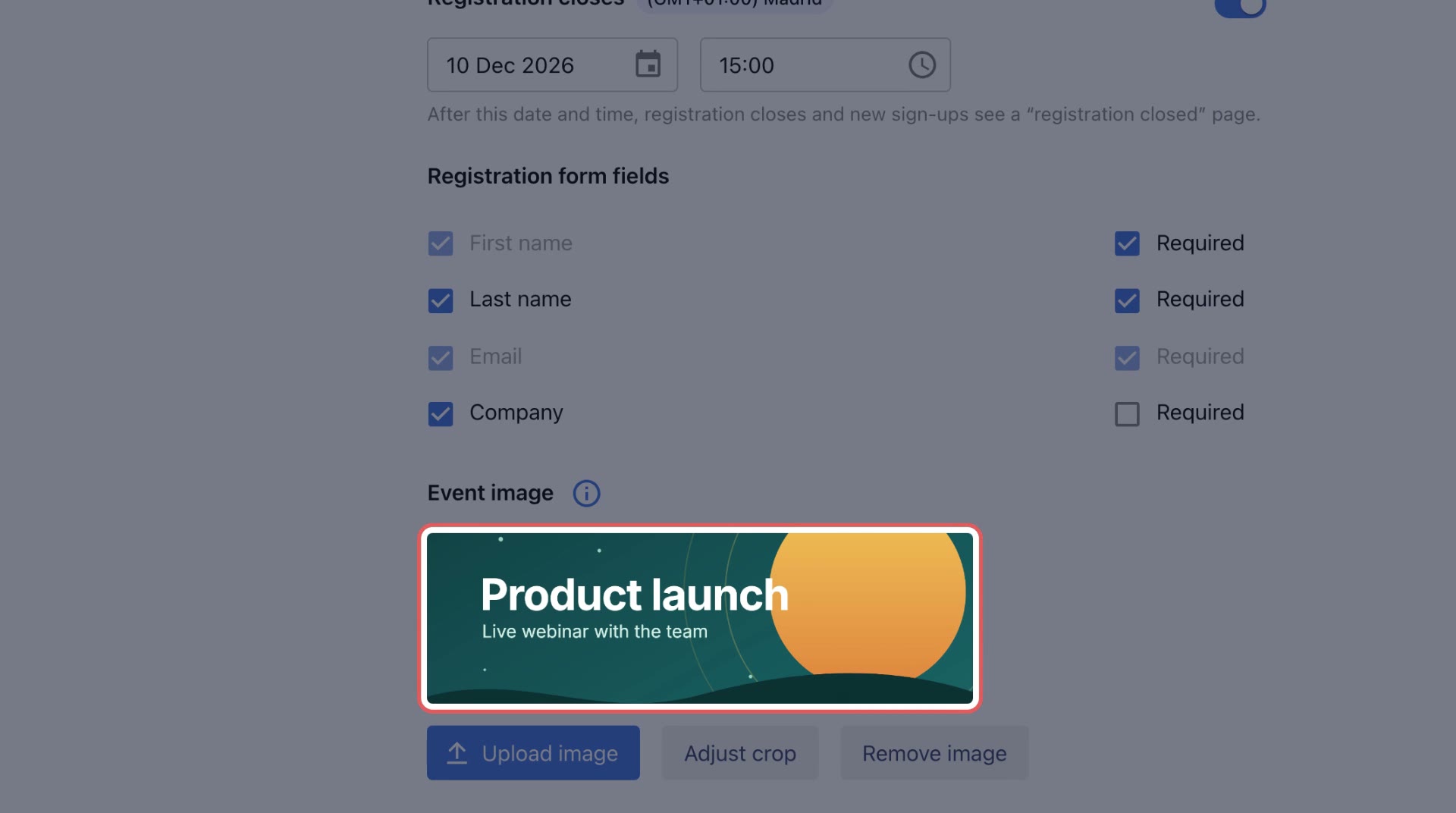
Screenshot from the film at 2:09: Here the middle is right, so click Reset, then Done.
Watch this step · 2:04

5Save & Send Invites2:09

Click Save and Send Invites: Javier and María get their invitations, with the banner at the top.
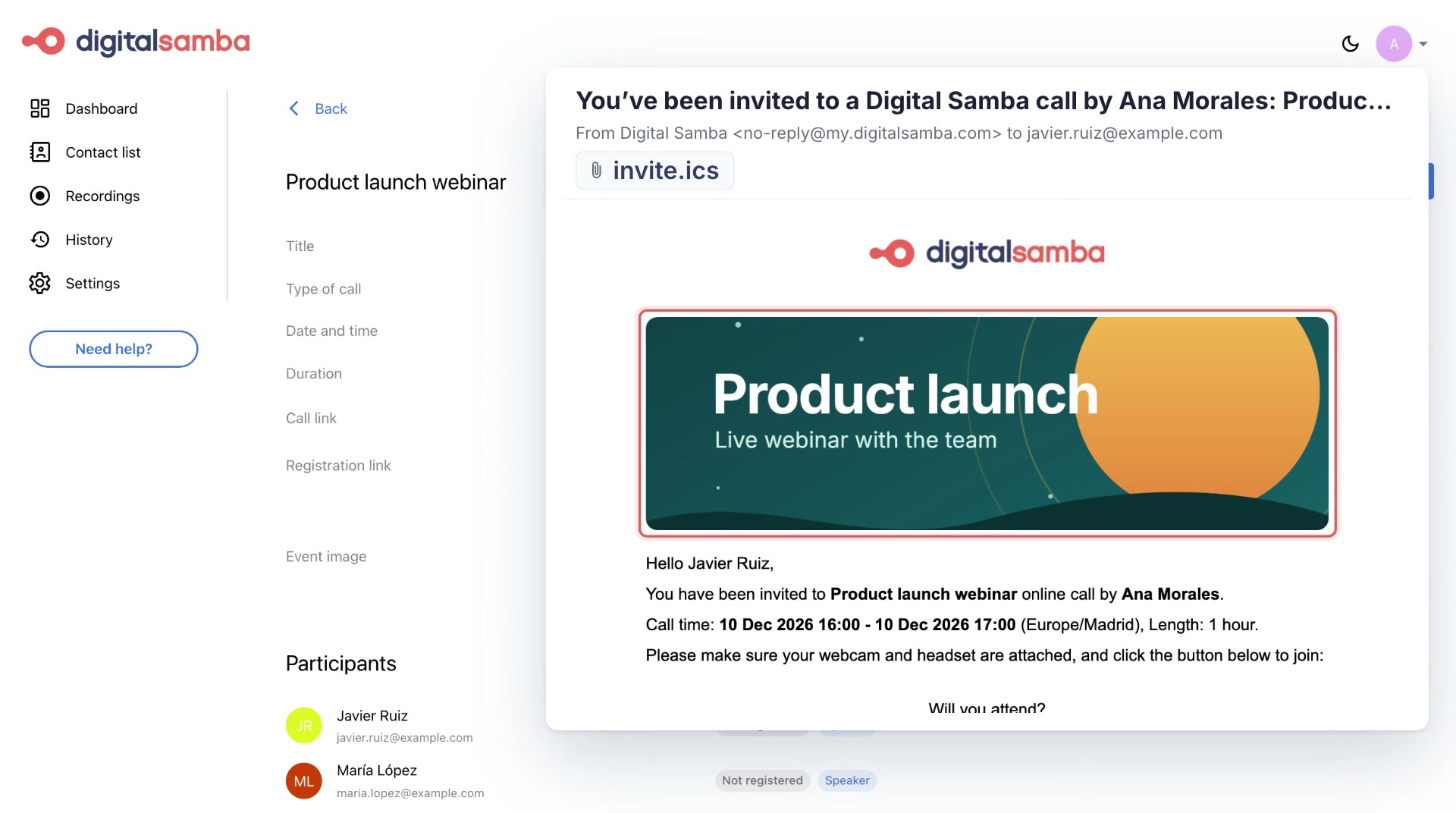
Screenshot from the film at 2:15: Click Save and Send Invites: Javier and María get their invitations, with the banner at the top.
Watch this step · 2:10

The call's page now shows the Registration link: copy it, and share it wherever you announce the webinar.
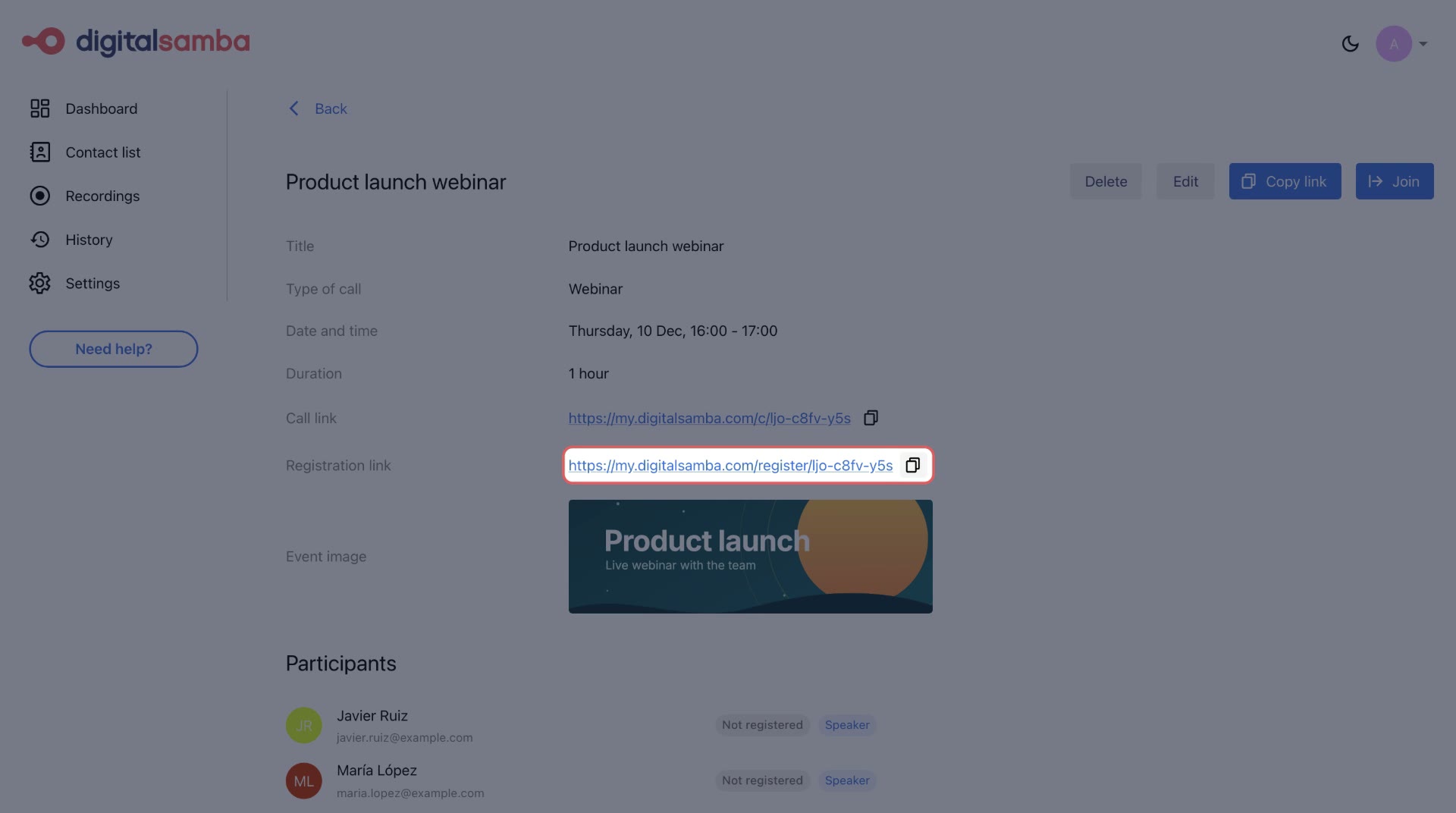
Screenshot from the film at 2:22: The call's page now shows the Registration link: copy it, and share it wherever you announce the webinar.
Watch this step · 2:18

This is what people see when they open it.
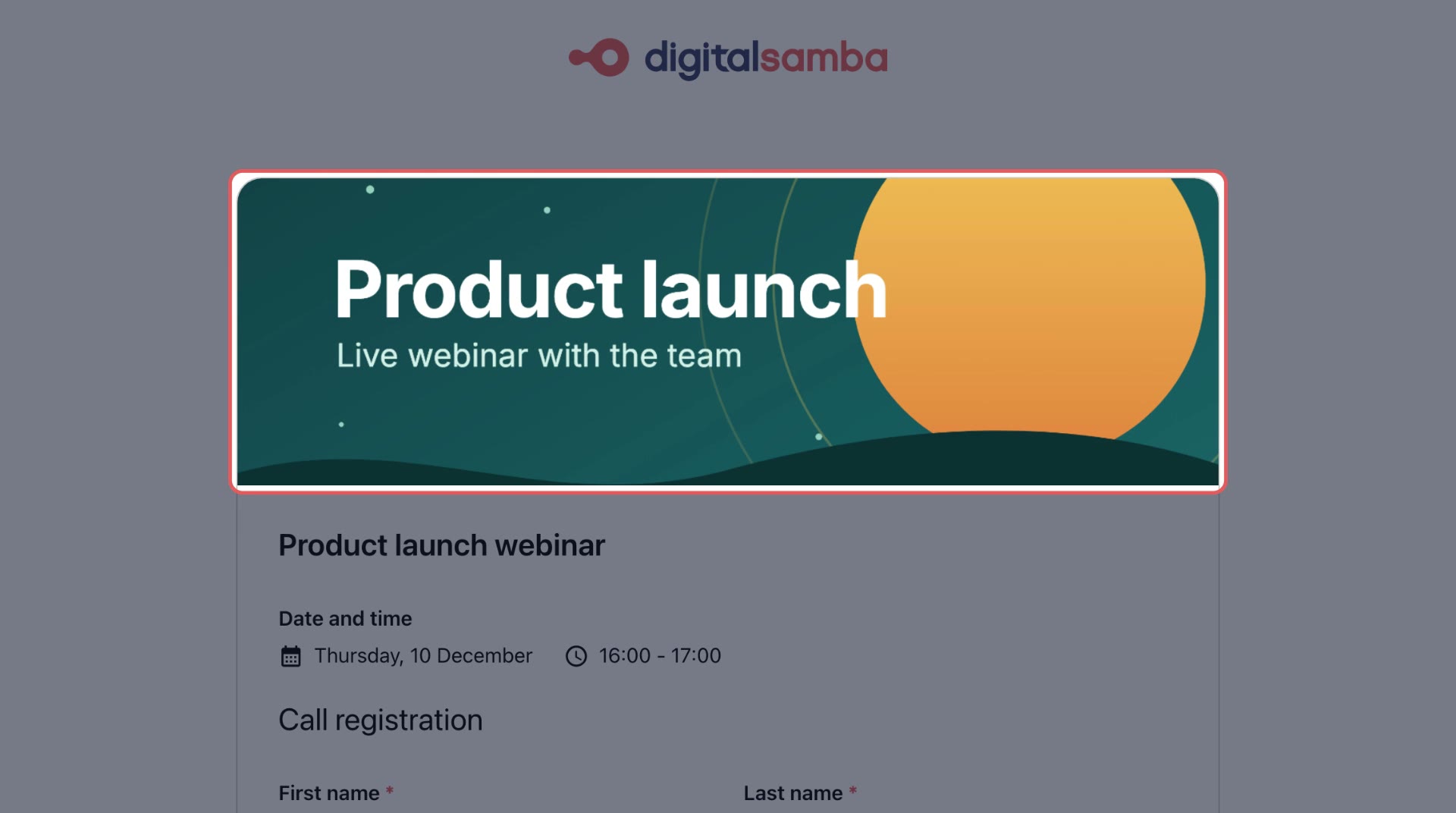
Screenshot from the film at 2:26: This is what people see when they open it.
Watch this step · 2:24

Once they've signed up, they're told their registration is awaiting approval.
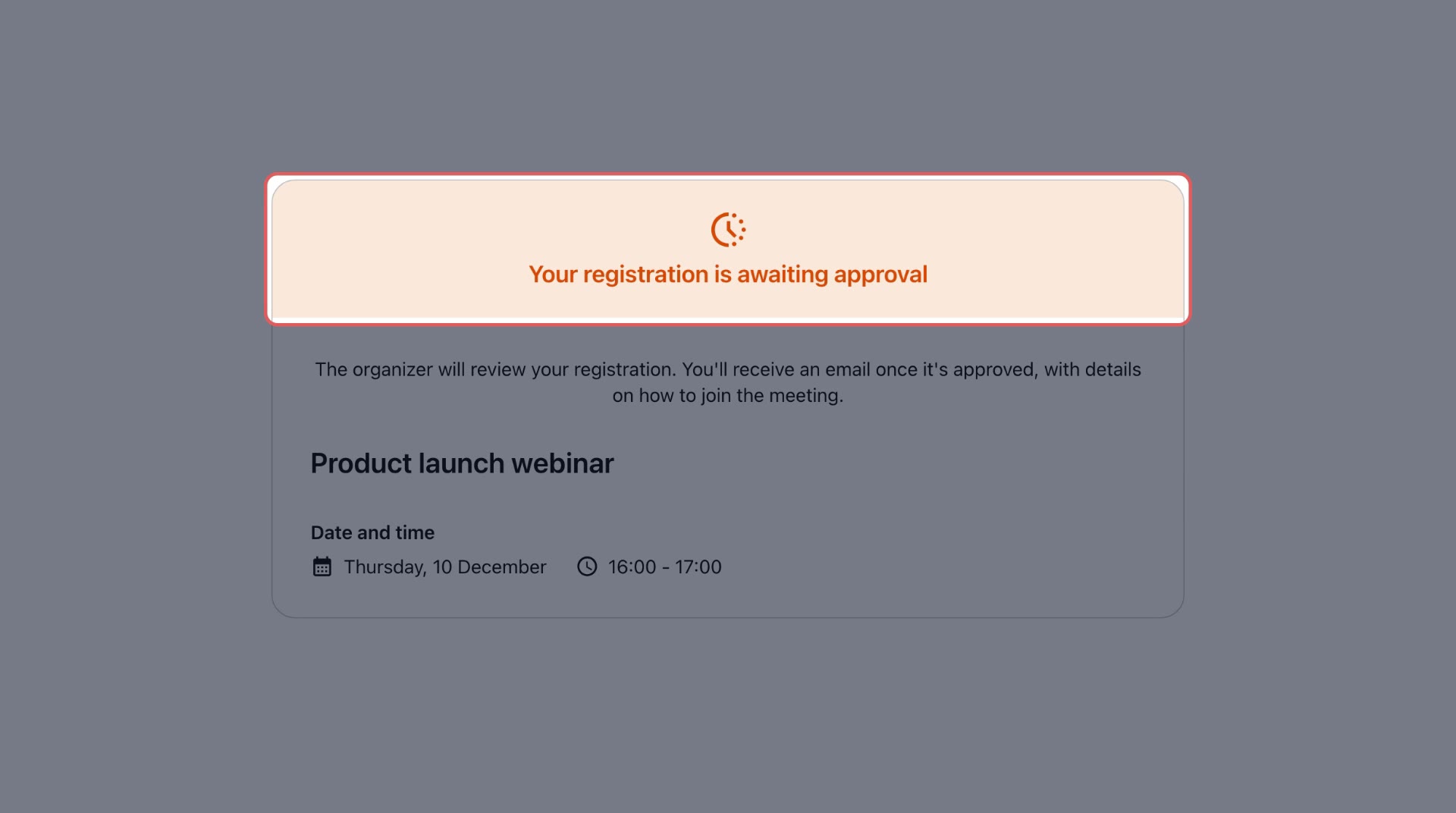
Screenshot from the film at 2:31: Once they've signed up, they're told their registration is awaiting approval.
Watch this step · 2:27

Good to know2:32

With manual approval, nobody emails you when someone signs up.
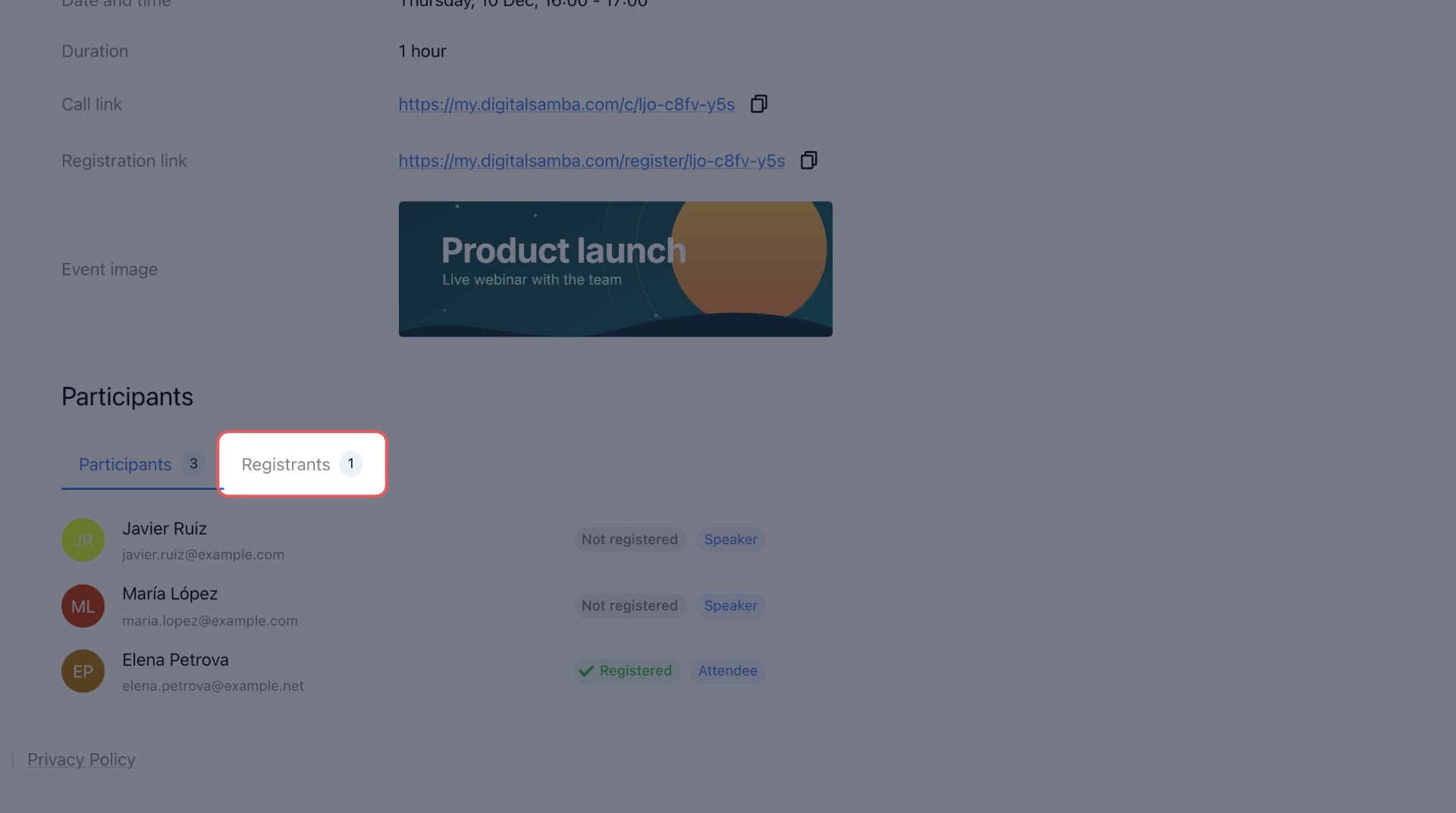
Screenshot from the film at 2:36: Good to know: with manual approval, nobody emails you when someone signs up.
Watch this step · 2:33

Look at the call's page: the Registrants tab shows who is waiting for you.
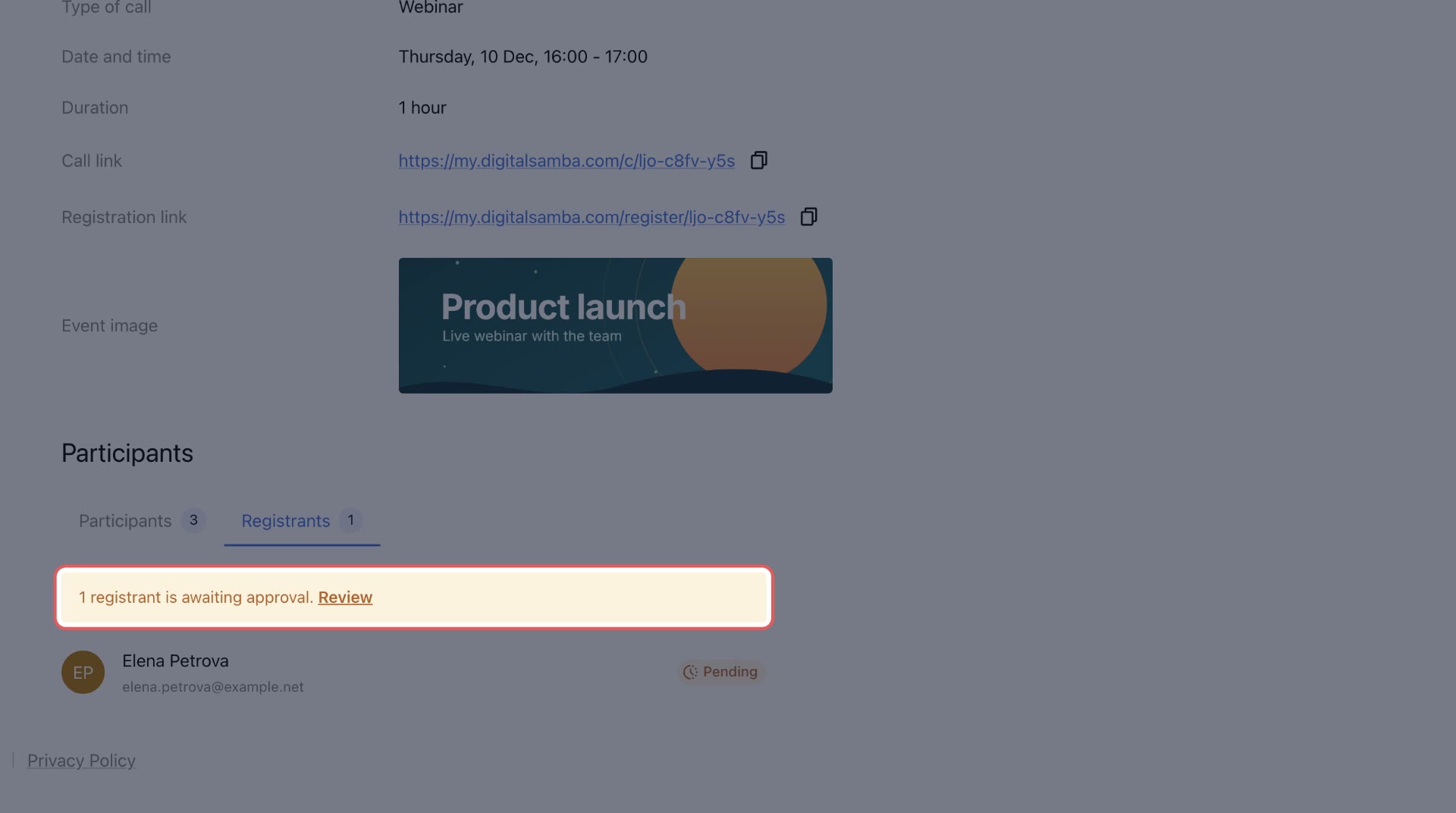
Screenshot from the film at 2:43: Look at the call's page: the Registrants tab shows who is waiting for you.
Watch this step · 2:39

Recap2:44

So: choose Webinar, turn on Registration and public sign-up, choose how people are approved, set a limit and a closing time, add an event image, and share the registration link.
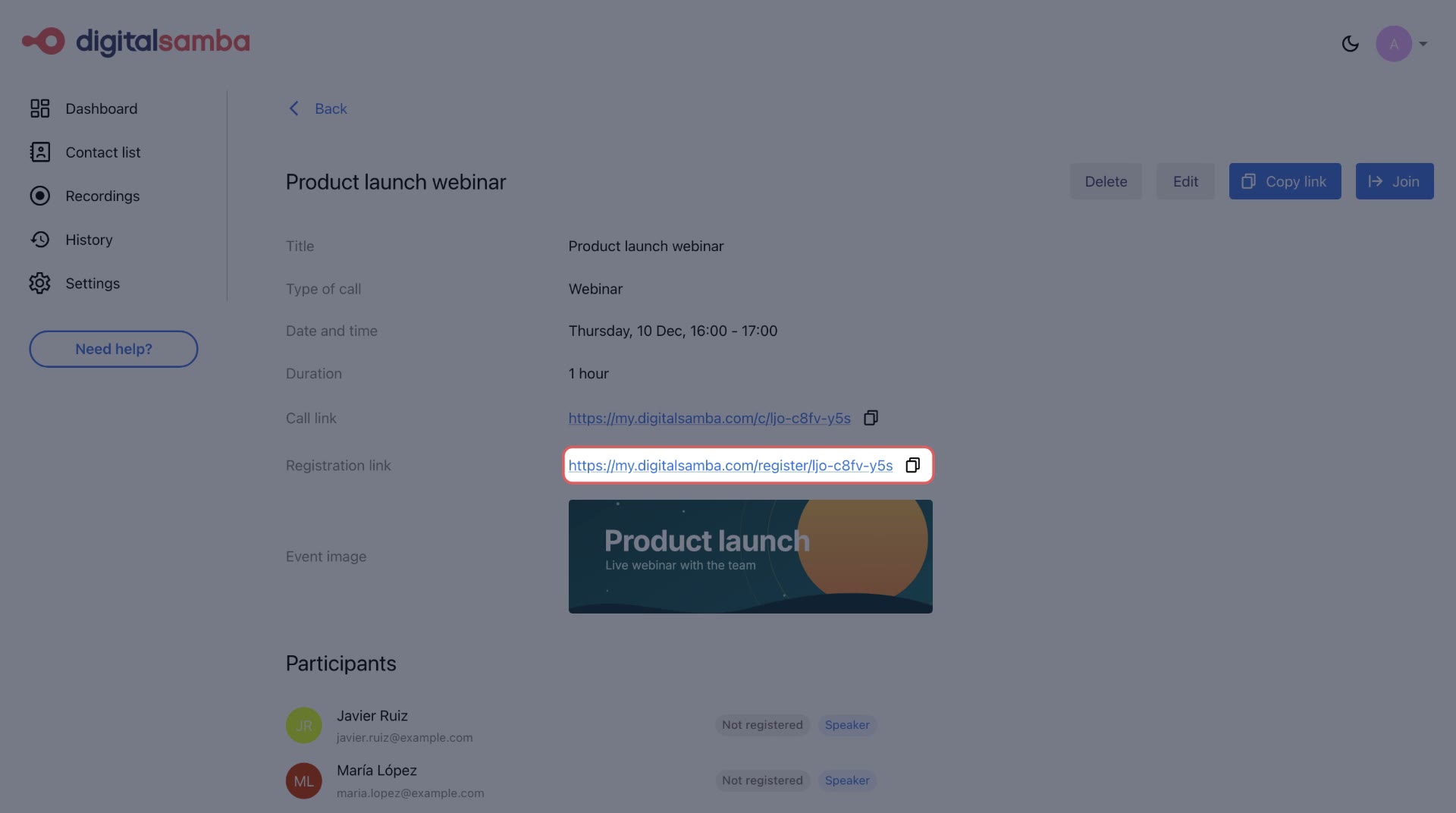

Screenshot from the film at 2:55: So: choose Webinar, turn on Registration and public sign-up, choose how people are approved, set a limit and a closing time, add an event image, and share the registration link.

Watch this step · 2:44

In this video

Next

Related

Updated

The film, the article, the captions and the search results all come from one source, so they change together.

  1. Version 1 ·
    First version.

All updates