Skip to content
University
Videos
Topics
Updates
Search the videos
Topics
Date and time
All 30 moments in Digital Samba University that depend on this.
Start here: Digital Samba in 90 seconds
1:36
0:27
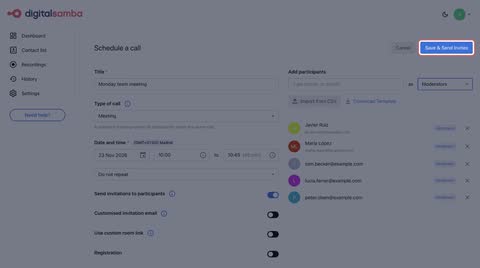
Schedule a call
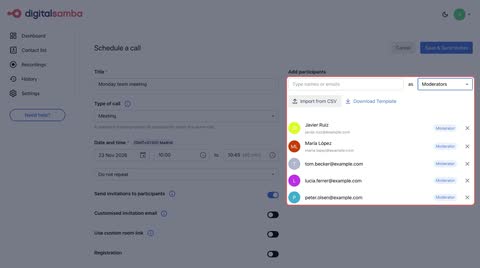
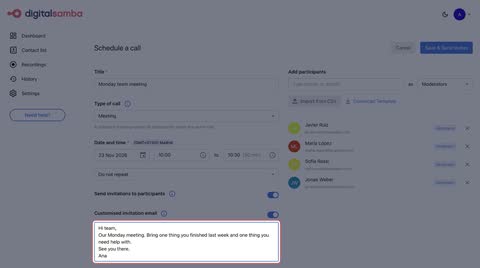
For the team's Monday meeting, she schedules a call: a title, a date and time, and the people to invite.
Read
Your dashboard at a glance
Getting started · 2:12
0:18
Scheduled calls
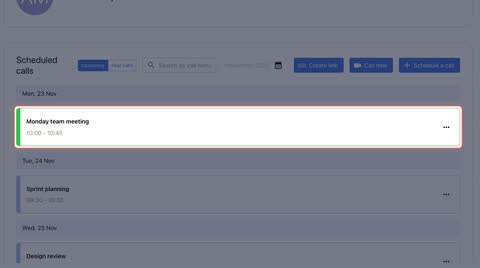
Each call, whether a meeting, a class or a webinar, sits under its day, with the next one marked in green.
Read
0:39
Search by call name
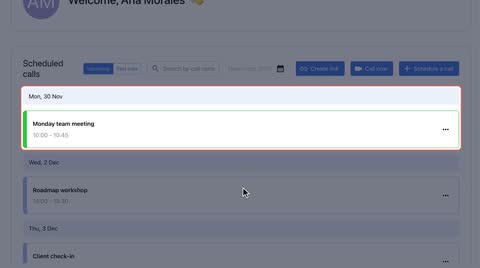
Or click the calendar and pick a date: the list starts from that day.
Read
1:13
Start a call
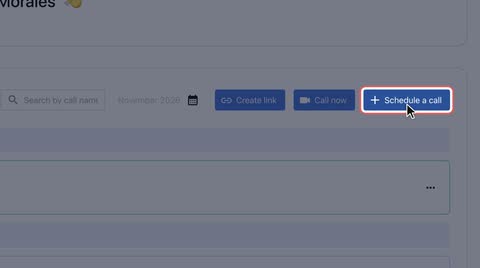
Schedule a call sets a date and invites people.
Read
1:48
Good to know
Good to know: times on your dashboard follow the time zone in your profile.
Read
1:53
Good to know
You can change it under Manage your profile.
Read
Set up your profile
Getting started · 2:40
1:18
Timezone
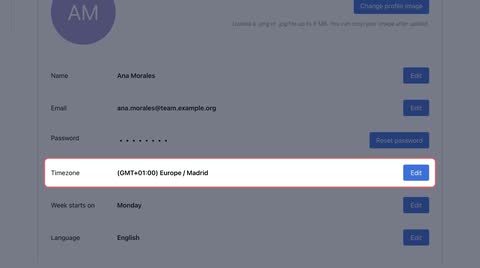
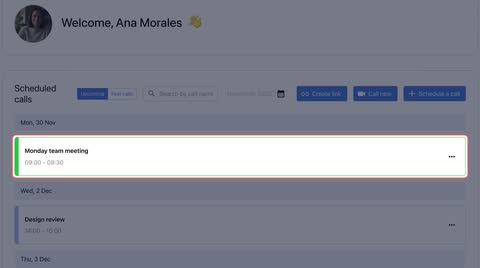
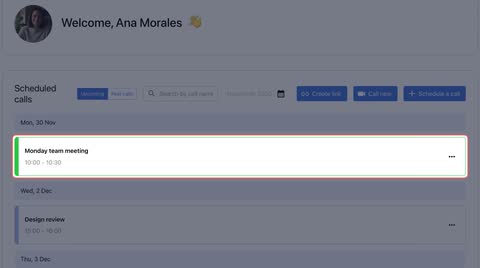
Here the account is on London time, but the team is in Madrid: Monday's meeting shows at nine instead of ten.
Read
1:31
Timezone
The meeting has not moved: only the clock it is shown in has changed.
Read
1:36
Timezone
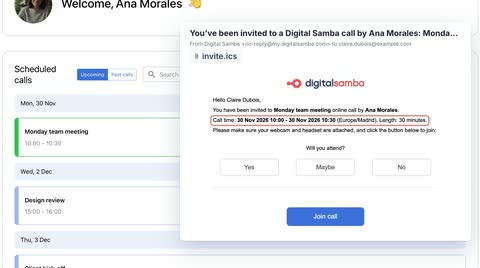
Your participants see call times in your time zone too, with its name beside them.
Read
1:42
Timezone
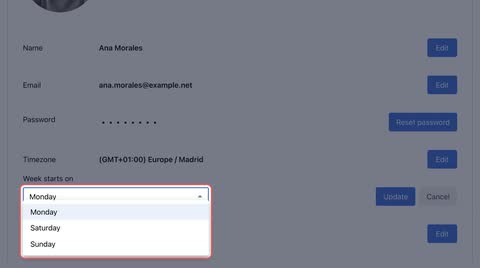
Week starts on sets the first day of the week when you pick a date.
Read
Schedule a call and invite people
Scheduling calls · 2:40
0:38
Date and time
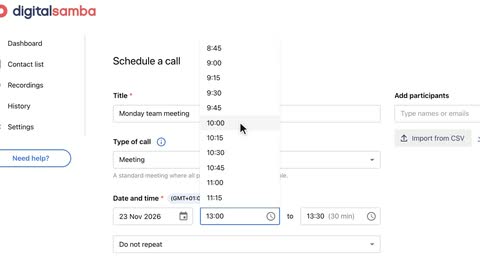
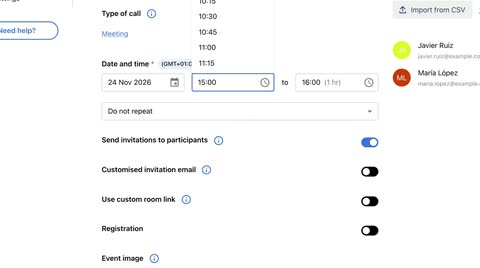
Next, pick the date, and the time it starts.
Read
0:43
Date and time
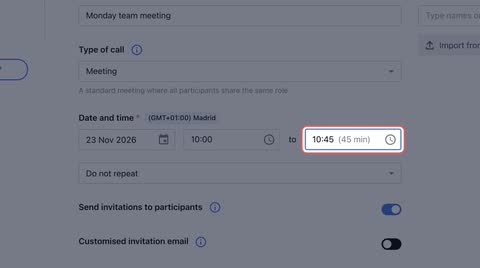
Then choose when it ends.
Read
0:45
Date and time
Each option shows how long the call will last.
Read
0:54
Date and time
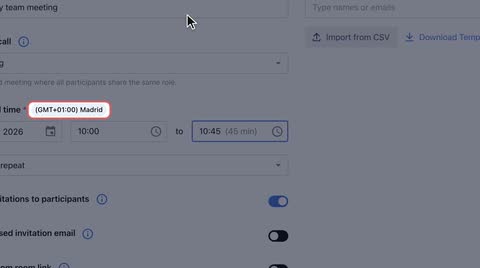
Times are in your own time zone, shown here.
Read
2:25
Recap
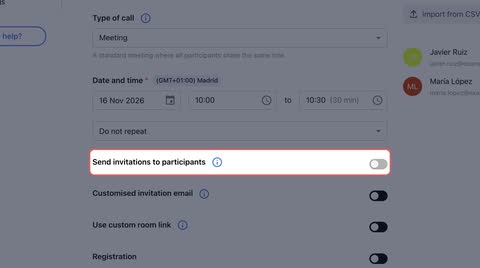
So: a title, a type of call, a time and your participants — and the invitations are on their way.
Read
Set up a recurring call
Scheduling calls · 2:42
0:17
Repeat
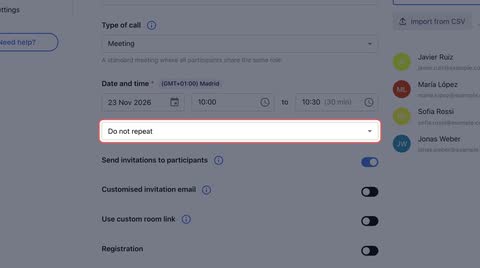
On the Schedule a call form, under the date and time, there's a menu that says Do not repeat.
Read
0:24
Repeat
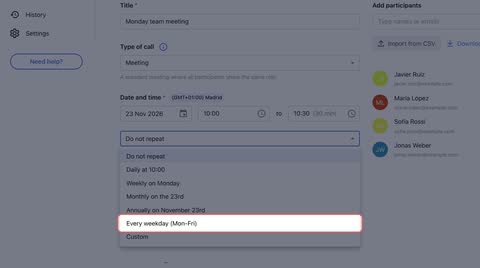
Its choices follow the date you picked: Daily, Weekly, Monthly, Annually, or Every weekday.
Read
0:32
Repeat
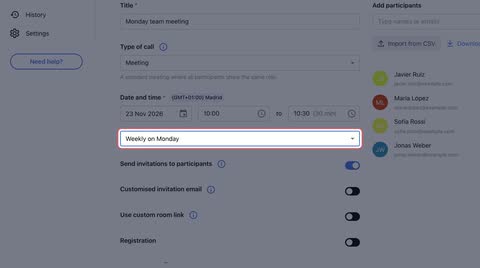
Choose Weekly on Monday.
Read
Invitations and RSVPs: what your participants receive
Scheduling calls · 3:07
0:57
Customised invitation email
The call time and the Join button are added below your message automatically.
Read
2:02
What changed
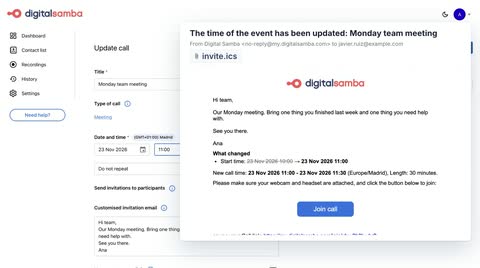
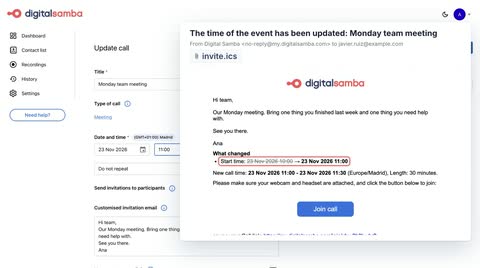
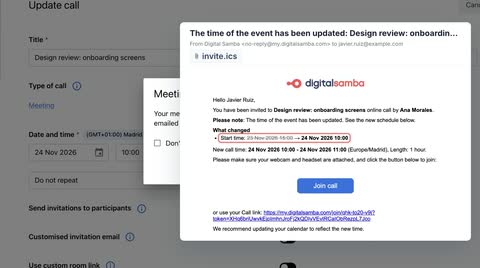
Now move the meeting to eleven: everyone invited gets an update.
Read
2:07
What changed
Under What changed, it shows the old time crossed out and the new one.
Read
2:30
Good to know
Good to know: a call that is already over sends nothing.
Read
Edit, reschedule or cancel a call
Scheduling calls · 2:27
0:58
Date and time
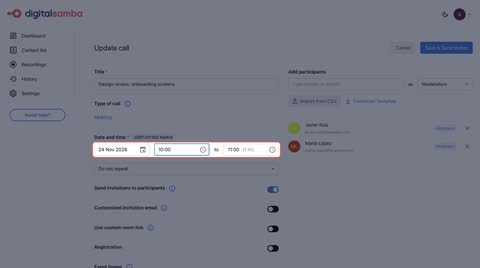
Now the review moves to Tuesday at ten.
Read
1:01
Date and time
Pick the new date, then the new start time.
Read
1:06
Date and time
Save, and everyone on the list gets The time of the event has been updated, with the old time crossed out and the new one.
Read
1:57
Good to know
A call that is already over sends nothing either.
Read
Set up a webinar with registration
Webinars and registration · 3:05
0:11
Type of call
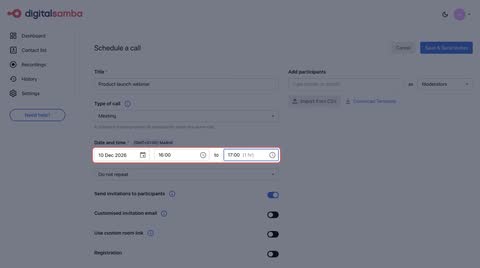
Our example is the Product launch webinar, on Thursday the tenth of December, from four to five.
Read
1:28
Limit and closing time
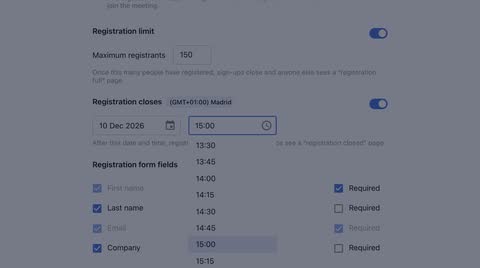
Turn on Registration closes: it suggests one hour before the start, and it can't be later than the start.
Read
Join a Digital Samba call
For your participants · 2:03
0:18
Your invitation
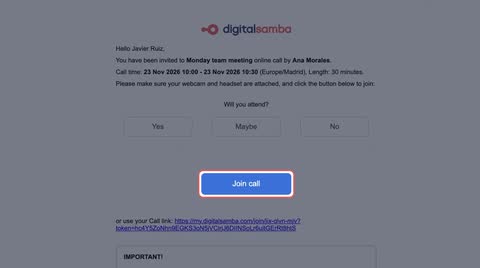
His invitation shows the call time and a Join call button.
Read
Register for an event
For your participants · 1:29
0:15
Call registration
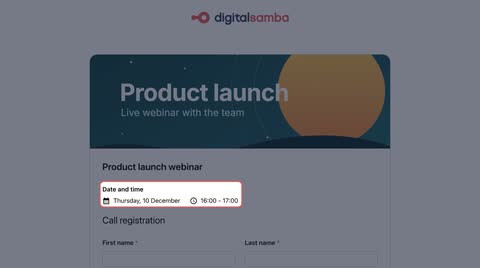
Open the registration link: the page shows the event, its date and its time.
Read
All topics