University

Set up your profile

In this video, you'll set up your profile: your name and photo, your time zone, and your language.

Updated Version 2

1Manage your profile0:08

On this dashboard, the team's first meeting is on Monday, and the account is still new.
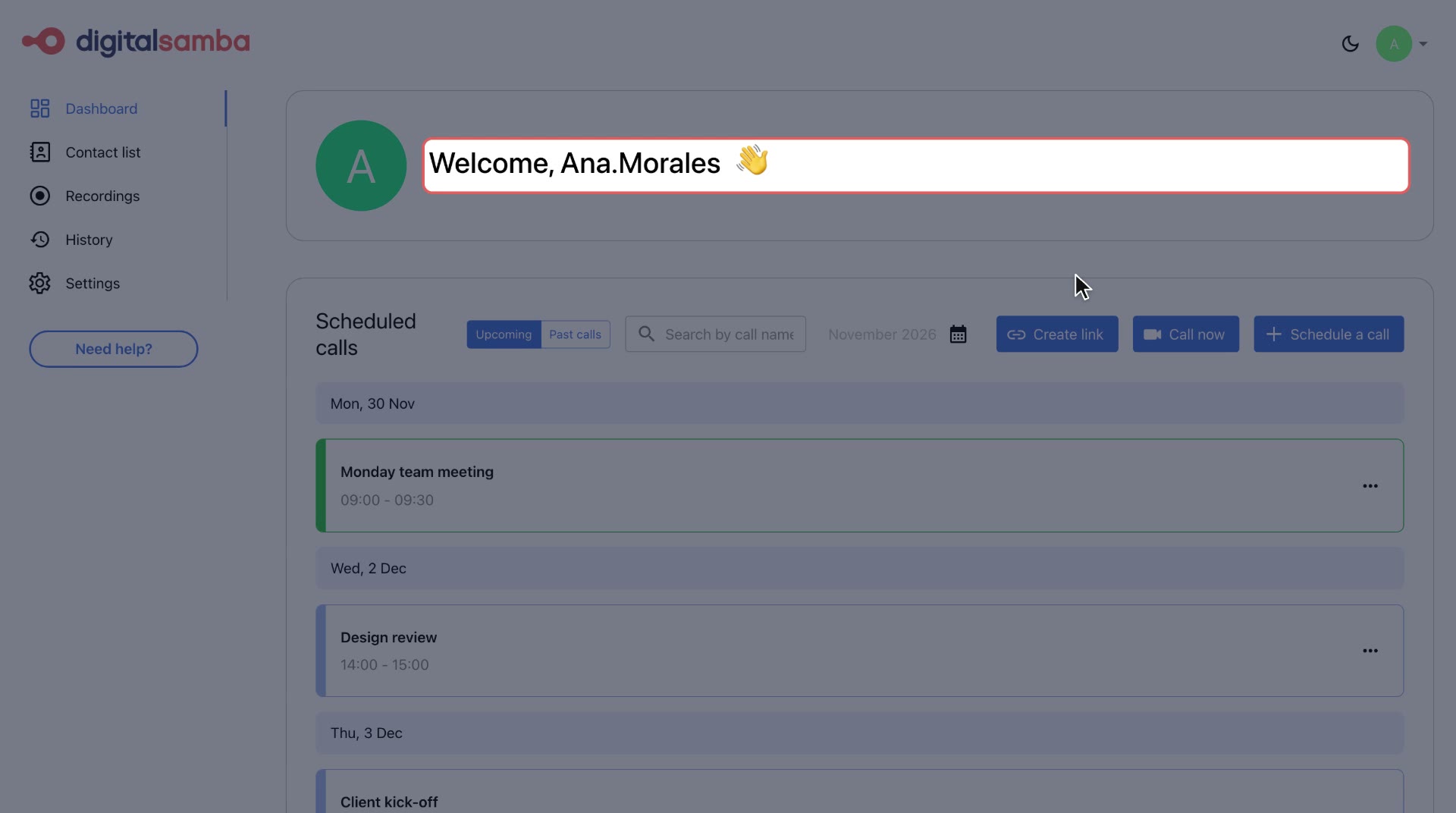
Screenshot from the film at 0:14: On this dashboard, the team's first meeting is on Monday, and the account is still new.
Watch this step · 0:10

Click the circle with your initial, in the top right corner, then Manage your profile.
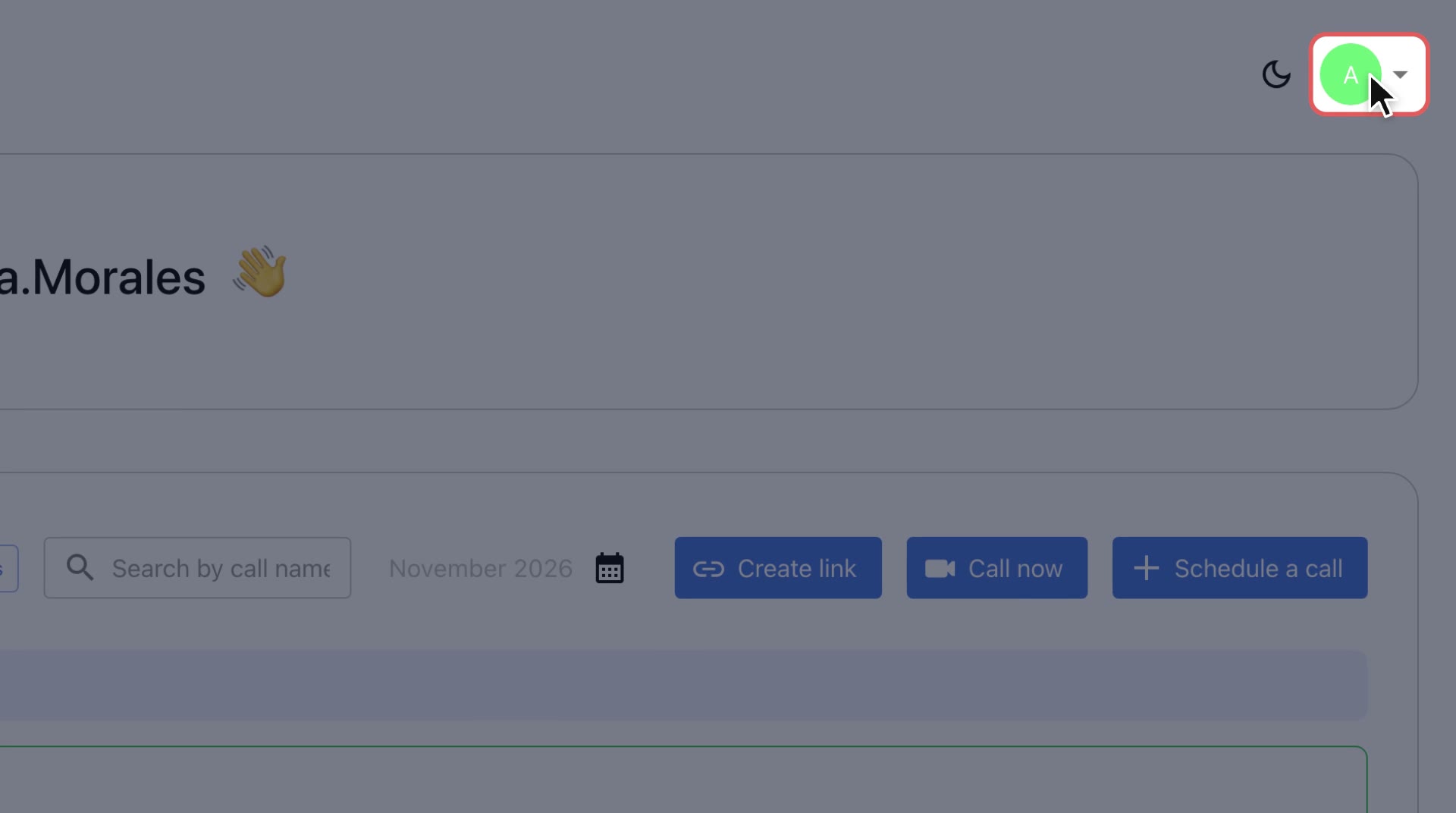
Screenshot from the film at 0:17: Click the circle with your initial, in the top right corner, then Manage your profile.
Watch this step · 0:16

A new account has no name yet, so Digital Samba shows the first part of your email address.
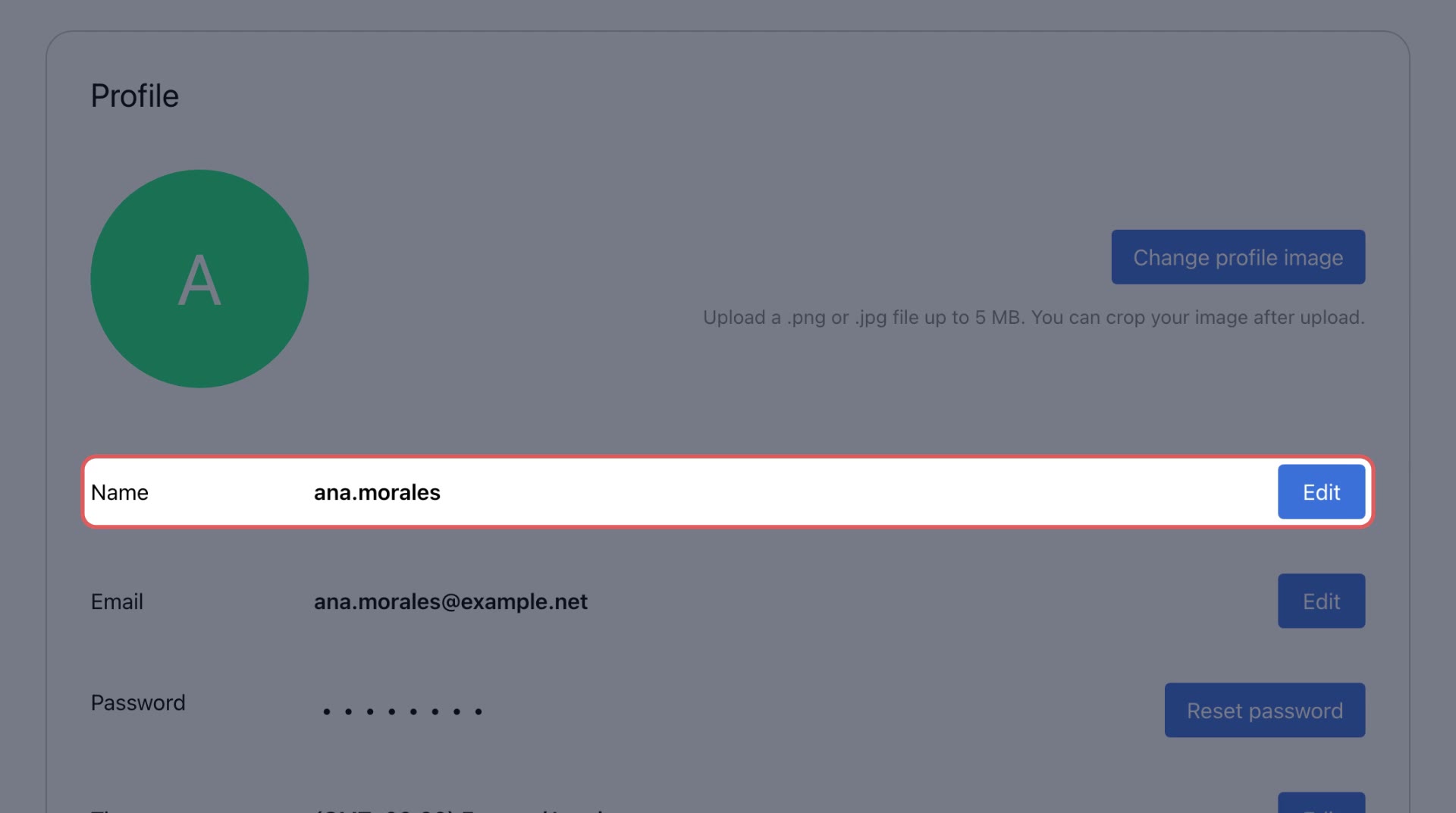
Screenshot from the film at 0:27: A new account has no name yet, so Digital Samba shows the first part of your email address.
Watch this step · 0:22

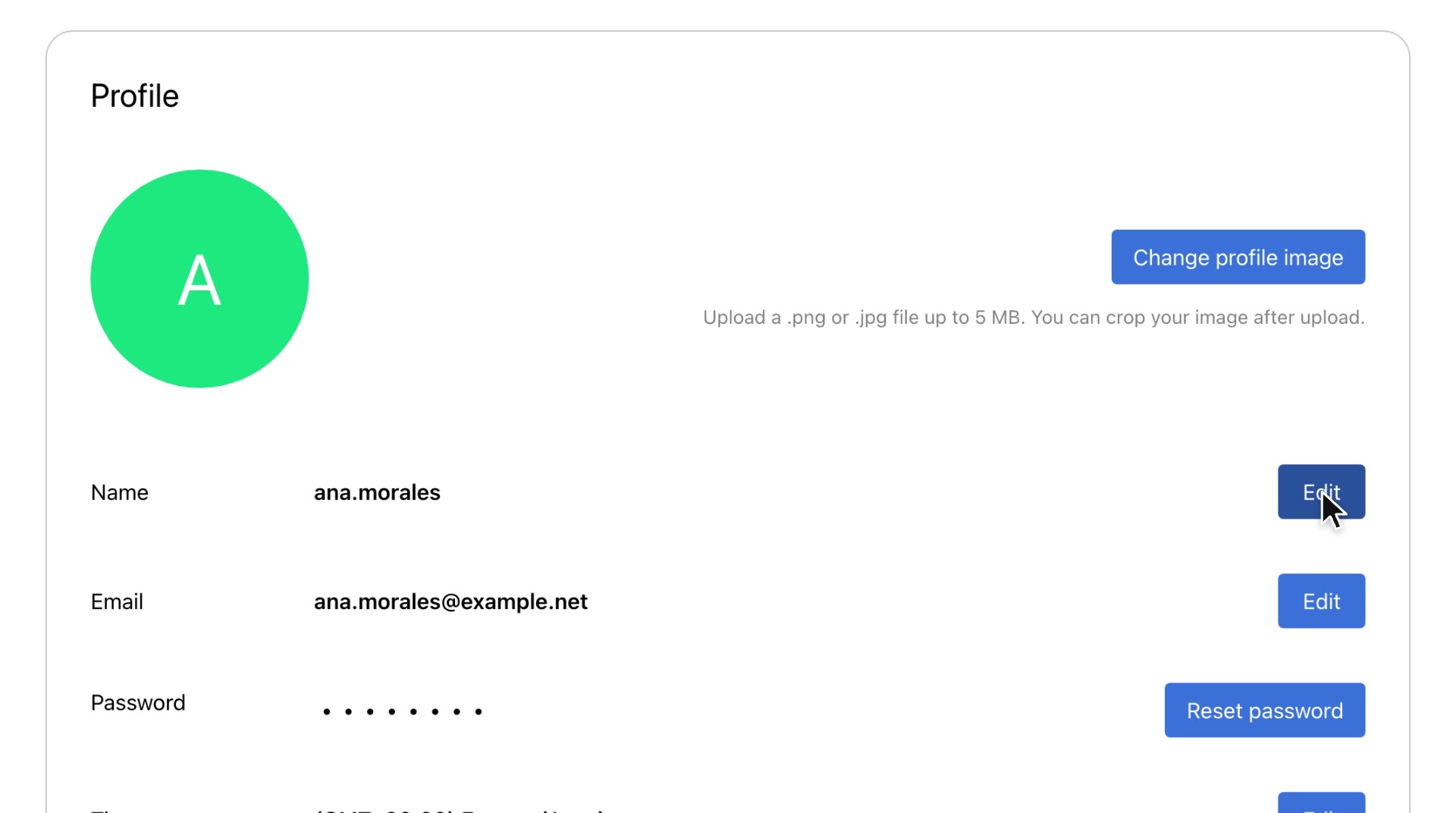
Next to Name, click Edit.

Screenshot from the film at 0:30: Next to Name, click Edit.
Watch this step · 0:29

Type your first and last name, and click Update.
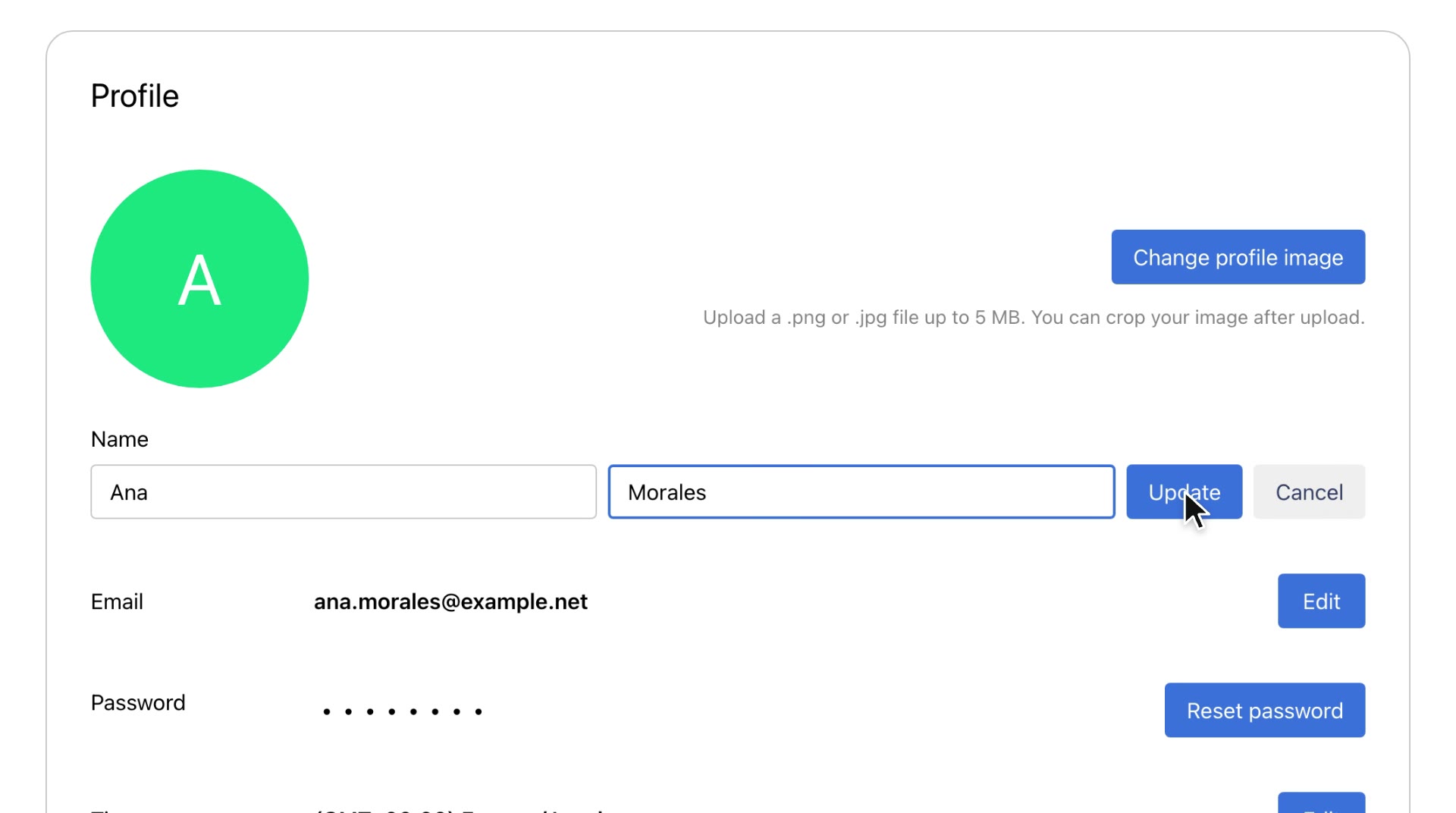
Screenshot from the film at 0:33: Type your first and last name, and click Update.
Watch this step · 0:31

This is the name your participants see on every invitation.
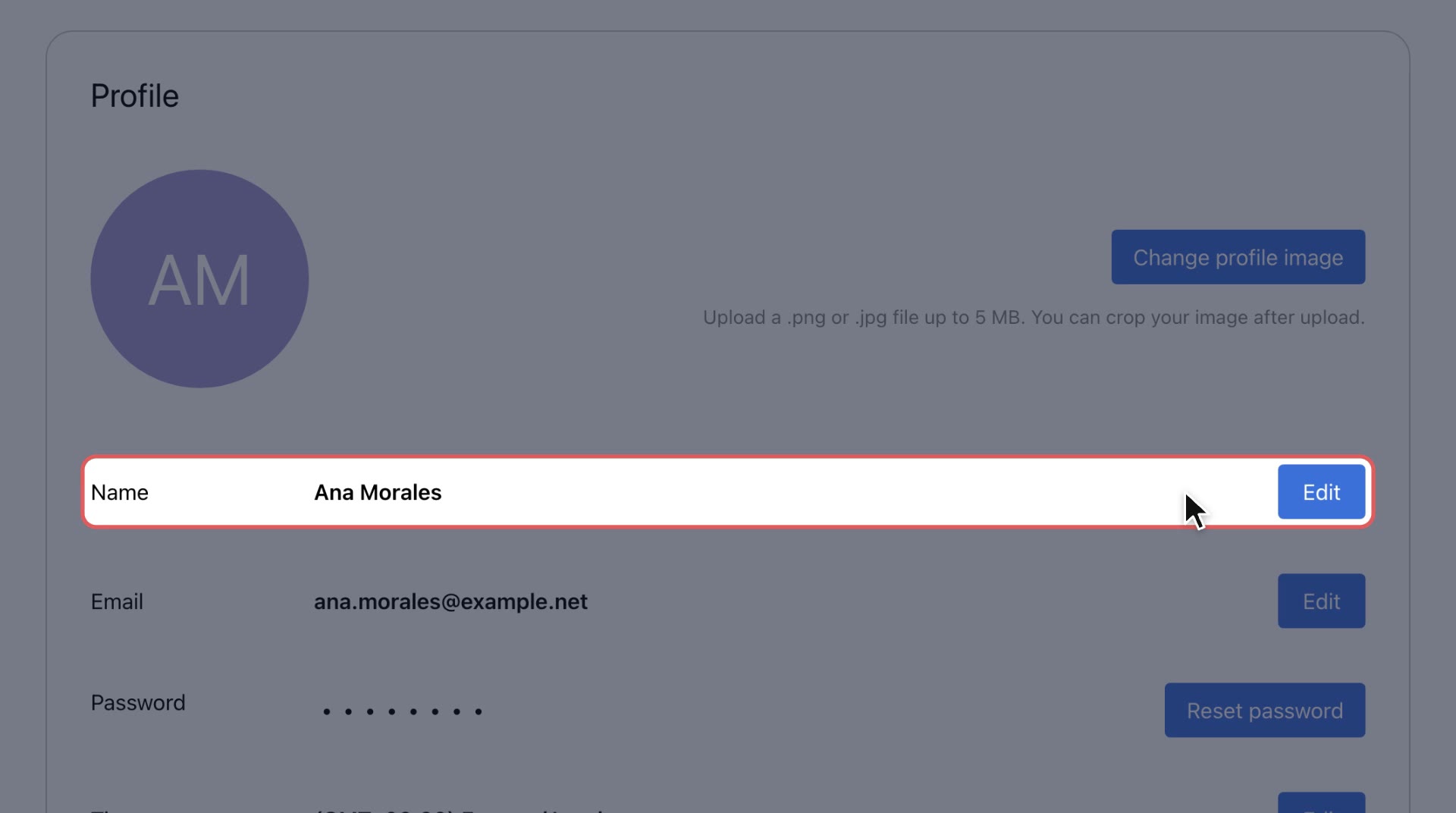
Screenshot from the film at 0:37: This is the name your participants see on every invitation.
Watch this step · 0:36

2Change profile image0:40

Now your photo. Click Change profile image, and choose a PNG or JPG file of up to five megabytes.
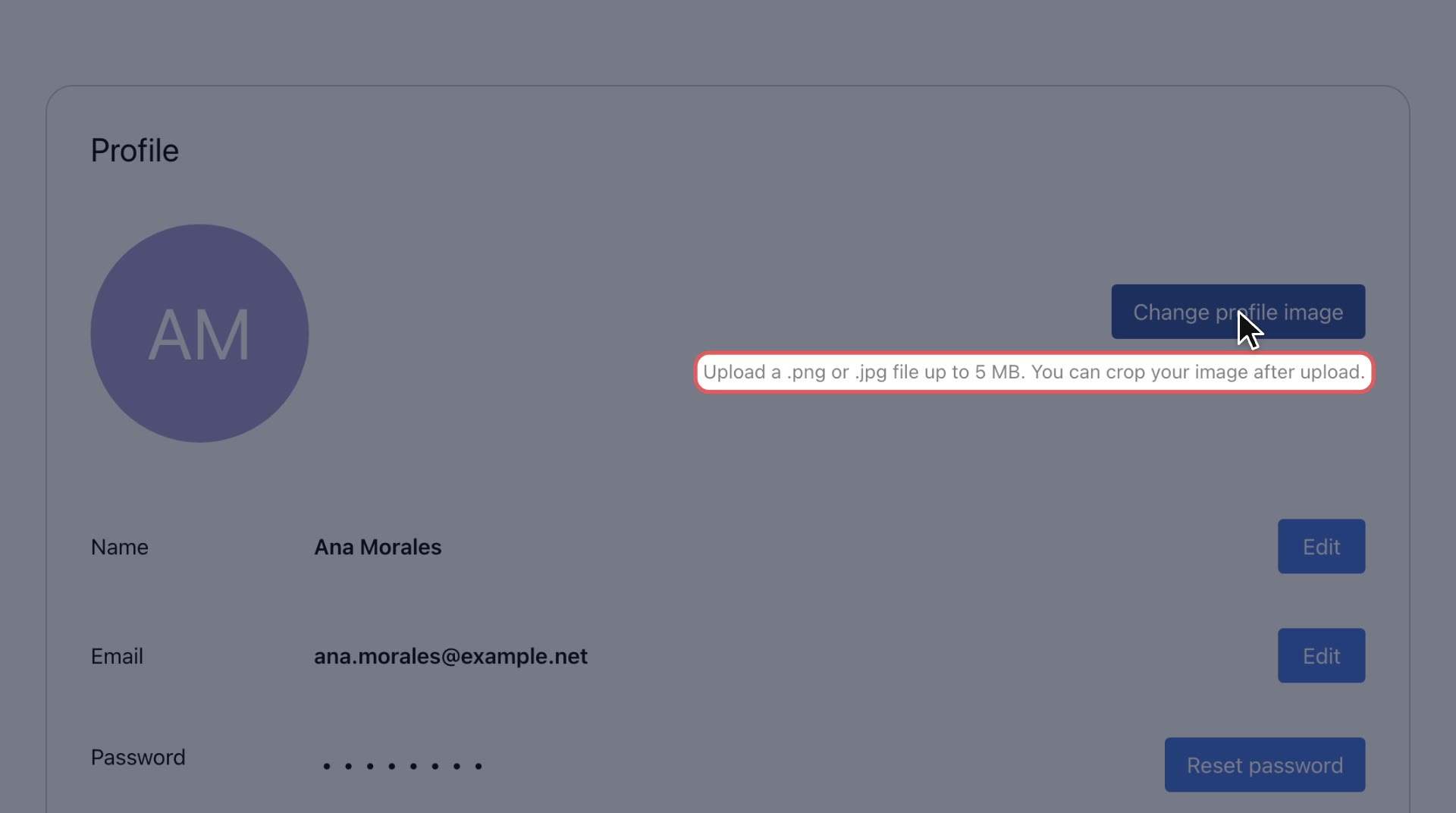
Screenshot from the film at 0:46: Click Change profile image, and choose a PNG or JPG file of up to five megabytes.
Watch this step · 0:41

Scroll to zoom, drag the picture into place, and click Change.
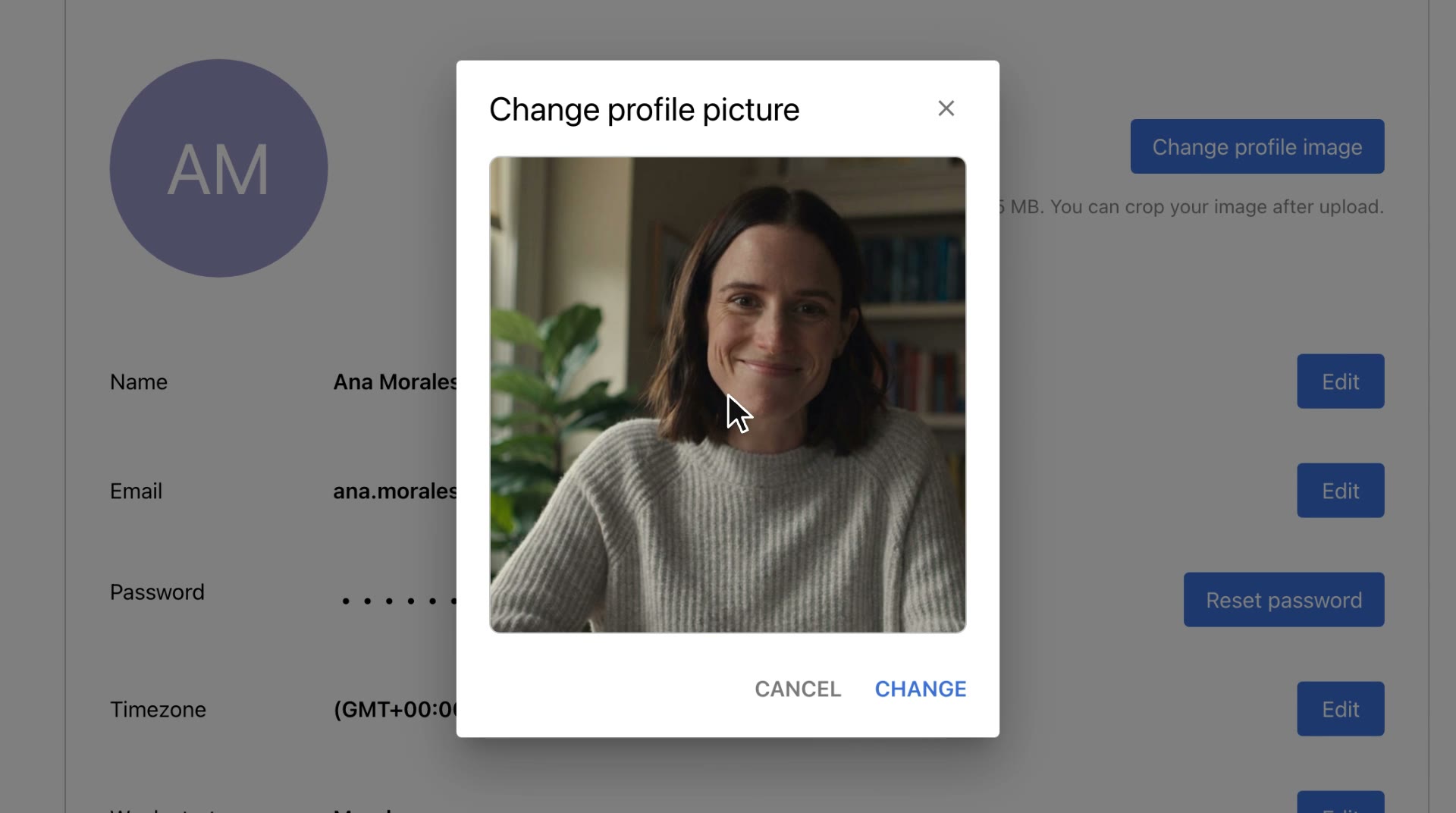
Screenshot from the film at 0:52: Scroll to zoom, drag the picture into place, and click Change.
Watch this step · 0:50

Your photo now stands in place of your initials.
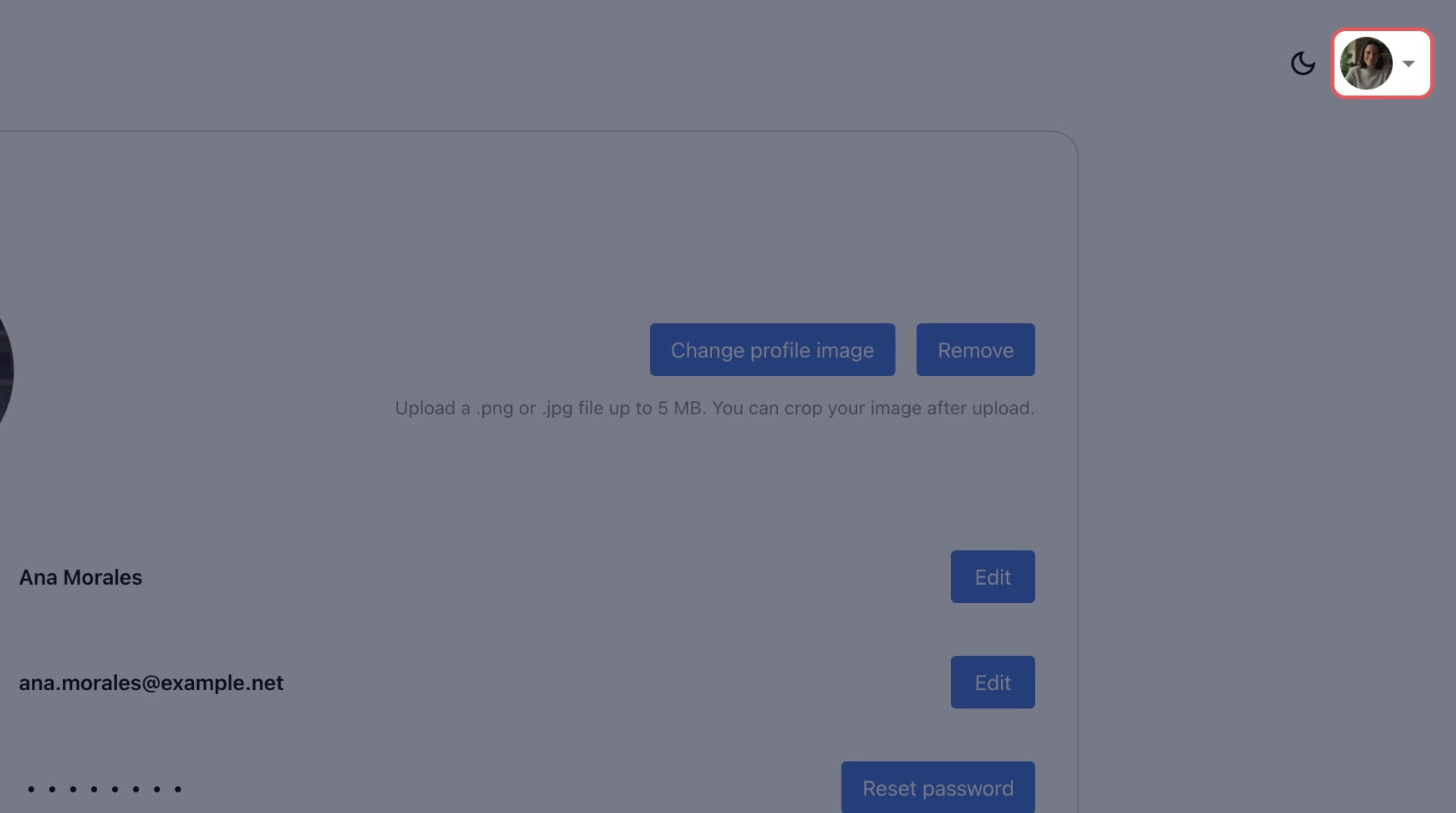
Screenshot from the film at 0:58: Your photo now stands in place of your initials.
Watch this step · 0:55

3Email and password0:59

To change your email address, click Edit. The old address keeps working until you confirm the new one from its inbox.
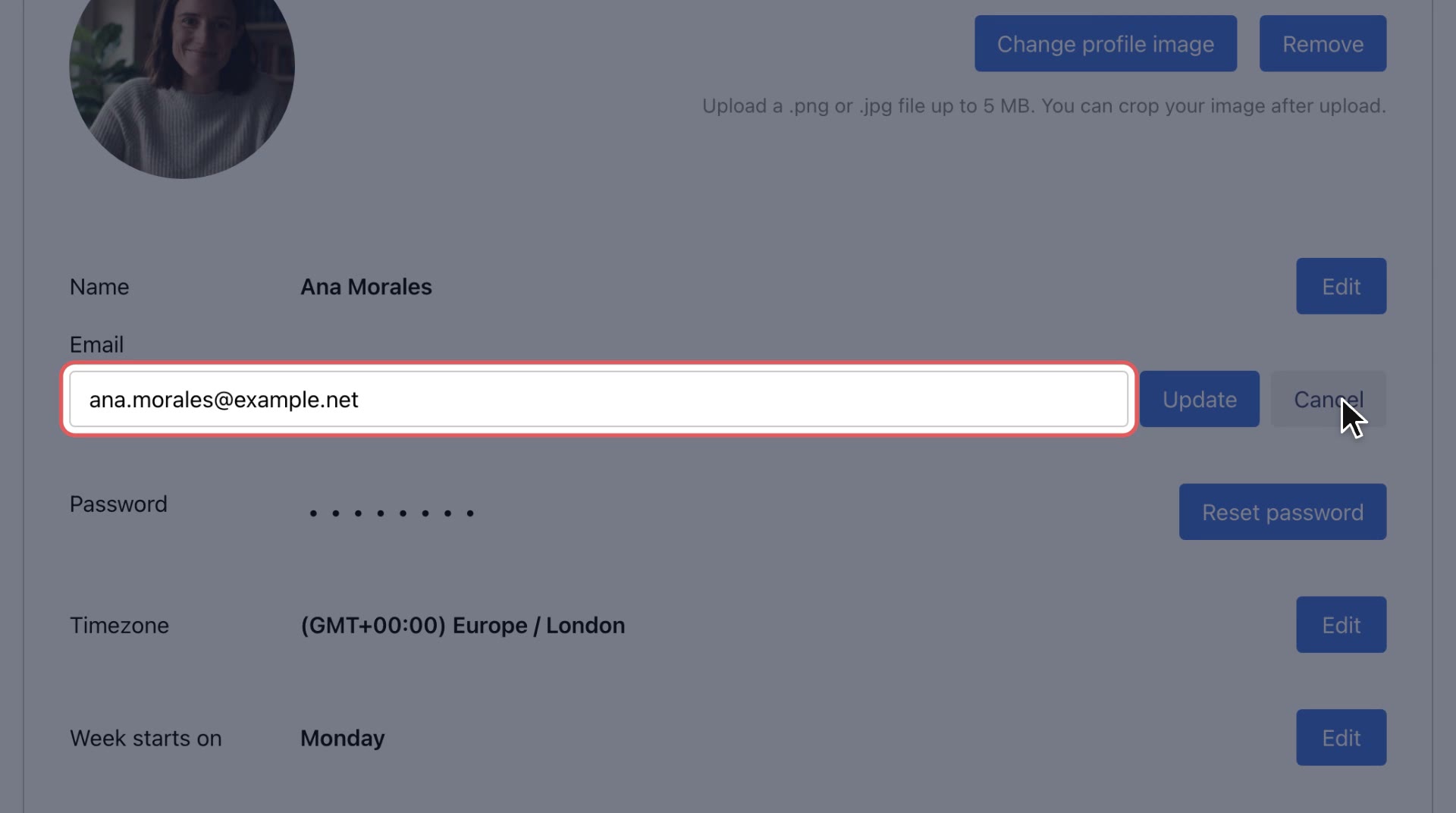
Screenshot from the film at 1:04: The old address keeps working until you confirm the new one from its inbox.
Watch this step · 1:00

Reset password emails you a link to choose a new one.
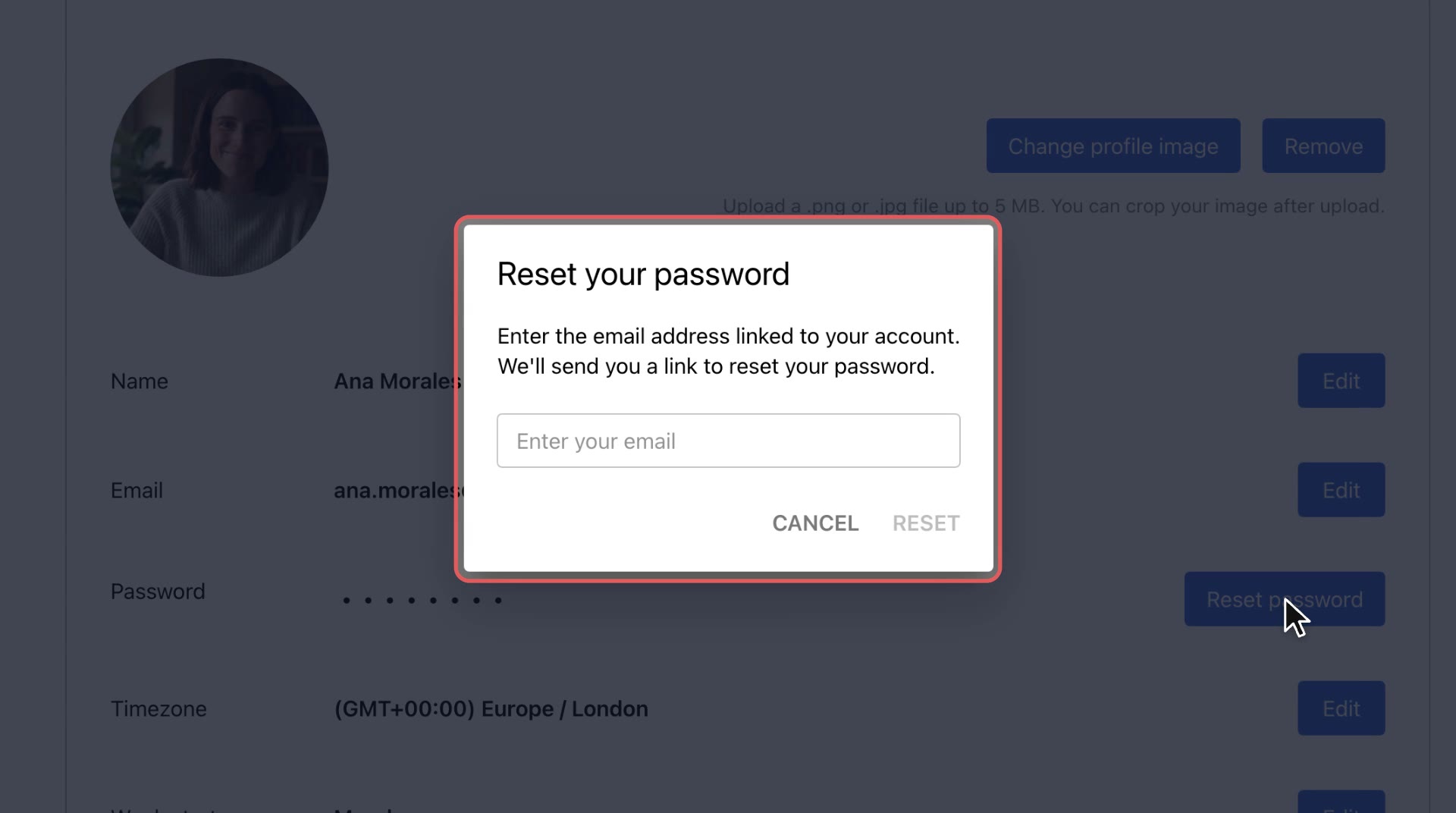
Screenshot from the film at 1:10: Reset password emails you a link to choose a new one.
Watch this step · 1:08

4Timezone1:12

Now check your time zone. It was set from your device when you signed up.
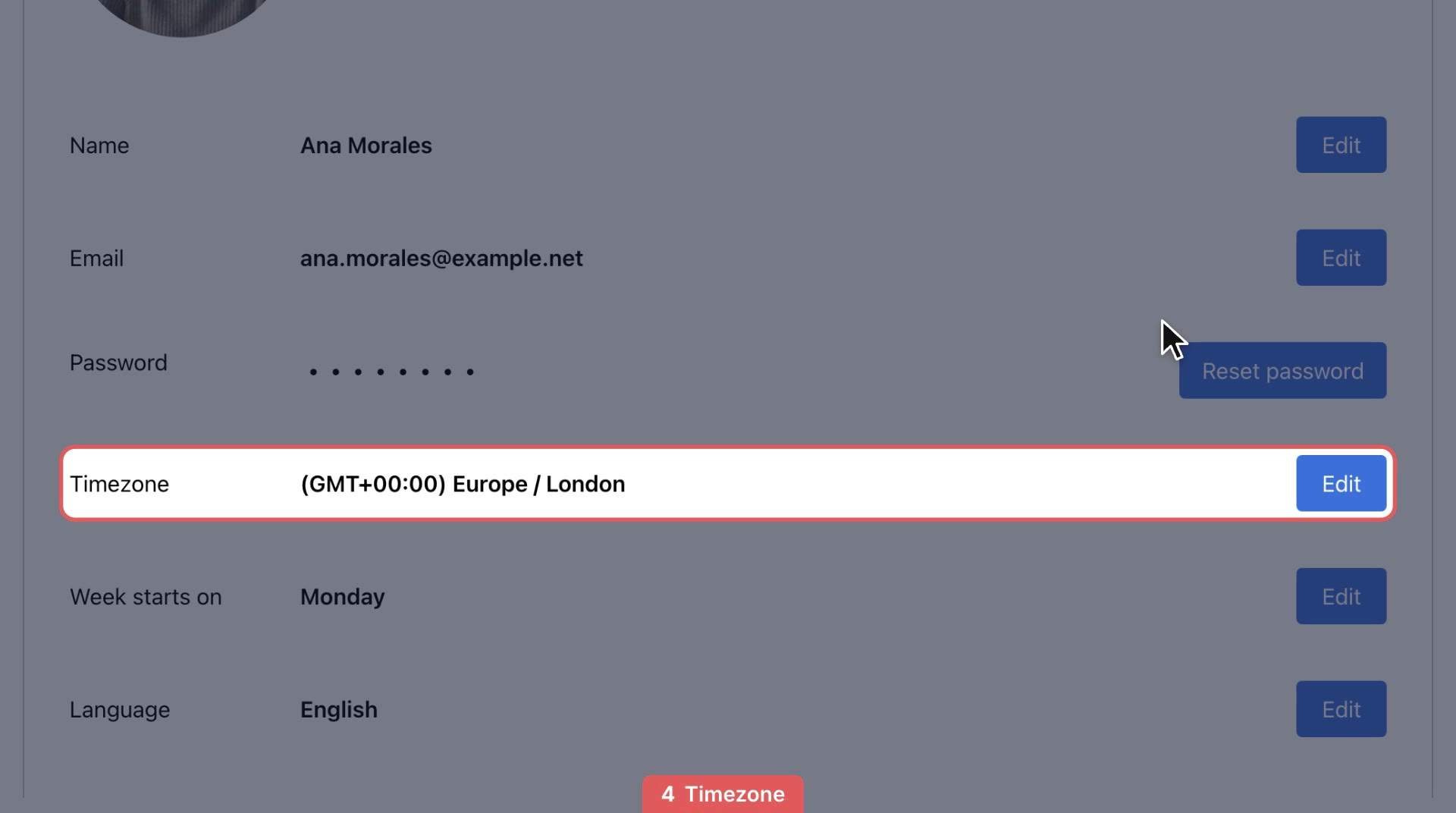
Screenshot from the film at 1:15: Now check your time zone.
Watch this step · 1:13

Here the account is on London time, but the team is in Madrid: Monday's meeting shows at nine instead of ten.
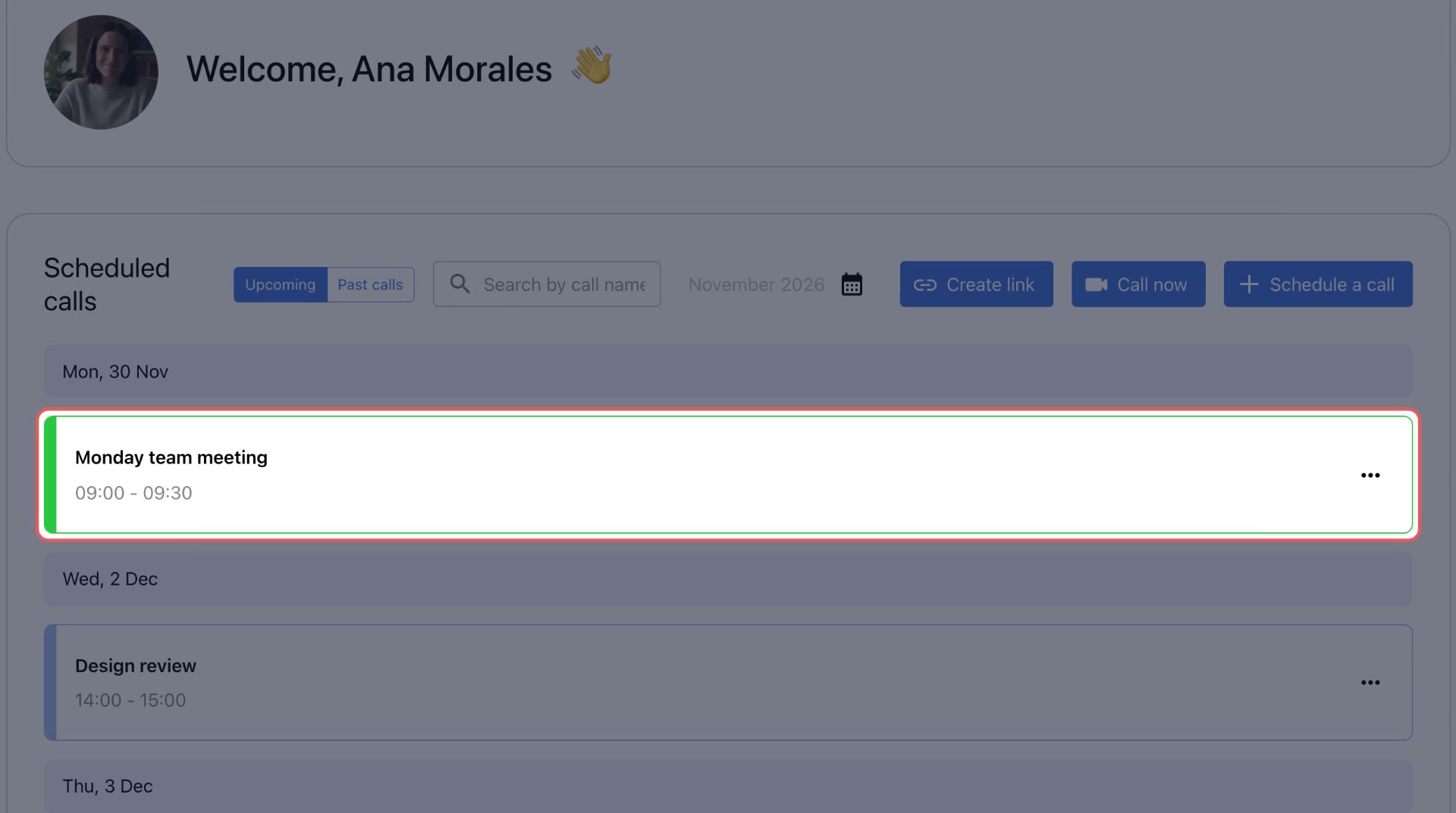
Screenshot from the film at 1:24: Here the account is on London time, but the team is in Madrid: Monday's meeting shows at nine instead of ten.
Watch this step · 1:18

Click Edit, choose your time zone, and click Update.
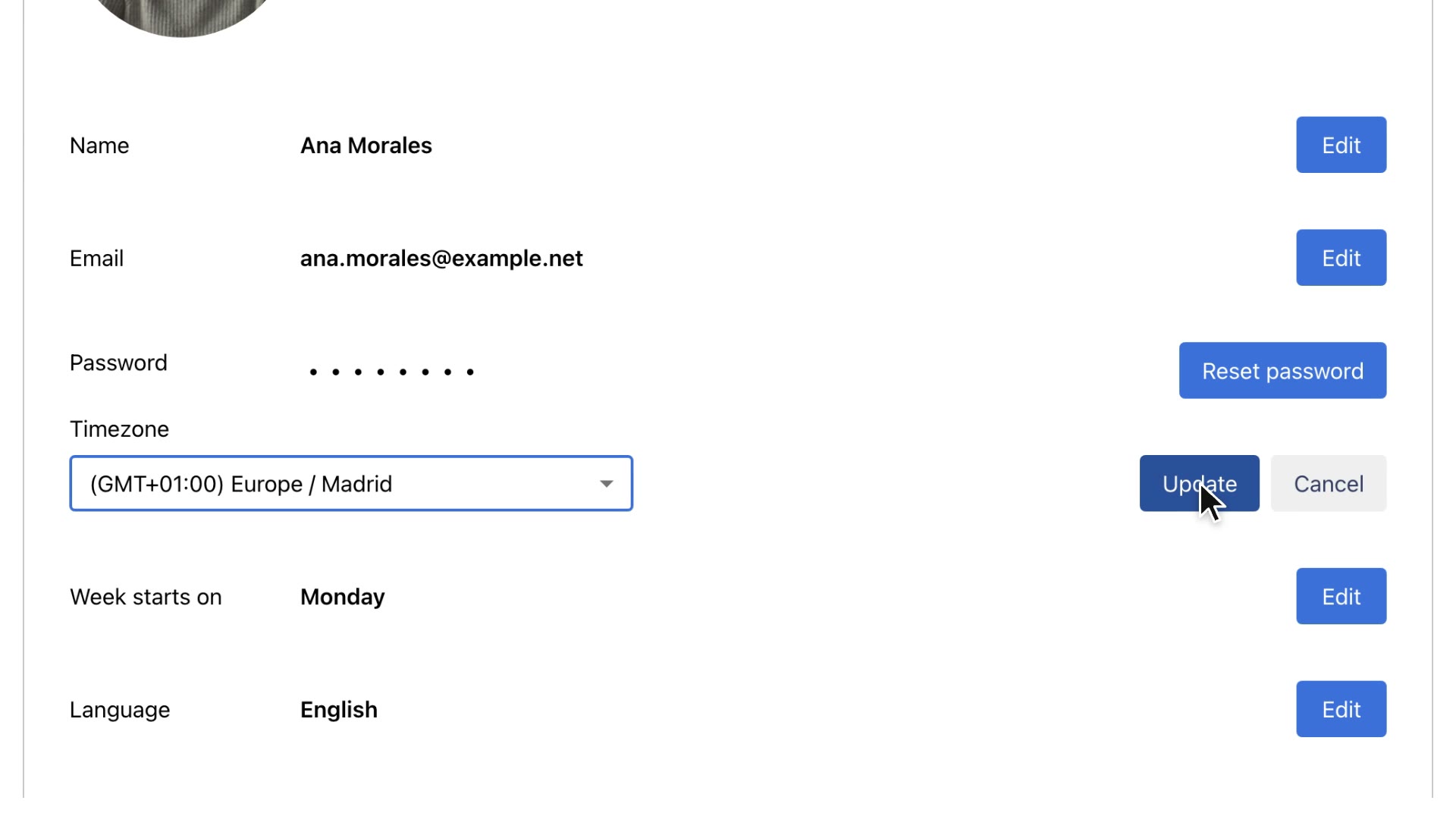
Screenshot from the film at 1:29: Click Edit, choose your time zone, and click Update.
Watch this step · 1:26

The meeting has not moved: only the clock it is shown in has changed.
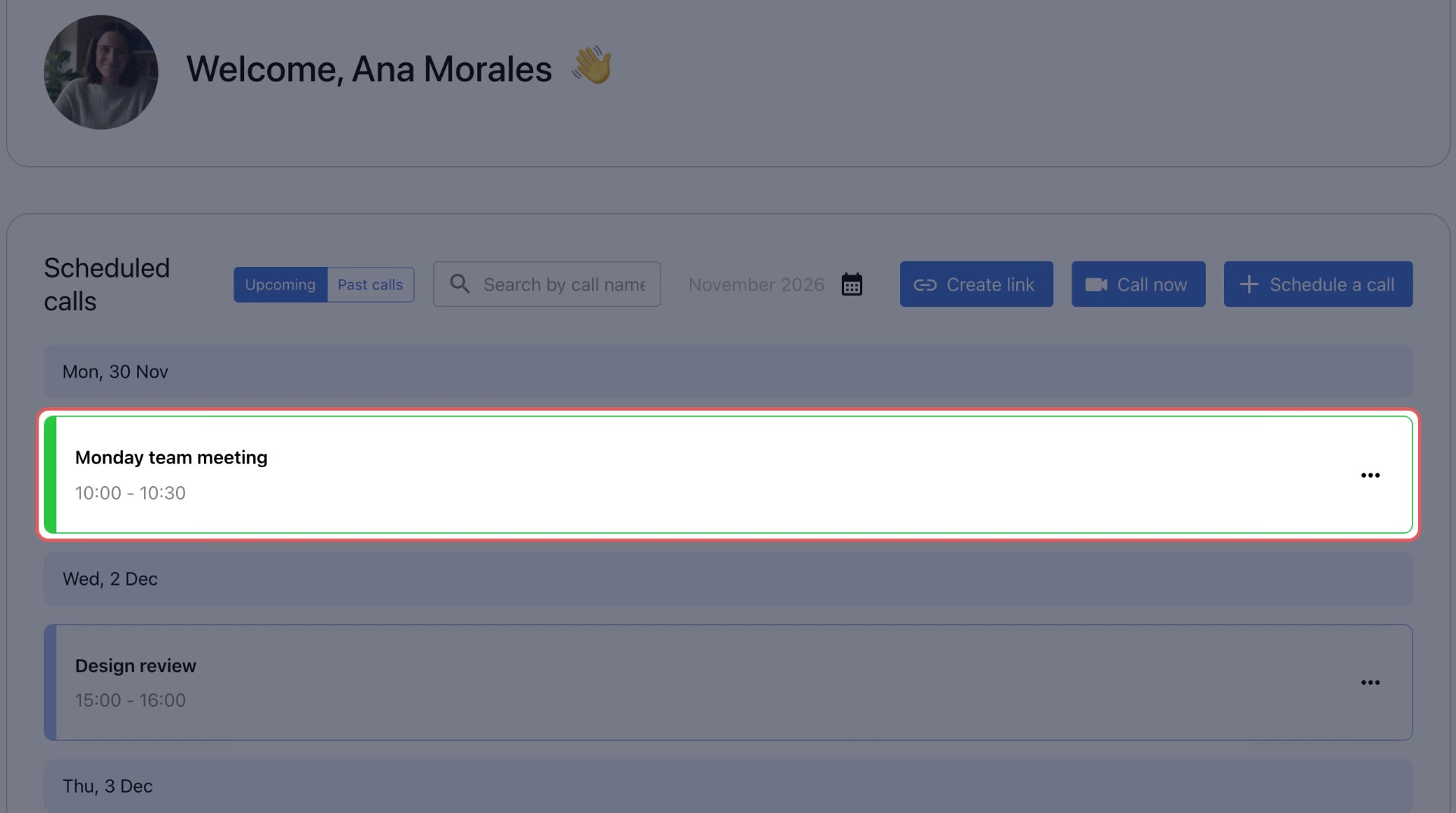
Screenshot from the film at 1:32: The meeting has not moved: only the clock it is shown in has changed.
Watch this step · 1:31

Your participants see call times in your time zone too, with its name beside them.
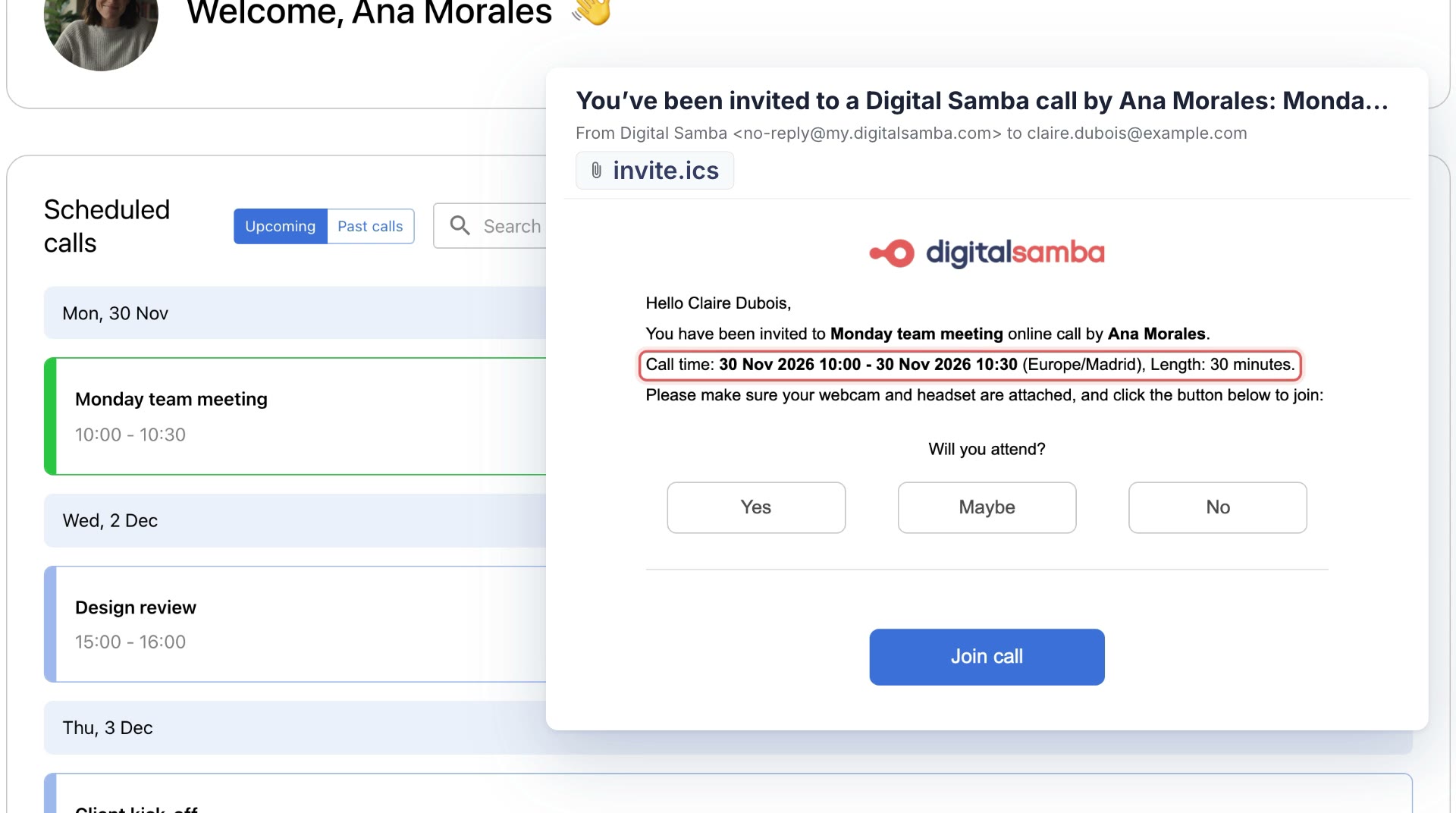
Screenshot from the film at 1:40: Your participants see call times in your time zone too, with its name beside them.
Watch this step · 1:36

Week starts on sets the first day of the week when you pick a date.
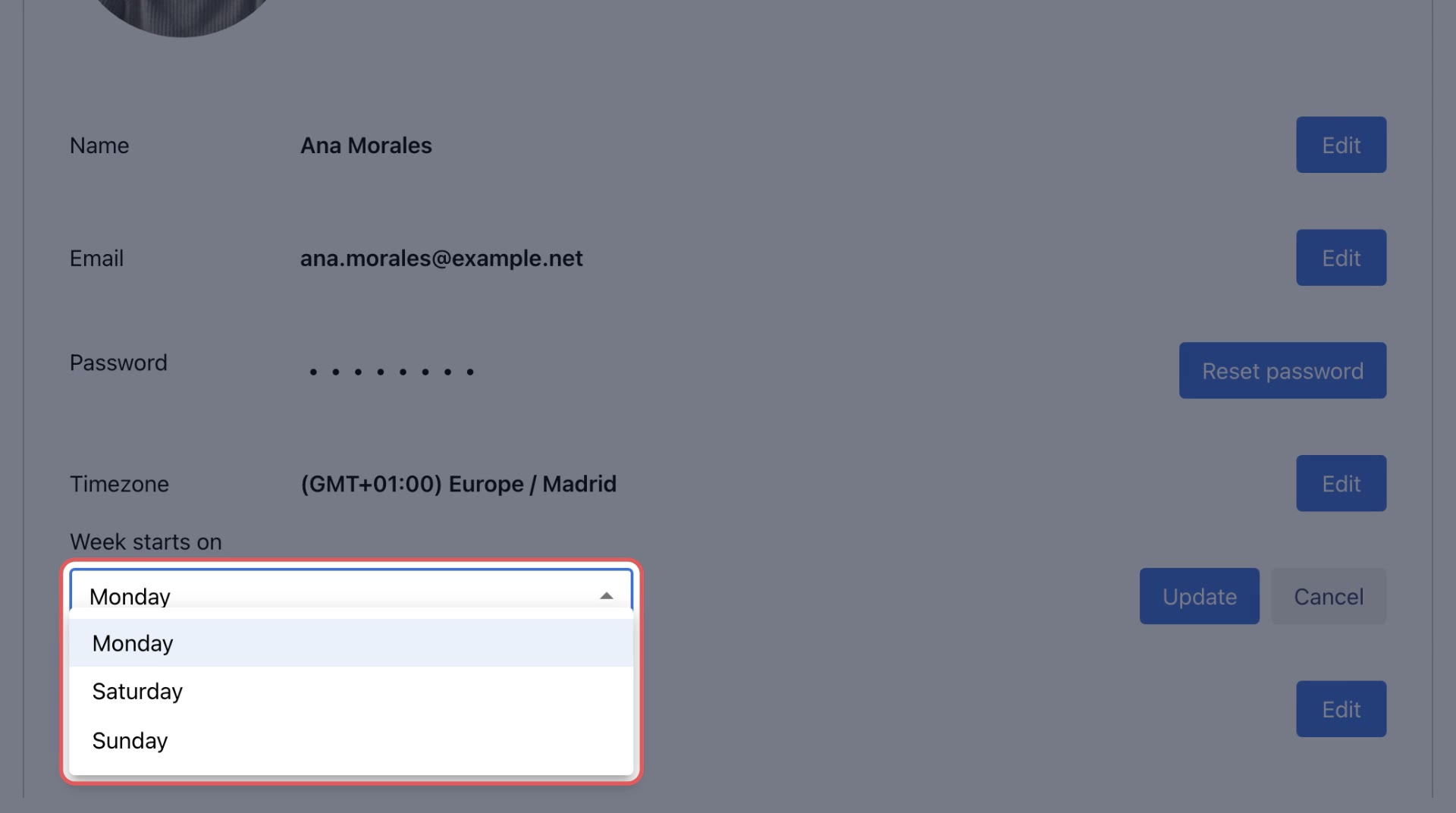
Screenshot from the film at 1:44: Week starts on sets the first day of the week when you pick a date.
Watch this step · 1:42

5Language1:47

Language changes your dashboard to Català, English, Español, Deutsch or Nederlands.
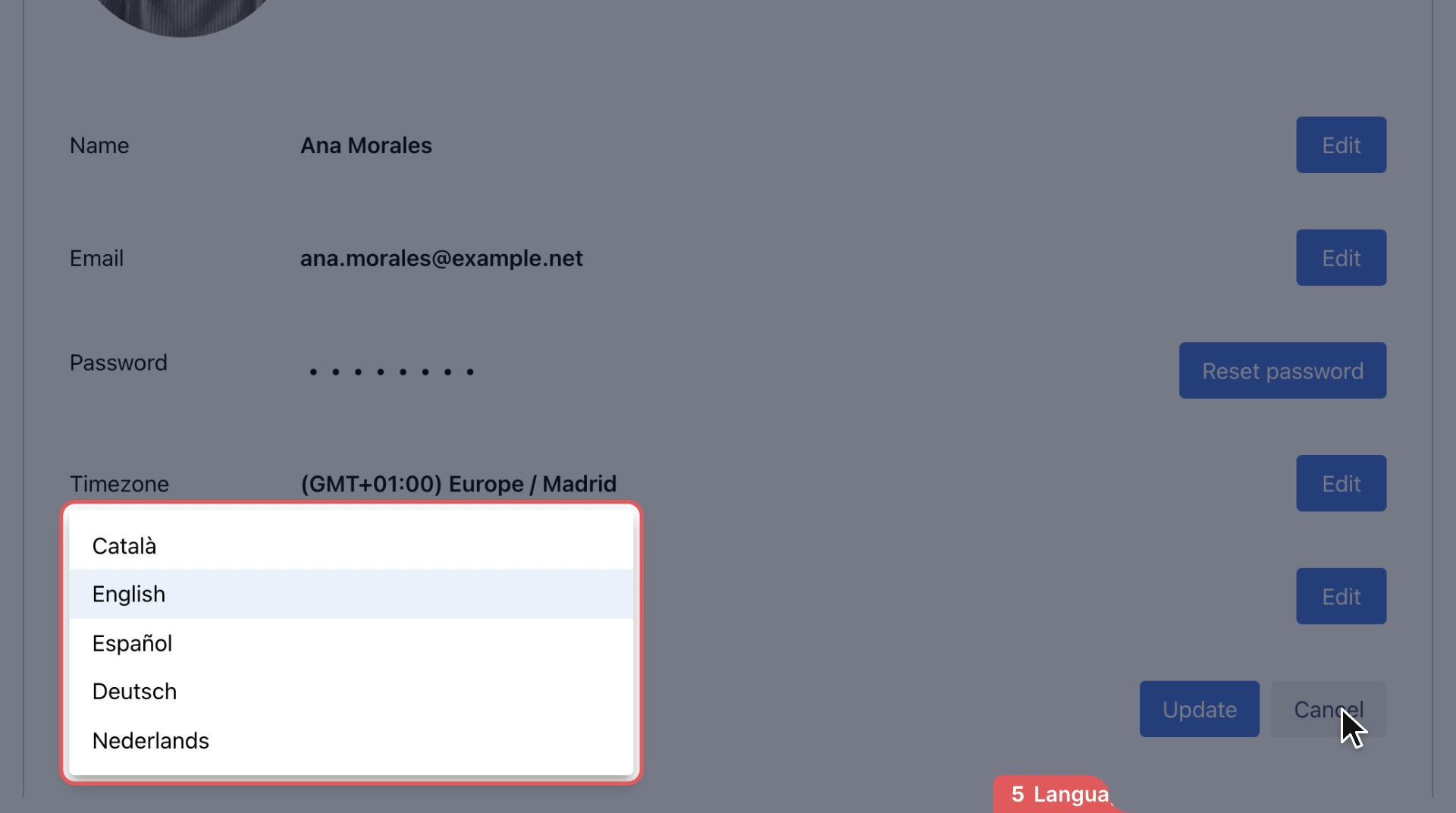
Screenshot from the film at 1:50: Language changes your dashboard to Català, English, Español, Deutsch or Nederlands.
Watch this step · 1:48

Your invitations, and the pages your participants open from them, are in this language too.
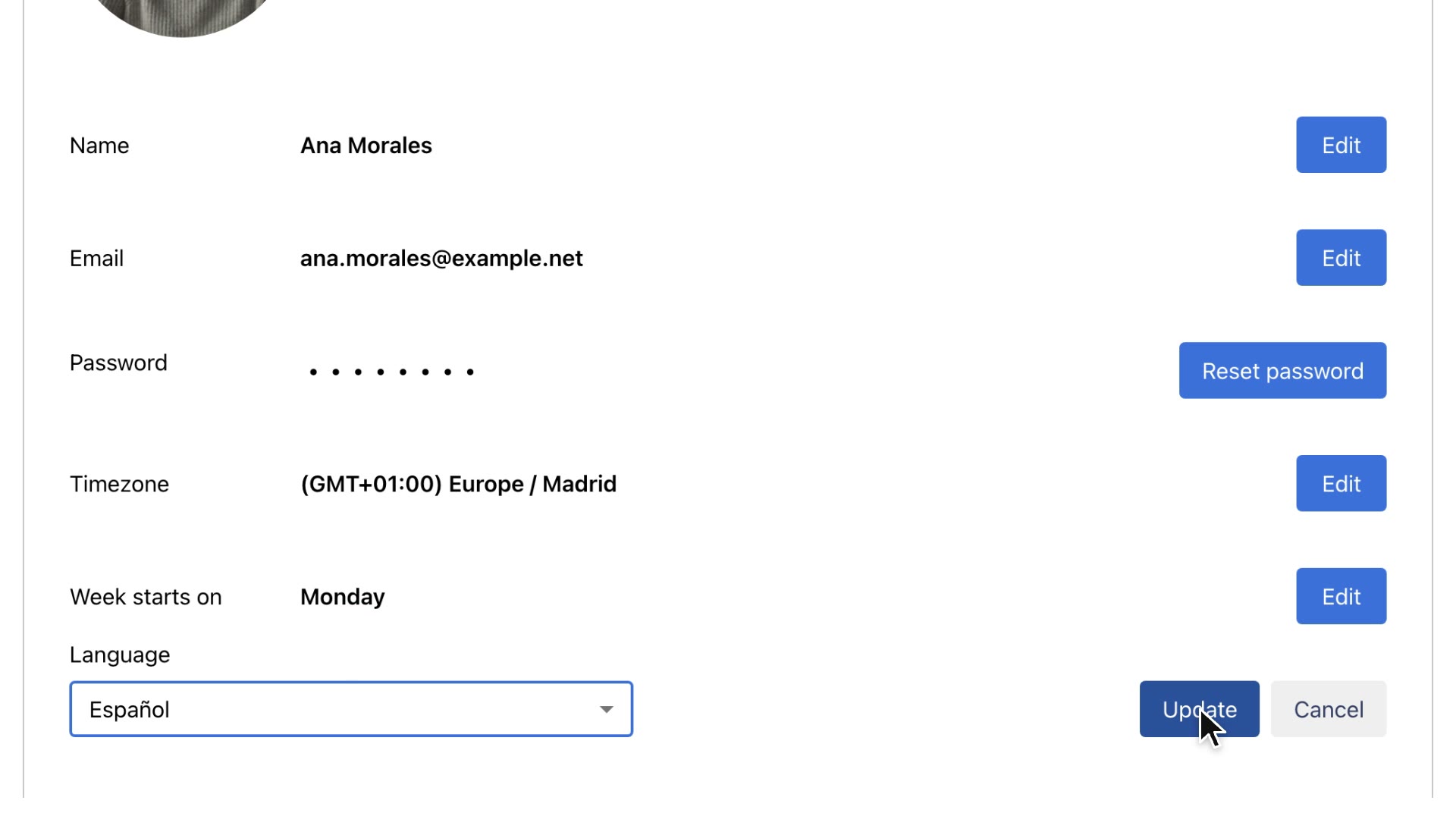
Screenshot from the film at 1:55: Your invitations, and the pages your participants open from them, are in this language too.
Watch this step · 1:55

Here the team works in English, so English stays.
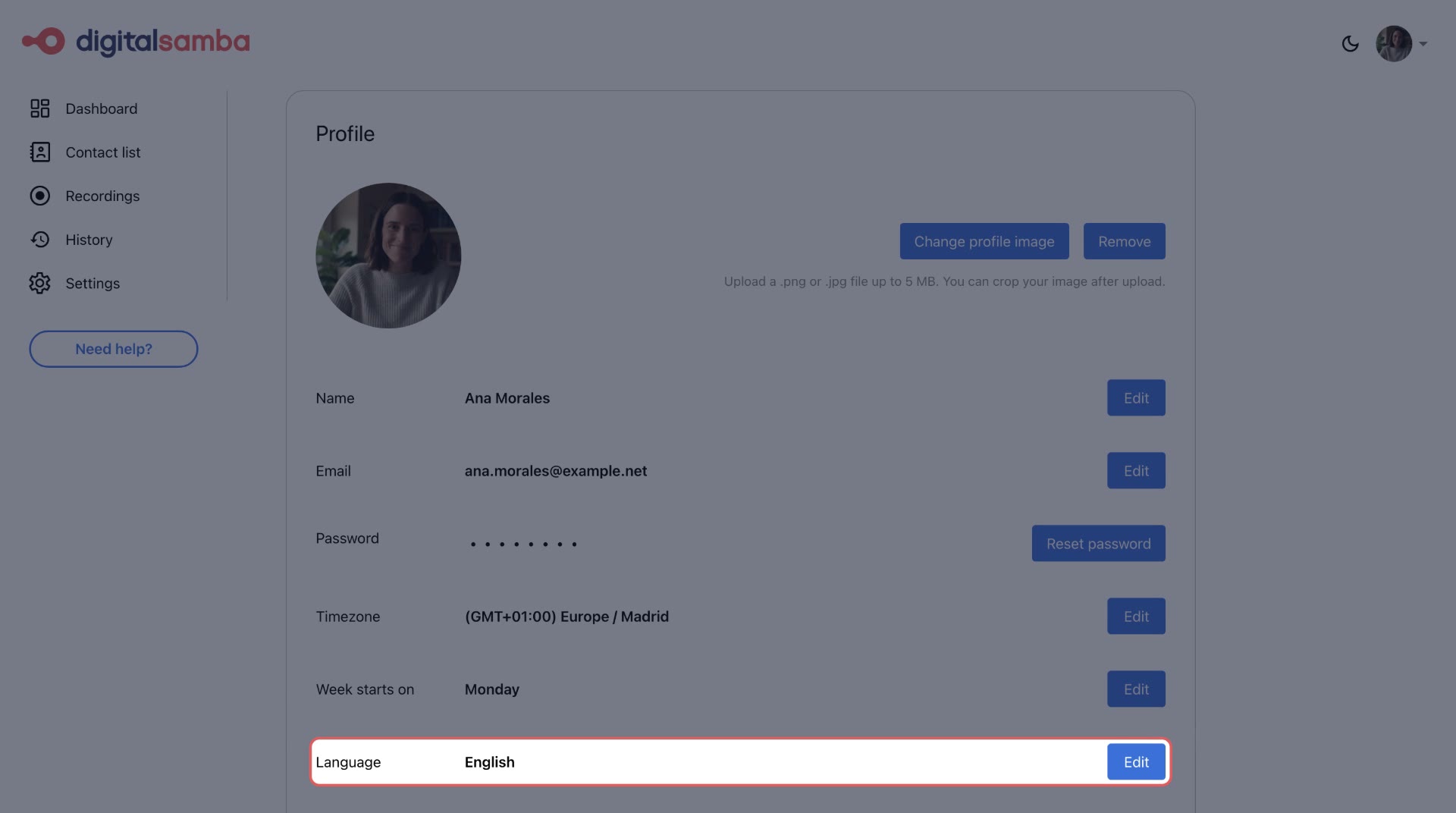
Screenshot from the film at 2:03: Here the team works in English, so English stays.
Watch this step · 2:01

6Send invitation emails2:05

Good to know: Send invitation emails is for your whole account. Turn it off, and your calls send no invitations, no changes and no cancellations.
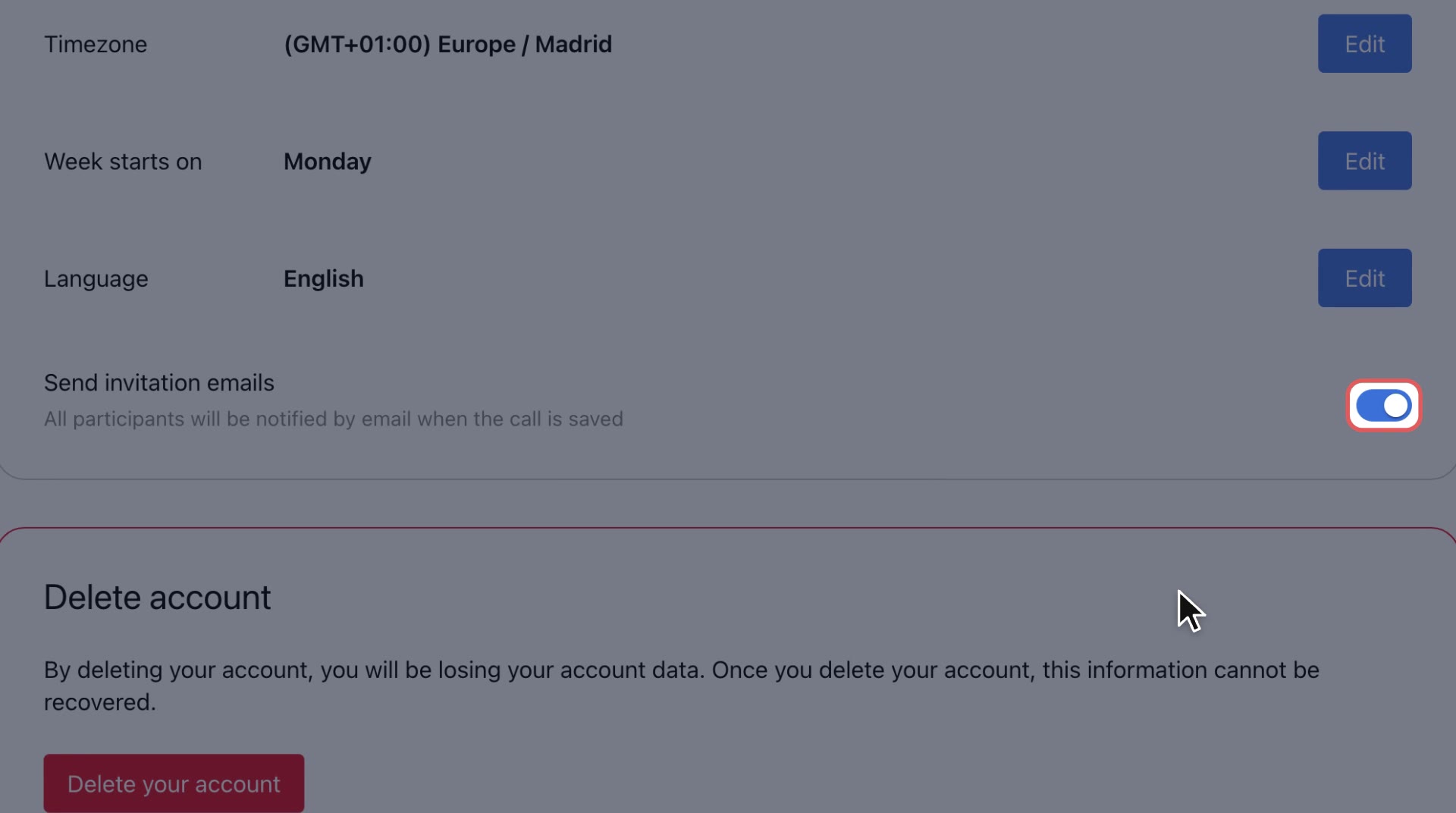
Screenshot from the film at 2:15: Turn it off, and your calls send no invitations, no changes and no cancellations.
Watch this step · 2:06

And Delete account cannot be undone. Your call links stop working, and your participants are not told.
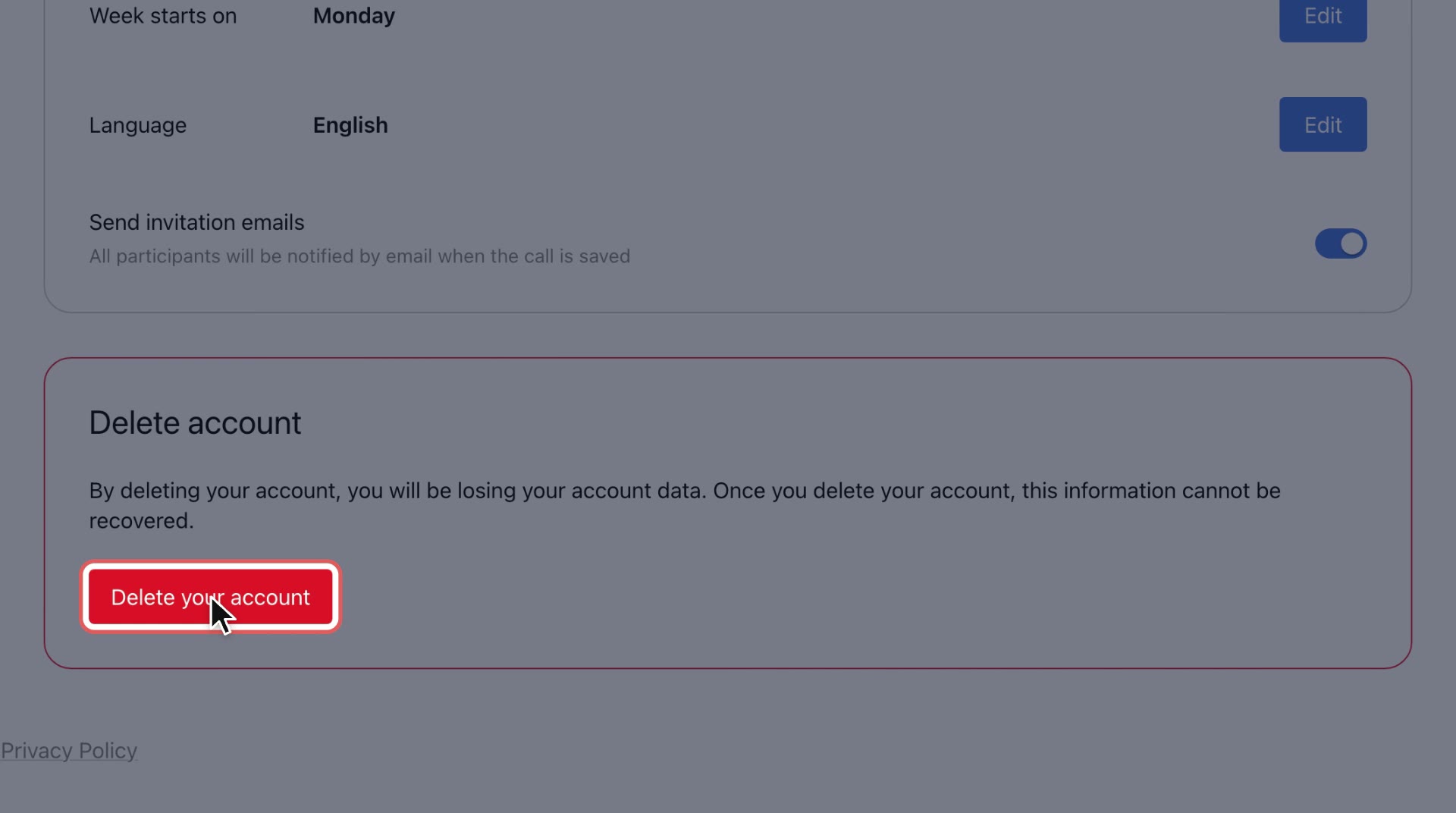
Screenshot from the film at 2:22: Your call links stop working, and your participants are not told.
Watch this step · 2:17

Recap2:24

So: your name, your photo, your time zone and your language. Your profile is ready for Monday.
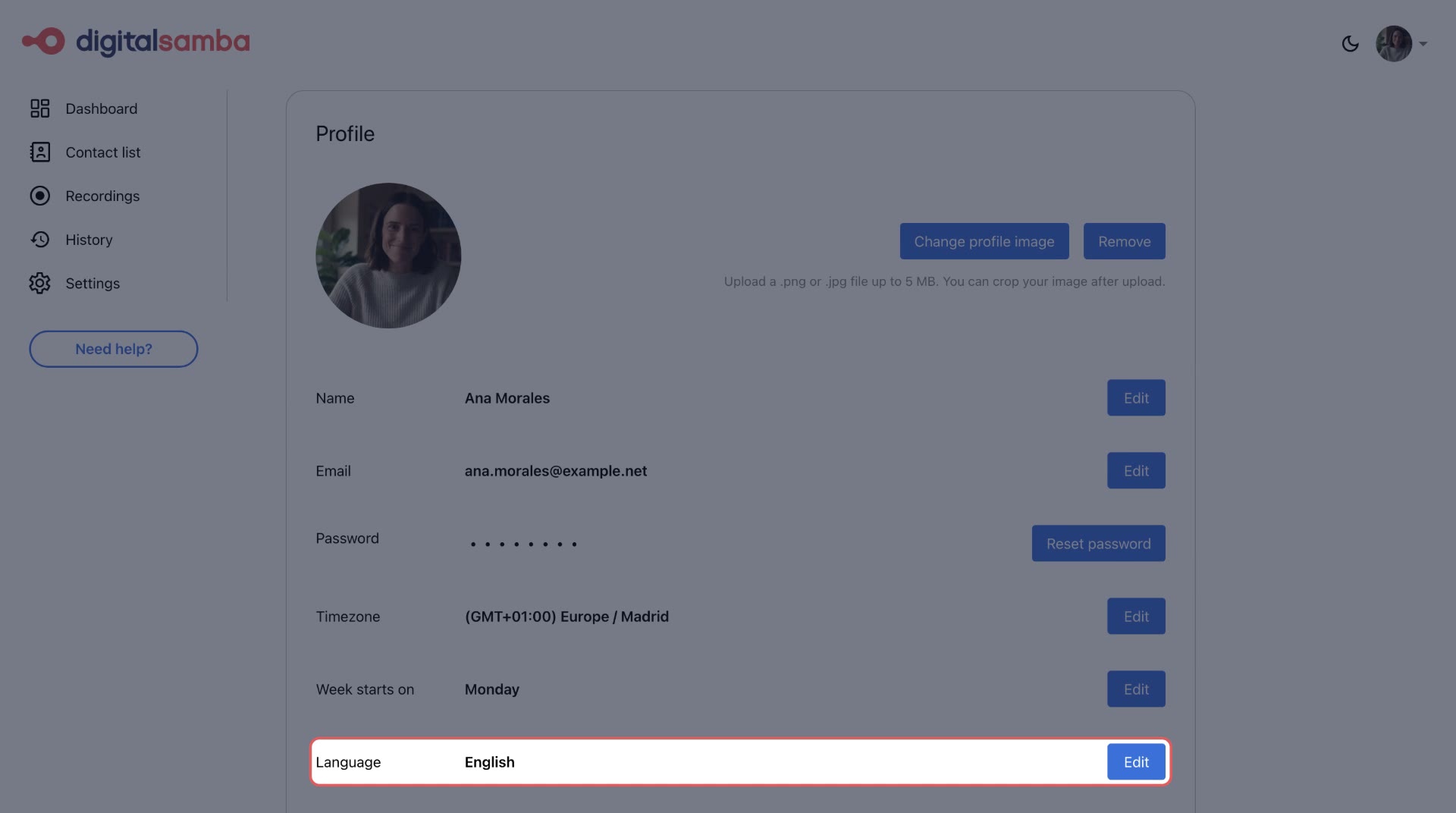
Screenshot from the film at 2:29: So: your name, your photo, your time zone and your language.
Watch this step · 2:25

In this video

Next

Related

Updated

The film, the article, the captions and the search results all come from one source, so they change together.

  1. Version 2 ·
    The account menu now shows the new "Go to Calendar" button above "Manage your profile".
  2. Version 1 ·
    First version.

All updates