1Repeat0:12
Our example is the team's Monday meeting.
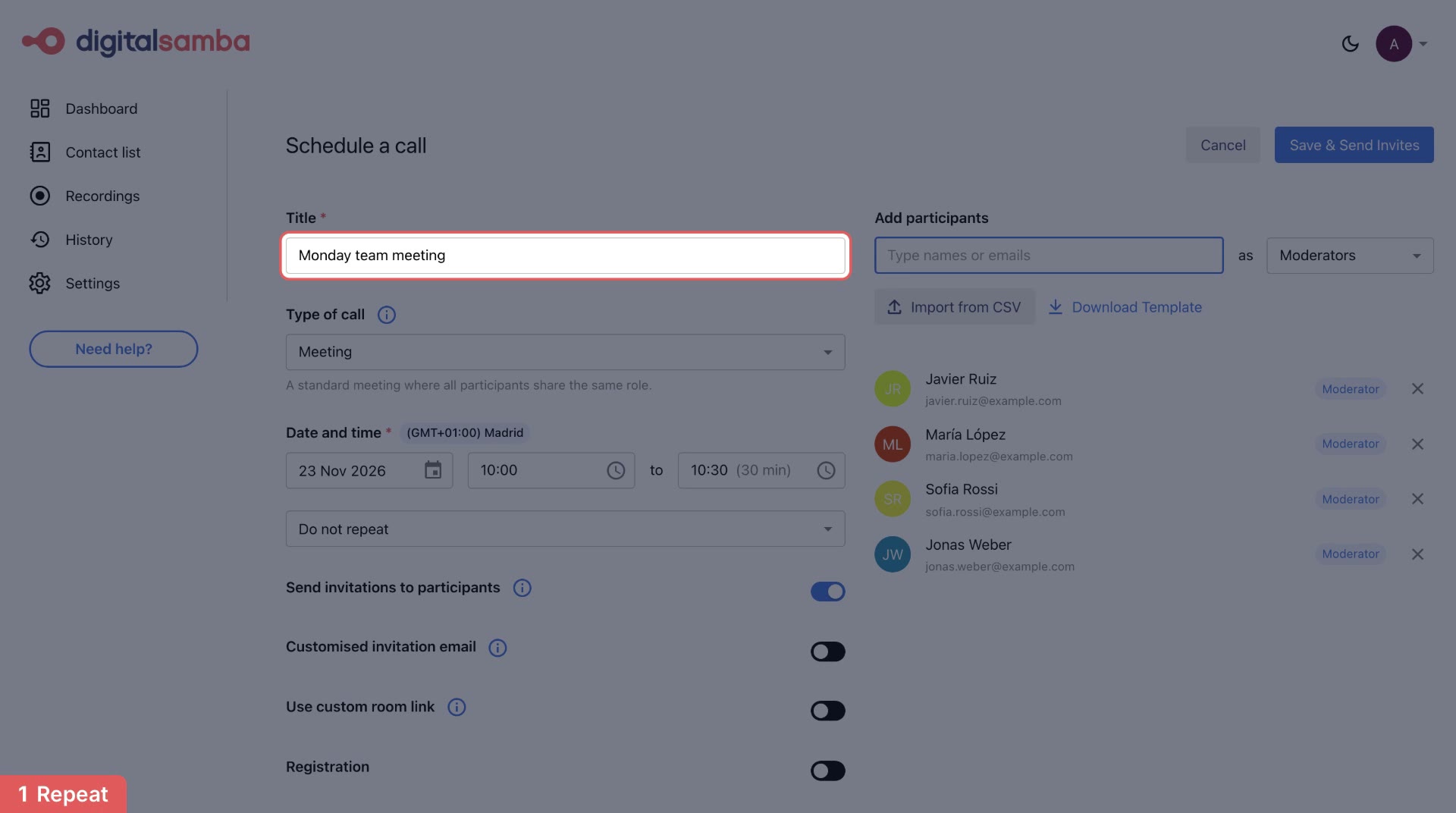
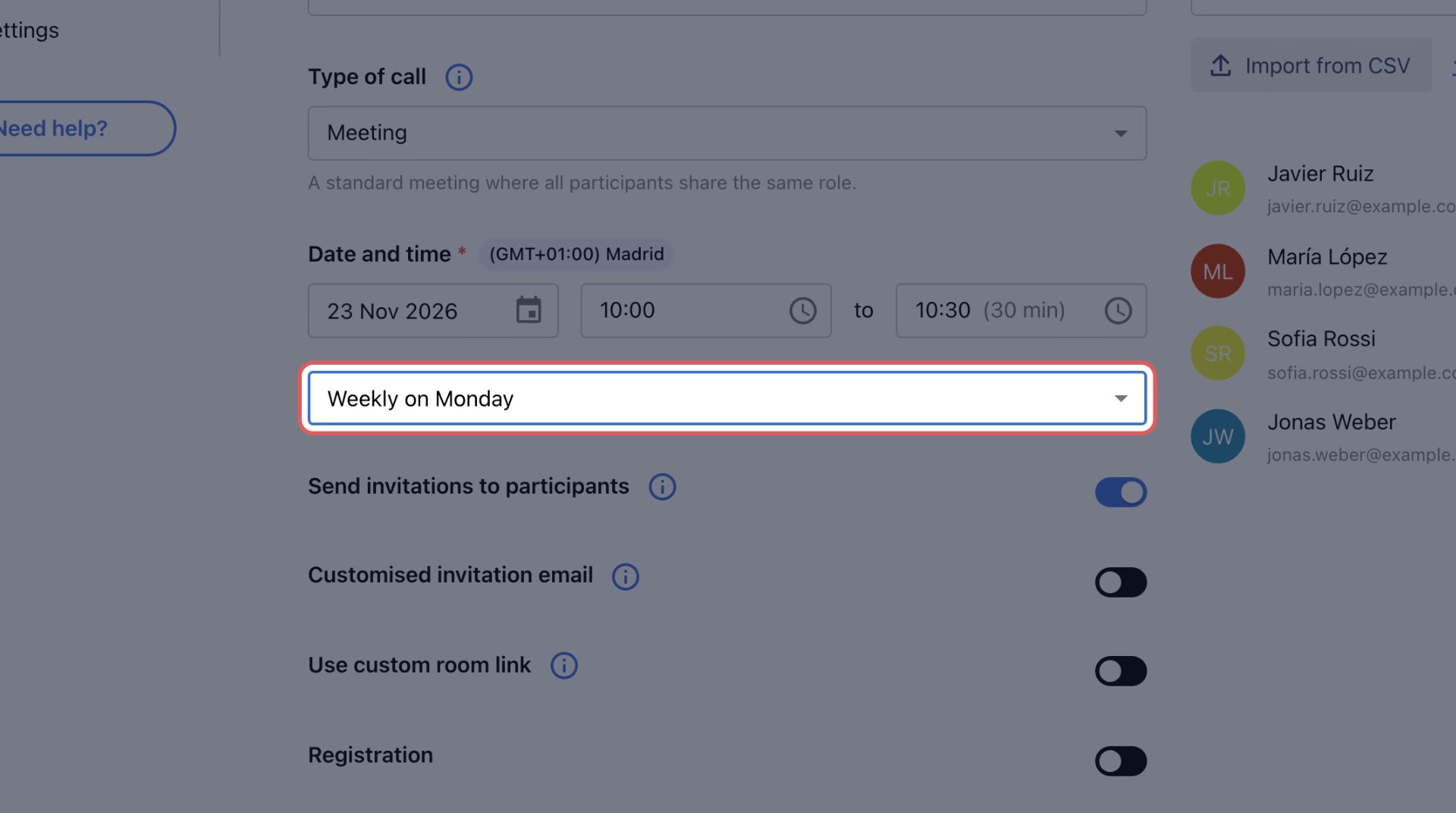
On the Schedule a call form, under the date and time, there's a menu that says Do not repeat.
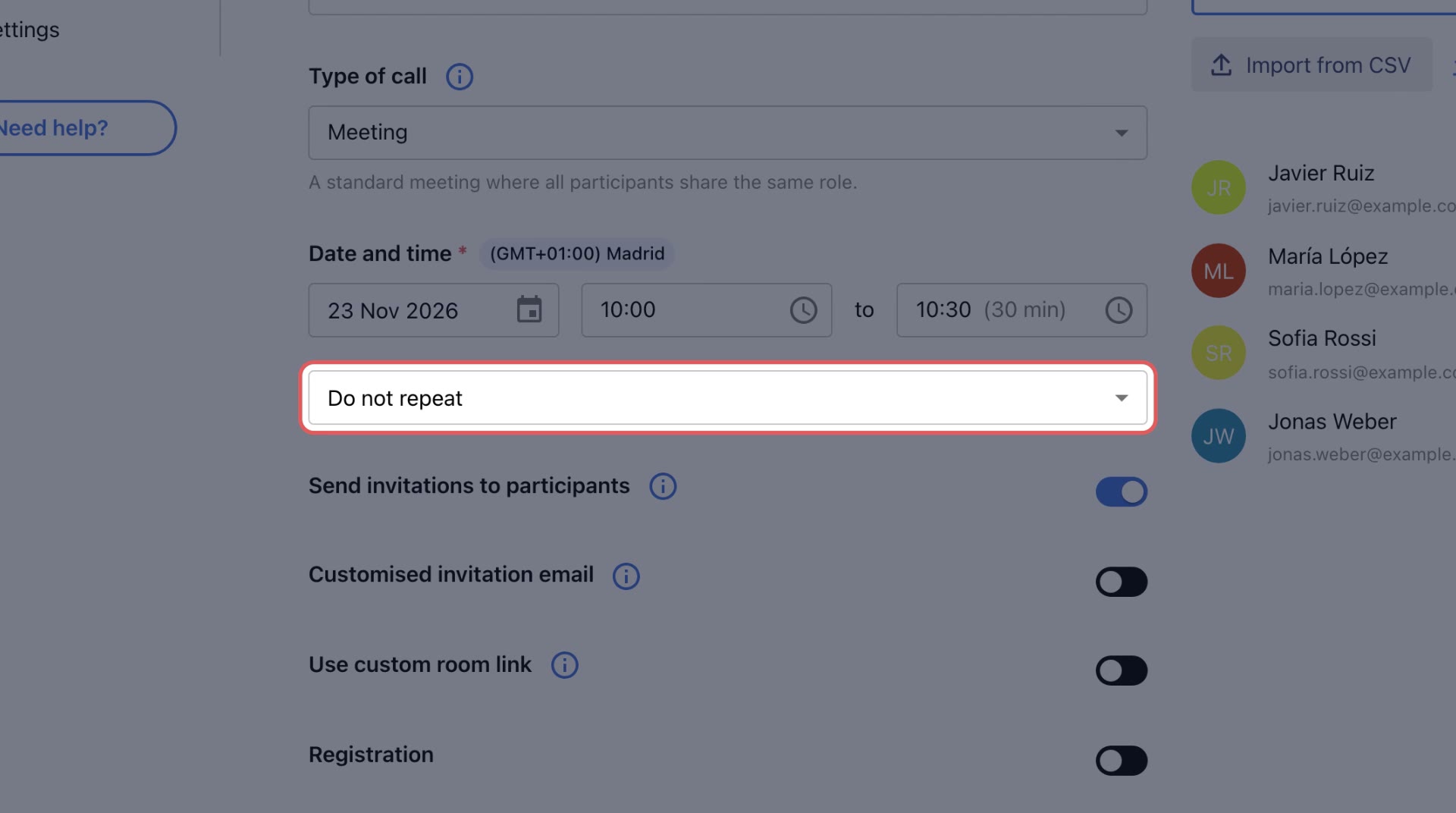
Its choices follow the date you picked: Daily, Weekly, Monthly, Annually, or Every weekday.
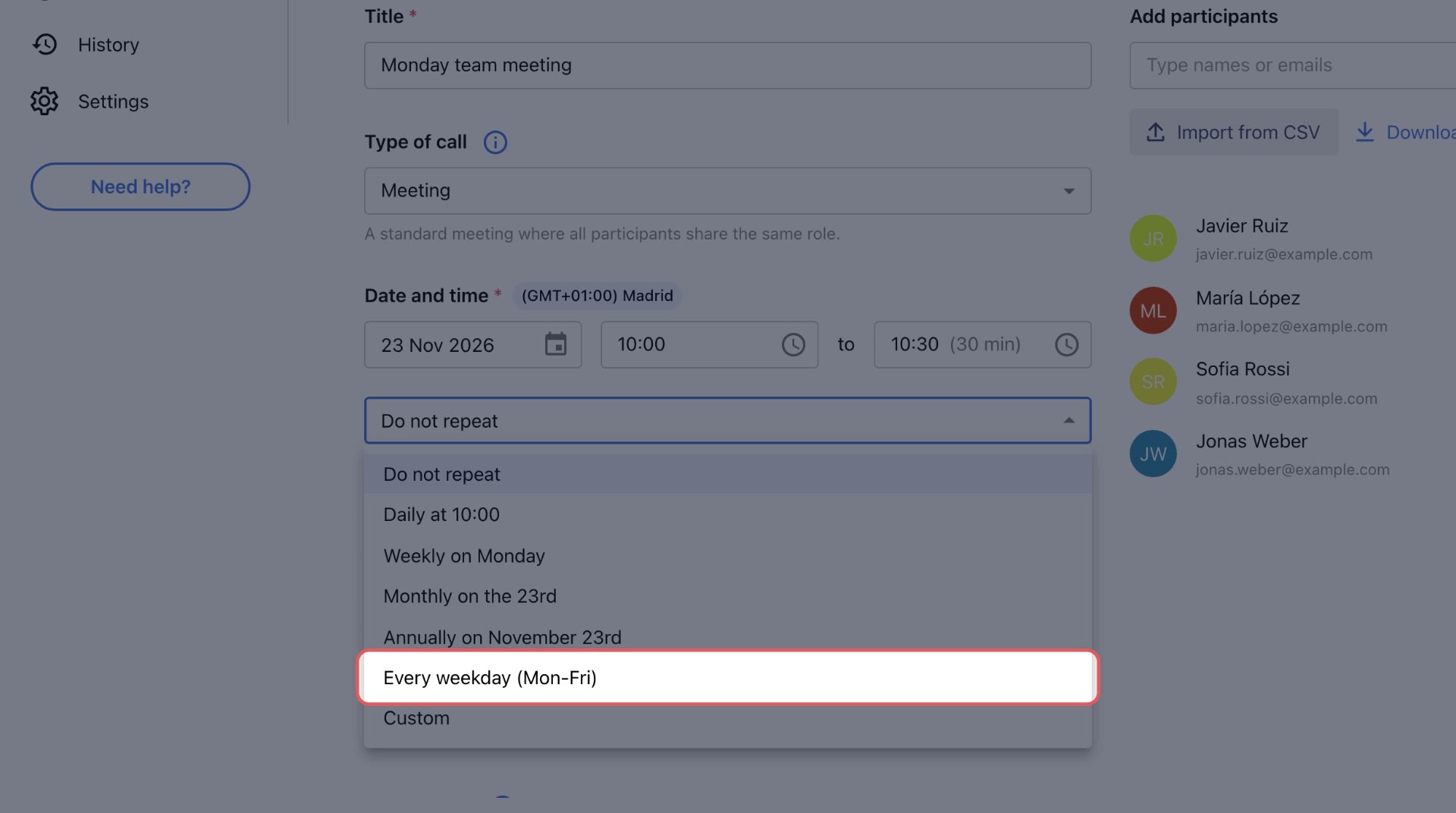
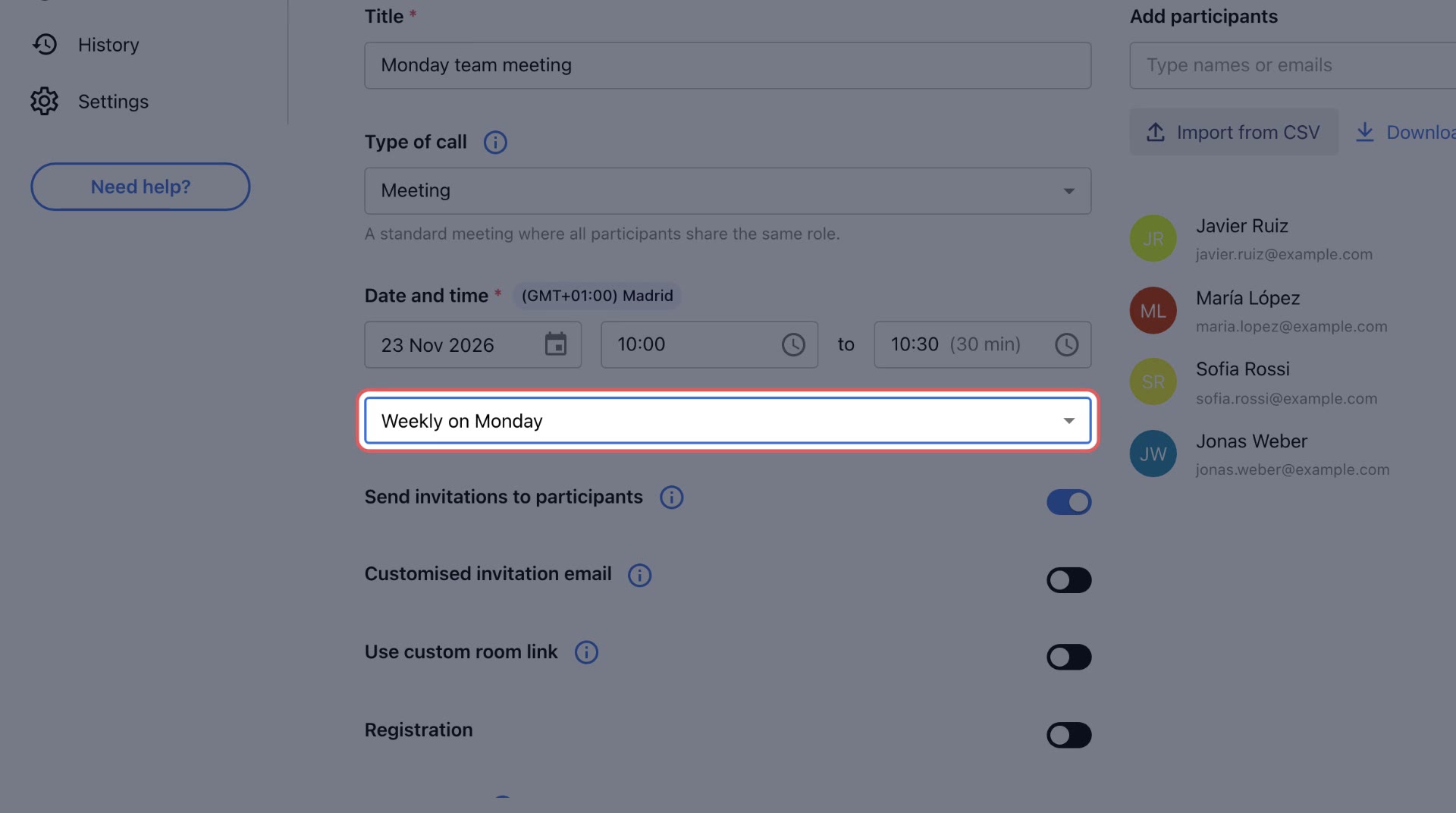
Choose Weekly on Monday.
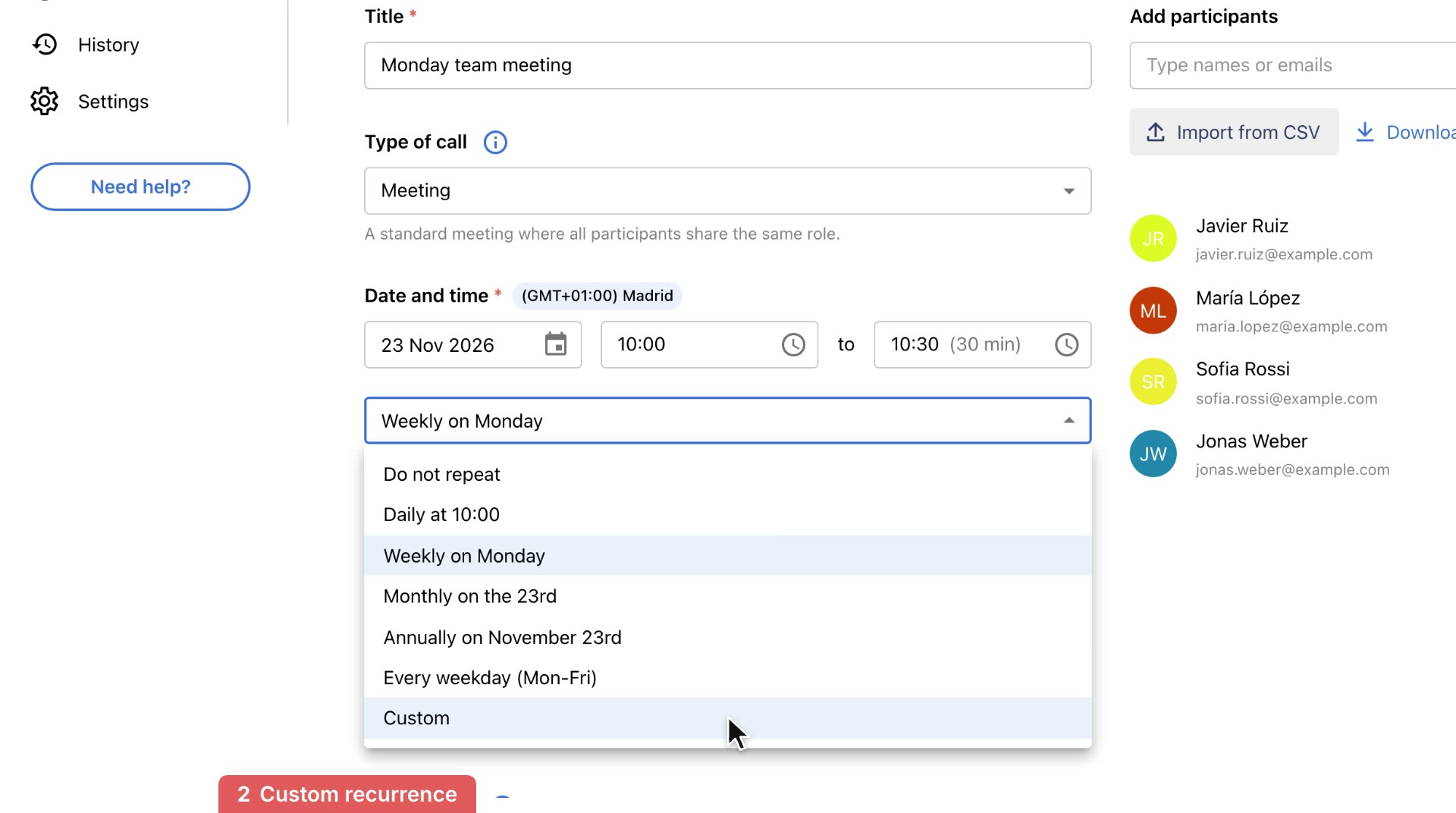
2Custom recurrence0:34
For any other rhythm, choose Custom.
Repeat every takes a number, and Day, Week, Month or Year; for weeks, you pick the days.
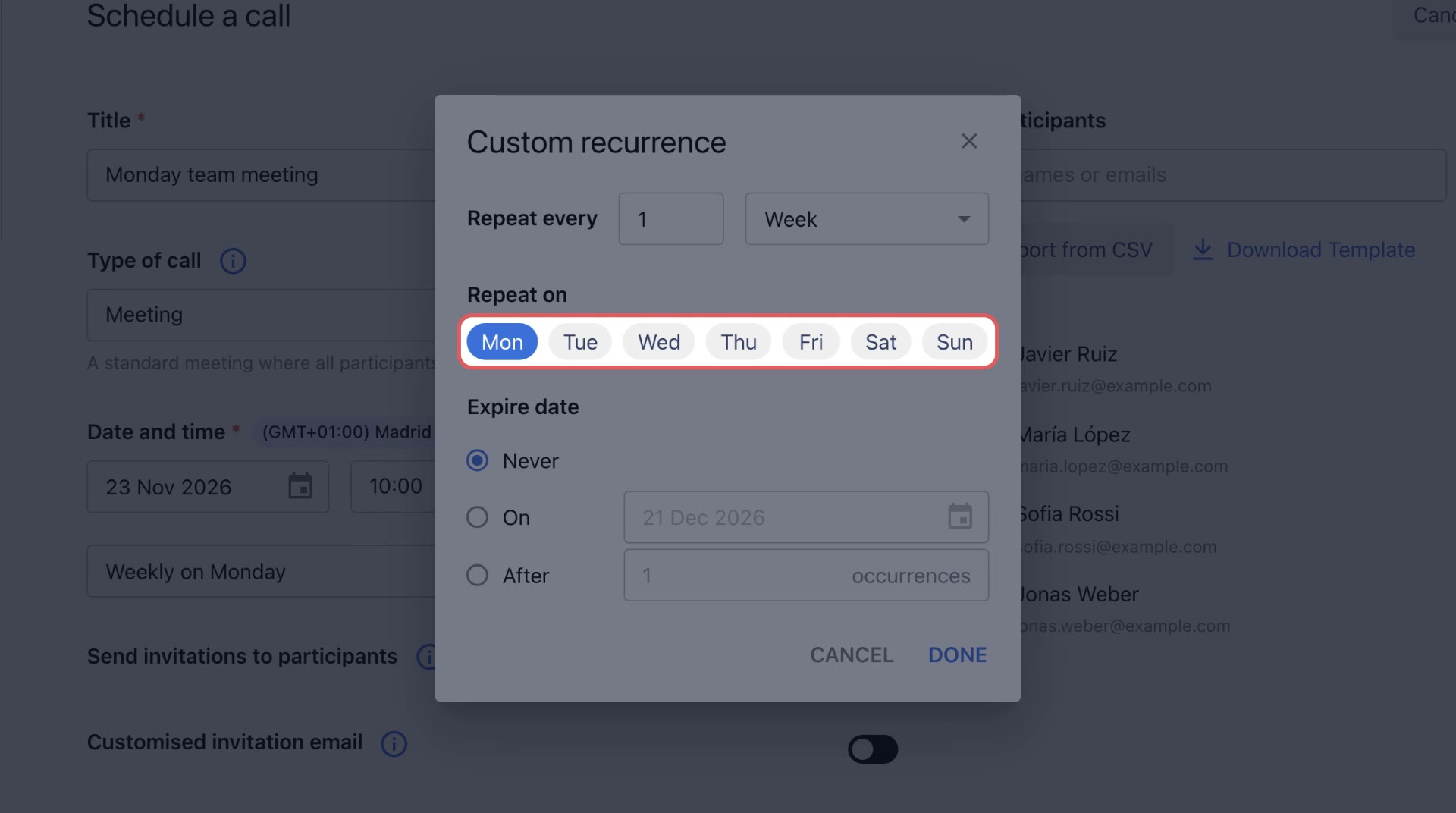
Under Expire date: Never, On a date, or After a number of occurrences.
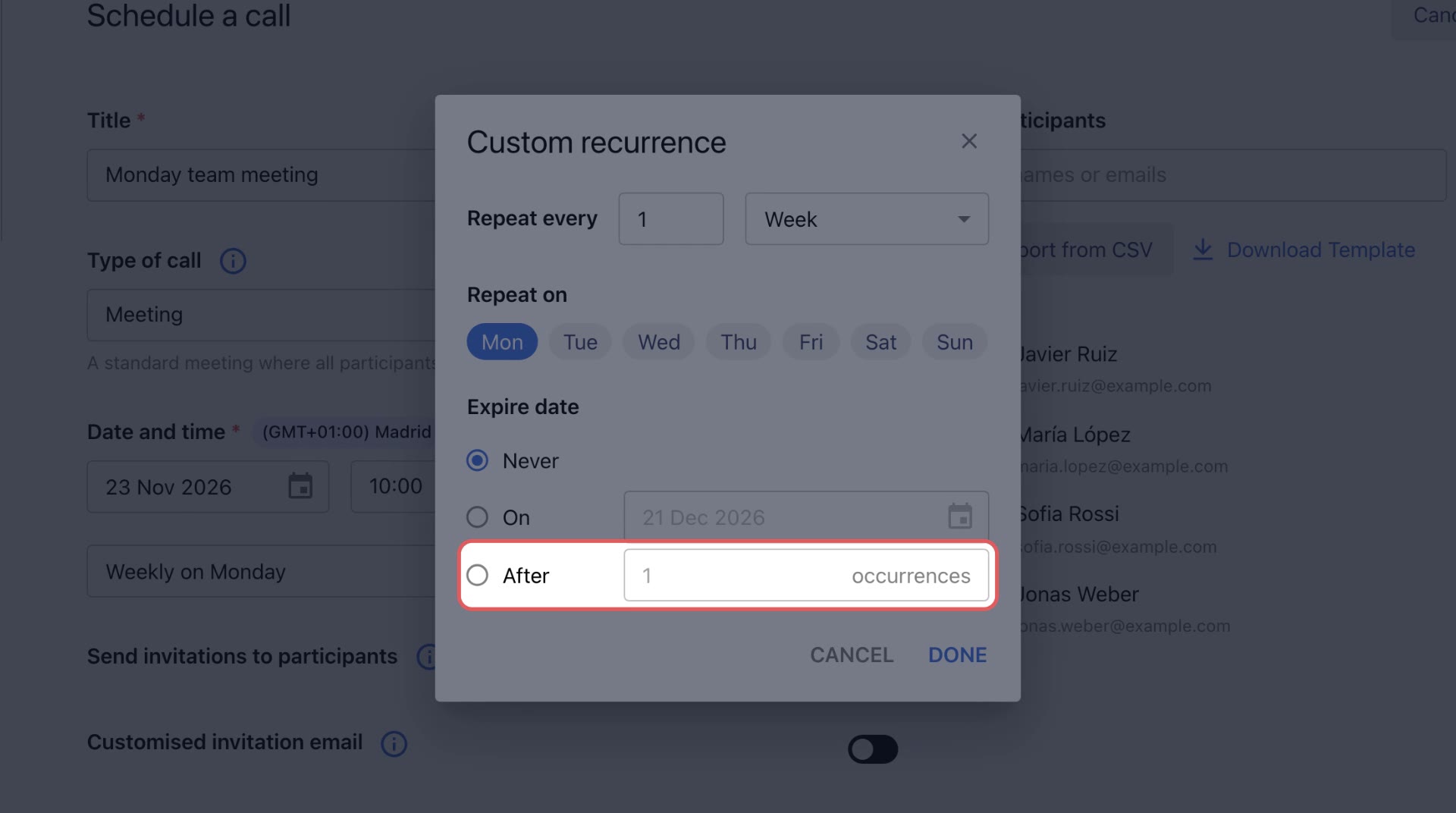
The team needs none of that, so Cancel keeps Weekly on Monday.
3Save the series0:56
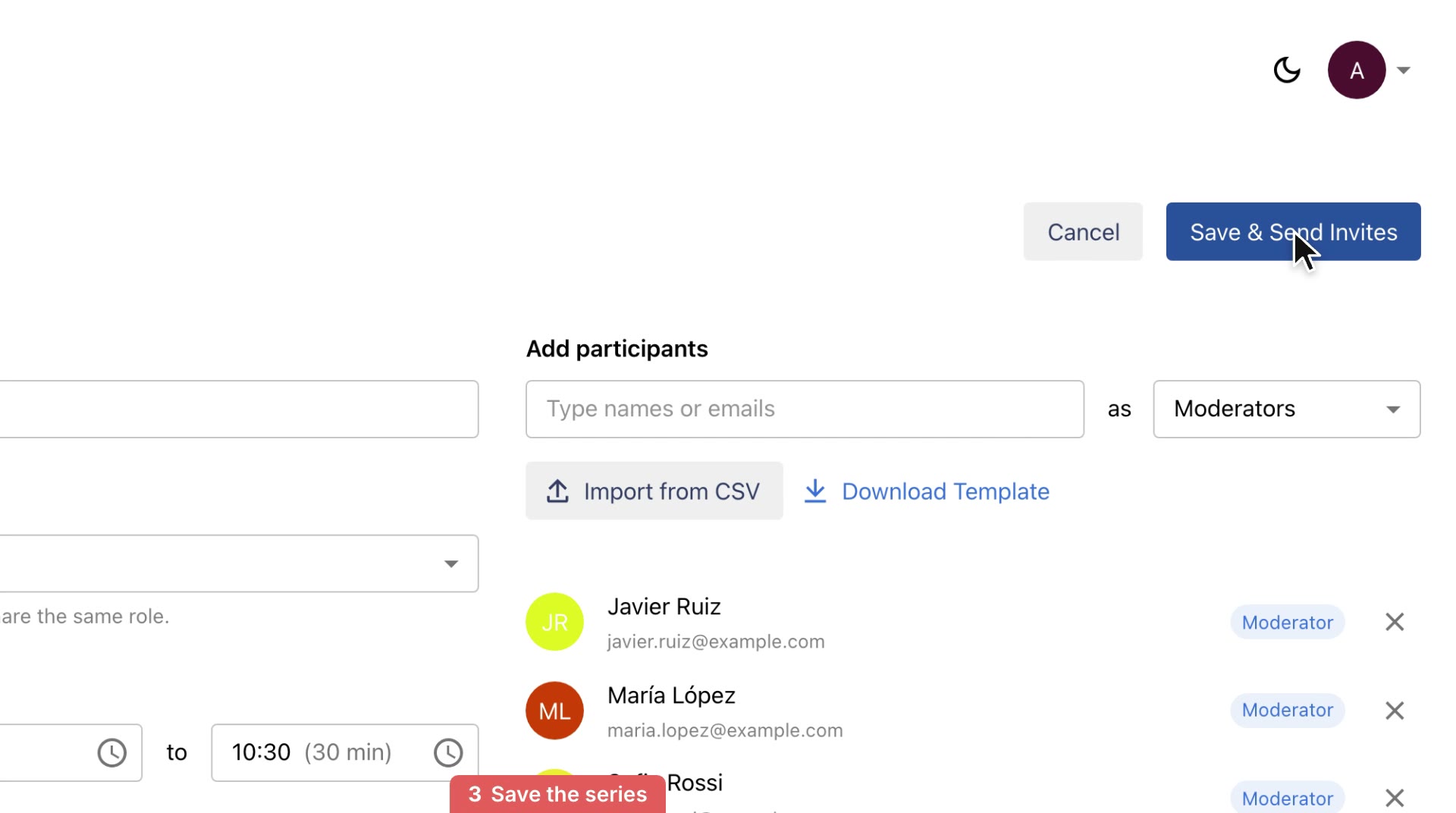
Now click Save and Send Invites.
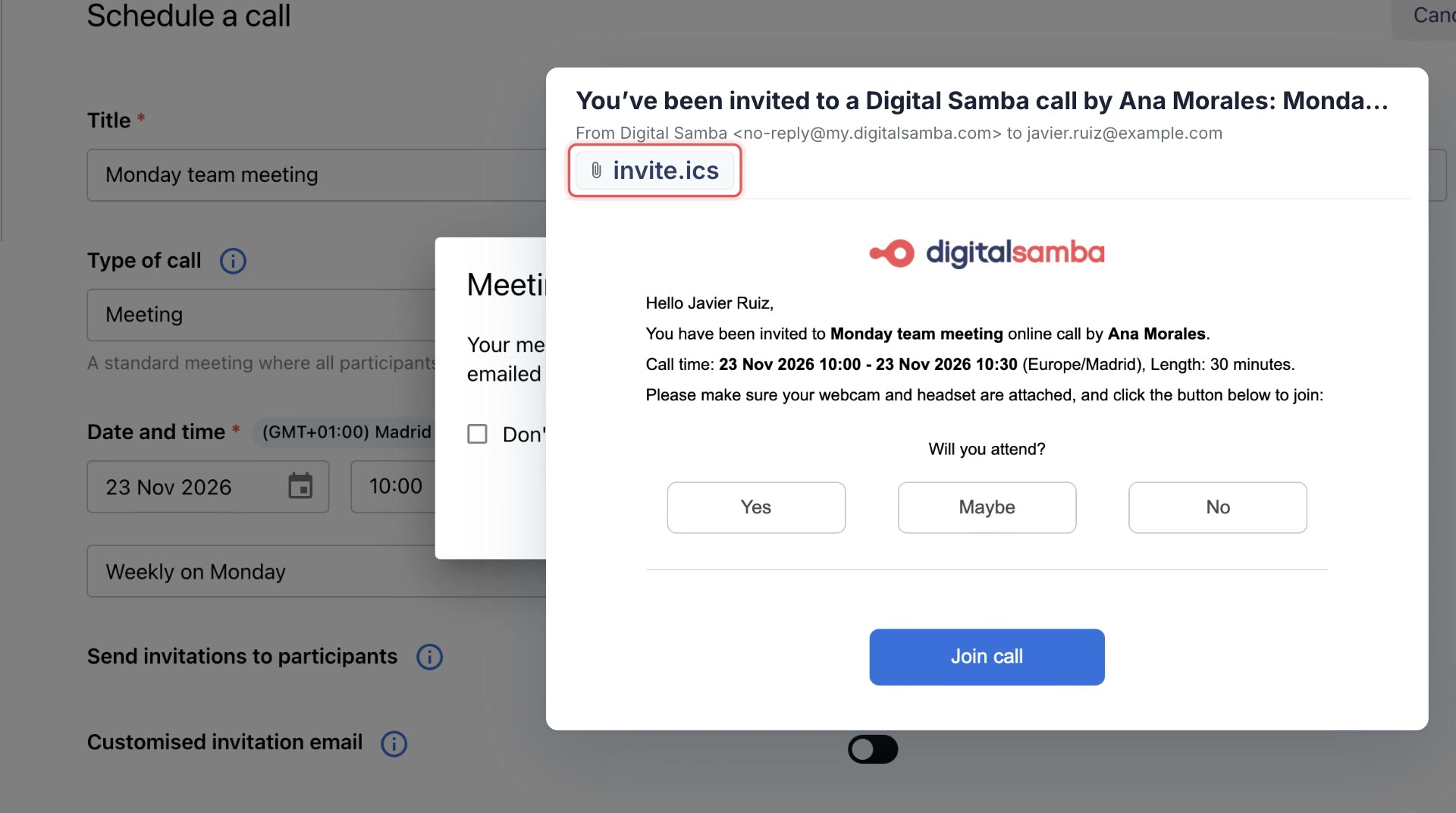
Each person gets one invitation for the whole series.
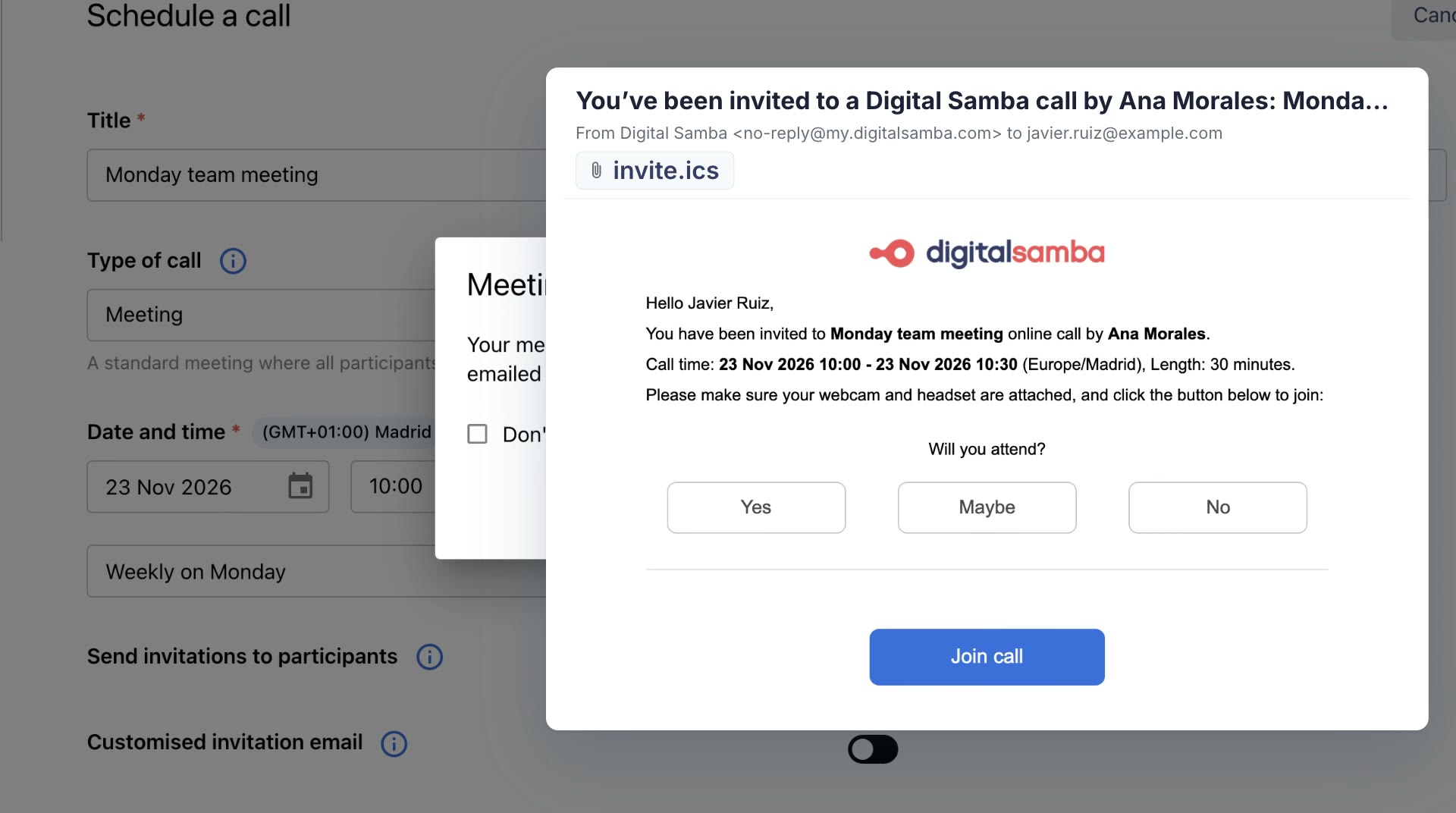
It names the first Monday, and its calendar file repeats the meeting every week.
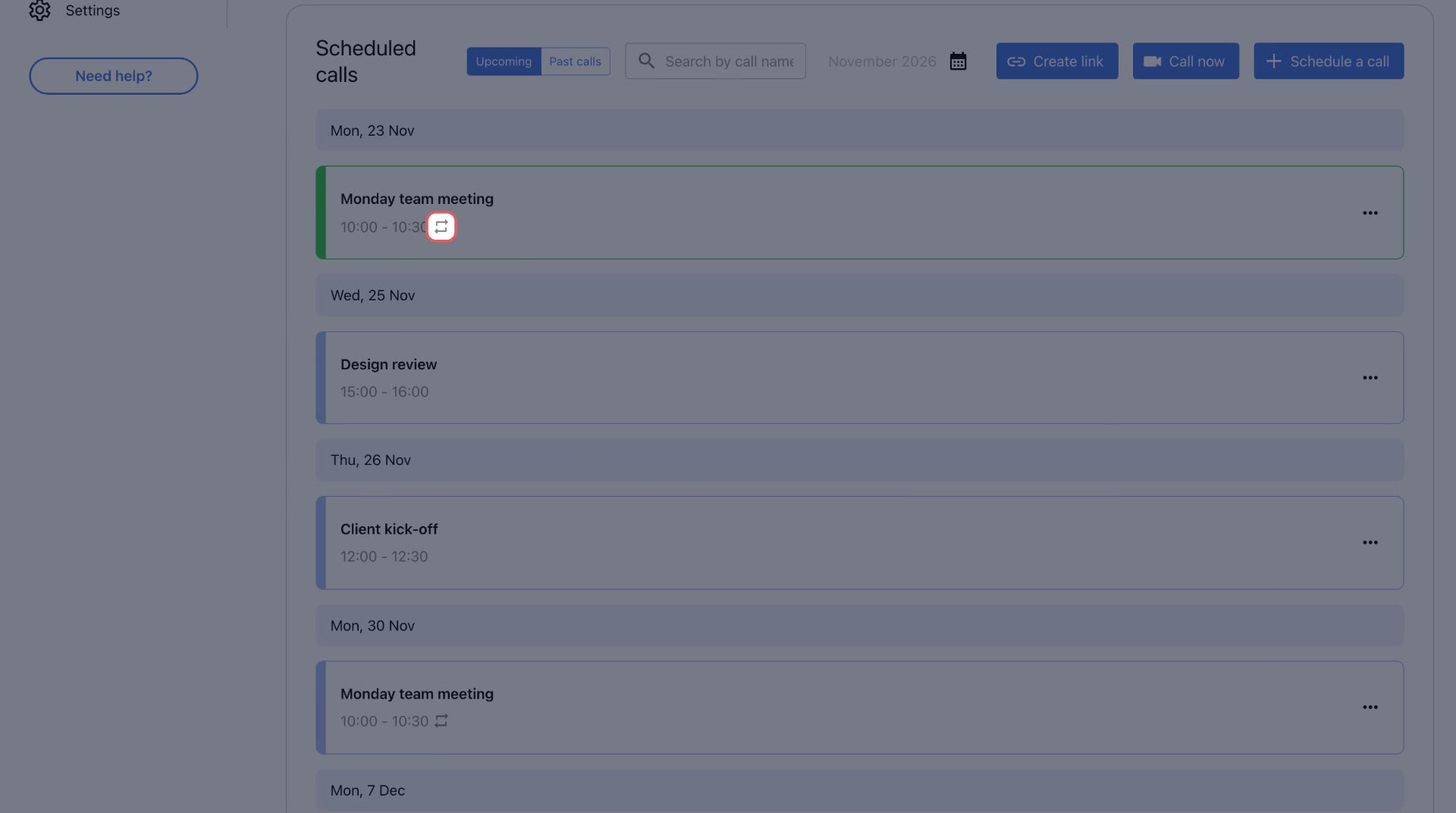
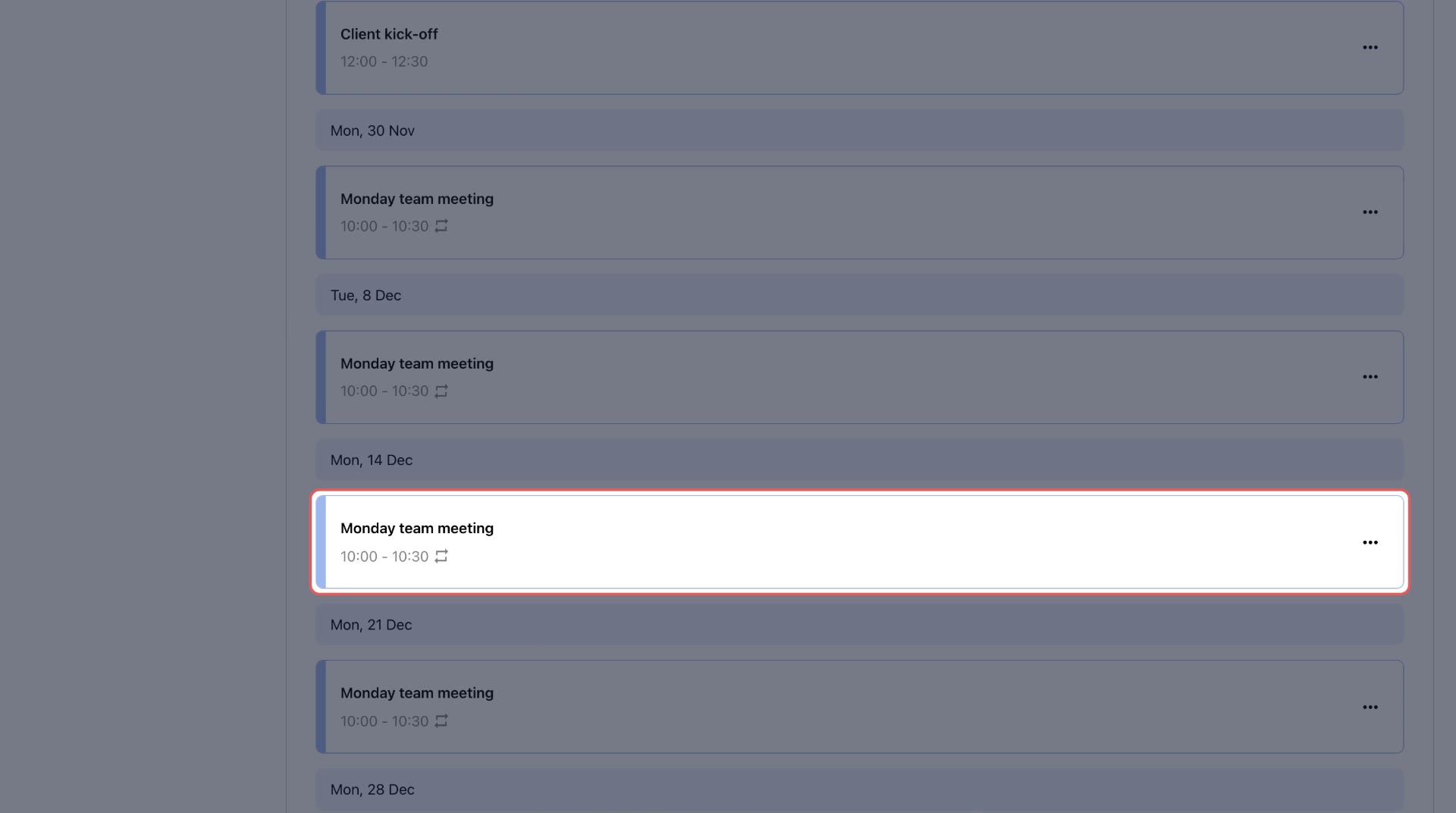
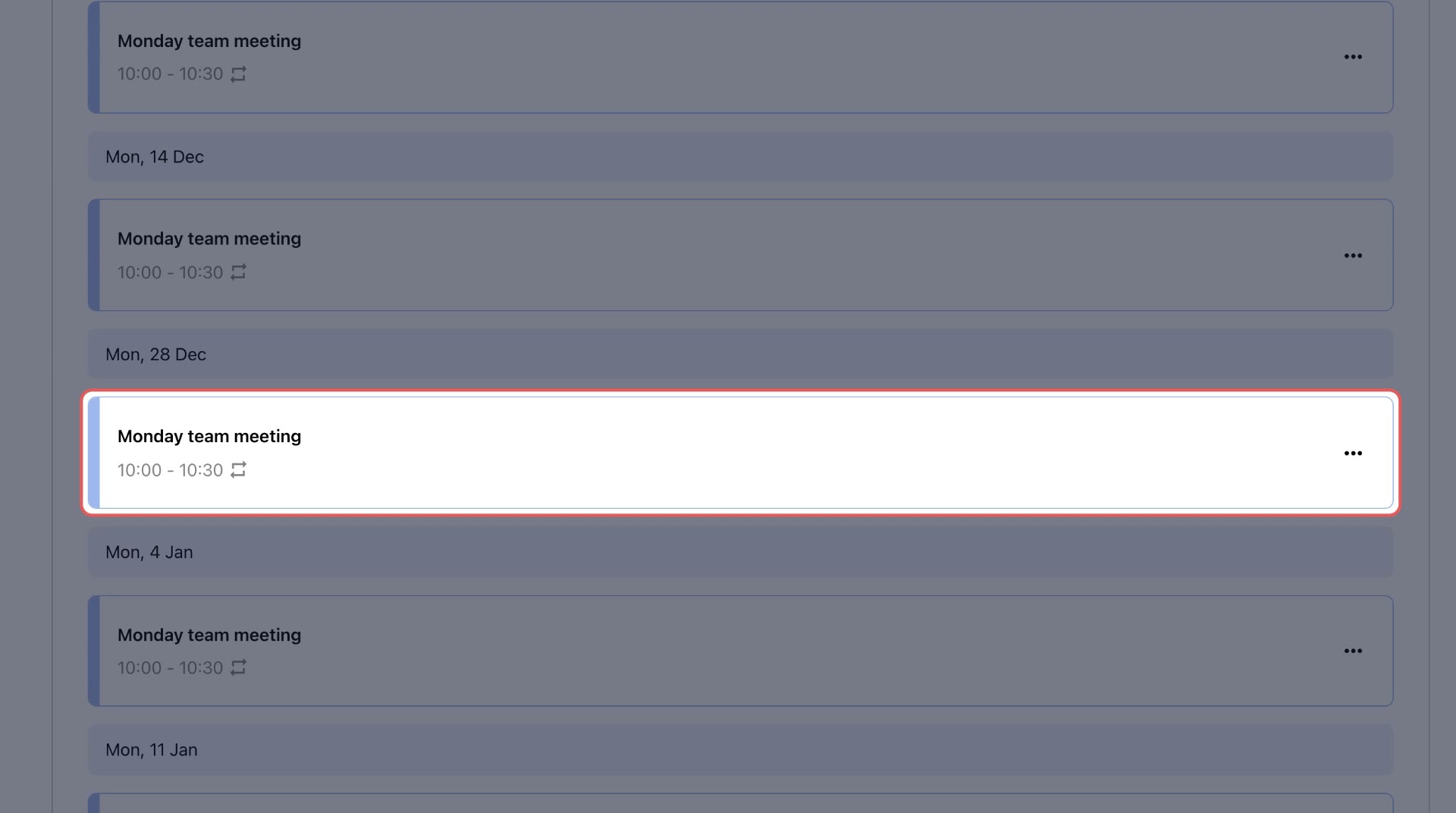
Your dashboard lists every Monday, each with a small repeat mark.
4This call only1:15
One Monday, the team needs Tuesday instead.
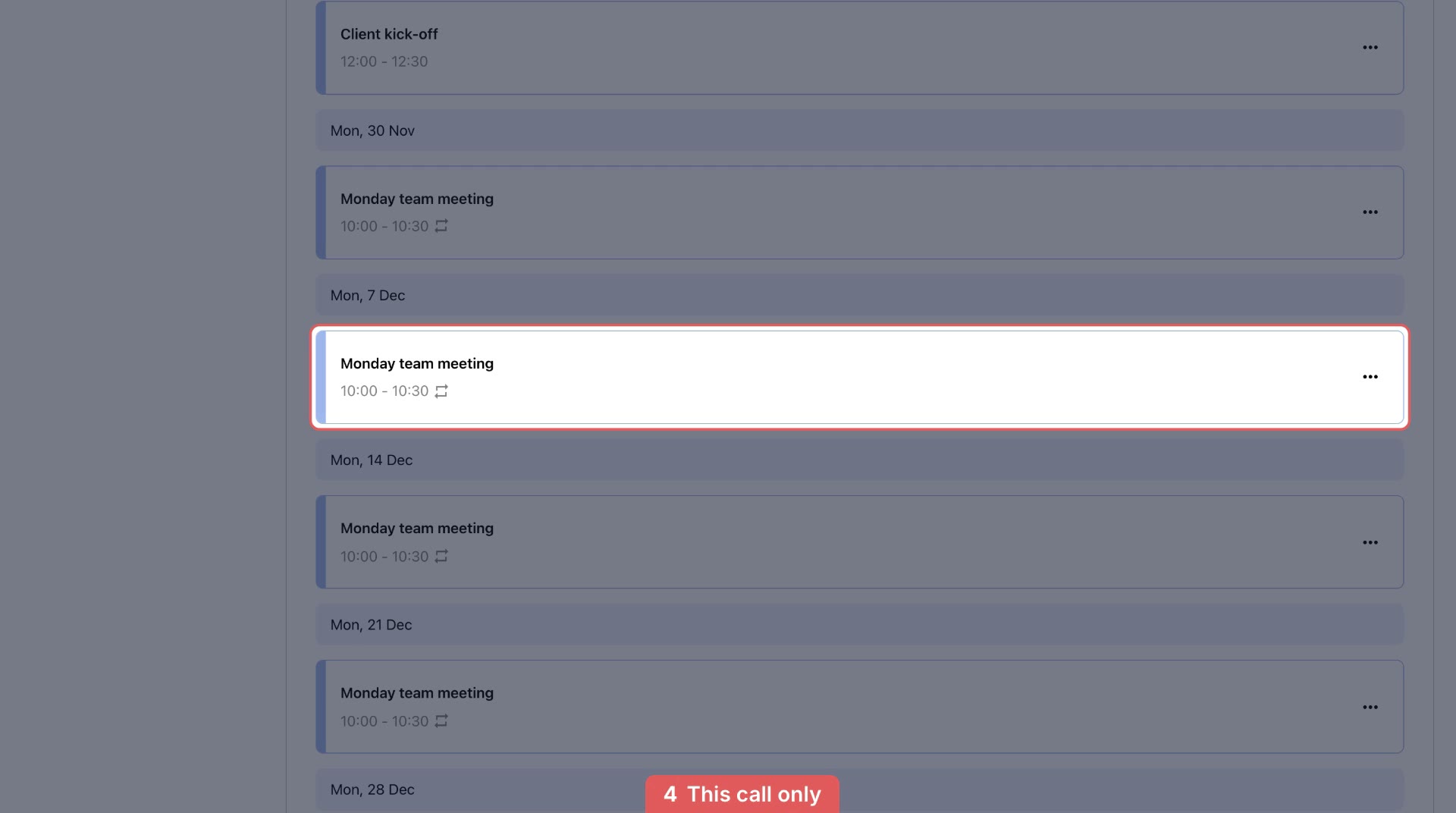
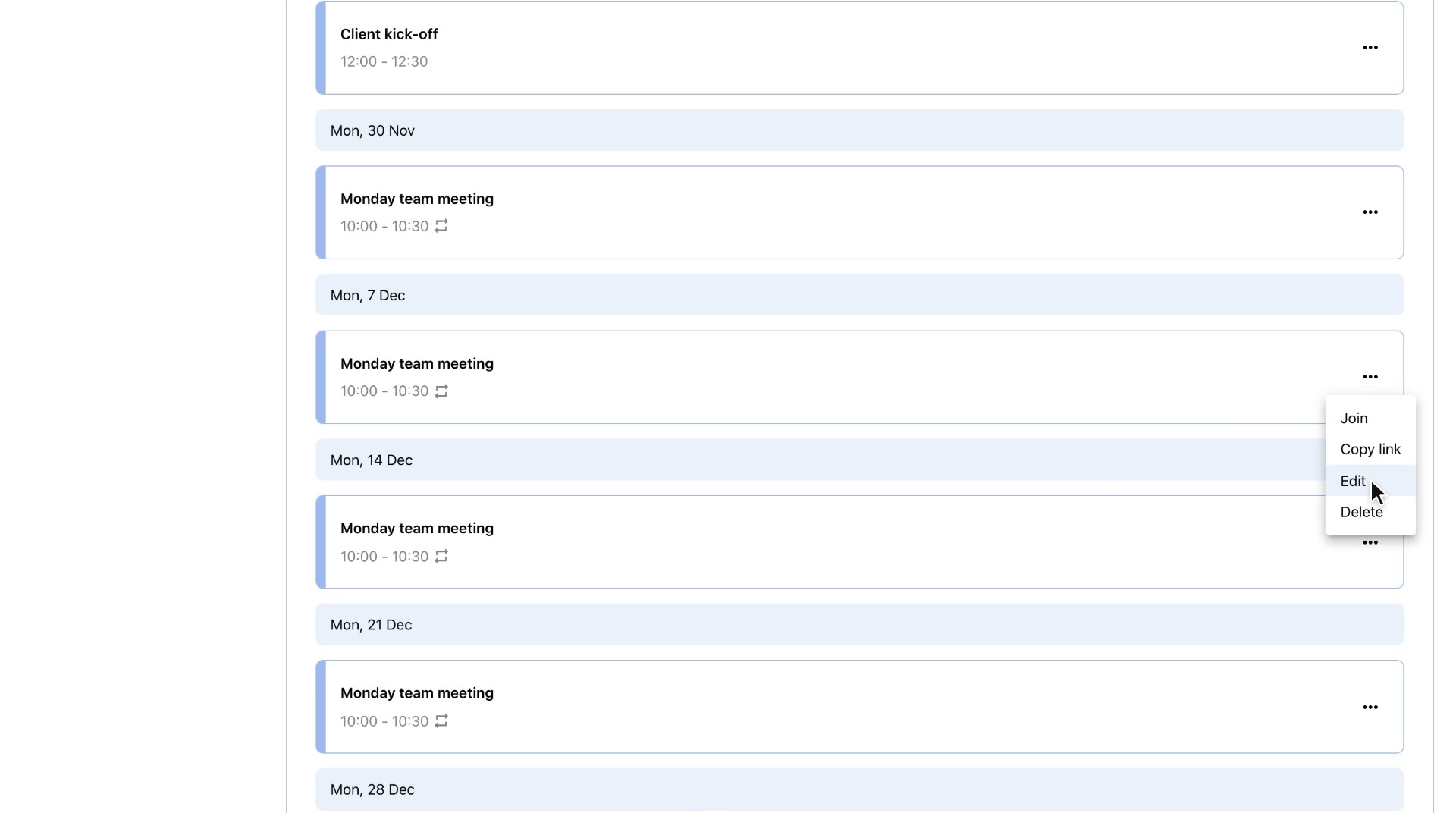
Open that Monday's menu on your dashboard, and click Edit.
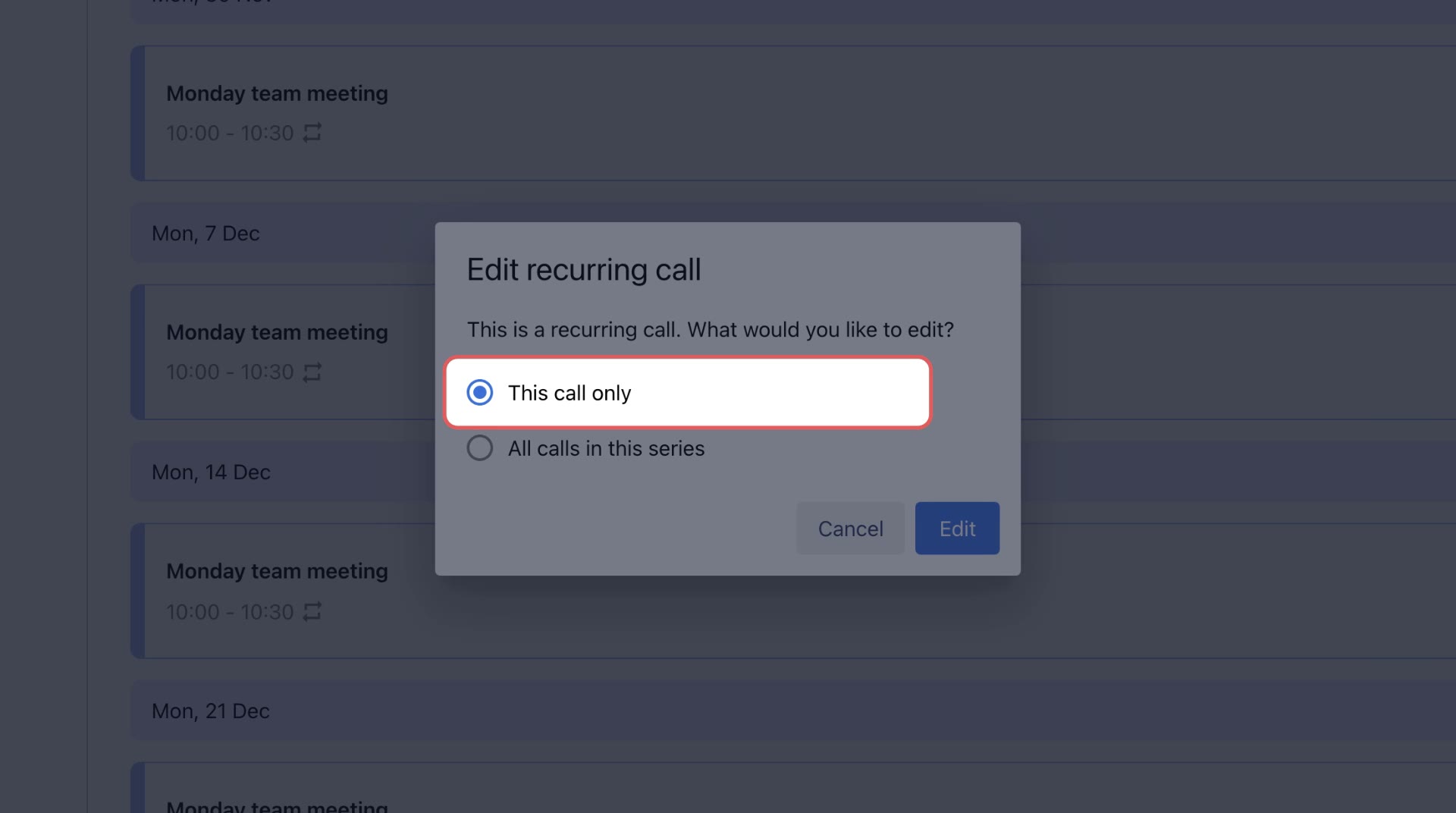
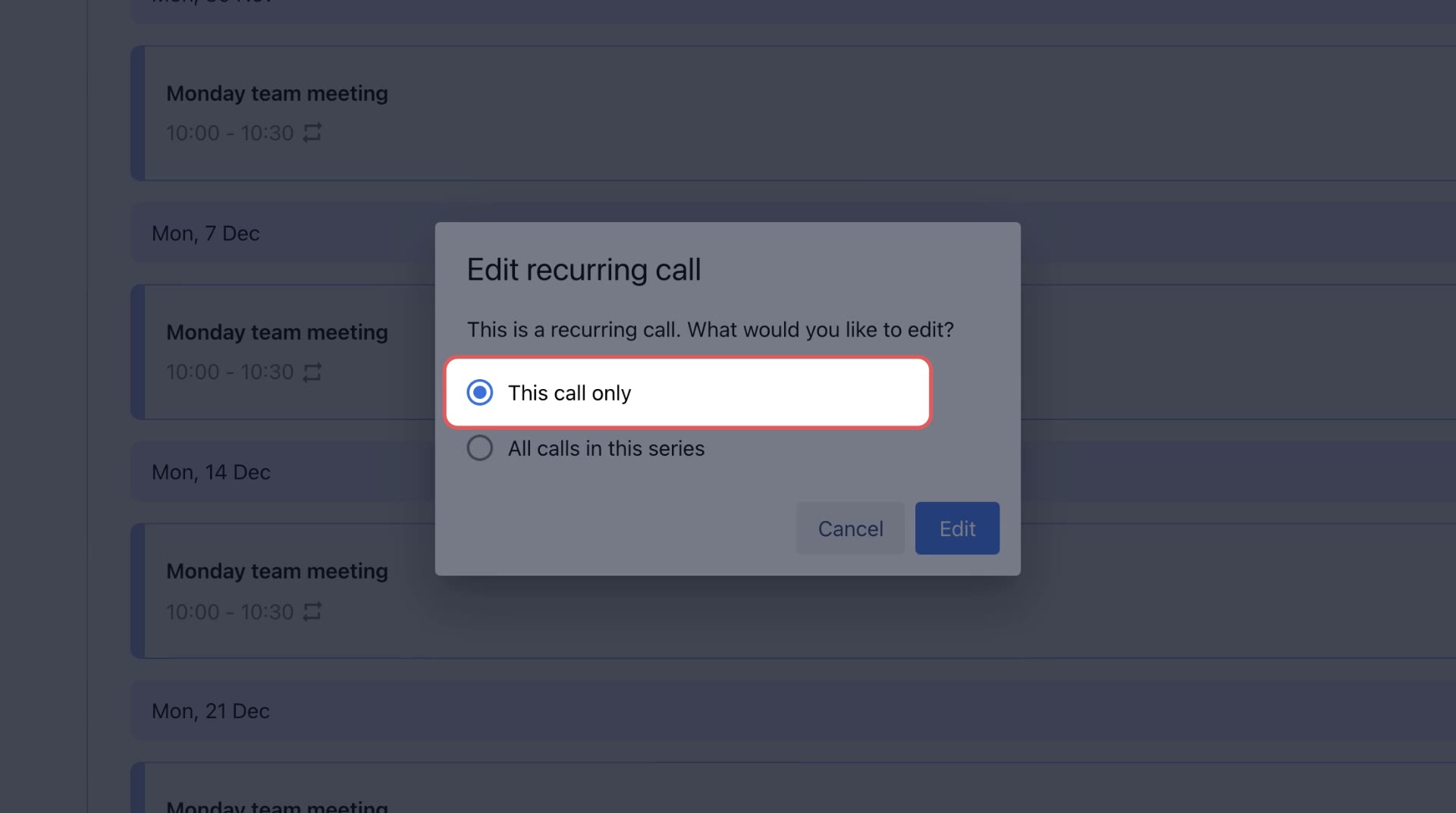
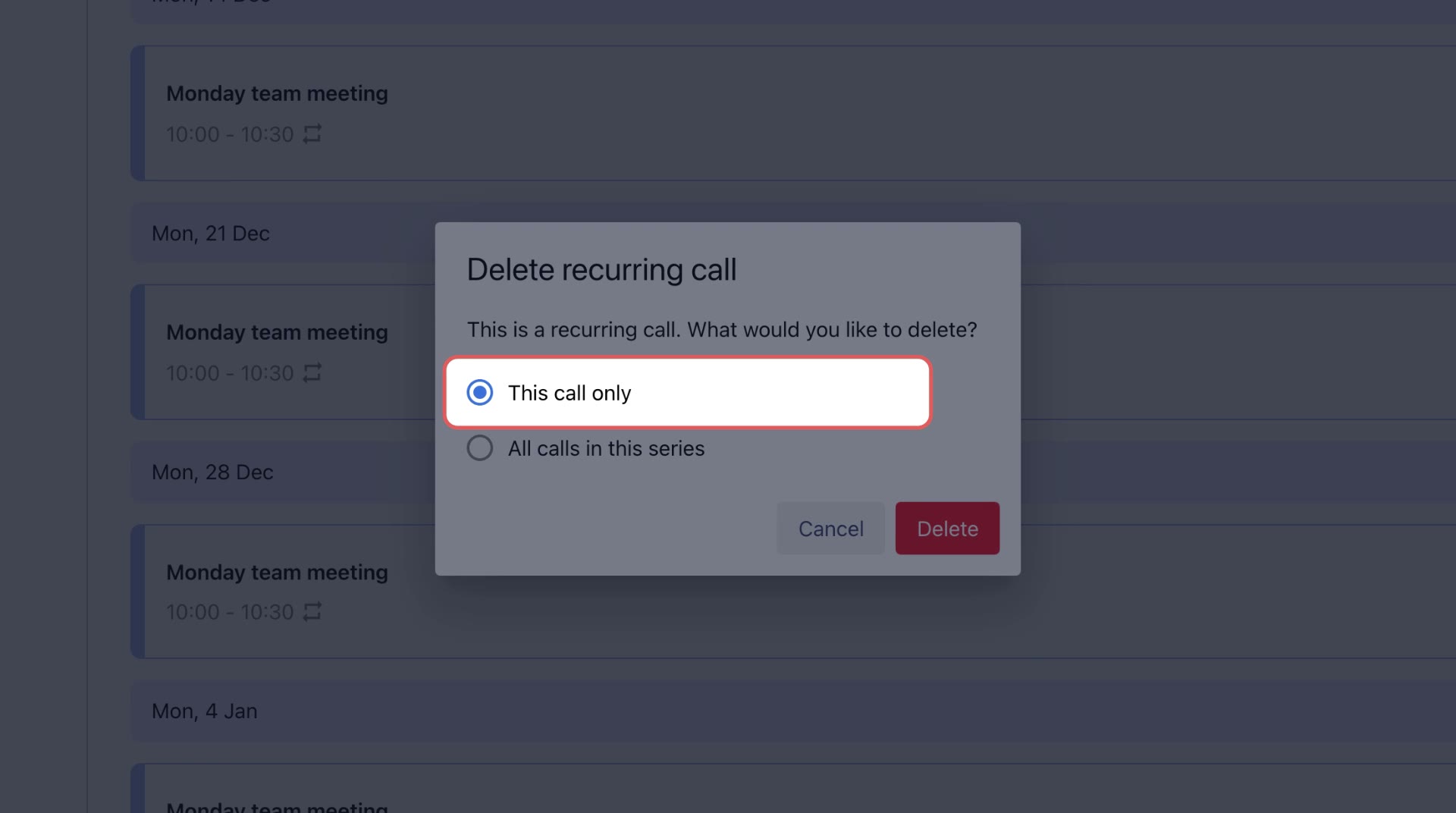
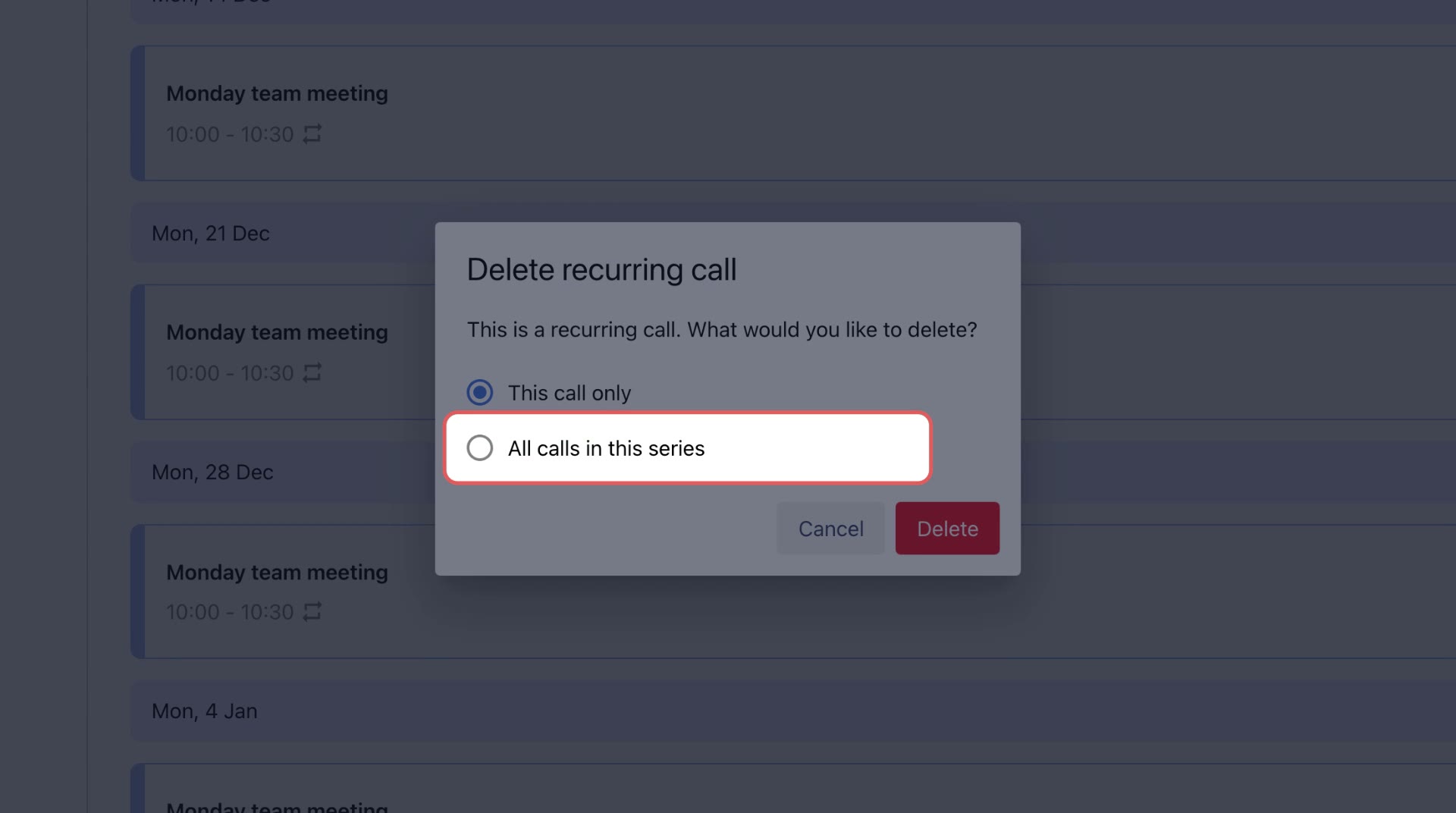
You're asked: This call only, or All calls in this series.
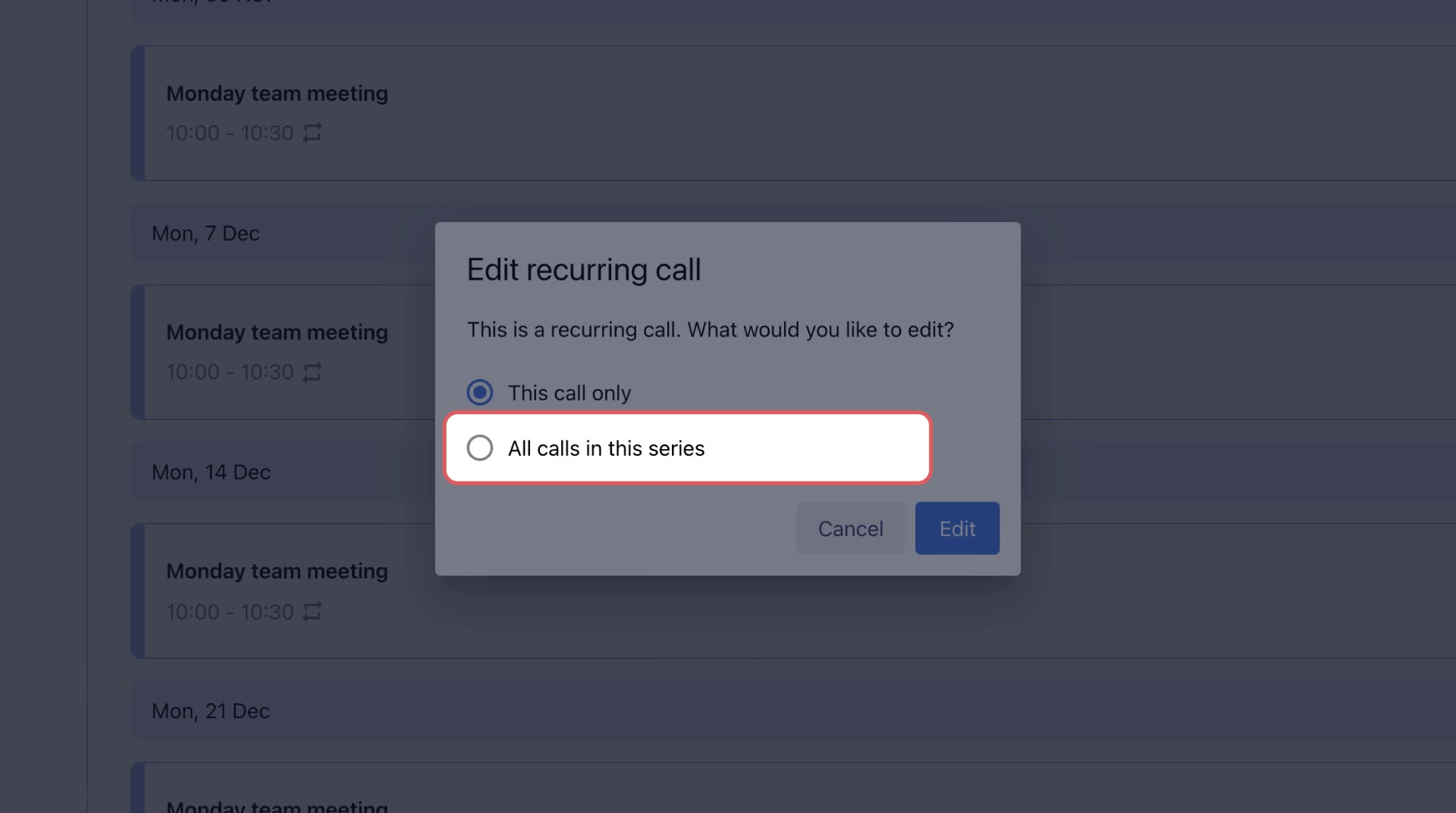
Keep This call only.
Repeat is greyed out, and there's no room link or registration here: those belong to the series.
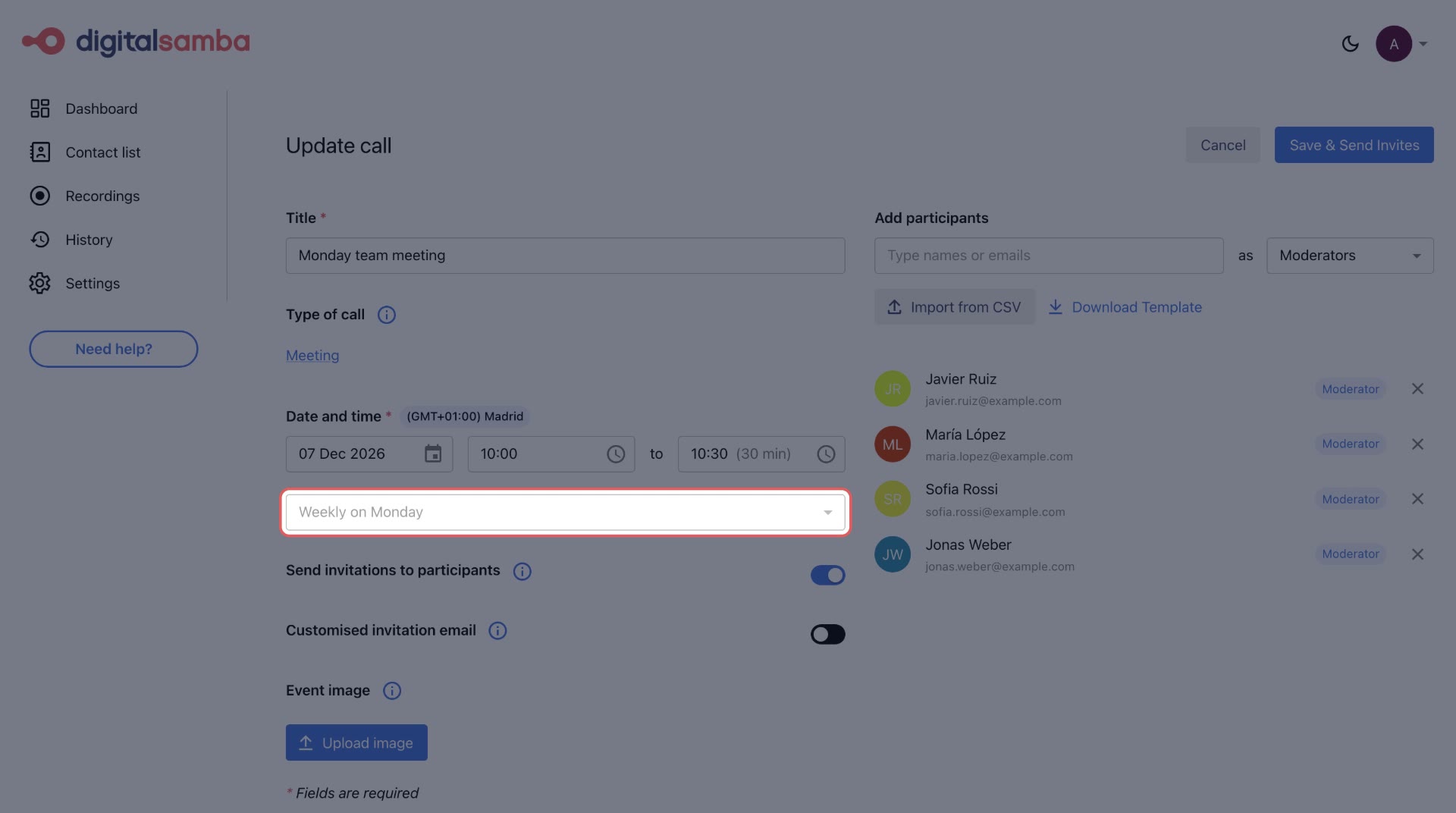
Pick Tuesday, and save.
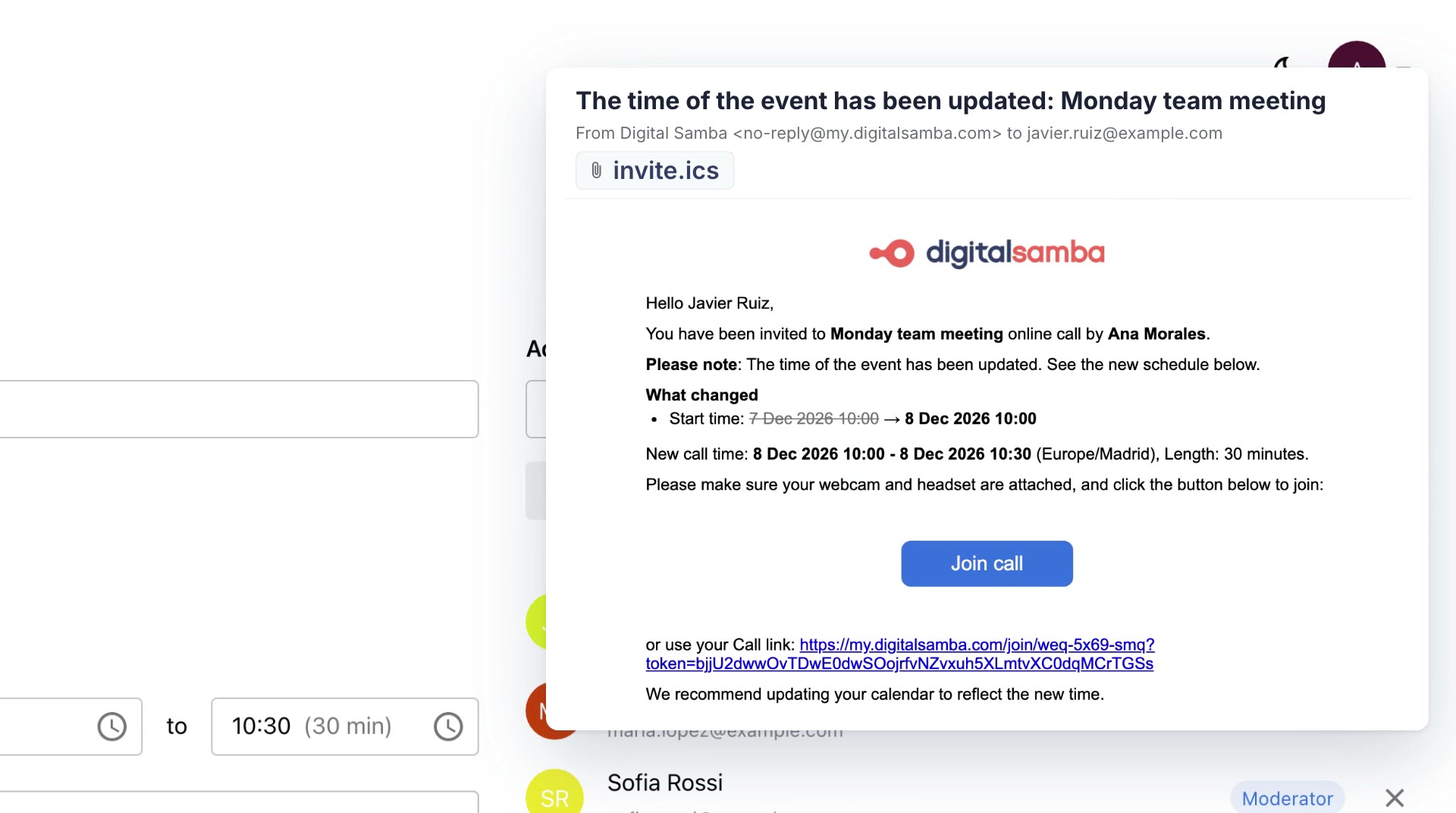
Everyone gets an update for that one date, with the same join link as before.
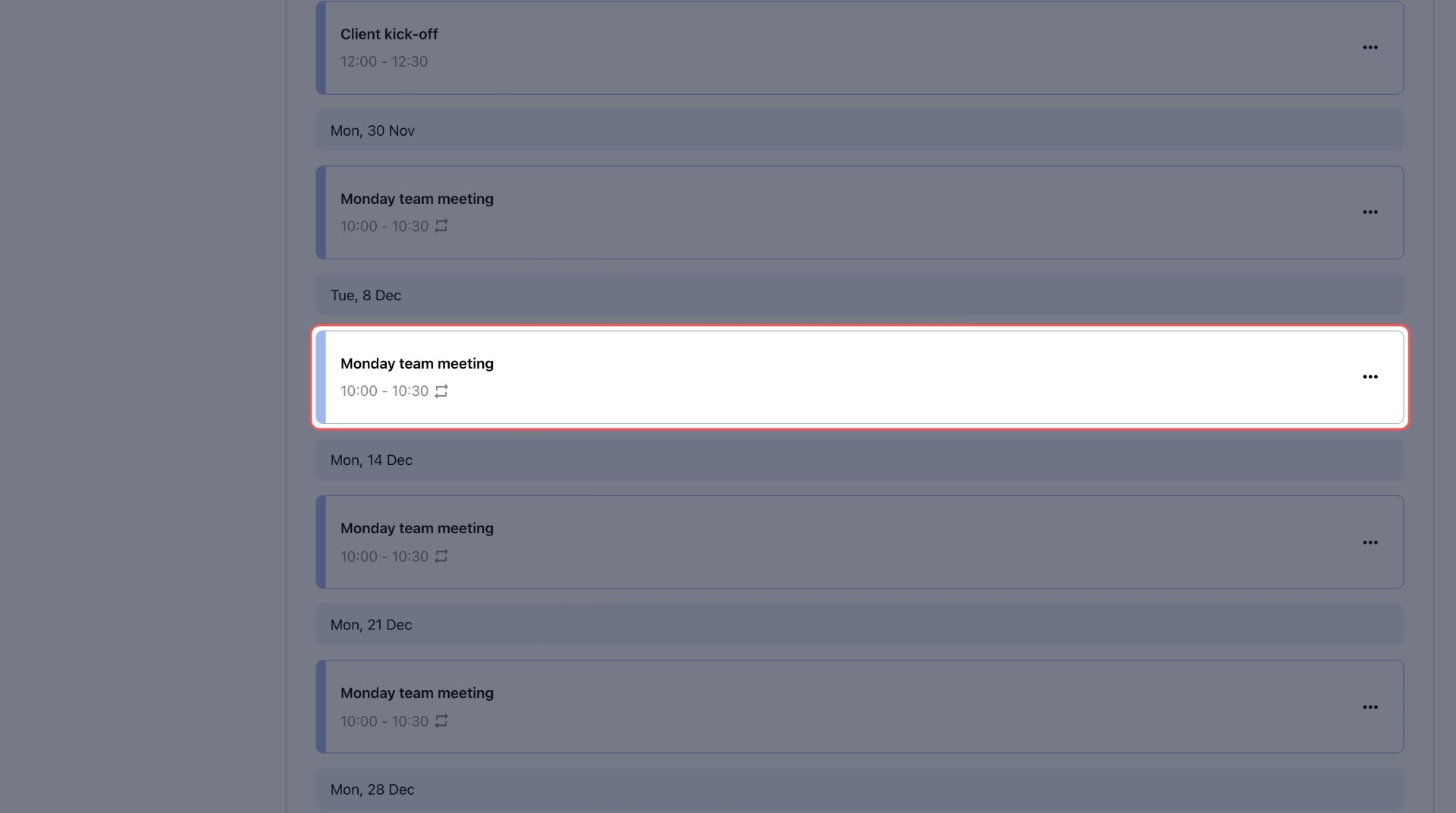
Every other Monday stays as it was.
5Delete one date1:49
Another Monday, the meeting is off.
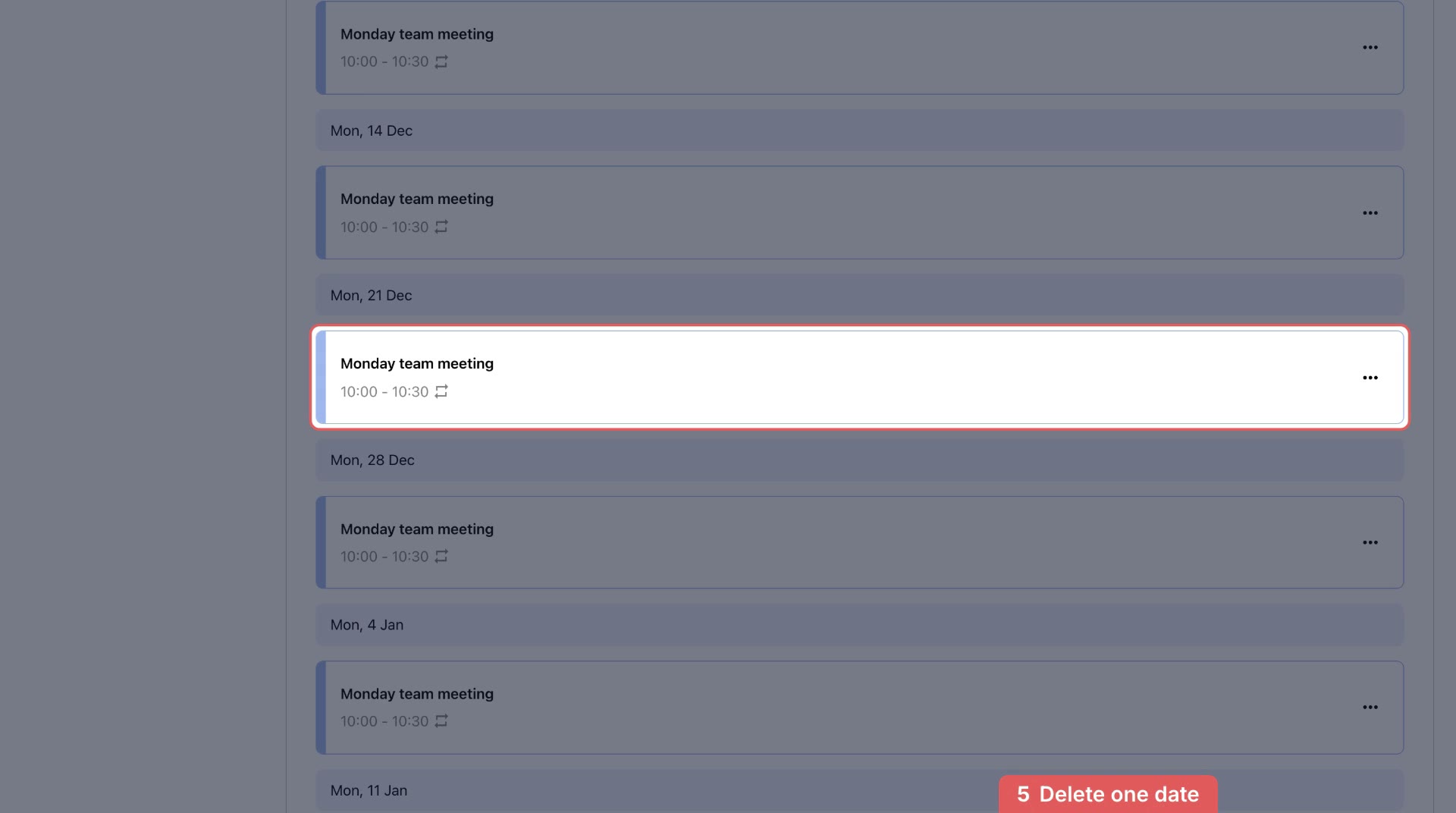
Open its menu, click Delete, keep This call only, and click Delete again.
Everyone invited gets an email that this call is cancelled, and the other Mondays stay.
All calls in this series would delete the whole series, the Tuesday included.
Good to know2:11
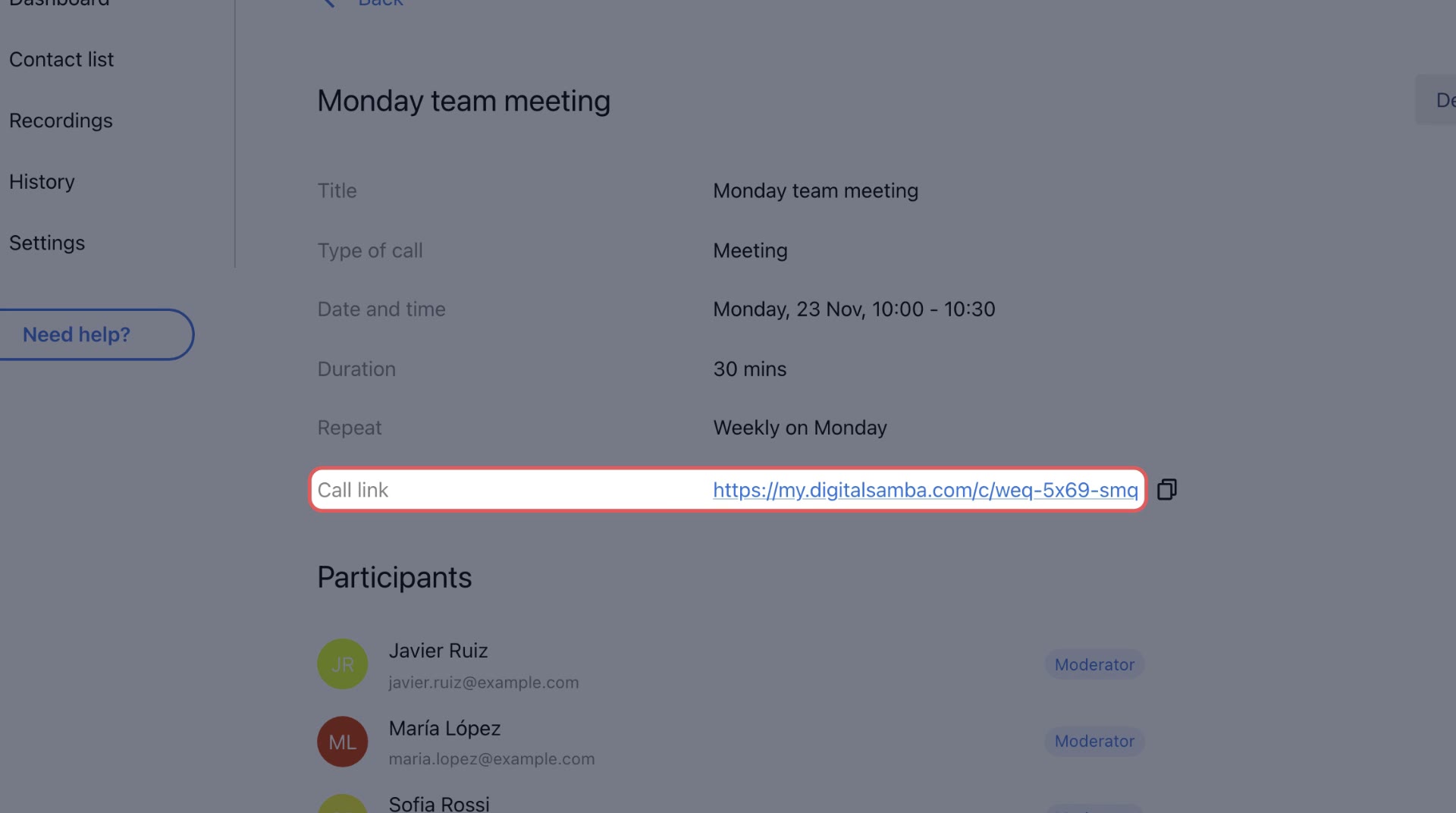
Every call in a series has the same call link.
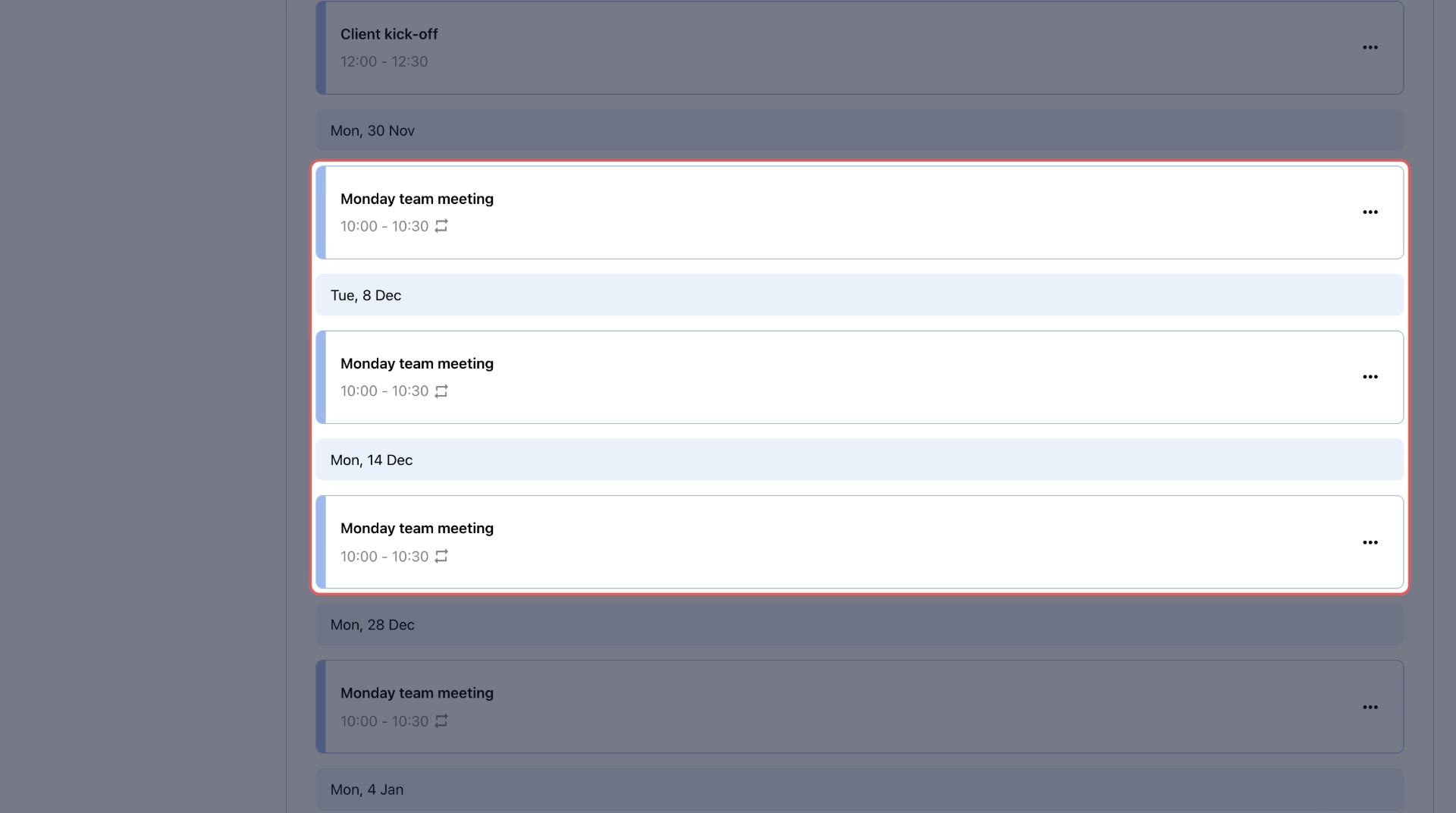
And a call you changed on its own keeps its changes when you later edit the whole series.
Recap2:24
So: choose a repeat when you schedule, use Custom for anything else, and This call only to change or delete one date.